
Required Scopes
Required Scopes
- Functions
- Input fields
- Fetch external data fields
- Output fields
- Labels
- Execution
- Asynchronous custom action execution
- Add custom execution messages with execution rules
Functions
Functions are snippets of code used to modify payloads before sending them to an API. You can also use functions to parse results from an API. HubSpot’s functions are backed by AWS Lambda. In the following code:event: contains the data that is passed to the functionexports.main: the method that will be called when the function is run.callback: used to return a result.
functionSource format will be in string. Ensure that the characters in the code have been escaped.
Generally, the definition of a function will follow the format:
Example function
In the example below, examine the input code, the function used, and the output produced. Function input:Input fields
Input field definitions will adhere to the following format:name: the internal name of the input field, separate from its label. The label displayed in the UI must be defined using the labels section of the custom action definition.type: the type of value required by the input.fieldType: how the input field should be rendered in the UI. Input fields mimic CRM properties, learn more about validtypeandfieldTypecombinationssupportedValueTypeshave two valid values:OBJECT_PROPERTY: the user can select a property from the enrolled object or an output from a previous action to use as the value of the field.STATIC_VALUE: this should be used in all other cases. It denotes that the user must enter a value themselves.
isRequired: this determines whether the user must give a value for this input or not
Using external data
Instead of hard coding field options, you can also fetch external data with external data fields. For example, you can retrieve a list of meeting projects or a list of products to serve as inputs. The input field should be formatted as follows:optionsURL will be formatted as follows:
The expected response should be formatted as follows:
In the code above, note that there’s pagination being set to limit the number of returned options. This instructs the workflow that more options can be loaded.In addition, the list of options is made searchable by including
searchable:true.Modify external data
To manage external data, you can include two hooks to customize the field option fetch lifecycle:PRE_FETCH_OPTIONS: a function that configures the payload sent from HubSpot.POST_FETCH_OPTIONS: a function that transforms the response from your service into a format that’s understood by HubSpot.
PRE_FETCH_OPTIONS
When included, this function will apply to each input field. You can apply it to a specific input field by specifying anid in the function definition.
The response should then be formatted as follows:
POST_FETCH_OPTIONS
To parse the response into an expected format, per the external data fields, use aPOST_FETCH_OPTIONS function. The definition for a POST_FETCH_OPTIONS function is the same as a PRE_FETCH_OPTIONS function. When external data fetch options are defined, a dropdown menu will be rendered in the input options for the action.
Output fields
Use output fields to configure output values from your custom action to use in other actions. The definition for output fields is similar to the definition for input fields:- name: how this field is referenced in other parts of the custom action. The label displayed in the UI must be defined using the
labelssection of the custom action - type: the type of value required by the input.
- fieldType: is how the input field should be rendered in the UI. Input fields mimic CRM properties, learn more about valid
typeandfieldTypecombinations
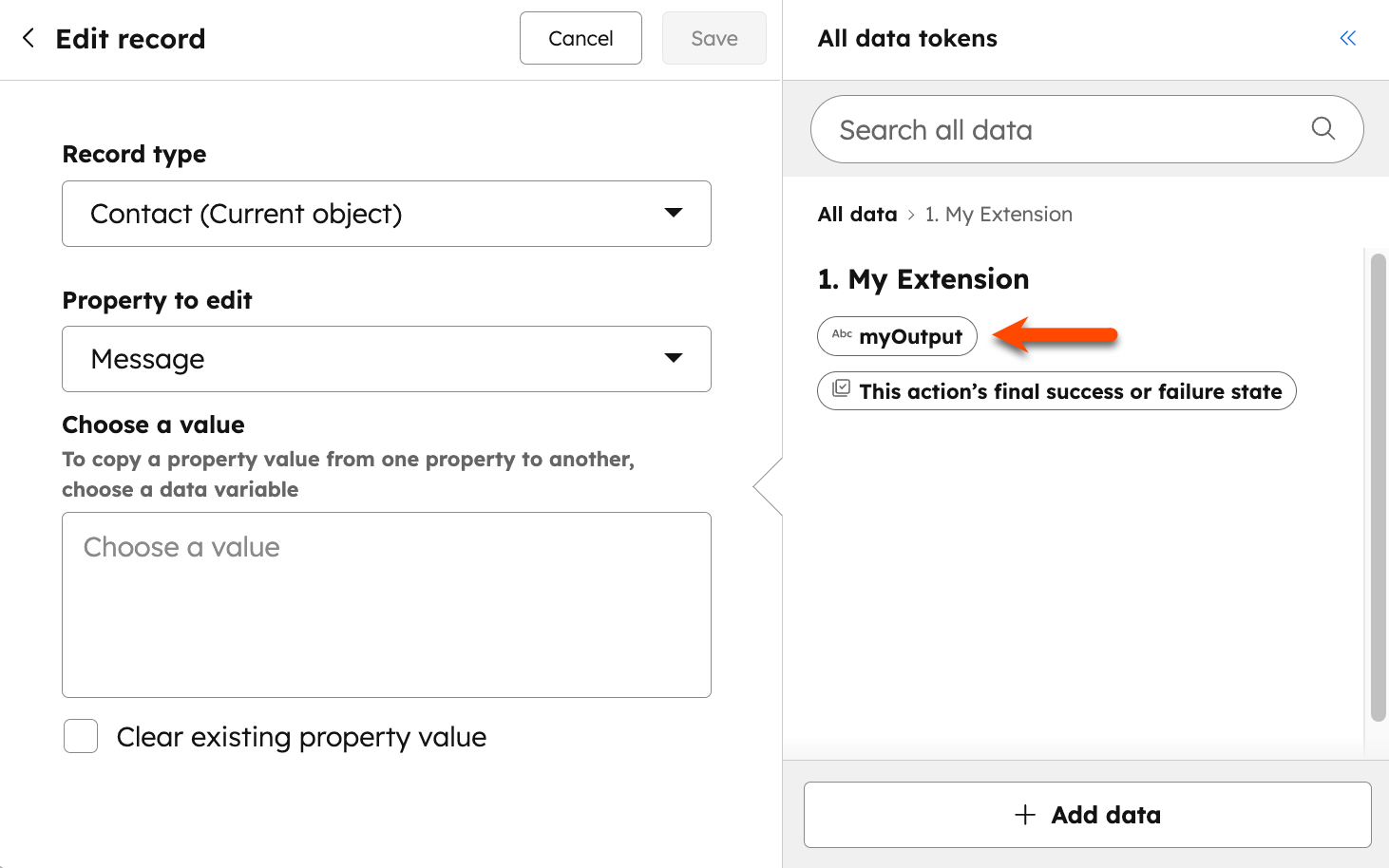
actionURL. For example, you can use the Edit record workflow action to copy output fields to an existing property in HubSpot.
Labels
Use labels to add text to your outputs or inputs in the workflow editor. Labels are loaded into HubSpot’s language service and may take a few minutes to display. Accounts set to different regions or languages will display the label in the corresponding language, if available.labels: copy describing what the action’s fields represent and what the action does. English labels are required, but labels can be specified in any of the following supported languages as well: French (fr), German (de), Japanese (ja), Spanish (es), Brazilian Portuguese (pt-br), and Dutch (nl).actionName: the action’s name shown in the Choose an action panel in the workflow editor.actionDescription: a detailed description for the action shown when the user is configuring the custom action.actionCardContent: a summarized description shown in the action’s card.appDisplayName: The name of the section in the Choose an action panel where all the actions for the app are displayed. If appDisplayName is defined for multiple actions, the first one found is used.inputFieldLabels: an object that maps the definitions from inputFields to the corresponding labels the user will see when configuring the action.outputFieldLabels: an object that maps the definitions fromoutputFieldsto the corresponding labels shown in the workflows tool.inputFieldDescriptions: an object that maps the definitions frominputFieldsto the descriptions below the corresponding labels.executionRules: an object that maps the definitions from yourexecutionRulesto messages that will be shown for action execution results on the workflow history. Learn more about execution rules.
Execution
When an action is executed, a HTTPS request is sent to theactionUrl.
The execution payload will be formatted as follows:
The expected response should be formatted as follows:
outputFields: the values of the output fields defined earlier. These values can be used in later actions.hs_execution_state: an optional special value that can added tooutputFields. It is not possible to specify a retry, only the following values can be added:- SUCCESS
- FAIL_CONTINUE
- BLOCK
- ASYNC
SUCCESS and FAIL_CONTINUE indicate that the action has completed and the workflow should move on to the next action to execute. If no execution state is specified, status codes will be used to determine the result of an action:
- 2xx status codes: the action has completed successfully.
- 4xx status codes: the action has failed. The exception is 429 Rate Limited status codes, which are re-treated as retries, and the Retry-After header is respected.
- 5xx status codes: there was a temporary problem with the service, and the action will be retried at a later time. An exponential backoff system is used for retries. Retries will continue for up to 3 days before failing.
PRE_ACTION_EXECUTION functions
UsePRE_ACTION_EXECUTION functions to format data before sending it to the actionURL
The function definition will be formatted as follows:
POST_ACTION_EXECUTION functions
UsePOST_ACTION_EXECUTION functions to format data received from the actionURL before returning it to HubSpot.
Function definition
Function input
The function receives a single field containing the raw response body from youractionURL:
PRE_ACTION_EXECUTION, the input does not include context fields such as callbackId, origin, context, object, or inputFields.
Function output
Return the formatted output fields to HubSpot:Asynchronous execution
Execute custom workflow actions asynchronously by blocking and later completing the action.Blocking action execution
Use custom actions to block workflow execution. Instead of executing the next action in the workflow after receiving a completed (2xx or 4xx status code) response from your service, the workflow will stop executing for a specific enrollment until a request is sent to continue.
When blocking, you can specify a value for the hs_default_expiration field. After which, your custom action will be considered expired. The execution of the workflow will then resume. Actions following your custom action will be executed, even if the blocked action is not completed.
To block a custom action, your action execution response must have the following format:
Complete a blocked execution
To complete a blocked custom action execution, make aPOST request to /automation/actions/callbacks/2026-09/{callbackId}/complete.
Format the request body as follows:
Add custom execution messages with rules
Specify rules on your action to determine which message displays on the workflow’s history page when the action executes. The rules will be matched against the output values from your action. These output values should be provided in theactionURL’s response body, in the following format:
executionRules will be tested in the order provided. If there are multiple matches, only the message from the first rule that matches is displayed to the user.
The rule matches when the execution output corresponds to a specified value in the rule. For example, consider this set of executionRules:
{"errorCode": "ALREADY_EXISTS", "widgetName": "Test widget"}: this would match the first rule, sinceerrorCodeis equal toALREADY_EXISTS. In this instance, even though there is awidgetNameoutput, it isn’t used in the rule definition so any value is allowed.{"errorCode": "WIDGET_SIZE", "sizeError": "TOO_SMALL"}: this would match the second rule, sinceTOO_SMALLis one of the matchingsizeErrors, anderrorCodeisWIDGET_SIZE.{"errorCode": "WIDGET_SIZE", "sizeError": "NOT_A_NUMBER"}: this would match the third rule, since even though theerrorCodeisWIDGET_SIZE, thesizeErrordoes not match any of the values specified by the second rule (TOO_SMALLorTOO_BIG).