> ## Documentation Index
> Fetch the complete documentation index at: https://developers.hubspot.com/docs/llms.txt
> Use this file to discover all available pages before exploring further.

---
id: c14d4023-e0a7-4dbd-968b-239688a10ab6
---

# Custom workflow actions reference

> Reference information for creating custom workflow actions.

export const ScopesList = ({scopes = [], description = "This API requires one of the following scopes:"}) => {
  if (!scopes || scopes.length === 0) {
    return null;
  }
  const sortedScopes = scopes.sort((a, b) => a.localeCompare(b));
  return <div>
      <div className="text-sm mb-2">{description}</div>
      <div>
        {sortedScopes.map((scope, index) => <div key={index}>
            <code>
              <span className="text-xs">{scope}</span>
            </code>
          </div>)}
      </div>
    </div>;
};

<Accordion title="Scope requirements">
  <ScopesList
    scopes={[
  'automation'
]}
  />
</Accordion>

When setting up [custom workflow actions](/api-reference/latest/automation/workflow-actions/custom-action-guide) for your [workflows](https://knowledge.hubspot.com/workflows/create-workflows), you'll need to define the action. Below, find reference information for setting up custom workflow actions, including functions, input fields, and more.

You can also skip forward to the following sections:

* [Functions](#functions)
* [Input fields](#input-fields)
* [Fetch external data fields](#using-external-data)
* [Output fields](#output-fields)
* [Labels](#labels)
* [Execution](#execution)
* [Asynchronous custom action execution](#asynchronous-execution)
* [Add custom execution messages with execution rules](#add-custom-execution-messages-with-rules)

## Functions

Functions are snippets of code used to modify payloads before sending them to an API. You can also use functions to parse results from an API. HubSpot's functions are backed by [AWS Lambda](https://docs.aws.amazon.com/lambda/latest/dg/nodejs-handler.html). In the following code:

* `event`: contains the data that is passed to the function
* `exports.main`: the method that will be called when the function is run.
* `callback`: used to return a result.

The code should be formatted as follows:

```js theme={null}
exports.main = (event, callback) => {
  callback({
    "data": {
      "field": "email",
      "phone": "1234567890"
    }
  });
}
```

When setting up a function, the `functionSource` format will be in string. Ensure that the characters in the code have been escaped.

Generally, the definition of a function will follow the format:

```json theme={null}
{
  "functionType": "PRE_ACTION_EXECUTION",
  "functionSource": "exports.main = (event, callback) => {\r\n  callback({\r\n    \"data\": {\r\n      \"field\": \"email\",\r\n      \"phone\": \"1234567890\" \r\n    }\r\n  });\r\n"
}
```

### Example function

In the example below, examine the input code, the function used, and the output produced.

**Function input:**

```json theme={null}
{
  "callbackId": "ap-102670506-56777914962-11-0",
  "origin": {
    "portalId": 102670506,
    "actionDefinitionId": 10860211,
    "actionDefinitionVersion": 1,
    "extensionDefinitionId": 10860211,
    "extensionDefinitionVersionId": 1
  },
  "context": {
    "source": "WORKFLOWS",
    "workflowId": 192814114
  },
  "object": {
    "objectId": 614,
    "objectType": "CONTACT"
  },
  "inputFields": {
    "widgetOwner": "10887165",
    "widgetName": "My Widget Name"
  }
}
```

**Function used:**

```js theme={null}

exports.main = (event, callback) => {
  callback({
    "data": {
      "myObjectId": event["object"]["objectId"],
      "myField": event["inputFields"]["widgetName"]
    }
  });
}
```

**Output expected:**

```json theme={null}
{
  "data": {
    "myObjectId": 614,
    "myField": "My Widget Name"
  }
}
```

## Input fields

Input field definitions will adhere to the following format:

* `name`: the internal name of the input field, separate from its label. The label displayed in the UI must be defined using the [labels section](#labels) of the custom action definition.
* `type`: the type of value required by the input.
* `fieldType`: how the input field should be rendered in the UI. Input fields mimic CRM properties, learn more about [valid `type` and `fieldType` combinations](/api-reference/latest/crm/properties/guide#property-type-and-fieldtype-values)
* `supportedValueTypes` have two valid values:
  * `OBJECT_PROPERTY`: the user can select a property from the enrolled object or an output from a previous action to use as the value of the field.
  * `STATIC_VALUE`: this should be used in all other cases. It denotes that the user must enter a value themselves.
* `isRequired`: this determines whether the user must give a value for this input or not

Input field definitions should be formatted as follows:

```json theme={null}
{
  "typeDefinition": {
    "name": "staticInput",
    "type": "string",
    "fieldType": "text"
  },
  "supportedValueTypes": ["STATIC_VALUE"],
  "isRequired": true
}
```

You can also hard code options for the user to select:

```json theme={null}
{
  "typeDefinition": {
    "name": "widgetColor",
    "type": "enumeration",
    "fieldType": "select",
    "options": [
      {
        "value": "red",
        "label": "Red"
      },
      {
        "value": "blue",
        "label": "Blue"
      },
      {
        "value": "green",
        "label": "Green"
      }
    ]
  },
  "supportedValueTypes": ["STATIC_VALUE"]
}
```

### Using external data

Instead of hard coding field options, you can also fetch external data with external data fields. For example, you can retrieve a list of meeting projects or a list of products to serve as inputs.

<Warning>
  **Please note:**

  To pass input data to other inputs, you must define their relationship using `inputFieldDependencies`. Learn more about [defining your custom action](/api-reference/latest/automation/workflow-actions/custom-action-guide#define-your-custom-action).
</Warning>

The input field should be formatted as follows:

```json theme={null}
{
  "typeDefinition": {
    "name": "optionsInput",
    "type": "enumeration",
    "fieldType": "select",
    "optionsUrl": "https://your-url-here.com"
  },
  "supportedValueTypes": ["STATIC_VALUE"]
}
```

The payload sent to the `optionsURL` will be formatted as follows:

```json theme={null}
{
  "origin": {
    "portalId": 1,
    "actionDefinitionId": 2,
    "actionDefinitionVersion": 3
  },

  "objectTypeId": "0-1",
  "inputFieldName": "optionsInput",
  "inputFields": {
    "widgetName": {
      "type": "OBJECT_PROPERTY",
      "propertyName": "widget_name"
    },
    "widgetColor": {
      "type": "STATIC_VALUE",
      "value": "blue"
    }
  },

  "fetchOptions": {
    "q": "option label",
    "after": "1234="
  }
}
```

| Field                     | Description                                                                                                                                                                                                             |
| ------------------------- | ----------------------------------------------------------------------------------------------------------------------------------------------------------------------------------------------------------------------- |
| `portalId`                | The ID of the HubSpot account.                                                                                                                                                                                          |
| `actionDefinitionId`      | Your custom action definition ID.                                                                                                                                                                                       |
| `actionDefinitionVersion` | Your custom action definition version.                                                                                                                                                                                  |
| `objectTypeId`            | The workflow [object type](/guides/crm/understanding-the-crm#object-type-ids) the action is being used in.                                                                                                              |
| `inputFieldName`          | The input field you're fetching options for.                                                                                                                                                                            |
| `inputFields`             | The values for the fields that have already been filled out by the workflow user.                                                                                                                                       |
| `q`                       | The search query provided by the user. This should be used to filter the returned options. This will only be included if the previous option fetch returned `searchable: true` and the user has entered a search query. |
| `after`                   | The pagination cursor. This will be the same pagination cursor that was returned by the previous option fetch; it can be used to keep track of which options have already been fetched.                                 |

The expected response should be formatted as follows:

```json theme={null}
{
  "options": [
    {
      "label": "Big Widget",
      "description": "Big Widget",
      "value": "10"
    },
    {
      "label": "Small Widget",
      "description": "Small Widget",
      "value": "1"
    }
  ],

  "after": "1234=",
  "searchable": true
}
```

| Field   | Description                                                                                                                                                                                                                                                                                      |
| ------- | ------------------------------------------------------------------------------------------------------------------------------------------------------------------------------------------------------------------------------------------------------------------------------------------------ |
| `q`     | When `true`, the workflows app will render a search field to allow a user to filter the available options by a search query. When a search query is entered, options will be re-fetched with that search term in the request payload under `fetchOptions.q`. <br /><br /> **Default:** `false`.  |
| `after` | The pagination cursor. If this is provided, the workflows app will render a button to load more results at the bottom of the list of options when a user is selecting an option, and when the next page is loaded this value will be included in the request payload under `fetchOptions.after`. |

<Info>
  In the code above, note that there's pagination being set to limit the number of returned options. This instructs the workflow that more options can be loaded.

  In addition, the list of options is made searchable by including `searchable:true`.
</Info>

### Modify external data

To manage external data, you can include two hooks to customize the field option fetch lifecycle:

* **`PRE_FETCH_OPTIONS`:** a function that configures the payload sent from HubSpot.
* **`POST_FETCH_OPTIONS`:** a function that transforms the response from your service into a format that's understood by HubSpot.

#### PRE\_FETCH\_OPTIONS

When included, this function will apply to each input field. You can apply it to a specific input field by specifying an `id` in the function definition.

```json theme={null}
{
  "functionType": "PRE_FETCH_OPTIONS",
  "functionSource": "...",
  "id": "inputField"
}
```

The payload sent from HubSpot will be formatted as follows:

```json theme={null}
{
  "origin": {
    "portalId": 1,
    "actionDefinitionId": 2,
    "actionDefinitionVersion": 3
  },

  "inputFieldName": "optionsInput",
  "webhookUrl": "https://myapi.com/hubspot/widget-sizes",
  "inputFields": {
    "widgetName": {
      "type": "OBJECT_PROPERTY",
      "propertyName": "widget_name"
    },
    "widgetColor": {
      "type": "STATIC_VALUE",
      "value": "blue"
    },

    "fetchOptions": {
      "q": "option label",
      "after": "1234="
    }
  }
}
```

| Field                     | Description                                                                                                                                                                                                             |
| ------------------------- | ----------------------------------------------------------------------------------------------------------------------------------------------------------------------------------------------------------------------- |
| `portalId`                | The ID of the HubSpot account.                                                                                                                                                                                          |
| `actionDefinitionId`      | Your custom action definition ID.                                                                                                                                                                                       |
| `actionDefinitionVersion` | Your custom action definition version.                                                                                                                                                                                  |
| `objectTypeId`            | The workflow [object type](/guides/crm/understanding-the-crm#object-type-ids) the action is being used in.                                                                                                              |
| `inputFieldName`          | The input field you're fetching options for.                                                                                                                                                                            |
| `inputFields`             | The values for the fields that have already been filled out by the workflow user.                                                                                                                                       |
| `q`                       | The search query provided by the user. This should be used to filter the returned options. This will only be included if the previous option fetch returned `searchable: true` and the user has entered a search query. |
| `after`                   | The pagination cursor. This will be the same pagination cursor that was returned by the previous option fetch; it can be used to keep track of which options have already been fetched.                                 |

The response should then be formatted as follows:

```json theme={null}
{
  "webhookUrl": "https://myapi.com/hubspot",
  "body": "{\"widgetName\": \"My new widget\", \"widgetColor\": \"blue\"}",
  "httpHeaders": {
    "My-Custom-Header": "header value"
  },
  "contentType": "application/json",
  "accept": "application/json",
  "httpMethod": "POST"
}
```

| Field         | Description                                                                                                                                        |
| ------------- | -------------------------------------------------------------------------------------------------------------------------------------------------- |
| `webhookUrl`  | The webhook URL for HubSpot to call.                                                                                                               |
| `body`        | The request body. This is optional.                                                                                                                |
| `httpHeaders` | A map of custom request headers to add. This is optional.                                                                                          |
| `contentType` | The `Content-Type` of the request. The default value is `application/json`.                                                                        |
| `accept`      | The `Accept` type of the request. The default value is `application/json`.                                                                         |
| `httpMethod`  | The HTTP method with which to make the request. The default is `POST`, but other valid values include `GET`, `POST`, `PUT`, `PATCH`, and `DELETE`. |

#### POST\_FETCH\_OPTIONS

To parse the response into an expected format, per the external data fields, use a `POST_FETCH_OPTIONS` function. The definition for a `POST_FETCH_OPTIONS` function is the same as a `PRE_FETCH_OPTIONS` function. When external data fetch options are defined, a dropdown menu will be rendered in the input options for the action.

```json theme={null}
{
  "functionType": "POST_FETCH_OPTIONS",
  "functionSource": "...",
  "id": "inputField"
}
```

The function input will be formatted as follows:

```json theme={null}
{
  // The requested field key
  "fieldKey": "widgetSize",

  // The webhook response body from your service
  "responseBody": "{\"widgetSizes\": [10, 1]}"
}
```

The function output will be formatted as follows:

```json theme={null}
{
  "options": [
    {
      "label": "Big Widget",
      "description": "Big Widget",
      "value": "10"
    },
    {
      "label": "Small Widget",
      "description": "Small Widget",
      "value": "1"
    }
  ]
}
```

## Output fields

Use output fields to configure output values from your custom action to use in other actions. The definition for output fields is similar to the definition for input fields:

* **name:** how this field is referenced in other parts of the custom action. The label displayed in the UI must be defined using the \`labels\` section of the custom action
* **type:** the type of value required by the input.
* **fieldType:** is how the input field should be rendered in the UI. Input fields mimic CRM properties, learn more about [valid `type` and `fieldType` combinations](/api-reference/latest/crm/properties/guide#property-type-and-fieldtype-values)

The output field should be formatted as follows:

```json theme={null}
{
  "outputFields": [
    {
      "typeDefinition": {
        "name": "myOutput",
        "type": "string",
        "fieldType": "text"
      }
    }
  ]
}
```

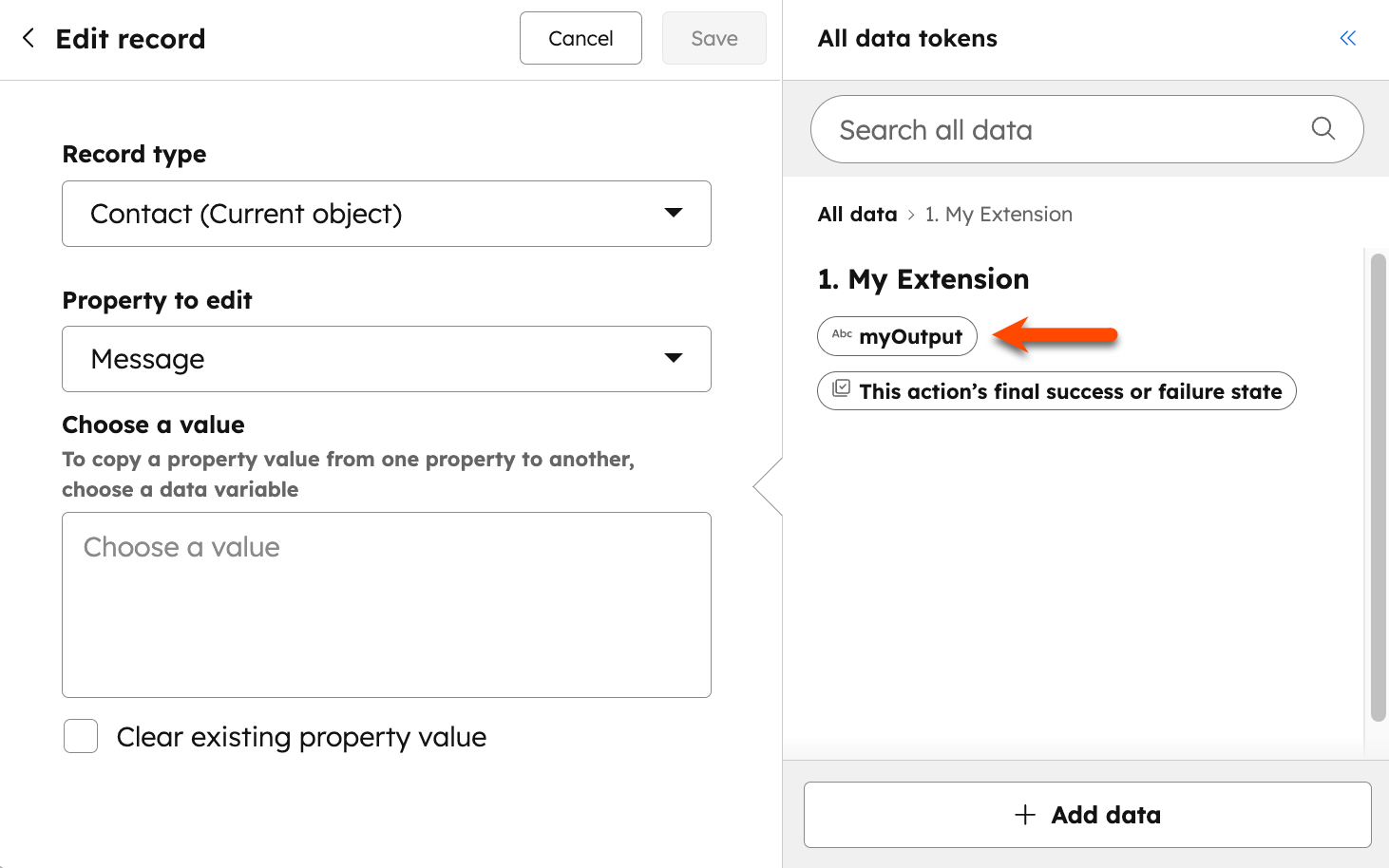
When using an output field, values are parsed from the response from the `actionURL`. For example, you can use the *Edit record* workflow action to copy output fields to an existing property in HubSpot.

<Frame>
  <img src="https://developers.hubspot.com/hubfs/workflows-custom-action-outputs.png" alt="action output example image" />
</Frame>

## Labels

Use labels to add text to your outputs or inputs in the workflow editor. Labels are loaded into HubSpot's language service and may take a few minutes to display. Accounts [set to different regions or languages](https://knowledge.hubspot.com/account-management/change-your-language-and-region-settings#customize-default-user-language-date-and-number-format) will display the label in the corresponding language, if available.

* **`labels`:** copy describing what the action's fields represent and what the action does. English labels are required, but labels can be specified in any of the following supported languages as well: French (`fr`), German (`de`), Japanese (`ja`), Spanish (`es`), Brazilian Portuguese (`pt-br`), and Dutch (`nl`).
* **`actionName`:** the action's name shown in the *Choose an action* panel in the workflow editor.
* **`actionDescription`:** a detailed description for the action shown when the user is configuring the custom action.
* **`actionCardContent`:** a summarized description shown in the action's card.
* **`appDisplayName`:** The name of the section in the *Choose an action* panel where all the actions for the app are displayed. If appDisplayName is defined for multiple actions, the first one found is used.
* **`inputFieldLabels`:** an object that maps the definitions from inputFields to the corresponding labels the user will see when configuring the action.
* **`outputFieldLabels`:** an object that maps the definitions from `outputFields` to the corresponding labels shown in the workflows tool.
* **`inputFieldDescriptions`:** an object that maps the definitions from `inputFields` to the descriptions below the corresponding labels.
* **`executionRules`:** an object that maps the definitions from your `executionRules` to messages that will be shown for action execution results on the workflow history. Learn more about [execution rules](#execution).

Label definitions should be formatted as follows:

```json theme={null}
{
  "labels": {
    "en": {
      "actionName": "Create Widget",
      "actionDescription": "This action will create a new widget in our system. So cool!",
      "actionCardContent": "Create widget {{widgetName}}",
      "appDisplayName": "My App Display Name",
      "inputFieldLabels": {
        "widgetName": "Widget Name",
        "widgetOwner": "Widget Owner"
      },
      "outputFieldLabels": {
        "outputOne": "First Output"
      },
      "inputFieldDescriptions": {
        "widgetName": "Enter the full widget name. I support <a href=\"https://hubspot.com\">links</a> too."
      },
      "executionRules": {
        "alreadyExists": "The widget with name {{ widgetName }} already exists"
      }
    }
  }
}
```

## Execution

When an action is executed, a HTTPS request is sent to the `actionUrl`.

The execution payload will be formatted as follows:

```json theme={null}
{
  "callbackId": "ap-102670506-56776413549-7-0",
  "origin": {
    "portalId": 102670506,
    "actionDefinitionId": 10646377,
    "actionDefinitionVersion": 1
  },
  "context": {
    "source": "WORKFLOWS",
    "workflowId": 192814114
  },
  "object": {
    "objectId": 904,
    "properties": {
      "email": "ajenkenbb@gnu.org"
    },
    "objectType": "CONTACT"
  },
  "inputFields": {
    "staticInput": "My Static Input",
    "objectInput": "995",
    "optionsInput": "1"
  }
}
```

| Field         | Description                                                                                                                    |
| ------------- | ------------------------------------------------------------------------------------------------------------------------------ |
| `callbackId`  | A unique ID for the specific execution. If the custom action execution is [blocking](#blocking-action-execution), use this ID. |
| `object`      | The values of the properties requested in `objectRequestOptions`.                                                              |
| `inputFields` | The values for the inputs that the user has filled out.                                                                        |

The expected response should be formatted as follows:

```json theme={null}
{
  "outputFields": {
    "myOutput": "Some value",
    "hs_execution_state": "SUCCESS"
  }
}
```

When looking at the execution response:

* **`outputFields`:** the values of the output fields defined earlier. These values can be used in later actions.
* **`hs_execution_state`:** an optional special value that can added to `outputFields`. It is not possible to specify a retry, only the following values can be added:
  * SUCCESS
  * FAIL\_CONTINUE
  * BLOCK
  * ASYNC

`SUCCESS` and `FAIL_CONTINUE` indicate that the action has completed and the workflow should move on to the next action to execute. If no execution state is specified, status codes will be used to determine the result of an action:

* **2xx status codes:** the action has completed successfully.
* **4xx status codes:** the action has failed. The exception is *429 Rate Limited* status codes, which are re-treated as retries, and the *Retry-After* header is respected.
* **5xx status codes:** there was a temporary problem with the service, and the action will be retried at a later time. An exponential backoff system is used for retries. Retries will continue for up to 3 days before failing.

## PRE\_ACTION\_EXECUTION functions

Use `PRE_ACTION_EXECUTION` functions to format data before sending it to the `actionURL`

The function definition will be formatted as follows:

```json theme={null}
{
  "functionType": "PRE_ACTION_EXECUTION",
  "functionSource": "..."
}
```

The function input should be formatted as follows:

```json theme={null}
{
  "webhookUrl": "https://actionurl.com/",
  "callbackId": "ap-102670506-56776413549-7-0",
  "origin": {
    "portalId": 102670506,
    "actionDefinitionId": 10646377,
    "actionDefinitionVersion": 1
  },
  "context": {
    "source": "WORKFLOWS",
    "workflowId": 192814114
  },
  "object": {
    "objectId": 904,
    "properties": {
      "email": "ajenkenbb@gnu.org"
    },
    "objectType": "CONTACT"
  },
  "inputFields": {
    "staticInput": "My Static Input",
    "objectInput": "995",
    "optionsInput": "1"
  }
}
```

The function output should be formatted as follows:

```json theme={null}
{
  "webhookUrl": "https://myapi.com/hubspot",
  "body": "{\"widgetName\": \"My new widget\", \"widgetColor\": \"blue\"}",
  "httpHeaders": {
    "My-Custom-Header": "header value"
  },
  "contentType": "application/json",
  "accept": "application/json",
  "httpMethod": "POST"
}
```

| Field         | Description                                                                                                             |
| ------------- | ----------------------------------------------------------------------------------------------------------------------- |
| `webhookUrl`  | The webhook URL for HubSpot to call.                                                                                    |
| `body`        | The request body.                                                                                                       |
| `httpHeaders` | A map of custom request headers to add.                                                                                 |
| `contentType` | The `Content-Type` of the request. <br /><br />**Default:** `application/json`                                          |
| `accept`      | The `Accept` type of the request. <br /><br />**Default:** `application/json`                                           |
| `httpMethod`  | The HTTP method of the request. Can be one of: `GET`, `POST`, `PUT`, `PATCH`, `DELETE`. <br /><br />**Default:** `POST` |

## Asynchronous execution

Execute custom workflow actions asynchronously by blocking and later completing the action.

### Blocking action execution

Use custom actions to block workflow execution. Instead of executing the next action in the workflow after receiving a completed (`2xx` or `4xx` status code) response from your service, the workflow will stop executing for a specific enrollment until a request is sent to continue.

When blocking, you can specify a value for the `hs_default_expiration` field. After which, your custom action will be considered expired. The execution of the workflow will then resume. Actions following your custom action will be executed, even if the blocked action is not completed.

To block a custom action, your action execution response must have the following format:

```json theme={null}
{
  "outputFields": {
    "hs_execution_state": "BLOCK",
    "hs_expiration_duration": "P1WT1H"
  }
}
```

| Field                    | Description                                                                                                                                                                                     |
| ------------------------ | ----------------------------------------------------------------------------------------------------------------------------------------------------------------------------------------------- |
| `hs_execution_state`     | To block workflow execution, this must be set to `BLOCK` for your custom action. This is a required field.                                                                                      |
| `hs_expiration_duration` | The duration must be specified in [ISO 8601 Duration format](https://en.wikipedia.org/wiki/ISO_8601#Durations). If not provided, a default expiration of 1 week will be used. This is optional. |

### Complete a blocked execution

To complete a blocked custom action execution, use the following endpoint: `/callbacks/{callbackId}/complete`

Format the request body as follows:

```json theme={null}
{
  "outputFields": {
    "hs_execution_state": "SUCCESS"
  }
}
```

| Field                | Description                                                                                                                                                                                                                                               |
| -------------------- | --------------------------------------------------------------------------------------------------------------------------------------------------------------------------------------------------------------------------------------------------------- |
| `hs_execution_state` | The final execution state. This is a required field. The valid values for this field are `SUCCESS` to indicate that your custom action completed successfully, and `FAIL_CONTINUE` to indicate that there is a problem with your custom action execution. |

## Add custom execution messages with rules

Specify rules on your action to determine which message displays on the workflow's history page when the action executes.

The rules will be matched against the output values from your action. These output values should be provided in the `actionURL`'s response body, in the following format:

```json theme={null}
{
  "outputFields": {
    "errorCode": "ALREADY_EXISTS",
    "widgetName": "Test widget"
  }
}
```

The actual messages can be specified in the labels section of the custom action:

```json theme={null}
{
  "labels": {
    "executionRules": {
      "alreadyExists": "The widget with name {{ widgetName }} already exists",
      "widgetWrongSize": "Wrong widget size",
      "widgetInvalidSize": "Invalid widget size"
    }
  }
}
```

The `executionRules` will be tested in the order provided. If there are multiple matches, only the message from the first rule that matches is displayed to the user.

The rule matches when the execution output corresponds to a specified value in the rule. For example, consider this set of `executionRules`:

```json theme={null}
[
  {
    // This matches the key of a label on the action's `labels.LANGUAGE.executionRules` map
    "labelName": "alreadyExists",
    "conditions": {
      "errorCode": "ALREADY_EXISTS"
    }
  },
  {
    "labelName": "widgetWrongSize",
    "conditions": {
      "errorCode": "WIDGET_SIZE",
      "sizeError": ["TOO_SMALL", "TOO_BIG"]
    }
  },
  {
    "labelName": "widgetInvalidSize",
    "conditions": {
      "errorCode": "WIDGET_SIZE"
    }
  }
]
```

With the above, the following matches would occur:

* `{"errorCode": "ALREADY_EXISTS", "widgetName": "Test widget"}`: this would match the first rule, since `errorCode` is equal to `ALREADY_EXISTS`. In this instance, even though there is a `widgetName` output, it isn't used in the rule definition so any value is allowed.
* `{"errorCode": "WIDGET_SIZE", "sizeError": "TOO_SMALL"}`: this would match the second rule, since `TOO_SMALL` is one of the matching `sizeError`s, and `errorCode` is `WIDGET_SIZE`.
* `{"errorCode": "WIDGET_SIZE", "sizeError": "NOT_A_NUMBER"}`: this would match the third rule, since even though the `errorCode` is `WIDGET_SIZE`, the `sizeError` does not match any of the values specified by the second rule (`TOO_SMALL` or `TOO_BIG`).

This matching mechanism allows you to specify fallback errors, so that you can have specific errors for important errors, but fall back to more generic error messages for less common errors.
