> ## Documentation Index
> Fetch the complete documentation index at: https://developers.hubspot.com/docs/llms.txt
> Use this file to discover all available pages before exploring further.

---
id: a99697ad-198e-4df8-8cb1-ee162453fe3b
---

# Running code snippets in bots

> Learn how to configure code snippets in a bot action for a chatflow.

export const SupportedProducts = ({marketing, sales, service, cms, data, commerce, marketingLevel, salesLevel, serviceLevel, cmsLevel, dataLevel, commerceLevel}) => {
  const translations = {
    description: "Requires one of the following products or higher.",
    productNames: {
      marketing: "Marketing Hub",
      sales: "Sales Hub",
      service: "Service Hub",
      cms: "Content Hub",
      data: "Data Hub",
      commerce: "Revenue Hub"
    },
    tiers: {
      free: "Free",
      starter: "Starter",
      professional: "Professional",
      enterprise: "Enterprise"
    }
  };
  const translateTier = tier => {
    if (!tier) return '';
    const lowerTier = tier.toLowerCase();
    return translations.tiers[lowerTier] || tier;
  };
  const products = [{
    name: marketing ? translations.productNames.marketing : '',
    level: translateTier(marketingLevel),
    icon: "https://mintlify-assets.b-cdn.net/Icons/marketing-bolt.svg",
    alt: "Marketing Hub"
  }, {
    name: sales ? translations.productNames.sales : '',
    level: translateTier(salesLevel),
    icon: "https://mintlify-assets.b-cdn.net/Icons/sales-star.svg",
    alt: "Sales Hub"
  }, {
    name: service ? translations.productNames.service : '',
    level: translateTier(serviceLevel),
    icon: "https://mintlify-assets.b-cdn.net/Icons/service-heart.svg",
    alt: "Service Hub"
  }, {
    name: cms ? translations.productNames.cms : '',
    level: translateTier(cmsLevel),
    icon: "https://mintlify-assets.b-cdn.net/Icons/content-play.svg",
    alt: "Content Hub"
  }, {
    name: data ? translations.productNames.data : '',
    level: translateTier(dataLevel),
    icon: "https://developers.hubspot.com/hubfs/Knowledge_Base_2023-24-25/subscription_key_icons/operations_icon.svg",
    alt: "Data Hub"
  }, {
    name: commerce ? translations.productNames.commerce : '',
    level: translateTier(commerceLevel),
    icon: "https://developers.hubspot.com/hubfs/Knowledge_Base/subscription_key_icons/commerce_icon.svg",
    alt: "Revenue Hub"
  }].filter(product => product.name && product.level);
  if (products.length === 0) return null;
  return <div>
      <div className="text-sm mb-2">{translations.description}</div>
      <div className={`grid ${products.length === 1 ? 'grid-cols-1' : 'grid-cols-2'} gap-1.5`}>
        {products.map((product, index) => <div key={index} style={{
    display: 'flex',
    alignItems: 'center'
  }}>
            <img src={product.icon} alt={product.alt} className="w-3.5 h-3.5 mr-1.5 mt-2.5 mb-2.5 flex-shrink-0 align-middle" />
            <span className="font-medium mr-1 text-sm">{product.name} -</span>
            <span className="text-sm">{product.level}</span>
          </div>)}
      </div>
    </div>;
};

<SupportedProducts data={true} dataLevel="Professional" />

Use HubSpot's [chatflows tool](https://knowledge.hubspot.com/chatflows/create-a-bot) to customize how visitors to your website can ask custom questions and interact directly with support or sales agents from your organization. As you build out a chatflow, you can create a chatbot to automatically handle specific visitor questions, and add actions based on certain rules, including the ability to run custom code snippets.

## Add a code snippet action to a bot

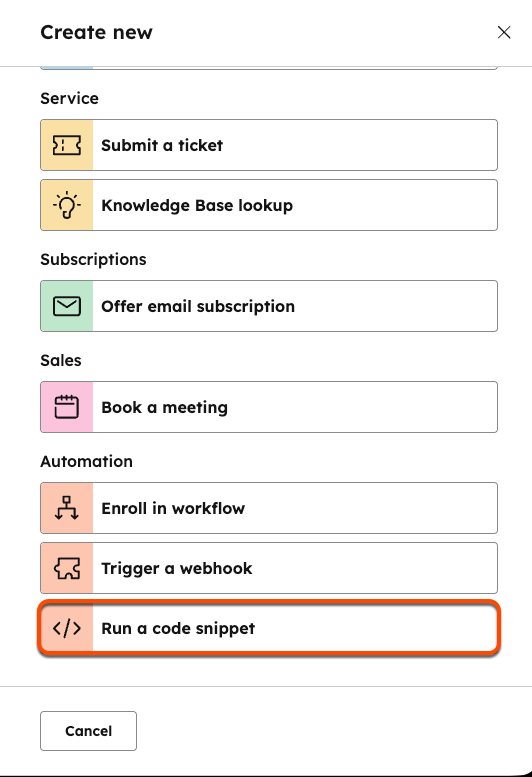
When [creating or editing a bot](https://knowledge.hubspot.com/chatflows/create-a-live-chat), you can add a code snippet by clicking the **+ icon** to [add an action](https://knowledge.hubspot.com/chatflows/a-guide-to-bot-actions) as you normally would. From the action selection panel, click **Run a code snippet**.

<Frame>
  <img src="https://developers.hubspot.com/hubfs/Knowledge_Base_2023-24-25/KB-Chatflows/Chatflows-running-code-snippets-bots.png" width="300" />
</Frame>

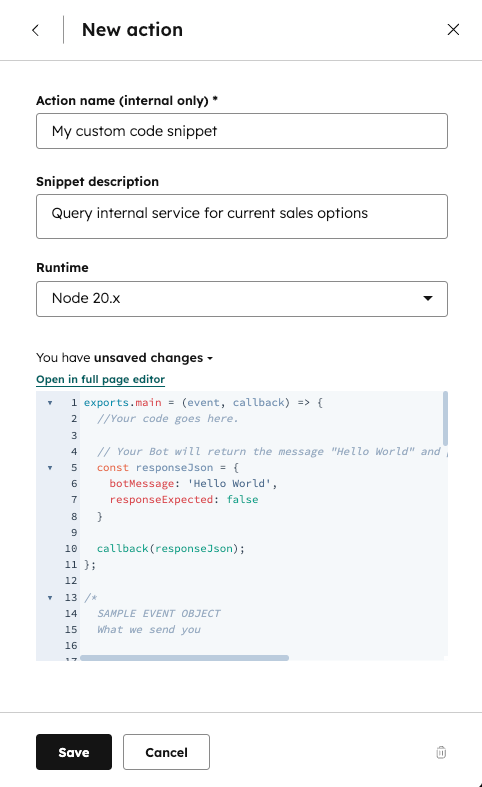
Next, give your action a **name** and **description**, then select the **Node.js runtime version** that the code snippet will use.
<Warning>
  **Please note:** it's highly recommended you use the v20 runtime of Node.js for security purposes, as v18 entered its [official end-of-life (EOL)](https://nodejs.org/en/about/eol#eol-versions) on April 30, 2025.
</Warning>

<Frame>
  <img src="https://www.hubspot.com/hubfs/Knowledge_Base_2023-24-25/KB-Chatflows/updated-code-snippet-in-bot.png" alt="Configure a code snippet action in a bot" width="300" />
</Frame>

The code will be triggered when the saved action is reached in a conversation.

There are three main things to keep in mind when working with code snippets:

* The `exports.main()` function is called when the code snippet action is executed.
* The `event` argument is an object containing details for the visitor and chat session.
* The `callback()` function is used to pass data back to the bot and user. It should be called in the `exports.main` function.

The `event` object contains the following properties:

| Property      | Type   | Description                                                                                                                                                                                                                                                                                                                                                                                                                                                                                 |
| ------------- | ------ | ------------------------------------------------------------------------------------------------------------------------------------------------------------------------------------------------------------------------------------------------------------------------------------------------------------------------------------------------------------------------------------------------------------------------------------------------------------------------------------------- |
| `userMessage` | Object | An object that contains two fields: <ul><li>`message`: A string that represents the last message sent to your bot.</li><li>`quickReply`: A nested object that contains a `quickReplies` array if the visitor selected any quick reply options. Each entry in the array contains an object with two fields: <ul><li>`value`: The actual value of the quick reply (e.g., `"yes_option"`)</li><li>`label`: The text that appears on the quick reply button (e.g., "Yes").</li></ul></li></ul>. |
| `session`     | Object | An object that contains the following fields: <ul><li>`vid`: The contact VID of the visitor, expressed as a number, if known.</li><li>`properties`: A list of properties collected by the bot in the current session, such as the `firstname` and `lastname` of the contact.</li></ul>                                                                                                                                                                                                      |
| `customState` | Object | Only present if `customState` was passed in from a previous callback payload.                                                                                                                                                                                                                                                                                                                                                                                                               |

The code block provides an example `event` object for a contact who was chatting with a bot.

```json expandable theme={null}
{
  "userMessage": {
    "message": "100-500",
    "quickReply": {
      "quickReplies":[
         {
            "value":"100-500",
            "label":"100-500"
         }
      ],
  },
  "session": {
    "vid": 12345,
    "properties": {
      "CONTACT": {
        "firstname": {
          "value": "John",
          "syncedAt": 1534362540592
        },
        "email": {
          "value": "testing@domain.com",
          "syncedAt": 1534362541764
        },
        "lastname": {
          "value": "Smith",
          "syncedAt": 1534362540592
        }
      }
    },
    "customState": {
      "myCustomCounter": 1,
      "myCustomString": "someString"
    }
  }
}
```

The `callback()` function is used to send data back to the bot. The argument should be an object containing the following data:

| Property             | Type    | Description                                                                                                                                                                                                                                                                     |
| -------------------- | ------- | ------------------------------------------------------------------------------------------------------------------------------------------------------------------------------------------------------------------------------------------------------------------------------- |
| `botMessage`         | String  | This is the message your bot will display to the visitor.                                                                                                                                                                                                                       |
| `quickReplies`       | Array   | A list of quick reply options passed to the bot after a click. Each option is an object with two fields: <ul><li>`value`: The actual value of the quick reply (e.g., `"yes_option"`)</li><li>`label`: The text that appears on the quick reply button (e.g., "Yes").</li></ul>. |
| `nextModuleNickname` | String  | The nickname of the next module the bot should execute. If undefined, the bot will follow the default configured behavior.                                                                                                                                                      |
| `responseExpected`   | Boolean | If `true`, the bot will display the returned `botMessage`, wait for a response, then execute this code snippet again with that new response.                                                                                                                                    |
| `customState`        | Object  | Optional field to pass along to the next step.                                                                                                                                                                                                                                  |

```json expandable theme={null}
{
  "botMessage": "Thanks for checking out our website!",
 "quickReplies": [{
    "value": "option",
    "label": "Option" 
   }],
  "nextModuleNickname": "SuggestAwesomeProduct",
  "responseExpected": false,
  "customState": {
    "myCustomCounter": 1,
    "myCustomString": "someString"
  }

}
```

## Limitations

Code snippets in bots are subject to the following limits:

* For snippets created prior to August 1st, 2025, code snippets must finish running within 20 seconds. Any snippets created after August 1st, 2025 must finish running within 45 seconds.
* Code snippets can only use up to 128 MB of memory.

Exceeding either of these limits above will result in an error.

## Available libraries

Several popular Node.js libraries are available for use within the code snippet. It's highly recommended you use the Node.js v20 runtime for security purposes, as v18 entered its [official end-of-life (EOL)](https://nodejs.org/en/about/eol#eol-versions) on April 30, 2025.

The code block below provides version information for the libraries available to import into your snippet, specified using the `npm` [semver](https://docs.npmjs.com/cli/v11/configuring-npm/package-json/#dependencies) convention.

```json expandable theme={null}
{
  "@hubspot/api-client": "^13.4.0",
  "ajv": "^8.6.2",
  "asn1": "^0.2.4",
  "assert-plus": "^1.0.0",
  "async": "^3.2.1",
  "asynckit": "^0.4.0",
  "aws-sign2": "^0.7.0",
  "aws4": "^1.11.0",
  "axios": "^1.7.9",
  "bcrypt-pbkdf": "^1.0.2",
  "bignumber.js": "^9.0.1",
  "bl": "^6.0.0",
  "bluebird": "^3.7.2",
  "bson": "^6.10.0",
  "caseless": "^0.12.0",
  "combined-stream": "^1.0.8",
  "core-util-is": "^1.0.2",
  "dashdash": "^2.0.0",
  "debug": "^4.3.2",
  "delayed-stream": "^1.0.0",
  "denque": "^2.1.0",
  "dependency": "^0.0.1",
  "double-ended-queue": "^2.1.0-0",
  "ecc-jsbn": "^0.2.0",
  "extend": "^3.0.2",
  "extsprintf": "^1.4.0",
  "fast-deep-equal": "^3.1.3",
  "fast-json-stable-stringify": "^2.1.0",
  "forever-agent": "^0.6.1",
  "form-data": "^4.0.0",
  "getpass": "^0.1.7",
  "har-schema": "^2.0.0",
  "har-validator": "^5.1.5",
  "http-signature": "^1.3.5",
  "inherits": "^2.0.4",
  "is-typedarray": "^1.0.0",
  "isarray": "^2.0.5",
  "isstream": "^0.1.2",
  "jsbn": "^1.1.0",
  "json-schema": "^0.4.0",
  "json-schema-traverse": "^1.0.0",
  "json-stringify-safe": "^5.0.1",
  "jsprim": "^2.0.0",
  "kareem": "^2.3.2",
  "lodash": "^4.17.21",
  "memory-pager": "^1.5.0",
  "mime-db": "^1.49.0",
  "mime-types": "^2.1.32",
  "mongodb": "^6.13.0",
  "mongoose": "^8.10.0",
  "mongoose-legacy-pluralize": "^2.0.0",
  "mpath": "^0.9.0",
  "mquery": "^5.0.0",
  "ms": "^2.1.3",
  "mysql": "^2.18.1",
  "oauth-sign": "^0.9.0",
  "optional-require": "^1.1.6",
  "performance-now": "^2.1.0",
  "process-nextick-args": "^2.0.1",
  "psl": "^1.8.0",
  "punycode": "^2.1.1",
  "qs": "^6.10.1",
  "readable-stream": "^4.7.0",
  "redis": "^4.7.0",
  "redis-commands": "^1.7.0",
  "redis-parser": "^3.0.0",
  "regexp-clone": "^1.0.0",
  "safe-buffer": "^5.2.1",
  "safer-buffer": "^2.1.2",
  "saslprep": "^1.0.3",
  "sift": "^17.1.0",
  "sliced": "^1.0.1",
  "sparse-bitfield": "^3.0.3",
  "sqlstring": "^2.3.2",
  "sshpk": "^1.16.1",
  "string_decoder": "^1.3.0",
  "tough-cookie": "^5.1.0",
  "tunnel-agent": "^0.6.0",
  "tweetnacl": "^1.0.3",
  "uri-js": "^4.4.1",
  "util-deprecate": "^1.0.2",
  "uuid": "^11.0.5",
  "verror": "^1.10.0"
}
```

The libraries can be loaded using the `require()` function at the top of your code.

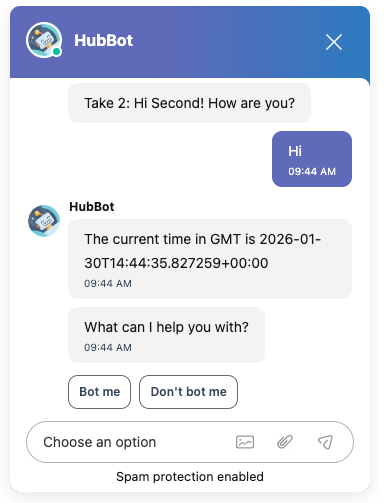
For example, the code block below imports the [axios](https://axios-http.com/) library and makes a request to the `time.now` API, then displays the current time in GMT.

```js theme={null}
const axios = require('axios');

exports.main = async (event, callback) => {
  try {
    const response = await axios.get('https://time.now/developer/api/timezone/GMT');
    const time = response.data.datetime;

    const responseJson = {
      botMessage: "The current time in GMT is " + time,
      responseExpected: false,
    };

    callback(responseJson);
  } catch (error) {
    callback({
      botMessage: "There was an error fetching the time.",
      responseExpected: false,
    });
  }
};
```

The resulting output for running the above action in a bot is shown below:

<Frame>
  <img src="https://www.hubspot.com/hubfs/Knowledge_Base_2023-24-25/KB-Chatflows/sample-output-from-running-code-snippet-in-bot.png" alt="Example code snippet in bot displaying the current time in GMT using axios and the time.now API" width="300" />
</Frame>