> ## Documentation Index
> Fetch the complete documentation index at: https://developers.hubspot.com/docs/llms.txt
> Use this file to discover all available pages before exploring further.
---
id: e953428d-4d09-4bfa-96ee-1bb2e4a253c0
---
# Set up third-party calling in help desk
> Learn how to set up third-party calling in your HubSpot help desk.
export const ScopesList = ({scopes = [], description = "This API requires one of the following scopes:"}) => {
if (!scopes || scopes.length === 0) {
return null;
}
const sortedScopes = scopes.sort((a, b) => a.localeCompare(b));
return
{description}
{sortedScopes.map((scope, index) =>
{scope}
)}
;
};
**Please note:** developers must complete the [SDK setup](/api-reference/latest/crm/extensions/calling-extensions/calling-sdk) and [inbound calling API](/api-reference/latest/crm/extensions/calling-extensions/receive-incoming-calls#integrate-the-hubspot-mobile-chat-sdk-into-your-ios-app-beta-) steps to proceed with the instructions outlined in this article.
To support connecting a phone number as a channel to your help desk, you’ll need to tell HubSpot how to fetch available numbers to be connected. To do this, register a webhook that'll return available numbers for the user. Whenever a HubSpot user wants to connect a device number from your extension to the help desk workspace, HubSpot will make a request to the registered webhook to get a list of available numbers that the user can select from.
## Webhook details
##### Request
To get the phone numbers available for channel connection, HubSpot will send a `POST` request to your registered webhook with the following request body parameters:
| Parameter | Type | Description |
| ---------- | ------- | --------------------------------------------------------------- |
| `appId` | Integer | The ID of the app for which this request was made. |
| `portalId` | Integer | The ID of the HubSpot portal where the request originated from. |
| `userId` | Integer | The ID of the HubSpot user making the request. |
The request will also include HubSpot signature headers to prove that the request came from HubSpot. Learn how to [validate requests](/apps/legacy-apps/authentication/validating-requests).
### Expected response schema
The endpoint that you provide to HubSpot should return a JSON-formatted response that provides a list of available phone numbers. Each phone number in the list should include the following fields:
| Parameter | Type | Description |
| ----------------- | ------ | ------------------------------------------------------------------------------------------------------------------------------------------------------------------------------------------------------------------------------------- |
| `e164PhoneNumber` | String | The phone number, which will be in E.164 format (e.g., +18001231234). |
| `extension` | String | While the webhook response schema accepts phone numbers with extensions, phone numbers with extensions aren't connected to the help desk at this time. Any phone numbers with extensions won't be selectable by the user (e.g., "1"). |
| `friendlyName` | String | HubSpot enforces a 24-character limit for friendly names for phone numbers. Any friendly name that's longer than 24 characters will be truncated to the first 24 characters by HubSpot. |
For example, if your phone number is 18001231234, your extension is 1, and you want to label this number “My cell phone number”, the response you send back to HubSpot should be:
```json theme={null}
{
"phoneNumbers": [
{
"e164PhoneNumber": "+18001231234",
"extension": "1",
"friendlyName": "My cell phone number"
}
]
}
```
## Manage the webhook settings for channel connection
The following endpoints are available to specify the webhook URL for your channel connection settings, as well as specify whether your webhook is ready to be released to users via the `isReady` flag.
### Create channel connection settings
To create channel connections settings, use the appId of your public app to make a `POST` request to `crm/extensions/calling/2026-03/{appId}/settings/channel-connection`, and include the following in your request body:
| Parameter | Type | Description |
| --------- | ------- | --------------------------------------------------------------------------------------------------------------------------- |
| `url` | String | The target URL for this webhook. |
| `isReady` | Boolean | Determines whether this webhook is ready to be released to users of this extension. Learn more about [`isReady`](#isready). |
For example, if your endpoint URL was `https://example.com/my-help-desk-service` and you wanted to make it available immediately for HubSpot to call, the request body would be:
```json theme={null}
{
"url": "https://example.com/my-help-desk-service",
"isReady": true
}
```
### Fetch existing channel connection settings
To fetch existing channel connection settings, use the appId of your public app to make a `GET` request to `crm/extensions/calling/2026-03/{appId}/settings/channel-connection`
If your channel connection settings were already set up correctly, the response will resemble the following:
```json theme={null}
{
"url": "https://example.com/my-help-desk-service",
"createdAt": "2024-04-30 12:01",
"updatedAt": "2024-04-30 12:01",
"isReady": true
}
```
##### Update channel connections settings
To update channel connections settings, make a `PATCH` request to `crm/extensions/calling/2026-03/{appId}/settings/channel-connection`, and include one or both of the following fields in your request body:
| Parameter | Type | Description |
| --------- | ------- | --------------------------------------------------------------------------------------------------------------- |
| `url` | String | The target URL for this webhook. |
| `isReady` | Boolean | Determines whether this webhook is ready to be released to users of this extension. Learn more about `isReady`. |
### Delete existing channel connection settings
To delete existing channel connection settings, use the appId of your public app to make a `DELETE` request to `crm/extensions/calling/2026-03/{appId}/settings/channel-connection`
A successful `DELETE` call will result in a `204 No Content` success status response code.
## Understand the isReady flag
A third-party calling app is considered to support channel connection when the app has a webhook registered that's marked with `isReady=true`. If your app supports third-party connections, all users who have this app installed will have the option to select the app when they connect a number to their help desk. Registering your webhook with `isReady=false` at first allows you to register the webhook and test it out without releasing it to all the users of your application immediately. To test your webhook’s help desk channel connection, you can override the isReady flag in-browser by setting local storage flag `LocalSettings:Calling:supportsChannelConnection=true` (see below). Once you have determined that the webhook’s help desk channel connection is working properly and you're ready for users to use your webhook, you can send a `PATCH` request to update the `isReady` flag to `true` and release the functionality to users.
```js theme={null}
// To unlock your webhook for in-browser help desk channel connection testing, run this
// command in your browser's dev tools console
window.localStorage.setItem("LocalSettings:Calling:supportsChannelConnection", true);
```
### User experience
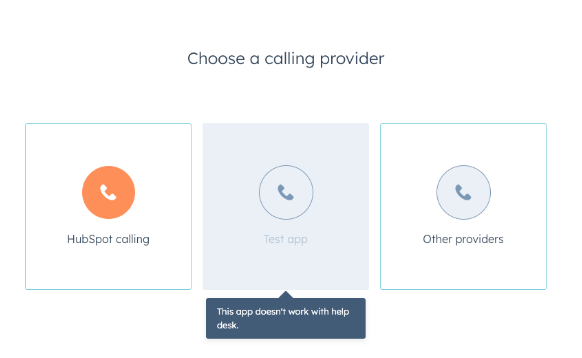
Below are some examples of the user experience when choosing a calling provider for help desk. Learn more about the user experience.
* If `isReady=false` and local storage flag is `false`: the app will appear greyed out for users when choosing a calling provider.
* If `isReady=true` or local storage flag is `true`, the users will be able to select the app when choosing a calling provider.
 * If `isReady=true` or local storage flag is `true`, the users will be able to select the app when choosing a calling provider.
