> ## Documentation Index
> Fetch the complete documentation index at: https://developers.hubspot.com/docs/llms.txt
> Use this file to discover all available pages before exploring further.
---
id: 45ca1190-f24e-4a30-a135-6c4451c177e4
---
# Legacy CRM cards
> Learn about CRM cards built for legacy public apps.
Starting June 16, 2025, the CRM cards described in this article will no longer be supported, and will be officially deprecated on October 31, 2026. Developers can begin using the [Legacy CRM Card Converter](https://github.com/HubSpot/ui-extensions-examples/tree/main/legacy-card-converter), which provides an example implementation for an app card that functions like a legacy CRM card. You can learn more about this announcement on the [HubSpot Developer Changelog](https://community.hubspot.com/t5/Developer-Announcements/Deprecating-Support-for-Classic-Legacy-CRM-Cards/m-p/1153039#M1048).
This API guide describes the endpoints and in-app and options available for CRM cards built for [legacy public apps](/apps/legacy-apps/public-apps/overview), which are not on the developer platform. It is intended only for developers who may need reference information for an existing legacy app. You should not use this guide for building new apps or integrations.
When a legacy public app includes a CRM card, installing the app will add the cards to the right sidebar of CRM records, and can be used to retrieve and display data on CRM records. These cards also offer some interactivity via iframes and webhooks, such as allowing users to open modals for displaying the app's UI in HubSpot.
 Build modern, React-based cards for CRM records, preview panels, and more with the following guides:
* Get started with the [developer platform quickstart guide](/getting-started/quickstart)
* [Migrate an existing public app to the developer platform](/apps/developer-platform/build-apps/migrate-an-app/migrate-an-existing-public-app)
* Learn more about [creating app cards](/apps/developer-platform/add-features/ui-extensions/extension-points/app-cards/create-an-app-card)
## Required scopes
For a legacy app to include a CRM card, the app has to request the [OAuth scopes](/apps/developer-platform/build-apps/authentication/oauth/working-with-oauth) needed to modify the type of CRM records where the card will appear. For example, for a CRM card to appear on contact records, the app must have the `crm.objects.contacts.read` and `crm.objects.contacts.write` scopes. If you later need to remove CRM object scopes from your app, you'll first need to delete all existing cards for those object types.
## CRM card configuration
CRM cards for legacy public apps can be managed via the API and in the HubSpot developer account where the public app was built.
To retrieve or update a legacy card's configuration via the API, make a `GET` or `PATCH` request to `/crm/extensions/cards-dev/2026-03/{appId}/{cardId}`.
To view or update a legacy card's configuration in HubSpot:
* In your HubSpot developer account, navigate to **Apps** in the main navigation.
* Click the **name** of the app that you want to delete a card from.
* In the left sidebar menu, select **CRM cards**.
Below, learn more about available CRM card configuration options both in HubSpot and the API.
## Data request
When a user HubSpot views a CRM record that the legacy CRM card is on, HubSpot will make a data fetch request to the integration. This request is made to the specified target URL, which includes a set of default query parameters, along with extra parameters containing property data as specified in the card's settings.
On the *Data request* tab, you can manage the fetch request URL along with the types of CRM records that the card will appear on.
Build modern, React-based cards for CRM records, preview panels, and more with the following guides:
* Get started with the [developer platform quickstart guide](/getting-started/quickstart)
* [Migrate an existing public app to the developer platform](/apps/developer-platform/build-apps/migrate-an-app/migrate-an-existing-public-app)
* Learn more about [creating app cards](/apps/developer-platform/add-features/ui-extensions/extension-points/app-cards/create-an-app-card)
## Required scopes
For a legacy app to include a CRM card, the app has to request the [OAuth scopes](/apps/developer-platform/build-apps/authentication/oauth/working-with-oauth) needed to modify the type of CRM records where the card will appear. For example, for a CRM card to appear on contact records, the app must have the `crm.objects.contacts.read` and `crm.objects.contacts.write` scopes. If you later need to remove CRM object scopes from your app, you'll first need to delete all existing cards for those object types.
## CRM card configuration
CRM cards for legacy public apps can be managed via the API and in the HubSpot developer account where the public app was built.
To retrieve or update a legacy card's configuration via the API, make a `GET` or `PATCH` request to `/crm/extensions/cards-dev/2026-03/{appId}/{cardId}`.
To view or update a legacy card's configuration in HubSpot:
* In your HubSpot developer account, navigate to **Apps** in the main navigation.
* Click the **name** of the app that you want to delete a card from.
* In the left sidebar menu, select **CRM cards**.
Below, learn more about available CRM card configuration options both in HubSpot and the API.
## Data request
When a user HubSpot views a CRM record that the legacy CRM card is on, HubSpot will make a data fetch request to the integration. This request is made to the specified target URL, which includes a set of default query parameters, along with extra parameters containing property data as specified in the card's settings.
On the *Data request* tab, you can manage the fetch request URL along with the types of CRM records that the card will appear on.
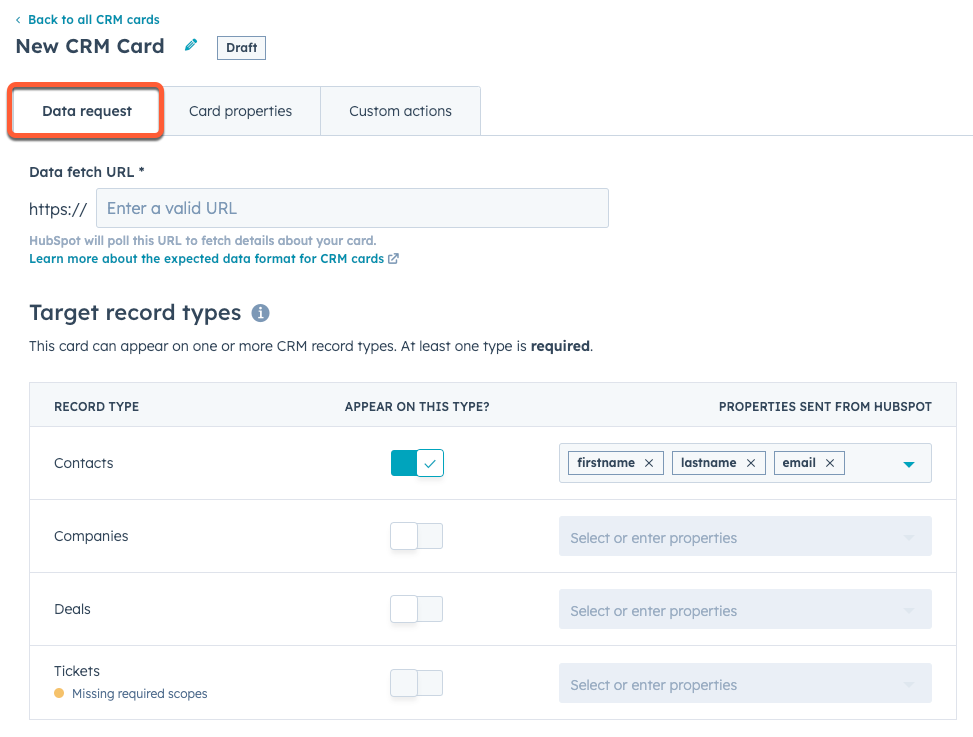 * The *Data fetch URL* field contains the URL that the app will send requests to for fetching data. In the API, this corresponds to the `targetUrl` field.
* The *Target record types* section, contains toggle switches to select which CRM records the card will appear on. For each selected CRM object type, the *Properties sent from HubSpot* dropdown menus contain the CRM record properties that HubSpot will include as query parameters with each request. In the API, each record type and its corresponding properties are added as objects in the `objectTypes` array.
```json theme={null}
{
"title": "Legacy CRM Card",
"fetch": {
"targetUrl": "https://www.example.com/demo-fetch",
"objectTypes": [
{
"name": "contacts",
"propertiesToSend": [
"firstname",
"email",
"lastname"
]
}
]
}
...
}
```
### Example request
The above configuration would result in HubSpot sending its `GET` request as follows.
**Please note:** a connection must be made within three seconds, and requests will timeout after five seconds.
```shell theme={null}
https://www.example.com/demo-fetch?userId=12345&userEmail=loggedinuser@hubspot.com&associatedObjectId=53701&associatedObjectType=CONTACT&portalId=987654&firstname=Tim&email=timrobinson@itysl.com&lastname=Robinson
```
| Parameter | Type | Description |
| ---------------------- | ------- | ------------------------------------------------------------------------------------------------------------------------------------------ |
| `userId` | Default | The ID of the HubSpot user that loaded the CRM record. |
| `userEmail` | Default | The email address of the user that loaded the CRM record. |
| `associatedObjectId` | Default | The ID of the CRM record that loaded. |
| `associatedObjectType` | Default | The type of CRM record that loaded (e.g., contact, company, deal). |
| `portalId` | Default | The ID of the HubSpot account where the CRM record loaded. |
| `firstname` | Custom | The contact's first name, as specified in the *Properties sent from HubSpot* dropdown menu (in-app) and `propertiesToSend` array (API). |
| `email` | Custom | The contact's email address, as specified in the *Properties sent from HubSpot* dropdown menu (in-app) and `propertiesToSend` array (API). |
| `lastname` | Custom | The contact's last name, as specified in the *Properties sent from HubSpot* dropdown menu (in-app) and `propertiesToSend` array (API). |
Below is an example response that the integrator might provide to the above request.
```json expandable theme={null}
{
"results": [
{
"objectId": 245,
"title": "API-22: APIs working too fast",
"link": "http://example.com/1",
"created": "2016-09-15",
"priority": "HIGH",
"project": "API",
"description": "Customer reported that the APIs are just running too fast. This is causing a problem in that they're so happy.",
"reporter_type": "Account Manager",
"status": "In Progress",
"ticket_type": "Bug",
"updated": "2016-09-28",
"actions": [
{
"type": "IFRAME",
"width": 890,
"height": 748,
"uri": "https://example.com/edit-iframe-contents",
"label": "Edit",
"associatedObjectProperties": []
},
{
"type": "IFRAME",
"width": 890,
"height": 748,
"uri": "https://example.com/reassign-iframe-contents",
"label": "Reassign",
"associatedObjectProperties": []
},
{
"type": "ACTION_HOOK",
"httpMethod": "PUT",
"associatedObjectProperties": [],
"uri": "https://example.com/tickets/245/resolve",
"label": "Resolve"
},
{
"type": "CONFIRMATION_ACTION_HOOK",
"confirmationMessage": "Are you sure you want to delete this ticket?",
"confirmButtonText": "Yes",
"cancelButtonText": "No",
"httpMethod": "DELETE",
"associatedObjectProperties": ["protected_account"],
"uri": "https://example.com/tickets/245",
"label": "Delete"
}
]
},
{
"objectId": 988,
"title": "API-54: Question about bulk APIs",
"link": "http://example.com/2",
"created": "2016-08-04",
"priority": "HIGH",
"project": "API",
"reported_by": "ksmith@hubspot.com",
"description": "Customer is not able to find documentation about our bulk Contacts APIs.",
"reporter_type": "Support Rep",
"status": "Resolved",
"ticket_type": "Bug",
"updated": "2016-09-23",
"properties": [
{
"label": "Resolved by",
"dataType": "EMAIL",
"value": "ijones@hubspot.com"
},
{
"label": "Resolution type",
"dataType": "STRING",
"value": "Referred to documentation"
},
{
"label": "Resolution impact",
"dataType": "CURRENCY",
"value": "94.34",
"currencyCode": "GBP"
}
],
"actions": [
{
"type": "IFRAME",
"width": 890,
"height": 748,
"uri": "https://example.com/edit-iframe-contents",
"label": "Edit"
},
{
"type": "CONFIRMATION_ACTION_HOOK",
"confirmationMessage": "Are you sure you want to delete this ticket?",
"confirmButtonText": "Yes",
"cancelButtonText": "No",
"httpMethod": "DELETE",
"associatedObjectProperties": ["protected_account"],
"uri": "https://example.com/tickets/245",
"label": "Delete"
}
]
}
],
"settingsAction": {
"type": "IFRAME",
"width": 890,
"height": 748,
"uri": "https://example.com/settings-iframe-contents",
"label": "Settings"
},
"primaryAction": {
"type": "IFRAME",
"width": 890,
"height": 748,
"uri": "https://example.com/create-iframe-contents",
"label": "Create Ticket"
}
}
```
| Prop | Type | Description |
| ------------------ | ---------- | ------------------------------------------------------------------------------------------------------------------------------------------------------------------------------------------------------------------------------------------------------------------ |
| `results` | Array | An array of up to five valid [card properties](#card-properties). If more card properties are available for a specific CRM object, your app can link to them. |
| `objectId` | Number | A unique ID for this object. |
| `title` | String | The title of this object. |
| `link` | String | The URL that the user can follow to get more details about the object. If no objects have a link, you should provide a value of `null`. |
| `created` | String | A [custom property](#card-properties) as defined in the card's settings that denotes the date of the object's creation. |
| `priority` | String | A [custom property](#card-properties) as defined in the card's settings that denotes external ticket's priority level. |
| `actions` | Array | A list of available [actions](#action-types) a user can take. |
| `properties` | Properties | A list of custom properties that aren't defined in the card settings. You can use this list to display a specific object's unique properties. These properties will be shown in the order they're provided, but after the properties defined in the card settings. |
| `settingsAction` | Object | An iframe action that enables users to update the app's settings. |
| `primaryAction` | Object | The primary action for a record type, typically a creation action. |
| `secondaryActions` | Array | A list of other actions displayed on the card. |
### Request signatures
To ensure that the requests are actually coming from HubSpot, the following request header is included. This header will contain a hash of the app secret for your application and the details of the request.
`X-HubSpot-Signature: `
To verify this signature:
1. Create a string that concatenates together the following: `` + `` + `` + ` (if present)`.
2. Create a SHA-256 hash of the resulting string.
3. Compare the hash value to the signature. If they're equal, the request passed validation. If the values do not match, the request may have been tampered with in transit or someone may be spoofing requests to your endpoint.
Learn more about [validating requests from HubSpot](/apps/legacy-apps/authentication/validating-requests).
## Card properties
On the *Card Properties* tab, configure the custom properties that you want HubSpot to display on the CRM card. Once defined, the integration can fill these properties by including them in its data fetch responses.
* The *Data fetch URL* field contains the URL that the app will send requests to for fetching data. In the API, this corresponds to the `targetUrl` field.
* The *Target record types* section, contains toggle switches to select which CRM records the card will appear on. For each selected CRM object type, the *Properties sent from HubSpot* dropdown menus contain the CRM record properties that HubSpot will include as query parameters with each request. In the API, each record type and its corresponding properties are added as objects in the `objectTypes` array.
```json theme={null}
{
"title": "Legacy CRM Card",
"fetch": {
"targetUrl": "https://www.example.com/demo-fetch",
"objectTypes": [
{
"name": "contacts",
"propertiesToSend": [
"firstname",
"email",
"lastname"
]
}
]
}
...
}
```
### Example request
The above configuration would result in HubSpot sending its `GET` request as follows.
**Please note:** a connection must be made within three seconds, and requests will timeout after five seconds.
```shell theme={null}
https://www.example.com/demo-fetch?userId=12345&userEmail=loggedinuser@hubspot.com&associatedObjectId=53701&associatedObjectType=CONTACT&portalId=987654&firstname=Tim&email=timrobinson@itysl.com&lastname=Robinson
```
| Parameter | Type | Description |
| ---------------------- | ------- | ------------------------------------------------------------------------------------------------------------------------------------------ |
| `userId` | Default | The ID of the HubSpot user that loaded the CRM record. |
| `userEmail` | Default | The email address of the user that loaded the CRM record. |
| `associatedObjectId` | Default | The ID of the CRM record that loaded. |
| `associatedObjectType` | Default | The type of CRM record that loaded (e.g., contact, company, deal). |
| `portalId` | Default | The ID of the HubSpot account where the CRM record loaded. |
| `firstname` | Custom | The contact's first name, as specified in the *Properties sent from HubSpot* dropdown menu (in-app) and `propertiesToSend` array (API). |
| `email` | Custom | The contact's email address, as specified in the *Properties sent from HubSpot* dropdown menu (in-app) and `propertiesToSend` array (API). |
| `lastname` | Custom | The contact's last name, as specified in the *Properties sent from HubSpot* dropdown menu (in-app) and `propertiesToSend` array (API). |
Below is an example response that the integrator might provide to the above request.
```json expandable theme={null}
{
"results": [
{
"objectId": 245,
"title": "API-22: APIs working too fast",
"link": "http://example.com/1",
"created": "2016-09-15",
"priority": "HIGH",
"project": "API",
"description": "Customer reported that the APIs are just running too fast. This is causing a problem in that they're so happy.",
"reporter_type": "Account Manager",
"status": "In Progress",
"ticket_type": "Bug",
"updated": "2016-09-28",
"actions": [
{
"type": "IFRAME",
"width": 890,
"height": 748,
"uri": "https://example.com/edit-iframe-contents",
"label": "Edit",
"associatedObjectProperties": []
},
{
"type": "IFRAME",
"width": 890,
"height": 748,
"uri": "https://example.com/reassign-iframe-contents",
"label": "Reassign",
"associatedObjectProperties": []
},
{
"type": "ACTION_HOOK",
"httpMethod": "PUT",
"associatedObjectProperties": [],
"uri": "https://example.com/tickets/245/resolve",
"label": "Resolve"
},
{
"type": "CONFIRMATION_ACTION_HOOK",
"confirmationMessage": "Are you sure you want to delete this ticket?",
"confirmButtonText": "Yes",
"cancelButtonText": "No",
"httpMethod": "DELETE",
"associatedObjectProperties": ["protected_account"],
"uri": "https://example.com/tickets/245",
"label": "Delete"
}
]
},
{
"objectId": 988,
"title": "API-54: Question about bulk APIs",
"link": "http://example.com/2",
"created": "2016-08-04",
"priority": "HIGH",
"project": "API",
"reported_by": "ksmith@hubspot.com",
"description": "Customer is not able to find documentation about our bulk Contacts APIs.",
"reporter_type": "Support Rep",
"status": "Resolved",
"ticket_type": "Bug",
"updated": "2016-09-23",
"properties": [
{
"label": "Resolved by",
"dataType": "EMAIL",
"value": "ijones@hubspot.com"
},
{
"label": "Resolution type",
"dataType": "STRING",
"value": "Referred to documentation"
},
{
"label": "Resolution impact",
"dataType": "CURRENCY",
"value": "94.34",
"currencyCode": "GBP"
}
],
"actions": [
{
"type": "IFRAME",
"width": 890,
"height": 748,
"uri": "https://example.com/edit-iframe-contents",
"label": "Edit"
},
{
"type": "CONFIRMATION_ACTION_HOOK",
"confirmationMessage": "Are you sure you want to delete this ticket?",
"confirmButtonText": "Yes",
"cancelButtonText": "No",
"httpMethod": "DELETE",
"associatedObjectProperties": ["protected_account"],
"uri": "https://example.com/tickets/245",
"label": "Delete"
}
]
}
],
"settingsAction": {
"type": "IFRAME",
"width": 890,
"height": 748,
"uri": "https://example.com/settings-iframe-contents",
"label": "Settings"
},
"primaryAction": {
"type": "IFRAME",
"width": 890,
"height": 748,
"uri": "https://example.com/create-iframe-contents",
"label": "Create Ticket"
}
}
```
| Prop | Type | Description |
| ------------------ | ---------- | ------------------------------------------------------------------------------------------------------------------------------------------------------------------------------------------------------------------------------------------------------------------ |
| `results` | Array | An array of up to five valid [card properties](#card-properties). If more card properties are available for a specific CRM object, your app can link to them. |
| `objectId` | Number | A unique ID for this object. |
| `title` | String | The title of this object. |
| `link` | String | The URL that the user can follow to get more details about the object. If no objects have a link, you should provide a value of `null`. |
| `created` | String | A [custom property](#card-properties) as defined in the card's settings that denotes the date of the object's creation. |
| `priority` | String | A [custom property](#card-properties) as defined in the card's settings that denotes external ticket's priority level. |
| `actions` | Array | A list of available [actions](#action-types) a user can take. |
| `properties` | Properties | A list of custom properties that aren't defined in the card settings. You can use this list to display a specific object's unique properties. These properties will be shown in the order they're provided, but after the properties defined in the card settings. |
| `settingsAction` | Object | An iframe action that enables users to update the app's settings. |
| `primaryAction` | Object | The primary action for a record type, typically a creation action. |
| `secondaryActions` | Array | A list of other actions displayed on the card. |
### Request signatures
To ensure that the requests are actually coming from HubSpot, the following request header is included. This header will contain a hash of the app secret for your application and the details of the request.
`X-HubSpot-Signature: `
To verify this signature:
1. Create a string that concatenates together the following: `` + `` + `` + ` (if present)`.
2. Create a SHA-256 hash of the resulting string.
3. Compare the hash value to the signature. If they're equal, the request passed validation. If the values do not match, the request may have been tampered with in transit or someone may be spoofing requests to your endpoint.
Learn more about [validating requests from HubSpot](/apps/legacy-apps/authentication/validating-requests).
## Card properties
On the *Card Properties* tab, configure the custom properties that you want HubSpot to display on the CRM card. Once defined, the integration can fill these properties by including them in its data fetch responses.
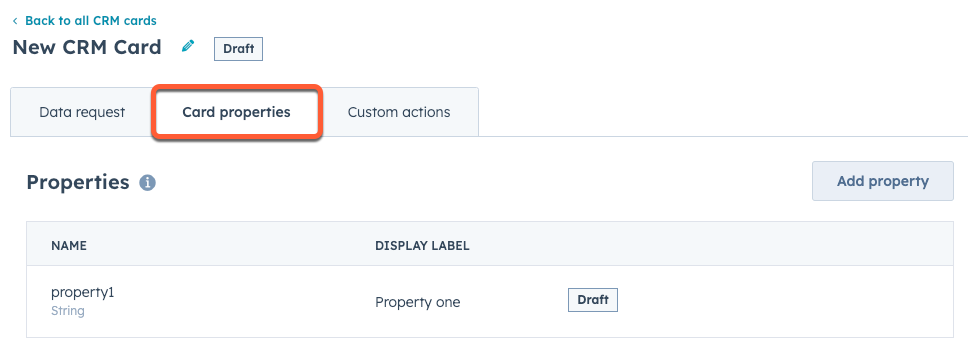 When HubSpot sends its data request, the integration can provide values for these properties in its response alongside other values in each object in `results`. In addition to the properties configured on this tab, the integration can also include its own custom properties without needing them to be defined in the card's settings.
For example, in the response below, `created` and `priority` are both defined in the *Card properties* tab, while the `properties` array sends its own property definitions and values. These object-specific properties must be defined per object.
```json theme={null}
{
"objectId": 988,
"title": "API-54: Question about bulk APIs",
"link": "http://example.com/2",
"created": "2016-08-04",
"priority": "HIGH",
"properties": [
{
"label": "Resolved by",
"dataType": "EMAIL",
"value": "ijones@hubspot.com"
},
{
"label": "Resolution type",
"dataType": "STRING",
"value": "Referred to documentation"
},
{
"label": "Resolution impact",
"dataType": "CURRENCY",
"value": "94.34",
"currencyCode": "GBP"
}
],
"actions": [
...
]
}
```
When sending custom properties, the `dataType` field for each property can be set to one of: `CURRENCY`, `DATE`, `DATETIME`, `EMAIL`, `LINK`, `NUMERIC`, `STATUS`, `STRING`. Depending on the property type, the integration may need to provide additional fields. Below, learn more about each property type.
### Currency properties
`CURRENCY` properties must include a `currencyCode`, which needs to be a valid [ISO 4217](https://en.wikipedia.org/wiki/ISO_4217#Active_codes) code. This will ensure the user sees the correct currency symbol and number formatting.
```json theme={null}
{
"results": [
{
"properties": [
{
"label": "Resolution impact",
"dataType": "CURRENCY",
"value": "94.34",
"currencyCode": "GBP"
}
]
}
]
}
```
### Date properties
`DATE` properties should be in the format `yyyy-mm-dd`. These properties will be displayed in a format appropriate to the user's locale. If you need to include a timestamp, you should instead use a `DATETIME` property.
```json theme={null}
{
"results": [
{
"properties": [
{
"label": "Date",
"dataType": "DATE",
"value": "2023-10-13"
}
]
}
]
}
```
### Datetime properties
`DATETIME` properties indicate a specific time and must be provided as milliseconds since epoch. These properties will be displayed in a format appropriate to the user's locale.
```json theme={null}
{
"results": [
{
"properties": [
{
"label": "Timestamp",
"dataType": "DATETIME",
"value": "1697233678777"
}
]
}
]
}
```
### Email properties
`EMAIL` properties are for values that contain an email address. These properties will be displayed as mailto links.
```json theme={null}
{
"results": [
{
"properties": [
{
"label": "Email address",
"dataType": "EMAIL",
"value": "hobbes.baron@gmail.com"
}
]
}
]
}
```
### Link properties
`LINK` properties display hyperlinks and open in a new window. You can specify a `linkLabel`, otherwise the URL itself will be displayed.
```json theme={null}
{
"results": [
{
"properties": [
{
"label": "Link property",
"dataType": "LINK",
"value": "https://www.hubspot.com",
"linkLabel": "Test link"
}
]
}
]
}
```
### Numeric properties
`NUMERIC` properties display numbers.
```json theme={null}
{
"results": [
{
"properties": [
{
"label": "Number",
"dataType": "NUMERIC",
"value": "123.45"
}
]
}
]
}
```
### Status properties
`STATUS` properties display as colored indicators. To define a status property, the integration must provide an `optionType` that describes the possible statuses. Statuses include:
* `DEFAULT`: Grey
* `SUCCESS`: Green
* `WARNING`: Yellow
* `DANGER`: Red
* `INFO`: Blue
```json theme={null}
{
"results": [
{
"properties": [
{
"label": "Status",
"dataType": "STATUS",
"value": "Errors occurring",
"optionType": "DANGER"
}
]
}
]
}
```
### String properties
`STRING` properties display text.
```json theme={null}
{
"results": [
{
"properties": [
{
"label": "First name",
"dataType": "STRING",
"value": "Tim Robinson"
}
]
}
]
}
```
## Custom actions
On the *Custom actions* tab, you can define the base URLs that will be requested when a user clicks an action button. You can include multiple action URLs for various actions in your CRM card. Card actions must call an endpoint specified on this tab.
When HubSpot sends its data request, the integration can provide values for these properties in its response alongside other values in each object in `results`. In addition to the properties configured on this tab, the integration can also include its own custom properties without needing them to be defined in the card's settings.
For example, in the response below, `created` and `priority` are both defined in the *Card properties* tab, while the `properties` array sends its own property definitions and values. These object-specific properties must be defined per object.
```json theme={null}
{
"objectId": 988,
"title": "API-54: Question about bulk APIs",
"link": "http://example.com/2",
"created": "2016-08-04",
"priority": "HIGH",
"properties": [
{
"label": "Resolved by",
"dataType": "EMAIL",
"value": "ijones@hubspot.com"
},
{
"label": "Resolution type",
"dataType": "STRING",
"value": "Referred to documentation"
},
{
"label": "Resolution impact",
"dataType": "CURRENCY",
"value": "94.34",
"currencyCode": "GBP"
}
],
"actions": [
...
]
}
```
When sending custom properties, the `dataType` field for each property can be set to one of: `CURRENCY`, `DATE`, `DATETIME`, `EMAIL`, `LINK`, `NUMERIC`, `STATUS`, `STRING`. Depending on the property type, the integration may need to provide additional fields. Below, learn more about each property type.
### Currency properties
`CURRENCY` properties must include a `currencyCode`, which needs to be a valid [ISO 4217](https://en.wikipedia.org/wiki/ISO_4217#Active_codes) code. This will ensure the user sees the correct currency symbol and number formatting.
```json theme={null}
{
"results": [
{
"properties": [
{
"label": "Resolution impact",
"dataType": "CURRENCY",
"value": "94.34",
"currencyCode": "GBP"
}
]
}
]
}
```
### Date properties
`DATE` properties should be in the format `yyyy-mm-dd`. These properties will be displayed in a format appropriate to the user's locale. If you need to include a timestamp, you should instead use a `DATETIME` property.
```json theme={null}
{
"results": [
{
"properties": [
{
"label": "Date",
"dataType": "DATE",
"value": "2023-10-13"
}
]
}
]
}
```
### Datetime properties
`DATETIME` properties indicate a specific time and must be provided as milliseconds since epoch. These properties will be displayed in a format appropriate to the user's locale.
```json theme={null}
{
"results": [
{
"properties": [
{
"label": "Timestamp",
"dataType": "DATETIME",
"value": "1697233678777"
}
]
}
]
}
```
### Email properties
`EMAIL` properties are for values that contain an email address. These properties will be displayed as mailto links.
```json theme={null}
{
"results": [
{
"properties": [
{
"label": "Email address",
"dataType": "EMAIL",
"value": "hobbes.baron@gmail.com"
}
]
}
]
}
```
### Link properties
`LINK` properties display hyperlinks and open in a new window. You can specify a `linkLabel`, otherwise the URL itself will be displayed.
```json theme={null}
{
"results": [
{
"properties": [
{
"label": "Link property",
"dataType": "LINK",
"value": "https://www.hubspot.com",
"linkLabel": "Test link"
}
]
}
]
}
```
### Numeric properties
`NUMERIC` properties display numbers.
```json theme={null}
{
"results": [
{
"properties": [
{
"label": "Number",
"dataType": "NUMERIC",
"value": "123.45"
}
]
}
]
}
```
### Status properties
`STATUS` properties display as colored indicators. To define a status property, the integration must provide an `optionType` that describes the possible statuses. Statuses include:
* `DEFAULT`: Grey
* `SUCCESS`: Green
* `WARNING`: Yellow
* `DANGER`: Red
* `INFO`: Blue
```json theme={null}
{
"results": [
{
"properties": [
{
"label": "Status",
"dataType": "STATUS",
"value": "Errors occurring",
"optionType": "DANGER"
}
]
}
]
}
```
### String properties
`STRING` properties display text.
```json theme={null}
{
"results": [
{
"properties": [
{
"label": "First name",
"dataType": "STRING",
"value": "Tim Robinson"
}
]
}
]
}
```
## Custom actions
On the *Custom actions* tab, you can define the base URLs that will be requested when a user clicks an action button. You can include multiple action URLs for various actions in your CRM card. Card actions must call an endpoint specified on this tab.
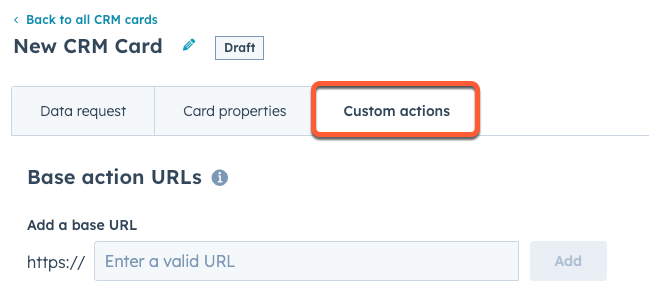 Action hooks and confirmation hook requests will include a `X-HubSpot-Signature` header for verifying the request. Iframe action requests will not include a request signature. See [request signatures](#request-signatures) for more information.
Action URLs are accessed in the `uri` field in an action. Similar to the [data fetch request](#data-request), action hooks will include a default set of query parameters. You can include other query parameters by including an `associatedObjectProperties` field in the action.
The response will vary depending on type of action. Below, learn more about action types.
### Action types
#### Iframe actions
`IFRAME` actions will open a modal containing an iframe pointing at the provided URL. No request signature is sent when the iframe is opened from the CRM UI. This is because the iframe URL is returned in the original data fetch request, and no additional proxy requests are needed.
```json theme={null}
{
"type": "IFRAME",
"width": 890,
"height": 748,
"uri": "https://example.com/iframe-contents",
"label": "Edit",
"associatedObjectProperties": ["some_crm_property"]
}
```
When the user completes an action inside the iframe, the modal should close and return the user to the CRM record they started from. To close the modal, the integration can use `window.postMessage` to signal to the CRM that the user is done. The following messages are accepted:
* `{"action": "DONE"}`: the user has successfully competed the action.
* `{"action": "CANCEL"}`: the user has canceled the action.
```json theme={null}
window.parent.postMessage(JSON.stringify({"action": "DONE"}), "*");
```
#### Action hook actions
`ACTION_HOOK` actions send a server-side request to the integrator. The only UI a users sees for this action is a success or error message. This type of action is useful for simple operations that require no further input from the user. An `X-HubSpot-Signature` header will be included in the request for verification. Learn more about [request signatures](#request-signatures).
```json theme={null}
{
"type": "ACTION_HOOK",
"httpMethod": "POST",
"uri": "https://example.com/action-hook",
"label": "Example action",
"associatedObjectProperties": ["some_crm_property"]
}
```
The `httpMethod` can be set to `GET`, `POST`, `PUT`, `DELETE`, or `PATCH`. If using `GET` or `DELETE`, the `associatedObjectProperties` values will be appended to the request URL as query parameters. Otherwise, the properties will be sent in the request body.
```json theme={null}
window.parent.postMessage(JSON.stringify({"action": "DONE"}), "*");
```
#### Confirmation actions
`CONFIRMATION_ACTION_HOOK` actions behave the same as `ACTION_HOOK` actions, except that a confirmation dialog is shown to the user before running the server-side request. An `X-HubSpot-Signature` header will be included in the request for verification. Learn more about [request signatures](#request-signatures).
```json theme={null}
{
"type": "CONFIRMATION_ACTION_HOOK",
"httpMethod": "POST",
"uri": "https://example.com/action-hook",
"label": "Example action",
"associatedObjectProperties": ["some_crm_property"],
"confirmationMessage": "Are you sure you want to run example action?",
"confirmButtonText": "Yes",
"cancelButtonText": "No"
}
```
The `httpMethod` can be set to `GET`, `POST`, `PUT`, `DELETE`, or `PATCH`. If using `GET` or `DELETE`, the `associatedObjectProperties` values will be appended to the request URL as query parameters. Otherwise, the properties will be sent in the request body.
## Delete a CRM card
To delete a legacy CRM card via the API, make a `DELETE` request to `/crm/extensions/cards-dev/2026-03/{appId}/{cardId}`.
You can also delete a legacy CRM card from the app's settings:
* In your HubSpot developer account, navigate to **Apps** in the main navigation.
* Click the **name** of the app that you want to delete a card from.
* In the left sidebar menu, select **CRM cards**.
* Hover over the card, then click **Delete**.
Action hooks and confirmation hook requests will include a `X-HubSpot-Signature` header for verifying the request. Iframe action requests will not include a request signature. See [request signatures](#request-signatures) for more information.
Action URLs are accessed in the `uri` field in an action. Similar to the [data fetch request](#data-request), action hooks will include a default set of query parameters. You can include other query parameters by including an `associatedObjectProperties` field in the action.
The response will vary depending on type of action. Below, learn more about action types.
### Action types
#### Iframe actions
`IFRAME` actions will open a modal containing an iframe pointing at the provided URL. No request signature is sent when the iframe is opened from the CRM UI. This is because the iframe URL is returned in the original data fetch request, and no additional proxy requests are needed.
```json theme={null}
{
"type": "IFRAME",
"width": 890,
"height": 748,
"uri": "https://example.com/iframe-contents",
"label": "Edit",
"associatedObjectProperties": ["some_crm_property"]
}
```
When the user completes an action inside the iframe, the modal should close and return the user to the CRM record they started from. To close the modal, the integration can use `window.postMessage` to signal to the CRM that the user is done. The following messages are accepted:
* `{"action": "DONE"}`: the user has successfully competed the action.
* `{"action": "CANCEL"}`: the user has canceled the action.
```json theme={null}
window.parent.postMessage(JSON.stringify({"action": "DONE"}), "*");
```
#### Action hook actions
`ACTION_HOOK` actions send a server-side request to the integrator. The only UI a users sees for this action is a success or error message. This type of action is useful for simple operations that require no further input from the user. An `X-HubSpot-Signature` header will be included in the request for verification. Learn more about [request signatures](#request-signatures).
```json theme={null}
{
"type": "ACTION_HOOK",
"httpMethod": "POST",
"uri": "https://example.com/action-hook",
"label": "Example action",
"associatedObjectProperties": ["some_crm_property"]
}
```
The `httpMethod` can be set to `GET`, `POST`, `PUT`, `DELETE`, or `PATCH`. If using `GET` or `DELETE`, the `associatedObjectProperties` values will be appended to the request URL as query parameters. Otherwise, the properties will be sent in the request body.
```json theme={null}
window.parent.postMessage(JSON.stringify({"action": "DONE"}), "*");
```
#### Confirmation actions
`CONFIRMATION_ACTION_HOOK` actions behave the same as `ACTION_HOOK` actions, except that a confirmation dialog is shown to the user before running the server-side request. An `X-HubSpot-Signature` header will be included in the request for verification. Learn more about [request signatures](#request-signatures).
```json theme={null}
{
"type": "CONFIRMATION_ACTION_HOOK",
"httpMethod": "POST",
"uri": "https://example.com/action-hook",
"label": "Example action",
"associatedObjectProperties": ["some_crm_property"],
"confirmationMessage": "Are you sure you want to run example action?",
"confirmButtonText": "Yes",
"cancelButtonText": "No"
}
```
The `httpMethod` can be set to `GET`, `POST`, `PUT`, `DELETE`, or `PATCH`. If using `GET` or `DELETE`, the `associatedObjectProperties` values will be appended to the request URL as query parameters. Otherwise, the properties will be sent in the request body.
## Delete a CRM card
To delete a legacy CRM card via the API, make a `DELETE` request to `/crm/extensions/cards-dev/2026-03/{appId}/{cardId}`.
You can also delete a legacy CRM card from the app's settings:
* In your HubSpot developer account, navigate to **Apps** in the main navigation.
* Click the **name** of the app that you want to delete a card from.
* In the left sidebar menu, select **CRM cards**.
* Hover over the card, then click **Delete**.
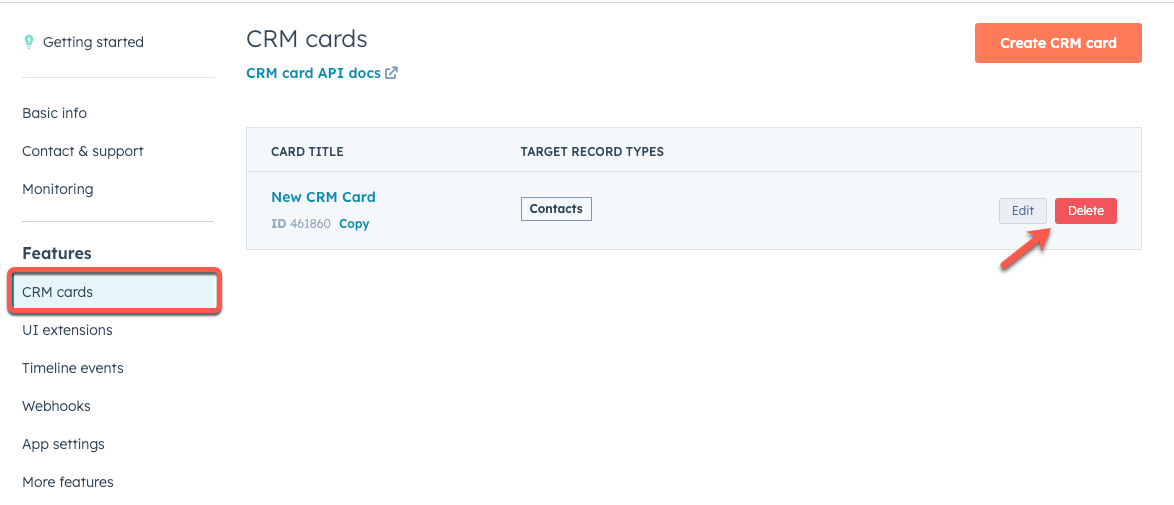 * In the dialog box, confirm the deletion by clicking **Delete this card**.