> ## Documentation Index
> Fetch the complete documentation index at: https://developers.hubspot.com/docs/llms.txt
> Use this file to discover all available pages before exploring further.

---
id: 056316b7-39d9-479f-81fe-cc151eb97c95
---

# CRM API | Imports

> Imports are used to populate a HubSpot account with object data that can be used with the sales, marketing, and service tools.

export const ScopesList = ({scopes = [], description = "This API requires one of the following scopes:"}) => {
  if (!scopes || scopes.length === 0) {
    return null;
  }
  const sortedScopes = scopes.sort((a, b) => a.localeCompare(b));
  return <div>
      <div className="text-sm mb-2">{description}</div>
      <div>
        {sortedScopes.map((scope, index) => <div key={index}>
            <code>
              <span className="text-xs">{scope}</span>
            </code>
          </div>)}
      </div>
    </div>;
};

<Accordion title="Scope requirements">
  <ScopesList
    scopes={[
  'crm.import'
]}
  />
</Accordion>

Use the imports API to import CRM records and activities into your HubSpot account, such as contacts, companies, and notes. Once imported, you can access and update records and activities through the various CRM API endpoints, including the [contacts API](/guides/crm/understanding-the-crm), [associations API](/api-reference/latest/crm/associations/associate-records/guide), and [engagements APIs](/api-reference/latest/overview). You can also [import records and activities using the guided import tool in HubSpot](https://knowledge.hubspot.com/import-and-export/import-objects).

Before starting your import, learn more about:

* [File requirements](https://knowledge.hubspot.com/import-and-export/set-up-your-import-file#file-requirements-and-technical-limits)
* [Required properties for record and activity imports](https://knowledge.hubspot.com/import-and-export/set-up-your-import-file#required-properties)
* [Required properties for marketing event participant imports](https://knowledge.hubspot.com/integrations/import-marketing-event-participants#prepare-your-import-file)

<Warning>
  **Please note:**

  To create custom events or associate events with records, use the [custom events API](/api-reference/latest/events/define-events/guide) instead of importing.
</Warning>

## Start an import

You can start an import by making a `POST` request to `/crm/imports/2026-03` with a request body that specifies how to map the columns of your import file to the associated properties in HubSpot.

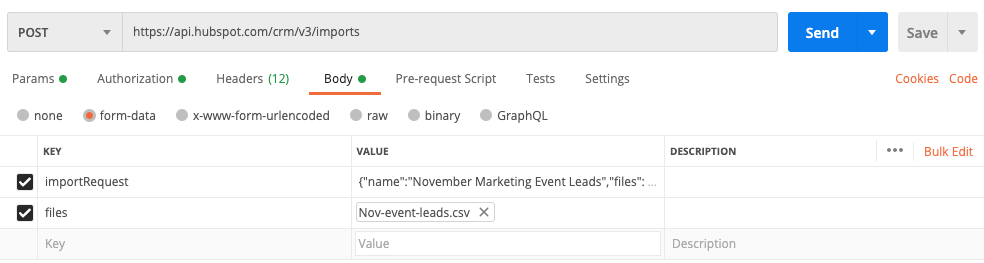
API imports are sent as form-data type requests, with the request body containing following fields:

* [importRequest](#format-the-importrequest-data): a text field that contains the request JSON.
* [files](#map-file-columns-to-hubspot-properties): a file field that contains the import file.

For the request header, add a `Content-Type` header with a value of `multipart/form-data`.

The screenshot below shows what your request might look like when using an application like Postman:

<Frame>
  <img src="https://www.hubspot.com/hubfs/Knowledge_Base_2021/Developer/postman-import-request-no-response0.png" alt="postman-import-request-no-response0" />
</Frame>

### Format the importRequest data

In your request, define the import file details, including mapping the spreadsheet's columns to HubSpot data. Your request should include the following fields:

* **name**: the name of the import. In HubSpot, this is the name [displayed in the imports tool](https://knowledge.hubspot.com/import-and-export/view-and-analyze-previous-imports), as well as the name that you can reference in other tools, such as lists.
* **importOperations**: an optional field used to indicate whether the import should [create and update, <u>only</u> create, or <u>only</u> update records](https://knowledge.hubspot.com/import-and-export/import-objects#choose-how-to-import) for a certain object or activity. Include the `objectTypeId` for the object/activity and whether you want to `UPSERT` (create and update), `CREATE`, or `UPDATE` records. For example, the field would look like this in your request: `"importOperations": {"0-1": "CREATE"}`. If you don't include this field, the default value used for the import is `UPSERT`.
* **dateFormat**: the format for dates included in the file. By default, this is set to `MONTH_DAY_YEAR`, but you can also use `DAY_MONTH_YEAR` or `YEAR_MONTH_DAY`.
* **marketableContactImport**: an optional field to indicate the [marketing status](https://knowledge.hubspot.com/records/marketing-contacts) of contacts in your import file. This is only used when importing contacts into accounts that have [access to marketing contacts](https://knowledge.hubspot.com/records/marketing-contacts#check-your-access-to-marketing-contacts). To set the contacts in the file as marketing, use the value `true`. To set the contacts in the file as non-marketing, use the value `false`.
* **createContactListFromImport**: an optional field to [create a static list of the contacts](https://knowledge.hubspot.com/import-and-export/import-objects#create-list-from-import) from your import. To create a list from your file, use the value `true`.
* **files**: an array that contains your import file information.
  * **fileName**: the name of the import file.
  * **fileFormat:** the import file's format. For CSV files, use a value of `CSV`. For Excel files, use a value of `SPREADSHEET`.
  * **fileImportPage**: contains the `columnMappings` array required to map data from your import file to HubSpot data. Learn more about column mapping below.

### Map file columns to HubSpot properties

Within the `columnMappings` array, include an entry for each column in your import file, matching the column header order of your spreadsheet.

For each column, include the following fields:

* **columnObjectTypeId:** the name or `objectTypeId` value of the object or activity to which the data belongs. Refer to [this article](/guides/crm/understanding-the-crm#object-type-id) for a full list of `objectTypeId` values.
* **columnName:** the name of the column header. This should exactly match the name of the column header in the file.
* **propertyName:** the internal name of the HubSpot property that the data will map to. For the common column in [multi-file imports](#import-multiple-files), `propertyName` should be `null` when the `toColumnObjectTypeId` field is used.
* **columnType:** used to specify that a column contains a [unique identifier property.](https://knowledge.hubspot.com/import-and-export/understand-the-import-tool#unique-identifiers) Depending on the property and goal of the import, use one of the following values:
  * **HUBSPOT\_OBJECT\_ID:** the ID of a record. For example, your contact import file might contain a *Record ID* column that stores the ID of the company you want to associate the contacts with.
  * **HUBSPOT\_ALTERNATE\_ID:** a unique identifier other than the record ID. For example, your contact import file might contain an *Email* column that stores the contacts' email addresses.
  * **FLEXIBLE\_ASSOCIATION\_LABEL**: include this column type to indicate the column contains association labels.
  * **ASSOCIATION\_KEYS**: for same object association imports only, include this column type for the unique identifier of the same object records you're associating. For example, in your request for a contacts association import, the *Associated contact \[email/Record ID]* column must have a `columnType` of `ASSOCIATION_KEYS`. Learn more about [setting up your import file for a same object association import](https://knowledge.hubspot.com/import-and-export/set-up-your-import-file#same-object-association-imports).
* **toColumnObjectTypeId**: for [multi-file](#import-multiple-files) or multiple object imports, the name or `objectTypeId` of the object the [common column](https://knowledge.hubspot.com/import-and-export/set-up-your-import-file#import-associations-in-two-files) property or association label belongs to. Include this field for the common column property in the file of the object the property does <u>not</u> belong to. For example, if you're associating contacts and companies in two files with the contact property *Email* as the common column, include the `toColumnObjectTypeId` for the *Email* column in the <u>company</u> file.
* **foreignKeyType**: for [multi-file imports](#import-multiple-files) only, the type of association the common column should use, specified by the `associationTypeId` and `associationCategory`. Include this field for the common column property in the file of the object the property does <u>not</u> belong to. For example, if you're associating contacts and companies in two files with the contact property *Email* as the common column, include the `foreignKeyType` for the *Email* column in the <u>company</u> file.
* **associationIdentifierColumn**: for [multi-file imports](#import-multiple-files) only, indicates the property used in the common column to associate the records. Include this field for the common column property in the file of the object the property belongs to. For example, if you're associating contacts and companies in two files with contact property *Email* as the common column, set the `associationIdentifierColumn` as `true` for the *Email* column in the <u>contact</u> file. For your common column, you must use one of the following:
  * The default `hs_object_id`. This can be retrieved with a GET request for the corresponding object type.
  * A special secondary identifier property such as `email` or `domain`.
  * A custom property where the `hasUniqueValue` is set to `true`.

<Info>
  **Please note:**

  You cannot use arbitrary identifiers for multi-file imports. If you do not have the identifiers above, the only method to import multiple types of records with association is a [single file import with multiple objects](#import-one-file-with-multiple-objects).
</Info>

### Import one file with one object

The examples below provide guidance on how to structure your request body for a single file to create contacts:

<Card>
  <Tabs>
    <Tab title="example.json">
      The following JSON example shows how to specify the schema for importing a single contact from a CSV within a local file titled `Nov-event-leads.csv`.

      ```json theme={null}
      {
        "name": "November Marketing Event Leads",
        "importOperations": {
          "0-1": "CREATE"
        },
        "dateFormat": "DAY_MONTH_YEAR",
        "files": [
          {
            "fileName": "Nov-event-leads.csv",
            "fileFormat": "CSV",
            "fileImportPage": {
              "hasHeader": true,
              "columnMappings": [
                {
                  "columnObjectTypeId": "0-1",
                  "columnName": "First Name",
                  "propertyName": "firstname"
                },
                {
                  "columnObjectTypeId": "0-1",
                  "columnName": "Last Name",
                  "propertyName": "lastname"
                },
                {
                  "columnObjectTypeId": "0-1",
                  "columnName": "Email",
                  "propertyName": "email",
                  "columnType": "HUBSPOT_ALTERNATE_ID"
                }
              ]
            }
          }
        ]
      }
      ```
    </Tab>

    <Tab title="example.py">
      This example imports a local file named `test_import.csv`, which contains a list of contact records to import.

      ```python theme={null}
      import requests
      import json
      import os

      url = "https://api.hubapi.com/crm/imports/2026-03"

      YOUR_ACCESS_TOKEN = "xxxxxxx"

      # Content-Type header will be set automatically by the requests library
      headers = {"authorization": "Bearer %s" % YOUR_ACCESS_TOKEN}

      data = {
          "name": "November Marketing Event Leads",
          "importOperations": {"0-1": "CREATE"},
          "dateFormat": "DAY_MONTH_YEAR",
          "files": [
              {
                  "fileName": "Nov-event-leads.csv",
                  "fileFormat": "CSV",
                  "fileImportPage": {
                      "hasHeader": True,
                      "columnMappings": [
                          {
                              "columnObjectTypeId": "0-1",
                              "columnName": "First Name",
                              "propertyName": "firstname",
                          },
                          {
                              "columnObjectTypeId": "0-1",
                              "columnName": "Last Name",
                              "propertyName": "lastname",
                          },
                          {
                              "columnObjectTypeId": "0-1",
                              "columnName": "Email",
                              "propertyName": "email",
                              "columnType": "HUBSPOT_ALTERNATE_ID",
                          },
                      ],
                  },
              }
          ],
      }

      datastring = json.dumps(data)

      payload = {"importRequest": datastring}

      current_dir = os.path.dirname(__file__)
      relative_path = "./test_import.csv"

      absolute_file_path = os.path.join(current_dir, relative_path)

      files = [("files", open(absolute_file_path, "rb"))]
      print(files)

      response = requests.request("POST", url, data=payload, files=files, headers=headers)

      print(response.text.encode("utf8"))
      print(response.status_code)
      ```
    </Tab>

    <Tab title="example.sh">
      The following shell script assigns the import payload to a variable called `myJSON`, exports the data to a file named `import_file.csv`, then sends the payload to the `/crm/imports/2026-03` using `cURL`.

      ```bash theme={null}
        # create a variable for the importRequest JSON
        myJSON=$(cat <<EOF
        {
        "name": "November Marketing Event Leads",
        "importOperations": {
        "0-1": "CREATE"
        },
        "dateFormat": "DAY_MONTH_YEAR",
        "files": [
        {
        "fileName": "import_file.csv",
        "fileFormat": "CSV",
        "fileImportPage": {
        "hasHeader": true,
        "columnMappings": [
        {
        "columnObjectTypeId": "0-1",
        "columnName": "First Name",
        "propertyName": "firstname"
        },
        {
        "columnObjectTypeId": "0-1",
        "columnName": "Last Name",
        "propertyName": "lastname"
        },
        {
        "columnObjectTypeId": "0-1",
        "columnName": "Email",
        "propertyName": "email",
        "columnType": "HUBSPOT_ALTERNATE_ID"
        }
        ]
        }
        }
        ]
        }
        EOF
        )

        YOUR_ACCESS_TOKEN="xxx-xxx-xxxxxxxx-xxxx-xxxx-xxxx-xxxxxxxxxxxx"

        curl -v \
        -F "files=@import_file.csv;type=text/csv" \
        -F "importRequest=$myJSON;type=application/json" \
        -H "Authorization: Bearer $YOUR_ACCESS_TOKEN" \
        https://api.hubapi.com/crm/imports/2026-03
      ```
    </Tab>
  </Tabs>
</Card>

Below is another example, importing one file to create and update marketing event participants:

```json theme={null}
{
  "name": "Marketing Events Import Example",
  "marketingEventObjectId": 377224141223,
  "importOperations": { "0-1": "UPSERT", "0-54": "CREATE" },
  "dateFormat": "YEAR_MONTH_DAY",
  "timeZone": "America/New_York",
  "files": [
    {
      "fileName": "Marketing Events Import Example.csv",
      "fileFormat": "CSV",
      "fileImportPage": {
        "hasHeader": true,
        "columnMappings": [
          {
            "columnName": "First Name",
            "columnObjectTypeId": "0-1",
            "propertyName": "firstname",
            "columnType": "STANDARD"
          },
          {
            "columnName": "Last Name",
            "columnObjectTypeId": "0-1",
            "propertyName": "lastname",
            "columnType": "STANDARD"
          },
          {
            "columnName": "Email",
            "columnObjectTypeId": "0-1",
            "propertyName": "email",
            "columnType": "HUBSPOT_ALTERNATE_ID"
          },
          {
            "columnName": "Registered",
            "columnObjectTypeId": "0-54",
            "columnType": "EVENT_TIMESTAMP",
            "marketingEventSubmissionType": "REGISTERED"
          },
          {
            "columnName": "Attended",
            "columnObjectTypeId": "0-54",
            "columnType": "EVENT_TIMESTAMP",
            "marketingEventSubmissionType": "JOINED"
          },
          {
            "columnName": "Left",
            "columnObjectTypeId": "0-54",
            "columnType": "EVENT_TIMESTAMP",
            "marketingEventSubmissionType": "LEFT"
          },
          {
            "columnName": "Cancelled",
            "columnObjectTypeId": "0-54",
            "columnType": "EVENT_TIMESTAMP",
            "marketingEventSubmissionType": "CANCELLED"
          }
        ]
      }
    }
  ]
}
```

### Import one file with multiple objects

Below is an example request body of importing and associating contacts and companies in one file with association labels:

```json theme={null}
{
  "name": "Association Label Import",
  "dateFormat": "DAY_MONTH_YEAR",
  "files": [
    {
      "fileName": "association label example.xlsx",
      "fileFormat": "SPREADSHEET",
      "fileImportPage": {
        "hasHeader": true,
        "columnMappings": [
          {
            "columnObjectTypeId": "0-1",
            "columnName": "Email",
            "propertyName": "email"
          },
          {
            "columnObjectTypeId": "0-2",
            "columnName": "Domain",
            "propertyName": "domain"
          },
          {
            "columnName": "Association Label",
            "columnType": "FLEXIBLE_ASSOCIATION_LABEL",
            "columnObjectTypeId": "0-1",
            "toColumnObjectTypeId": "0-2"
          }
        ]
      }
    }
  ]
}
```

### Import multiple files

Below is an example request body of importing and associating contacts and companies in two files, where the contact property *Email* is the common column in the files:

```json theme={null}
{
  "name": "Contact Company import",
  "dateFormat": "YEAR_MONTH_DAY",
  "files": [
    {
      "fileName": "contact-import-file.csv",
      "fileFormat": "CSV",
      "fileImportPage": {
        "hasHeader": true,
        "columnMappings": [
          { "columnObjectTypeId": "0-1", "columnName": "First name", "propertyName": "firstname" },
          { "columnObjectTypeId": "0-1", "columnName": "Last name", "propertyName": "lastname" },
          {
            "columnObjectTypeId": "0-1",
            "columnName": "Email",
            "propertyName": "email",
            "associationIdentifierColumn": true
          }
        ]
      }
    },
    {
      "fileName": "company-import-file.csv",
      "fileFormat": "CSV",
      "fileImportPage": {
        "hasHeader": true,
        "columnMappings": [
          { "columnObjectTypeId": "0-2", "columnName": "Company name", "propertyName": "name" },
          {
            "columnObjectTypeId": "0-2",
            "columnName": "Company domain name",
            "propertyName": "domain",
            "columnType": "HUBSPOT_ALTERNATE_ID"
          },
          {
            "columnObjectTypeId": "0-2",
            "toColumnObjectTypeId": "0-1",
            "columnName": "Email",
            "propertyName": null,
            "foreignKeyType": { "associationTypeId": 280, "associationCategory": "HUBSPOT_DEFINED" }
          }
        ]
      }
    }
  ]
}
```

On a successful request, the response will include an `importId` which you can use to retrieve or cancel the import. Once completed, you can [view the import in HubSpot](https://knowledge.hubspot.com/import-and-export/view-and-analyze-previous-imports), but imports completed via API will not be available as an option when filtering records by import in views, lists, reports, or workflows.

## Get previous imports

To retrieve all active imports from your HubSpot account, make a `GET` request to `/crm/imports/2026-03`. To retrieve information for a specific import, make a `GET` request to `/crm/imports/2026-03/{importId}`.

When you retrieve imports, information will be returned including the import's name, source, file format, language, date format, and column mappings. The import's `state` will also be returned, which can be any of the following:

* `STARTED`: HubSpot recognizes that the import exists, but the import hasn't started processing yet.
* `PROCESSING`: The import is actively being processed.
* `DONE`: The import is complete. All the objects, activities, or associations have been updated or created.
* `FAILED`: There was an error that was not detected when the import was started. The import was not completed.
* `CANCELED`: User cancelled the export while it was in any of the `STARTED`, `PROCESSING`, or `DEFERRED` states.
* `DEFERRED`: The maximum number of imports (three) are processing at the same time. The import will start once one of the other imports finishes processing.

Learn more about paging and limiting results in the [reference documentation](/api-reference/latest/crm/imports/get-imports).

<Warning>
  **Please note:**

  When retrieving imports, the response will only include imports performed by the same app. Imports completed in HubSpot or via another app will not be returned.
</Warning>

## Cancel an import

To cancel an active import, make a `POST` request to `/crm/imports/2026-03/{importId}/cancel`.

## View and troubleshoot import errors

To view errors for a specific import, make a `GET` request to `/crm/imports/2026-03/{importId}/errors`. Learn more about [common import errors and how to resolve them](https://knowledge.hubspot.com/import-and-export/troubleshoot-import-errors).

For errors such as *Incorrect number of columns*, *Unable to parse* JSON or *404 text/html is not accepted*:

* Ensure that there is a column header for each column in your file, and that the request body contains a `columnMapping` entry for each column. The following criteria should be met:
  * The column order in the request body and import file should match. If the column order doesn't match, the system will attempt to automatically reorder but may be unsuccessful, resulting in an error when the import is started.
  * Every column needs to be mapped. If a column is not mapped, the import request may still be successful, but would result in the *Incorrect number of columns* error when the import is started.
* Ensure that the file's name and the `fileName` field in your request JSON match, and that you've included the file extension in the `fileName` field. For example, *import\_name.csv.*
* Ensure that your header includes `Content-Type` with a value of `multipart/form-data`.

<Warning>
  **Please note:**

  If you receive an error, check if there are any duplicate headers, such as `Content-Type`. This may occur if you're using Postman or if it's included in the header of your Python script. Remove the duplicate before completing the request.
</Warning>

## Examples

The following code snippets provide guidance on how to structure your import request data:

<Card>
  <Tabs>
    <Tab title="example.json">
      The JSON data below contains three columns:

      * First name, mapped to the firstname contact property
      * Email, mapped to the email contact property
      * Company ID, which contains a list of company record IDs that the contact will be associated with.

      ```json theme={null}
      {
        "name": "test_import",
        "files": [
          {
            "fileName": "final_emails.csv",
            "fileImportPage": {
              "hasHeader": true,
              "columnMappings": [
                {
                  "ignored": false,
                  "columnName": "First Name",
                  "idColumnType": null,
                  "propertyName": "firstname",
                  "foreignKeyType": null,
                  "columnObjectType": "CONTACT",
                  "associationIdentifierColumn": false
                },
                {
                  "ignored": false,
                  "columnName": "Email",
                  "idColumnType": "HUBSPOT_ALTERNATE_ID",
                  "propertyName": "email",
                  "foreignKeyType": null,
                  "columnObjectType": "CONTACT",
                  "associationIdentifierColumn": false
                },
                {
                  "ignored": false,
                  "columnName": "Company ID",
                  "idColumnType": "HUBSPOT_OBJECT_ID",
                  "propertyName": null,
                  "foreignKeyType": {
                    "associationCategory": "HUBSPOT_DEFINED",
                    "associationTypeId": 1
                  },
                  "columnObjectType": "CONTACT",
                  "associationIdentifierColumn": false
                }
              ]
            }
          }
        ]
      }
      ```
    </Tab>

    <Tab title="example.py">
      This example a local file named `final_emails.csv`, which contains a list of contact records to import.
      Each row in the file contains a column named "Company ID" that contains the `companyId` that the contact should be associated with.

      ```python theme={null}
      import requests
      import json

      post_url = 'https://api.hubapi.com/crm/imports/2026-03'

      importRequest = {
        "name": "test_import",
        "files": [
          {
            "fileName": "final_emails.csv",
            "fileImportPage": {
              "hasHeader": True,
              "columnMappings": [
                {
                  "ignored": False,
                  "columnName": "First Name",
                  "idColumnType": None,
                  "propertyName": "firstname",
                  "foreignKeyType": None,
                  "columnObjectType": "CONTACT",
                  "associationIdentifierColumn": False
                },
                {
                  "ignored": False,
                  "columnName": "Email",
                  "idColumnType": "HUBSPOT_ALTERNATE_ID",
                  "propertyName": "email",
                  "foreignKeyType": None,
                  "columnObjectType": "CONTACT",
                  "associationIdentifierColumn": False
                },
                {
                  "ignored": False,
                  "columnName": "Company ID",
                  "idColumnType": "HUBSPOT_OBJECT_ID",
                  "propertyName": None,
                  "foreignKeyType": {
                    "associationCategory": "HUBSPOT_DEFINED",
                    "associationTypeId": 1
                  },
                  "columnObjectType": "CONTACT",
                  "associationIdentifierColumn": False
                }
              ]
            }
          }
        ]
      }
      ```
    </Tab>

    <Tab title="example.php">
      This example imports a local file named `import_file.csv`.

      ```php example.php theme={null}
      $post_url = "https://api.hubapi.com/crm/imports/2026-03";

      $csv_file = new CURLFile('import_file.csv','text/csv');

      $config_json = '{"name":"test_import","files":[{"fileName":"final_emails.csv","fileImportPage":{"hasHeader":true,"columnMappings":[{"ignored":false,"columnName":"First Name","idColumnType":null,"propertyName":"firstname","foreignKeyType":null,"columnObjectType":"CONTACT","associationIdentifierColumn":false},{"ignored":false,"columnName":"Email","idColumnType":"HUBSPOT_ALTERNATE_ID","propertyName":"email","foreignKeyType":null,"columnObjectType":"CONTACT","associationIdentifierColumn":false},{"ignored":false,"columnName":"Company ID","idColumnType":"HUBSPOT_OBJECT_ID","propertyName":null,"foreignKeyType":{"associationCategory":"HUBSPOT_DEFINED","associationTypeId":1},"columnObjectType":"CONTACT","associationIdentifierColumn":false}]}}]};type=application/json';

      $post_data = array(
      "files" => $csv_file,
      "importRequest" => $config_json
      );

      $ch = curl_init();
      @curl_setopt($ch, CURLOPT_POST, true);
      @curl_setopt($ch, CURLOPT_URL, $post_url);
      @curl_setopt($ch, CURLOPT_POSTFIELDS, $post_data);

      $response    = @curl_exec($ch); //Log the response from HubSpot as needed.
      $status_code = @curl_getinfo($ch, CURLINFO_HTTP_CODE); //Log the response status code
      @curl_close($ch);
      echo $status_code . " " . $response;
      ```
    </Tab>

    <Tab title="example.sh">
      Using this endpoint requires using sending multi-part form encoded data.

      ```bash example.sh theme={null}
      myJSON=$(cat <<EOF
      {
      "name": "test_import",
      "files": [
      {
      "fileName": "final_emails.csv",
      "fileImportPage": {
      "hasHeader": true,
      "columnMappings": [
      {
      "ignored": false,
      "columnName": "First Name",
      "idColumnType": null,
      "propertyName": "firstname",
      "foreignKeyType": null,
      "columnObjectType": "CONTACT",
      "associationIdentifierColumn": false
      },
      {
      "ignored": false,
      "columnName": "Email",
      "idColumnType": "HUBSPOT_ALTERNATE_ID",
      "propertyName": "email",
      "foreignKeyType": null,
      "columnObjectType": "CONTACT",
      "associationIdentifierColumn": false
      },
      {
      "ignored": false,
      "columnName": "Company ID",
      "idColumnType": "HUBSPOT_OBJECT_ID",
      "propertyName": null,
      "foreignKeyType": {
      "associationCategory": "HUBSPOT_DEFINED",
      "associationTypeId": 1
      },
      "columnObjectType": "CONTACT",
      "associationIdentifierColumn": false
      }
      ]
      }
      }
      ]
      }
      EOF
      )

      curl -v \
      -F "files=@import_file.csv;type=text/csv" \
      -F "importRequest=$myJSON;type=application/json" \
      https://api.hubapi.com/crm/imports/2026-03
      ```
    </Tab>
  </Tabs>
</Card>

## Limits

When using the imports API, you can import up to 80,000,000 rows per day. However, individual import files are limited to 1,048,576 rows or 512 MB, whichever is reached first.

If your request exceeds either the row or size limit, HubSpot will respond with a `429` HTTP error. When approaching these limits, it's recommended to split your import into multiple requests.
