{translations.description}
{products.map((product, index) =>
 {product.name} -
{product.level}
)}
{product.name} -
{product.level}
)}
{scope}
 ### Associations
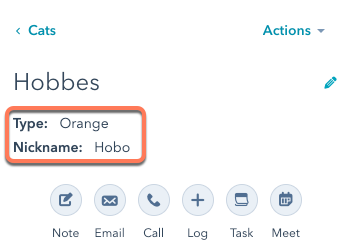
Custom objects automatically have associations defined with emails, meetings, notes, tasks, calls, and conversations, so you can associate custom object records with activities. To associate custom object records with other object records, you must define those associations in the schema.
In the create schema request, include the `associatedObjects` field with the `objectTypeId` values of objects with which you want to associate your custom object.
For example, the following custom object can be associated with contacts, companies, and another custom object's records.
```json theme={null}
"associatedObjects": ["0-1", "0-2", "2-3453932"]
```
## Retrieve existing custom object schemas
To retrieve all custom object schemas, make a `GET` request to `/crm-object-schemas/v3/schemas`.
To retrieve a specific custom object schema, make a `GET` request to one of the following:
* `/crm-object-schemas/v3/schemas/{fullyQualifiedName}`
* `/crm-object-schemas/v3/schemas/{objectTypeId}`
You can find an object's `fullyQualifiedName` (formatted as `p{Hub_ID}_{object_name}`) and `objectTypeId` in its schema. You can find your account's Hub ID using the [account information API](/api-reference/legacy/account/account-information/guide).
For example, for an account with a Hub ID of `1234`, to retrieve an object named `lender` with the `objectTypeId` value `2-7282133`, your request URL could look like either of the following:
* `/crm-object-schemas/v3/schemas/p1234_lender`
* `/crm-object-schemas/v3/schemas/2-7282133`
## Update an existing custom object schema
To update an object's schema, make a `PATCH` request to `/crm-object-schemas/v3/schemas/{objectTypeId}`.
Once your custom object is defined:
* The object's `name` cannot be changed via API.
* To set a new property as a required, searchable, or display property, you must create the property prior to updating the schema.
* To create and edit custom object properties, you can either manage properties [in HubSpot](https://knowledge.hubspot.com/properties/create-and-edit-properties#view-and-edit-properties) or via the [properties API](/api-reference/legacy/crm/properties/guide).
## Delete a custom object schema
To delete a custom object, make a `DELETE` request to `/crm-object-schemas/v3/schemas/{objectType}`. You can only delete a custom object after all records, associations, and properties are deleted.
If you need to create a new custom object with the same name as the deleted object, hard delete the schema by making a `DELETE` request to `/crm-object-schemas/v3/schemas/{objectType}?archived=true`.
## Custom object example
The following is a walkthrough of creating an example custom object. This walkthrough covers:
1. Creating a custom object schema.
2. Creating a custom object record.
3. Associating a custom object record with a contact.
4. Creating a new property definition.
5. Updating the object schema (i.e. `secondaryDisplayProperties`) with the new property.
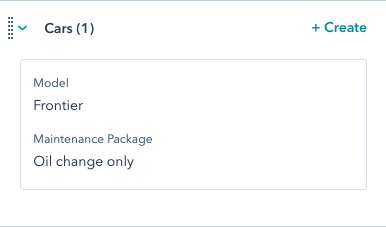
**Goal:** a car dealership called CarSpot wants to store their inventory in HubSpot using a custom object. To track vehicle ownership and purchases, they'll associate cars with contact records. Along the way, they'll also track vehicle maintenance using HubSpot tickets and custom properties.
### Create the object schema
CarSpot needs to create an object schema that can represent the following attributes as properties:
1. **Condition (new or used):** `enumeration`
2. **Date received at dealership:** `date`
3. **Year:** `number`
4. **Make:** `string`
5. **Model:** `string`
6. **VIN:** `string` (unique value)
7. **Color:** `string`
8. **Mileage:** `number`
9. **Price:** `number`
10. **Notes:** `string`
They also add a description to provide context about how to use the object, and define an association between their custom object and the standard contacts object so that they can connect cars to potential buyers.
With their data model finalized, they create the object schema by making a `POST` request to `/crm-object-schemas/v3/schemas` with the following request body:
```json theme={null}
{
"name": "cars",
"description": "Cars keeps track of cars currently or previously held in our inventory.",
"labels": {
"singular": "Car",
"plural": "Cars"
},
"primaryDisplayProperty": "model",
"secondaryDisplayProperties": ["make"],
"searchableProperties": ["year", "make", "VIN", "model"],
"requiredProperties": ["year", "make", "VIN", "model"],
"properties": [
{
"name": "condition",
"label": "Condition",
"type": "enumeration",
"fieldType": "select",
"options": [
{
"label": "New",
"value": "new"
},
{
"label": "Used",
"value": "used"
}
]
},
{
"name": "date_received",
"label": "Date received",
"type": "date",
"fieldType": "date"
},
{
"name": "year",
"label": "Year",
"type": "number",
"fieldType": "number"
},
{
"name": "make",
"label": "Make",
"type": "string",
"fieldType": "text"
},
{
"name": "model",
"label": "Model",
"type": "string",
"fieldType": "text"
},
{
"name": "VIN",
"label": "VIN",
"type": "string",
"hasUniqueValue": true,
"fieldType": "text"
},
{
"name": "color",
"label": "Color",
"type": "string",
"fieldType": "text"
},
{
"name": "mileage",
"label": "Mileage",
"type": "number",
"fieldType": "number"
},
{
"name": "price",
"label": "Price",
"type": "number",
"fieldType": "number"
},
{
"name": "notes",
"label": "Notes",
"type": "string",
"fieldType": "text"
}
],
"associatedObjects": ["0-1"]
}
```
### Associations
Custom objects automatically have associations defined with emails, meetings, notes, tasks, calls, and conversations, so you can associate custom object records with activities. To associate custom object records with other object records, you must define those associations in the schema.
In the create schema request, include the `associatedObjects` field with the `objectTypeId` values of objects with which you want to associate your custom object.
For example, the following custom object can be associated with contacts, companies, and another custom object's records.
```json theme={null}
"associatedObjects": ["0-1", "0-2", "2-3453932"]
```
## Retrieve existing custom object schemas
To retrieve all custom object schemas, make a `GET` request to `/crm-object-schemas/v3/schemas`.
To retrieve a specific custom object schema, make a `GET` request to one of the following:
* `/crm-object-schemas/v3/schemas/{fullyQualifiedName}`
* `/crm-object-schemas/v3/schemas/{objectTypeId}`
You can find an object's `fullyQualifiedName` (formatted as `p{Hub_ID}_{object_name}`) and `objectTypeId` in its schema. You can find your account's Hub ID using the [account information API](/api-reference/legacy/account/account-information/guide).
For example, for an account with a Hub ID of `1234`, to retrieve an object named `lender` with the `objectTypeId` value `2-7282133`, your request URL could look like either of the following:
* `/crm-object-schemas/v3/schemas/p1234_lender`
* `/crm-object-schemas/v3/schemas/2-7282133`
## Update an existing custom object schema
To update an object's schema, make a `PATCH` request to `/crm-object-schemas/v3/schemas/{objectTypeId}`.
Once your custom object is defined:
* The object's `name` cannot be changed via API.
* To set a new property as a required, searchable, or display property, you must create the property prior to updating the schema.
* To create and edit custom object properties, you can either manage properties [in HubSpot](https://knowledge.hubspot.com/properties/create-and-edit-properties#view-and-edit-properties) or via the [properties API](/api-reference/legacy/crm/properties/guide).
## Delete a custom object schema
To delete a custom object, make a `DELETE` request to `/crm-object-schemas/v3/schemas/{objectType}`. You can only delete a custom object after all records, associations, and properties are deleted.
If you need to create a new custom object with the same name as the deleted object, hard delete the schema by making a `DELETE` request to `/crm-object-schemas/v3/schemas/{objectType}?archived=true`.
## Custom object example
The following is a walkthrough of creating an example custom object. This walkthrough covers:
1. Creating a custom object schema.
2. Creating a custom object record.
3. Associating a custom object record with a contact.
4. Creating a new property definition.
5. Updating the object schema (i.e. `secondaryDisplayProperties`) with the new property.
**Goal:** a car dealership called CarSpot wants to store their inventory in HubSpot using a custom object. To track vehicle ownership and purchases, they'll associate cars with contact records. Along the way, they'll also track vehicle maintenance using HubSpot tickets and custom properties.
### Create the object schema
CarSpot needs to create an object schema that can represent the following attributes as properties:
1. **Condition (new or used):** `enumeration`
2. **Date received at dealership:** `date`
3. **Year:** `number`
4. **Make:** `string`
5. **Model:** `string`
6. **VIN:** `string` (unique value)
7. **Color:** `string`
8. **Mileage:** `number`
9. **Price:** `number`
10. **Notes:** `string`
They also add a description to provide context about how to use the object, and define an association between their custom object and the standard contacts object so that they can connect cars to potential buyers.
With their data model finalized, they create the object schema by making a `POST` request to `/crm-object-schemas/v3/schemas` with the following request body:
```json theme={null}
{
"name": "cars",
"description": "Cars keeps track of cars currently or previously held in our inventory.",
"labels": {
"singular": "Car",
"plural": "Cars"
},
"primaryDisplayProperty": "model",
"secondaryDisplayProperties": ["make"],
"searchableProperties": ["year", "make", "VIN", "model"],
"requiredProperties": ["year", "make", "VIN", "model"],
"properties": [
{
"name": "condition",
"label": "Condition",
"type": "enumeration",
"fieldType": "select",
"options": [
{
"label": "New",
"value": "new"
},
{
"label": "Used",
"value": "used"
}
]
},
{
"name": "date_received",
"label": "Date received",
"type": "date",
"fieldType": "date"
},
{
"name": "year",
"label": "Year",
"type": "number",
"fieldType": "number"
},
{
"name": "make",
"label": "Make",
"type": "string",
"fieldType": "text"
},
{
"name": "model",
"label": "Model",
"type": "string",
"fieldType": "text"
},
{
"name": "VIN",
"label": "VIN",
"type": "string",
"hasUniqueValue": true,
"fieldType": "text"
},
{
"name": "color",
"label": "Color",
"type": "string",
"fieldType": "text"
},
{
"name": "mileage",
"label": "Mileage",
"type": "number",
"fieldType": "number"
},
{
"name": "price",
"label": "Price",
"type": "number",
"fieldType": "number"
},
{
"name": "notes",
"label": "Notes",
"type": "string",
"fieldType": "text"
}
],
"associatedObjects": ["0-1"]
}
```
 As CarSpot continues to use HubSpot, they may find additional ways to refine and expand this custom object and more using HubSpot's API. To learn more about ways to use and scale custom objects, check out the following [post](https://developers.hubspot.com/blog/how-to-think-like-an-architect-by-building-scalable-custom-objects) on the HubSpot developer blog.