> ## Documentation Index
> Fetch the complete documentation index at: https://developers.hubspot.com/docs/llms.txt
> Use this file to discover all available pages before exploring further.
---
id: ffe02aa7-f1d4-4c70-b035-0d1ddb6222ae
---
# Agent tools reference (BETA)
> Learn how to build agent tools, which are custom workflow actions that can be used by AI agents.
HubSpot agents are AI-powered assistants that users can chat with to perform tasks. Each agent includes a series of actions, called tools, that they'll use according to the user's instructions. As a developer, you can create custom agent tools to perform specific, well-defined tasks depending on the agent's intended use case.
Behind the scenes, tools are custom workflow actions that are configured to be available in the agent context. Tools can be used across multiple agents, and can be configured to work in both agents and workflows.
At a high level, creating an agent tool consists of:
* Adding a workflow action component to an app by including a `workflow-actions` [directory in the project](#project-setup), along with a `*-hsmeta.json` configuration file for the tool. Each tool and workflow action you create should have its own `*-hsmeta.json` configuration file.
* [Configuring the action](#agent-tool-definition) to be available in AI agents via the `supportedClients` field.
As you build your tools, you should also keep in mind a set of [best practices](#best-practices) to ensure higher quality performance.
Note the following limits at this time of the beta:
* The agent does not have access to CRM data unless explicitly given tools to get that data.
* The agent can't request information from the user after it's invoked if given insufficient information to complete the task.
## Project setup
To build tools, your `hsproject.json` must have its `platformVersion` set to `2025.2` or `2026.03`. This version is set automatically on all of the [boilerplate project types](/apps/developer-platform/build-apps/create-an-app), but will need to be manually updated for projects on older versions.
Note that, when upgrading an older project to version `2025.2` or `2026.03` you'll need to adhere to the new `*-hsmeta.json` configuration file standards for your [app configuration](/apps/developer-platform/build-apps/app-configuration) and its features.
Agent tools and custom workflow actions are both contained within the app's `workflow-actions` directory.
```shell theme={null}
myProject
└── src/
└── app/
└── workflow-actions/
└── agent-tool-hsmeta.json
```
## Agent tool configuration
Configuration options for agent tools are similar to [custom workflow actions](/apps/developer-platform/add-features/custom-workflow-actions#custom-workflow-action-definition), with a few notable differences:
* The `supportedClients` field must include the `AGENTS` client, along with other agent-specific fields, such as `toolType`.
* Functions are not supported in agent tools.
```json theme={null}
{
"uid": "agent_tool_action",
"type": "workflow-action",
"config": {
"actionUrl": "https://example.com/api-endpoint",
"supportedClients": [
{
"client": "AGENTS",
"toolType": "TAKE_ACTION",
"llmConfig": {
"actionDescription": "Use this tool to fetch data from an external API."
}
}
],
"inputFields": [
{
"typeDefinition": {
"name": "message",
"type": "string",
"fieldType": "textarea"
},
"supportedValueTypes": ["STATIC_VALUE"],
"isRequired": true
},
{
"typeDefinition": {
"name": "priority",
"type": "enumeration",
"fieldType": "select",
"options": [
{
"value": "high",
"label": "High Priority"
},
{
"value": "normal",
"label": "Normal Priority"
},
{
"value": "low",
"label": "Low Priority"
}
]
},
"supportedValueTypes": ["STATIC_VALUE"],
"isRequired": true
}
],
"outputFields": [
{
"typeDefinition": {
"name": "errorCode",
"type": "string",
"externalOptions": false
}
},
{
"typeDefinition": {
"name": "apiResponse",
"type": "string",
"externalOptions": false
}
}
],
"labels": {
"en": {
"actionName": "My custom agent tool",
"actionDescription": "A description of the tool.",
"actionCardContent": "Send {{priority}} priority notification",
"inputFieldLabels": {
"message": "Notification Message",
"priority": "Priority Level"
},
"inputFieldDescriptions": {
"message": "Enter the message to be sent in the notification",
"priority": "Select the priority level for this notification"
},
"outputFieldLabels": {
"apiResponse": "API Response",
"errorCode": "Error Code"
}
}
},
"objectTypes": ["CONTACT"]
}
}
```
Fields marked with \* are required
| Field | Type | Description |
| --------------------------------------------------------------------- | ------- | ------------------------------------------------------------------------------------------------------------------------------------------------------------------------------------------------------------------------------------------------------------------------------------------------------------------------------------------------------------------------------------------------------------------------------------------------------------------------------------------------------------------------------------------------------------------------------------------------------------------------------------------------------------------ |
| `uid`\* | String | An internal unique identifier for the agent tool. |
| `type`\* | String | The type of component, which should be `workflow-action` in this case. |
| `actionUrl`\* | String | The URL that the tool will make a `POST` request to. The URL must be a publicly accessible endpoint and cannot be a serverless function defined within the developer project. |
| `supportedClients`\* | Array | An array of objects that specifies the clients that support the action. Each object in the array should have a `client` key with a string value indicating the client type. Values include: - `WORKFLOWS`: enables the action for workflows.
- `AGENTS`: enables the action for agents.
This array should also contain the `toolType` and `llmConfig.actionDescription` fields. |
| `toolType`\* | String | The category of tool functionality. Can be one of: - `GET_DATA`: retrieves information from HubSpot or external sources.
- `GENERATE`: generates content, summaries, analyses, or suggestions based on the provided inputs.
- `TAKE_ACTION`: performs an action, such as CRM actions like creating notes, assigning tasks to owners, or actions in external systems like creating tasks in an external project management system. By default, this type of action requires users to review the output before approving the tool execution. This setting can be changed in the Agent editor after the tool has been added to the agent.
|
| `llmConfig.actionDescription`\* | String | The `llmConfig` object contains the `actionDescription` field, which describes the tool to the AI agent. This allows the agent to determine how and when to invoke the tool, along with how to structure the input data. This description is only visible to the agent and will never be shown to users. Learn more about [writing effective tool descriptions](#writing-effective-tool-descriptions). |
| `isPublished` | Boolean | Determines whether the definition is visible in accounts that installed your app. By default, this is set to `false`. |
| `inputFields` | Array | The fields that will be sent to the external service via the `actionUrl`. |
| `labels.`\* | String | Locale key that maps to the locale definition. At a minimum, an english label (`en`) and its definition must be defined. |
| `labels..inputFieldDescriptions` | Object | An object that defines the details for the inputs for your action. In the example above, this object includes `message` and `priority` fields. |
| `labels..inputFieldOptionLabels` | Object | An object that's required if your input field(s) have options. Provides a map of input field option labels, keyed by the option's value or label. |
| `labels..outputFieldLabels` | Object | An object that maps the definitions from `outputFields` to the corresponding labels that appear in the agent UI. |
| `labels..actionName`\* | String | The action's name as displayed in the agent UI. |
| `labels..appDisplayName`\* | String | The name of the section in the tool selection panel where all tools appear. If `appDisplayName` is defined for multiple tools, the first one found will be used. |
| `labels..actionCardContent` | String | A summarized description shown in the action's card. |
| `labels..executionRules` | Object | An object that maps the definitions from your `executionRules` to messages that will appear in the agent UI. |
| `objectTypes` | Array | The available CRM object types that this action can be used with. If empty, the action will be available for all object types. |
| `outputFields` | Array | An array containing the fields and values that the tool will output. Response data must be formatted as comma separated string-string value pairs. Learn more about [output fields](#output-fields). |
| `executionRules` | Object | A list of definitions you can specify to surface errors from your service to the user in the agent UI. |
### Writing effective tool descriptions
In the `llmConfig.actionDescription` field, you can help agents understand how and when to invoke a tool, and how to structure input data. The description is only ever visible to the agent.
When writing the description:
* Describe when the tool should be used so that the agent understands what types of user requests or contexts should trigger the tool.
* Explain how to use the tool, including any technical guidance that the agent should consider when constructing inputs. For example, include details such as:
* Supported input types (e.g., "Accepts video URLs or uploaded .mp4 files.")
* Format constraints (e.g., ""Date must be in ISO 8601 format.")
* Default parameter behavior (e.g., If no contact is specified, the tool will not return any results.")
* Error-tolerant suggestions (e.g., "If company name is ambiguous, prompt user for clarification.")
* Highlight required fields, expected input formats, or default behaviors.
* Provide fallback logic or edge-case handling if applicable (e.g., "If no date range is provided, default to the last 30 days").
* Do not include branding, UI labels, or customer-facing copy, as this field is only for agent reasoning.
Below are two examples of effective agent tool descriptions:
1. **Generate meeting summary tool**
`actionDescription`: Use this tool when the user asks for a summary of one or more meetings. Provide a list of meeting IDs or transcript URLs as input. If no specific meeting is identified, use the most recent one. Summaries should include key topics, action items, and assigned responsibilities.
2. **Generate invoice PDF tool**
`actionDescription`: Use this tool when the user needs to create an invoice document. Inputs should include `recipient`, `items` (with description, quantity, and price), and `dueDate`. All currency values must be in USD unless otherwise specified. If `items` are missing, do not generate a document. Returns a downloadable PDF link.
## Output fields
In the agent tool schema, `outputFields` is an array that defines the fields that can contain values returned by the response when the tool is executed. Output field definitions are similar to input field definitions:
```json theme={null}
"outputFields": [
{
"typeDefinition": {
"name": "errorCode",
"type": "string",
"externalOptions": false
}
},
{
"typeDefinition": {
"name": "apiResponse",
"type": "string",
"externalOptions": false
}
}
]
```
To populate these output fields with data, the `outputFields` response sent to HubSpot must be structured as a JSON object with key-value pairs, where both keys and values are strings, as shown below. The keys should correspond with your defined output field names, with the values containing the actual returned data.
```json theme={null}
{
"outputFields": {
"apiResponse": "agentResponseData",
"systemStatus": "statusReport"
}
}
```
Including non-string values in the response will result in a failure to parse, and cause all outputs to be ignored.
```json theme={null}
// Non-working example (array is invalid)
{
"outputFields": {
"my_output_field": ["my", "output", "value"]
}
}
```
For tools where the `toolType` is set to `TAKE_ACTION`, you can include a follow-up CTA that lets users navigate to a HubSpot CRM record on click. To do so, add the following fields to the `outputFields` object in the response sent to HubSpot.
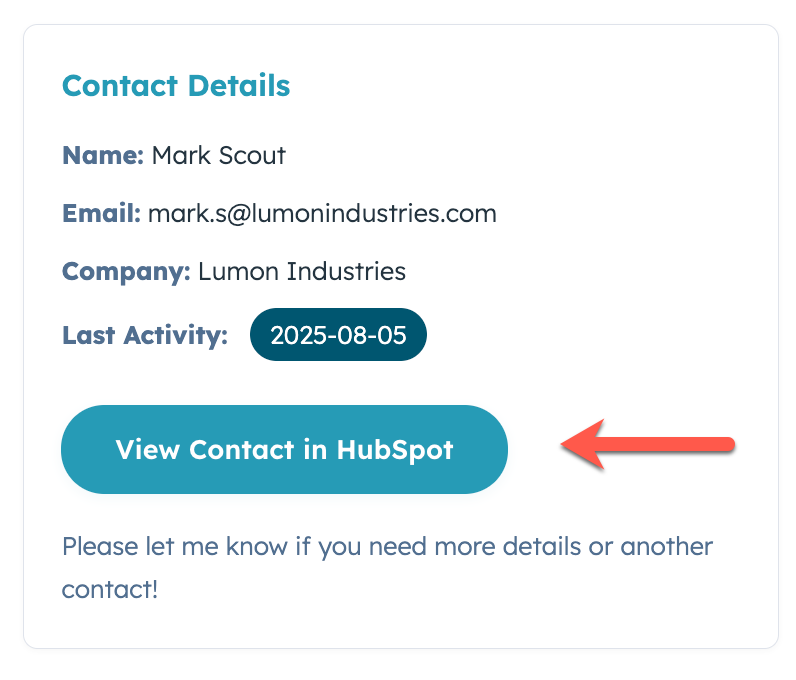
```json theme={null}
{
"outputFields": {
...
"ctaCrmObjectType": "contact",
"ctaCrmObjectId": "123456",
}
}
```
| Field | Type | Description |
| ------------------ | ------ | ------------------------------------------------------------------------------------------ |
| `ctaCrmObjectType` | String | The type of CRM record (e.g., contact) |
| `ctaCrmObjectId` | String | The ID of the CRM record to navigate to. |
| `ctaLabel` | String | Optionally, you can specify a label. By default, HubSpot will try to autogenerate a label. |
## Execution
When an agent request executes, a `POST` request is sent to the `actionUrl`. The request will include the `v2` `x-hubspot-signature`, which you can use to [validate the request](/apps/legacy-apps/authentication/validating-requests#validate-requests-using-the-v2-request-signature).
The request body will include the input field values along with context about the account, user, and agent.
```json theme={null}
{
"callbackId": "68f5c9cjk1251j5-8363-4-1asdf0dja-4-1",
"origin": {
"portalId": 123456,
"userId": 987654,
"userEmail": "userEmail@website.com",
"actionDefinitionId": 8675309,
"actionDefinitionVersion": 4,
"actionExecutionIndexIdentifier": null,
"extensionDefinitionId": 8675309,
"extensionDefinitionVersionId": 4
},
"context": {
"agentId": 8997212,
"source": "AGENTS"
},
"fields": {
"input_field_name": "input_value"
},
"inputFields": {
"input_field_name": "input_value"
}
}
```
| Field | Type | Description |
| ------------- | ------ | ---------------------------------------------------------------------------------------------------------------- |
| `callbackId` | String | A unique ID assigned to the execution. You can use this value for [execution blocking](#asynchronous-execution). |
| `origin` | Object | Metadata about the account, user, and tool associated with the request. |
| `context` | Object | Additional context about the agent and tool. |
| `inputFields` | Object | Input field data included in the request. |
### Execution state
You can manage execution state by returning the `hs_execution_state` field in your response to HubSpot. This field can be set to one of the following values:
* `SUCCESS`: the execution has completed successfully and can proceed.
* `FAIL_CONTINUE`: the execution has failed, but will proceed.
* `BLOCK`: the execution is temporarily blocked and will not proceed until it's updated via the automation API or when the block expires.
Blocking action execution enables you to prevent the agent from continuing to run until the state is updated. To put an execution block in place, configure your response's `outputFields` to include an `hs_execution_state` of `BLOCK`:
```json theme={null}
"outputFields": {
"hs_execution_state": "BLOCK",
"hs_expiration_duration": "P1WT1H"
}
```
| Prop | Type | Description |
| ------------------------ | ------ | ------------------------------------------------------------------------------------------------------------------------------------------------------------------------------------ |
| `hs_execution_state` | String | Set to `BLOCK` to prevent the action from continuing to execute. |
| `hs_expiration_duration` | String | By default, actions are blocked for one week. Use this field to specify a different block expiration ([ISO 8601 duration format](https://en.wikipedia.org/wiki/ISO_8601#Durations)). |
To unblock the execution, make a `POST` request to `https://api.hubspot.com/callbacks/{callbackId}/complete`, where `callbackId` is the value provided in the original request body sent by HubSpot to your service.
In the request body, set the `hs_execution_state` to either `SUCCESS` or `FAIL_CONTINUE`, depending on the execution status.
```json theme={null}
{
"outputFields": {
"hs_execution_state": "SUCCESS"
}
}
```
## Best practices
When building agent tools, keep the following best practices checklist in mind:
* Start with optional fields, then set to required only when stable.
* Label and describe fields for both humans and AI.
* Test with fewer agent instructions at first to understand how the AI interprets a tool.
* Keep tools focused and be mindful of field quantity.
* Use field descriptions to control agent creativity.
Learn more about each best practice in the sections below.
### Develop with optional fields
Do not set action fields (`inputFields`) to be required during active development. Once a field has been set to required and the project is uploaded, you cannot remove or update the field. You should only set a field to required once you're confident in the field's details, such as its `name` and `type`. The reason for this limitation is that changing required fields would break any active workflows that include the action.
### Build for human and AI understanding
The `actionName`, `inputFields`, and `labels` should clearly communicate their usage and utility to both humans and the agent. These fields in particular are used by the agent to understand when to invoke the action and how to pass data to the tool. As you build your tools, keep in mind that LLMs may need more explicit descriptions than human users. For example, while a human might intuitively understand a field labeled `Date`, an LLM might prefer `Event start date (YYYY-MM-DD)`.
Ideally, tools should be built so that agents don’t require additional instructions to use it. However, there are cases where field details alone may not be sufficient for the agent. For example, it may not understand the intended order of operations for executing tools that are dependent on the output of other tools (e.g., a 'Send Email' tool might depend on a 'Get Contact Info' tool running first).
While building a tool, you should test it in the agent without adding to the agent's instructions first to better understand how it interprets the tool. Through testing, you'll be able to determine whether the reasoning engine performs correctly on its own or if it needs additional instructions.
### Be mindful of the number of input fields
Agents can handle a high number of input fields in each tool (more than 26 unique inputs). However, the more input fields there are in a tool, the clearer you need to be when assigning `actionName`, `inputField`, and `label` values. Tools are most effective and reliable when they're designed for specific tasks with a focused set of parameters. For complex operations, consider whether it would be more effective to create multiple, simpler tools versus a single tool with an excessive number of inputs.
**Please note:** it's possible that HubSpot will restrict the number of inputs in the future based on the feedback around the quality of agents handling large numbers of inputs.
### Control agent creativity and improvisation
In some scenarios, you might want an agent to be creative and improvisational. However, there may be scenarios where you don't want the agent to improvise. Experiment with instructing the LLM in your input field names, labels, and descriptions. If you require stricter guidance, add instructions to the agent to set clear expectations.
For example, let's say you give an agent the task of generating a blog post, with one of the fields being the blog post title. Depending on how much you want the agent to improvise, you could label the field permissively or more restrictively:
* **Permissive:** `"Blog title"`
* **Restrictive:** `"Blog title (must include the product name 'HubSpot CRM')"`
As another example, consider the following input field labels intended for social media post content:
* **Permissive:** `"Social post content"`
* **Moderate:** `"Social post content (keep under 280 characters)"`
* **Restrictive:** `"Social post content (must mention our Q4 sale, include #HubSpot, and stay under 280 characters)"`
## Testing and validation
Agent tools require two-phase testing to ensure both functional correctness and proper AI integration:
### Phase 1: Workflow testing
Test your tool's core logic using HubSpot workflows:
1. Create a test workflow and add your tool as a workflow action
2. Test with both correct and incorrect inputs
3. Verify expected outputs and error handling
4. Iterate on your backend code based on results
### Phase 2: Agent integration testing
Use the Developer Tool Testing Agent (available in the Breeze Marketplace) to test AI-specific functionality:
**Tool Recognition Testing:**
* Test whether the agent correctly identifies when to use your tool based on its name and description
* Compare performance against other available tools to ensure clear differentiation
**Parameter Extraction Testing:**
* Test both direct commands ("Use Tool X with parameter Y") and indirect prompts ("Help me accomplish goal Z")
* Verify the agent correctly extracts all required parameters from natural language
* The testing agent reports exactly what parameters it passes to help with verification
**Sequential Operations Testing:**
* Test scenarios where your tool works in sequence with other tools
* Verify the agent can correctly pass outputs from one tool as inputs to another
**Based on testing results, refine:**
* `llmConfig.actionDescription` for clearer tool purpose and usage
* `labels` properties for better parameter extraction
* Field descriptions to guide agent behavior
## Verifying agent tool request origin
When an agent uses a tool to make a request, it makes a `POST` request to the tool's `actionUrl`. Agent tool invocation is authenticated by validating the `X-HubSpot-Signature` header sent with the request. This is the same system HubSpot uses for [validating webhook requests](/apps/legacy-apps/authentication/validating-requests#validate-the-v3-request-signature).
**Please note:** you should not create input fields for secrets or API keys, as this is insecure and not the intended authentication pattern, especially because the LLM would need to be given the secret/API key in its instructions or receive it from another tool.