> ## Documentation Index
> Fetch the complete documentation index at: https://developers.hubspot.com/docs/llms.txt
> Use this file to discover all available pages before exploring further.
---
id: dadb5734-893a-4207-a835-a852964edd2f
---
# Create app pages
> Learn how to create custom pages for your app with routing support.
App pages let you create custom page experiences for your app in HubSpot, including a home page and additional pages. Built with React and powered by the [UI extensions SDK](/apps/developer-platform/add-features/ui-extensions/ui-extensions-sdk), app pages are built with the same toolkit available for [app cards](/apps/developer-platform/add-features/ui-extensions/extension-points/app-cards/create-an-app-card) and [settings pages](/apps/developer-platform/add-features/ui-extensions/extension-points/create-a-settings-page), including HubSpot's UI components and data fetching utilities.
With app pages, you can create multiple pages within your app and navigate between them. Users can access your app's home page directly from the HubSpot Marketplace menu, and you can link to additional pages within your app.
Below, learn how to create app pages on the latest versions of the developer platform (`2025.2` or `2026.03`).
## Prerequisites
* Ensure you've installed the latest version of the [HubSpot CLI](/developer-tooling/local-development/hubspot-cli/install-the-cli).
* If you haven't done so yet, [create a new app](/getting-started/quickstart).
## Create app pages
### Add an app pages component to your project
To add an app pages component to an existing app, use the terminal to navigate into your local project directory, then run the following command:
```shell theme={null}
hs project add
```
Then, when prompted to select a component to add, select **Pages**.
A new `pages/` directory will be created in the project's `src/app/` directory. The `pages/` directory will contain:
* A JSON configuration file (`pages-hsmeta.json`)
* A React component file (`Pages.tsx`)
* A `package.json` file
```shell theme={null}
myProject
└── src/
└── app/
└── pages/
├── pages-hsmeta.json
├── Pages.tsx
└── package.json
```
```json theme={null}
{
"uid": "my-app-pages",
"type": "page",
"config": {
"entrypoint": "/app/pages/Pages.tsx"
}
}
```
```tsx theme={null}
import React from "react";
import { Text, hubspot } from "@hubspot/ui-extensions";
import { createPageRouter, PageHeader, PageRoutes, PageLink, PageBreadcrumbs, PageTitle } from "@hubspot/ui-extensions/pages";
const AppHomePage = () => {
return (
<>
Home
Home
Build your application home page here!
);
};
const PageLayout = ({ children }) => {
return (
<>
Home
Documentation
{children}
);
};
const PageRouter = createPageRouter(
);
hubspot.extend<"pages">(() => );
```
```json theme={null}
{
"name": "hubspot-example-extension",
"version": "0.1.0",
"license": "MIT",
"dependencies": {
"@hubspot/ui-extensions": "latest",
"react": "^18.2.0"
},
"devDependencies": {
"typescript": "^5.3.3"
}
}
```
### Upload to HubSpot
To upload your app pages to HubSpot:
* Run `hs project install-deps` from within your local project directory to install necessary dependencies. This will create a `package-lock.json` file, which will speed up the project build time and ensure that any dependencies in your local development environment and production match.
* Then, run `hs project upload`.
* After the project finishes deploying, open the project in HubSpot by running `hs project open`. Alternatively, in HubSpot you can navigate to **Development** > **Projects**, then click the **name** of your project.
* Your pages component should now be listed on the details page.
 ## View app pages in HubSpot
To verify your app pages are working correctly:
* In the HubSpot account where you've installed the app, click the **Marketplace** icon.
* In the *Your recently visited apps* section, click the **name of the app** to open the app's home page.
## View app pages in HubSpot
To verify your app pages are working correctly:
* In the HubSpot account where you've installed the app, click the **Marketplace** icon.
* In the *Your recently visited apps* section, click the **name of the app** to open the app's home page.
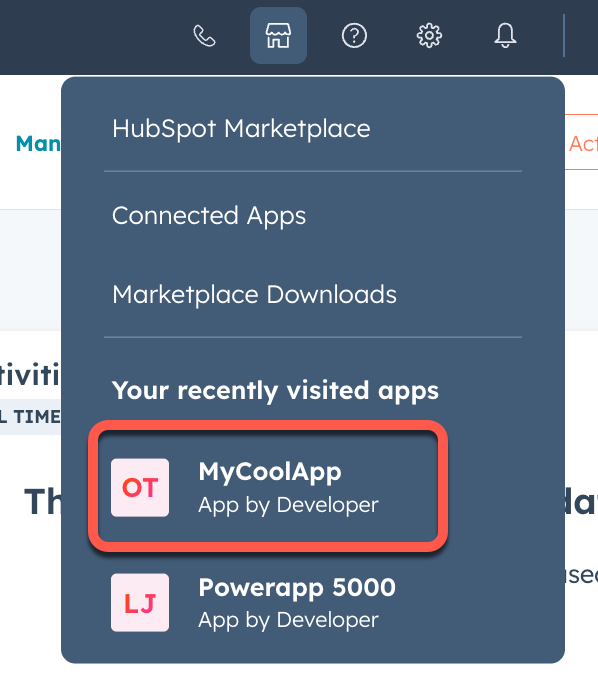 If your app doesn't appear in the dropdown menu, or if you have more than three apps installed, you can access your app's home page directly at the following URL:
`https://app.hubspot.com/app/{HubID}/{appId}`
If your app doesn't appear in the dropdown menu, or if you have more than three apps installed, you can access your app's home page directly at the following URL:
`https://app.hubspot.com/app/{HubID}/{appId}`
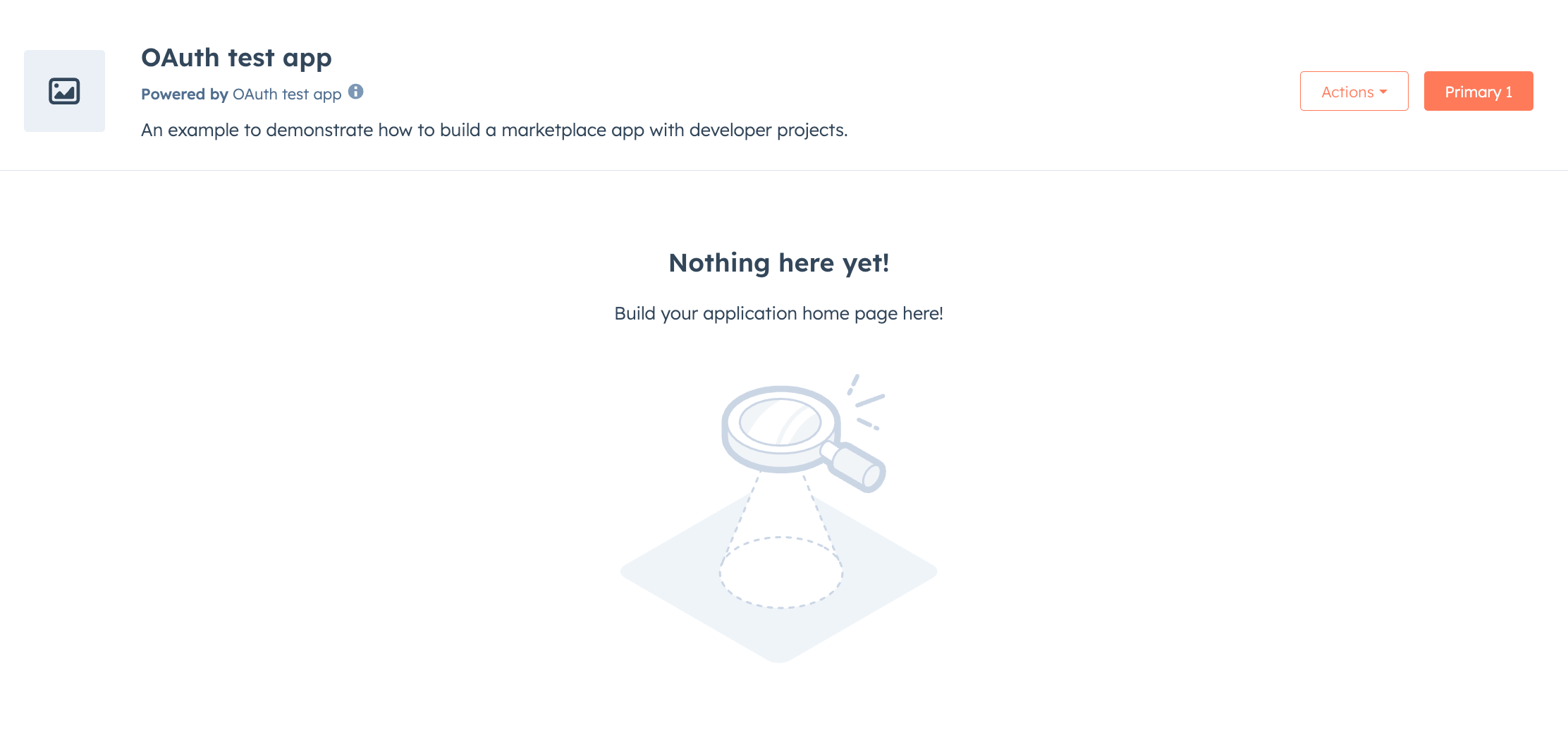 You can now continue to build out your app pages as needed. Similar to building app cards, you'll use the UI extensions SDK to add functionality and visual elements to your pages. Note that all the existing limitations around building UI extensions apply to building app pages.
* Use `hubspot.fetch` to communicate with your backend to save and retrieve data.
* Check out the reference documentation on [standard components](/apps/developer-platform/add-features/ui-extensions/ui-components/overview) for how to use React components when building your extension, or use the component in the [Figma Design Kit](/apps/developer-platform/add-features/ui-extensions/ui-components/figma-design-kit).
* Use the `hs project dev` command to iteratively build out your app pages and preview your changes locally.
The local development server will only pick up changes saved to the front-end React file. If you update the `*-hsmeta.json` or `package.json` files, you'll need to stop the server, upload your changes, then start the server again.
## Next steps
Now that you've created your app pages, check out the following articles for guidance as you continue to develop your app page:
* [Page routing](/apps/developer-platform/add-features/ui-extensions/extension-points/app-pages/page-routing)
* [Page linking and navigation](/apps/developer-platform/add-features/ui-extensions/extension-points/app-pages/page-linking)
* [App pages reference](/apps/developer-platform/add-features/ui-extensions/extension-points/app-pages/reference)
* [PageHeader component reference](/apps/developer-platform/add-features/ui-extensions/ui-components/app-page-components/page-header)
* [PageRoutes component reference](/apps/developer-platform/add-features/ui-extensions/ui-components/app-page-components/page-routes)
You can now continue to build out your app pages as needed. Similar to building app cards, you'll use the UI extensions SDK to add functionality and visual elements to your pages. Note that all the existing limitations around building UI extensions apply to building app pages.
* Use `hubspot.fetch` to communicate with your backend to save and retrieve data.
* Check out the reference documentation on [standard components](/apps/developer-platform/add-features/ui-extensions/ui-components/overview) for how to use React components when building your extension, or use the component in the [Figma Design Kit](/apps/developer-platform/add-features/ui-extensions/ui-components/figma-design-kit).
* Use the `hs project dev` command to iteratively build out your app pages and preview your changes locally.
The local development server will only pick up changes saved to the front-end React file. If you update the `*-hsmeta.json` or `package.json` files, you'll need to stop the server, upload your changes, then start the server again.
## Next steps
Now that you've created your app pages, check out the following articles for guidance as you continue to develop your app page:
* [Page routing](/apps/developer-platform/add-features/ui-extensions/extension-points/app-pages/page-routing)
* [Page linking and navigation](/apps/developer-platform/add-features/ui-extensions/extension-points/app-pages/page-linking)
* [App pages reference](/apps/developer-platform/add-features/ui-extensions/extension-points/app-pages/reference)
* [PageHeader component reference](/apps/developer-platform/add-features/ui-extensions/ui-components/app-page-components/page-header)
* [PageRoutes component reference](/apps/developer-platform/add-features/ui-extensions/ui-components/app-page-components/page-routes)