> ## Documentation Index
> Fetch the complete documentation index at: https://developers.hubspot.com/docs/llms.txt
> Use this file to discover all available pages before exploring further.
---
id: 539240bf-729e-4479-9e37-19dd65030cb6
---
# Create a settings page
> Learn how to create a settings page for your app.
export const MinimumCliVersion = () =>
The latest version of the HubSpot CLI, which is recommended, is 8.8.0. You can check which version of the CLI you have installed by running hs --version.
;
You can create a React-based settings page for your app on the latest versions (`2025.2` and `2026.03`) of the developer platform, that users who install your app can navigate to and customize for their account.
This guide walks you through how to build a settings component, using React, which replaces the [previous settings experience](/apps/legacy-apps/public-apps/create-an-app-settings-page). If you deploy your new settings component, users who install your app going forward will immediately see your new settings extension instead of any previously built settings page.
Before you begin, follow the [quickstart guide](/apps/developer-platform/add-features/app-objects/quickstart-guide-to-app-objects) to create your first app on the latest version of the developer platform.
**Please note:** if you previously created a [settings page](/apps/legacy-apps/public-apps/create-an-app-settings-page) for your legacy app, you'll need to refactor your settings experience using the new configuration options outlined in this guide. It's recommended that you note all of the interface elements in the current production version of your app before you start configuring your new settings component on the latest version of the developer platform. Once you move to the new settings component for your app, you'll lose access to the previous WYSIWYG configuration UI you previously used.
## Prerequisites
* Ensure you've installed the latest beta version of the [HubSpot CLI](/developer-tooling/local-development/hubspot-cli/install-the-cli).
* If you haven't done so yet, [create a new app](/getting-started/quickstart).
## Create an app settings page
To add a settings page component to an existing app, use the terminal to navigate into your local project directory, then run the following command:
```shell theme={null}
hs project add
```
Then, when prompted to select a component to add, select **Settings**.
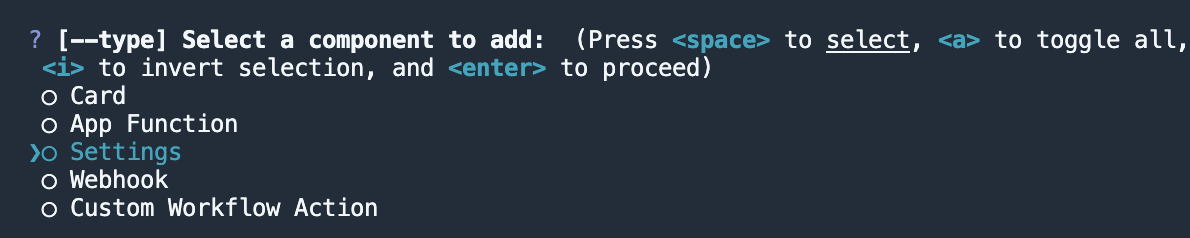
A new `settings/` directory will be created in the project's `src/app/` directory. The `settings/` directory will contain:
* A JSON configuration file (`*-hsmeta.json`)
* A React component file (`.jsx`)
* A `package.json` file
```shell theme={null}
myProject
└── src/
└── app/
└── settings/
├── new-settings-page-hsmeta.json
├── NewSettingsPage.tsx
└── package.json
```
```json theme={null}
{
"uid": "settings_extension",
"type": "settings",
"config": {
"entrypoint": "/app/settings/NewSettingsPage.tsx"
}
}
```
```tsx theme={null}
import React from "react";
import { EmptyState, Text } from "@hubspot/ui-extensions";
import { hubspot } from "@hubspot/ui-extensions";
hubspot.extend(({ context }) => {
return ;
});
const NewSettingsPage = ({ context }) => {
return (
Build your application settings page here!
);
};
```
```json theme={null}
{
"name": "hubspot-example-extension",
"version": "0.1.0",
"license": "MIT",
"dependencies": {
"@hubspot/ui-extensions": "latest",
"react": "^18.2.0"
},
"devDependencies": {
"typescript": "^5.3.3"
}
}
```
To upload your settings page to HubSpot:
* Run `hs project install-deps` from within your local project directory to install necessary dependencies. This will create a `package-lock.json` file, which will speed up the build of the uploaded settings extension, as well as ensure that any dependencies in your local development environment and production match.
* Then, run `hs project upload`.
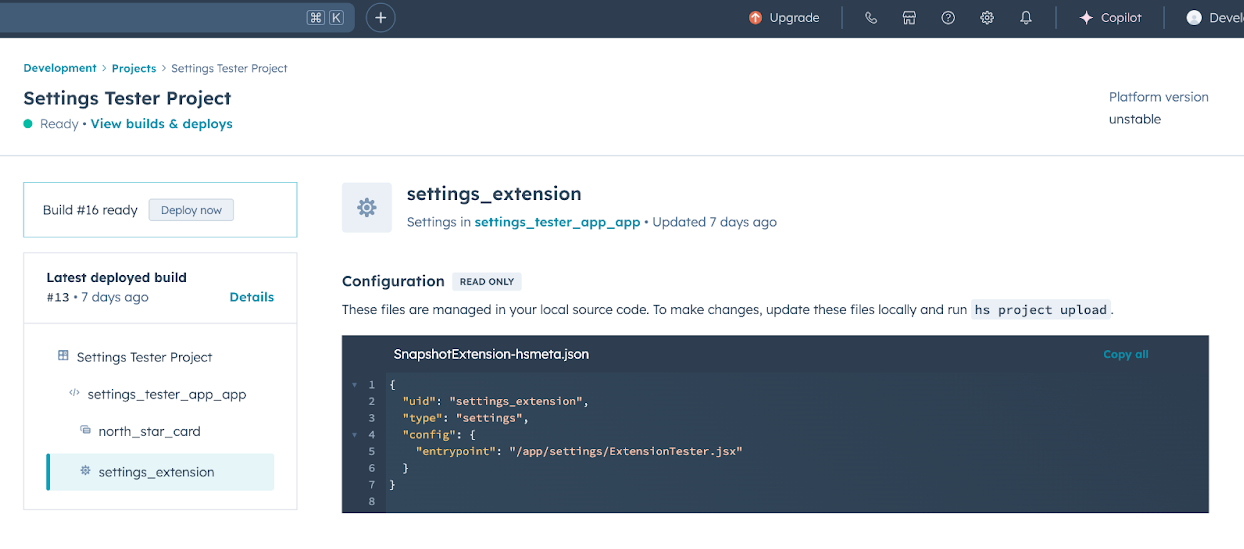
* After the project finishes deploying, open the project in HubSpot by running `hs project open`. Alternatively, in HubSpot you can navigate to **Development** > **Projects**, then click the **name** of your project.
* Your settings component should now be listed on the details page.
 ## View the app settings page in HubSpot
To verify the settings component is working correctly:
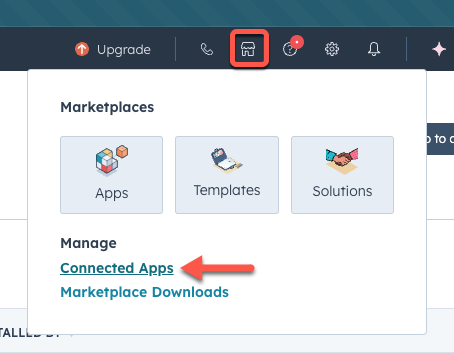
* In the HubSpot account where you've installed the app, click the **Marketplace** icon, then click **Connected apps**.
## View the app settings page in HubSpot
To verify the settings component is working correctly:
* In the HubSpot account where you've installed the app, click the **Marketplace** icon, then click **Connected apps**.
 * Click the **My apps** tab to view a list of the account's currently installed apps.
* Click the **name** of your app, which will redirect you to your app's overview page.
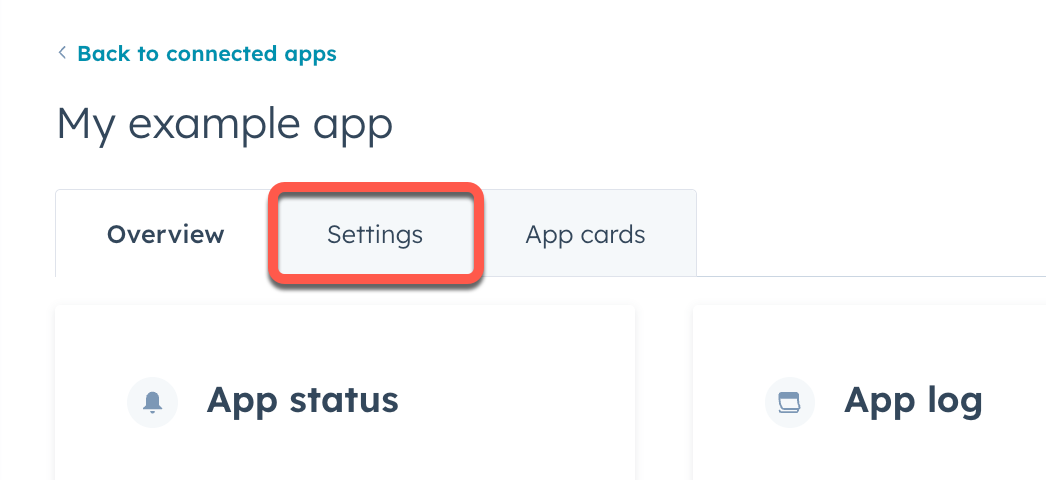
* On the overview page, click the **Settings** tab.
* Click the **My apps** tab to view a list of the account's currently installed apps.
* Click the **name** of your app, which will redirect you to your app's overview page.
* On the overview page, click the **Settings** tab.
 You can now continue to build out your app's settings page as needed. Similar to building app cards, you'll use the UI extensions SDK to add functionality and visual elements to your settings page. Note that all the existing limitations around building UI extensions apply to building a settings page.
* Use `hubspot.fetch` to leverage your backend to save and retrieve settings. Learn more about using this approach in the legacy documentation.
* Check out the reference documentation on [standard components](/apps/developer-platform/add-features/ui-extensions/ui-components/overview) for how to use React components when building your extension, or use the component in the [Figma Design Kit](/apps/developer-platform/add-features/ui-extensions/ui-components/figma-design-kit).
* Use the `hs project dev` command to iteratively build out your settings page and preview your changes locally.
The local development server will only pick up changes saved to the front-end React file. If you update the `*-hsmeta.json` or `package.json` files, you'll need to stop the server, upload your changes, then start the server again.
## Component best practices
The sections below outline several best practices to keep in mind as you build out the settings experience for your app.
### Organizing content
If you have enough content in your settings extension to warrant the need to separate and organize all of the user's settings data, you should consider using the [Panel](/apps/developer-platform/add-features/ui-extensions/ui-components/standard-components/panel), [Modal](/apps/developer-platform/add-features/ui-extensions/ui-components/standard-components/modal), [Accordion](/apps/developer-platform/add-features/ui-extensions/ui-components/standard-components/accordion), and [Tabs](/apps/developer-platform/add-features/ui-extensions/ui-components/standard-components/tabs) components accordingly. Consider how you want to present and arrange your settings and the corresponding data that should be fetched for each component.
### Tabs
If you're using [Tabs](/apps/developer-platform/add-features/ui-extensions/ui-components/standard-components/tabs), use the `default` tab variant. The settings extension is already contained within an enclosed variant tab, and a second layer of enclosed tabs will visually clash with the design.
You can now continue to build out your app's settings page as needed. Similar to building app cards, you'll use the UI extensions SDK to add functionality and visual elements to your settings page. Note that all the existing limitations around building UI extensions apply to building a settings page.
* Use `hubspot.fetch` to leverage your backend to save and retrieve settings. Learn more about using this approach in the legacy documentation.
* Check out the reference documentation on [standard components](/apps/developer-platform/add-features/ui-extensions/ui-components/overview) for how to use React components when building your extension, or use the component in the [Figma Design Kit](/apps/developer-platform/add-features/ui-extensions/ui-components/figma-design-kit).
* Use the `hs project dev` command to iteratively build out your settings page and preview your changes locally.
The local development server will only pick up changes saved to the front-end React file. If you update the `*-hsmeta.json` or `package.json` files, you'll need to stop the server, upload your changes, then start the server again.
## Component best practices
The sections below outline several best practices to keep in mind as you build out the settings experience for your app.
### Organizing content
If you have enough content in your settings extension to warrant the need to separate and organize all of the user's settings data, you should consider using the [Panel](/apps/developer-platform/add-features/ui-extensions/ui-components/standard-components/panel), [Modal](/apps/developer-platform/add-features/ui-extensions/ui-components/standard-components/modal), [Accordion](/apps/developer-platform/add-features/ui-extensions/ui-components/standard-components/accordion), and [Tabs](/apps/developer-platform/add-features/ui-extensions/ui-components/standard-components/tabs) components accordingly. Consider how you want to present and arrange your settings and the corresponding data that should be fetched for each component.
### Tabs
If you're using [Tabs](/apps/developer-platform/add-features/ui-extensions/ui-components/standard-components/tabs), use the `default` tab variant. The settings extension is already contained within an enclosed variant tab, and a second layer of enclosed tabs will visually clash with the design.
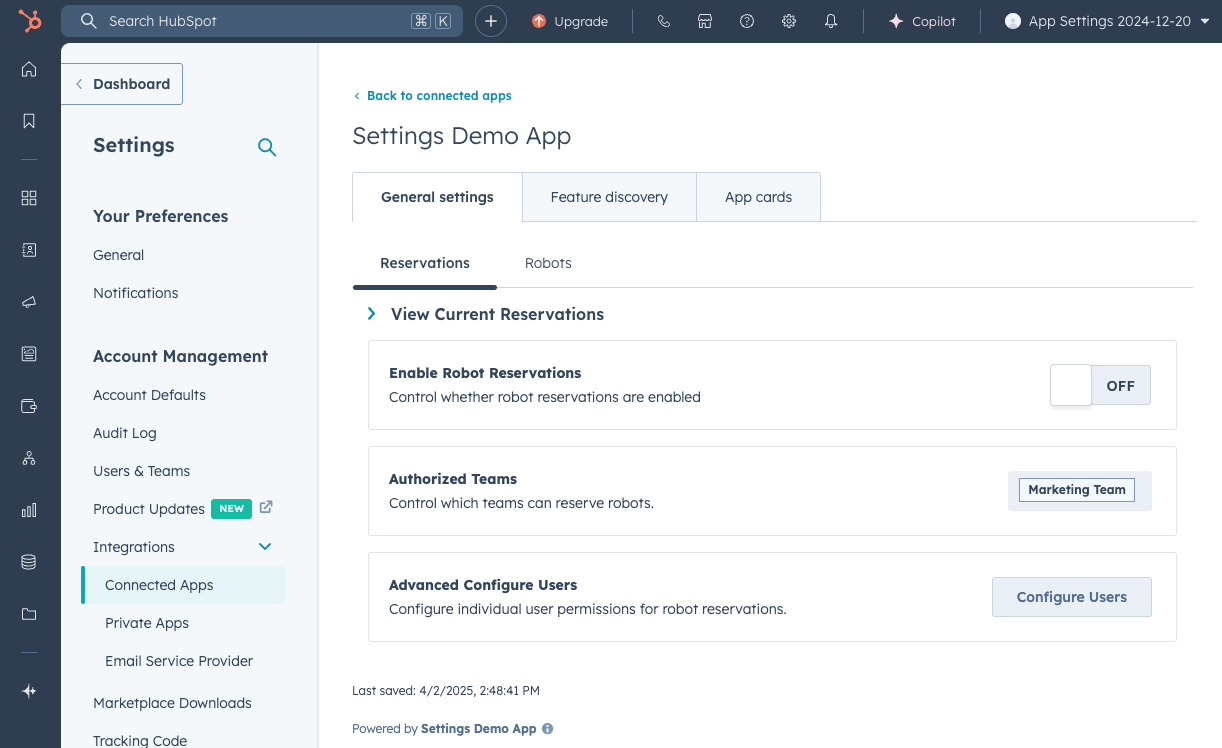 The following snippet outlines how to structure your tabs.
```jsx theme={null}
Here is the content of the first tab.
This is where the content of the second tab goes.
;
```
Refer to [individual component reference docs](/apps/developer-platform/add-features/ui-extensions/ui-components/overview) for more best practices, guidelines, and code examples to get you started. HubSpot also provides design pattern guidance for [Button](/apps/developer-platform/add-features/ui-extensions/ui-components/patterns/buttons), [Form](/apps/developer-platform/add-features/ui-extensions/ui-components/patterns/forms), and [Table](/apps/developer-platform/add-features/ui-extensions/ui-components/patterns/tables) component usage.
The following snippet outlines how to structure your tabs.
```jsx theme={null}
Here is the content of the first tab.
This is where the content of the second tab goes.
;
```
Refer to [individual component reference docs](/apps/developer-platform/add-features/ui-extensions/ui-components/overview) for more best practices, guidelines, and code examples to get you started. HubSpot also provides design pattern guidance for [Button](/apps/developer-platform/add-features/ui-extensions/ui-components/patterns/buttons), [Form](/apps/developer-platform/add-features/ui-extensions/ui-components/patterns/forms), and [Table](/apps/developer-platform/add-features/ui-extensions/ui-components/patterns/tables) component usage.