> ## Documentation Index
> Fetch the complete documentation index at: https://developers.hubspot.com/docs/llms.txt
> Use this file to discover all available pages before exploring further.
---
id: a92b7ea7-7995-4bf1-a3b0-9303d733055d
---
# Manage UI extension layout
> Customize UI extension layout with flexible and responsive layout components.
By default, UI extension components will arrange themselves based on their content, order, and any layout-related props included with the component, such as the `width` prop for images. But HubSpot also provides the following set of components for further configuring your extension's layout:
* [`AutoGrid`](/apps/developer-platform/add-features/ui-extensions/ui-components/standard-components/autogrid)
* [`Flex`](/apps/developer-platform/add-features/ui-extensions/ui-components/standard-components/flex)
* [`Box`](/apps/developer-platform/add-features/ui-extensions/ui-components/standard-components/box)
* [`Inline`](/apps/developer-platform/add-features/ui-extensions/ui-components/standard-components/inline)
These components are based on [CSS flexbox layout](https://css-tricks.com/snippets/css/a-guide-to-flexbox/), and act as wrappers for other components. For full examples of using `Flex` and `Box`, check out HubSpot's [Managing layout: Flex and Box sample project](https://github.com/HubSpot/ui-extensions-examples/tree/main/flex-and-box).
## AutoGrid
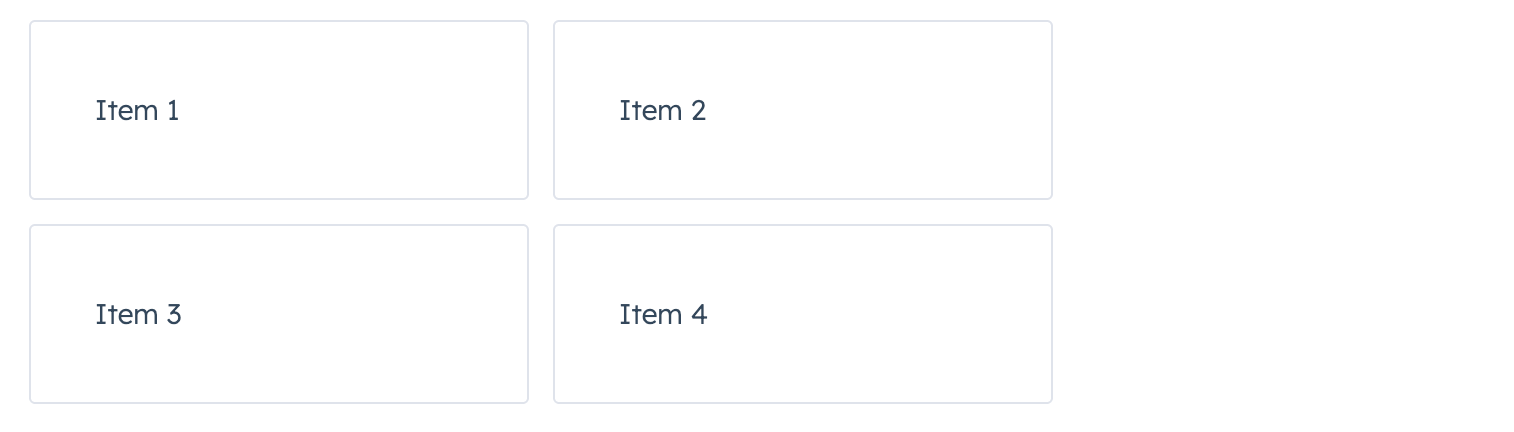
The [`AutoGrid`](/apps/developer-platform/add-features/ui-extensions/ui-components/standard-components/autogrid) component arranges components into columns based on available space and specified column width restraints. Includes two modes: fixed column sizing (default), and flexible column sizing. For both modes, the layout will be responsive automatically, whether you're using it in an app card, app home page, or app settings page.
```jsx theme={null}
import { AutoGrid, Tile } from "@hubspot/ui-extensions";
Item 1Item 2Item 3Item 4;
```
| Prop | Type | Description |
| ------------- | -------------------------------------------------------------------------------------------------------------------------------- | ------------------------------------------------------------------------------------------------------------------------------------------------------------------ |
| `columnWidth` | Number | Sets width of each column in pixels. When `flexible` is `true`, acts as minimum width before expanding. |
| `flexible` | Boolean | When `false`, columns have exact `columnWidth`. When `true`, columns expand equally to fill available space with `columnWidth` as the minimum. Default is `false`. |
| `gap` | `flush` (default) \| `'xs'`, `'extra-small'` \| `'sm'`, `'small'` \| `'med'`, `'medium'` \| `lg`, `large` \| `xl`, `extra-large` | Sets spacing between grid items. |
## Flex

The [`Flex` component](/apps/developer-platform/add-features/ui-extensions/ui-components/overview#layout-flex) renders an empty `div` container set to `display=flex`. When wrapped around other components, this enables those child components to be arranged using props.
Below are the available `Flex` props. To review all `Flex` prop definitions, check out the [components reference guide](/apps/developer-platform/add-features/ui-extensions/ui-components/overview#layout-flex).
| Prop | Values | Description |
| ----------- | ------------------------------------------------------------------------------------- | ------------------------------------------------------------------------------------------------------------------------------------------------------------------------------------------------------------------------ |
| `align` | `start` \| `center` \| `baseline` \| `end` \| `stretch` (default) | Distributes components along the cross-axis using the available free space. |
| `alignSelf` | `start` \| `center` \| `baseline` \| `end` \| `stretch` | Distributes a child component along the cross-axis using the available free space. Use this prop for nested child `Flex` and `Box` components to align them differently from other child components in the `Flex` group. |
| `direction` | `row` (default) \| `column` | Arranges components horizontally or vertically by setting the main axis. |
| `gap` | `flush` (default) \| `extra-small` \| `small` \| `medium` \| `large` \| `extra-large` | Sets the spacing between components. |
| `justify` | `start` (default) \| `center` \| `end` \| `around` \| `between` | Distributes components along the main axis using the available free space. |
| `wrap` | `wrap` \| `nowrap` | Whether components will wrap instead of trying to fit on one line. |
Review the examples below to see how the [Flex component](/apps/developer-platform/add-features/ui-extensions/ui-components/overview#layout-flex) can be used to arrange components in various ways.
### Horizontal layout
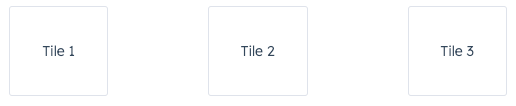
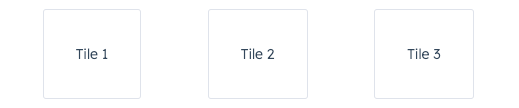
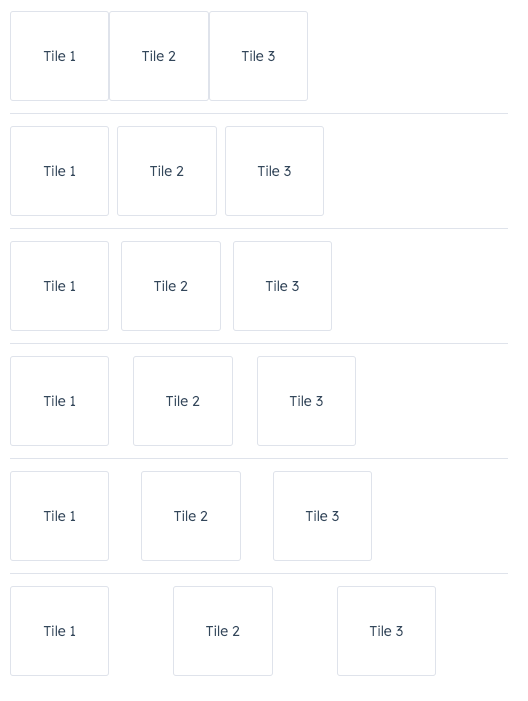
To arrange components horizontally, set `direction` to `row`. Then, use `justify` to configure the horizontal distribution. By default, components will stretch across the container if `justify` is not specified.
To arrange components horizontally and evenly spaced:
```jsx theme={null}
Tile 1Tile 2Tile 3;
```
To arrange components horizontally, evenly spaced, and with equal spacing on the left and right margins:
```jsx theme={null}
Tile 1Tile 2Tile 3;
```
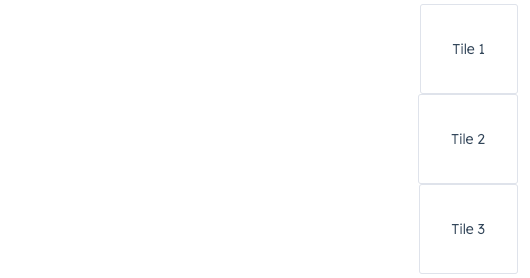
To arrange components horizontally at the end of the extension container:
```jsx theme={null}
Tile 1Tile 2Tile 3;
```
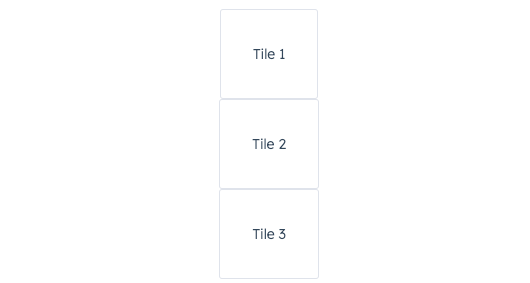
To arrange components horizontally at the center of the extension container:
```jsx theme={null}
Tile 1Tile 2Tile 3;
```
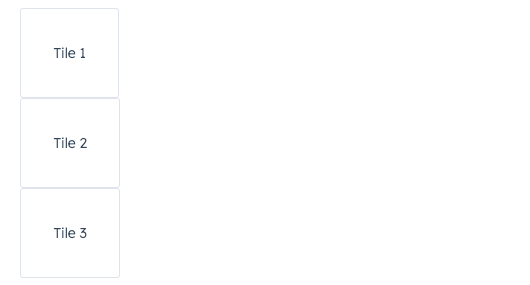
To arrange components horizontally at the start of the extension container:
```jsx theme={null}
Tile 1Tile 2Tile 3;
```
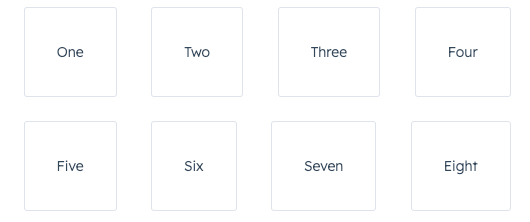
### Wrap
By default, components in a `row` will be arranged on one line when possible. Use the `wrap` prop to wrap components onto new lines when needed.
```jsx theme={null}
OneTwoThreeFourFiveSixSevenEight;
```
### Vertical layout
To arrange components vertically, set direction to `column`, then use the `align` prop to distribute them. By default, components will stretch across the extension container width when `align` is not specified.
To arrange components vertically at the start of the extension container:
```jsx theme={null}
Tile 1Tile 2Tile 3;
```
To arrange components vertically at the center of the extension container:
```jsx theme={null}
Tile 1Tile 2Tile 3;
```
To arrange components vertically at the end of the extension container:
```jsx theme={null}
Tile 1Tile 2Tile 3;
```
### Spacing
In the `Flex` component, you can use the `gap` prop to apply even spacing between the tiles. This prop will apply spacing equally for both `row` and `column` directions.
```jsx theme={null}
Tile 1Tile 2Tile 3;
```
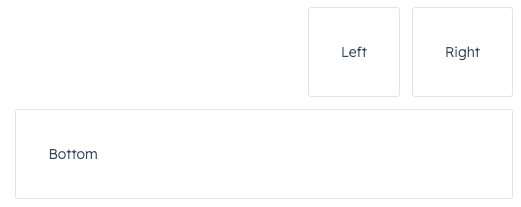
### Using Flex in Flex
You can wrap child `Flex` components with `Flex` to set more specific rules for individual components. A child `Flex` component will not inherit props specified in the parent `Flex` component, so you'll need to repeat any props you've previously defined to maintain them.
```jsx theme={null}
LeftRightBottom;
```
## Box
When wrapping components with `Flex`, you can further configure individual component layout by wrapping a child of `Flex` in a [Box component](/apps/developer-platform/add-features/ui-extensions/ui-components/overview#layout-box).
This component supports the following props. To review all `Box` prop definitions, check out the [components reference guide](/apps/developer-platform/add-features/ui-extensions/ui-components/overview#layout-box).
| Prop | Values | Description |
| ----------- | ------------------------------------------------------- | ------------------------------------------------------------------------------------------------------------------------------------------------------------------------------------------------------------------------ |
| `alignSelf` | `start` \| `center` \| `baseline` \| `end` \| `stretch` | Distributes a child component along the cross-axis using the available free space. Use this prop for nested child `Flex` and `Box` components to align them differently from other child components in the `Flex` group. |
| `flex` | `initial` (default) \| `auto` \| `none` \| number | Distributes components based on the available empty space around them. |
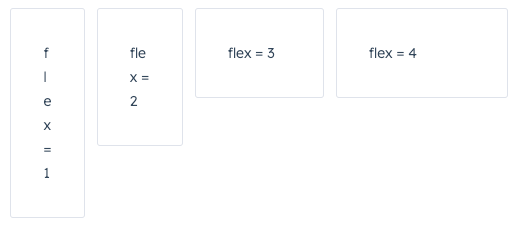
Use the `flex` prop in a `Box` component to assign any extra spacing to components using either a default value (e.g. `auto`) or a specific number. When using a number, the components will be distributed based on the ratio of their assigned numbers.
For example, the four tiles below take up an increasing amount of space based on their `flex` values.
```jsx theme={null}
flex = 1flex = 2flex = 3flex = 4;
```
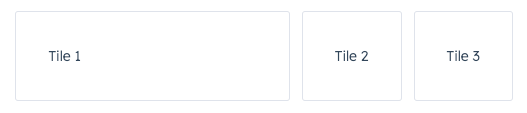
When using `Box`, you only need to wrap components that you want to adjust. For example, if you wrap one component in a `Box` with a `flex` value, only that one component will have its width adjusted based on the available empty space.
```jsx theme={null}
Tile 1Tile 2Tile 3;
```
When setting a `flex` value for only one `Box`, you can use any number. This is because any number on its own will result in all available space being assigned to that one component.
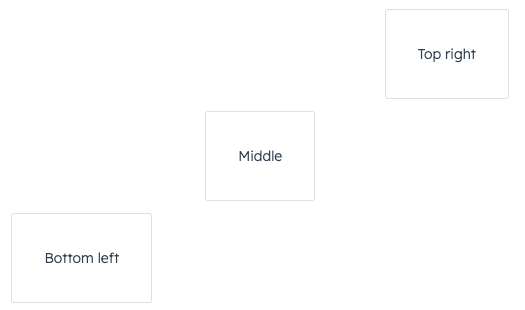
You can also use the `alignSelf` prop to override alignment rules for individual `Box` components.
```jsx theme={null}
Top rightMiddleBottom left;
```
## Inline
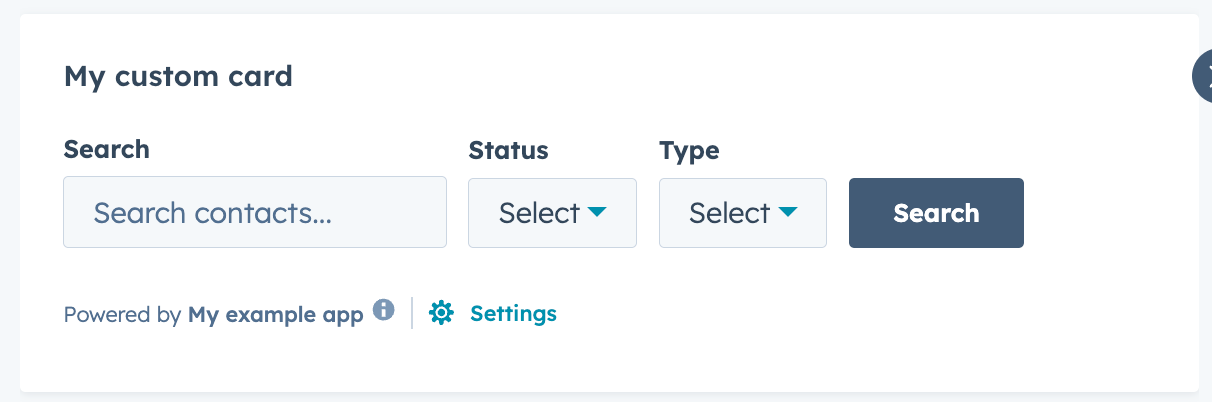
Use the [`Inline` component](/apps/developer-platform/add-features/ui-extensions/ui-components/standard-components/inline) to organize child components into a horizontal row.
```jsx theme={null}
import { Inline, Input, Select, Button, hubspot } from "@hubspot/ui-extensions";
hubspot.extend(() => );
function Extension() {
return (
<>
);
}
```
| Prop | Type | Description |
| --------- | ----------------------------------------------------------------------------------------------------------------------------------------- | --------------------------------------------------------------------------- |
| `align` | `'start'` \| `'center'` \| `'end'` \| `'baseline'` \| `'stretch'` (default) | Distributes components along the cross-axis using the available free space. |
| `gap` | `'flush'` (default) \| `'extra-small'`, `'xs'` \| `'small'`, `'sm'` \| `'medium'`, `'md'` \| `'large'`, `'lg'` \| `'extra-large'`, `'xl'` | The amount of spacing between components. |
| `justify` | `'start'` (default) \| `'center'` \| `'end'` \| `'around'` \| `'between'` | Distributes components along the main axis using the available free space. |
 ## AutoGrid
The [`AutoGrid`](/apps/developer-platform/add-features/ui-extensions/ui-components/standard-components/autogrid) component arranges components into columns based on available space and specified column width restraints. Includes two modes: fixed column sizing (default), and flexible column sizing. For both modes, the layout will be responsive automatically, whether you're using it in an app card, app home page, or app settings page.
## AutoGrid
The [`AutoGrid`](/apps/developer-platform/add-features/ui-extensions/ui-components/standard-components/autogrid) component arranges components into columns based on available space and specified column width restraints. Includes two modes: fixed column sizing (default), and flexible column sizing. For both modes, the layout will be responsive automatically, whether you're using it in an app card, app home page, or app settings page.
 ```jsx theme={null}
import { AutoGrid, Tile } from "@hubspot/ui-extensions";
```jsx theme={null}
import { AutoGrid, Tile } from "@hubspot/ui-extensions";
 ```jsx theme={null}
 ```jsx theme={null}
 ```jsx theme={null}
 ```jsx theme={null}
 ```jsx theme={null}
 ```jsx theme={null}
 ```jsx theme={null}
 ```jsx theme={null}
 ```jsx theme={null}
 ```jsx theme={null}
 ```jsx theme={null}
 ```jsx theme={null}
 ```jsx theme={null}
 ```jsx theme={null}
 ```jsx theme={null}
import { Inline, Input, Select, Button, hubspot } from "@hubspot/ui-extensions";
hubspot.extend(() =>
```jsx theme={null}
import { Inline, Input, Select, Button, hubspot } from "@hubspot/ui-extensions";
hubspot.extend(() =>