> ## Documentation Index
> Fetch the complete documentation index at: https://developers.hubspot.com/docs/llms.txt
> Use this file to discover all available pages before exploring further.

---
id: d640426f-c883-4e96-928b-487fbcc97560
---

# ButtonRow

> Learn about the ButtonRow component for use in UI extensions.

export const ComponentProp = ({name, required, type, description, defaultValue, seeItems}) => {
  const renderSeeItems = () => {
    if (!seeItems || seeItems.length === 0) {
      return null;
    }
    if (seeItems.length === 1) {
      return <div className="component-prop-see-wrapper">
          <strong>See:</strong> {seeItems[0]}
        </div>;
    }
    return <div className="component-prop-see-wrapper">
        See:
        <ul>
          {seeItems.map((item, index) => <li key={index}>{item}</li>)}
        </ul>
      </div>;
  };
  return <tr>
      <td>
        <code>{name}</code>
        {required && <> <Tag type="error">Required</Tag></>}
      </td>
      <td>
        {type}
        {defaultValue && <div className="component-prop-default-value-wrapper">
            <strong>Default:</strong> {defaultValue}
          </div>}
      </td>
      <td>
        {description}
        {renderSeeItems()}
      </td>
    </tr>;
};

export const ComponentProps = ({children}) => {
  return <div className="component-props">
      <table>
        <thead>
          <tr>
            <th>Prop</th>
            <th>Type</th>
            <th>Description</th>
          </tr>
        </thead>
        <tbody>{children}</tbody>
      </table>
    </div>;
};

export const Tag = ({children, type = 'default', className = ''}) => {
  return <span className={`tag tag-${type} ${className}`.trim()}>
      {children}
    </span>;
};

The `ButtonRow` component renders a row of specified [Button](/apps/developer-platform/add-features/ui-extensions/ui-components/standard-components/button) components. Use this component when you want to include multiple buttons in a row.

When the number of included buttons exceeds the available space, the extra buttons will be presented as a [Dropdown](/apps/developer-platform/add-features/ui-extensions/ui-components/standard-components/dropdown) style button, which you can configure using the `dropDownButtonOptions` prop.

<Frame>
  <img src="https://www.hubspot.com/hubfs/Knowledge_Base_2023_2024/design-guide-button-row-component.png" alt="design-guide-button-row-component" />
</Frame>

1. **Primary button:** only use one per extension.
2. **Secondary button:** only use with a primary and/or destructive button.
3. **Destructive button:** only use for actions that are destructive, paired with a secondary button.

```jsx theme={null}
import { Button, ButtonRow } from "@hubspot/ui-extensions";

const Extension = () => {
  return (
    <ButtonRow disableDropdown={false}>
      <Button
        onClick={() => {
          console.log("Regular button clicked");
        }}
      >
        Regular Button
      </Button>
      <Button
        onClick={() => {
          console.log("Reset button clicked");
        }}
        variant="destructive"
        type="reset"
      >
        Reset
      </Button>
      <Button
        onClick={() => {
          console.log("Submit button clicked");
        }}
        variant="primary"
        type="submit"
      >
        Submit
      </Button>
    </ButtonRow>
  );
};
```

## Props

<ComponentProps autoGenerated componentName="ButtonRow">
  <ComponentProp name="children" required={true} type={<><code>ReactNode</code></>} description={<>Sets the content that will render inside the component. This prop is passed implicitly by providing sub-components.</>} />

  <ComponentProp name="disableDropdown" required={false} type={<><code>boolean</code></>} description={<>By default, when the number of buttons exceeds the available horizontal space, the extra buttons will collapse into a single dropdown menu button. Set this prop to <code>true</code> to prevent the dropdown button from being interacted with.</>} defaultValue={<><code>false</code></>} />

  <ComponentProp
    name="dropDownButtonOptions"
    required={false}
    type={<><code>&#123; text: string, size: "extra-small" | "md" | "medium" | "sm" | "small" | "xs", variant: "primary" | "secondary" | "transparent" &#125;</code></>}
    description={<><p>When the included buttons exceed the available space, use this prop to customize the dropdown button. This prop takes an object containing the following <code>key: 'value'</code> pairs:</p>
<ul>
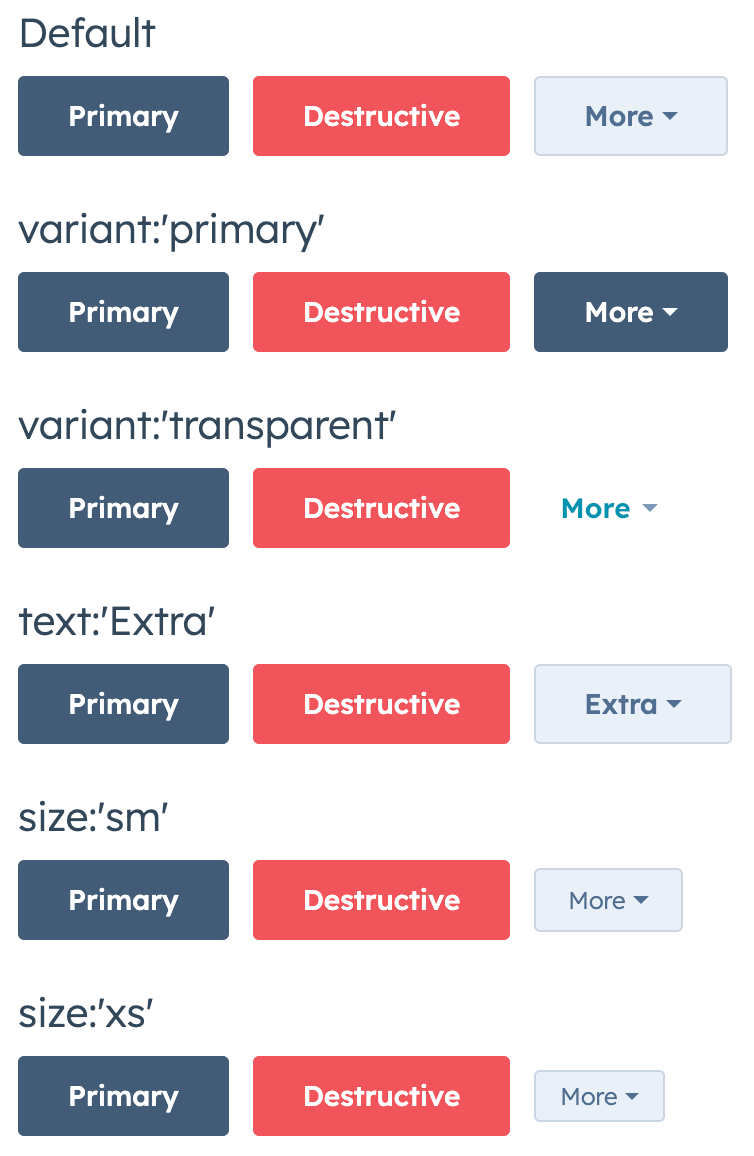
<li><code>size</code>: the size of the button. Can be <code>'xs'</code>, <code>'sm'</code>, or <code>'md'</code> (default).</li>
<li><code>text</code>: the button's text. By default, is set to <code>More</code>. If set to an empty value, will display a gear icon.</li>
<li><code>variant</code>: the button variation. Can be <code>'primary'</code>, <code>'secondary'</code> (default), or <code>'transparent'</code>.</li>
</ul></>}
  />

  <ComponentProp name="testId" required={false} type={<><code>string</code></>} description={<>Used by <code>findByTestId()</code> to locate this component in tests.</>} seeItems={[<><a href="https://developers.hubspot.com/docs/apps/developer-platform/add-features/ui-extensions/tools/testing/reference#findbytestid">Testing utilities reference</a></>]} />
</ComponentProps>

## Dropdown variants

Buttons that exceed available space will be presented in one [Dropdown](/apps/developer-platform/add-features/ui-extensions/ui-components/standard-components/dropdown) style button. You can use the `dropDownButtonOptions` prop to customize its appearance. This prop takes an object that can include `size`, `text`, and `variant` fields. The `size` and `variant` fields use the same options available for those props in the `Dropdown` component.

<Frame>
  <img src="https://knowledge.hubspot.com/hubfs/Knowledge_Base_2023_2024/buttonrow-dropdown-variants.png" alt="buttonrow-dropdown-variants" />
</Frame>

Comma-separate values in `dropDownButtonOptions` to configure multiple options.

<Frame>
  <img src="https://knowledge.hubspot.com/hubfs/Knowledge_Base_2023_2024/buttonrow-dropdown-multiple-values-example.png" alt="buttonrow-dropdown-multiple-values-example" />
</Frame>

```jsx theme={null}
import { Button, ButtonRow } from "@hubspot/ui-extensions";

const Extension = () => {
  return (
    <ButtonRow
      dropDownButtonOptions={{
        text: "Extra",
        size: "sm",
        variant: "transparent",
      }}
    >
      <Button variant="primary">Primary</Button>
      <Button variant="destructive" type="reset">
        Destructive
      </Button>
      <Button type="submit">Submit</Button>
      <Button type="button">Other</Button>
    </ButtonRow>
  );
};
```

## Usage examples

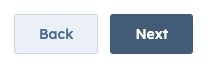
* A `'primary'` and `'secondary'` button in a row to progress through a multi-step form.

<Frame>
  <img src="https://developers.hubspot.com/hs-fs/hubfs/Knowledge_Base_2023/design-guide-button-row-example.png?width=217&height=69&name=design-guide-button-row-example.png" alt="design-guide-button-row-example" />
</Frame>

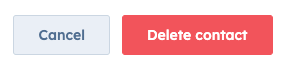
* A `'destructive'` and `'secondary'` button in a row to confirm and cancel a contact deletion.
<Frame>
  <img src="https://knowledge.hubspot.com/hubfs/Knowledge_Base_2023_2024/buttonrow-example-cancel-delete-contact.png" alt="buttonrow-example-cancel-delete-contact" />
</Frame>

## Guidelines

* **DO:** include a secondary button with a destructive button to allow users to cancel the action.
* **DON'T:** use multiples of the same button type in a row. For example, don't include more than one primary button in one row.
* **DON'T:** use more than two secondary buttons in a single extension.
* **DON'T:** use more than three buttons in a row.

## Related components

* [Button](/apps/developer-platform/add-features/ui-extensions/ui-components/standard-components/button)
* [CRM action components](/apps/developer-platform/add-features/ui-extensions/ui-components/crm-action-components/overview)
* [CrmActionButton](/apps/developer-platform/add-features/ui-extensions/ui-components/crm-action-components/crm-action-button)