> ## Documentation Index
> Fetch the complete documentation index at: https://developers.hubspot.com/docs/llms.txt
> Use this file to discover all available pages before exploring further.
---
id: c5f45695-b2d7-4651-9eb7-b226c7965610
---
# LineChart | UI components
> Learn about the LineChart component for use in UI extensions.
The `LineChart` component renders a line chart for visualizing data. This type of chart is best suited for time series plots or trend data. Alternatively, you can use a [BarChart](/apps/developer-platform/add-features/ui-extensions/ui-components/standard-components/charts/bar-chart) component for comparing categorical data. Learn more about [charts](/apps/developer-platform/add-features/ui-extensions/ui-components/standard-components/charts/overview).
To see an example of how to implement charts in a UI extension, check out [HubSpot's Charts example project](https://github.com/HubSpot/ui-extensions-examples/tree/main/charts-example). Note that this is a version `2025.1` project, but the chart component implementation would be similar for projects on version `2025.2` or `2026.03`.
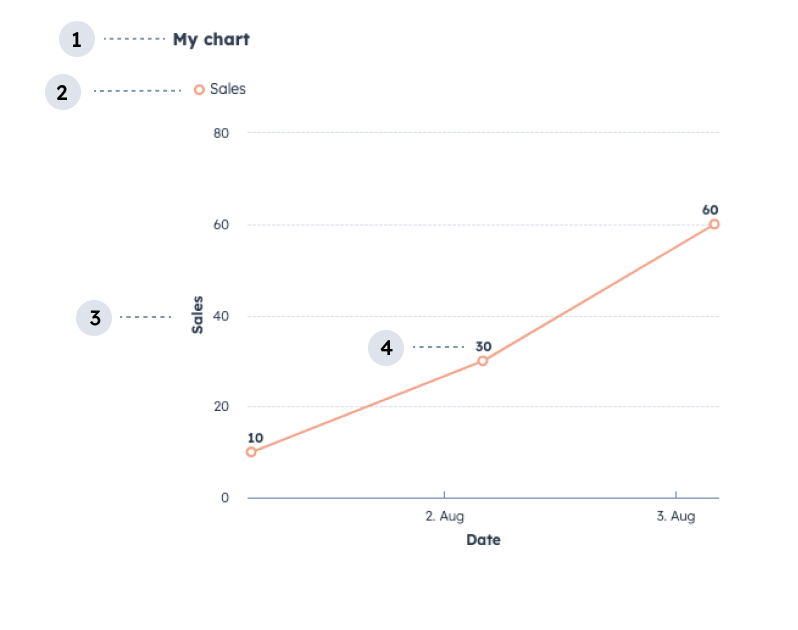 1. **Title:** the title of the chart.
2. **Legend:** lists the data categories with their corresponding color for readability.
3. **Axis label:** the label for the axis.
4. **Data labels:** labels for data points.
```jsx theme={null}
import { LineChart } from "@hubspot/ui-extensions";
const salesOverTimeSample = [
{
Date: "2024-08-01",
Sales: 10,
},
{
Date: "2024-08-02",
Sales: 30,
},
{
Date: "2024-08-03",
Sales: 60,
},
];
return (
);
```
## Props
| Parameter | Type | Description |
| --------- | ------ | ------------------------------------------------------------------------------------------------------------------------------------------------------------------------------------------------------------------------------------------------------------------------------------------------------------------------------------------------------------------------------------------------------------------------------------------------------------------------------------------------------------------------------------------------------------------------------------------------------------------------------------------------------------------------------------------------------------------------------------------------------------------------------------------------------------------------------------------------------------------------------------------------------------------------------------------------------------------------------------------------------------------------------------------------------------------------------------------------------------------------------------------------------------------------------------------------------------------------------------------------------------------------------------------------------------------------------------ |
| `data` | Object | An object containing the chart's data in an array.
1. **Title:** the title of the chart.
2. **Legend:** lists the data categories with their corresponding color for readability.
3. **Axis label:** the label for the axis.
4. **Data labels:** labels for data points.
```jsx theme={null}
import { LineChart } from "@hubspot/ui-extensions";
const salesOverTimeSample = [
{
Date: "2024-08-01",
Sales: 10,
},
{
Date: "2024-08-02",
Sales: 30,
},
{
Date: "2024-08-03",
Sales: 60,
},
];
return (
);
```
## Props
| Parameter | Type | Description |
| --------- | ------ | ------------------------------------------------------------------------------------------------------------------------------------------------------------------------------------------------------------------------------------------------------------------------------------------------------------------------------------------------------------------------------------------------------------------------------------------------------------------------------------------------------------------------------------------------------------------------------------------------------------------------------------------------------------------------------------------------------------------------------------------------------------------------------------------------------------------------------------------------------------------------------------------------------------------------------------------------------------------------------------------------------------------------------------------------------------------------------------------------------------------------------------------------------------------------------------------------------------------------------------------------------------------------------------------------------------------------------------ |
| `data` | Object | An object containing the chart's data in an array. - Data should be formatted as comma-separated objects containing key-value pairs.
- Data will be displayed in the order it's provided, so any sorting will need to be done before passing it to the component.
- While it's recommended to pre-format your data to be human-readable, you can also provide the `propertyLabels` parameter via this prop's `options` to relabel data values. See example in the [Stacking section](#stacking) below.
Learn more about [formatting data](/apps/developer-platform/add-features/ui-extensions/ui-components/standard-components/charts/overview#formatting-data). |
| `axes` | Object | Configures the chart's axes. Using the `x` and `y` fields, you'll configure each axis individually with `field` and `fieldType` parameters, along with an optional `label` parameter:- `field` (Required): the field from your dataset to use. This value will be used as the displayed axis label if no `label` is specified.
- `fieldType` (Required): the type of field. Can be `category`, `datetime`, or `linear`. Learn more about [field types](/apps/developer-platform/add-features/ui-extensions/ui-components/standard-components/charts/overview#configuring-axes).
- `label`: the axis label. If not specified, the `field` value will be used.
You can also include an `options` field to further configure the axes with the following options:- `groupFieldByColor` (string): specify a field to [apply color](#colors) to for visual clarity.[](#color-grouping)
- `stacking` (boolean): [stack grouped data](#stacking) instead of always rendering separated lines.
- `colors` (object): [specify colors for values](#specify-colors-per-field-value) in the field specified in `groupFieldByColor`.
Learn more about [chart axes](/apps/developer-platform/add-features/ui-extensions/ui-components/standard-components/charts/overview#configuring-axes). |
| `options` | Object | Additional chart configuration options. Options include:- `title` (string): a title for the chart.
- `showLegend` (boolean): set to `true` to display a legend above the chart.
- `showDataLabels` (boolean): set to `true` to display labels above data points.
- `showTooltips` (boolean): set to `true` to display tooltips for data points on hover.
- `colorList` (array): specify a custom order for colors to used in the report.
Learn more about [chart options](/apps/developer-platform/add-features/ui-extensions/ui-components/standard-components/charts/overview#chart-options). |
## Colors
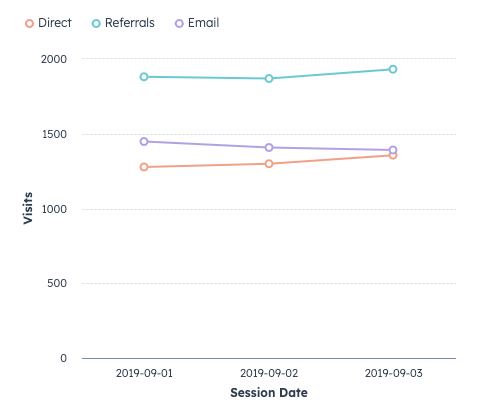
To apply [colors](/apps/developer-platform/add-features/ui-extensions/ui-components/standard-components/charts/overview#colors) to a chart for visual clarity, you can group data fields by color using the `groupFieldByColor` parameter within the axes `options`. For example, the line chart below use `groupFieldByColor` to add colors to each `Breakdown` category defined in the dataset.
 ```jsx theme={null}
const VisitsPerSourceOverTime = [
{
"Session Date": "2019-09-01",
Breakdown: "Direct",
Visits: 1277,
},
{
"Session Date": "2019-09-01",
Breakdown: "Referrals",
Visits: 1882,
},
{
"Session Date": "2019-09-01",
Breakdown: "Email",
Visits: 1448,
},
{
"Session Date": "2019-09-02",
Breakdown: "Direct",
Visits: 1299,
},
{
"Session Date": "2019-09-02",
Breakdown: "Referrals",
Visits: 1869,
},
{
"Session Date": "2019-09-02",
Breakdown: "Email",
Visits: 1408,
},
{
"Session Date": "2019-09-03",
Breakdown: "Direct",
Visits: 1357,
},
{
"Session Date": "2019-09-03",
Breakdown: "Referrals",
Visits: 1931,
},
{
"Session Date": "2019-09-03",
Breakdown: "Email",
Visits: 1391,
},
];
return (
);
```
Colors will be automatically assigned in a [preset order](/apps/developer-platform/add-features/ui-extensions/ui-components/standard-components/charts/overview#colors). To customize the color selection order, include the `colorList` field in the `options` prop, then specify the colors to pick from as shown below.
```jsx theme={null}
const VisitsPerSourceOverTime = [
{
"Session Date": "2019-09-01",
Breakdown: "Direct",
Visits: 1277,
},
{
"Session Date": "2019-09-01",
Breakdown: "Referrals",
Visits: 1882,
},
{
"Session Date": "2019-09-01",
Breakdown: "Email",
Visits: 1448,
},
{
"Session Date": "2019-09-02",
Breakdown: "Direct",
Visits: 1299,
},
{
"Session Date": "2019-09-02",
Breakdown: "Referrals",
Visits: 1869,
},
{
"Session Date": "2019-09-02",
Breakdown: "Email",
Visits: 1408,
},
{
"Session Date": "2019-09-03",
Breakdown: "Direct",
Visits: 1357,
},
{
"Session Date": "2019-09-03",
Breakdown: "Referrals",
Visits: 1931,
},
{
"Session Date": "2019-09-03",
Breakdown: "Email",
Visits: 1391,
},
];
return (
);
```
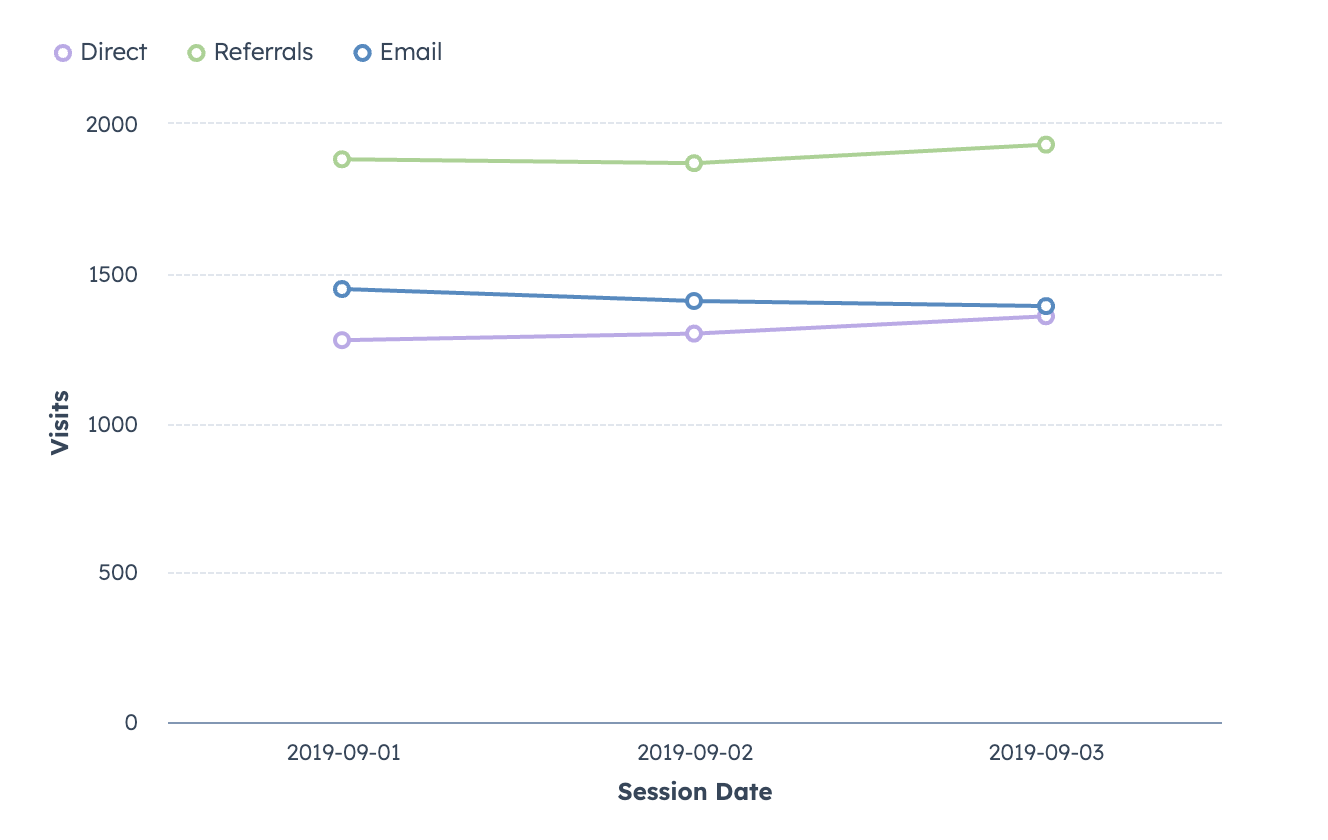
Colors will be automatically assigned in a [preset order](/apps/developer-platform/add-features/ui-extensions/ui-components/standard-components/charts/overview#colors). To customize the color selection order, include the `colorList` field in the `options` prop, then specify the colors to pick from as shown below.
 ```jsx theme={null}
const VisitsPerSourceOverTime = [
{
"Session Date": "2019-09-01",
Breakdown: "Direct",
Visits: 1277,
},
{
"Session Date": "2019-09-01",
Breakdown: "Referrals",
Visits: 1882,
},
{
"Session Date": "2019-09-01",
Breakdown: "Email",
Visits: 1448,
},
{
"Session Date": "2019-09-02",
Breakdown: "Direct",
Visits: 1299,
},
{
"Session Date": "2019-09-02",
Breakdown: "Referrals",
Visits: 1869,
},
{
"Session Date": "2019-09-02",
Breakdown: "Email",
Visits: 1408,
},
{
"Session Date": "2019-09-03",
Breakdown: "Direct",
Visits: 1357,
},
{
"Session Date": "2019-09-03",
Breakdown: "Referrals",
Visits: 1931,
},
{
"Session Date": "2019-09-03",
Breakdown: "Email",
Visits: 1391,
},
];
return (
);
```
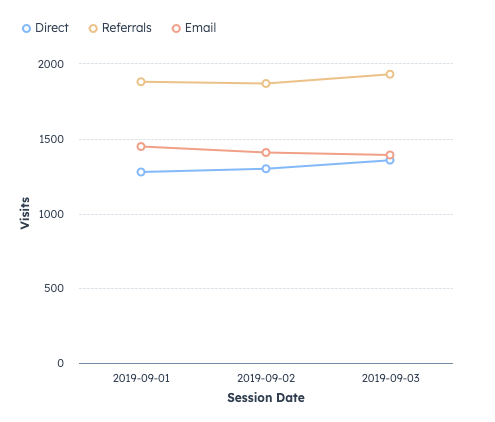
Or you can specify colors to use for specific values in the field specified in `groupFieldByColor`. To do so, include the `colors` field within the axes `options`, then specify each field value and color, as shown below. Learn more about [colors](/apps/developer-platform/add-features/ui-extensions/ui-components/standard-components/charts/overview#colors).
```jsx theme={null}
const VisitsPerSourceOverTime = [
{
"Session Date": "2019-09-01",
Breakdown: "Direct",
Visits: 1277,
},
{
"Session Date": "2019-09-01",
Breakdown: "Referrals",
Visits: 1882,
},
{
"Session Date": "2019-09-01",
Breakdown: "Email",
Visits: 1448,
},
{
"Session Date": "2019-09-02",
Breakdown: "Direct",
Visits: 1299,
},
{
"Session Date": "2019-09-02",
Breakdown: "Referrals",
Visits: 1869,
},
{
"Session Date": "2019-09-02",
Breakdown: "Email",
Visits: 1408,
},
{
"Session Date": "2019-09-03",
Breakdown: "Direct",
Visits: 1357,
},
{
"Session Date": "2019-09-03",
Breakdown: "Referrals",
Visits: 1931,
},
{
"Session Date": "2019-09-03",
Breakdown: "Email",
Visits: 1391,
},
];
return (
);
```
Or you can specify colors to use for specific values in the field specified in `groupFieldByColor`. To do so, include the `colors` field within the axes `options`, then specify each field value and color, as shown below. Learn more about [colors](/apps/developer-platform/add-features/ui-extensions/ui-components/standard-components/charts/overview#colors).
 ```jsx theme={null}
return (
);
```
## Stacking
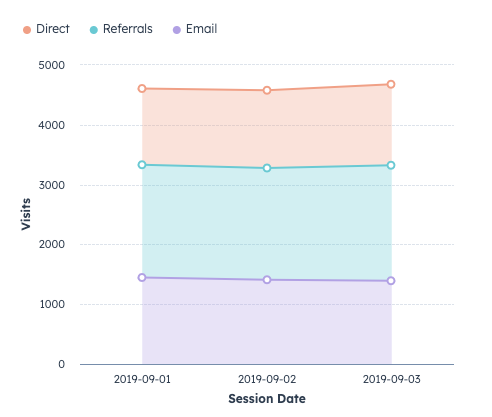
Use the `stacking` axes option to stack grouped data for visual comparison. For example, the following line chart displays website visits over time broken down by source. To help users compare data within each breakdown category, `stacking` has been set to `true`.
```jsx theme={null}
return (
);
```
## Stacking
Use the `stacking` axes option to stack grouped data for visual comparison. For example, the following line chart displays website visits over time broken down by source. To help users compare data within each breakdown category, `stacking` has been set to `true`.
 ```jsx theme={null}
const visitsPerSourceOverTime = [
{
sessionDate: "2019-09-01",
breakdown: "direct",
visits: 1277,
},
{
sessionDate: "2019-09-01",
breakdown: "referrals",
visits: 1882,
},
{
sessionDate: "2019-09-01",
breakdown: "email",
visits: 1448,
},
{
sessionDate: "2019-09-02",
breakdown: "direct",
visits: 1299,
},
{
sessionDate: "2019-09-02",
breakdown: "referrals",
visits: 1869,
},
{
sessionDate: "2019-09-02",
breakdown: "email",
visits: 1408,
},
{
sessionDate: "2019-09-03",
breakdown: "direct",
visits: 1357,
},
{
sessionDate: "2019-09-03",
breakdown: "referrals",
visits: 1931,
},
{
sessionDate: "2019-09-03",
breakdown: "email",
visits: 1391,
},
];
return (
);
```
Because the `breakdown` field data is all lowercase (e.g., `direct`), the data prop includes `propertyLabels` in its `options` to convert the labels. Note that the data prop formatting is slightly different to accommodate both the dataset and its `options`. Learn more about [data options](/apps/developer-platform/add-features/ui-extensions/ui-components/standard-components/charts/overview#data-options).
## Guidelines
* **DO:** title your data categories with human-readable text so they are easy to understand.
* **DO:** use sentence-casing for the data categories and chart title (only first letter capitalized).
* **DO:** sort your data in ascending/descending order of your x-axis field to prevent unordered rendering prior to passing it to a charting component. If you intend to display information over time, your data will be displayed in the order you provide it.
* **DO:** display the chart legend if you’re graphing more than one category of data. This prevents your users from having to rely only on color to identify different data on your chart.
* **DO:** for readability, use larger surfaces to showcase charts, such as the record page middle column. Avoid using charts with many data points on smaller surfaces such as the preview panel or sidebar.
* **DON’T:** use more than 14 data categories unless it cannot be avoided for your use case.
* **DON’T:** use the same colors to indicate different data categories.
## Related components
* [LineChart](/apps/developer-platform/add-features/ui-extensions/ui-components/standard-components/charts/line-chart)
* [Statistics](/apps/developer-platform/add-features/ui-extensions/ui-components/standard-components/statistics)
* [Table](/apps/developer-platform/add-features/ui-extensions/ui-components/standard-components/table)
```jsx theme={null}
const visitsPerSourceOverTime = [
{
sessionDate: "2019-09-01",
breakdown: "direct",
visits: 1277,
},
{
sessionDate: "2019-09-01",
breakdown: "referrals",
visits: 1882,
},
{
sessionDate: "2019-09-01",
breakdown: "email",
visits: 1448,
},
{
sessionDate: "2019-09-02",
breakdown: "direct",
visits: 1299,
},
{
sessionDate: "2019-09-02",
breakdown: "referrals",
visits: 1869,
},
{
sessionDate: "2019-09-02",
breakdown: "email",
visits: 1408,
},
{
sessionDate: "2019-09-03",
breakdown: "direct",
visits: 1357,
},
{
sessionDate: "2019-09-03",
breakdown: "referrals",
visits: 1931,
},
{
sessionDate: "2019-09-03",
breakdown: "email",
visits: 1391,
},
];
return (
);
```
Because the `breakdown` field data is all lowercase (e.g., `direct`), the data prop includes `propertyLabels` in its `options` to convert the labels. Note that the data prop formatting is slightly different to accommodate both the dataset and its `options`. Learn more about [data options](/apps/developer-platform/add-features/ui-extensions/ui-components/standard-components/charts/overview#data-options).
## Guidelines
* **DO:** title your data categories with human-readable text so they are easy to understand.
* **DO:** use sentence-casing for the data categories and chart title (only first letter capitalized).
* **DO:** sort your data in ascending/descending order of your x-axis field to prevent unordered rendering prior to passing it to a charting component. If you intend to display information over time, your data will be displayed in the order you provide it.
* **DO:** display the chart legend if you’re graphing more than one category of data. This prevents your users from having to rely only on color to identify different data on your chart.
* **DO:** for readability, use larger surfaces to showcase charts, such as the record page middle column. Avoid using charts with many data points on smaller surfaces such as the preview panel or sidebar.
* **DON’T:** use more than 14 data categories unless it cannot be avoided for your use case.
* **DON’T:** use the same colors to indicate different data categories.
## Related components
* [LineChart](/apps/developer-platform/add-features/ui-extensions/ui-components/standard-components/charts/line-chart)
* [Statistics](/apps/developer-platform/add-features/ui-extensions/ui-components/standard-components/statistics)
* [Table](/apps/developer-platform/add-features/ui-extensions/ui-components/standard-components/table)