> ## Documentation Index
> Fetch the complete documentation index at: https://developers.hubspot.com/docs/llms.txt
> Use this file to discover all available pages before exploring further.
---
id: 2b5a35fe-96ee-4456-9bfd-ef12e33853ad
---
# Select
> Learn about the Select component for use in UI extensions.
The `Select` component renders a dropdown menu select field where a user can select a single value. A search bar will be automatically included when there are more than seven options.
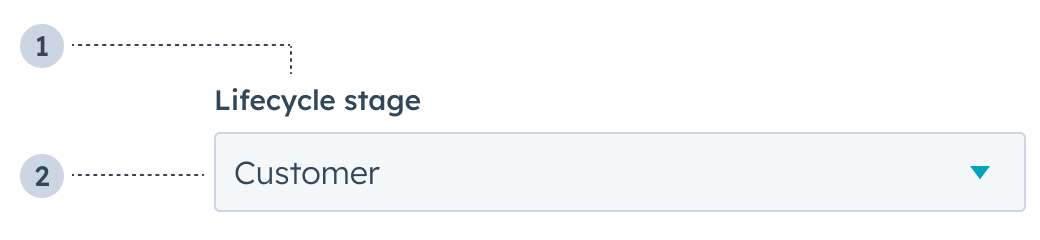 1. **Label:** the label that describes the field's purpose.
2. **Value:** the field's selected value.
```jsx theme={null}
import { Select } from "@hubspot/ui-extensions";
const Extension = () => {
const [name, setName] = useState(null);
const [validationMessage, setValidationMessage] = useState("");
const [isValid, setIsValid] = useState(true);
const options = [
{ label: "Bill", value: 42 },
{ label: "Ted", value: 43 },
];
return (
);
};
```
## Props
| Prop | Type | Description |
| ------------------- | ---------------------------------- | --------------------------------------------------------------------------------------------------------------------------------------------------------------------------------------------------------------------------------------------------------- |
| `description` | String | Text that describes the field's purpose. |
| `error` | Boolean | When set to `true`, `validationMessage` is displayed as an error message if provided. The input will also render its error state to let the user know there's an error. If left `false` (default), `validationMessage` is displayed as a success message. |
| `label` | String | The text that displays above the input. |
| `name` | String | The input's unique identifier. |
| `onChange` | `(value: string) => void` | A callback function that is invoked when the value is committed. |
| `onInput` | `(value: string) => void` | A callback function that is called and passed the value every time the search field is edited by the user. Prefer updating state in `onChange` as it fires less frequently, and if you need to update state here, consider debouncing your function. |
| `options` | Array | The options to display in the dropdown menu. `label` will be used as the display text, and `value` should be the option's unique identifier, which is submitted with the form. |
| `readOnly` | Boolean | When set to `true`, users will not be able to fill the input field. Default is `false`. |
| `required` | Boolean | When set to `true`, displays a required field indicator. Default is `false`. |
| `tooltip` | String | The text that displays in a tooltip next to the label. |
| `validationMessage` | String | The text to display if the input has an error. |
| `value` | String \| number \| boolean | The value of the input. |
| `variant` | `input` (default) \| `transparent` | The visual style of the button |
## Variants
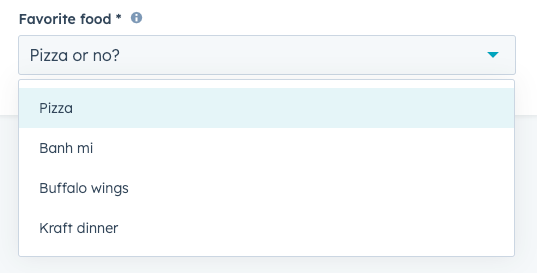
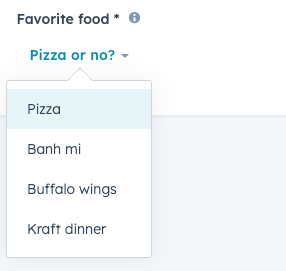
Using the variant prop, you can set the input to be one of two styles:
* `input` (default): a standard dropdown menu.
1. **Label:** the label that describes the field's purpose.
2. **Value:** the field's selected value.
```jsx theme={null}
import { Select } from "@hubspot/ui-extensions";
const Extension = () => {
const [name, setName] = useState(null);
const [validationMessage, setValidationMessage] = useState("");
const [isValid, setIsValid] = useState(true);
const options = [
{ label: "Bill", value: 42 },
{ label: "Ted", value: 43 },
];
return (
);
};
```
## Props
| Prop | Type | Description |
| ------------------- | ---------------------------------- | --------------------------------------------------------------------------------------------------------------------------------------------------------------------------------------------------------------------------------------------------------- |
| `description` | String | Text that describes the field's purpose. |
| `error` | Boolean | When set to `true`, `validationMessage` is displayed as an error message if provided. The input will also render its error state to let the user know there's an error. If left `false` (default), `validationMessage` is displayed as a success message. |
| `label` | String | The text that displays above the input. |
| `name` | String | The input's unique identifier. |
| `onChange` | `(value: string) => void` | A callback function that is invoked when the value is committed. |
| `onInput` | `(value: string) => void` | A callback function that is called and passed the value every time the search field is edited by the user. Prefer updating state in `onChange` as it fires less frequently, and if you need to update state here, consider debouncing your function. |
| `options` | Array | The options to display in the dropdown menu. `label` will be used as the display text, and `value` should be the option's unique identifier, which is submitted with the form. |
| `readOnly` | Boolean | When set to `true`, users will not be able to fill the input field. Default is `false`. |
| `required` | Boolean | When set to `true`, displays a required field indicator. Default is `false`. |
| `tooltip` | String | The text that displays in a tooltip next to the label. |
| `validationMessage` | String | The text to display if the input has an error. |
| `value` | String \| number \| boolean | The value of the input. |
| `variant` | `input` (default) \| `transparent` | The visual style of the button |
## Variants
Using the variant prop, you can set the input to be one of two styles:
* `input` (default): a standard dropdown menu.
 * `transparent`: a hyperlink dropdown menu.
 ## Usage examples
Use this type of field when there are a range of set options to choose from, such as:
* A list of products that can be purchased.
* A list of office locations to ship to.
* A list of delivery options for a vendor.
## Guidelines
* **DO:** make label and description text concise and clear.
* **DO:** indicate if a field is required.
* **DO:** include clear validation error messages so that users know how to fix errors.
* **DO:** include placeholder text to help users understand what's expected in the field.
* **DON'T:** use this component when you want users to be able to select multiple options. For multiple options, use the [MultiSelect component](/apps/developer-platform/add-features/ui-extensions/ui-components/standard-components/multi-select).
* **DON'T:** use placeholder text for critical information, as it will disappear once users begin to type. Critical information should be placed in the label and descriptive text, with additional context in the tooltip if needed.
## Related components
* [Form](/apps/developer-platform/add-features/ui-extensions/ui-components/standard-components/form)
* [Text](/apps/developer-platform/add-features/ui-extensions/ui-components/standard-components/text)
* [TextArea](/apps/developer-platform/add-features/ui-extensions/ui-components/standard-components/text-area)
## Usage examples
Use this type of field when there are a range of set options to choose from, such as:
* A list of products that can be purchased.
* A list of office locations to ship to.
* A list of delivery options for a vendor.
## Guidelines
* **DO:** make label and description text concise and clear.
* **DO:** indicate if a field is required.
* **DO:** include clear validation error messages so that users know how to fix errors.
* **DO:** include placeholder text to help users understand what's expected in the field.
* **DON'T:** use this component when you want users to be able to select multiple options. For multiple options, use the [MultiSelect component](/apps/developer-platform/add-features/ui-extensions/ui-components/standard-components/multi-select).
* **DON'T:** use placeholder text for critical information, as it will disappear once users begin to type. Critical information should be placed in the label and descriptive text, with additional context in the tooltip if needed.
## Related components
* [Form](/apps/developer-platform/add-features/ui-extensions/ui-components/standard-components/form)
* [Text](/apps/developer-platform/add-features/ui-extensions/ui-components/standard-components/text)
* [TextArea](/apps/developer-platform/add-features/ui-extensions/ui-components/standard-components/text-area)