> ## Documentation Index
> Fetch the complete documentation index at: https://developers.hubspot.com/docs/llms.txt
> Use this file to discover all available pages before exploring further.
---
id: 2c5fdb9c-8a01-403f-ad4b-f0ad45908854
---
# OAuth Quickstart Guide
> Learn how to set up OAuth for your app using this quickstart Guide and sample Node.js app.
## Before you get started
Before you can start using OAuth with HubSpot, you'll need to have:
* [An app](/apps/developer-platform/overview). Consult the [app creation guide](/apps/developer-platform/build-apps/create-an-app) to create and customize a new app, or you can get up and running with a boilerplate app using the [quickstart guide](/getting-started/quickstart).
* A HubSpot account to install your app in (you can use an existing account or [create a test account](/getting-started/account-types))
You must be a [Super Admin](https://knowledge.hubspot.com/user-management/hubspot-user-permissions-guide#super-admin) to install an app in a HubSpot account.
### How it works
HubSpot supports the [OAuth 2.0 Authorization Code grant type](https://developer.okta.com/blog/2018/04/10/oauth-authorization-code-grant-type), which can be broken down into four basic steps:
1. Your app opens a browser window to send the user to the HubSpot OAuth 2.0 server
2. The user reviews the requested permissions and grants the app access
3. The user is redirected back to the app with an authorization code in the query string
4. The app sends a request to the OAuth 2.0 server to exchange the authorization code for an access token
### In this guide
* [Quickstart App](#quickstart-app): A Node.js demo app that authenticates with HubSpot's OAuth 2.0 server
* [Getting OAuth tokens](#getting-oauth-tokens): How to authorize your app with users
* [Using OAuth tokens](#using-oauth-tokens): How to make queries with a token
* [Refreshing OAuth tokens](#refreshing-oauth-tokens): How to use the refresh token provided by HubSpot
All code examples in this guide are written in JavaScript (Node.js)
## Quickstart app
If this is your first time using OAuth authentication with HubSpot's APIs, it's strongly recommended that you check out the [OAuth 2.0 Quickstart App](https://github.com/HubSpot/oauth-quickstart-nodejs), written in Node.js. This sample app is designed to get you started using OAuth 2.0 as quickly as possible by demonstrating all the steps outlined below in the [getting OAuth tokens section](#getting-oauth-tokens) below.
## Getting OAuth tokens
### 1. Create the authorization URL and direct the user to HubSpot's OAuth 2.0 server
When sending a user to HubSpot's OAuth 2.0 server, the first step is creating the authorization URL. This will identify your app and define the resources (scopes) it's requesting access to on behalf of the user. The query parameters you can pass as part of an authorization URL are shown in the table below. For more detailed information on this step, read the [reference doc](/apps/developer-platform/build-apps/authentication/oauth/working-with-oauth).
Fields marked with \* are required.
| Parameter | Description | Example |
| --------------------------------------------------- | ------------------------------------------------------------------------------------------------------------------------------------------------------------------------- | --------------------------------------- |
| `client_id`\* | The client ID identifies your app. Find it on your app's settings page. | `7fff1e36-2d40-4ae1-bbb1-5266d59564fb` |
| `scope`\* | The [scopes](/apps/developer-platform/build-apps/authentication/scopes#list-of-available-scopes) your application is requesting, separated by URL-encoded spaces (`%20`). | `oauth%20crm.objects.contacts.read` |
| `redirect_uri`\* | The URL that the user will be redirected to after they authorize your app for the requested scopes. **For production applications, `https` is required.** | `https://www.example.com/auth-callback` |
| `optional_scope` | The scopes that are optional for your app, and will be dropped if the selected HubSpot portal does not have access to those products | `automation` |
| `state` | A unique string value that can be used to maintain the user's state when they're redirected back to your app. | `WeHH_yy2irpl8UYAvv-my` |
Once you've created your URL, start the OAuth connection process by sending the user to it.
The code blocks below provide examples of using different redirect types:
**Using a server-side redirect:**
```js theme={null}
// Build the auth URL
const authUrl =
"https://app.hubspot.com/oauth/authorize" +
`?client_id=${encodeURIComponent(CLIENT_ID)}` +
`&scope=${encodeURIComponent(SCOPES)}` +
`&redirect_uri=${encodeURIComponent(REDIRECT_URI)}` +
`&state=${encodeURIComponent(STATE)}`;
// Redirect the user
return res.redirect(authUrl);
```
**Using an HTML link:**
```html theme={null}
Install
```
**Encoding an additional redirect user state:**
Some apps may need to redirect the user to different locations. For example, an app may wish to redirect users to different subdomains of their integration (e.g. `userA.integration.com` and `userB.integration.com`). To do so, use the `state` parameter to encode more information about the user state:
1\. Generate and store a nonce value for the state parameter.
2\. Store the user's state in a local datastore using the nonce as its key.
3\. Include the nonce value as the state parameter in the authorization URL.
4\. When the user authenticates and is redirected to your redirect URL, validate the state parameter and use it as the key to retrieve the user state that was stored.
5\. From there, redirect the user as needed (e.g. redirecting again to a user specific URL).
### 2. HubSpot prompts user for consent
HubSpot displays a consent window to the user showing the name of your app and a short description of the HubSpot API services it's requesting permission to access. The user can then grant access to your app.
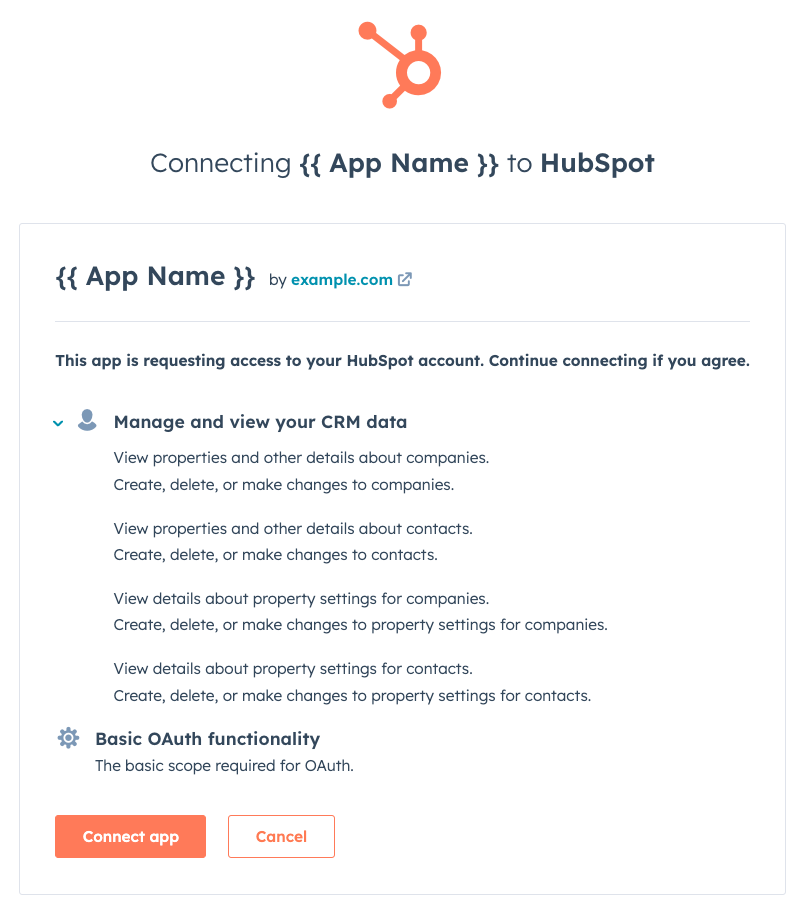 **Note:** The user installing the app must have access to all requested scopes. If they don't have the required access, the installation will fail and they will be directed to an error page. If a user sees this permissions error page, they'll need to have a Super Admin install the app.
Your application doesn't do anything at this stage. Once access is granted, the HubSpot OAuth 2.0 server will send a request to the callback URI defined in the authorization URL.
### 3. Handle the OAuth server response
When the user has completed the consent prompt from Step 2, the OAuth 2.0 server sends a `GET` request to the redirect URI specified in your authentication URL. If there are no issues and the user approves the access request, the request to the redirect URI will be returned with a `code` query parameter attached. If the user doesn't grant access, no request will be sent.
**Example:**
```js theme={null}
app.get("/oauth-callback", async (req, res) => {
if (req.query.code) {
// Handle the received code
}
});
```
### 4. Exchange authorization code for tokens
After your app receives an authorization code from the OAuth 2.0 server, it can exchange that code for an access and refresh token by sending a URL-form encoded `POST` request to `https://api.hubapi.com/oauth/v3/token` with the values shown below. For more detailed information on this step, consult the [API guide](/api-reference/legacy/authentication/manage-oauth-tokens).
| Parameter | Description | Example |
| --------------- | --------------------------------------------------------- | --------------------------------------- |
| `grant_type` | Must be `authorization_code` | `authorization_code` |
| `client_id` | Your app's client ID | `7fff1e36-2d40-4ae1-bbb1-5266d59564fb` |
| `client_secret` | Your app's client secret | `7c3ce02c-0f0c-4c9f-9700-92440c9bdf2d` |
| `redirect_uri` | The redirect URI from when the user authorized your app | `https://www.example.com/auth-callback` |
| `code` | The authorization code received from the OAuth 2.0 server | `5771f587-2fe7-40e8-8784-042fb4bc2c31` |
**Example:**
```js theme={null}
const formData = {
grant_type: 'authorization_code',
client_id: CLIENT_ID,
client_secret: CLIENT_SECRET,
redirect_uri: REDIRECT_URI,
code: req.query.code
};
request.post('https://api.hubapi.com/oauth/v3/token', { form: formData }, (err, data) => {
// Handle the returned tokens (e.g., save tokens in a backend database)
});
```
The body of the token response will include the following properties:
```json theme={null}
{
"token_type": "bearer",
"refresh_token": "na1-aaaa-bbbb-cccc-dddd-eeeeeeeeeeee",
"access_token": "xxxxxxxxxxxxxxxxxxxxxxxxxxxxxxxxxxxxxxxxxxxxxxxxxxxxxxxxxxxxxxxxxxxxxxxxxxxxxxxxxxxxxxxxxxxxxxxxxxxxxxxxxxxxxxxxxxxxxxxxxxxxxxxxxxxxxxxxxxxxxxxxxxxxxxxxxxxxxxxxxxxxxxxxxxx",
"hub_id": 1234567,
"scopes": [
"oauth",
"crm.objects.contacts.write",
"crm.objects.contacts.read"
],
"expires_in": 1800
}
```
**Please note:**
The access token will expire after the number of seconds given in the `expires_in` field of the response, currently 30 minutes. For details on getting a new access token, see the [refreshing OAuth tokens](#refreshing-oauth-tokens) section below.
## Using OAuth tokens
Once the authorization code flow is completed, your app is authorized to make requests on behalf of the user. To do this, provide the `access_token` that's returned from the `/oauth/v3/token` endpoint as a bearer token in the `Authorization` HTTP header. Specific details can be found in the [reference doc](/api-reference/legacy/authentication/manage-oauth-tokens).
**Example:**
```js theme={null}
request.get(
"https://api.hubapi.com/crm/v3/objects/contacts",
{
headers: {
Authorization: `Bearer ${ACCESS_TOKEN}`,
"Content-Type": "application/json",
},
},
(err, data) => {
// Handle the API response
}
);
```
**Please note:**
Access tokens reflect the scopes requested from the app and do not reflect the permissions or limitations of what a user can do in their HubSpot account. For example, if a user has permissions to view only owned contacts but authorizes a request for the `crm.objects.contacts.read` scope, the resulting access token can view all contacts in the account and not only those owned by the authorizing user.
## Refreshing OAuth tokens
OAuth access tokens expire periodically. This is to make sure that if they're compromised, attackers will only have access for a short time. The token's lifespan in seconds is specified in the `expires_in` field when an authorization code is exchanged for an access token.
Your app can exchange the received refresh token for a new access token by sending a URL-form encoded `POST` request to `https://api.hubapi.com/oauth/v3/token` and provide the values in the table below within the body of your request. For more detailed information on this step, check out the [API guide](/api-reference/legacy/authentication/manage-oauth-tokens#refresh-an-access-token).
| Parameter | Description | Example |
| --------------- | ------------------------------------------------------------ | --------------------------------------- |
| `grant_type` | Must be `refresh_token` | `refresh_token` |
| `client_id` | Your app's client ID | `7fff1e36-2d40-4ae1-bbb1-5266d59564fb` |
| `client_secret` | Your app's client secret | `7c3ce02c-0f0c-4c9f-9700-92440c9bdf2d` |
| `redirect_uri` | The redirect URI from when the user authorized your app | `https://www.example.com/auth-callback` |
| `refresh_token` | The refresh token received when the user authorized your app | `b9443019-30fe-4df1-a67e-3d75cbd0f726` |
**Example:**
```js theme={null}
const formData = {
grant_type: 'refresh_token',
client_id: CLIENT_ID,
client_secret: CLIENT_SECRET,
redirect_uri: REDIRECT_URI,
refresh_token: REFRESH_TOKEN
};
request.post('https://api.hubapi.com/oauth/v3/token', { form: formData }, (err, data) => {
// Handle the returned tokens
});
```
The body of the token response will resemble the following:
```json theme={null}
{
"token_type": "bearer",
"refresh_token": "na1-aaaa-bbbb-cccc-dddd-eeeeeeeeeeee",
"access_token": "xxxxxxxxxxxxxxxxxxxxxxxxxxxxxxxxxxxxxxxxxxxxxxxxxxxxxxxxxxxxxxxxxxxxxxxxxxxxxxxxxxxxxxxxxxxxxxxxxxxxxxxxxxxxxxxxxxxxxxxxxxxxxxxxxxxxxxxxxxxxxxxxxxxxxxxxxxxxxxxxxxxxxxxxxxx",
"hub_id": 1234567,
"scopes": [
"oauth",
"crm.objects.contacts.write",
"crm.objects.contacts.read"
],
"expires_in": 1800
}
```
The new access token can then be used to make calls on behalf of the user. When the new token expires, you can follow the same steps again to retrieve a new one.
## Related articles
* [Working with OAuth](/apps/developer-platform/build-apps/authentication/oauth/working-with-oauth)
* [OAuth v3 API guide](/api-reference/legacy/authentication/manage-oauth-tokens)
**Note:** The user installing the app must have access to all requested scopes. If they don't have the required access, the installation will fail and they will be directed to an error page. If a user sees this permissions error page, they'll need to have a Super Admin install the app.
Your application doesn't do anything at this stage. Once access is granted, the HubSpot OAuth 2.0 server will send a request to the callback URI defined in the authorization URL.
### 3. Handle the OAuth server response
When the user has completed the consent prompt from Step 2, the OAuth 2.0 server sends a `GET` request to the redirect URI specified in your authentication URL. If there are no issues and the user approves the access request, the request to the redirect URI will be returned with a `code` query parameter attached. If the user doesn't grant access, no request will be sent.
**Example:**
```js theme={null}
app.get("/oauth-callback", async (req, res) => {
if (req.query.code) {
// Handle the received code
}
});
```
### 4. Exchange authorization code for tokens
After your app receives an authorization code from the OAuth 2.0 server, it can exchange that code for an access and refresh token by sending a URL-form encoded `POST` request to `https://api.hubapi.com/oauth/v3/token` with the values shown below. For more detailed information on this step, consult the [API guide](/api-reference/legacy/authentication/manage-oauth-tokens).
| Parameter | Description | Example |
| --------------- | --------------------------------------------------------- | --------------------------------------- |
| `grant_type` | Must be `authorization_code` | `authorization_code` |
| `client_id` | Your app's client ID | `7fff1e36-2d40-4ae1-bbb1-5266d59564fb` |
| `client_secret` | Your app's client secret | `7c3ce02c-0f0c-4c9f-9700-92440c9bdf2d` |
| `redirect_uri` | The redirect URI from when the user authorized your app | `https://www.example.com/auth-callback` |
| `code` | The authorization code received from the OAuth 2.0 server | `5771f587-2fe7-40e8-8784-042fb4bc2c31` |
**Example:**
```js theme={null}
const formData = {
grant_type: 'authorization_code',
client_id: CLIENT_ID,
client_secret: CLIENT_SECRET,
redirect_uri: REDIRECT_URI,
code: req.query.code
};
request.post('https://api.hubapi.com/oauth/v3/token', { form: formData }, (err, data) => {
// Handle the returned tokens (e.g., save tokens in a backend database)
});
```
The body of the token response will include the following properties:
```json theme={null}
{
"token_type": "bearer",
"refresh_token": "na1-aaaa-bbbb-cccc-dddd-eeeeeeeeeeee",
"access_token": "xxxxxxxxxxxxxxxxxxxxxxxxxxxxxxxxxxxxxxxxxxxxxxxxxxxxxxxxxxxxxxxxxxxxxxxxxxxxxxxxxxxxxxxxxxxxxxxxxxxxxxxxxxxxxxxxxxxxxxxxxxxxxxxxxxxxxxxxxxxxxxxxxxxxxxxxxxxxxxxxxxxxxxxxxxx",
"hub_id": 1234567,
"scopes": [
"oauth",
"crm.objects.contacts.write",
"crm.objects.contacts.read"
],
"expires_in": 1800
}
```
**Please note:**
The access token will expire after the number of seconds given in the `expires_in` field of the response, currently 30 minutes. For details on getting a new access token, see the [refreshing OAuth tokens](#refreshing-oauth-tokens) section below.
## Using OAuth tokens
Once the authorization code flow is completed, your app is authorized to make requests on behalf of the user. To do this, provide the `access_token` that's returned from the `/oauth/v3/token` endpoint as a bearer token in the `Authorization` HTTP header. Specific details can be found in the [reference doc](/api-reference/legacy/authentication/manage-oauth-tokens).
**Example:**
```js theme={null}
request.get(
"https://api.hubapi.com/crm/v3/objects/contacts",
{
headers: {
Authorization: `Bearer ${ACCESS_TOKEN}`,
"Content-Type": "application/json",
},
},
(err, data) => {
// Handle the API response
}
);
```
**Please note:**
Access tokens reflect the scopes requested from the app and do not reflect the permissions or limitations of what a user can do in their HubSpot account. For example, if a user has permissions to view only owned contacts but authorizes a request for the `crm.objects.contacts.read` scope, the resulting access token can view all contacts in the account and not only those owned by the authorizing user.
## Refreshing OAuth tokens
OAuth access tokens expire periodically. This is to make sure that if they're compromised, attackers will only have access for a short time. The token's lifespan in seconds is specified in the `expires_in` field when an authorization code is exchanged for an access token.
Your app can exchange the received refresh token for a new access token by sending a URL-form encoded `POST` request to `https://api.hubapi.com/oauth/v3/token` and provide the values in the table below within the body of your request. For more detailed information on this step, check out the [API guide](/api-reference/legacy/authentication/manage-oauth-tokens#refresh-an-access-token).
| Parameter | Description | Example |
| --------------- | ------------------------------------------------------------ | --------------------------------------- |
| `grant_type` | Must be `refresh_token` | `refresh_token` |
| `client_id` | Your app's client ID | `7fff1e36-2d40-4ae1-bbb1-5266d59564fb` |
| `client_secret` | Your app's client secret | `7c3ce02c-0f0c-4c9f-9700-92440c9bdf2d` |
| `redirect_uri` | The redirect URI from when the user authorized your app | `https://www.example.com/auth-callback` |
| `refresh_token` | The refresh token received when the user authorized your app | `b9443019-30fe-4df1-a67e-3d75cbd0f726` |
**Example:**
```js theme={null}
const formData = {
grant_type: 'refresh_token',
client_id: CLIENT_ID,
client_secret: CLIENT_SECRET,
redirect_uri: REDIRECT_URI,
refresh_token: REFRESH_TOKEN
};
request.post('https://api.hubapi.com/oauth/v3/token', { form: formData }, (err, data) => {
// Handle the returned tokens
});
```
The body of the token response will resemble the following:
```json theme={null}
{
"token_type": "bearer",
"refresh_token": "na1-aaaa-bbbb-cccc-dddd-eeeeeeeeeeee",
"access_token": "xxxxxxxxxxxxxxxxxxxxxxxxxxxxxxxxxxxxxxxxxxxxxxxxxxxxxxxxxxxxxxxxxxxxxxxxxxxxxxxxxxxxxxxxxxxxxxxxxxxxxxxxxxxxxxxxxxxxxxxxxxxxxxxxxxxxxxxxxxxxxxxxxxxxxxxxxxxxxxxxxxxxxxxxxxx",
"hub_id": 1234567,
"scopes": [
"oauth",
"crm.objects.contacts.write",
"crm.objects.contacts.read"
],
"expires_in": 1800
}
```
The new access token can then be used to make calls on behalf of the user. When the new token expires, you can follow the same steps again to retrieve a new one.
## Related articles
* [Working with OAuth](/apps/developer-platform/build-apps/authentication/oauth/working-with-oauth)
* [OAuth v3 API guide](/api-reference/legacy/authentication/manage-oauth-tokens)