> ## Documentation Index
> Fetch the complete documentation index at: https://developers.hubspot.com/docs/llms.txt
> Use this file to discover all available pages before exploring further.
---
id: 714e0396-4571-476c-b3e9-b2fcc2d9090a
---
# Create a new app using the CLI
> Learn how to create and customize a new app using the HubSpot CLI
export const ChromeLocalhostWarning = () =>
As of Google Chrome version 142, you will receive a one-time popup asking for app.hubspot.com to access devices on your local network. Select Accept to enable local development for your apps.
You can also manage this setting in your Chrome settings by navigating to Settings > Privacy & Security > app.hubspot.com > Permissions > Local network access.
;
Apps on the new developer platform (versions `2025.2` and `2026.03`) are initialized using the HubSpot CLI, via a series of streamlined commands. The app's configuration (name, authentication type, etc.) and any features are specified using individual configuration files, which are bundled into a project.
The steps below walk you through the process of creating a new app using the CLI, uploading the associated project to your HubSpot account, which you can install and test in a developer test account.
This article provides a full setup guide to customize and deploy a new app using the `hs project create` command.
If you're new to building apps on HubSpot, check out the [quickstart guide](/getting-started/quickstart) that will get you up and running with a demo app using the streamlined `hs get-started` command.
## Prerequisites
* To create an app on the latest version of the developer platform, you'll need to [install the HubSpot CLI](/developer-tooling/local-development/hubspot-cli/install-the-cli) and authenticate it with your account using the `hs account auth` command. Make sure you're using v7.6.0 of the HubSpot CLI before proceeding. If you've already installed the CLI, you can update to the latest version of the CLI by running `npm install -g @hubspot/cli@latest`.
* You may want to [create a configurable test account](/developer-tooling/local-development/configurable-test-accounts) so that you can build and test in an isolated environment.
## Create a new boilerplate project
* Run the command below in your terminal to create a new project with a boilerplate template to get you started.
```shell theme={null}
hs project create
```
* Follow the commands to set up your project. When prompted to select the base contents of your project, select **App**.
* Continue to follow the CLI prompts to configure your app details, including:
* **\[--distribution]:** select whether you plan to distribute your app on the [HubSpot Marketplace](https://ecosystem.hubspot.com/marketplace/apps) or if want to restrict installation to specific HubSpot accounts.
* **\[--auth]:** select whether you want to use OAuth for the ability to authenticate multiple accounts, or opt for a static token to limit installation to a specific account.
* **\[--features]:** select which app features to include, which will create a directory for each feature, along with the respective config files you'll need to get started. Press **spacebar** to select a feature, the **a** key to toggle all features, the **i** key to invert your current selection, and the **enter** key to proceed. The following app features are available:
* **Card:** an [app card](/apps/developer-platform/add-features/ui-extensions/extension-points/app-cards/create-an-app-card) that will appear on a CRM record page.
* **App Function:** add support for [serverless functions](/cms/start-building/features/serverless-functions/overview).
* **Settings:** add an [app settings page](/apps/developer-platform/add-features/ui-extensions/extension-points/create-a-settings-page).
* **Webhooks:** add a configuration file to specify [webhook subscriptions](/apps/developer-platform/add-features/configure-webhooks).
* **Custom Workflow Action:** add a [custom workflow action](/apps/developer-platform/add-features/custom-workflow-actions).
After selecting your app features, the HubSpot CLI will create a top-level project directory, as well as subdirectories for the app features you chose.
Next, you'll customize the configuration for the app and any of its associated features.
You can add a boilerplate feature to your app at any time by running the `hs project add` command in the root directory of the project.
## Configure the newly created project and upload it to your developer account
The projects framework moves app features that were previously configured in the UI or via the API over to source code files, typically defined as `-hsmeta.json` configuration files.
App features are then created using a combination of subfolders from the main `/src/app` directory and other configuration files as needed. Learn more about your app's project structure and schema options in the [app configuration reference documentation](/apps/developer-platform/build-apps/app-configuration).
### Configure UIDs and initial app features
Update the [UIDs](/apps/developer-platform/build-apps/app-configuration#specifying-uids) of your app and any features:
* Change the `uid` property of the app in the top-level `app-hsmeta.json` file and give a unique name to represent your new app.
* If you opted for `static` [authentication](/apps/developer-platform/build-apps/app-configuration#authentication) for a [privately distributed](/apps/developer-platform/build-apps/app-configuration#distribution) app, remove the `redirectUrls` sub-property within the `auth` field of your `app-hsmeta.json` configuration (see line 10 in the example code block below).
```json lines Highlight={2} title="Example app-hsmeta.json" theme={null}
{
"uid": "new_developer_platform_app",
"type": "app",
"config": {
"description": "An example to demonstrate how to build an app with developer projects.",
"name": "my first app",
"distribution": "marketplace",
"auth": {
"type": "oauth",
"redirectUrls": ["http://localhost:3000/oauth-callback"],
"requiredScopes": [
"crm.objects.contacts.read",
"crm.objects.contacts.write"
],
"optionalScopes": [],
"conditionallyRequiredScopes": []
},
"permittedUrls": {
"fetch": ["https://api.hubapi.com"],
"iframe": [],
"img": []
},
"support": {
"supportEmail": "support@example.com",
"documentationUrl": "https://example.com/docs",
"supportUrl": "https://example.com/support",
"supportPhone": "+18005555555"
}
}
}
```
* For any features you want to include (e.g., app cards), update the UID within any associated `*-hsmeta.json` configuration files in your project.
Keep in mind that UIDs are used as a unique identifier for all your project's components and features. Once your app or any of its features has been uploaded with a specific UID, changing it in subsequent deployments will force the platform to recognize it as different from previous builds, which may not be intended.
### Set up OAuth (if applicable)
If you plan on distributing your app to multiple accounts (either with a specific set of allowlisted accounts or via the HubSpot app marketplace), you'll need to set up OAuth for your app by following the steps below. Otherwise, you can skip this step and proceed to [upload your project](#upload-your-project).
* Add one or more valid redirect URLs to the `app-hsmeta.json` file based on your local (or another non-production) OAuth server configuration.
* If you don't have a backend service set up already, you can get started by using the [sample OAuth Node.js example](http://github.com/hubspot/oauth-quickstart-nodejs) and run it locally. It's already set up to work with `https://localhost:3000/oauth-callback` as the redirect URL configured in the boilerplate example code from the `hs project create` command you ran in the previous step.
```json expandable Highlight={7-10} title="Example app-hsmeta.json" theme={null}
{
"uid": "new_developer_platform_app",
"type": "app",
"config": {
"description": "An example to demonstrate how to build an app with developer projects.",
"name": "my first app",
"distribution": "marketplace",
"auth": {
"type": "oauth",
"redirectUrls": ["http://localhost:3000/oauth-callback"],
"requiredScopes": [
"crm.objects.contacts.read",
"crm.objects.contacts.write"
],
"optionalScopes": [],
"conditionallyRequiredScopes": []
},
"permittedUrls": {
"fetch": ["https://api.hubapi.com"],
"iframe": [],
"img": []
},
"support": {
"supportEmail": "support@example.com",
"documentationUrl": "https://example.com/docs",
"supportUrl": "https://example.com/support",
"supportPhone": "+18005555555"
}
}
}
```
### Upload your project
After you've updated your app and feature schemas, run the `hs project upload` CLI command to upload your project to your HubSpot account and automatically trigger a new build.
If your app is configured to use OAuth authentication, proceed to the next step to retrieve the app's authentication details. Otherwise, you can proceed to [app installation](#install-your-app).
## Add the client ID and client secret of your app to your app
If you configured the [authentication type](/apps/developer-platform/build-apps/app-configuration#authentication) to use `oauth`, you'll need to set up your backend OAuth server to use your app's client ID and secret, which you can find in HubSpot:
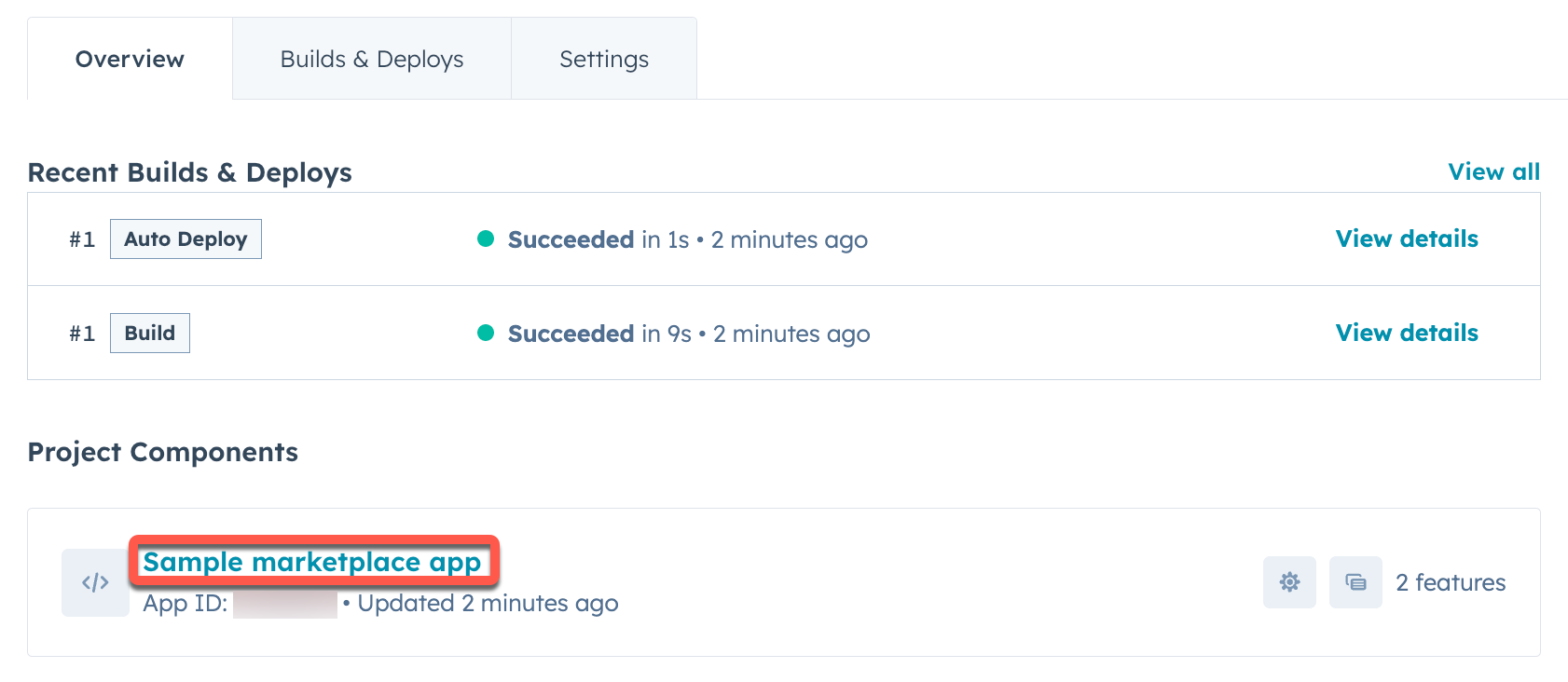
* In the terminal, run `hs project open` from within your local project directory to open the project details page in HubSpot.
* Under *Project Components*, click the **name** of your app.
 * Click the **Auth** tab.
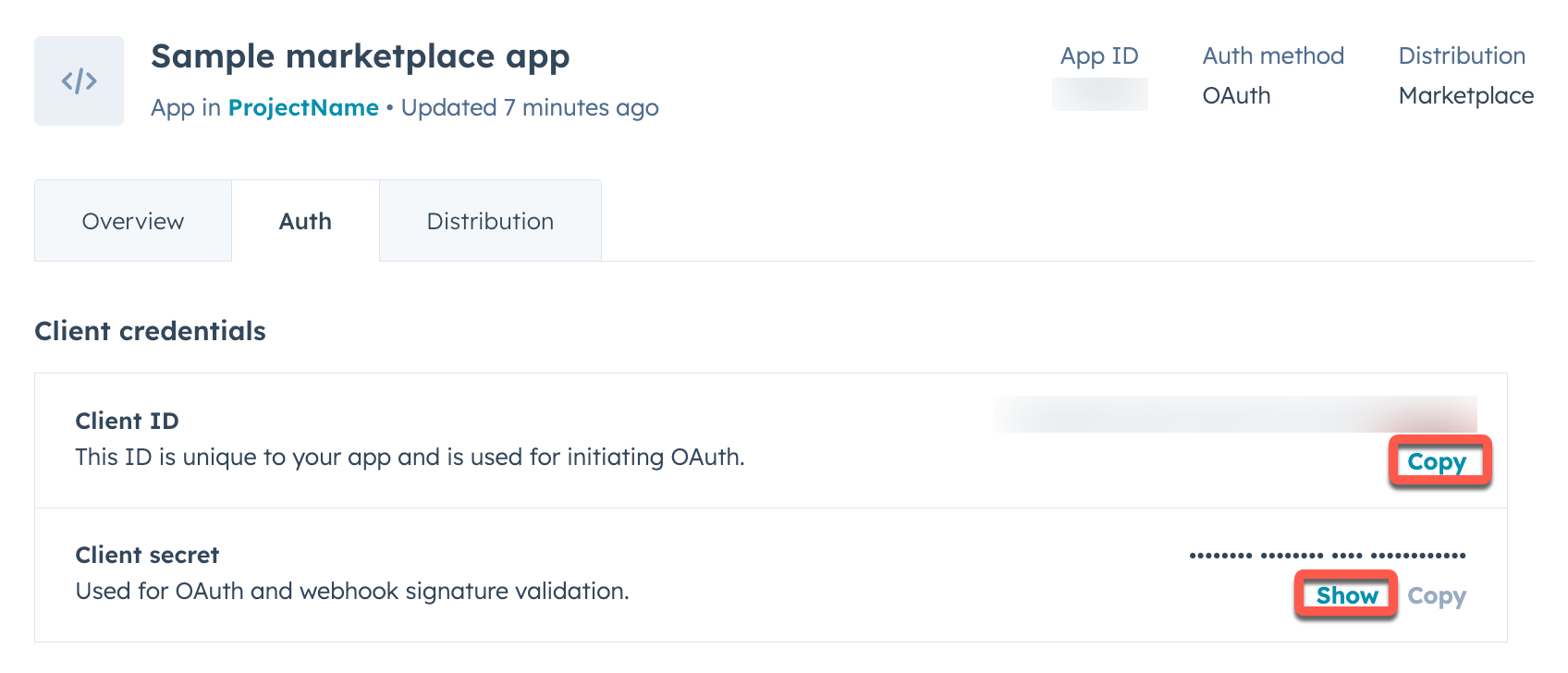
* Under *Client credentials*, copy the *Client ID* and *Client secret* from your new app and paste them into the corresponding locations in your OAuth server's configuration, then restart your OAuth server.
* Click the **Auth** tab.
* Under *Client credentials*, copy the *Client ID* and *Client secret* from your new app and paste them into the corresponding locations in your OAuth server's configuration, then restart your OAuth server.
 Your app is now ready to test with an installed account.
## Install your app
If you're still planning on testing your app out before getting it ready for a production setting, it's recommended you start by installing it in a [developer test account](#install-in-a-developer-test-account). Otherwise, users with the [required user permissions](/apps/developer-platform/build-apps/manage-apps-in-hubspot#permission-requirements) can install the app directly in their [standard HubSpot account](#install-in-a-standard-hubspot-account).
### Install in a developer test account
If you don't already have a [test account](/getting-started/account-types#developer-test-accounts), you can create one in HubSpot:
* Navigate to **Test accounts** in the *Development* navigation menu, then click **Create developer test account**. Follow the prompts to create your new test account.
* In the left sidebar menu, navigate to **Projects**, click the **name** of your new project, then click the **UID** of your app in the component list.
* On the *Distribution* tab, next to *Test installs*, click **Add test install(s)**.
Your app is now ready to test with an installed account.
## Install your app
If you're still planning on testing your app out before getting it ready for a production setting, it's recommended you start by installing it in a [developer test account](#install-in-a-developer-test-account). Otherwise, users with the [required user permissions](/apps/developer-platform/build-apps/manage-apps-in-hubspot#permission-requirements) can install the app directly in their [standard HubSpot account](#install-in-a-standard-hubspot-account).
### Install in a developer test account
If you don't already have a [test account](/getting-started/account-types#developer-test-accounts), you can create one in HubSpot:
* Navigate to **Test accounts** in the *Development* navigation menu, then click **Create developer test account**. Follow the prompts to create your new test account.
* In the left sidebar menu, navigate to **Projects**, click the **name** of your new project, then click the **UID** of your app in the component list.
* On the *Distribution* tab, next to *Test installs*, click **Add test install(s)**.
 * In the right panel, click **Install** next to the test account you created.
* Review the app permissions, select the **checkbox** to authorize installing an unverified app, then click **Connect app**.
### Install in a standard account
If you have the [required user permissions](/apps/developer-platform/build-apps/manage-apps-in-hubspot#permission-requirements), you can also install your app directly in your [standard account](/getting-started/account-types#standard-hubspot-accounts):
* In your HubSpot account, navigate to **Development**.
* In the left sidebar menu, navigate to **Projects**, click the **name** of your new project, then click the **UID** of your app in the component list.
* On the *Distribution* tab, under *Standard install*, click **Install now**.
* In the right panel, click **Install** next to the test account you created.
* Review the app permissions, select the **checkbox** to authorize installing an unverified app, then click **Connect app**.
### Install in a standard account
If you have the [required user permissions](/apps/developer-platform/build-apps/manage-apps-in-hubspot#permission-requirements), you can also install your app directly in your [standard account](/getting-started/account-types#standard-hubspot-accounts):
* In your HubSpot account, navigate to **Development**.
* In the left sidebar menu, navigate to **Projects**, click the **name** of your new project, then click the **UID** of your app in the component list.
* On the *Distribution* tab, under *Standard install*, click **Install now**.
 After initiating the install, you'll be prompted to review the app permissions.
* Select the **checkbox** to authorize installing an unverified app, then click **Connect app**.
* Once successful, click **View installed app details** to navigate to the *Connected Apps* page of the account where you installed your app.
After initiating the install, you'll be prompted to review the app permissions.
* Select the **checkbox** to authorize installing an unverified app, then click **Connect app**.
* Once successful, click **View installed app details** to navigate to the *Connected Apps* page of the account where you installed your app.
 Learn more about [distributing your app](/apps/developer-platform/build-apps/manage-apps-in-hubspot#distribute-your-app).
## Local development and previews
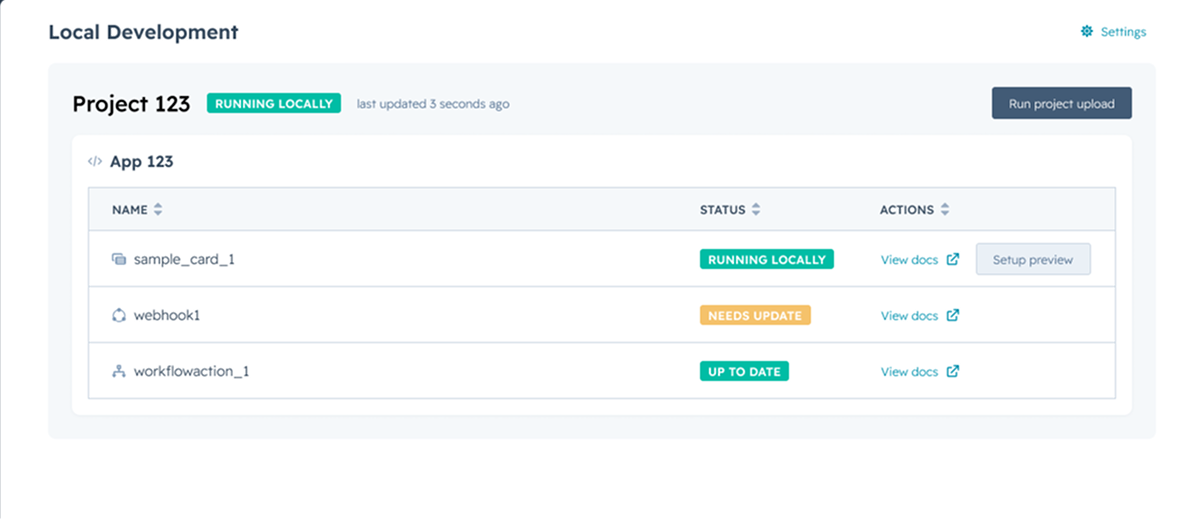
Once you've successfully installed the app into the test account, you can run `hs project dev` to start developing your app locally.
* When running this command, you'll see a link to view your project status and source code within your primary developer account as well as a link to access a local development homepage in your test account.
* This homepage will provide you details about the active local development session, including which components are being developed locally and how you can preview those components to test your changes in real time.
Learn more about [distributing your app](/apps/developer-platform/build-apps/manage-apps-in-hubspot#distribute-your-app).
## Local development and previews
Once you've successfully installed the app into the test account, you can run `hs project dev` to start developing your app locally.
* When running this command, you'll see a link to view your project status and source code within your primary developer account as well as a link to access a local development homepage in your test account.
* This homepage will provide you details about the active local development session, including which components are being developed locally and how you can preview those components to test your changes in real time.
 ## Next steps
Check out the documentation for guidance on [configuring an app card](/apps/developer-platform/add-features/ui-extensions/extension-points/app-cards/create-an-app-card) and [creating a settings page for your app](/apps/developer-platform/add-features/ui-extensions/extension-points/create-a-settings-page).
## Next steps
Check out the documentation for guidance on [configuring an app card](/apps/developer-platform/add-features/ui-extensions/extension-points/app-cards/create-an-app-card) and [creating a settings page for your app](/apps/developer-platform/add-features/ui-extensions/extension-points/create-a-settings-page).