> ## Documentation Index
> Fetch the complete documentation index at: https://developers.hubspot.com/docs/llms.txt
> Use this file to discover all available pages before exploring further.
---
id: c1c6f599-76d3-46d0-9035-6c842b0b760f
---
# Create an app listing setup guide
> Learn more about creating a publicly available setup guide to include with your HubSpot Marketplace app listing.
In order for an app to be [listed](/apps/developer-platform/list-apps/listing-your-app/listing-your-app) or [certified](/apps/developer-platform/list-apps/apply-for-certification/certification-requirements) on the HubSpot Marketplace, the listing must include a publicly available setup guide URL.
**Please note:**
You can create separate guides for installing, configuring, using, disconnecting, and uninstalling your app, but all guides must meet the requirements and be linked to the *Setup documentation URL* included on your HubSpot Marketplace listing.
## Setup guide requirements
In order to be [listed](/apps/developer-platform/list-apps/listing-your-app/listing-your-app) on the HubSpot Marketplace, your app must include a setup guide that meets the following requirements:
* Not hidden behind a paywall or sign-in screen.
* Specific to setting up your app, i.e. you cannot link to your website homepage or knowledge base homepage.
* Contains the steps to install and configure the integration.
Learn more about the [full requirements for listing your app](/apps/developer-platform/list-apps/listing-your-app/app-marketplace-listing-requirements) or check out an [example of a listed setup guide](https://orgcharthub.com/guides/setup) from OrgChartHub.
In order to be [certified](/apps/developer-platform/list-apps/apply-for-certification/applying-for-app-certification) on the HubSpot Marketplace, your app must include a setup guide that meets the following requirements, in addition to the above:
* Adheres to current accessibility, privacy, and GDPR standards.
* Is consistent with the current version of your app and HubSpot.
* Includes images. Videos are recommended, but not required.
* Includes the following information:
* What your app does.
* How to install your app.
* How to connect a HubSpot account to your app.
* Screenshots of each step of the installation process, including the scope approval screen.
* How to configure your app, once installed.
* How to use your app, including both automated and manual interactions.
* How to disconnect a HubSpot account from your app.
* How to uninstall your app from a HubSpot account.
* Potential consequences to user data from disconnecting and uninstalling your app.
Learn more about the [full requirements for certifying your app](/apps/developer-platform/list-apps/apply-for-certification/certification-requirements).
## Setup guide template
The following template uses best practices for creating a setup guide. Using this format is not required, but the template is designed to give your app a strong probability of meeting HubSpot's requirements for both listing and certification.
### Setup guide for \[App Name]
\[*App Name*] integrates \[*Platform Name*] leads and accounts with HubSpot contacts and companies, which lets users:
* \[*Description of a use case*]
* \[*Description of an additional use case*]
#### Install the app
\[*Describe instructions to install your app and connect a HubSpot account, with visual aids for each step.*] For example:
* Log in to \[*Platform Name*].
* Navigate to **Settings** > **Integrations**.
* Locate the \[*App Name*] card.
* \[*Include a screenshot here.*]
* Click **Install**.
* Select your **HubSpot account**.
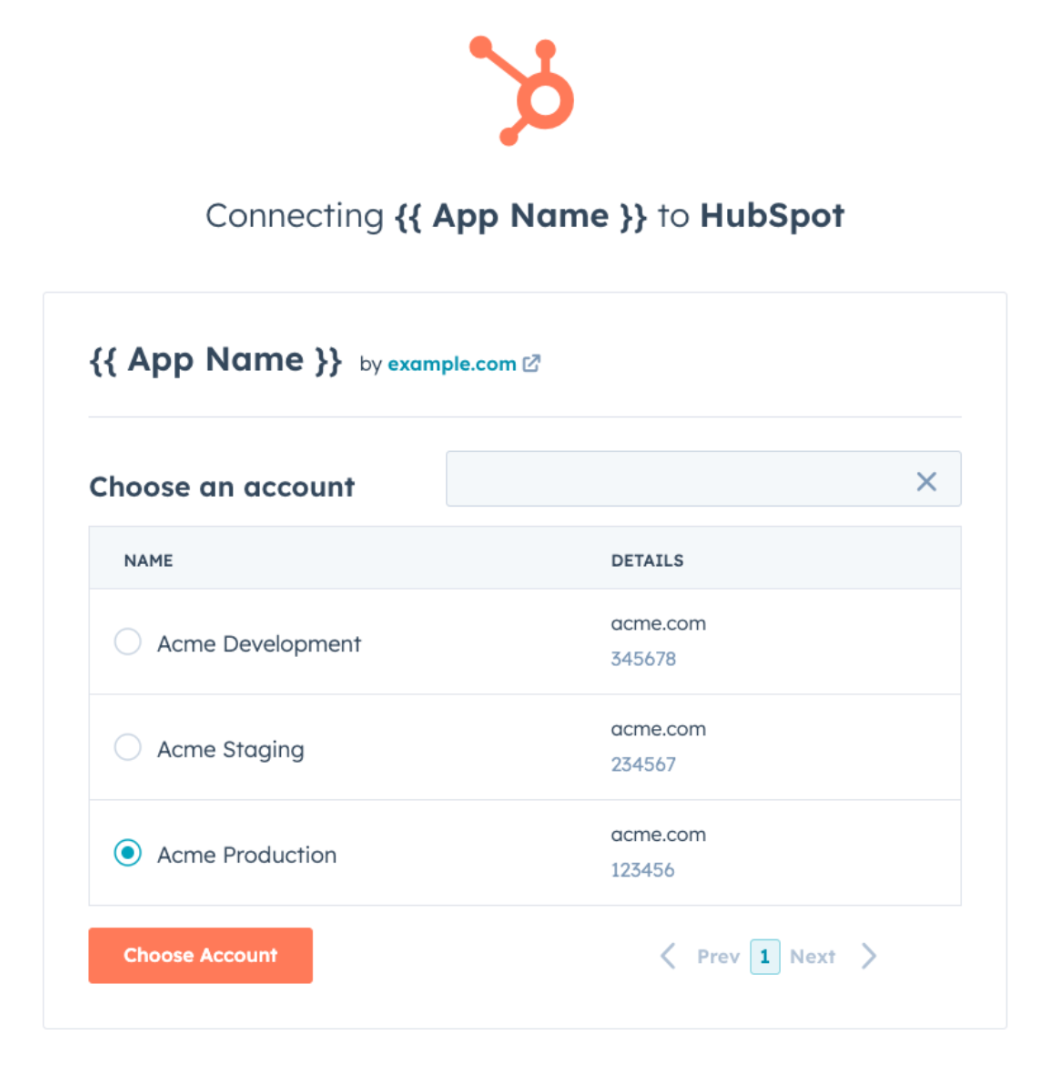 * Click **Choose Account**.
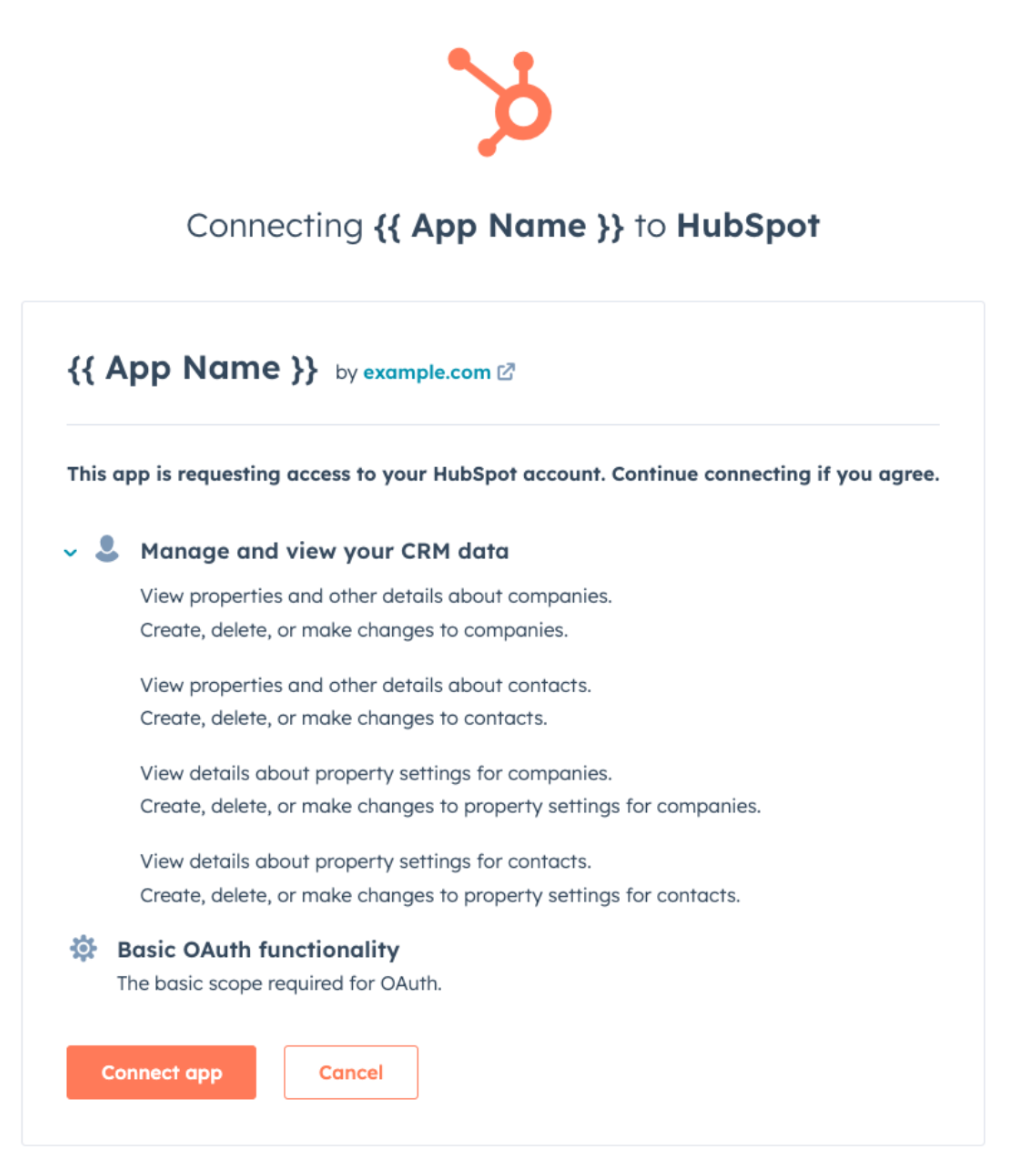
* Review the requested scopes on this screen. \[*App Name*] requests access to read and write contacts & companies, as well as read and edit contact & company properties.
* Click **Connect app**.
* Click **Choose Account**.
* Review the requested scopes on this screen. \[*App Name*] requests access to read and write contacts & companies, as well as read and edit contact & company properties.
* Click **Connect app**.
 * You will be redirected to the \[*Platform Name*] "Integrations" page, and new configuration options will appear.
#### Configure the app
\[*Describe instructions to configure your app's connection to HubSpot, including visual aids for each step.*]
* In your \[*Platform Name*] account, navigate to **Settings** > **Integrations** > **\[*App Name*]**.
* Toggle **Sync direction** to select how data will sync:
* **One-way**: \[*App Name*] will only update HubSpot.
* **Two-way**: \[*App Name*] will keep \[*Platform Name*] and HubSpot in sync.
* \[*Include a screenshot here.*]
* Map your \[*Platform Name*] lead and account fields to contact and company properties in HubSpot.
* \[*Include a screenshot here.*]
* When ready, click to toggle the **Sync** switch on.
* \[*Include a screenshot here.*]
* Select either **Sync existing records** or **Sync only new records**.
* \[*Include a screenshot here.*]
* Click **Done**.
#### Use the app
\[*Describe how to perform basic manual and/or automated actions with your app with relevant visual aids.*] For example:
\[*App Name*] automatically keeps your \[*Platform Name*] leads and accounts synced with your HubSpot contacts and companies, according to the settings configured in the previous section. Syncs run at least every 5 minutes. No manual actions are required.
#### Disconnect the app
\[*Describe instructions to disconnect a HubSpot account from your app, including visual aids for each step. You should also describe how disconnecting affects users' HubSpot accounts and data.*] For example:
**Note**: If you disconnect your HubSpot account from \[*App Name*], \[*Platform Name*] lead & account data will no longer sync to HubSpot contacts & companies and vice versa. Existing data will remain on your HubSpot records.
* Log in to \[*Platform Name*].
* Navigate to **Settings** > **Integrations**.
* Locate the \[*App Name*] card.
* \[*Include a screenshot here.*]
* Click **Disconnect**.
* \[*Include a screenshot here.*]
* Click **Yes, I am sure**.
#### Uninstall the app
\[*Describe instructions to uninstall your app from within a HubSpot account. You may simply link and refer to the HubSpot Knowledge Base article on this topic.*] For example:
To uninstall \[*App Name*] from your HubSpot account, follow the instructions in [this HubSpot Knowledge Base article](https://knowledge.hubspot.com/integrations/connect-apps-to-hubspot#uninstall-an-app).
* You will be redirected to the \[*Platform Name*] "Integrations" page, and new configuration options will appear.
#### Configure the app
\[*Describe instructions to configure your app's connection to HubSpot, including visual aids for each step.*]
* In your \[*Platform Name*] account, navigate to **Settings** > **Integrations** > **\[*App Name*]**.
* Toggle **Sync direction** to select how data will sync:
* **One-way**: \[*App Name*] will only update HubSpot.
* **Two-way**: \[*App Name*] will keep \[*Platform Name*] and HubSpot in sync.
* \[*Include a screenshot here.*]
* Map your \[*Platform Name*] lead and account fields to contact and company properties in HubSpot.
* \[*Include a screenshot here.*]
* When ready, click to toggle the **Sync** switch on.
* \[*Include a screenshot here.*]
* Select either **Sync existing records** or **Sync only new records**.
* \[*Include a screenshot here.*]
* Click **Done**.
#### Use the app
\[*Describe how to perform basic manual and/or automated actions with your app with relevant visual aids.*] For example:
\[*App Name*] automatically keeps your \[*Platform Name*] leads and accounts synced with your HubSpot contacts and companies, according to the settings configured in the previous section. Syncs run at least every 5 minutes. No manual actions are required.
#### Disconnect the app
\[*Describe instructions to disconnect a HubSpot account from your app, including visual aids for each step. You should also describe how disconnecting affects users' HubSpot accounts and data.*] For example:
**Note**: If you disconnect your HubSpot account from \[*App Name*], \[*Platform Name*] lead & account data will no longer sync to HubSpot contacts & companies and vice versa. Existing data will remain on your HubSpot records.
* Log in to \[*Platform Name*].
* Navigate to **Settings** > **Integrations**.
* Locate the \[*App Name*] card.
* \[*Include a screenshot here.*]
* Click **Disconnect**.
* \[*Include a screenshot here.*]
* Click **Yes, I am sure**.
#### Uninstall the app
\[*Describe instructions to uninstall your app from within a HubSpot account. You may simply link and refer to the HubSpot Knowledge Base article on this topic.*] For example:
To uninstall \[*App Name*] from your HubSpot account, follow the instructions in [this HubSpot Knowledge Base article](https://knowledge.hubspot.com/integrations/connect-apps-to-hubspot#uninstall-an-app).