> ## Documentation Index
> Fetch the complete documentation index at: https://developers.hubspot.com/docs/llms.txt
> Use this file to discover all available pages before exploring further.
---
id: 5da0bc62-94b8-443d-88c0-c680ba66263b
---
# HubSpot Marketplace | Listing your app
> Follow these steps to submit an app for listing on HubSpot Marketplace.
After you’ve created an app in your developer account that meets the [HubSpot Marketplace listing requirements](/apps/developer-platform/list-apps/listing-your-app/app-marketplace-listing-requirements), you can submit a listing to add it to the [HubSpot Marketplace](https://ecosystem.hubspot.com/marketplace/apps). The HubSpot Ecosystem Quality team will review your submission and follow up via email when the app has been approved or rejected.
**Please note:**
You must be a [Super admin](https://knowledge.hubspot.com/user-management/hubspot-user-permissions-guide#super-admin) to update and submit an app listing.
## Create and submit an app listing
**Please note:**
Before submitting an app listing, review the [App listing requirements page](/apps/developer-platform/list-apps/listing-your-app/app-marketplace-listing-requirements) to understand how to fill your listing.
* In your HubSpot account, navigate to **Development**.
* In the left sidebar menu, click **App Listings**.
* In the upper right, click **Create listing**. If this button is grayed out, listings have already been created for all your existing apps.
* Select the **app** you want to create a listing for and click **Next**. Apps that are already listed on HubSpot Marketplace will not appear here.
* Click the **Select the primary listing language for \[app name]** dropdown menu and select the **default language** users will see when browsing HubSpot Marketplace.
* Click **Next**.
The app listing wizard has seven tabs of information to fill out:
* [Listing info](#listing-info)
* [App details](#app-details)
* [Pricing](#pricing)
* [App features](#app-features)
* [Support info](#support-info)
* [Testing info](#testing-info)
* [Review info](#review-info)
### Listing info
On the *Listing info* tab:
* In the *App information* section, add your **Public app name**, **Company name**, **Tagline**, and **Install Button URL**.
* Click the **Install Button URL** dropdown menu and select a **URL**. These URLs are populated from the redirect URLs set in your [app settings](/apps/developer-platform/build-apps/manage-apps-in-hubspot#manage-authentication).
* In the *Sign-in configuration* section, select whether the app will require a separate partner sign-in. Learn more about the [app install flow with and without partner sign in](/apps/developer-platform/list-apps/understand-app-install-flow).
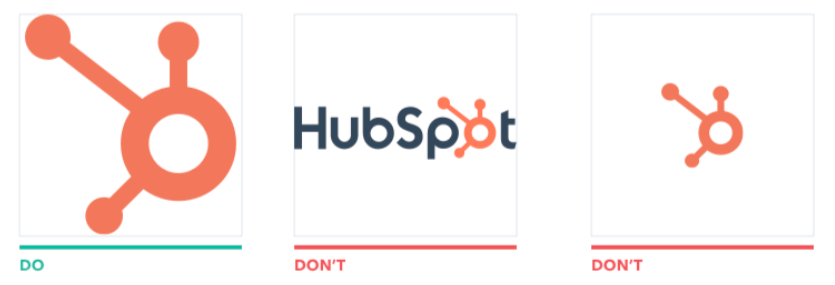
* In the *App icon* section, upload an 800px by 800px icon for your app. This will appear in HubSpot Marketplace and connected users’ accounts. When creating your icon:
* **Do**: use a JPG, JPEG, or PNG file, fill the entire space (800px by 800px) - your image should touch at least two edges, and use a high-resolution, non-pixelated image.
* **Do not**: include text in your icon, use a wordmark, or leave extra whitespace around your icon.
 * In the *Categorize your app* section, you can select up to two **categories** for your app. Learn more about the [different categories available](/apps/developer-platform/list-apps/listing-your-app/understand-app-categories).
* You can also review and set a **URL path** and add any **search terms** that can be used to find your app in HubSpot Marketplace.
### App details
On the *App details* tab:
* In the *Demo video* section, upload a **video** to show how your app works. Refer to the [How to Make a Great App Demo Video](https://www.hubspot.com/partners/technology/resources/how-to-make-a-great-app-demo-video) page for best practices and examples of how to create a demo video.
* In the *Screenshots* section, add **images** and **alt text** showing how your app works. You can add up to eight images.
* In the *App Overview* section, enter an **overview** for your app. Your overview should include information on what your app does, the key business problems your app solves, and why users should install your app.
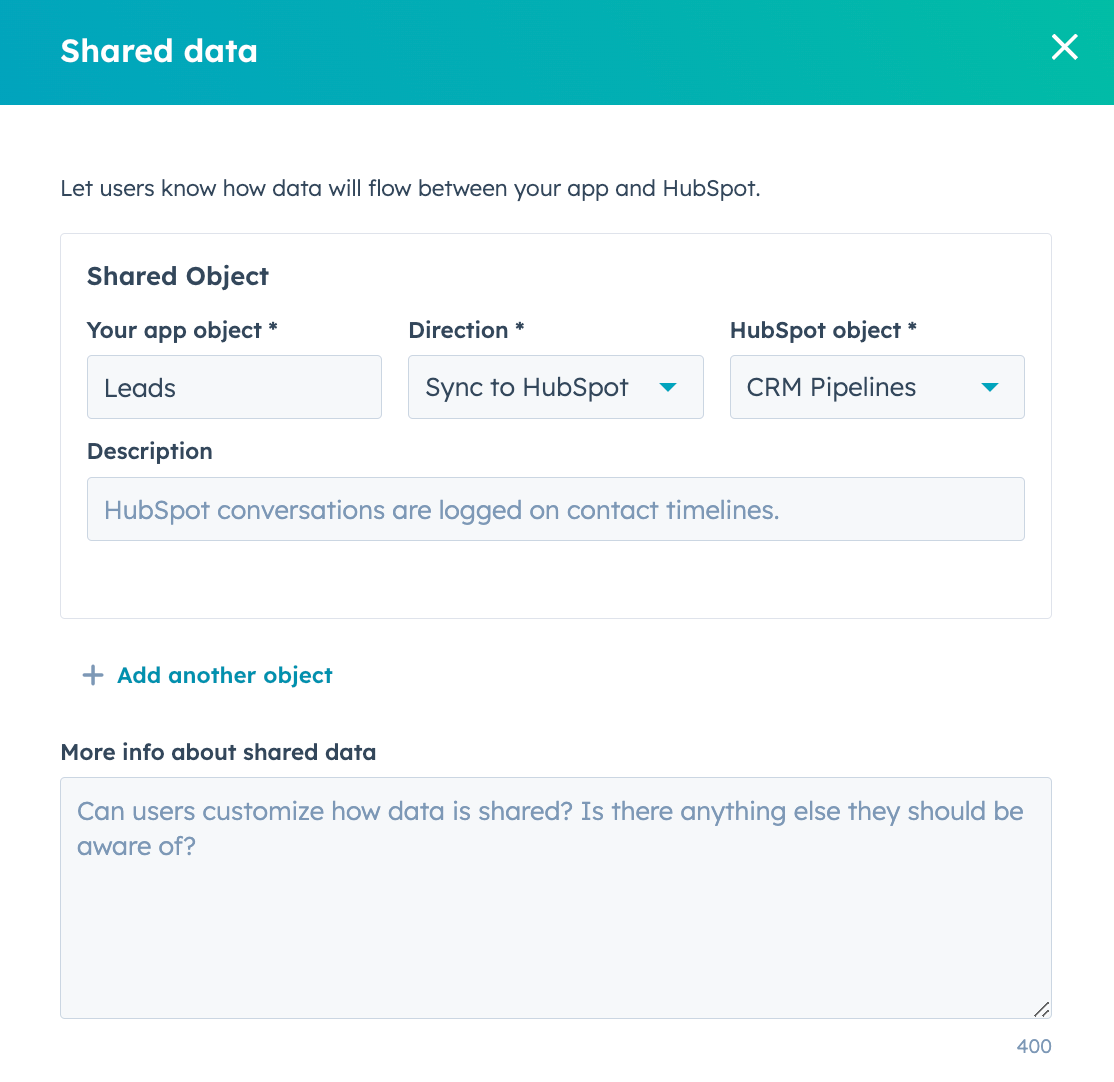
* Click **Add shared data**. In the *Shared data* section, let users know how data will flow between your app and HubSpot.
* In the right panel, select which app object syncs with which HubSpot object, and the direction of the sync. In the *App Overview* section, give a brief **description** of how your app can help users carry out their goals.
* To add another object sync, click **Add another object**.
* In the *Categorize your app* section, you can select up to two **categories** for your app. Learn more about the [different categories available](/apps/developer-platform/list-apps/listing-your-app/understand-app-categories).
* You can also review and set a **URL path** and add any **search terms** that can be used to find your app in HubSpot Marketplace.
### App details
On the *App details* tab:
* In the *Demo video* section, upload a **video** to show how your app works. Refer to the [How to Make a Great App Demo Video](https://www.hubspot.com/partners/technology/resources/how-to-make-a-great-app-demo-video) page for best practices and examples of how to create a demo video.
* In the *Screenshots* section, add **images** and **alt text** showing how your app works. You can add up to eight images.
* In the *App Overview* section, enter an **overview** for your app. Your overview should include information on what your app does, the key business problems your app solves, and why users should install your app.
* Click **Add shared data**. In the *Shared data* section, let users know how data will flow between your app and HubSpot.
* In the right panel, select which app object syncs with which HubSpot object, and the direction of the sync. In the *App Overview* section, give a brief **description** of how your app can help users carry out their goals.
* To add another object sync, click **Add another object**.
 * Click the **HubSpot features your app works with** dropdown menu and select the **checkboxes** next to the HubSpot features. You can add up to 10 HubSpot tools and features.
* Click the **Other tools your software integrates with** dropdown menu and select the **checkboxes** next to any external tools or apps that your app integrated with. You can select up to 6 other tools or apps.
* Click the **Languages your app is available in** dropdown menu select all **languages** available for your app. You can only create additional HubSpot Marketplace listings in these languages.
### Pricing
On the *Pricing* tab:
* Click the **currency** dropdown menu and select the **checkboxes** next to the currencies you want to list the app in. You can select from over 100 currencies.
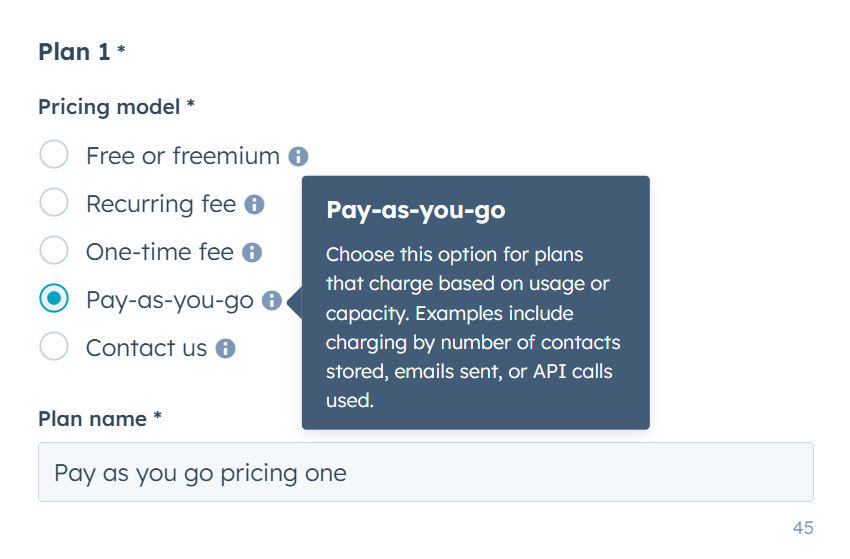
* You can also set up pricing plans for your app by adding the **pricing model**, **plan name**, **tagline**, **pricing detail**, and **features list**.
* Depending on the pricing model selected, you may need to add more information, such as the frequency of payment, one-time fees, or monthly prices. Hover over the **information icon** to learn more about each pricing model.
* Click the **HubSpot features your app works with** dropdown menu and select the **checkboxes** next to the HubSpot features. You can add up to 10 HubSpot tools and features.
* Click the **Other tools your software integrates with** dropdown menu and select the **checkboxes** next to any external tools or apps that your app integrated with. You can select up to 6 other tools or apps.
* Click the **Languages your app is available in** dropdown menu select all **languages** available for your app. You can only create additional HubSpot Marketplace listings in these languages.
### Pricing
On the *Pricing* tab:
* Click the **currency** dropdown menu and select the **checkboxes** next to the currencies you want to list the app in. You can select from over 100 currencies.
* You can also set up pricing plans for your app by adding the **pricing model**, **plan name**, **tagline**, **pricing detail**, and **features list**.
* Depending on the pricing model selected, you may need to add more information, such as the frequency of payment, one-time fees, or monthly prices. Hover over the **information icon** to learn more about each pricing model.
 * To add another pricing plans, click **Add another plan**. You can add up to 5 pricing plans.
* In the *Link to your software’s pricing plan* section, enter the **URL** where users can find more information on your pricing plans.
* In the *Agency pricing plans* section, enter the **URL** where users can learn more about pricing for partner or consulting services.
### App features
On the *App features* tab, add features and guide customers on how to use them. There is no limit on the number of app features that can be created for your app.
* In the top right, click **Add a feature**.
* On the *Feature details* page, configure your app features:
* **Feature name:** enter your feature name. This should describe your what your feature does.
* **Scopes:** select all scope groups a customer's account will need to have this feature. Scope groups are used to determine whether the customer's HubSpot account is compatible with the app features.
* **Description:** enter a detailed description for your feature, and how it can solve a customer's business problems.
* **Image:** add an image for your feature. After adding your image, click to toggle the **On your app's marketplace listing** or **As a feature discovery card** switches on to configure where your images should display.
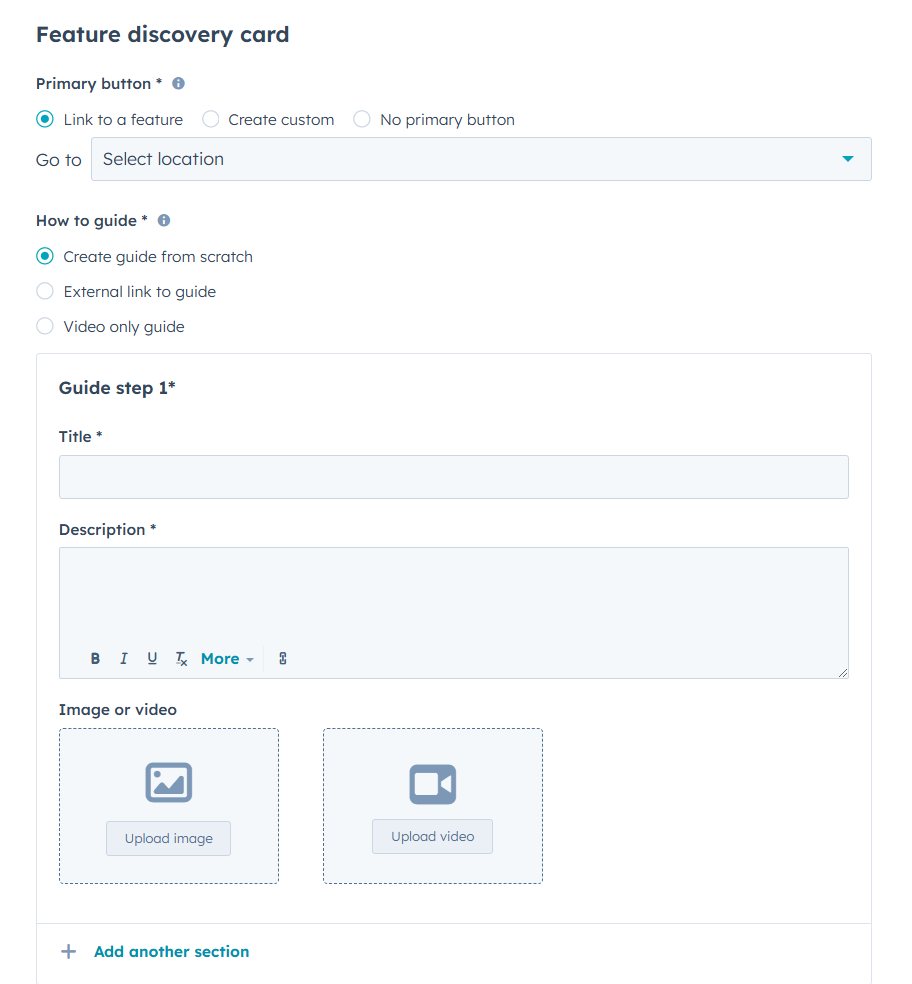
* If you've chosen select to display the feature as a feature discovery card:
* Select an option for your primary button:
* **Link to a feature:** select which HubSpot feature the button should link to.
* **Create custom**: enter **Button text** and the **Button URL**.
* **No primary button:** no button will be displayed on your feature discovery card.
* Select a how-to guide to onboard your customers:
* **Create a guide from scratch:** enter a **title**, **description**, and **image or video**.
* **External link to guide:** enter a **Guide URL**.
* **Video only guide:** upload a **video**.
* To add another guide, click **Add another section**.
* To add another pricing plans, click **Add another plan**. You can add up to 5 pricing plans.
* In the *Link to your software’s pricing plan* section, enter the **URL** where users can find more information on your pricing plans.
* In the *Agency pricing plans* section, enter the **URL** where users can learn more about pricing for partner or consulting services.
### App features
On the *App features* tab, add features and guide customers on how to use them. There is no limit on the number of app features that can be created for your app.
* In the top right, click **Add a feature**.
* On the *Feature details* page, configure your app features:
* **Feature name:** enter your feature name. This should describe your what your feature does.
* **Scopes:** select all scope groups a customer's account will need to have this feature. Scope groups are used to determine whether the customer's HubSpot account is compatible with the app features.
* **Description:** enter a detailed description for your feature, and how it can solve a customer's business problems.
* **Image:** add an image for your feature. After adding your image, click to toggle the **On your app's marketplace listing** or **As a feature discovery card** switches on to configure where your images should display.
* If you've chosen select to display the feature as a feature discovery card:
* Select an option for your primary button:
* **Link to a feature:** select which HubSpot feature the button should link to.
* **Create custom**: enter **Button text** and the **Button URL**.
* **No primary button:** no button will be displayed on your feature discovery card.
* Select a how-to guide to onboard your customers:
* **Create a guide from scratch:** enter a **title**, **description**, and **image or video**.
* **External link to guide:** enter a **Guide URL**.
* **Video only guide:** upload a **video**.
* To add another guide, click **Add another section**.
 ### Support info
On the *Support info* tab:
* In the *Contact info* section, add a support contact method for users who have questions while using your app. It is required add a **support email** and **languages** that customer support is offered in. You can also include links to your company website, live chat, Facebook page, and a phone number.
* In the *Support resources* section, include **links** to your app’s setup documentation.
* In the *Terms of Service and Privacy Policy* section, add **links** to your privacy documentation.
### Testing info
On the *Testing info* tab:
* In the *App review instructions* field, enter steps for HubSpot's developers to test the app as part of the review process. Learn how to [providing testing details and credentials for your app](/apps/developer-platform/list-apps/testing-credentials).
* In the *Technology Partner Program points of contact* section, add details for members of your team to receive listing, technical and program information about your app listing.
* These individuals receive key updates, resources, and opportunities designed to help your business grow and succeed as a HubSpot Technology Partner. Keeping these contacts accurate and up-to-date is critical, and will ensure the right people in your business receive timely and tailored communication from HubSpot.
* HubSpot will consider the team member you provide for *Contact 1* as the **main** point of contact.
* You must include at least a *Technology Partner Program main point of contact*
* **Business Development / Partner Manager:** the person who focuses on maintaining and expanding the business relationship between your company and HubSpot.
* **Developer:** the primary contact for all technical communication for your app's integration with HubSpot. They will manage the build process, maintenance, and performance of your app to provide a smooth user experience.
* **Executive:** the executive sponsor of the partnership. This should be a senior leader on your team who provides strategic oversight of your company's relationship with HubSpot and may make decisions about partnership direction or future investments.
* **Founder/Co-founder:** the original creator or co-creator of your business.
* **Marketing manager:** a team member who manages app promotion and helps drive adoption within the HubSpot ecosystem. They likely orchestrate go-to-market resources and analyze app performance to improve visibility and user engagement.
* **Product manager:** the owner who oversees your app's feature development and aligns your integration with HubSpot's product standards.
* To add another person as a point of contact, at the bottom, click **Add another point of contact**.
The tabs below provide additional context and information about the communications that each role will receive when added as a point of contact:
**Best for:** program owner, partnership lead, or a team member responsible for managing your HubSpot partnership.
**Communications received:**
* Technical updates and breaking change announcements
* Program news, events, and opportunities
* Exclusive partner resources and best practices
* Guidance on building, marketing, and scaling success in the HubSpot ecosystem
**Best for:** a team member focused on growing and optimizing your partnership with HubSpot.
**Communications received:**
* Program news, events, and opportunities
* Exclusive partner resources and best practices
* Guidance on building, marketing, and scaling success in the HubSpot ecosystem
* Technical updates and breaking change announcements
* Does not receive technical updates or changelog posts unless the *Developer* point of contact is invalid
**Best for:** engineering lead, engineer, or a technical manager responsible for your app's infrastructure.
**Communications received:**
* API changelog posts and breaking change announcements
* Proactive technical guidance
* Updates impacting integration performance or reliability
* Early access to new developer tools and platform updates
**Best for:** founder, executive, or a senior leader who champions your HubSpot partnership.
**Communications received:**
* Strategic program updates and high-level announcements
* Partnership opportunities with business or brand impact
* Invitations to exclusive leadership initiatives and events
**Best for:** marketing lead, content strategist, or a growth manager responsible for app awareness and adoption.
**Communications received:**
* Marketing best practices and campaign opportunities
* Account and app analytics and app listing performance insights
* Updates to app listing or marketplace features
* Go-to-market resources to enhance positioning as a technology partner
**Best for:** a team member who oversees your app's strategy, roadmap, and overall user experience.
**Communications received:**
* API changelog posts and breaking change announcements
* Proactive technical guidance
* Updates impacting integration performance or reliability
* Early access to new developer tools and platform updates
### Review info
On the *Review info* tab:
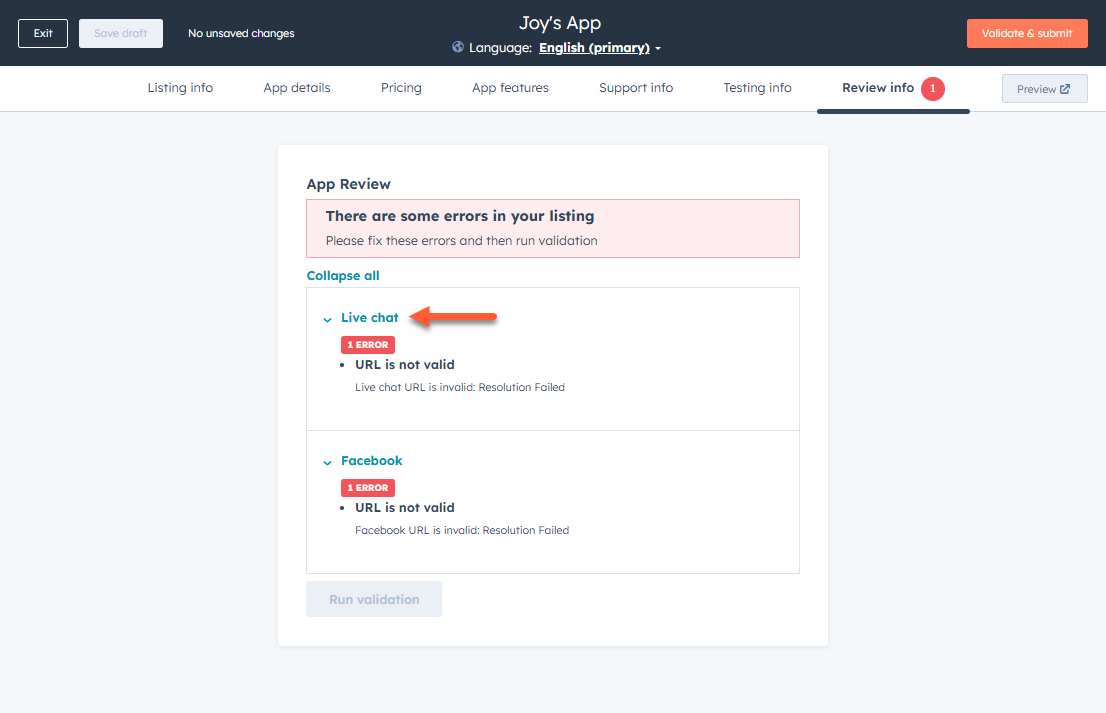
In the *App review* section, a list of all listing errors will appear:
* To review details for all listing errors, at the top, click **Expand all**.
* To hide the details for all listing errors, at the top, click **Collapse all**.
* To resolve an error, click the **error name**. This will direct you to the relevant tab and section to resolve the error.
### Support info
On the *Support info* tab:
* In the *Contact info* section, add a support contact method for users who have questions while using your app. It is required add a **support email** and **languages** that customer support is offered in. You can also include links to your company website, live chat, Facebook page, and a phone number.
* In the *Support resources* section, include **links** to your app’s setup documentation.
* In the *Terms of Service and Privacy Policy* section, add **links** to your privacy documentation.
### Testing info
On the *Testing info* tab:
* In the *App review instructions* field, enter steps for HubSpot's developers to test the app as part of the review process. Learn how to [providing testing details and credentials for your app](/apps/developer-platform/list-apps/testing-credentials).
* In the *Technology Partner Program points of contact* section, add details for members of your team to receive listing, technical and program information about your app listing.
* These individuals receive key updates, resources, and opportunities designed to help your business grow and succeed as a HubSpot Technology Partner. Keeping these contacts accurate and up-to-date is critical, and will ensure the right people in your business receive timely and tailored communication from HubSpot.
* HubSpot will consider the team member you provide for *Contact 1* as the **main** point of contact.
* You must include at least a *Technology Partner Program main point of contact*
* **Business Development / Partner Manager:** the person who focuses on maintaining and expanding the business relationship between your company and HubSpot.
* **Developer:** the primary contact for all technical communication for your app's integration with HubSpot. They will manage the build process, maintenance, and performance of your app to provide a smooth user experience.
* **Executive:** the executive sponsor of the partnership. This should be a senior leader on your team who provides strategic oversight of your company's relationship with HubSpot and may make decisions about partnership direction or future investments.
* **Founder/Co-founder:** the original creator or co-creator of your business.
* **Marketing manager:** a team member who manages app promotion and helps drive adoption within the HubSpot ecosystem. They likely orchestrate go-to-market resources and analyze app performance to improve visibility and user engagement.
* **Product manager:** the owner who oversees your app's feature development and aligns your integration with HubSpot's product standards.
* To add another person as a point of contact, at the bottom, click **Add another point of contact**.
The tabs below provide additional context and information about the communications that each role will receive when added as a point of contact:
**Best for:** program owner, partnership lead, or a team member responsible for managing your HubSpot partnership.
**Communications received:**
* Technical updates and breaking change announcements
* Program news, events, and opportunities
* Exclusive partner resources and best practices
* Guidance on building, marketing, and scaling success in the HubSpot ecosystem
**Best for:** a team member focused on growing and optimizing your partnership with HubSpot.
**Communications received:**
* Program news, events, and opportunities
* Exclusive partner resources and best practices
* Guidance on building, marketing, and scaling success in the HubSpot ecosystem
* Technical updates and breaking change announcements
* Does not receive technical updates or changelog posts unless the *Developer* point of contact is invalid
**Best for:** engineering lead, engineer, or a technical manager responsible for your app's infrastructure.
**Communications received:**
* API changelog posts and breaking change announcements
* Proactive technical guidance
* Updates impacting integration performance or reliability
* Early access to new developer tools and platform updates
**Best for:** founder, executive, or a senior leader who champions your HubSpot partnership.
**Communications received:**
* Strategic program updates and high-level announcements
* Partnership opportunities with business or brand impact
* Invitations to exclusive leadership initiatives and events
**Best for:** marketing lead, content strategist, or a growth manager responsible for app awareness and adoption.
**Communications received:**
* Marketing best practices and campaign opportunities
* Account and app analytics and app listing performance insights
* Updates to app listing or marketplace features
* Go-to-market resources to enhance positioning as a technology partner
**Best for:** a team member who oversees your app's strategy, roadmap, and overall user experience.
**Communications received:**
* API changelog posts and breaking change announcements
* Proactive technical guidance
* Updates impacting integration performance or reliability
* Early access to new developer tools and platform updates
### Review info
On the *Review info* tab:
In the *App review* section, a list of all listing errors will appear:
* To review details for all listing errors, at the top, click **Expand all**.
* To hide the details for all listing errors, at the top, click **Collapse all**.
* To resolve an error, click the **error name**. This will direct you to the relevant tab and section to resolve the error.
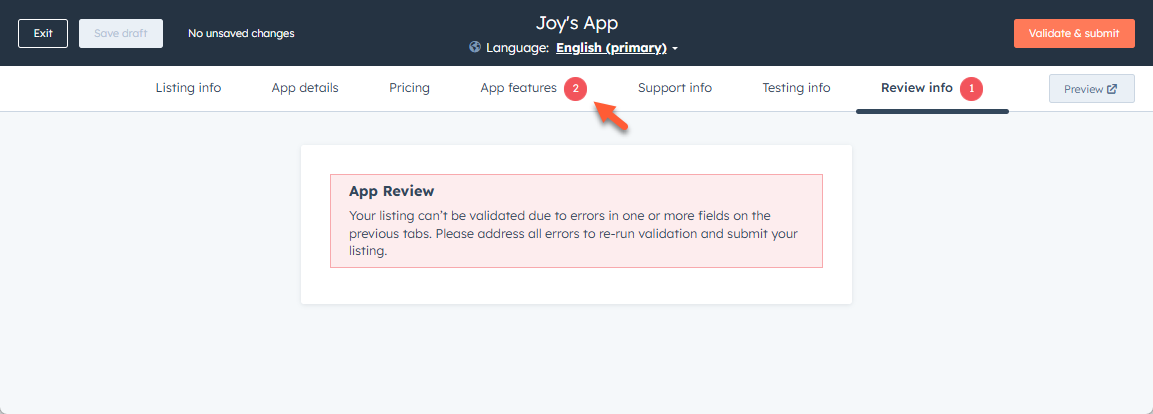
 * If the *Validate & submit* button is grayed out, check that you’ve filled out all the required fields and have *Super admin* permissions.
* If you’ve missed any required fields, you will see a number in the tab heading indicating the number of missed fields. Click each **tab** and enter the missing information, then return to the *Review info* tab.
* At the bottom, click **Run validation**.
* If the *Validate & submit* button is grayed out, check that you’ve filled out all the required fields and have *Super admin* permissions.
* If you’ve missed any required fields, you will see a number in the tab heading indicating the number of missed fields. Click each **tab** and enter the missing information, then return to the *Review info* tab.
* At the bottom, click **Run validation**.
 ### Submit app
Once you've resolved any validation errors, you can submit your app for approval.
* Click **Submit for review** in the top right.
* In the dialog box, read through the terms and conditions, then select the **checkboxes**.
* By default, localized listings will be automatically translated into all supported languages. To customize which languages are automatically translated:
* Click to expand the **Languages selected for auto-translation** section.
* Clear the **checkbox** next to each language you don't want translated. It is recommended to translate app listings into all available languages, but you may wish to omit languages with a manually created translation.
If you select a language with an existing translation, it will be overwritten by the automatic translation. Languages with a drafted or published translation will be labeled with their current status.
### Submit app
Once you've resolved any validation errors, you can submit your app for approval.
* Click **Submit for review** in the top right.
* In the dialog box, read through the terms and conditions, then select the **checkboxes**.
* By default, localized listings will be automatically translated into all supported languages. To customize which languages are automatically translated:
* Click to expand the **Languages selected for auto-translation** section.
* Clear the **checkbox** next to each language you don't want translated. It is recommended to translate app listings into all available languages, but you may wish to omit languages with a manually created translation.
If you select a language with an existing translation, it will be overwritten by the automatic translation. Languages with a drafted or published translation will be labeled with their current status.
 * Click **Agree & submit**.
## Create and update a localized listing for an existing app listing
You will need to set a primary language on your existing app listing and have your primary listing already published in the HubSpot Marketplace in order to manually create listings in other languages. Automatically translated listings can be created when [resubmitting your app](#submit-app).
* In your HubSpot app developer account, click **Marketplace** > **App Listings**.
* If you already have an app listed in the Marketplace, you’ll see a yellow banner above the listed app asking you to set your primary listing language. Click **Set it now**. You will need to set the primary listing language for the app listing before you're able to create new language listings.
* In the dialog box, click the **Select the languages your app is available in** dropdown menu and select the **languages** your app software is available in.
* Click the **Select the primary listing language for \[app name]** dropdown menu and select the **default language** users will see when browsing HubSpot Marketplace.
* Click **Save.**
Once you have set a primary language, you will be able to add a manually translated listing:
* Hover over the **app listing** and click **More** > **Create listing in another language**.
* Click the **Language for this listing** dropdown menu and select the **language** you want to create this listing in.
* When a user has set the language in their account, then they will automatically see the listing in that same language. For example, if you've create a listing in Spanish, and a user has set Spanish as their [account's default language](https://knowledge.hubspot.com/account-management/change-your-language-and-region-settings), the listing will appear to the user in Spanish.
* Click **Create**, then follow the steps to create and submit a listing in the selected language.
## Edit a live app listing
* In your developer account, navigate to **Marketplace** > **App Listings**.
* Hover over the listing you’d like to edit and click **More**. Then, select **Edit**.
* Make any changes, then click **Submit for review** in the top right and [resubmit your app](#submit-app).
## Unpublish a live app listing
* In your developer account, navigate to **Marketplace** > **App Listings**.
* Hover over the listing you want to unpublish and click **More**. Then, select **Unpublish live listing**.
* In the dialog box, enter the reason for unpublishing the app, the click **Submit unpublish request**.
Unpublish requests will be processed by the HubSpot Marketplace team within 10 business days of submission.
* Click **Agree & submit**.
## Create and update a localized listing for an existing app listing
You will need to set a primary language on your existing app listing and have your primary listing already published in the HubSpot Marketplace in order to manually create listings in other languages. Automatically translated listings can be created when [resubmitting your app](#submit-app).
* In your HubSpot app developer account, click **Marketplace** > **App Listings**.
* If you already have an app listed in the Marketplace, you’ll see a yellow banner above the listed app asking you to set your primary listing language. Click **Set it now**. You will need to set the primary listing language for the app listing before you're able to create new language listings.
* In the dialog box, click the **Select the languages your app is available in** dropdown menu and select the **languages** your app software is available in.
* Click the **Select the primary listing language for \[app name]** dropdown menu and select the **default language** users will see when browsing HubSpot Marketplace.
* Click **Save.**
Once you have set a primary language, you will be able to add a manually translated listing:
* Hover over the **app listing** and click **More** > **Create listing in another language**.
* Click the **Language for this listing** dropdown menu and select the **language** you want to create this listing in.
* When a user has set the language in their account, then they will automatically see the listing in that same language. For example, if you've create a listing in Spanish, and a user has set Spanish as their [account's default language](https://knowledge.hubspot.com/account-management/change-your-language-and-region-settings), the listing will appear to the user in Spanish.
* Click **Create**, then follow the steps to create and submit a listing in the selected language.
## Edit a live app listing
* In your developer account, navigate to **Marketplace** > **App Listings**.
* Hover over the listing you’d like to edit and click **More**. Then, select **Edit**.
* Make any changes, then click **Submit for review** in the top right and [resubmit your app](#submit-app).
## Unpublish a live app listing
* In your developer account, navigate to **Marketplace** > **App Listings**.
* Hover over the listing you want to unpublish and click **More**. Then, select **Unpublish live listing**.
* In the dialog box, enter the reason for unpublishing the app, the click **Submit unpublish request**.
Unpublish requests will be processed by the HubSpot Marketplace team within 10 business days of submission.