> ## Documentation Index
> Fetch the complete documentation index at: https://developers.hubspot.com/docs/llms.txt
> Use this file to discover all available pages before exploring further.
---
id: 3cb57bd7-1cfe-4b0e-9890-a1436a6a83c5
---
# Measure app performance
> Learn more about measuring your app's performance through the app listing page details view.
After [listing your app](/apps/developer-platform/list-apps/listing-your-app/listing-your-app) in the [HubSpot Marketplace](https://ecosystem.hubspot.com/marketplace/apps), you can review performance metrics for your app. This includes usage data, listing analytics, and customer feedback.
## Review app performance
In *Marketplace Analytics*, you can review reporting on install, listing page, and search performance.
### Analyze installs
* In your HubSpot account, navigate to **Development**.
* In the left sidebar menu, navigate to **App Listings**.
* Click the **name** of your app.
* To change how the data is grouped, click the **Frequency** dropdown menu in the top left and select a **frequency**.
* To set a general date range, click the **first date picker** in the *Date range* section and select a **general date range** in the left column.
* To use a specific date range:
* In the *Date range* section at the top of the page, click the **first date picker** and select a **start date**.
* Click the **second date picker** and select an **end date**.
 * Review the following install data:
* Active Installs
* App Installs
* App Uninstalls
* Free vs Paid Installs
* Free vs Paid Uninstalls
* Installs by Country
* Installs by Hub
### Analyze listing page performance
* In your HubSpot account, navigate to **Development**.
* In the left sidebar menu, navigate to **App Listings**.
* Click the **name** of your app.
* In the left sidebar, navigate to **Listing analytics**.
* To change how the data is grouped, click the **Frequency** dropdown menu in the top left and select a **frequency**.
* To set a general date range, click the **first date picker** in the *Date range* section and select a **general date range** in the left column.
* To use a specific date range:
* In the *Date range* section at the top of the page, click the **first date picker** and select a **start date**.
* Click the **second date picker** and select an **end date**.
* To view performance for a specific localized listing page, click the **Language** dropdown menu and select a **language**.
* Review the following install data:
* Active Installs
* App Installs
* App Uninstalls
* Free vs Paid Installs
* Free vs Paid Uninstalls
* Installs by Country
* Installs by Hub
### Analyze listing page performance
* In your HubSpot account, navigate to **Development**.
* In the left sidebar menu, navigate to **App Listings**.
* Click the **name** of your app.
* In the left sidebar, navigate to **Listing analytics**.
* To change how the data is grouped, click the **Frequency** dropdown menu in the top left and select a **frequency**.
* To set a general date range, click the **first date picker** in the *Date range* section and select a **general date range** in the left column.
* To use a specific date range:
* In the *Date range* section at the top of the page, click the **first date picker** and select a **start date**.
* Click the **second date picker** and select an **end date**.
* To view performance for a specific localized listing page, click the **Language** dropdown menu and select a **language**.
 * Review the following data on the visitors viewing your listing page:
* **Pageviews**: number of pageviews plotted by frequency.
* **Pageview Source**: percentage of pageviews attributed to a specific source, such as public or in-app.
* **CTA Usage**: number of clicks of your listing page CTAs, plotted by frequency.
* **Free vs Paid Pageviews**: percentage of pageviews attributed to paid and free users.
* **Pageviews by Country**: number of pageviews associated with specific countries.
* **Pageviews by Hub**: number of pageviews from users in specific hubs.
* **Pageviews by Domain**: number of pageviews from users associated with a particular company domain. You can see the following info for these pageviews:
* **Domain name**: company domain associated with the user who viewed the page.
* **Installed**: whether an account associated with that domain has installed the app.
* **First seen**: first date that any user associated with this domain viewed the page.
* **Last seen**: most recent date that any user associated with this domain viewed the page.
* **Pageview count**: total number of times users associated with this domain viewed the page.
### Analyze search result performance
* In your HubSpot account, navigate to **Development**.
* In the left sidebar menu, navigate to **App Listings**.
* Click the **name** of your app.
* In the left sidebar, navigate to **Search analytics**.
* To change how the data is grouped, click the **Frequency** dropdown menu in the top left and select a **frequency**.
* To set a general date range, click the **first date picker** in the *Date range* section and select a **general date range** in the left column.
* To use a specific date range:
* In the *Date range* section at the top of the page, click the **first date picker** and select a **start date**.
* Click the **second date picker** and select an **end date**.
* Review the following data on the visitors viewing your listing page:
* **Pageviews**: number of pageviews plotted by frequency.
* **Pageview Source**: percentage of pageviews attributed to a specific source, such as public or in-app.
* **CTA Usage**: number of clicks of your listing page CTAs, plotted by frequency.
* **Free vs Paid Pageviews**: percentage of pageviews attributed to paid and free users.
* **Pageviews by Country**: number of pageviews associated with specific countries.
* **Pageviews by Hub**: number of pageviews from users in specific hubs.
* **Pageviews by Domain**: number of pageviews from users associated with a particular company domain. You can see the following info for these pageviews:
* **Domain name**: company domain associated with the user who viewed the page.
* **Installed**: whether an account associated with that domain has installed the app.
* **First seen**: first date that any user associated with this domain viewed the page.
* **Last seen**: most recent date that any user associated with this domain viewed the page.
* **Pageview count**: total number of times users associated with this domain viewed the page.
### Analyze search result performance
* In your HubSpot account, navigate to **Development**.
* In the left sidebar menu, navigate to **App Listings**.
* Click the **name** of your app.
* In the left sidebar, navigate to **Search analytics**.
* To change how the data is grouped, click the **Frequency** dropdown menu in the top left and select a **frequency**.
* To set a general date range, click the **first date picker** in the *Date range* section and select a **general date range** in the left column.
* To use a specific date range:
* In the *Date range* section at the top of the page, click the **first date picker** and select a **start date**.
* Click the **second date picker** and select an **end date**.
 * Review the following data:
* **Impressions vs Clicks**: number of times your app listing has appeared in search results plotted alongside the number of times visitors have clicked that search result.
* **Top search terms**: search terms that returned your app as a result. For each search term, you can see impressions (number of times it appeared in search results), clicks (number of times users clicked on your listing from search results), and its average position in search results (lower numbers are better).
### Analyze app performance using Breeze Assistant
* In your HubSpot account, navigate to **Development**.
* In the left sidebar menu, navigate to **App Listings**.
* Click the **name** of your app.
* In the left sidebar, navigate to **Breeze Assistant**.
* In the right panel, click a **suggested prompt** or enter a **custom prompt** in the field. Learn more about [using Breeze Assistant](https://knowledge.hubspot.com/ai/use-breeze-assistant).
* Review the following data:
* **Impressions vs Clicks**: number of times your app listing has appeared in search results plotted alongside the number of times visitors have clicked that search result.
* **Top search terms**: search terms that returned your app as a result. For each search term, you can see impressions (number of times it appeared in search results), clicks (number of times users clicked on your listing from search results), and its average position in search results (lower numbers are better).
### Analyze app performance using Breeze Assistant
* In your HubSpot account, navigate to **Development**.
* In the left sidebar menu, navigate to **App Listings**.
* Click the **name** of your app.
* In the left sidebar, navigate to **Breeze Assistant**.
* In the right panel, click a **suggested prompt** or enter a **custom prompt** in the field. Learn more about [using Breeze Assistant](https://knowledge.hubspot.com/ai/use-breeze-assistant).
 ## Customer Feedback
To view all reviews that customers have submitted for your app, click the **Customer Feedback** tab.
## Customer Feedback
To view all reviews that customers have submitted for your app, click the **Customer Feedback** tab.
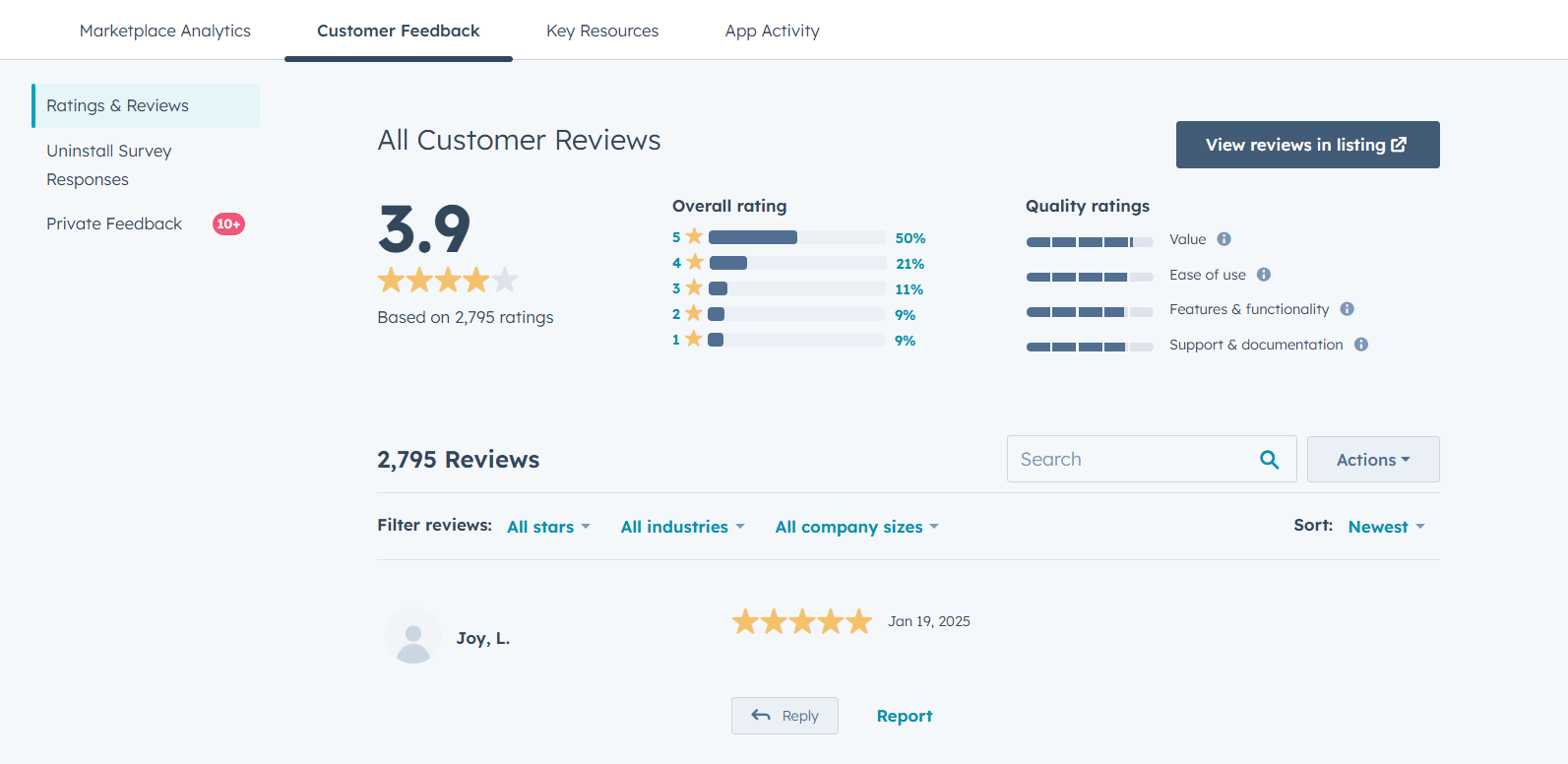 In the *Ratings & Reviews* section, you can filter the reviews by the number of stars given, the customer's industry, and the customer's company size.
To reply to a review:
* Below the review, click **Reply**.
* In the dialog box, enter your **reply** to the customer, then click **Send**. This reply will be publicly visible on your app listing.
* To edit notifications for reviews received:
* In the top right, click the **Actions** dropdown menu and click **Edit notifications**.
* On the *Notifications* page, search for **Marketplace** and select **Listing New Reviews** to get notified when a customer leaves a review.
* To send your review link to a customer:
* In the top right, click the **Actions** dropdown menu and click **Copy review link**.
* Email or send this link to your customer for them to leave a review.
* To review all survey responses:
* In the left sidebar menu, click the **Uninstall Survey Responses** tab.
* To export the responses, in the top left, click **Export**. In the dialog box, click the **File format** dropdown menu and select **XLSX**, **XLS**, or **CSV.**. Then, click **Export**.
* To review any private feedback responses to your team, in the left sidebar menu, click the **Private Feedback** tab.
## Key Resources
In the *Key Resources* section, review the following resources:
* **Technology partner program benefits:** the *Technology Partner Program Benefits* guide lists all benefits that you get as a partner with a listed app on HubSpot Marketplace.
* **Feedback survey:** a feedback survey to provide feedback about the technology partner experience.
* **Technology partner manager:** the contact information for your technology partner manager.
## App Activity & Usage
In the *App Activity & Usage* section, you can review usage data for your app:
* In the *Installation* report, you can view how many active installs your app has, measured by how many accounts have generated a successful API call in the past rolling 30 day period.
* In the *Top portals* report, click **View top portals** to see the accounts that have the highest usage of your app.
* On the right, under *Feature usage*, you can measure the usage of different actions and API requests over time:
* To include an additional action, click the **dropdown menu** at the top of the report, then select an **action**.
* To remove an action, click the **x** to the right of the action at the top of the report.
* To change the time period, click the **dropdown menu** at the top right of the report, then select a **time period**.
In the *Ratings & Reviews* section, you can filter the reviews by the number of stars given, the customer's industry, and the customer's company size.
To reply to a review:
* Below the review, click **Reply**.
* In the dialog box, enter your **reply** to the customer, then click **Send**. This reply will be publicly visible on your app listing.
* To edit notifications for reviews received:
* In the top right, click the **Actions** dropdown menu and click **Edit notifications**.
* On the *Notifications* page, search for **Marketplace** and select **Listing New Reviews** to get notified when a customer leaves a review.
* To send your review link to a customer:
* In the top right, click the **Actions** dropdown menu and click **Copy review link**.
* Email or send this link to your customer for them to leave a review.
* To review all survey responses:
* In the left sidebar menu, click the **Uninstall Survey Responses** tab.
* To export the responses, in the top left, click **Export**. In the dialog box, click the **File format** dropdown menu and select **XLSX**, **XLS**, or **CSV.**. Then, click **Export**.
* To review any private feedback responses to your team, in the left sidebar menu, click the **Private Feedback** tab.
## Key Resources
In the *Key Resources* section, review the following resources:
* **Technology partner program benefits:** the *Technology Partner Program Benefits* guide lists all benefits that you get as a partner with a listed app on HubSpot Marketplace.
* **Feedback survey:** a feedback survey to provide feedback about the technology partner experience.
* **Technology partner manager:** the contact information for your technology partner manager.
## App Activity & Usage
In the *App Activity & Usage* section, you can review usage data for your app:
* In the *Installation* report, you can view how many active installs your app has, measured by how many accounts have generated a successful API call in the past rolling 30 day period.
* In the *Top portals* report, click **View top portals** to see the accounts that have the highest usage of your app.
* On the right, under *Feature usage*, you can measure the usage of different actions and API requests over time:
* To include an additional action, click the **dropdown menu** at the top of the report, then select an **action**.
* To remove an action, click the **x** to the right of the action at the top of the report.
* To change the time period, click the **dropdown menu** at the top right of the report, then select a **time period**.
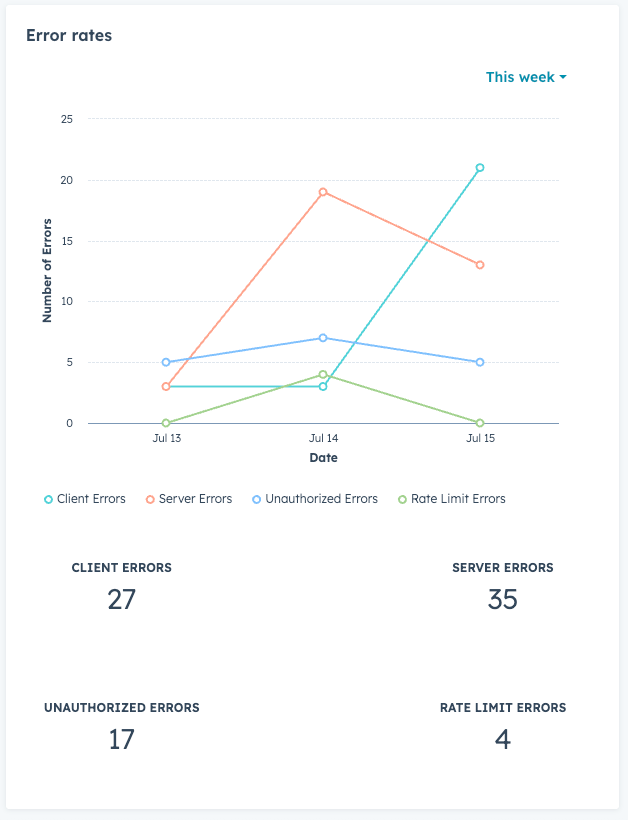
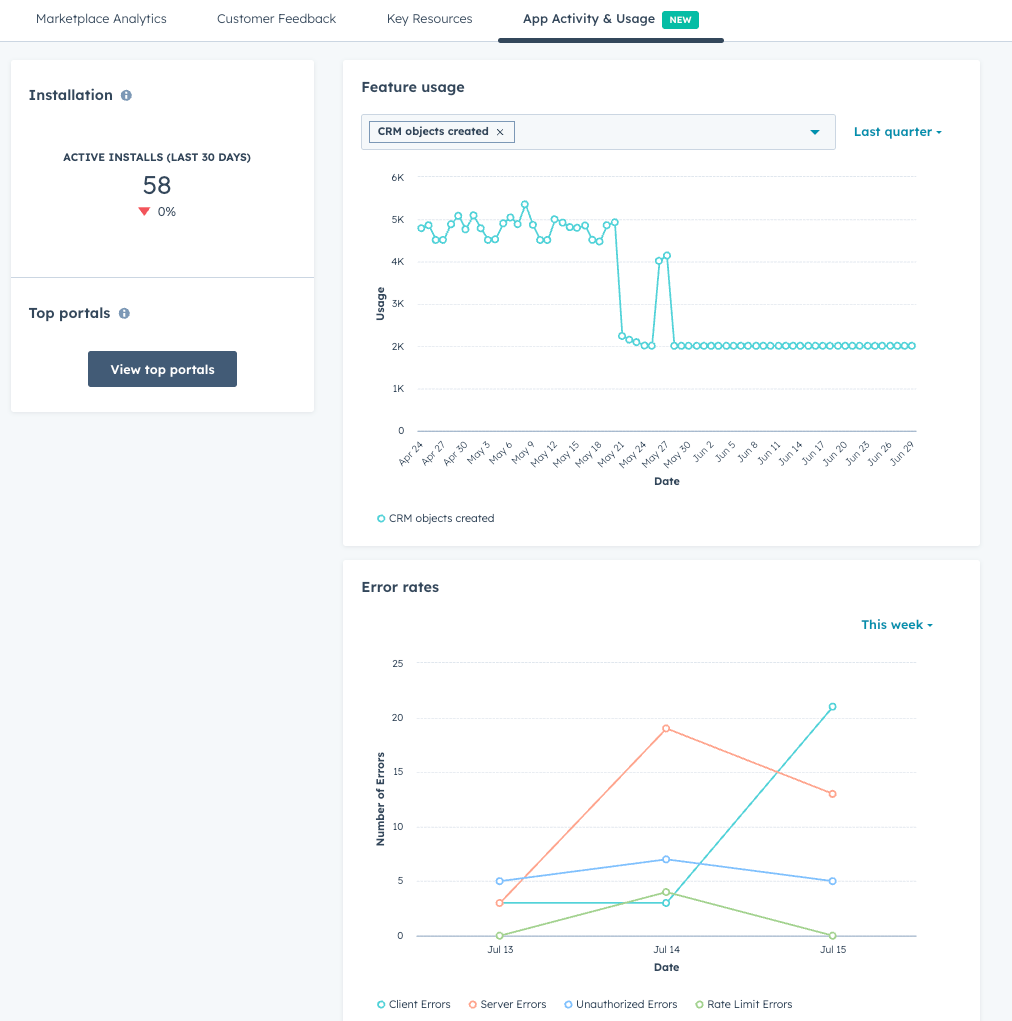 * Under the *Feature usage* report, you can also review recent errors that've occurred:
* To change the time period, click the **dropdown menu** at the top right, then select a **time period**.
* Errors are categorized into the following types:
* **Client errors**: issues usually caused by a malformed request from your app.
* **Server errors:** issues from processing a request on the backend or a problem on HubSpot's backend.
* **Unauthorized errors:** authentication or missing scope issues.
* **Rate limit errors:** caused by making too many requests in a given time period.
* Under the *Feature usage* report, you can also review recent errors that've occurred:
* To change the time period, click the **dropdown menu** at the top right, then select a **time period**.
* Errors are categorized into the following types:
* **Client errors**: issues usually caused by a malformed request from your app.
* **Server errors:** issues from processing a request on the backend or a problem on HubSpot's backend.
* **Unauthorized errors:** authentication or missing scope issues.
* **Rate limit errors:** caused by making too many requests in a given time period.
 ## Measure engagement with UTM parameters
In addition to the above metrics, you can further measure engagement by including UTM parameters in the URLs on your app listing page. This lets you view how much traffic is coming to your website from your listing page.
It's recommended to add UTM parameters to the following URLs included on your listing page:
* Supporting content on your HubSpot Marketplace listing page, such as your company website, supporting documentation, case study, and privacy policy.
* The OAuth install URL that customers use when installing the app.
For example, you could add the following string of UTM parameters to the end of your documentation URL:
`?utm_campaign=appmarketplacelisting&utm_medium=referral&utm_source=hubspot`
**Please note:**
It's recommended to use UTM parameters that are consistent with other UTM tracking you or your marketing team may be using. Learn more about [creating tracking URLs](https://knowledge.hubspot.com/settings/how-do-i-create-a-tracking-url).
To add UTM parameters to the OAuth install URL:
* In your app developer account, navigate to **Apps**.
* Click the **name** of the app to edit its details.
* In the left sidebar, navigate to **Basic info**.
* At the top, click the **Auth** tab.
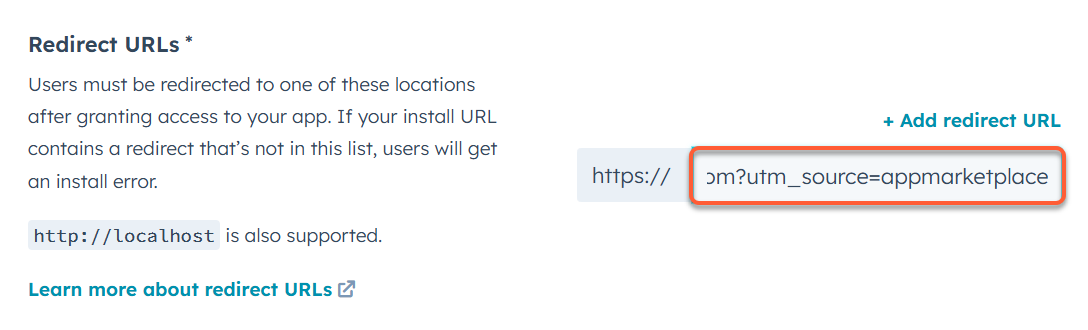
* In the *Redirect URLs* section, update your redirect URL to contain your UTM parameters. This will update the app's install URL after saving, so you'll need to be sure you've updated any user-facing links to use the new URL.
* In the bottom left, click **Save**.
**Please note:**
The install button URL field has a limit of 250 characters. If your UTM parameters result in exceeding that limit, you may need to use a url shortener, such as [Bitly](https://bitly.com/).
## Measure engagement with UTM parameters
In addition to the above metrics, you can further measure engagement by including UTM parameters in the URLs on your app listing page. This lets you view how much traffic is coming to your website from your listing page.
It's recommended to add UTM parameters to the following URLs included on your listing page:
* Supporting content on your HubSpot Marketplace listing page, such as your company website, supporting documentation, case study, and privacy policy.
* The OAuth install URL that customers use when installing the app.
For example, you could add the following string of UTM parameters to the end of your documentation URL:
`?utm_campaign=appmarketplacelisting&utm_medium=referral&utm_source=hubspot`
**Please note:**
It's recommended to use UTM parameters that are consistent with other UTM tracking you or your marketing team may be using. Learn more about [creating tracking URLs](https://knowledge.hubspot.com/settings/how-do-i-create-a-tracking-url).
To add UTM parameters to the OAuth install URL:
* In your app developer account, navigate to **Apps**.
* Click the **name** of the app to edit its details.
* In the left sidebar, navigate to **Basic info**.
* At the top, click the **Auth** tab.
* In the *Redirect URLs* section, update your redirect URL to contain your UTM parameters. This will update the app's install URL after saving, so you'll need to be sure you've updated any user-facing links to use the new URL.
* In the bottom left, click **Save**.
**Please note:**
The install button URL field has a limit of 250 characters. If your UTM parameters result in exceeding that limit, you may need to use a url shortener, such as [Bitly](https://bitly.com/).
 To add UTM parameters to the app's supporting content:
* In your app developer account, navigate to **Development**.
* In the left sidebar menu, click **App Listings**.
* In the *Marketplace Listings* table, click the **name** of the app.
* In the top right, click **Edit listing**.
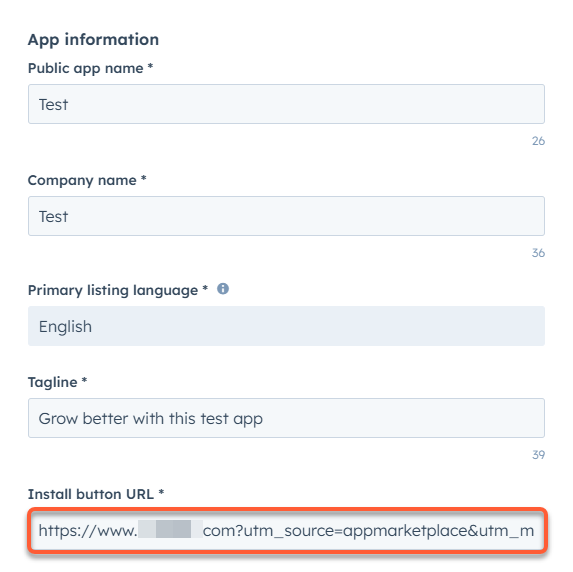
* On the *Listing info* tab, update the URL in the *Install button URL* field with your UTM parameters.
To add UTM parameters to the app's supporting content:
* In your app developer account, navigate to **Development**.
* In the left sidebar menu, click **App Listings**.
* In the *Marketplace Listings* table, click the **name** of the app.
* In the top right, click **Edit listing**.
* On the *Listing info* tab, update the URL in the *Install button URL* field with your UTM parameters.
 * At the top, click the **Support info** tab.
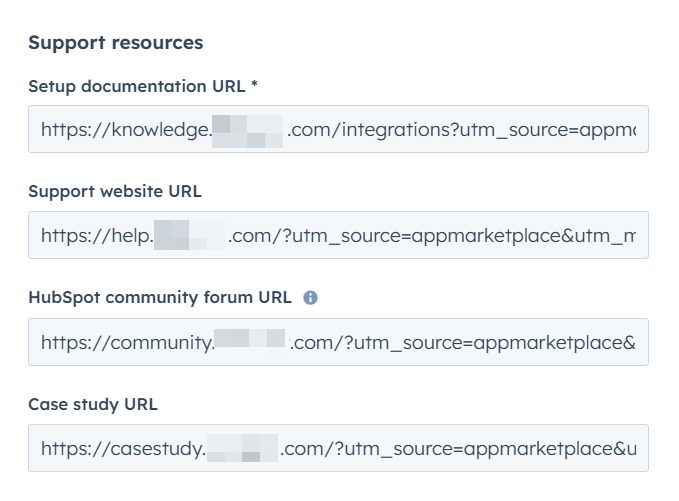
* In the *Contact info*, *Support resources*, and *Terms of Service and Privacy Policy* sections, update the URLs with your UTM parameters.
* Once you've updated your URLs, click **Submit for review** in the top right corner.
* Once reviewed and approved, the URLs on your app's listing page will be updated with your UTM parameters. You can then use analytics tools, such as [HubSpot](https://knowledge.hubspot.com/reports/analyze-your-site-traffic-with-the-traffic-analytics-tool) or Google Analytics, to view traffic coming from your URLs as categorized by your UTM parameters.
* At the top, click the **Support info** tab.
* In the *Contact info*, *Support resources*, and *Terms of Service and Privacy Policy* sections, update the URLs with your UTM parameters.
* Once you've updated your URLs, click **Submit for review** in the top right corner.
* Once reviewed and approved, the URLs on your app's listing page will be updated with your UTM parameters. You can then use analytics tools, such as [HubSpot](https://knowledge.hubspot.com/reports/analyze-your-site-traffic-with-the-traffic-analytics-tool) or Google Analytics, to view traffic coming from your URLs as categorized by your UTM parameters.
 ## Related docs