> ## Documentation Index
> Fetch the complete documentation index at: https://developers.hubspot.com/docs/llms.txt
> Use this file to discover all available pages before exploring further.
---
id: 23ae2acc-fcf7-4e24-9c68-73b6bec52de8
---
# Create UI Extensions in your project-built private app
> Learn how to create UI extensions in a project-built private app (2025.1).
After creating a project-built private app on version 2025.1 of the developer platform, you can create a UI extension to customize and extend HubSpot's CRM record and help desk UI. In this guide, you'll learn how UI extensions work and how to build them. To learn more about configuring UI extensions, check out the [UI extensions SDK reference](/apps/developer-platform/add-features/ui-extensions/ui-extensions-sdk).
Legacy apps are still supported by HubSpot, but don't have access to the latest app features. Learn more about the [new developer platform](/apps/developer-platform/overview).
Private apps built on 2025.1 of the developer platform do support serverless functions for UI extensions, but do not support features such as creating an [app settings](/apps/developer-platform/add-features/ui-extensions/extension-points/create-a-settings-page) page.
If you have an existing project-built private app, you can migrate its functionality to the latest version of the developer platform by following the [migration guide](/apps/developer-platform/build-apps/migrate-an-app/overview).
## Prerequisites
Before getting started, ensure that you've installed the latest version of the [HubSpot CLI](/developer-tooling/local-development/hubspot-cli/install-the-cli#install-the-latest-version-of-the-hubspot-cli), and you've followed the [creation guide here](/apps/legacy-apps/private-apps/build-with-projects/create-private-apps-with-projects),
## Set up extension files
Within your project's app directory, create an `/extensions` directory with the following files:
* `example-card.json`: the card configuration.
* `Example.jsx`: the React file that serves as the front-end.
* `package.json:` metadata about the extension's front-end. This file is required and can be used to include dependencies for your React front-end.
In the `extensions` directory, you'll also need to install the [HubSpot UI extensions npm package](https://www.npmjs.com/package/@hubspot/ui-extensions) by running `npm i @hubspot/ui-extensions`.
### example-card.json
The configuration file for the UI extension's app card.
```json theme={null}
{
"type": "crm-card",
"data": {
"title": "Example Card",
"description": "This is an example Private App card",
"uid": "get_started_card",
"location": "crm.record.tab",
"module": {
"file": "Example.jsx"
},
"previewImage": {
"file": "assets/example-card-preview.png",
"altText": "Example app card UI extension, demonstrating a card with a title, description, and a button"
},
"objectTypes": [
{
"name": "contacts"
}
]
}
}
```
| Field | Type | Description |
| -------------- | ------ | ----------------------------------------------------------------------------------------------------------------------------------------------------------------------------------------------------------------------------------------------------------------------------------------------------------------------------------------------------------------------------------------------------------------------------------------------------------------------------------------------------------------------------------------------------------------------------------------------------------------------------------------------------------------------------------------------------------------------------------------------------------------------------------------------------------------------------------------------------------------------------------- |
| `type` | String | The type of extension. Must be `crm-card`. |
| `title` | String | The name of the card. |
| `description` | String | The description of the card. |
| `location` | String | `location` (string): where the card appears in HubSpot's UI. You can only specify one location value, but some `location` and `objectTypes` combinations result in multiple location support. Learn more about [extension location](#extension-location).
`crm.record.tab`: places the card on a tab of the middle pane of CRM records.
`crm.record.sidebar`: places the card in the right sidebar of CRM records.
`crm.preview`: places the card in the right side preview panel that you can access from record pages, index pages, board views, and lists pages.
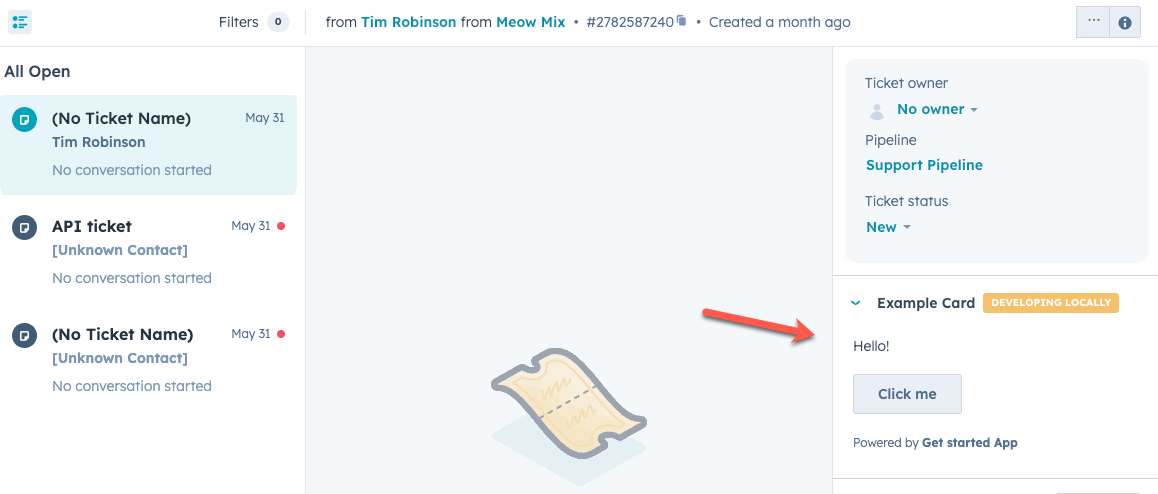
`helpdesk.sidebar`: places the card in the ticket sidebars within help desk. This includes the ticket preview panel on the help desk home page and the right sidebar of the ticket view in help desk. This location is separate from the ticket CRM record page.
|
| `uid` | String | The extension's unique identifier. This can be any string, but should meaningfully identify the extension. HubSpot will identify the extension by this ID so that you can change the extension's title without removing historical or stateful data, such as the card's position on the CRM record. |
| `module` | Object | An object containing the `file` field, which contains the location of the app card's front end React code. |
| `objectTypes` | Array | Defines which types of CRM object records the extension will appear on. This will also enable you to pull data from those records when using the `fetchCrmObjectProperties` method. Learn more about [compatible objects](#compatible-objects). |
| `previewImage` | Object | An object containing the `file` and `altText` fields. The `file` field is the relative path to the preview image. Valid file extensions are png, jpeg, jpg, or gif. The maximum file size is 5.0 MB. The `altText` field is a short description of the image. |
#### Extension location
You can configure which part of the HubSpot UI to customize using the `location` property in the extension's [JSON config file](#example-card-json). While you can only specify one location, some `location` and `objectTypes` combinations result in multiple location support, as noted below. The follow locations are available:
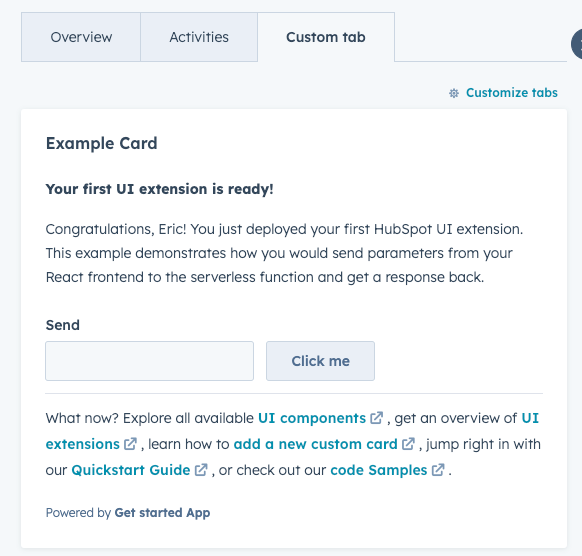
* `crm.record.tab`: places the extension in the middle column of CRM record pages, either in one of HubSpot's default tabs or in a custom tab. When `objectType` is set to `company`, the card will also be available in the [sales workspace target accounts preview panel](https://knowledge.hubspot.com/prospecting/manage-target-accounts-in-the-sales-workspace).
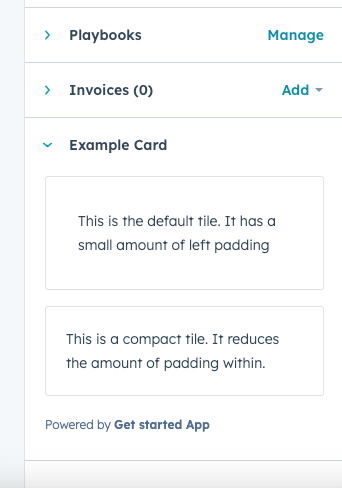
* `crm.record.sidebar`: displays the extension in the right sidebar of CRM record pages. Extensions in the sidebar cannot use [CRM data components](/apps/developer-platform/add-features/ui-extensions/ui-components/crm-data-components/overview). When `objectType` is set to `deals`, the card will also be available in the [sales workspace deals sidebar](https://knowledge.hubspot.com/prospecting/create-and-manage-deals-in-the-sales-workspace).
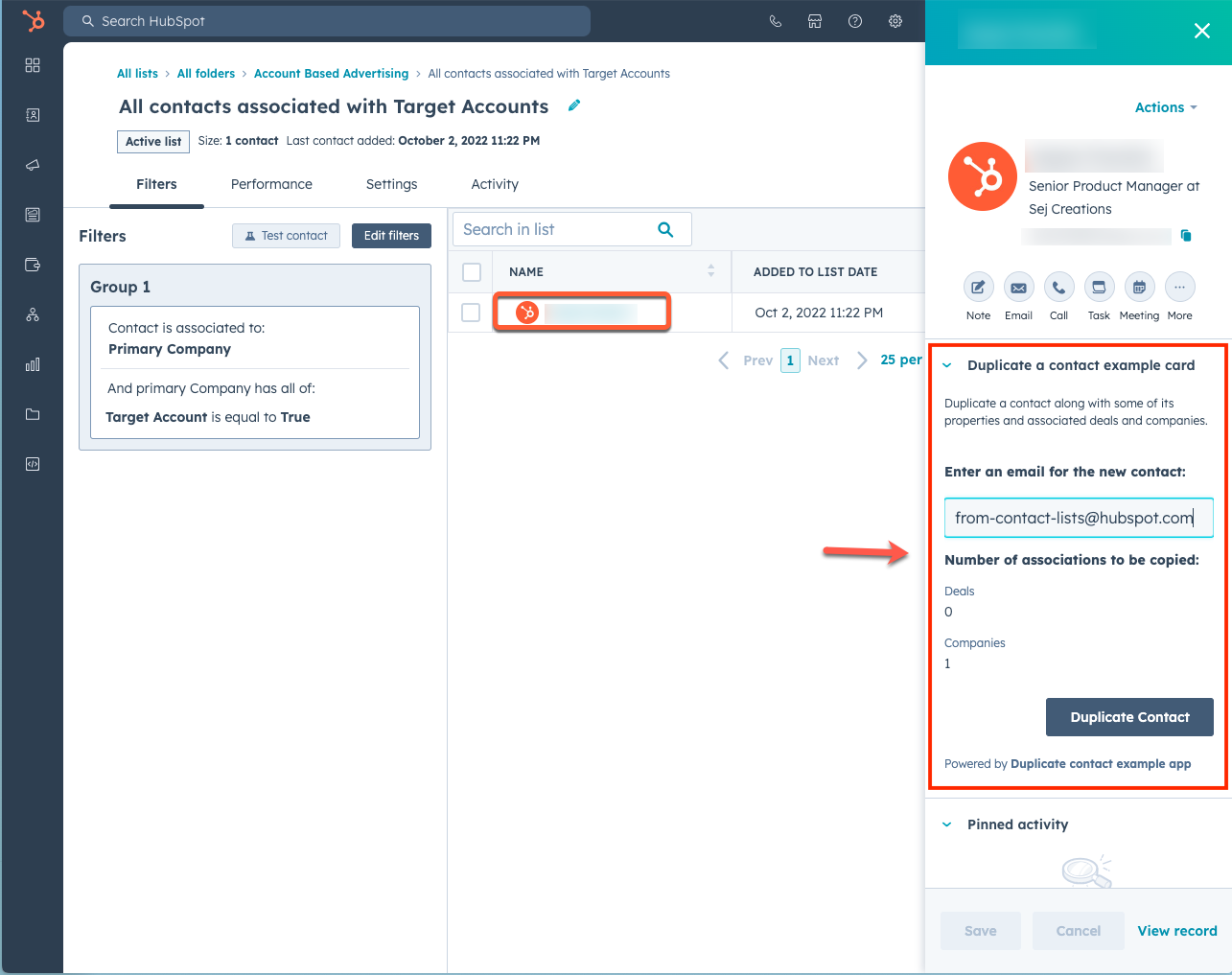
* `crm.preview`: displays the app card in the preview panel that you can access throughout the CRM. When using this location, the extension will be available when previewing the `objectTypes` specified in the [JSON config file](#example-card-json). This includes previewing records from within CRM record pages, index pages, board views, and the lists tool. Learn more about [customizing previews](https://knowledge.hubspot.com/object-settings/customize-record-previews).
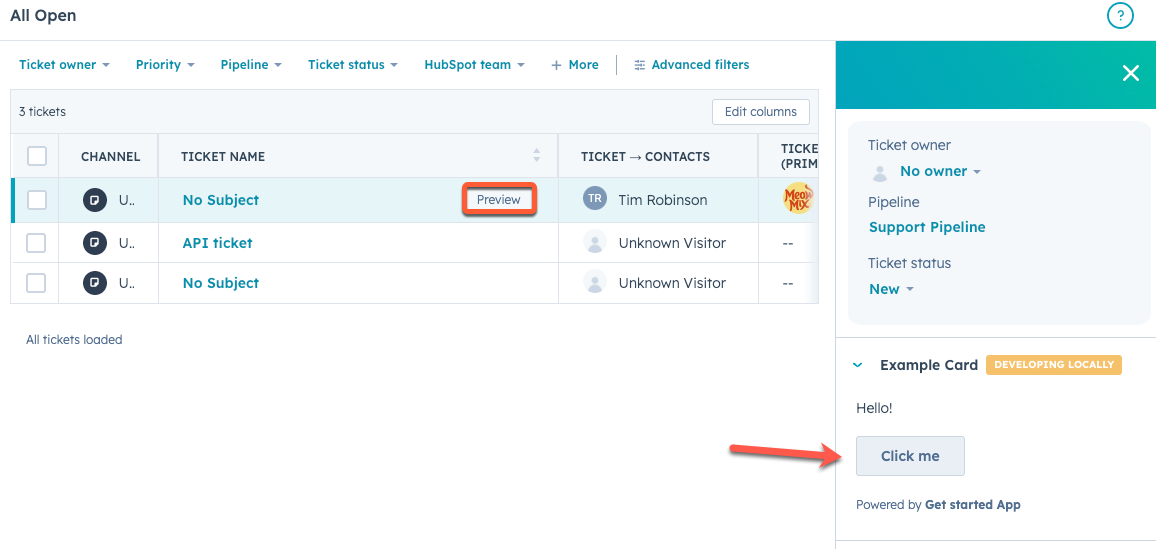
* `helpdesk.sidebar`: displays the card in the ticket sidebars within help desk. This includes both the ticket preview panel on the help desk home page and the right sidebar of the ticket view in help desk. To add a card to this location, you'll need to [configure your help desk settings](https://knowledge.hubspot.com/help-desk/customize-the-right-sidebar-of-help-desk) to include the card.
**Please note:** when creating an extension for this location, you'll also need to ensure that the [app's JSON configuration file](/apps/legacy-apps/private-apps/build-with-projects/create-private-apps-with-projects) includes `tickets` in the `scopes` array, and that the [card's JSON configuration file](#set-up-extension-files) includes `tickets` in the `objectTypes` field.
**Help desk home page:**
**Help desk ticket view:**
#### Supported objects
You can create extensions for both [standard object](/guides/crm/understanding-the-crm) and custom object records. In the [app card's JSON configuration file](#example-card-json), you'll define this within the `objectTypes` array.
When building an extension for custom objects, you'll reference the object as `p_objectName` (case sensitive). To get this value, make a `GET` request to the [custom object schema API](/api-reference/latest/crm/objects/custom-objects/guide), then look for the `fullyQualifiedName` in the response. Take the `fullyQualifiedName`, then remove the HubID number, and use the resulting value for the configuration file.
```json theme={null}
"objectTypes": [
{
"name": "p_Cats"
}
]
```
For example, for a custom object with the `fullyQualifiedName` of `p123456_Cats`, the correct value to use for the configuration file would be `p_Cats`.
The custom object wildcard `p_*` can be used in lieu of `p_objectName` to target all custom objects in the HubSpot account.
### Example.jsx
The React front-end file, which includes a call to a serverless function.
```jsx theme={null}
import React from "react";
import { hubspot, Button } from "@hubspot/ui-extensions";
hubspot.extend(() => );
const Extension = () => {
const handleSubmit = () => {
hubspot
.serverless("my-function-name", {
propertiesToSend: ["hs_object_id"],
parameters: { extra: "data" },
})
.then(response => {
// handle response, which is the value returned from the function on success
})
.catch(error => {
// handle error, which is an Error object if the function failed to execute
});
};
return ;
};
```
### package.json
Metadata about the extension's front-end. This file is required and can be used to include dependencies for your React front-end.
```json theme={null}
{
"name": "hubspot-example-extension",
"version": "0.1.0",
"author": "HubSpot",
"license": "MIT",
"dependencies": {
"@hubspot/ui-extensions": "latest",
"react": "^18.2.0"
}
}
```
## Start local development
With your project files created locally, you can now run `hs project dev` to upload the files to HubSpot, then run `hs project dev` to start a local development server. start a local development server to view the extension in HubSpot. The local development server will pick up changes saved to your React files without needing to refresh the page or re-upload the project.
Learn more about using [project CLI commands](/developer-tooling/local-development/hubspot-cli/project-commands).
```shell theme={null}
hs project dev
```
## Adding cards to the UI
To view an app card in HubSpot, you'll need to add it to the UI in its specified location. For example, to add a card to the contact record view:
* Log in to your HubSpot account.
* In your HubSpot account, navigate to **Contacts** > **Contacts**. Then, click the **name** of a contact to view its record.
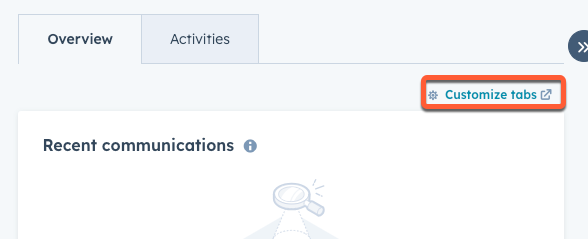
* At the top of the contact record, click **Customize tabs**. A new tab will open showing the record editor sidebar.
* In the right sidebar, click **Default view** to edit the default contact record view.
* For the purposes of this tutorial, click the **+ plus icon tab** at the top of the editor to add a new tab.
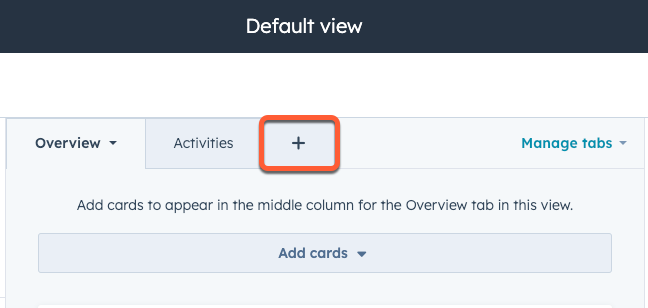
* In the dialog box, enter a **name** for your new tab, then click **Done**.
* With the new tab added, click the **Add cards** dropdown menu.
* In the right panel, under *Card types*, click **Apps**.

* Select the **checkbox** next to the example extension that's part of your public app.
* Click the **X** at the top of the right panel to close it.
* In the top right, click **Save and exit**.
* Navigate back to the contact record, then refresh the page. You should now see your new tab, which will contain your new card. With the local development server running, you'll see a *Developing locally* tag displayed at the top of the card.

## Additional resources
As you build out your app cards, check out the following resources for more context and reference information:
* Consult the [UI components overview](/apps/developer-platform/add-features/ui-extensions/ui-components/overview) for a full listing of all available components you can use.
* Learn more about configuring UI extensions using the [UI extensions SDK](/apps/developer-platform/add-features/ui-extensions/ui-extensions-sdk).