Legacy apps are still supported by HubSpot, but don't have access to the latest app features. Learn more about the new developer platform.
To access legacy apps in your standard HubSpot account, navigate to Development, then click Legacy apps in the left sidebar menu.
 * In the top right, click **Create legacy app**. Then, in the dialog box, select **Private**.
* On the *Basic Info* tab, configure the details of your app:
* Enter your app's **name**.
* Hover over the placeholder logo and click the **upload icon** to upload a square image that will serve as the logo for your app.
* Enter a **description** for your app.
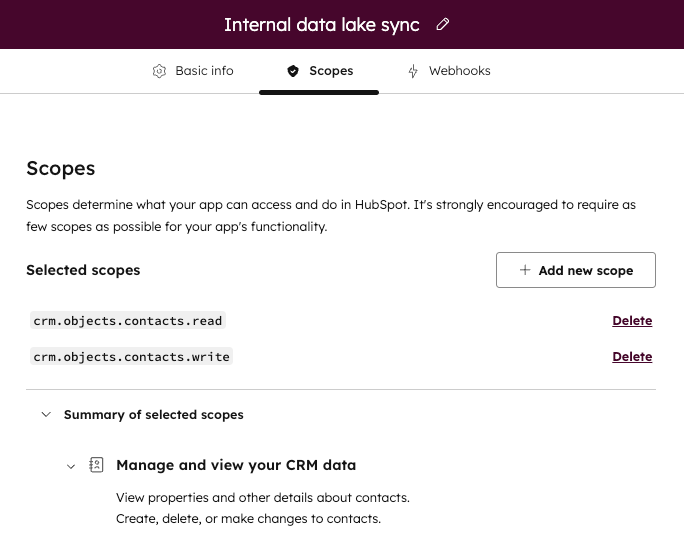
* Click the **Scopes** tab.
* At the top of the page, click **Add new scope**.
* In the right panel, select the **checkbox** for each scope you want your private app to be able to access.
* You can also search for a specific scope using the *Find a scope* search bar. You can review a full list of available scopes in [this reference article](/apps/legacy-apps/authentication/scopes).
* Click **Update** when you're done adding scopes. If you later decide that your app requires additional scopes, you can also configure them after your app is created.
* Review the scopes you've selected for your app. If you decide your app does not require a specific scope, you can click **Delete** next to that scope to remove it. You can also click **Summary of selected scopes** to view a breakdown of your app's scopes and the associated access granted for each one.
* In the top right, click **Create legacy app**. Then, in the dialog box, select **Private**.
* On the *Basic Info* tab, configure the details of your app:
* Enter your app's **name**.
* Hover over the placeholder logo and click the **upload icon** to upload a square image that will serve as the logo for your app.
* Enter a **description** for your app.
* Click the **Scopes** tab.
* At the top of the page, click **Add new scope**.
* In the right panel, select the **checkbox** for each scope you want your private app to be able to access.
* You can also search for a specific scope using the *Find a scope* search bar. You can review a full list of available scopes in [this reference article](/apps/legacy-apps/authentication/scopes).
* Click **Update** when you're done adding scopes. If you later decide that your app requires additional scopes, you can also configure them after your app is created.
* Review the scopes you've selected for your app. If you decide your app does not require a specific scope, you can click **Delete** next to that scope to remove it. You can also click **Summary of selected scopes** to view a breakdown of your app's scopes and the associated access granted for each one.
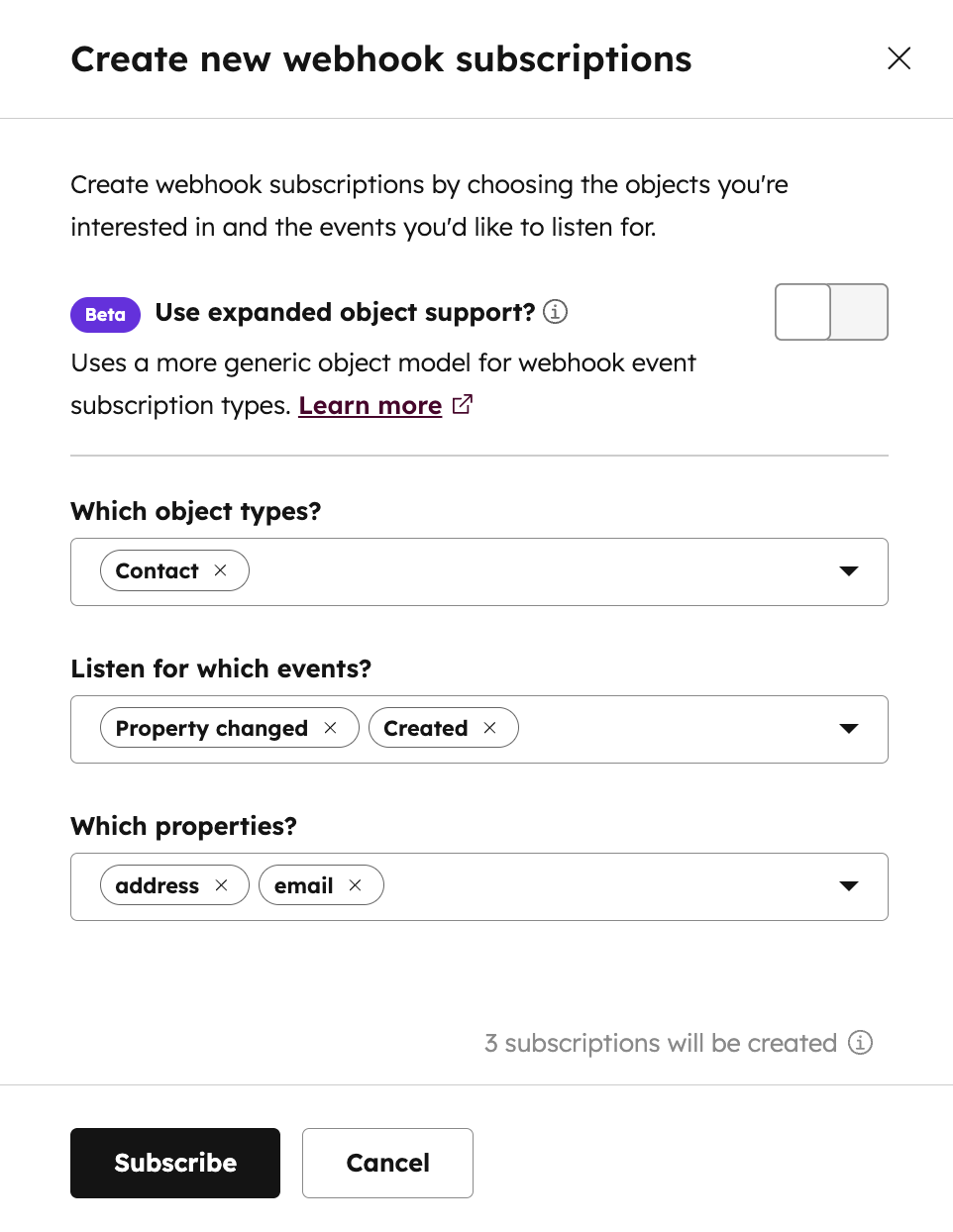
 * To subscribe to events triggered by changes to CRM objects in your account, you can set up webhook subscriptions for your private app. Note that you can also configure subscriptions after you've created the app:
* At the top of the page, Click the **Webhooks** tab.
* Under *Target URL*, enter the **URL** that HubSpot will make a `POST` request to when events trigger.
* Click **Create subscription**.
* In the right panel, select the **object types** that you want to subscribe to, then select the **events** associated with those objects (e.g., created, merged, deleted, etc.) that will trigger HubSpot to send a request to the endpoint you configured.
* If you select an object type that requires additional scopes you haven't authorized, you'll be prompted to add those scopes to your app.
* If you select *Property changed* for the event type, you can then select any of the associated object properties that you want to subscribe to changes for.
* Click **Subscribe**.
* To subscribe to events triggered by changes to CRM objects in your account, you can set up webhook subscriptions for your private app. Note that you can also configure subscriptions after you've created the app:
* At the top of the page, Click the **Webhooks** tab.
* Under *Target URL*, enter the **URL** that HubSpot will make a `POST` request to when events trigger.
* Click **Create subscription**.
* In the right panel, select the **object types** that you want to subscribe to, then select the **events** associated with those objects (e.g., created, merged, deleted, etc.) that will trigger HubSpot to send a request to the endpoint you configured.
* If you select an object type that requires additional scopes you haven't authorized, you'll be prompted to add those scopes to your app.
* If you select *Property changed* for the event type, you can then select any of the associated object properties that you want to subscribe to changes for.
* Click **Subscribe**.
 * After you're done configuring your app, click **Create app** in the top right.
* In the dialog box, review the info about your app's access token, then click **Continue creating**.
Once you've created your app, you can start making API calls using the app's access token. If you need to edit your app's info or change its scopes, click **Edit app** in the top right of the app details page.
## Make API calls with your app's access token
To start making API calls, navigate to the details page of your app.
* In your HubSpot account, navigate to **Development**.
* In the left sidebar menu, navigate to **Legacy apps**.
* Click the **name** of your app.
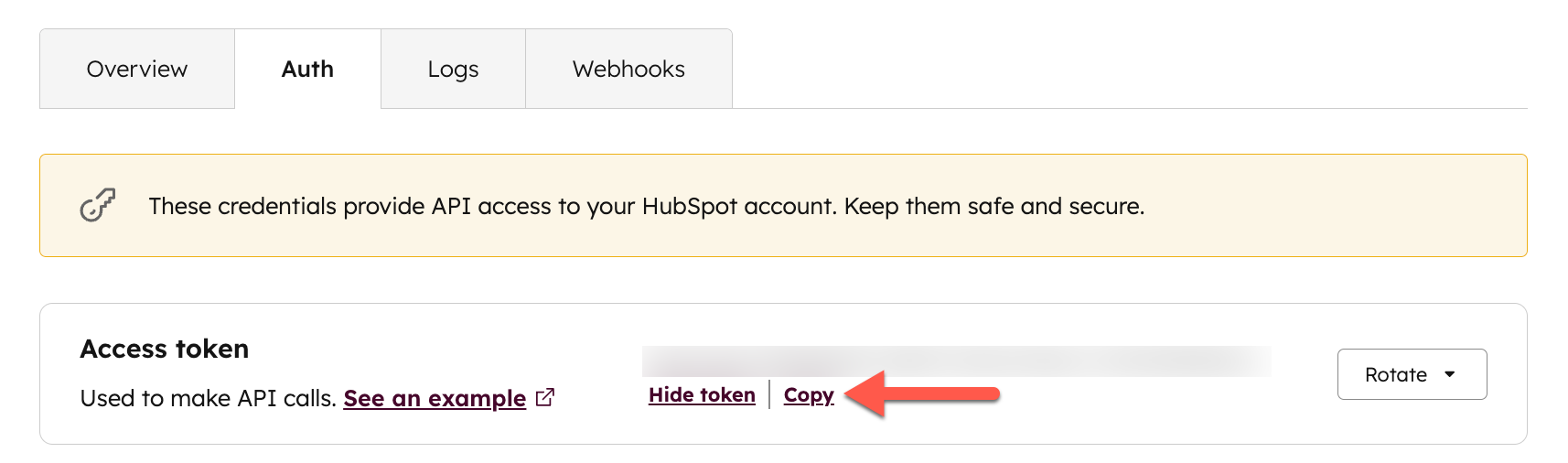
* Click the **Auth** tab, click **Show token** to reveal your access token. Click **Copy** to copy the token to your clipboard.
* After you're done configuring your app, click **Create app** in the top right.
* In the dialog box, review the info about your app's access token, then click **Continue creating**.
Once you've created your app, you can start making API calls using the app's access token. If you need to edit your app's info or change its scopes, click **Edit app** in the top right of the app details page.
## Make API calls with your app's access token
To start making API calls, navigate to the details page of your app.
* In your HubSpot account, navigate to **Development**.
* In the left sidebar menu, navigate to **Legacy apps**.
* Click the **name** of your app.
* Click the **Auth** tab, click **Show token** to reveal your access token. Click **Copy** to copy the token to your clipboard.
 * You can then paste the access token to provide it to your developers, or use it yourself as you develop your app. When making a call to one of the HubSpot API endpoints, set the value of the *Authorization* field to **Bearer \[YOUR\_TOKEN]**. For example, if you're making a call to the [Contacts API](/api-reference/latest/crm/objects/contacts/guide) using Node.js and [axios](https://www.npmjs.com/package/axios), the request would look like the following:
```js theme={null}
axios.get(
"https://api.hubapi.com/crm/v3/objects/contacts",
{
headers: {
Authorization: `Bearer ${YOUR_TOKEN}`,
"Content-Type": "application/json",
},
},
(err, data) => {
// Handle the API response
}
);
```
* Private app access tokens are implemented on top of OAuth, so you can also make authenticated calls with your access token using one of HubSpot's client libraries. For example, if you're using the [Node.js client library](https://github.com/HubSpot/hubspot-api-nodejs), you can instantiate an OAuth client by passing in your app's access token:
```js theme={null}
const hubspotClient = new hubspot.Client({ accessToken: YOUR_ACCESS_TOKEN });
```
Access tokens may be restricted or intentionally fail in the following cases:
* Private apps will lose access to scopes when your HubSpot account is downgraded and loses access to functionality.
* For example, if your account does not have access to HubDB, your private app will not have access to the HubDB scope.
* Private app access tokens will be updated to reflect available scopes in your HubSpot account and what you configured for the private app, but the token string itself will not change.
* If you [remove the user](https://knowledge.hubspot.com/user-management/remove-hubspot-users) who originally created a private app, some API calls that previously used the app's access token will fail with a `result` of `"USER_DOES_NOT_HAVE_PERMISSIONS"`.
* If this issue occurs, it's recommended that you follow [the instructions in the section below](#rotate-your-access-token) to rotate your access token.
* If you mistakenly removed the user from your account, [adding them back](https://knowledge.hubspot.com/account-management/add-hubspot-users) will also fix the issue.
## View private app access token information
To view information about a private app's access token, such as the Hub ID and scopes associated with the token, make a `POST` request to `/oauth/v2/private-apps/get/access-token-info`. In the request body, include your access token:
```json theme={null}
{
"tokenKey": YOUR_ACCESS_TOKEN
}
```
The response will include information about the user who created the token, the Hub ID of the account, the private app ID, and the scopes associated with the token.
```json theme={null}
{
"userId": 123456,
"hubId": 1020304,
"appId": 2011410,
"scopes": ["crm.schemas.companies.write"]
}
```
## Rotate your access token
If your access token is lost or otherwise compromised, you can rotate the token. A new access token will be created and the original access token will expire.
* In your HubSpot account, navigate to **Development**.
* In the left sidebar menu, navigate to **Legacy apps**.
* Click the **name** of your private app.
* Next to your access token, click **Rotate**:
* If your token is compromised and you want to immediately revoke access, click **Rotate and expire now**.
* If there's no imminent threat to your token, it's still recommended that you rotate your token every six months. If you're ready to initiate a regular rotation of your token, click **Rotate and expire later**, which will trigger an expiration of the token in 7 days.
* If your app is ready to transition earlier, you can click **Expire now**.
* If you decide you need more time, you can click **Cancel rotation**, which will cancel the expiration of the original token and revoke the new access token.
* You can then paste the access token to provide it to your developers, or use it yourself as you develop your app. When making a call to one of the HubSpot API endpoints, set the value of the *Authorization* field to **Bearer \[YOUR\_TOKEN]**. For example, if you're making a call to the [Contacts API](/api-reference/latest/crm/objects/contacts/guide) using Node.js and [axios](https://www.npmjs.com/package/axios), the request would look like the following:
```js theme={null}
axios.get(
"https://api.hubapi.com/crm/v3/objects/contacts",
{
headers: {
Authorization: `Bearer ${YOUR_TOKEN}`,
"Content-Type": "application/json",
},
},
(err, data) => {
// Handle the API response
}
);
```
* Private app access tokens are implemented on top of OAuth, so you can also make authenticated calls with your access token using one of HubSpot's client libraries. For example, if you're using the [Node.js client library](https://github.com/HubSpot/hubspot-api-nodejs), you can instantiate an OAuth client by passing in your app's access token:
```js theme={null}
const hubspotClient = new hubspot.Client({ accessToken: YOUR_ACCESS_TOKEN });
```
Access tokens may be restricted or intentionally fail in the following cases:
* Private apps will lose access to scopes when your HubSpot account is downgraded and loses access to functionality.
* For example, if your account does not have access to HubDB, your private app will not have access to the HubDB scope.
* Private app access tokens will be updated to reflect available scopes in your HubSpot account and what you configured for the private app, but the token string itself will not change.
* If you [remove the user](https://knowledge.hubspot.com/user-management/remove-hubspot-users) who originally created a private app, some API calls that previously used the app's access token will fail with a `result` of `"USER_DOES_NOT_HAVE_PERMISSIONS"`.
* If this issue occurs, it's recommended that you follow [the instructions in the section below](#rotate-your-access-token) to rotate your access token.
* If you mistakenly removed the user from your account, [adding them back](https://knowledge.hubspot.com/account-management/add-hubspot-users) will also fix the issue.
## View private app access token information
To view information about a private app's access token, such as the Hub ID and scopes associated with the token, make a `POST` request to `/oauth/v2/private-apps/get/access-token-info`. In the request body, include your access token:
```json theme={null}
{
"tokenKey": YOUR_ACCESS_TOKEN
}
```
The response will include information about the user who created the token, the Hub ID of the account, the private app ID, and the scopes associated with the token.
```json theme={null}
{
"userId": 123456,
"hubId": 1020304,
"appId": 2011410,
"scopes": ["crm.schemas.companies.write"]
}
```
## Rotate your access token
If your access token is lost or otherwise compromised, you can rotate the token. A new access token will be created and the original access token will expire.
* In your HubSpot account, navigate to **Development**.
* In the left sidebar menu, navigate to **Legacy apps**.
* Click the **name** of your private app.
* Next to your access token, click **Rotate**:
* If your token is compromised and you want to immediately revoke access, click **Rotate and expire now**.
* If there's no imminent threat to your token, it's still recommended that you rotate your token every six months. If you're ready to initiate a regular rotation of your token, click **Rotate and expire later**, which will trigger an expiration of the token in 7 days.
* If your app is ready to transition earlier, you can click **Expire now**.
* If you decide you need more time, you can click **Cancel rotation**, which will cancel the expiration of the original token and revoke the new access token.
 HubSpot will also send email notifications to [super admins](https://knowledge.hubspot.com/user-management/hubspot-user-permissions-guide#super-admin) with reminders about access token rotation status, as well as other related alerts. Super admins in your HubSpot account will receive notifications for the following events and reminders:
* A super admin initiated a rotation (either immediately or scheduled for 7 days from now).
* A super admin canceled a pending rotation.
* A super admin opted to expire an access token immediately by clicking **Expire now** instead of waiting 7 days for the token to expire.
* The app's access token is about to expire in 24 hours.
* The app's access token has been rotated and expired after 7 days.
* If you haven't rotated your access token in over 180 days, super admins will also receive a reminder email to rotate your app's access token.
## View API call logs
To review the API calls your app has made in the past 30 days:
* On the details page of your app, click the **Logs** tab.
* Review and filter your private app API calls:
* Click the **Method** and **Response** dropdown menus to filter your historical API calls by request method or response code.
* Click the **start date** or **end date** dropdown menus to narrow your call logs to a specific time range.
* You can also search for specific calls by URL in the *Search by request URL* search box.
HubSpot will also send email notifications to [super admins](https://knowledge.hubspot.com/user-management/hubspot-user-permissions-guide#super-admin) with reminders about access token rotation status, as well as other related alerts. Super admins in your HubSpot account will receive notifications for the following events and reminders:
* A super admin initiated a rotation (either immediately or scheduled for 7 days from now).
* A super admin canceled a pending rotation.
* A super admin opted to expire an access token immediately by clicking **Expire now** instead of waiting 7 days for the token to expire.
* The app's access token is about to expire in 24 hours.
* The app's access token has been rotated and expired after 7 days.
* If you haven't rotated your access token in over 180 days, super admins will also receive a reminder email to rotate your app's access token.
## View API call logs
To review the API calls your app has made in the past 30 days:
* On the details page of your app, click the **Logs** tab.
* Review and filter your private app API calls:
* Click the **Method** and **Response** dropdown menus to filter your historical API calls by request method or response code.
* Click the **start date** or **end date** dropdown menus to narrow your call logs to a specific time range.
* You can also search for specific calls by URL in the *Search by request URL* search box.