> ## Documentation Index
> Fetch the complete documentation index at: https://developers.hubspot.com/docs/llms.txt
> Use this file to discover all available pages before exploring further.

---
id: 0ed2304f-746f-4c3d-a94e-1612d300ea2e
---

# Sync content to a CMS Developer Sandbox

> Learn how to sync content from a production account to a CMS Developer Sandbox account.

export const SupportedProducts = ({marketing, sales, service, cms, data, commerce, marketingLevel, salesLevel, serviceLevel, cmsLevel, dataLevel, commerceLevel}) => {
  const translations = {
    description: "Requires one of the following products or higher.",
    productNames: {
      marketing: "Marketing Hub",
      sales: "Sales Hub",
      service: "Service Hub",
      cms: "Content Hub",
      data: "Data Hub",
      commerce: "Commerce Hub"
    },
    tiers: {
      free: "Free",
      starter: "Starter",
      professional: "Professional",
      enterprise: "Enterprise"
    }
  };
  const translateTier = tier => {
    if (!tier) return '';
    const lowerTier = tier.toLowerCase();
    return translations.tiers[lowerTier] || tier;
  };
  const products = [{
    name: marketing ? translations.productNames.marketing : '',
    level: translateTier(marketingLevel),
    icon: "https://mintlify-assets.b-cdn.net/Icons/marketing-bolt.svg",
    alt: "Marketing Hub"
  }, {
    name: sales ? translations.productNames.sales : '',
    level: translateTier(salesLevel),
    icon: "https://mintlify-assets.b-cdn.net/Icons/sales-star.svg",
    alt: "Sales Hub"
  }, {
    name: service ? translations.productNames.service : '',
    level: translateTier(serviceLevel),
    icon: "https://mintlify-assets.b-cdn.net/Icons/service-heart.svg",
    alt: "Service Hub"
  }, {
    name: cms ? translations.productNames.cms : '',
    level: translateTier(cmsLevel),
    icon: "https://mintlify-assets.b-cdn.net/Icons/content-play.svg",
    alt: "Content Hub"
  }, {
    name: data ? translations.productNames.data : '',
    level: translateTier(dataLevel),
    icon: "https://developers.hubspot.com/hubfs/Knowledge_Base_2023-24-25/subscription_key_icons/operations_icon.svg",
    alt: "Data Hub"
  }, {
    name: commerce ? translations.productNames.commerce : '',
    level: translateTier(commerceLevel),
    icon: "https://developers.hubspot.com/hubfs/Knowledge_Base/subscription_key_icons/commerce_icon.svg",
    alt: "Commerce Hub"
  }].filter(product => product.name && product.level);
  if (products.length === 0) return null;
  return <div>
      <div className="text-sm mb-2">{translations.description}</div>
      <div className={`grid ${products.length === 1 ? 'grid-cols-1' : 'grid-cols-2'} gap-1.5`}>
        {products.map((product, index) => <div key={index} style={{
    display: 'flex',
    alignItems: 'center'
  }}>
            <img src={product.icon} alt={product.alt} className="w-3.5 h-3.5 mr-1.5 mt-2.5 mb-2.5 flex-shrink-0 align-middle" />
            <span className="font-medium mr-1 text-sm">{product.name} -</span>
            <span className="text-sm">{product.level}</span>
          </div>)}
      </div>
    </div>;
};

<Accordion title="Supported products" defaultOpen="true" icon="cubes">
  <SupportedProducts cms={true} cmsLevel="enterprise" />
</Accordion>

Sync content from a production account to a CMS Developer Sandbox account to keep assets in your sandbox environment up to date.

This one-way sync supports a variety of content-related data, from templates and modules, to brand settings and navigation menus, so that you can ensure you're accurately testing and iterating.

## Content types

You can sync the following types of content from your production account to a CMS Developer Sandbox account:

* **Developer assets:**
  * **Themes:** theme files and settings, theme field configurations, and theme CSS and JavaScript.
  * **Templates:** page, blog, email, and system templates.
  * **Modules:** custom modules, module configurations, and module assets (HTML, CSS, and JavaScript).
  * **Global Partials:** header and footer template partials, reusable template sections, and global partial configurations.
* **Content supported assets:**
  * **Developer assets:** all developer assets above.
  * **Website/Landing page content:** images, documents, content embeds, and files used on your pages (including videos and downloadable content).
  * **Navigation menus:** primary and secondary navigation menus, and footer menus.
  * **Brand settings:** colors, fonts, and logos, along with global style settings.
  * **GraphQL-enabled HubDB tables & data:** custom database tables and dynamic content collections.
  * **Global content:** headers and footers, along with global settings and partials.

<Info>
  CMS assets built using developer projects are not supported by the content sync tool.

  * If you're syncing content assets (e.g., pages) that use project-built developer assets, such as React modules, you should manually upload the project to the CMS Developer Sandbox account.
  * After uploading a CMS React project to the account, you may need to update references to those developer assets, as their IDs will have changed due to being uploaded as a new project.
</Info>

## Syncing content

To sync content from a production account to a CMS Sandbox account:

* In your HubSpot account, navigate to **Content** > **Design Manager**.
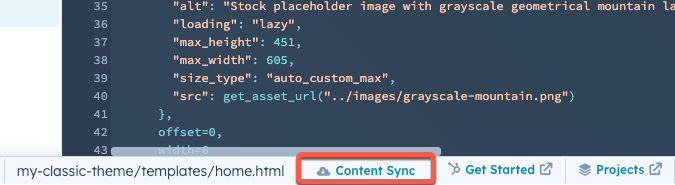
* In the bottom bar, click **Content Sync**. When syncing for the first time, you'll then be taken directly to the content sync setup page.

<Frame>
  <img src="https://www.hubspot.com/hubfs/Knowledge_Base_2023-24-25/content-sync-in-design-manager.png" alt="Content Sync button in the bottom bar of the design manager" />
</Frame>

* Click **Next**.
* Click the **dropdown menu** to select the CMS Developer Sandbox account that you want to sync to.
* Click **Next**.
* Select the **content** that you want to sync. Learn more about [which types of content can sync](#content-types).
* Click **Next**.
* Click **Start Sync**.

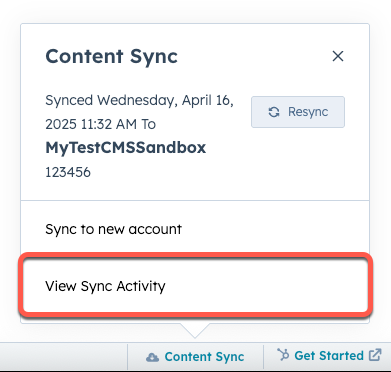
After initiating the content sync, you'll be brought to a summary page where you can view your sync history and trigger additional content syncs. A tab will be created for each CMS Developer Sandbox you've synced with. You can return to this screen any time by clicking **Content Sync** in the bottom bar of the design manager, then selecting **View Sync Activity**.
<Frame>
  <img src="https://www.hubspot.com/hubfs/Knowledge_Base_2023-24-25/view-sync-activity-pop-up.png" alt="Pop-up box showing the View Sync Activity option" />
</Frame>

To resync your content or sync to a new account:

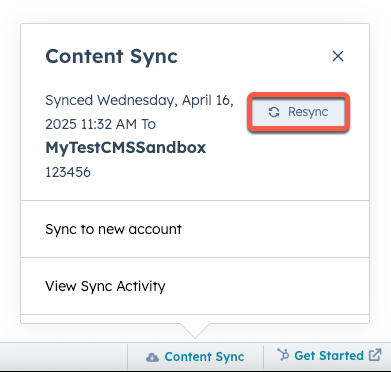
* In the bottom bar, click **Content Sync**.
* To resync to the most recently synced account, click **Resync** in the pop-up box.
<Frame>
  <img src="https://www.hubspot.com/hubfs/Knowledge_Base_2023-24-25/resync-to-cms-developer-sandbox-account.png" alt="Resync button in the Content Sync pop-up box" />
</Frame>

* To sync to a new CMS Developer Sandbox account, click **Sync to new account**.
* To sync with other previously-synced accounts, or view all sync activity history, click **View Sync Activity**.

## View sync history

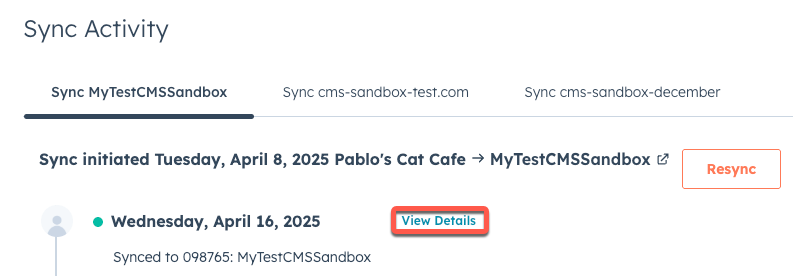
On the *Content Sync* page, you can review your sync activity history for each CMS Developer Sandbox you've synced with.

* Click the **tabs** to select the CMS Developer Sandbox account to view history for.
* To view the logs for a specific sync, click **View details**. In the right sidebar, review the log details.
<Frame>
  <img src="https://www.hubspot.com/hubfs/Knowledge_Base_2023-24-25/view-details-for-sync-activity.png" alt="View detailed logs for a specific sync" />
</Frame>

* To resync to that account, click **Resync**.