> ## Documentation Index
> Fetch the complete documentation index at: https://developers.hubspot.com/docs/llms.txt
> Use this file to discover all available pages before exploring further.
---
id: 5d79587f-6e3e-4d9d-a990-dca4e00ac21e
---
# Module and theme fields
> HubSpot has many different field types, you can use to add flexibility and customization to your themes and modules.
export const RequiredIndicator = () => {
return
required
;
};
Add fields to modules and themes to allow content creators to control various aspects of a page within the page editor. Below, learn about all of the fields available for modules and themes, along with their available properties.
For more information about implementing module and theme fields, including field groups and repeating fields, view the [module and theme fields overview](/cms/reference/fields/overview).
## Properties used by all fields
All fields share a set of common properties. These are general fields, such as the field's name or the help text that displays for content creators using the field in the module or theme.
```json wrap theme={null}
{
"name": "is_teaser_img",
"label": "Enable Teaser Image",
"required": false,
"locked": false,
"type": "boolean",
"inline_help_text": "Shows Teaser image when toggled on",
"help_text": "Teaser images are used to help provide visual context to the post.",
"default": false,
"alias_mapping": {
"property_aliases_paths": {
"is_teaser_img": ["old_boolean_field_name"]
}
}
}
```
| Parameter | Type | Description | Default |
| ----------------------------- | ------- | ---------------------------------------------------------------------------------------------------------------------------------------------------------------------------------------------------------------------------------------------------------------------------------------------------------------------------------------------------------------------------- | ----------------------------------- |
| `name` | String | The field's name, which you'll reference when incorporating the field and its values in the module or theme. Cannot contain spaces or special characters. | `richtext_field, date_field, etc.` |
| `label` | String | The text the content creator sees describing the field. May contain spaces. | `Rich text field, Date field, etc.` |
| `required` | Boolean | Sets whether the field can be left blank in the editor. If `true`, content cannot be published without a value in the field. | `false` |
| `locked` | Boolean | Sets whether the field is editable in the content editor. If `true`, the field will not appear in the content editor. | `false` |
| `type` | String | The type of field. Field types are unique per field and can be found within the documentation for each field below. | |
| `inline_help_text` | String | Text that displays inline below field's label (limit 400 characters). Best used for information required to use the field. You can include the following HTML tags (other tags will be ignored on render): `a`, `b`, `br`, `em`, `i`, `p`, `small`, `strong`, `span`. | |
| `help_text` | String | Text that displays in the editor within a tooltip on hover to assist the content creator (limit 300 characters). Best used for information that is supplementary but not required to use the field. You can include the following HTML tags (other tags will be ignored on render):`a`, `b`, `br`, `em`, `i`, `p`, `small`, `strong`, `span`. | |
| `id` | String | The field's unique ID, which is set by HubSpot. When building locally you do not need to specify this ID. | |
| `visibility` | Array | Sets the field's display conditions. For example, you can set a field to only display when another checkbox field has been selected. Learn more about [visibility](/cms/reference/fields/overview#field-visibility). | |
| `display_width` | String | By default, fields are full-width in the editor. When two consecutive fields in the `fields.json` file are set to `half_width`, they will instead appear next to each other in the editor. | |
| `alias_mapping` | Object | An alias for the field, which maps existing field values to a new location without breaking existing content. This can be helpful when needing to update a field that's currently being used in live content, such as moving a field from the *Content* tab to the *Styles* tab. Learn more about [alias mapping](/cms/start-building/building-blocks/fields/alias-mapping). | |
## Alignment
Can be used in [modules](/cms/start-building/building-blocks/modules/overview#fields-json) as a [style field](/cms/reference/fields/overview#style-fields).
Enables content creators to position an element within a container. To enable text alignment, use the [text alignment field](/cms/reference/fields/module-theme-fields#text-alignment) instead.
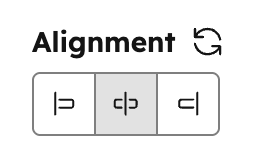 ```json theme={null}
{
"name": "img_position",
"label": "Position Image",
"help_text": "Position the image within its container.",
"required": false,
"type": "alignment",
"alignment_direction": "BOTH",
"default": {
"horizontal_align": "CENTER",
"vertical_align": "TOP"
}
}
```
| Parameter | Type | Description | Default |
| --------------------- | ------ | ------------------------------------------------------------------------------------------------------------------------------------------------------------------------------------------------- | ------- |
| `default` | Object | Object containing `horizontal_align` and `vertical_align`:
```json theme={null}
{
"name": "img_position",
"label": "Position Image",
"help_text": "Position the image within its container.",
"required": false,
"type": "alignment",
"alignment_direction": "BOTH",
"default": {
"horizontal_align": "CENTER",
"vertical_align": "TOP"
}
}
```
| Parameter | Type | Description | Default |
| --------------------- | ------ | ------------------------------------------------------------------------------------------------------------------------------------------------------------------------------------------------- | ------- |
| `default` | Object | Object containing `horizontal_align` and `vertical_align`:- `horizontal_align`: `"LEFT"` \| `"CENTER"` \| `"RIGHT"`
- `vertical_align`: `"TOP"` \| `"MIDDLE"` \| `"BOTTOM"`
| |
| `alignment_direction` | String | Determines if only horizontal, only vertical, or both alignment controls should be shown. Can be:- `HORIZONTAL`
- `VERTICAL`
- `BOTH`
| `BOTH` |
```jsx theme={null}
import { ModuleFields, AlignmentField } from "@hubspot/cms-components/fields";
export const fields = (
);
```
| Prop | Type | Description | Default |
| -------------------- | ------ | ------------------------------------------------------------------------------------------------------------------------------------------------------------------------------------------------- | ------- |
| `default` | Object | Object containing `horizontal_align` and `vertical_align`:- `horizontal_align`: `"LEFT"` \| `"CENTER"` \| `"RIGHT"`
- `vertical_align`: `"TOP"` \| `"MIDDLE"` \| `"BOTTOM"`
| |
| `alignmentDirection` | String | Determines if only horizontal, only vertical, or both alignment controls should be shown. Can be:- `HORIZONTAL`
- `VERTICAL`
- `BOTH`
| `BOTH` |
## Background image
Can be used in [modules](/cms/start-building/building-blocks/modules/overview#fields-json) as a [style field](/cms/reference/fields/overview#style-fields).
This field provides a background image field which has subfields for background position and background size. Background image fields have a `.css` property that returns CSS based on the field's value. [Learn more about the generated CSS property.](/cms/reference/fields/overview#generated-css)
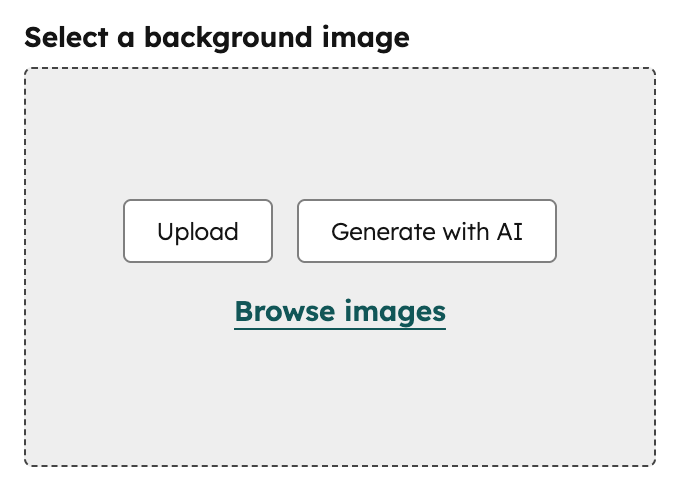 ```json theme={null}
{
"name": "bg_image",
"label": "Background image",
"required": false,
"type": "backgroundimage",
"default": {
"src": "https://example.com/img.png",
"background_position": "MIDDLE_CENTER",
"background_size": "cover"
}
}
```
| Parameter | Type | Description | Default |
| --------- | ------ | ------------------------------------------------------------------------- | ------- |
| `default` | Object | Object containing the image src, background position and background size. | `null` |
```jsx theme={null}
import { ModuleFields, BackgroundImageField } from "@hubspot/cms-components/fields";
export const fields = (
);
```
| Prop | Type | Description | Default |
| --------- | ------ | ------------------------------------------------------------------------- | ------- |
| `default` | Object | Object containing the image src, background position and background size. | `null` |
## Blog
Can be used in [modules](/cms/start-building/building-blocks/modules/overview#fields-json).
This field provides a way for content editors to select a blog, providing you, the developer the blog's ID. This is useful for situations like pulling teaser information for featured blogs in modules. You can use the blog ID in blog-related [HubL functions](/cms/reference/hubl/functions) to get information like [blog authors](/cms/reference/hubl/functions#blog-authors), [recent blog posts](/cms/reference/hubl/functions#blog-recent-posts), [recent blog posts with a specific tag](/cms/reference/hubl/functions#blog-recent-tag-posts), and more.
```json theme={null}
{
"name": "bg_image",
"label": "Background image",
"required": false,
"type": "backgroundimage",
"default": {
"src": "https://example.com/img.png",
"background_position": "MIDDLE_CENTER",
"background_size": "cover"
}
}
```
| Parameter | Type | Description | Default |
| --------- | ------ | ------------------------------------------------------------------------- | ------- |
| `default` | Object | Object containing the image src, background position and background size. | `null` |
```jsx theme={null}
import { ModuleFields, BackgroundImageField } from "@hubspot/cms-components/fields";
export const fields = (
);
```
| Prop | Type | Description | Default |
| --------- | ------ | ------------------------------------------------------------------------- | ------- |
| `default` | Object | Object containing the image src, background position and background size. | `null` |
## Blog
Can be used in [modules](/cms/start-building/building-blocks/modules/overview#fields-json).
This field provides a way for content editors to select a blog, providing you, the developer the blog's ID. This is useful for situations like pulling teaser information for featured blogs in modules. You can use the blog ID in blog-related [HubL functions](/cms/reference/hubl/functions) to get information like [blog authors](/cms/reference/hubl/functions#blog-authors), [recent blog posts](/cms/reference/hubl/functions#blog-recent-posts), [recent blog posts with a specific tag](/cms/reference/hubl/functions#blog-recent-tag-posts), and more.
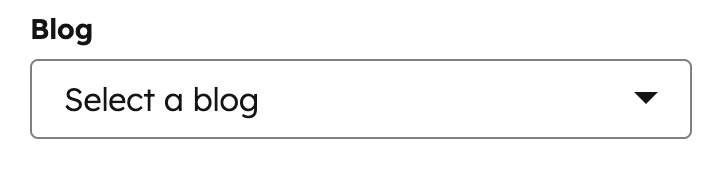 ```json theme={null}
{
"name": "blog",
"label": "Blog",
"required": false,
"locked": false,
"type": "blog",
"default": 1234567890
}
```
| Parameter | Type | Description | Default |
| --------- | ------------------- | ------------------------------------------------------------------------------------------------------------------------------------------------------------ | ------- |
| `default` | "default" / blog ID | Specifies which blog is selected by default. This parameter accepts arguments of either 'default' or a blog ID (available in the URL of the Blog dashboard). | `null` |
```jsx theme={null}
import { ModuleFields, BlogField } from "@hubspot/cms-components/fields";
export const fields = (
);
```
| Prop | Type | Description | Default |
| --------- | --------------------- | -------------------------------------------- | ------- |
| `default` | `'default'` / blog ID | Specifies which blog is selected by default. | `null` |
## Boolean
Can be used in [modules](/cms/start-building/building-blocks/modules/overview#fields-json) and [themes](/cms/start-building/building-blocks/overview#fields-json) as a [style field](/cms/reference/fields/overview#style-fields).
This field provides a way for content editors to enable/disable functionality. Booleans can only be `true` or `false`. Often it makes sense to make groups or fields conditional based on boolean fields. If you think you might need to provide more than two states in the future, a [choice](#choice) field may be a better option as you can grow into that with less effort should needs change later.
```json theme={null}
{
"name": "blog",
"label": "Blog",
"required": false,
"locked": false,
"type": "blog",
"default": 1234567890
}
```
| Parameter | Type | Description | Default |
| --------- | ------------------- | ------------------------------------------------------------------------------------------------------------------------------------------------------------ | ------- |
| `default` | "default" / blog ID | Specifies which blog is selected by default. This parameter accepts arguments of either 'default' or a blog ID (available in the URL of the Blog dashboard). | `null` |
```jsx theme={null}
import { ModuleFields, BlogField } from "@hubspot/cms-components/fields";
export const fields = (
);
```
| Prop | Type | Description | Default |
| --------- | --------------------- | -------------------------------------------- | ------- |
| `default` | `'default'` / blog ID | Specifies which blog is selected by default. | `null` |
## Boolean
Can be used in [modules](/cms/start-building/building-blocks/modules/overview#fields-json) and [themes](/cms/start-building/building-blocks/overview#fields-json) as a [style field](/cms/reference/fields/overview#style-fields).
This field provides a way for content editors to enable/disable functionality. Booleans can only be `true` or `false`. Often it makes sense to make groups or fields conditional based on boolean fields. If you think you might need to provide more than two states in the future, a [choice](#choice) field may be a better option as you can grow into that with less effort should needs change later.
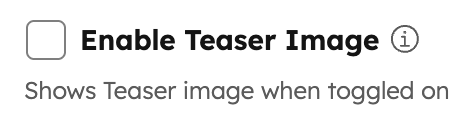 ```json theme={null}
{
"name": "is_teaser_img",
"label": "Enable Teaser Image",
"required": false,
"locked": false,
"type": "boolean",
"display": "checkbox",
"inline_help_text": "Shows Teaser image when toggled on",
"help_text": "Teaser images are used to help provide visual context to the post.",
"default": false
}
```
| Parameter | Type | Description | Default |
| --------- | ------- | ----------------------------------------------------------------------------------------------- | ---------- |
| `default` | Boolean | Sets whether the default state of this field is `true` or `false`. | `false` |
| `display` | String | Choose the visual display style for the field. Can appear as either a `toggle` or a `checkbox`. | `checkbox` |
```jsx theme={null}
import { ModuleFields, BooleanField } from "@hubspot/cms-components/fields";
export const fields = (
);
```
| Prop | Type | Description | Default |
| --------- | ------- | ----------------------------------------------------------------------------------------------- | ---------- |
| `default` | Boolean | Sets whether the default state of this field is `true` or `false`. | `false` |
| `display` | String | Choose the visual display style for the field. Can appear as either a `toggle` or a `checkbox`. | `checkbox` |
A toggle switch can make sense when the value of the field enables/disables other fields conditionally being shown. Another time a toggle may be useful is when the field represents a major design change for the module.
Checkboxes make sense for smaller changes that may not have as drastic of an effect on the module's display, such as hiding or showing individual small elements.
## Border
Can be used in [modules](/cms/start-building/building-blocks/modules/overview#fields-json) as a [style field](/cms/reference/fields/overview#style-fields).
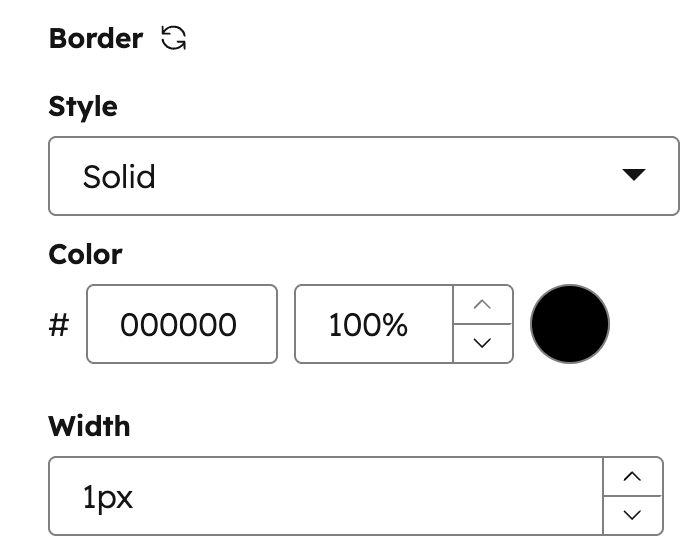
This field provides content creators a user interface for creating a border around an element. Border fields have a `.css` property that returns CSS based on the field's value. [Learn more about the generated CSS property.](/cms/reference/fields/overview#generated-css)
```json theme={null}
{
"name": "is_teaser_img",
"label": "Enable Teaser Image",
"required": false,
"locked": false,
"type": "boolean",
"display": "checkbox",
"inline_help_text": "Shows Teaser image when toggled on",
"help_text": "Teaser images are used to help provide visual context to the post.",
"default": false
}
```
| Parameter | Type | Description | Default |
| --------- | ------- | ----------------------------------------------------------------------------------------------- | ---------- |
| `default` | Boolean | Sets whether the default state of this field is `true` or `false`. | `false` |
| `display` | String | Choose the visual display style for the field. Can appear as either a `toggle` or a `checkbox`. | `checkbox` |
```jsx theme={null}
import { ModuleFields, BooleanField } from "@hubspot/cms-components/fields";
export const fields = (
);
```
| Prop | Type | Description | Default |
| --------- | ------- | ----------------------------------------------------------------------------------------------- | ---------- |
| `default` | Boolean | Sets whether the default state of this field is `true` or `false`. | `false` |
| `display` | String | Choose the visual display style for the field. Can appear as either a `toggle` or a `checkbox`. | `checkbox` |
A toggle switch can make sense when the value of the field enables/disables other fields conditionally being shown. Another time a toggle may be useful is when the field represents a major design change for the module.
Checkboxes make sense for smaller changes that may not have as drastic of an effect on the module's display, such as hiding or showing individual small elements.
## Border
Can be used in [modules](/cms/start-building/building-blocks/modules/overview#fields-json) as a [style field](/cms/reference/fields/overview#style-fields).
This field provides content creators a user interface for creating a border around an element. Border fields have a `.css` property that returns CSS based on the field's value. [Learn more about the generated CSS property.](/cms/reference/fields/overview#generated-css)
 ```json theme={null}
{
"id": "styles.border",
"name": "border",
"label": "border",
"required": false,
"locked": false,
"allow_custom_border_sides": false,
"type": "border",
"default": {
"top": {
"width": { "value": 1, "units": "px" },
"opacity": 100,
"style": "solid",
"color": "#ffffff"
},
"bottom": {
"width": { "value": 1, "units": "px" },
"opacity": 100,
"style": "solid",
"color": "#ffffff"
},
"left": null,
"right": null
}
}
```
| Parameter | Type | Description | Default |
| --------------------------- | ------- | -------------------------------------------------------------------------------------- | ------- |
| `default` | Object | object with keys for border radius, top, bottom, left, and right sides. | `{}` |
| `allow_custom_border_sides` | Boolean | When `true`, allows content creators to set borders on individual sides independently. | `false` |
```jsx theme={null}
import { ModuleFields, BorderField } from "@hubspot/cms-components/fields";
export const fields = (
);
```
| Prop | Type | Description | Default |
| ------------------------ | ------- | -------------------------------------------------------------------------------------- | ------- |
| `default` | Object | object with keys for border radius, top, bottom, left, and right sides. | `{}` |
| `allowCustomBorderSides` | Boolean | When `true`, allows content creators to set borders on individual sides independently. | `false` |
## Choice
Can be used in [modules](/cms/start-building/building-blocks/modules/overview#fields-json) and [themes](/cms/start-building/building-blocks/overview#fields-json) as a [style field](/cms/reference/fields/overview#style-fields).
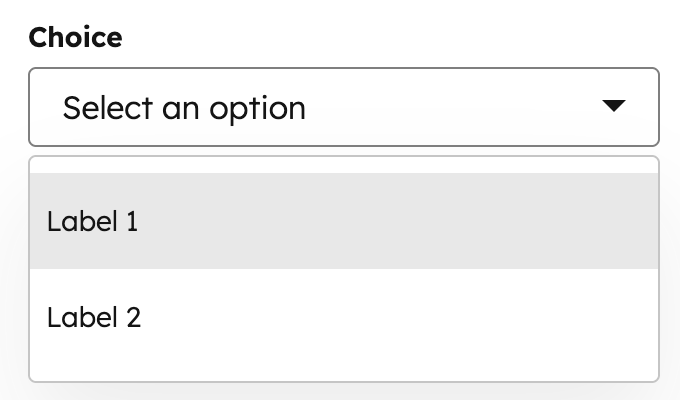
Choice fields allow a content creator to select one or more items from a list of options. Using the `display` property, you can set display the options in a dropdown menu, radio select, or checkboxes, or a range of buttons. Learn more about [choice field display options below](#choice-button-presets).
```json theme={null}
{
"id": "styles.border",
"name": "border",
"label": "border",
"required": false,
"locked": false,
"allow_custom_border_sides": false,
"type": "border",
"default": {
"top": {
"width": { "value": 1, "units": "px" },
"opacity": 100,
"style": "solid",
"color": "#ffffff"
},
"bottom": {
"width": { "value": 1, "units": "px" },
"opacity": 100,
"style": "solid",
"color": "#ffffff"
},
"left": null,
"right": null
}
}
```
| Parameter | Type | Description | Default |
| --------------------------- | ------- | -------------------------------------------------------------------------------------- | ------- |
| `default` | Object | object with keys for border radius, top, bottom, left, and right sides. | `{}` |
| `allow_custom_border_sides` | Boolean | When `true`, allows content creators to set borders on individual sides independently. | `false` |
```jsx theme={null}
import { ModuleFields, BorderField } from "@hubspot/cms-components/fields";
export const fields = (
);
```
| Prop | Type | Description | Default |
| ------------------------ | ------- | -------------------------------------------------------------------------------------- | ------- |
| `default` | Object | object with keys for border radius, top, bottom, left, and right sides. | `{}` |
| `allowCustomBorderSides` | Boolean | When `true`, allows content creators to set borders on individual sides independently. | `false` |
## Choice
Can be used in [modules](/cms/start-building/building-blocks/modules/overview#fields-json) and [themes](/cms/start-building/building-blocks/overview#fields-json) as a [style field](/cms/reference/fields/overview#style-fields).
Choice fields allow a content creator to select one or more items from a list of options. Using the `display` property, you can set display the options in a dropdown menu, radio select, or checkboxes, or a range of buttons. Learn more about [choice field display options below](#choice-button-presets).
 ```json theme={null}
{
"name": "img_position",
"label": "Image Position",
"required": false,
"locked": false,
"multiple": false,
"display": "select",
"choices": [
["img--left", "Image Left - Text Right"],
["img--right", "Text Left - Image Right"]
],
"type": "choice",
"default": "img--left"
}
```
| Parameter | Type | Description | Default |
| ------------------------------- | ------- | -------------------------------------------------------------------------------------------------------------------------------------------------------------------------------------------------------------------------------------------------------------------------------------------------------------------------------------------------------------------------------------------------------------------------------------------------------------------------------------------------------------------------------------------------------------------------------------------------------------- | -------------------------------------------------------- |
| `choices` | Array | Array containing the selectable options, formatted as unique internal value followed by label. | `[ [ "value 1", "Label 1" ], [ "value 2", "Label 2" ] ]` |
| `default` | Value | Sets the default selected value from the choice array. | |
| `multiple` | Boolean | Optional field that enables multiple options to be selected when set to `true`. Set `display` to `checkbox` or `select` to configure whether the field displays as a list of checkboxes or a dropdown menu. | `false` |
| `display` | String | Set the field's appearance using one of the following values:
```json theme={null}
{
"name": "img_position",
"label": "Image Position",
"required": false,
"locked": false,
"multiple": false,
"display": "select",
"choices": [
["img--left", "Image Left - Text Right"],
["img--right", "Text Left - Image Right"]
],
"type": "choice",
"default": "img--left"
}
```
| Parameter | Type | Description | Default |
| ------------------------------- | ------- | -------------------------------------------------------------------------------------------------------------------------------------------------------------------------------------------------------------------------------------------------------------------------------------------------------------------------------------------------------------------------------------------------------------------------------------------------------------------------------------------------------------------------------------------------------------------------------------------------------------- | -------------------------------------------------------- |
| `choices` | Array | Array containing the selectable options, formatted as unique internal value followed by label. | `[ [ "value 1", "Label 1" ], [ "value 2", "Label 2" ] ]` |
| `default` | Value | Sets the default selected value from the choice array. | |
| `multiple` | Boolean | Optional field that enables multiple options to be selected when set to `true`. Set `display` to `checkbox` or `select` to configure whether the field displays as a list of checkboxes or a dropdown menu. | `false` |
| `display` | String | Set the field's appearance using one of the following values:- `select`: renders a dropdown menu. Allows for selecting multiple options when `multiple` is set to `true`.
- `checkbox`: renders a list of selectable checkboxes. Allows for selecting multiple options when `multiple` is set to `true` and `reordering_enabled` is set to `false`.
- `radio`: renders a list of radio button options. Does not allow for selecting multiple options.
- `buttons`: renders a set of buttons based on the specified `preset`. Does not allow for selecting multiple options.
| `"select"` |
| `reordering_enabled` | Boolean | When set to `true`, allows content creators to reorder the field's options in the editor. To enable this, `multiple` must also be set to `true`. | `false` |
| `preset` | String | Configures the button preset to use when `display` is set to `buttons`. For each preset, you'll need to configure the `choices` labels to match a specific set of values. Learn more about these [preset options](#choice-button-presets) below. | |
```jsx theme={null}
import { ModuleFields, ChoiceField } from "@hubspot/cms-components/fields";
export const fields = (
);
```
| Prop | Type | Description | Default |
| ------------------- | ------- | -------------------------------------------------------------------------------------------------------------------------------------------------------------------------------------------------------------------------------------------------------------------------------------------------------------------------------------------------------------------------------------------------------------------------------------------------------------------------------------------------------------------------------------------------------------------------------------------------------------- | -------------------------------------------------------- |
| `choices` | Array | Array containing the selectable options, formatted as unique internal value followed by label. | `[ [ "value 1", "Label 1" ], [ "value 2", "Label 2" ] ]` |
| `default` | Value | Sets the default selected value from the choice array. | |
| `multiple` | Boolean | Optional field that enables multiple options to be selected when set to `true`.Set `display` to `checkbox` or `select` to configure whether the field displays as a list of checkboxes or a dropdown menu. | `false` |
| `display` | String | Set the field's appearance using one of the following values:- `select`: renders a dropdown menu. Allows for selecting multiple options when `multiple` is set to `true`.
- `checkbox`: renders a list of selectable checkboxes. Allows for selecting multiple options when `multiple` is set to `true` and `reordering_enabled` is set to `false`.
- `radio`: renders a list of radio button options. Does not allow for selecting multiple options.
- `buttons`: renders a set of buttons based on the specified `preset`. Does not allow for selecting multiple options.
| `"select"` |
| `reorderingEnabled` | Boolean | When set to `true`, allows content creators to reorder the field's options in the editor. To enable this, `multiple` must also be set to `true`. | `false` |
| `preset` | String | Configures the button preset to use when `display` is set to `buttons`. For each preset, you'll need to configure the `choices` labels to match a specific set of values. Learn more about these [preset options](#choice-button-presets) below. | |
### Choice button presets
To configure a choice field to display buttons instead of a dropdown menu, checkboxes, or radio selects, you can use any of the presets below. Each preset allows for a specific set of option labels, which you'll need to include in the `choices` array. These labels cannot be customized.
```json theme={null}
{
"name": "layout",
"type": "choice",
"label": "Layout",
"required": false,
"locked": false,
"display": "buttons",
"preset": "layout",
"choices": [
["cards_value", "cards"],
["tiles_value", "tiles"],
["minimal_value", "minimal"]
]
}
```
```jsx theme={null}
import { ModuleFields, ChoiceField } from "@hubspot/cms-components/fields";
export const fields = (
);
```
| Preset | Choice labels | Example |
| ------------------------------ | ------------------------------------------- | ------------------------------------------------------------------------------------------------------------------------------------------------------------------------ |
| `case` | `none` \| `title` \| `upper` \| `lower` | 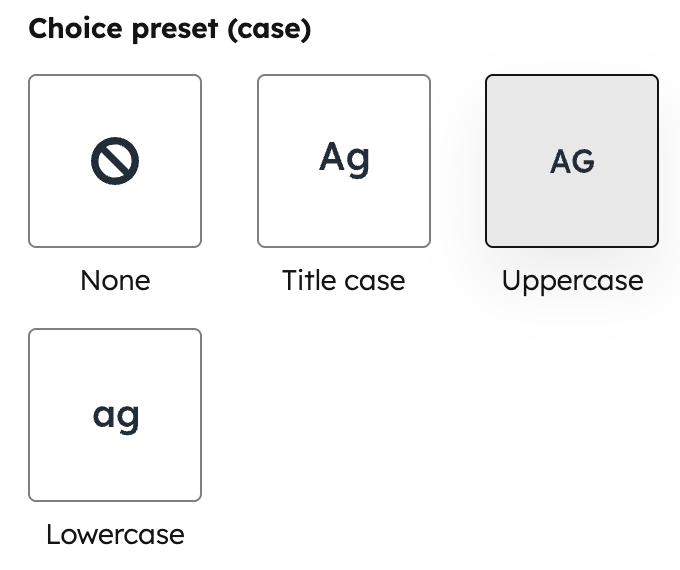 |
| `expand_icon` | `caret` \| `plus` \| `chevron` | 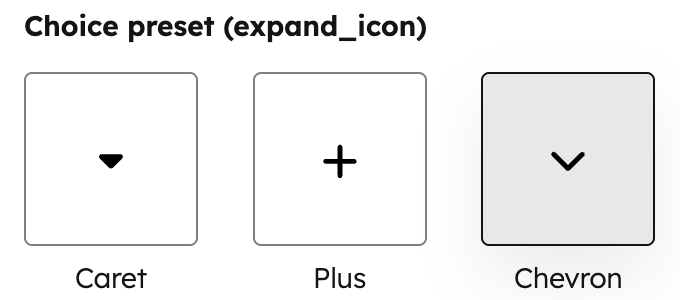 |
| `icon_background_shape` | `none` \| `square` \| `rounded` \| `circle` | 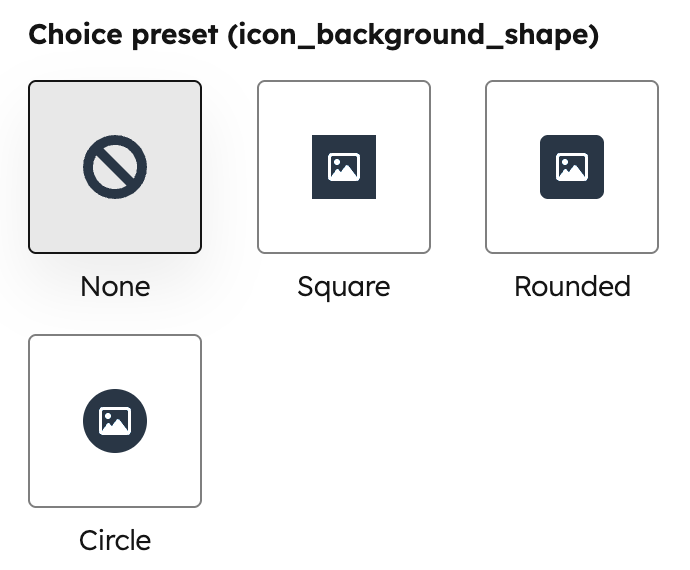 |
| `icon_size` | `small` \| `medium` \| `large` |  |
| `layout` | `cards` \| `tiles` \| `minimal` | 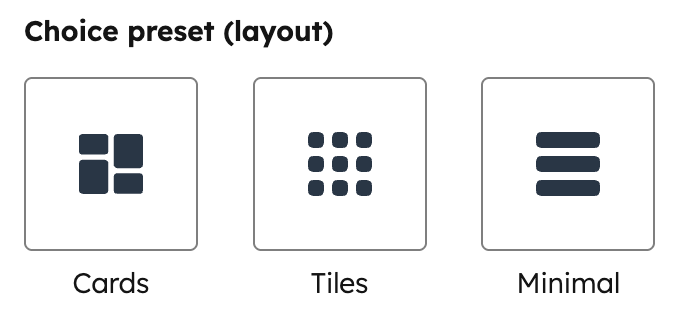 |
| `social_icon_background_shape` | `none` \| `square` \| `rounded` \| `circle` |  |
| `social_icon_size` | `small` \| `medium` \| `large` | 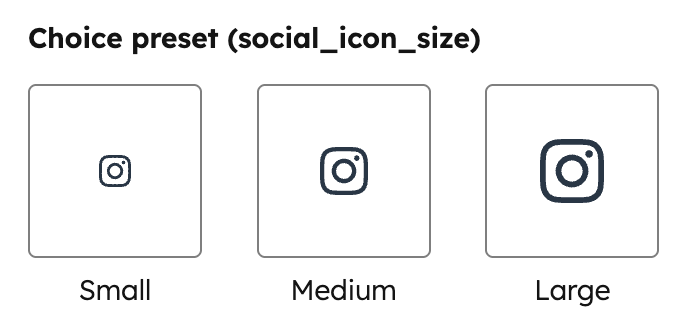 |
## Color
Can be used in [modules](/cms/start-building/building-blocks/modules/overview#fields-json) and [themes](/cms/start-building/building-blocks/overview#fields-json) as a [style field](/cms/reference/fields/overview#style-fields).
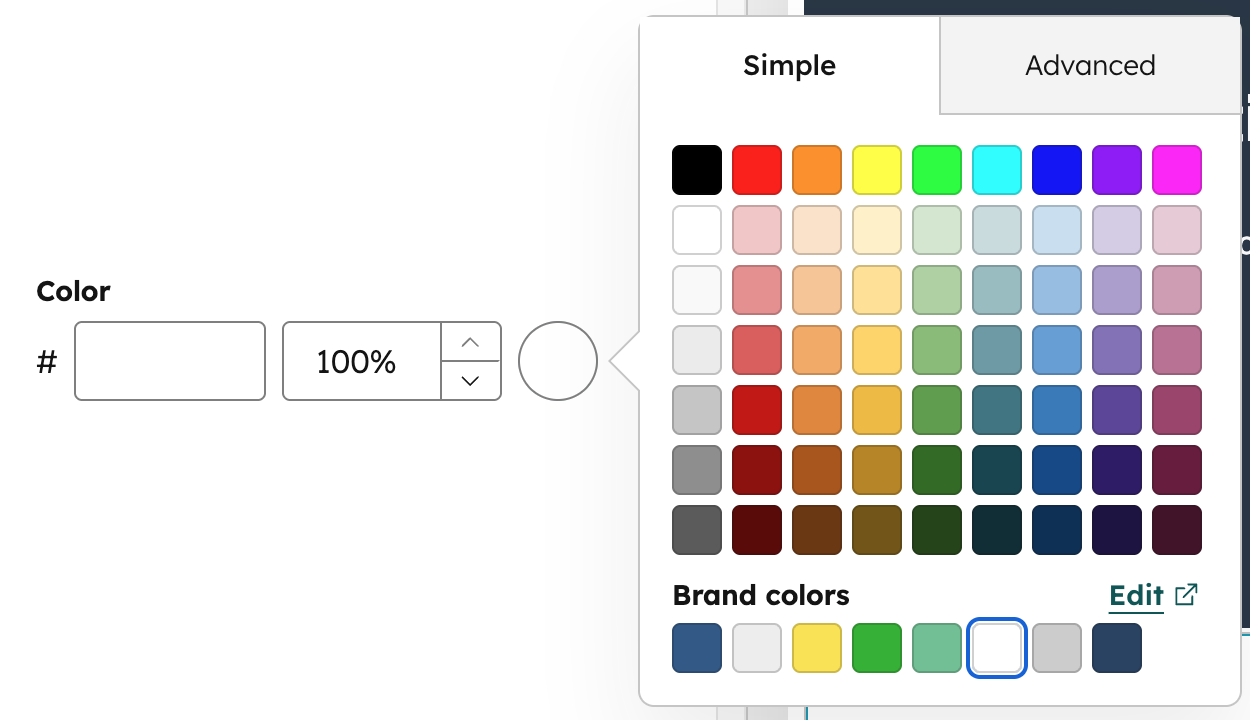
Color fields provide a color picker interface for content creators. They support solid colors as well as transparency. They are a perfect choice for when you want to give content creators full control over colors within a module.
By default, the opacity input of a color field is hidden for email modules, as some email clients don't respect opacity rules. You can reveal the opacity field for email modules by setting `show_opacity` to `true`.
 ```json theme={null}
{
"name" : "color_field",
"label" : "Color",
"required" : false,
"type" : "color",
"default" : {
"color" : "#ffffff",
"opacity" : 100
}
}
```
| Parameter | Type | Description | Default |
| ----------------- | ------- | ----------------------------------------------------------------------------------------------------------------------------------------------------------------------------------------------------------------------------------------------------------- | ------------------------------------------ |
| `default` | Object | Sets the default selected color and opacity. | `{ "color" : "#ffffff", "opacity" : 100 }` |
| `show_opacity` | Boolean | Sets whether opacity input is shown.
```json theme={null}
{
"name" : "color_field",
"label" : "Color",
"required" : false,
"type" : "color",
"default" : {
"color" : "#ffffff",
"opacity" : 100
}
}
```
| Parameter | Type | Description | Default |
| ----------------- | ------- | ----------------------------------------------------------------------------------------------------------------------------------------------------------------------------------------------------------------------------------------------------------- | ------------------------------------------ |
| `default` | Object | Sets the default selected color and opacity. | `{ "color" : "#ffffff", "opacity" : 100 }` |
| `show_opacity` | Boolean | Sets whether opacity input is shown.- `true`: the opacity input is shown.
- `false`: the opacity input is hidden.
- If left undefined, opacity input will not display in email modules, but will display in other module types.
| `undefined` |
| `limited_options` | Array | An array of strings that hides the default color grid and overrides the favorite colors list (the "Favorites" label becomes "Available colors"). Values in the array must be either a hex code or a `color` hex value at any inheritance path. | `undefined` |
```jsx theme={null}
import { ModuleFields, ColorField } from "@hubspot/cms-components/fields";
export const fields = (
);
```
| Prop | Type | Description | Default |
| ---------------- | ------- | ----------------------------------------------------------------------------------------------------------------------------------------------------------------------------------------------------------------------------------------------------------- | ------------------------------------------ |
| `default` | Object | Sets the default selected color and opacity. | `{ "color" : "#ffffff", "opacity" : 100 }` |
| `showOpacity` | Boolean | Sets whether opacity input is shown.- `true`: the opacity input is shown.
- `false`: the opacity input is hidden.
- If left undefined, opacity input will not display in email modules, but will display in other module types.
| `undefined` |
| `limitedOptions` | Array | An array of strings that hides the default color grid and overrides the favorite colors list (the "Favorites" label becomes "Available colors"). Values in the array must be either a hex code or a `color` hex value at any inheritance path. | `undefined` |
## CTA
Can be used in [modules](/cms/start-building/building-blocks/modules/overview#fields-json).
**Please note:** this field is only available for ***Content Hub*** *Professional* and *Enterprise*.
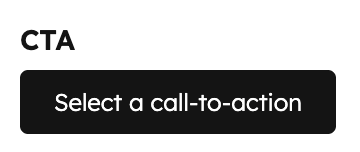
Call-To-Action (CTA) fields provide a way for users to pick a CTA to display. CTA's are essentially trackable buttons or links. Content creators [create CTAs](https://knowledge.hubspot.com/ctas/create-calls-to-action-ctas) that can be used throughout a site.
 ```json theme={null}
{
"name": "cta",
"label": "CTA",
"required": false,
"locked": false,
"type": "cta",
"default": null
}
```
| Parameter | Type | Description | Default |
| --------- | ------ | ------------------------------------------------------------------------------------------------------------------------------------------- | ------- |
| `default` | String | The default selected CTA, specified by ID. CTA IDs can be found in the URL when [editing a CTA in HubSpot](https://app.hubspot.com/l/ctas). | `null` |
```jsx theme={null}
import { ModuleFields, CTAField } from "@hubspot/cms-components/fields";
export const fields = (
);
```
| Prop | Type | Description | Default |
| --------- | ------ | -------------------------------------------------------------------------------------------------------------------------------------------------- | ------- |
| `default` | String | The default selected CTA. Expects a CTA ID, which can be found in the URL when editing a CTA in the [CTA manager](https://app.hubspot.com/l/ctas). | `null` |
## CRM object
Can be used in [modules](/cms/start-building/building-blocks/modules/overview#fields-json).
**Please note:** this field is only available for ***Content Hub*** *Professional* and *Enterprise*.
CRM object fields provide a way for users to pick an individual instance of a CRM object to display.
`module.fieldname.properties` returns the properties fetched from this object instance. This makes it so you don't need to use the `crm_object()` function to get the data for the selected object instance.
`module.fieldname.id` returns the object instance ID.
```json theme={null}
{
"name": "cta",
"label": "CTA",
"required": false,
"locked": false,
"type": "cta",
"default": null
}
```
| Parameter | Type | Description | Default |
| --------- | ------ | ------------------------------------------------------------------------------------------------------------------------------------------- | ------- |
| `default` | String | The default selected CTA, specified by ID. CTA IDs can be found in the URL when [editing a CTA in HubSpot](https://app.hubspot.com/l/ctas). | `null` |
```jsx theme={null}
import { ModuleFields, CTAField } from "@hubspot/cms-components/fields";
export const fields = (
);
```
| Prop | Type | Description | Default |
| --------- | ------ | -------------------------------------------------------------------------------------------------------------------------------------------------- | ------- |
| `default` | String | The default selected CTA. Expects a CTA ID, which can be found in the URL when editing a CTA in the [CTA manager](https://app.hubspot.com/l/ctas). | `null` |
## CRM object
Can be used in [modules](/cms/start-building/building-blocks/modules/overview#fields-json).
**Please note:** this field is only available for ***Content Hub*** *Professional* and *Enterprise*.
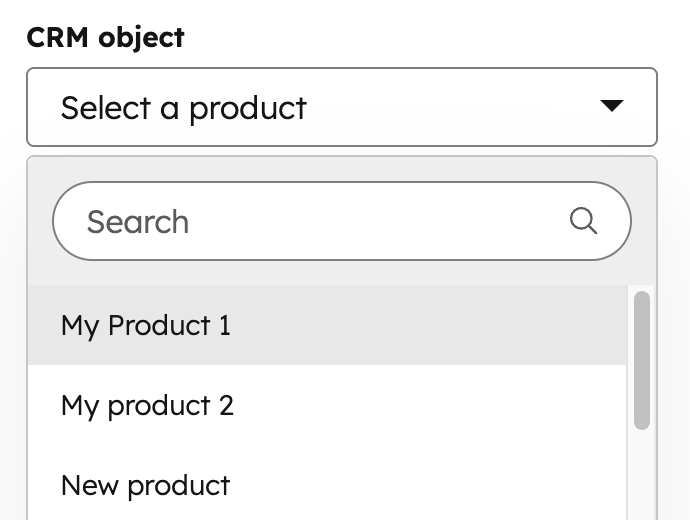
CRM object fields provide a way for users to pick an individual instance of a CRM object to display.
`module.fieldname.properties` returns the properties fetched from this object instance. This makes it so you don't need to use the `crm_object()` function to get the data for the selected object instance.
`module.fieldname.id` returns the object instance ID.
 ```json theme={null}
{
"name": "crmobject_field",
"label": "CRM object",
"required": false,
"locked": false,
"object_type": "PRODUCT",
"properties_to_fetch": [],
"type": "crmobject",
"default": {
"id": 1
}
}
```
| Parameter | Type | Description | Default |
| ----------------------------------- | ------ | ---------------------------------------------------------------------------------------------------------------------------------------------------------------------------------------- | ------- |
| `object_type` | String | Type of CRM Object the user can pick from. [Supported CRM Object Types](/cms/start-building/features/data-driven-content/crm-objects#supported-crm-object-types) | |
| `properties_to_fetch` | Array | Array of property names associated with the object type in string form (e.g., `"hs_cost_of_goods_sold"`). Use this to limit the information available to the page to just what you need. | |
| `default` | Object | The ID of the default selected object instance (e.g., contact or company ID). | `null` |
```jsx theme={null}
import { ModuleFields, CRMObjectField } from "@hubspot/cms-components/fields";
export const fields = (
);
```
| Prop | Type | Description | Default |
| ---------------------------------- | ------ | ---------------------------------------------------------------------------------------------------------------------------------------------------------------------------------------- | ------- |
| `objectType` | String | Type of CRM Object the user can pick from. [Supported CRM Object Types](/cms/start-building/features/data-driven-content/crm-objects#supported-crm-object-types) | |
| `propertiesToFetch` | Array | Array of property names associated with the object type in string form (e.g., `"hs_cost_of_goods_sold"`). Use this to limit the information available to the page to just what you need. | |
| `default` | Object | The ID of the default selected object instance (e.g., contact or company ID). | `null` |
## CRM object property
Can be used in [modules](/cms/start-building/building-blocks/modules/overview#fields-json).
**Please note:** this field is only available for ***Content Hub*** *Professional* and *Enterprise*.
Use the CRM object property field to access property metadata, such as the label and property name, from a specified object type. This enables content creators to select from object properties when needing to display property details on a page.
For example, you could add this field to a custom table module to populate table headings based on the selected properties.
```json theme={null}
{
"name": "crmobject_field",
"label": "CRM object",
"required": false,
"locked": false,
"object_type": "PRODUCT",
"properties_to_fetch": [],
"type": "crmobject",
"default": {
"id": 1
}
}
```
| Parameter | Type | Description | Default |
| ----------------------------------- | ------ | ---------------------------------------------------------------------------------------------------------------------------------------------------------------------------------------- | ------- |
| `object_type` | String | Type of CRM Object the user can pick from. [Supported CRM Object Types](/cms/start-building/features/data-driven-content/crm-objects#supported-crm-object-types) | |
| `properties_to_fetch` | Array | Array of property names associated with the object type in string form (e.g., `"hs_cost_of_goods_sold"`). Use this to limit the information available to the page to just what you need. | |
| `default` | Object | The ID of the default selected object instance (e.g., contact or company ID). | `null` |
```jsx theme={null}
import { ModuleFields, CRMObjectField } from "@hubspot/cms-components/fields";
export const fields = (
);
```
| Prop | Type | Description | Default |
| ---------------------------------- | ------ | ---------------------------------------------------------------------------------------------------------------------------------------------------------------------------------------- | ------- |
| `objectType` | String | Type of CRM Object the user can pick from. [Supported CRM Object Types](/cms/start-building/features/data-driven-content/crm-objects#supported-crm-object-types) | |
| `propertiesToFetch` | Array | Array of property names associated with the object type in string form (e.g., `"hs_cost_of_goods_sold"`). Use this to limit the information available to the page to just what you need. | |
| `default` | Object | The ID of the default selected object instance (e.g., contact or company ID). | `null` |
## CRM object property
Can be used in [modules](/cms/start-building/building-blocks/modules/overview#fields-json).
**Please note:** this field is only available for ***Content Hub*** *Professional* and *Enterprise*.
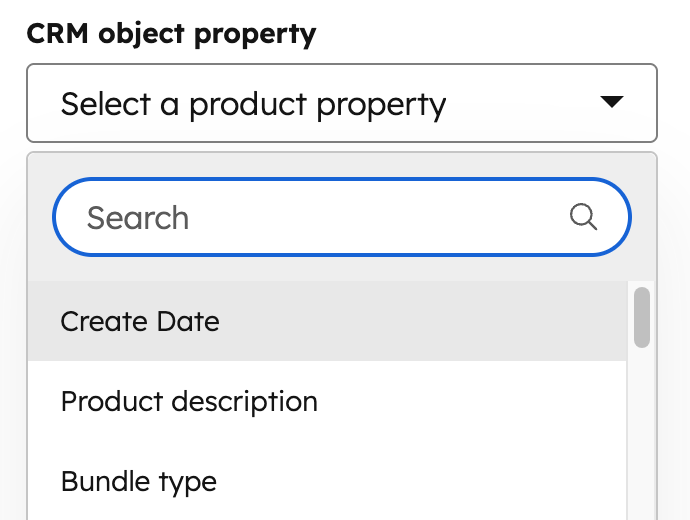
Use the CRM object property field to access property metadata, such as the label and property name, from a specified object type. This enables content creators to select from object properties when needing to display property details on a page.
For example, you could add this field to a custom table module to populate table headings based on the selected properties.
 ```json theme={null}
{
"name": "crmobjectproperty_field",
"label": "CRM object property",
"required": true,
"locked": false,
"object_type": "PRODUCT",
"type": "crmobjectproperty",
"default": {
"property": "hs_cost_of_goods_sold"
}
}
```
| Parameter | Type | Description |
| ----------------------------------- | ------ | ---------------------------------------------------------------------------------------------------------------------------------------------------------------------------------- |
| `object_type` | String | Type of CRM Object the user can pick from. Learn more about [supported CRM object types](/cms/start-building/features/data-driven-content/crm-objects#supported-crm-object-types). |
| `default` | Object | Contains the default property to display. |
In addition, you can use the following snippets to return other property details:
* `{{ module.fieldname.property }}`: returns the property's internal name.
* `{{ module.fieldname.property_definition.label }}`: returns the property's label.
* `{{ module.fieldname.property_definition.type }}`: returns the property type (e.g., string).
```jsx theme={null}
import { ModuleFields, CRMObjectPropertyField } from "@hubspot/cms-components/fields";
export const fields = (
);
```
| Prop | Type | Description |
| ---------------------------------- | ------ | ---------------------------------------------------------------------------------------------------------------------------------------------------------------------------------- |
| `objectType` | String | Type of CRM Object the user can pick from. Learn more about [supported CRM object types](/cms/start-building/features/data-driven-content/crm-objects#supported-crm-object-types). |
| `default` | Object | Contains the default property to display. |
## Date
Can be used in [modules](/cms/start-building/building-blocks/modules/overview#fields-json).
Date fields provide a date picker interface to make it easy for content creators to select a date. Returns a timestamp you can use in your code.
```json theme={null}
{
"name": "crmobjectproperty_field",
"label": "CRM object property",
"required": true,
"locked": false,
"object_type": "PRODUCT",
"type": "crmobjectproperty",
"default": {
"property": "hs_cost_of_goods_sold"
}
}
```
| Parameter | Type | Description |
| ----------------------------------- | ------ | ---------------------------------------------------------------------------------------------------------------------------------------------------------------------------------- |
| `object_type` | String | Type of CRM Object the user can pick from. Learn more about [supported CRM object types](/cms/start-building/features/data-driven-content/crm-objects#supported-crm-object-types). |
| `default` | Object | Contains the default property to display. |
In addition, you can use the following snippets to return other property details:
* `{{ module.fieldname.property }}`: returns the property's internal name.
* `{{ module.fieldname.property_definition.label }}`: returns the property's label.
* `{{ module.fieldname.property_definition.type }}`: returns the property type (e.g., string).
```jsx theme={null}
import { ModuleFields, CRMObjectPropertyField } from "@hubspot/cms-components/fields";
export const fields = (
);
```
| Prop | Type | Description |
| ---------------------------------- | ------ | ---------------------------------------------------------------------------------------------------------------------------------------------------------------------------------- |
| `objectType` | String | Type of CRM Object the user can pick from. Learn more about [supported CRM object types](/cms/start-building/features/data-driven-content/crm-objects#supported-crm-object-types). |
| `default` | Object | Contains the default property to display. |
## Date
Can be used in [modules](/cms/start-building/building-blocks/modules/overview#fields-json).
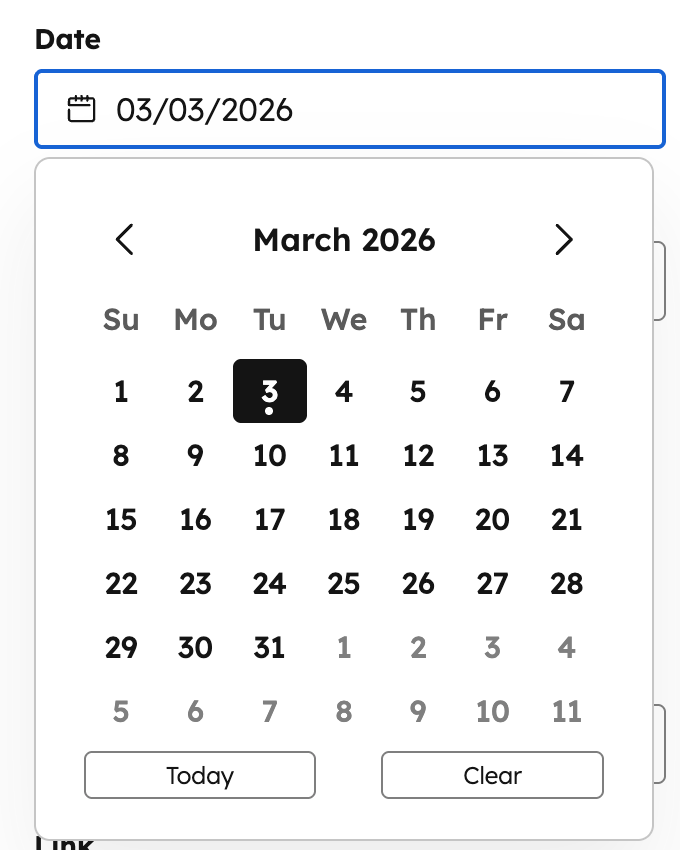
Date fields provide a date picker interface to make it easy for content creators to select a date. Returns a timestamp you can use in your code.
 ```json theme={null}
{
"name": "date_field",
"label": "Date",
"required": false,
"locked": false,
"type": "date",
"default": 1772562600000
}
```
| Parameter | Type | Description | Default |
| --------- | --------- | ------------------------------------------------------------------------------------------------------------------------------------------------------------------------------------------------- | ------- |
| `default` | Timestamp | The Unix Epoch timestamp for the date and time you want to default to. Leave this null to allow the date and time picker to start the content creator at the current date and time in the picker. | `null` |
```jsx theme={null}
import { ModuleFields, DateField } from "@hubspot/cms-components/fields";
export const fields = (
);
```
| Prop | Type | Description | Default |
| --------- | --------- | ------------------------------------------------------------------------------------------------------------------------------------------------------------------------------------------------- | ------- |
| `default` | Timestamp | The Unix Epoch timestamp for the date and time you want to default to. Leave this null to allow the date and time picker to start the content creator at the current date and time in the picker. | `null` |
## Date and time
Can be used in [modules](/cms/start-building/building-blocks/modules/overview#fields-json).
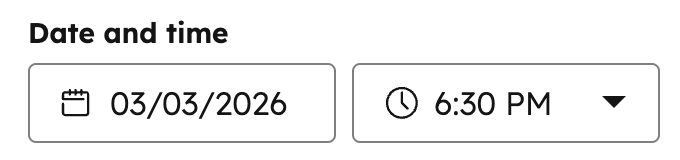
Date and time fields provide a date picker interface just like the date field, as well as a time picker to make it easy for content creators to select a date and time of day. Returns a timestamp you can use in your code.
```json theme={null}
{
"name": "date_field",
"label": "Date",
"required": false,
"locked": false,
"type": "date",
"default": 1772562600000
}
```
| Parameter | Type | Description | Default |
| --------- | --------- | ------------------------------------------------------------------------------------------------------------------------------------------------------------------------------------------------- | ------- |
| `default` | Timestamp | The Unix Epoch timestamp for the date and time you want to default to. Leave this null to allow the date and time picker to start the content creator at the current date and time in the picker. | `null` |
```jsx theme={null}
import { ModuleFields, DateField } from "@hubspot/cms-components/fields";
export const fields = (
);
```
| Prop | Type | Description | Default |
| --------- | --------- | ------------------------------------------------------------------------------------------------------------------------------------------------------------------------------------------------- | ------- |
| `default` | Timestamp | The Unix Epoch timestamp for the date and time you want to default to. Leave this null to allow the date and time picker to start the content creator at the current date and time in the picker. | `null` |
## Date and time
Can be used in [modules](/cms/start-building/building-blocks/modules/overview#fields-json).
Date and time fields provide a date picker interface just like the date field, as well as a time picker to make it easy for content creators to select a date and time of day. Returns a timestamp you can use in your code.
 ```json theme={null}
{
"name": "datetime_field",
"label": "Date and time",
"required": false,
"locked": false,
"type": "datetime",
"default": 1772562600000
}
```
| Parameter | Type | Description | Default |
| --------- | --------- | ------------------------------------------------------------------------------------------------------------------------------------------------------------------------------------------------- | ------- |
| `default` | Timestamp | The Unix Epoch timestamp for the date and time you want to default to. Leave this null to allow the date and time picker to start the content creator at the current date and time in the picker. | `null` |
| `step` | Number | The minute increment for the time picker (e.g., `15` shows options every 15 minutes). | |
```jsx theme={null}
import { ModuleFields, DateTimeField } from "@hubspot/cms-components/fields";
export const fields = (
);
```
| Prop | Type | Description | Default |
| --------- | --------- | ------------------------------------------------------------------------------------------------------------------------------------------------------------------------------------------------- | ------- |
| `default` | Timestamp | The Unix Epoch timestamp for the date and time you want to default to. Leave this null to allow the date and time picker to start the content creator at the current date and time in the picker. | `null` |
| `step` | Number | The minute increment for the time picker (e.g., `15` shows options every 15 minutes). | |
## Email Address
Can be used in [modules](/cms/start-building/building-blocks/modules/overview#fields-json).
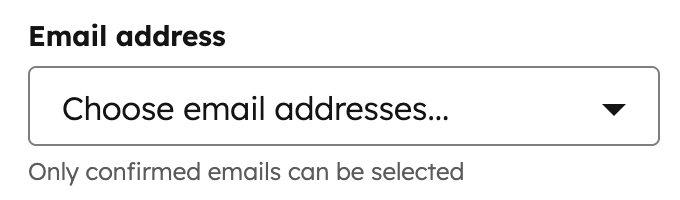
Use this field to allow users to select email addresses associated with users in the account, or enter custom email addresses. For example, this could be useful when building out a *Contact us* section with an email address option. The email field returns an array of selected email addresses you can loop through.
```json theme={null}
{
"name": "datetime_field",
"label": "Date and time",
"required": false,
"locked": false,
"type": "datetime",
"default": 1772562600000
}
```
| Parameter | Type | Description | Default |
| --------- | --------- | ------------------------------------------------------------------------------------------------------------------------------------------------------------------------------------------------- | ------- |
| `default` | Timestamp | The Unix Epoch timestamp for the date and time you want to default to. Leave this null to allow the date and time picker to start the content creator at the current date and time in the picker. | `null` |
| `step` | Number | The minute increment for the time picker (e.g., `15` shows options every 15 minutes). | |
```jsx theme={null}
import { ModuleFields, DateTimeField } from "@hubspot/cms-components/fields";
export const fields = (
);
```
| Prop | Type | Description | Default |
| --------- | --------- | ------------------------------------------------------------------------------------------------------------------------------------------------------------------------------------------------- | ------- |
| `default` | Timestamp | The Unix Epoch timestamp for the date and time you want to default to. Leave this null to allow the date and time picker to start the content creator at the current date and time in the picker. | `null` |
| `step` | Number | The minute increment for the time picker (e.g., `15` shows options every 15 minutes). | |
## Email Address
Can be used in [modules](/cms/start-building/building-blocks/modules/overview#fields-json).
Use this field to allow users to select email addresses associated with users in the account, or enter custom email addresses. For example, this could be useful when building out a *Contact us* section with an email address option. The email field returns an array of selected email addresses you can loop through.
 ```json theme={null}
{
"name": "emails",
"label": "Email address",
"required": false,
"allow_custom_email_addresses" : true,
"type": "email",
"default": null
}
```
| Parameter | Type | Description | Default |
| ------------------------------ | ------- | ----------------------------------------------------------------------- | ------- |
| `default` | Array | Array of email address strings. | `null` |
| `allow_custom_email_addresses` | Boolean | When set to `false`, users won't be able to add custom email addresses. | |
```jsx theme={null}
import { ModuleFields, EmailField } from "@hubspot/cms-components/fields";
export const fields = (
);
```
| Prop | Type | Description | Default |
| --------------------------- | ------- | ----------------------------------------------------------------------- | ------- |
| `default` | Array | Array of email address strings. | `null` |
| `allowCustomEmailAddresses` | Boolean | When set to `false`, users won't be able to add custom email addresses. | |
## Embed
Can be used in [modules](/cms/start-building/building-blocks/modules/overview#fields-json).
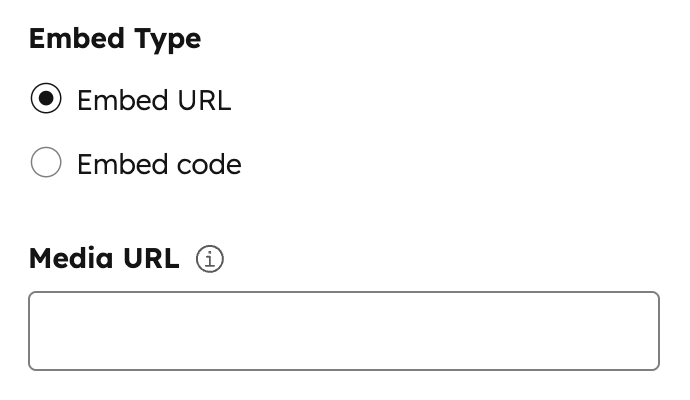
Embed fields allow the user to add a URL from an [oEmbed-enabled site](https://oembed.com/#section7) or paste in an embed code from another site. To learn more about oEmbed usage on HubSpot, and see use cases, visit our [oEmbed document](/cms/reference/fields/overview).
```json theme={null}
{
"name": "emails",
"label": "Email address",
"required": false,
"allow_custom_email_addresses" : true,
"type": "email",
"default": null
}
```
| Parameter | Type | Description | Default |
| ------------------------------ | ------- | ----------------------------------------------------------------------- | ------- |
| `default` | Array | Array of email address strings. | `null` |
| `allow_custom_email_addresses` | Boolean | When set to `false`, users won't be able to add custom email addresses. | |
```jsx theme={null}
import { ModuleFields, EmailField } from "@hubspot/cms-components/fields";
export const fields = (
);
```
| Prop | Type | Description | Default |
| --------------------------- | ------- | ----------------------------------------------------------------------- | ------- |
| `default` | Array | Array of email address strings. | `null` |
| `allowCustomEmailAddresses` | Boolean | When set to `false`, users won't be able to add custom email addresses. | |
## Embed
Can be used in [modules](/cms/start-building/building-blocks/modules/overview#fields-json).
Embed fields allow the user to add a URL from an [oEmbed-enabled site](https://oembed.com/#section7) or paste in an embed code from another site. To learn more about oEmbed usage on HubSpot, and see use cases, visit our [oEmbed document](/cms/reference/fields/overview).
 ```json theme={null}
{
"name" : "embed_field",
"label" : "Embed",
"required" : false,
"locked" : false,
"supported_source_types" : [ "oembed", "html" ],
"supported_oembed_types" : [ "photo", "video", "link", "rich" ],
"resizable" : true,
"show_preview" : true,
"supported_media_bridge_providers" : [ ],
"type" : "embed",
"display_width" : null,
"default" : {
"source_type" : "oembed"
}
}
```
| Parameter | Type | Description | Default |
| ---------------------------------- | ------- | -------------------------------------------------------------------------------------------------------------------------------------------------------------------------------------------------------------------------------------------------------------------- | -------------------------------------- |
| `supported_source_types` | Array | Supported source types for either oEmbed URLs (`oembed`), HTML embed code (`html`), or Media Bridge (`media_bridge`). | `["oembed", "html"]` |
| `supported_oembed_types` | Array | Supported oEmbed type including `"photo"`, `"video"`, `"link"`, and `"rich"`. Does not apply to the supported\_source\_types of html | `[ "photo", "video", "link", "rich" ]` |
| `supported_media_bridge_providers` | Array | Array of provider IDs that determine which Media Bridge providers are available to select content from.Note: This param will also be populated when installing a [Media Bridge Provider Application](https://ecosystem.hubspot.com/marketplace/apps/apps-for-media). | |
| `resizable` | Boolean | When set to `false`, users won't be able to resize the embed in the editor. | `true` |
| `show_preview` | Boolean | When set to `false`, the embed preview is hidden in the editor. | `true` |
| `type` | String | This parameter is always set to `"embed"` | `"embed"` |
| `default` | Dict | An array containing the `"source_type"` parameter. This parameter has one string based value from the options provided in the `"supported_source_types"` parameter. | `oembed` |
```jsx theme={null}
import { ModuleFields, EmbedField } from "@hubspot/cms-components/fields";
export const fields = (
);
```
| Prop | Type | Description | Default |
| ------------------------------- | ------- | -------------------------------------------------------------------------------------------------------------------------------------------------------------------------------------------------------------------------------------------------------------------- | -------------------------------------- |
| `supportedSourceTypes` | Array | Supported source types for either oEmbed URLs (`oembed`), HTML embed code (`html`), or Media Bridge (`media_bridge`). | `["oembed", "html"]` |
| `supportedOembedTypes` | Array | Supported oEmbed type including `"photo"`, `"video"`, `"link"`, and `"rich"`. Does not apply to the supported\_source\_types of html | `[ "photo", "video", "link", "rich" ]` |
| `supportedMediaBridgeProviders` | Array | Array of provider IDs that determine which Media Bridge providers are available to select content from.Note: This param will also be populated when installing a [Media Bridge Provider Application](https://ecosystem.hubspot.com/marketplace/apps/apps-for-media). | |
| `resizable` | Boolean | When set to `false`, users won't be able to resize the embed in the editor. | `true` |
| `showPreview` | Boolean | When set to `false`, the embed preview is hidden in the editor. | `true` |
| `type` | String | This parameter is always set to `"embed"` | `"embed"` |
| `default` | Dict | An array containing the `"source_type"` parameter. This parameter has one string based value from the options provided in the `"supported_source_types"` parameter. | `oembed` |
## File
Can be used in [modules](/cms/start-building/building-blocks/modules/overview#fields-json).
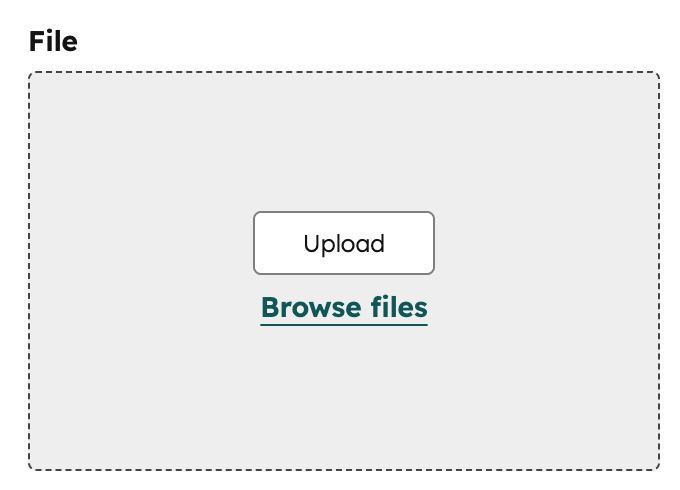
File fields allow the user to upload a file to the file manager, or document manager, and make it easy to attach items that are in those locations. This can be useful for linking out to PDF files or files of other formats. For displaying images on a page you should use the image field.
```json theme={null}
{
"name" : "embed_field",
"label" : "Embed",
"required" : false,
"locked" : false,
"supported_source_types" : [ "oembed", "html" ],
"supported_oembed_types" : [ "photo", "video", "link", "rich" ],
"resizable" : true,
"show_preview" : true,
"supported_media_bridge_providers" : [ ],
"type" : "embed",
"display_width" : null,
"default" : {
"source_type" : "oembed"
}
}
```
| Parameter | Type | Description | Default |
| ---------------------------------- | ------- | -------------------------------------------------------------------------------------------------------------------------------------------------------------------------------------------------------------------------------------------------------------------- | -------------------------------------- |
| `supported_source_types` | Array | Supported source types for either oEmbed URLs (`oembed`), HTML embed code (`html`), or Media Bridge (`media_bridge`). | `["oembed", "html"]` |
| `supported_oembed_types` | Array | Supported oEmbed type including `"photo"`, `"video"`, `"link"`, and `"rich"`. Does not apply to the supported\_source\_types of html | `[ "photo", "video", "link", "rich" ]` |
| `supported_media_bridge_providers` | Array | Array of provider IDs that determine which Media Bridge providers are available to select content from.Note: This param will also be populated when installing a [Media Bridge Provider Application](https://ecosystem.hubspot.com/marketplace/apps/apps-for-media). | |
| `resizable` | Boolean | When set to `false`, users won't be able to resize the embed in the editor. | `true` |
| `show_preview` | Boolean | When set to `false`, the embed preview is hidden in the editor. | `true` |
| `type` | String | This parameter is always set to `"embed"` | `"embed"` |
| `default` | Dict | An array containing the `"source_type"` parameter. This parameter has one string based value from the options provided in the `"supported_source_types"` parameter. | `oembed` |
```jsx theme={null}
import { ModuleFields, EmbedField } from "@hubspot/cms-components/fields";
export const fields = (
);
```
| Prop | Type | Description | Default |
| ------------------------------- | ------- | -------------------------------------------------------------------------------------------------------------------------------------------------------------------------------------------------------------------------------------------------------------------- | -------------------------------------- |
| `supportedSourceTypes` | Array | Supported source types for either oEmbed URLs (`oembed`), HTML embed code (`html`), or Media Bridge (`media_bridge`). | `["oembed", "html"]` |
| `supportedOembedTypes` | Array | Supported oEmbed type including `"photo"`, `"video"`, `"link"`, and `"rich"`. Does not apply to the supported\_source\_types of html | `[ "photo", "video", "link", "rich" ]` |
| `supportedMediaBridgeProviders` | Array | Array of provider IDs that determine which Media Bridge providers are available to select content from.Note: This param will also be populated when installing a [Media Bridge Provider Application](https://ecosystem.hubspot.com/marketplace/apps/apps-for-media). | |
| `resizable` | Boolean | When set to `false`, users won't be able to resize the embed in the editor. | `true` |
| `showPreview` | Boolean | When set to `false`, the embed preview is hidden in the editor. | `true` |
| `type` | String | This parameter is always set to `"embed"` | `"embed"` |
| `default` | Dict | An array containing the `"source_type"` parameter. This parameter has one string based value from the options provided in the `"supported_source_types"` parameter. | `oembed` |
## File
Can be used in [modules](/cms/start-building/building-blocks/modules/overview#fields-json).
File fields allow the user to upload a file to the file manager, or document manager, and make it easy to attach items that are in those locations. This can be useful for linking out to PDF files or files of other formats. For displaying images on a page you should use the image field.
 ```json theme={null}
{
"name": "file_field",
"label": "File",
"required": false,
"locked": false,
"type": "file",
"picker": "file",
"default": null
}
```
| Parameter | Type | Description | Default |
| ------------------------------ | ------ | ------------------------------------------------------------------------------------------------------------------------------------------------------------------------------------------------------ | ------- |
| `default` | String | File URL. | `null` |
| `picker` | String | The type of files to display in the dropdown menu, sourced from the file manager or document manager, depending on the option. Can be one of: `"file"`, `"document"`, `"image"`, `"video"`, `"audio"`. | `file` |
```jsx theme={null}
import { ModuleFields, FileField } from "@hubspot/cms-components/fields";
export const fields = (
);
```
| Prop | Type | Description | Default |
| --------- | ------ | ------------------------------------------------------------------------------------------------------------------------------------------------------------------------------------------------------ | ------- |
| `default` | String | File URL. | `null` |
| `picker` | String | The type of files to display in the dropdown menu, sourced from the file manager or document manager, depending on the option. Can be one of: `"file"`, `"document"`, `"image"`, `"video"`, `"audio"`. | `file` |
## Followup email
Can be used in [modules](/cms/start-building/building-blocks/modules/overview#fields-json).
**Please note:** this field is being deprecated in favor of attaching followup emails within form fields. Consider removing any followup email fields from this module beforehand. Learn more in the [Developer Changelog](https://developers.hubspot.com/changelog/june-2023-rollup).
Followup email fields allow a content creator to designate an email that will be sent in response to a form submission. This works in tandem with the [HubL form tag](/cms/reference/hubl/tags/standard-tags#form), through the `simple_email_campaign_id` parameter.
```json theme={null}
{
"name": "file_field",
"label": "File",
"required": false,
"locked": false,
"type": "file",
"picker": "file",
"default": null
}
```
| Parameter | Type | Description | Default |
| ------------------------------ | ------ | ------------------------------------------------------------------------------------------------------------------------------------------------------------------------------------------------------ | ------- |
| `default` | String | File URL. | `null` |
| `picker` | String | The type of files to display in the dropdown menu, sourced from the file manager or document manager, depending on the option. Can be one of: `"file"`, `"document"`, `"image"`, `"video"`, `"audio"`. | `file` |
```jsx theme={null}
import { ModuleFields, FileField } from "@hubspot/cms-components/fields";
export const fields = (
);
```
| Prop | Type | Description | Default |
| --------- | ------ | ------------------------------------------------------------------------------------------------------------------------------------------------------------------------------------------------------ | ------- |
| `default` | String | File URL. | `null` |
| `picker` | String | The type of files to display in the dropdown menu, sourced from the file manager or document manager, depending on the option. Can be one of: `"file"`, `"document"`, `"image"`, `"video"`, `"audio"`. | `file` |
## Followup email
Can be used in [modules](/cms/start-building/building-blocks/modules/overview#fields-json).
**Please note:** this field is being deprecated in favor of attaching followup emails within form fields. Consider removing any followup email fields from this module beforehand. Learn more in the [Developer Changelog](https://developers.hubspot.com/changelog/june-2023-rollup).
Followup email fields allow a content creator to designate an email that will be sent in response to a form submission. This works in tandem with the [HubL form tag](/cms/reference/hubl/tags/standard-tags#form), through the `simple_email_campaign_id` parameter.
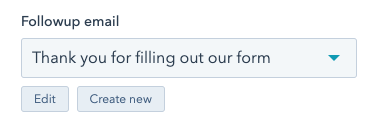 ```json theme={null}
{
"name": "followup_email",
"label": "Followup email",
"required": false,
"locked": false,
"type": "followupemail",
"default": null
}
```
| Parameter | Type | Description | Default |
| --------- | ------ | ----------- | ------- |
| `default` | String | Email ID | `null` |
```jsx theme={null}
import { ModuleFields, FollowUpEmailField } from "@hubspot/cms-components/fields";
export const fields = (
);
```
| Prop | Type | Description | Default |
| --------- | ------ | ----------- | ------- |
| `default` | String | Email ID | `null` |
## Font
Can be used in [modules](/cms/start-building/building-blocks/modules/overview#fields-json) and [themes](/cms/start-building/building-blocks/overview#fields-json) as a [style field](/cms/reference/fields/overview#style-fields).
Font fields provide content creators basic font styling controls. Content creators can choose the size, color, font family, and the format (bold, italic, and underlined). The listed fonts are all standard web-safe fonts. These fonts are sourced from [Google Fonts](https://fonts.google.com/), but are served by HubSpot directly on the domain that the page loads on.
```json theme={null}
{
"name": "followup_email",
"label": "Followup email",
"required": false,
"locked": false,
"type": "followupemail",
"default": null
}
```
| Parameter | Type | Description | Default |
| --------- | ------ | ----------- | ------- |
| `default` | String | Email ID | `null` |
```jsx theme={null}
import { ModuleFields, FollowUpEmailField } from "@hubspot/cms-components/fields";
export const fields = (
);
```
| Prop | Type | Description | Default |
| --------- | ------ | ----------- | ------- |
| `default` | String | Email ID | `null` |
## Font
Can be used in [modules](/cms/start-building/building-blocks/modules/overview#fields-json) and [themes](/cms/start-building/building-blocks/overview#fields-json) as a [style field](/cms/reference/fields/overview#style-fields).
Font fields provide content creators basic font styling controls. Content creators can choose the size, color, font family, and the format (bold, italic, and underlined). The listed fonts are all standard web-safe fonts. These fonts are sourced from [Google Fonts](https://fonts.google.com/), but are served by HubSpot directly on the domain that the page loads on.
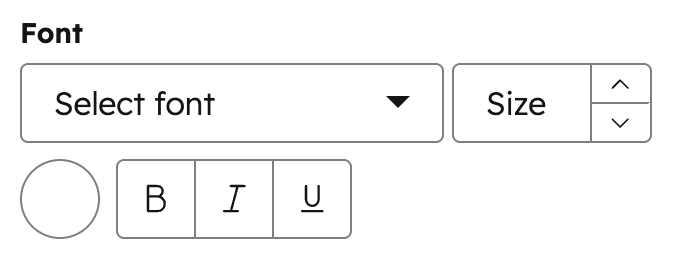 **Please note:**
* Font family is determined by the combination of the `font` and `font_set` properties. You must include both to load the font. When [inheriting fields](/cms/reference/fields/overview#inherited-fields), this means you need to inherit both values.
* Hiding CSS-related sub fields with `visibility` will not prevent that CSS from being output in the styling returned in the field object. You'll still need to manually include the CSS in the `styles` object.
```json theme={null}
{
"name": "font",
"label": "Font",
"required": false,
"locked": false,
"load_external_fonts": true,
"type": "font",
"default": {
"size": 12,
"font": "Merriweather",
"font_set": "GOOGLE",
"size_unit": "px",
"color": "#000",
"styles": {}
},
"visibility": {
"hidden_subfields": {
"font": true,
"size": true
}
}
}
```
| Parameter | Type | Description | Default |
| --------------------- | ------- | ---------------------------------------------------------------------------------------------------------------------------------------------------------------------------------------------------------------------------------------------------- | ----------------------------------------------------------------------- |
| `default` | Object | Font object with settings for size, sizing unit, color, and styles for bold, italic, and underline. | `{ "size" : 12, "size_unit" : "px", "color" : "#000", "styles" : { } }` |
| `load_external_fonts` | Boolean | HubSpot automatically loads the selected web font to the page if the font is selected and referenced by HubL in a stylesheet or in a module. Set this to false, if you are already loading the font to the page, that way the font won't load twice. | `true` |
| `visibility` | Object | Using the `hidden_subfields` nested object, you can set a boolean for which controls of the Font field to hide. Subfields include: `font`, `size`, `bold`, `italic`, `underline`, and `color`. | |
| `variant` | String | If using a web font, the variant of the font you want to use. For example, to use the 700-weight version of a font, set this to `"700"`. To use the 400-weight italic version of a font, set this to `"400i"`. | |
| `limited_options` | Array | Array of strings that overrides the list of all font options. Values in the array must be a hard-coded font name or a font `name` property at any inheritance path. For example `theme.typography.body_text.name`. | `undefined` |
```jsx theme={null}
import { ModuleFields, FontField } from "@hubspot/cms-components/fields";
export const fields = (
);
```
| Prop | Type | Description | Default |
| ------------------- | ------- | ---------------------------------------------------------------------------------------------------------------------------------------------------------------------------------------------------------------------------------------------------- | ----------------------------------------------------------------------- |
| `default` | Object | Font object with settings for size, sizing unit, color, and styles for bold, italic, and underline. | `{ "size" : 12, "size_unit" : "px", "color" : "#000", "styles" : { } }` |
| `loadExternalFonts` | Boolean | HubSpot automatically loads the selected web font to the page if the font is selected and referenced by HubL in a stylesheet or in a module. Set this to false, if you are already loading the font to the page, that way the font won't load twice. | `true` |
| `visibility` | Object | Using the `hidden_subfields` nested object, you can set a boolean for which controls of the Font field to hide. Subfields include: `font`, `size`, `bold`, `italic`, `underline`, and `color`. | |
| `variant` | String | If using a web font, the variant of the font you want to use. For example, to use the 700-weight version of a font, set this to `"700"`. To use the 400-weight italic version of a font, set this to `"400i"`. | |
| `limitedOptions` | Array | Array of strings that overrides the list of all font options. Values in the array must be a hard-coded font name or a font `name` property at any inheritance path. For example `theme.typography.body_text.name`. | `undefined` |
## Form
Can be used in [modules](/cms/start-building/building-blocks/modules/overview#fields-json).
Form fields allow a content creator to designate a form in their account. You can then use this to render a form to a page using the [HubL form tag](/cms/reference/hubl/tags/standard-tags#form).
**Please note:**
* Font family is determined by the combination of the `font` and `font_set` properties. You must include both to load the font. When [inheriting fields](/cms/reference/fields/overview#inherited-fields), this means you need to inherit both values.
* Hiding CSS-related sub fields with `visibility` will not prevent that CSS from being output in the styling returned in the field object. You'll still need to manually include the CSS in the `styles` object.
```json theme={null}
{
"name": "font",
"label": "Font",
"required": false,
"locked": false,
"load_external_fonts": true,
"type": "font",
"default": {
"size": 12,
"font": "Merriweather",
"font_set": "GOOGLE",
"size_unit": "px",
"color": "#000",
"styles": {}
},
"visibility": {
"hidden_subfields": {
"font": true,
"size": true
}
}
}
```
| Parameter | Type | Description | Default |
| --------------------- | ------- | ---------------------------------------------------------------------------------------------------------------------------------------------------------------------------------------------------------------------------------------------------- | ----------------------------------------------------------------------- |
| `default` | Object | Font object with settings for size, sizing unit, color, and styles for bold, italic, and underline. | `{ "size" : 12, "size_unit" : "px", "color" : "#000", "styles" : { } }` |
| `load_external_fonts` | Boolean | HubSpot automatically loads the selected web font to the page if the font is selected and referenced by HubL in a stylesheet or in a module. Set this to false, if you are already loading the font to the page, that way the font won't load twice. | `true` |
| `visibility` | Object | Using the `hidden_subfields` nested object, you can set a boolean for which controls of the Font field to hide. Subfields include: `font`, `size`, `bold`, `italic`, `underline`, and `color`. | |
| `variant` | String | If using a web font, the variant of the font you want to use. For example, to use the 700-weight version of a font, set this to `"700"`. To use the 400-weight italic version of a font, set this to `"400i"`. | |
| `limited_options` | Array | Array of strings that overrides the list of all font options. Values in the array must be a hard-coded font name or a font `name` property at any inheritance path. For example `theme.typography.body_text.name`. | `undefined` |
```jsx theme={null}
import { ModuleFields, FontField } from "@hubspot/cms-components/fields";
export const fields = (
);
```
| Prop | Type | Description | Default |
| ------------------- | ------- | ---------------------------------------------------------------------------------------------------------------------------------------------------------------------------------------------------------------------------------------------------- | ----------------------------------------------------------------------- |
| `default` | Object | Font object with settings for size, sizing unit, color, and styles for bold, italic, and underline. | `{ "size" : 12, "size_unit" : "px", "color" : "#000", "styles" : { } }` |
| `loadExternalFonts` | Boolean | HubSpot automatically loads the selected web font to the page if the font is selected and referenced by HubL in a stylesheet or in a module. Set this to false, if you are already loading the font to the page, that way the font won't load twice. | `true` |
| `visibility` | Object | Using the `hidden_subfields` nested object, you can set a boolean for which controls of the Font field to hide. Subfields include: `font`, `size`, `bold`, `italic`, `underline`, and `color`. | |
| `variant` | String | If using a web font, the variant of the font you want to use. For example, to use the 700-weight version of a font, set this to `"700"`. To use the 400-weight italic version of a font, set this to `"400i"`. | |
| `limitedOptions` | Array | Array of strings that overrides the list of all font options. Values in the array must be a hard-coded font name or a font `name` property at any inheritance path. For example `theme.typography.body_text.name`. | `undefined` |
## Form
Can be used in [modules](/cms/start-building/building-blocks/modules/overview#fields-json).
Form fields allow a content creator to designate a form in their account. You can then use this to render a form to a page using the [HubL form tag](/cms/reference/hubl/tags/standard-tags#form).
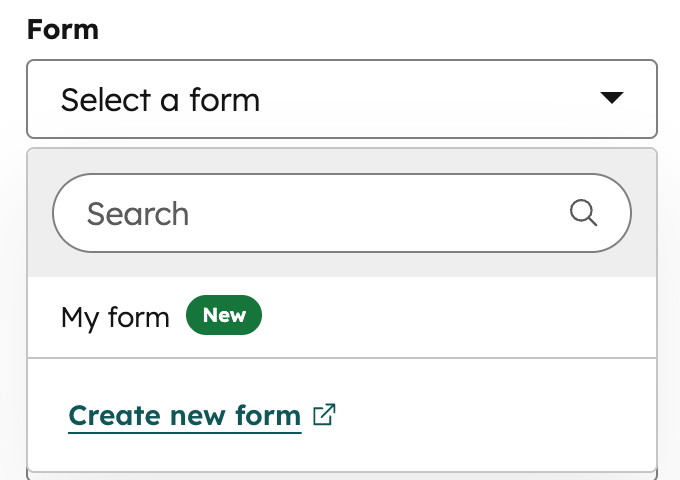 ```json theme={null}
{
"id": "idNumber",
"name": "form_field_name",
"display_width": null,
"label": "Form",
"required": false,
"locked": false,
"type": "form",
"disable_inline_form_editing": true,
"required_property_types": ["TICKET"],
"support_all_webinar_types": true,
"embed_versions": ["v2", "v4"],
"default": {
"response_type": "inline",
"message": "Thanks for submitting the form."
}
}
```
| Parameter | Type | Description |
| ----------------------------- | ------- | --------------------------------------------------------------------------------------------------------------------------------------------------------------------------------------------------------------------------------------------------------------------------------------------------------------------------------------------------------------------------------------------------------------------------------------------------------------------------------------------------------------------------------------------------------------- |
| `default` | Object | An object containing the form submission response details. Includes the following parameters:
```json theme={null}
{
"id": "idNumber",
"name": "form_field_name",
"display_width": null,
"label": "Form",
"required": false,
"locked": false,
"type": "form",
"disable_inline_form_editing": true,
"required_property_types": ["TICKET"],
"support_all_webinar_types": true,
"embed_versions": ["v2", "v4"],
"default": {
"response_type": "inline",
"message": "Thanks for submitting the form."
}
}
```
| Parameter | Type | Description |
| ----------------------------- | ------- | --------------------------------------------------------------------------------------------------------------------------------------------------------------------------------------------------------------------------------------------------------------------------------------------------------------------------------------------------------------------------------------------------------------------------------------------------------------------------------------------------------------------------------------------------------------- |
| `default` | Object | An object containing the form submission response details. Includes the following parameters:- `response_type`, which can be one of:
- `inline:` an inline text message.
- `redirect`: redirect the visitor after submission.
- `message`: the text to display after form submit.
- `redirect_id`: for redirected forms, set to a HubSpot content ID to redirect submitters to a HubSpot page.
- `redirect_url`: for redirected forms, set to a specific URL to redirect submitters to a page.
|
| `disable_inline_form_editing` | String | Set the `disable_inline_form_editing` property to `true` to hide all inline form editing controls in the form module. This includes the form fields, submit button text, data privacy and consent options, and CAPTCHA. |
| `required_property_types` | Array | An array that specifies which forms can be selected based on the property types of the form fields. Values include: `"CONTACT"`, `"COMPANY"`, and `"TICKET"`. |
| `support_all_webinar_types` | Boolean | When set to `true`, the form will show a more generic webinar selector that enables selecting Microsoft Teams webinars in addition to GoToWebinar. The form field's values will also change slightly to save `webinar_id` and `webinar_source` instead of `gotowebinar_webinar_key`. You'll need to pass these more generic property values back into the [Form tag](/cms/reference/hubl/tags/standard-tags#form) alongside `gotowebinar_webinar_key`. |
| `embed_versions` | Array | An array that specifies which forms can be selected based on the version of the form. Values include `"v2"` for legacy forms and `"v4"` for new editor forms. |
```jsx theme={null}
import { ModuleFields, FormField } from "@hubspot/cms-components/fields";
export const fields = (
);
```
| Prop | Type | Description |
| -------------------------- | ------- | --------------------------------------------------------------------------------------------------------------------------------------------------------------------------------------------------------------------------------------------------------------------------------------------------------------------------------------------------------------------------------------------------------------------------------------------------------------------------------------------------------------------------------------------------------------- |
| `default` | Object | An object containing the form submission response details. Includes the following parameters:- `response_type`, which can be one of:
- `inline:` an inline text message.
- `redirect`: redirect the visitor after submission.
- `message`: the text to display after form submit.
- `redirect_id`: for redirected forms, set to a HubSpot content ID to redirect submitters to a HubSpot page.
- `redirect_url`: for redirected forms, set to a specific URL to redirect submitters to a page.
|
| `disableInlineFormEditing` | String | Set the `disableInlineFormEditing` property to `true` to hide all inline form editing controls in the form module. This includes the form fields, submit button text, data privacy and consent options, and CAPTCHA. |
| `requiredPropertyTypes` | Array | An array that specifies which forms can be selected based on the property types of the form fields. Values include: `"CONTACT"`, `"COMPANY"`, and `"TICKET"`. |
| `supportAllWebinarTypes` | Boolean | When set to `true`, the form will show a more generic webinar selector that enables selecting Microsoft Teams webinars in addition to GoToWebinar. The form field's values will also change slightly to save `webinar_id` and `webinar_source` instead of `gotowebinar_webinar_key`. You'll need to pass these more generic property values back into the [Form tag](/cms/reference/hubl/tags/standard-tags#form) alongside `gotowebinar_webinar_key`. |
| `embedVersions` | Array | An array that specifies which forms can be selected based on the version of the form. Values include `"v2"` for legacy forms and `"v4"` for new editor forms. |
## Gradient
Can be used in [modules](/cms/start-building/building-blocks/modules/overview#fields-json) as a [style field](/cms/reference/fields/overview#style-fields).
This field provides a way for content creators to create and configure gradients. At this time linear gradients support up to 5 color stops. Gradient fields have a `.css` property that returns CSS based on the field's value. [Learn more about the generated CSS property](/cms/reference/fields/overview#generated-css).
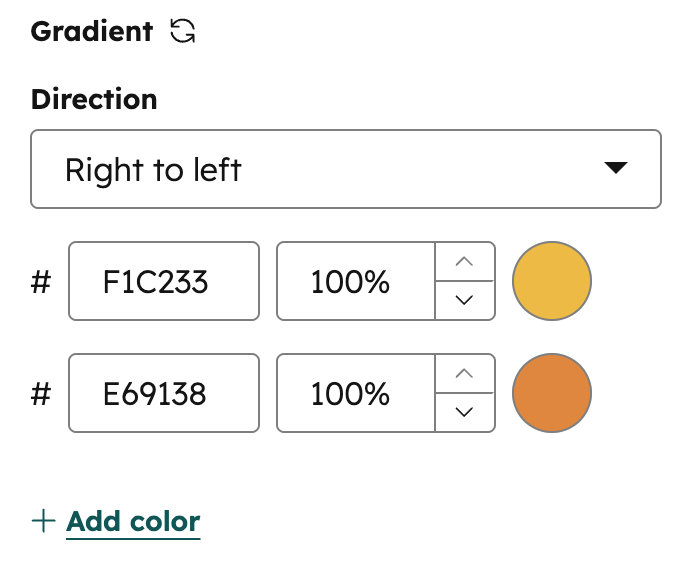 ```json expandable theme={null}
{
"name" : "gradient_field",
"label" : "Gradient",
"help_text": "Sets a gradient behind the content",
"required" : false,
"type" : "gradient",
"default" : {
"colors" : [ {
"color" : {
"r" : 241,
"g" : 194,
"b" : 51,
"a" : 1
}
}, {
"color" : {
"r" : 230,
"g" : 145,
"b" : 56,
"a" : 1
}
} ],
"side_or_corner" : {
"horizontalSide" : "LEFT",
"verticalSide" : null
}
}
}
```
| Parameter | Type | Description |
| ---------------- | ------ | ----------------------------------------------------------------------------------------------------------------------------------------------------------------------------------------------------------------------- |
| `default` | Object | Object containing `side_or_corner` and `colors`. |
| `colors` | Array | Array of color stop objects. Each object contains a `color` object with `r`, `g`, `b` (0–255), and `a` (0–1) values. Supports up to 5 color stops. |
| `side_or_corner` | Object | Determines the gradient direction. Contains optional `horizontalSide` (`"LEFT"` \| `"RIGHT"`) and `verticalSide` (`"TOP"` \| `"BOTTOM"`) properties. Omit either property for a purely horizontal or vertical gradient. |
```jsx expandable theme={null}
import { ModuleFields, GradientField } from "@hubspot/cms-components/fields";
export const fields = (
);
```
| Prop | Type | Description |
| ---------------- | ------ | ----------------------------------------------------------------------------------------------------------------------------------------------------------------------------------------------------------------------- |
| `default` | Object | Object containing `side_or_corner` and `colors`. |
| `colors` | Array | Array of color stop objects. Each object contains a `color` object with `r`, `g`, `b` (0–255), and `a` (0–1) values. Supports up to 5 color stops. |
| `side_or_corner` | Object | Determines the gradient direction. Contains optional `horizontalSide` (`"LEFT"` \| `"RIGHT"`) and `verticalSide` (`"TOP"` \| `"BOTTOM"`) properties. Omit either property for a purely horizontal or vertical gradient. |
## HubDB Row
Can be used in [modules](/cms/start-building/building-blocks/modules/overview#fields-json).
**Please note:** [HubDB](/cms/start-building/features/storage/hubdb) requires ***Content Hub*** *Professional* or *Enterprise*.
HubDB Row fields allow a content creator to select an individual row (or rows if using repeater fields) from a defined table. You can then use this field to create user-defined lists, tables, resources, and more.
```json expandable theme={null}
{
"name" : "gradient_field",
"label" : "Gradient",
"help_text": "Sets a gradient behind the content",
"required" : false,
"type" : "gradient",
"default" : {
"colors" : [ {
"color" : {
"r" : 241,
"g" : 194,
"b" : 51,
"a" : 1
}
}, {
"color" : {
"r" : 230,
"g" : 145,
"b" : 56,
"a" : 1
}
} ],
"side_or_corner" : {
"horizontalSide" : "LEFT",
"verticalSide" : null
}
}
}
```
| Parameter | Type | Description |
| ---------------- | ------ | ----------------------------------------------------------------------------------------------------------------------------------------------------------------------------------------------------------------------- |
| `default` | Object | Object containing `side_or_corner` and `colors`. |
| `colors` | Array | Array of color stop objects. Each object contains a `color` object with `r`, `g`, `b` (0–255), and `a` (0–1) values. Supports up to 5 color stops. |
| `side_or_corner` | Object | Determines the gradient direction. Contains optional `horizontalSide` (`"LEFT"` \| `"RIGHT"`) and `verticalSide` (`"TOP"` \| `"BOTTOM"`) properties. Omit either property for a purely horizontal or vertical gradient. |
```jsx expandable theme={null}
import { ModuleFields, GradientField } from "@hubspot/cms-components/fields";
export const fields = (
);
```
| Prop | Type | Description |
| ---------------- | ------ | ----------------------------------------------------------------------------------------------------------------------------------------------------------------------------------------------------------------------- |
| `default` | Object | Object containing `side_or_corner` and `colors`. |
| `colors` | Array | Array of color stop objects. Each object contains a `color` object with `r`, `g`, `b` (0–255), and `a` (0–1) values. Supports up to 5 color stops. |
| `side_or_corner` | Object | Determines the gradient direction. Contains optional `horizontalSide` (`"LEFT"` \| `"RIGHT"`) and `verticalSide` (`"TOP"` \| `"BOTTOM"`) properties. Omit either property for a purely horizontal or vertical gradient. |
## HubDB Row
Can be used in [modules](/cms/start-building/building-blocks/modules/overview#fields-json).
**Please note:** [HubDB](/cms/start-building/features/storage/hubdb) requires ***Content Hub*** *Professional* or *Enterprise*.
HubDB Row fields allow a content creator to select an individual row (or rows if using repeater fields) from a defined table. You can then use this field to create user-defined lists, tables, resources, and more.
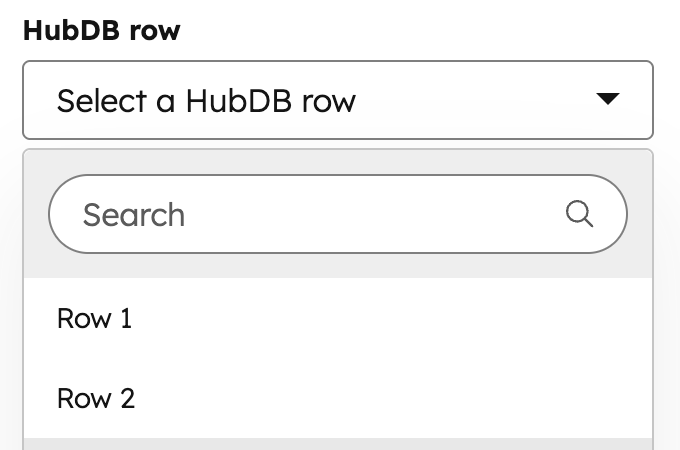 ```json theme={null}
{
"name": "hubdbrow_field",
"label": "HubDB row",
"required": false,
"locked": false,
"table_name_or_id": "3096859",
"columns_to_fetch": ["name", "price", "desc"],
"display_columns": ["name", "price", "desc"],
"display_format": "%0 - %1 :::: %2",
"type": "hubdbrow",
"default": {
"id": 4450468943
}
}
```
| Parameter | Type | Description | Default |
| ---------------------------------------- | ---------------- | ------------------------------------------------------------------------------------------------------------------------------------------------------------------------------------------------------------ | ----------------- |
| `table_name_or_id` | String \| Number | The name or ID of the HubDB table. This field is required. | |
| `columns_to_fetch` | Array | An array of column names to fetch from the table. If left blank, will return all columns in the table. | `[]` |
| `display_columns` | Array | An array of column names to use in choice label. If left blank, will return only the first column in the table. | `[]` |
| `display_format` | String | The format you would like the column data to display in the HubDB row selector using the percent symbol and number to designate a column.
```json theme={null}
{
"name": "hubdbrow_field",
"label": "HubDB row",
"required": false,
"locked": false,
"table_name_or_id": "3096859",
"columns_to_fetch": ["name", "price", "desc"],
"display_columns": ["name", "price", "desc"],
"display_format": "%0 - %1 :::: %2",
"type": "hubdbrow",
"default": {
"id": 4450468943
}
}
```
| Parameter | Type | Description | Default |
| ---------------------------------------- | ---------------- | ------------------------------------------------------------------------------------------------------------------------------------------------------------------------------------------------------------ | ----------------- |
| `table_name_or_id` | String \| Number | The name or ID of the HubDB table. This field is required. | |
| `columns_to_fetch` | Array | An array of column names to fetch from the table. If left blank, will return all columns in the table. | `[]` |
| `display_columns` | Array | An array of column names to use in choice label. If left blank, will return only the first column in the table. | `[]` |
| `display_format` | String | The format you would like the column data to display in the HubDB row selector using the percent symbol and number to designate a column.
**Ex:** *%0 (%1) would appear as Column0Value (Column1Value)* | `""` |
| `default` | Object | Object containing "id" for setting the default hubdb row. | `{ "id" : null }` |
```jsx theme={null}
import { ModuleFields, HubDBRowField } from "@hubspot/cms-components/fields";
export const fields = (
);
```
| Prop | Type | Description | Default |
| ------------------------------------- | ------ | ------------------------------------------------------------------------------------------------------------------------------------------------------------------------------------------------------------------- | ----------------- |
| `tableNameOrId` | String | The name or ID of the HubDB table. | |
| `columnsToFetch` | Array | An array of column names to fetch from the table. If left blank, will return all columns in the table. | `[]` |
| `displayColumns` | Array | An array of column names to use in choice label. If left blank, will return only the first column in the table. | `[]` |
| `displayFormat` | String | The format you would like the column data to display in the HubDB row selector using the percent symbol and number to designate a column.
**Example:** `%0 (%1)` would appear as `Column0Value (Column1Value)` | `""` |
| `default` | Object | Object containing "id" for setting the default hubdb row. | `{ "id" : null }` |
## HubDB Table
Can be used in [modules](/cms/start-building/building-blocks/modules/overview#fields-json).
**Please note:** [HubDB](/cms/start-building/features/storage/hubdb) requires ***Content Hub*** *Professional* or *Enterprise*.
HubDB Table fields allow a content creator to designate a HubDB in their account. Returns the table ID, which you can use with the [HubDB HubL functions](/cms/start-building/features/storage/hubdb#access-hubdb-data-using-hubl).
 ```json theme={null}
{
"name": "hubdbtable_field",
"label": "HubDB table",
"required": false,
"locked": false,
"type": "hubdbtable",
"default": 2010782
}
```
| Parameter | Type | Description | Default |
| --------- | ------ | -------------- | ------- |
| `default` | String | HubDB table ID | `null` |
```jsx theme={null}
import { ModuleFields, HubDBTableField } from "@hubspot/cms-components/fields";
export const fields = (
);
```
| Prop | Type | Description | Default |
| --------- | ------ | -------------- | ------- |
| `default` | String | HubDB table ID | `null` |
## Icon
Can be used in [modules](/cms/start-building/building-blocks/modules/overview#fields-json) as a [style field](/cms/reference/fields/overview#style-fields).
Icon fields provide an icon picker UI to make it easier for content creators to add icons to your modules. The Icon field is preloaded with FontAwesome Icons.
```json theme={null}
{
"name": "hubdbtable_field",
"label": "HubDB table",
"required": false,
"locked": false,
"type": "hubdbtable",
"default": 2010782
}
```
| Parameter | Type | Description | Default |
| --------- | ------ | -------------- | ------- |
| `default` | String | HubDB table ID | `null` |
```jsx theme={null}
import { ModuleFields, HubDBTableField } from "@hubspot/cms-components/fields";
export const fields = (
);
```
| Prop | Type | Description | Default |
| --------- | ------ | -------------- | ------- |
| `default` | String | HubDB table ID | `null` |
## Icon
Can be used in [modules](/cms/start-building/building-blocks/modules/overview#fields-json) as a [style field](/cms/reference/fields/overview#style-fields).
Icon fields provide an icon picker UI to make it easier for content creators to add icons to your modules. The Icon field is preloaded with FontAwesome Icons.
 ```json theme={null}
{
"name": "icon_field",
"label": "Icon",
"required": false,
"locked": false,
"icon_set": "fontawesome-6.4.2",
"type": "icon",
"default": {
"name": "accessible-icon",
"unicode": "f368",
"type": "REGULAR"
}
}
```
| Parameter | Type | Description | Default |
| ---------- | ------ | ---------------------------------------------------------------------------------------------------------------------------------------------- | -------------------- |
| `default` | Object | The default icon to display. | |
| `icon_set` | String | The FontAwesome icon set to use. Can be one of:
```json theme={null}
{
"name": "icon_field",
"label": "Icon",
"required": false,
"locked": false,
"icon_set": "fontawesome-6.4.2",
"type": "icon",
"default": {
"name": "accessible-icon",
"unicode": "f368",
"type": "REGULAR"
}
}
```
| Parameter | Type | Description | Default |
| ---------- | ------ | ---------------------------------------------------------------------------------------------------------------------------------------------- | -------------------- |
| `default` | Object | The default icon to display. | |
| `icon_set` | String | The FontAwesome icon set to use. Can be one of:- `fontawesome-6.4.2`
- `fontawesome-5.14.0`
- `fontawesome-5.0.10`
| `fontawesome-5.0.10` |
```jsx theme={null}
import { ModuleFields, IconField } from "@hubspot/cms-components/fields";
export const fields = (
);
```
| Prop | Type | Description | Default |
| --------- | ------ | ---------------------------------------------------------------------------------------------------------------------------------------------------- | -------------------- |
| `default` | Object | Icon object | |
| `iconSet` | String | The FontAwesome icon set to use. Possible values are:- `fontawesome-6.4.2`
- `fontawesome-5.14.0`
- `fontawesome-5.0.10`
| `fontawesome-5.0.10` |
## Image
Can be used in [modules](/cms/start-building/building-blocks/modules/overview#fields-json) as a [style field](/cms/reference/fields/overview#style-fields). Only use image fields as style fields when the image is purely presentational and does not convey meaning. For background images, use the [background image](#background-image) field instead.
Image fields provide an easy interface for content creators to add images to a module or theme. Image fields provide a file picker interface that lists images from the File Manager. Since images can be used and displayed in different ways, developers can limit the sizing options available to the content creator in the UI as well as allow for [lazy-loading of images](/cms/best-practices/testing-staging-performance/lazy-loading).
 ```json theme={null}
{
"name": "image_field",
"label": "Image",
"required": false,
"locked": false,
"responsive": true,
"resizable": true,
"show_loading": false,
"type": "image",
"default": {
"size_type": "exact",
"src": "",
"alt": "image-alt-text",
"loading": "lazy",
"width": 128,
"height": 128,
"max_width": 128,
"max_height": 128
}
}
```
| Parameter | Type | Description | Default |
| -------------- | ------- | -------------------------------------------------------------------------------------------------------------------------------------------------------------------------------------------------------------------------------------------------------------------------------------------------------------------------------------------------------------------------------------------------------------------------------------------------------------------------------------------------------------------------------------------------------------------------------------------------------------------------------------------------------------------------------------------------------------------------------------------------------------------------------------------------------------------------------------------------------------------------------------------------------------------------- | --------------------------------------------------------------------------- |
| `default` | Object | Sets properties for image sizing, alt-text, and more. Can contain the following properties:
```json theme={null}
{
"name": "image_field",
"label": "Image",
"required": false,
"locked": false,
"responsive": true,
"resizable": true,
"show_loading": false,
"type": "image",
"default": {
"size_type": "exact",
"src": "",
"alt": "image-alt-text",
"loading": "lazy",
"width": 128,
"height": 128,
"max_width": 128,
"max_height": 128
}
}
```
| Parameter | Type | Description | Default |
| -------------- | ------- | -------------------------------------------------------------------------------------------------------------------------------------------------------------------------------------------------------------------------------------------------------------------------------------------------------------------------------------------------------------------------------------------------------------------------------------------------------------------------------------------------------------------------------------------------------------------------------------------------------------------------------------------------------------------------------------------------------------------------------------------------------------------------------------------------------------------------------------------------------------------------------------------------------------------------- | --------------------------------------------------------------------------- |
| `default` | Object | Sets properties for image sizing, alt-text, and more. Can contain the following properties: - `size_type`: whether the image is automatically or manually sized:
- `"auto"`: HubSpot will automatically adjust the size of the image based on its original dimensions.
- `"auto_custom_max"`: HubSpot will automatically adjust the size of the image with maximum dimensions set using the `"max_height"` and `"max_width"` properties.
- `"exact":` HubSpot will size the image based on the dimensions set using the `"height"` and `"width"` properties.
- `src`: the URL of the default image. Must be an absolute path to an image.
- `alt`: the image's default alt-text.
- `loading`: the image's [lazy loading options](/cms/best-practices/testing-staging-performance/lazy-loading). Can be set as `"disabled"` (default), `"eager"`, or `"lazy"`.
| `{ "size_type" : "auto", "src" : "", "alt" : null, "loading": "disabled" }` |
| `responsive` | Boolean | determines if the image is to act responsively or have a fixed height and width. | `true` |
| `resizable` | Boolean | When set to `false`, users won't be able to resize the image in the editor. | `true` |
| `show_loading` | Boolean | Determines if the controls for choosing to [lazy load](/cms/best-practices/testing-staging-performance/lazy-loading) the image are shown in the page editor. | `false` |
```jsx theme={null}
import { ModuleFields, ImageField } from "@hubspot/cms-components/fields";
export const fields = (
);
```
| Prop | Type | Description | Default |
| ------------- | ------- | -------------------------------------------------------------------------------------------------------------------------------------------------------------------------------------------------------------------------------------------------------------------------------------------------------------------------------------------------------------------------------------------------------------------------------------------------------------------------------------------------------------------------------------------------------------------------------------------------------------------------------------------------------------------------------------------------------------------------------------------------------------------------------------------------------------------------------------------------------------------------------------------------------------------------- | --------------------------------------------------------------------------- |
| `default` | Object | Sets properties for image sizing, alt-text, and more. Can contain the following properties: - `size_type`: whether the image is automatically or manually sized:
- `"auto"`: HubSpot will automatically adjust the size of the image based on its original dimensions.
- `"auto_custom_max"`: HubSpot will automatically adjust the size of the image with maximum dimensions set using the `"max_height"` and `"max_width"` properties.
- `"exact":` HubSpot will size the image based on the dimensions set using the `"height"` and `"width"` properties.
- `src`: the URL of the default image. Must be an absolute path to an image.
- `alt`: the image's default alt-text.
- `loading`: the image's [lazy loading options](/cms/best-practices/testing-staging-performance/lazy-loading). Can be set as `"disabled"` (default), `"eager"`, or `"lazy"`.
| `{ "size_type" : "auto", "src" : "", "alt" : null, "loading": "disabled" }` |
| `responsive` | Boolean | determines if the image is to act responsively or have a fixed height and width. | `true` |
| `resizable` | Boolean | When set to `false`, users won't be able to resize the image in the editor. | `true` |
| `showLoading` | Boolean | Determines if the controls for choosing to [lazy load](/cms/best-practices/testing-staging-performance/lazy-loading) the image are shown in the page editor. | `false` |
## Link
Can be used in [modules](/cms/start-building/building-blocks/modules/overview#fields-json).
Link fields provide an easy interface for content creators to provide links to URLs and email addresses.
This field is similar to the [URL](#url) field, but includes more options for configuring open nofollow options.
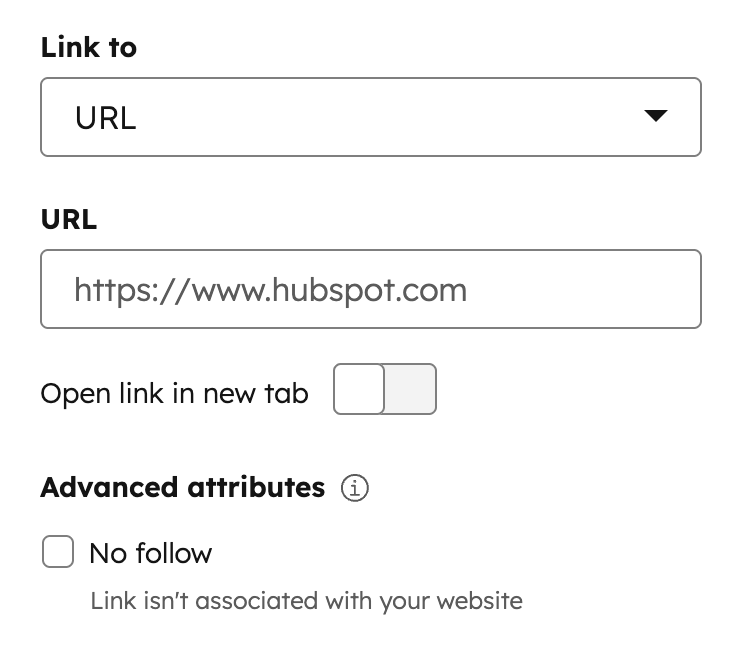 ```json theme={null}
{
"name": "link_field",
"display_width": null,
"label": "Link",
"required": false,
"locked": false,
"supported_types": [
"EXTERNAL",
"CONTENT",
"FILE",
"EMAIL_ADDRESS",
"BLOG",
"CALL_TO_ACTION",
"PHONE_NUMBER",
"WHATSAPP_NUMBER",
"PAYMENT"
],
"show_advanced_rel_options": true,
"type": "link",
"default": {
"url": {
"content_id": null,
"type": "EXTERNAL",
"href": ""
},
"open_in_new_tab": false,
"no_follow": false
}
}
```
| Parameter | Type | Description | Default |
| --------------------------- | ------- | ---------------------------------------------------------------------------------------------------------------------------------------------------------------------------------------------------------------------------------------------------------------------------------------------------------------------------------------------------------------------------------------------------------------------------------------------------- | ------------------------------------------------------------------------------------------------------------------------------------------------------------------------------ |
| `default` | Object | The default URL and link open behavior. This object includes:
```json theme={null}
{
"name": "link_field",
"display_width": null,
"label": "Link",
"required": false,
"locked": false,
"supported_types": [
"EXTERNAL",
"CONTENT",
"FILE",
"EMAIL_ADDRESS",
"BLOG",
"CALL_TO_ACTION",
"PHONE_NUMBER",
"WHATSAPP_NUMBER",
"PAYMENT"
],
"show_advanced_rel_options": true,
"type": "link",
"default": {
"url": {
"content_id": null,
"type": "EXTERNAL",
"href": ""
},
"open_in_new_tab": false,
"no_follow": false
}
}
```
| Parameter | Type | Description | Default |
| --------------------------- | ------- | ---------------------------------------------------------------------------------------------------------------------------------------------------------------------------------------------------------------------------------------------------------------------------------------------------------------------------------------------------------------------------------------------------------------------------------------------------- | ------------------------------------------------------------------------------------------------------------------------------------------------------------------------------ |
| `default` | Object | The default URL and link open behavior. This object includes:- A `url` object which contains:
- `content_id`: if linking to HubSpot content, the ID of that content. Set to `null` if linking to external content.
- `type`: the type of URL. Learn more about supported types below.
- `href`: the URL of the content. When linking to HubSpot content, set this to `null` and use `content_id` instead.
| `{ "url" : { "content_id" : null, "type" : "EXTERNAL", "href" : "" }, "open_in_new_tab" : false, "no_follow" : false, "sponsored" : false, "user_generated_content" : false }` |
| `supported_types` | Array | The types of links that content creators can select. Remove types from the list that you don't want content creators to have access to set. Valid types include:- `EXTERNAL`
- `CONTENT`
- `FILE`
- `EMAIL_ADDRESS`
- `BLOG`
- `CALL_TO_ACTION`
- `PHONE_NUMBER`
- `WHATSAPP_NUMBER`
- `PAYMENT`
| `[ "EXTERNAL", "CONTENT", "FILE", "EMAIL_ADDRESS", "BLOG", "CALL_TO_ACTION", "PHONE_NUMBER", "WHATSAPP_NUMBER", "PAYMENT" ]` |
| `show_advanced_rel_options` | Boolean | By default, content creators will only be able to select the `no_follow` option.When set to `true`, content creators can also select:- `sponsored`: a sponsored link, such as a paid ad link.
- `user_generated_content`: content generated by users, such as forums.
Learn more about [link attributes](https://moz.com/blog/nofollow-sponsored-ugc). | `false` |
| `placeholder` | String | Placeholder text shown in the link field when no value has been set. | |
```jsx theme={null}
import { ModuleFields, LinkField } from "@hubspot/cms-components/fields";
export const fields = (
);
```
| Prop | Type | Description | Default |
| ------------------------ | ------- | ---------------------------------------------------------------------------------------------------------------------------------------------------------------------------------------------------------------------------------------------------------------------------------------------------------------------------------------------------------------------------------------------------------------------------------------------------- | ------------------------------------------------------------------------------------------------------------------------------------------------------------------------------ |
| `default` | Object | The default URL and link open behavior. This object includes:- A `url` object which contains:
- `content_id`: if linking to HubSpot content, the ID of that content. Set to `null` if linking to external content.
- `type`: the type of URL. Learn more about supported types below.
- `href`: the URL of the content. When linking to HubSpot content, set this to `null` and use `content_id` instead.
| `{ "url" : { "content_id" : null, "type" : "EXTERNAL", "href" : "" }, "open_in_new_tab" : false, "no_follow" : false, "sponsored" : false, "user_generated_content" : false }` |
| `supportedTypes` | Array | The types of links that content creators can select. Remove types from the list that you don't want content creators to have access to set. Valid types include:- `EXTERNAL`
- `CONTENT`
- `FILE`
- `EMAIL_ADDRESS`
- `BLOG`
- `CALL_TO_ACTION`
- `PHONE_NUMBER`
- `WHATSAPP_NUMBER`
- `PAYMENT`
| `[ "EXTERNAL", "CONTENT", "FILE", "EMAIL_ADDRESS", "BLOG", "CALL_TO_ACTION", "PHONE_NUMBER", "WHATSAPP_NUMBER", "PAYMENT" ]` |
| `showAdvancedRelOptions` | Boolean | By default, content creators will only be able to select the `no_follow` option.When set to `true`, content creators can also select:- `sponsored`: a sponsored link, such as a paid ad link.
- `user_generated_content`: content generated by users, such as forums.
Learn more about [link attributes](https://moz.com/blog/nofollow-sponsored-ugc). | `false` |
| `placeholder` | String | Placeholder text shown in the link field when no value has been set. | |
## Logo
Can be used in [modules](/cms/start-building/building-blocks/modules/overview#fields-json).
Logo fields provide a way for content creators to specify logo images to use in a page, defaulting to the domain's logo. This is useful for site headers and footers that may contain the company logo. Logo fields also allow for [lazy loading](/cms/best-practices/testing-staging-performance/lazy-loading).
 ```json theme={null}
{
"name": "logo",
"label": "Logo",
"required": false,
"locked": false,
"type": "logo",
"show_loading": true,
"default": {
"override_inherited_src": false,
"src": null,
"alt": null,
"loading": "lazy"
}
}
```
| Parameter | Type | Description | Default |
| -------------- | ------- | ------------------------------------------------------------------------------------------------------------------------------------------------------------------------------------------------------------------------------------------------------------------------------------------ | ------------------------------------------------------------------------------------------------------------------------------------ |
| `show_loading` | Boolean | Determines if the controls for choosing to [lazy load](/cms/best-practices/testing-staging-performance/lazy-loading) the image are shown in the page editor. | `false` |
| `default` | Object | Logo object. If `show_loading` is set to `true`, you can include a `loading` property to set the image's [lazy loading options](/cms/best-practices/testing-staging-performance/lazy-loading). Options include:
```json theme={null}
{
"name": "logo",
"label": "Logo",
"required": false,
"locked": false,
"type": "logo",
"show_loading": true,
"default": {
"override_inherited_src": false,
"src": null,
"alt": null,
"loading": "lazy"
}
}
```
| Parameter | Type | Description | Default |
| -------------- | ------- | ------------------------------------------------------------------------------------------------------------------------------------------------------------------------------------------------------------------------------------------------------------------------------------------ | ------------------------------------------------------------------------------------------------------------------------------------ |
| `show_loading` | Boolean | Determines if the controls for choosing to [lazy load](/cms/best-practices/testing-staging-performance/lazy-loading) the image are shown in the page editor. | `false` |
| `default` | Object | Logo object. If `show_loading` is set to `true`, you can include a `loading` property to set the image's [lazy loading options](/cms/best-practices/testing-staging-performance/lazy-loading). Options include:- `"disabled"` (default)
- `"eager"`
- `"lazy"`
| `{ override_inherited_src: false, src: "", alt: null, width: null, height: null, loading: "disabled" suppress_company_name: false }` |
```jsx theme={null}
import { ModuleFields, LogoField } from "@hubspot/cms-components/fields";
export const fields = (
);
```
| Prop | Type | Description | Default |
| ------------- | ------- | ------------------------------------------------------------------------------------------------------------------------------------------------------------------------------------------------------------------------------------------------------------------------------------------ | ------------------------------------------------------------------------------------------------------------------------------------ |
| `showLoading` | Boolean | Determines if the controls for choosing to [lazy load](/cms/best-practices/testing-staging-performance/lazy-loading) the image are shown in the page editor. | `false` |
| `default` | Object | Logo object. If `show_loading` is set to `true`, you can include a `loading` property to set the image's [lazy loading options](/cms/best-practices/testing-staging-performance/lazy-loading). Options include:- `"disabled"` (default)
- `"eager"`
- `"lazy"`
| `{ override_inherited_src: false, src: "", alt: null, width: null, height: null, loading: "disabled" suppress_company_name: false }` |
## Menu
Can be used in [modules](/cms/start-building/building-blocks/modules/overview#fields-json).
Menu fields provide an easy interface for content creators to create, edit and select a [navigation menu](/cms/start-building/building-blocks/modules/menus-and-navigation) that is re-usable on other pages. This field is great for use in menus that are used across multiple pages like main navigation and footer navigation and other [global content](/cms/start-building/building-blocks/global-content). Use this field in tandem with the [menu tag](/cms/reference/hubl/tags/standard-tags#menu) or [menu() function](/cms/reference/hubl/functions#menu), to render a menu inside of your module.
For menus that don't make sense to re-use on other pages, like a table of contents menu, use the [simple menu field](#simple-menu).
 ```json theme={null}
{
"name": "menu",
"label": "Menu",
"required": false,
"locked": false,
"type": "menu",
"default": 12345678911
}
```
| Parameter | Type | Description | Default |
| --------- | ------- | ------------------------------------------------------------------------------------------------------------------------------------------------------------------------------------------ | ------- |
| `default` | Integer | The [menu ID](/cms/start-building/building-blocks/modules/menus-and-navigation#get-your-menu-id) for the menu. The default value of `null`, defaults to the default menu under navigation. | `null` |
```jsx theme={null}
import { ModuleFields, MenuField } from "@hubspot/cms-components/fields";
export const fields = (
);
```
| Prop | Type | Description | Default |
| --------- | ------- | ------------------------------------------------------------------------------------------------------------------------------------------------------------------------------------------ | ------- |
| `default` | Integer | The [menu ID](/cms/start-building/building-blocks/modules/menus-and-navigation#get-your-menu-id) for the menu. The default value of `null`, defaults to the default menu under navigation. | `null` |
## Number
Can be used in [modules](/cms/start-building/building-blocks/modules/overview#fields-json) as a [style field](/cms/reference/fields/overview#style-fields).
Number fields provide an easy interface for content creators to enter in or adjust numerical values and options. This can be used for creating percentage based items or anything where numbers are needed for input.
```json theme={null}
{
"name": "menu",
"label": "Menu",
"required": false,
"locked": false,
"type": "menu",
"default": 12345678911
}
```
| Parameter | Type | Description | Default |
| --------- | ------- | ------------------------------------------------------------------------------------------------------------------------------------------------------------------------------------------ | ------- |
| `default` | Integer | The [menu ID](/cms/start-building/building-blocks/modules/menus-and-navigation#get-your-menu-id) for the menu. The default value of `null`, defaults to the default menu under navigation. | `null` |
```jsx theme={null}
import { ModuleFields, MenuField } from "@hubspot/cms-components/fields";
export const fields = (
);
```
| Prop | Type | Description | Default |
| --------- | ------- | ------------------------------------------------------------------------------------------------------------------------------------------------------------------------------------------ | ------- |
| `default` | Integer | The [menu ID](/cms/start-building/building-blocks/modules/menus-and-navigation#get-your-menu-id) for the menu. The default value of `null`, defaults to the default menu under navigation. | `null` |
## Number
Can be used in [modules](/cms/start-building/building-blocks/modules/overview#fields-json) as a [style field](/cms/reference/fields/overview#style-fields).
Number fields provide an easy interface for content creators to enter in or adjust numerical values and options. This can be used for creating percentage based items or anything where numbers are needed for input.
 ```json theme={null}
{
"name": "number_field",
"label": "Number",
"required": false,
"locked": false,
"display": "slider",
"min": 1,
"max": 10,
"step": 1,
"type": "number",
"prefix": "",
"suffix": "",
"default": null,
"placeholder": "50"
}
```
| Parameter | Type | Description | Default |
| ------------- | ------ | -------------------------------------------------------------------------------------------------------------------------------------------------- | -------- |
| `default` | Number | A default number to be used. | `null` |
| `display` | String | Controls the appearance of the number field in the editor. Accepted values: `text` (standard text input) or `slider` (a draggable slider control). | `"text"` |
| `min` | Number | The minimum value allowed in the field. | |
| `max` | Number | The maximum value allowed in the field. | |
| `step` | Number | The increment amount when using the slider display or stepping controls. | |
| `prefix` | String | Added as a prefix to the number field. | |
| `suffix` | String | Added as a suffix to the number field. | |
| `placeholder` | String | Adds a placeholder value to the field. | |
```jsx theme={null}
import { ModuleFields, NumberField } from "@hubspot/cms-components/fields";
export const fields = (
);
```
| Prop | Type | Description | Default |
| ------------- | ------ | -------------------------------------------------------------------------------------------------------------------------------------------------- | -------- |
| `default` | Number | A default number to be used. | `null` |
| `display` | String | Controls the appearance of the number field in the editor. Accepted values: `text` (standard text input) or `slider` (a draggable slider control). | `"text"` |
| `min` | Number | The minimum value allowed in the field. | |
| `max` | Number | The maximum value allowed in the field. | |
| `step` | Number | The increment amount when using the slider display or stepping controls. | |
| `prefix` | String | Added as a prefix to the number field. | |
| `suffix` | String | Added as a suffix to the number field. | |
| `placeholder` | String | Adds a placeholder value to the field. | |
Suffix and prefix parameters are for display purposes in the content editor and have no effect on the numerical value of the field.
## Page
Can be used in [modules](/cms/start-building/building-blocks/modules/overview#fields-json).
Page fields provide an interface for content creators to select site pages and landing pages.
The value returned by a page field is the page ID of the selected page. When used in tandem with the [content\_by\_id](/cms/reference/hubl/functions#content-by-id) or [content\_by\_ids](/cms/reference/hubl/functions#content-by-ids) functions, you can use data from the selected pages in the current page.
```json theme={null}
{
"name": "number_field",
"label": "Number",
"required": false,
"locked": false,
"display": "slider",
"min": 1,
"max": 10,
"step": 1,
"type": "number",
"prefix": "",
"suffix": "",
"default": null,
"placeholder": "50"
}
```
| Parameter | Type | Description | Default |
| ------------- | ------ | -------------------------------------------------------------------------------------------------------------------------------------------------- | -------- |
| `default` | Number | A default number to be used. | `null` |
| `display` | String | Controls the appearance of the number field in the editor. Accepted values: `text` (standard text input) or `slider` (a draggable slider control). | `"text"` |
| `min` | Number | The minimum value allowed in the field. | |
| `max` | Number | The maximum value allowed in the field. | |
| `step` | Number | The increment amount when using the slider display or stepping controls. | |
| `prefix` | String | Added as a prefix to the number field. | |
| `suffix` | String | Added as a suffix to the number field. | |
| `placeholder` | String | Adds a placeholder value to the field. | |
```jsx theme={null}
import { ModuleFields, NumberField } from "@hubspot/cms-components/fields";
export const fields = (
);
```
| Prop | Type | Description | Default |
| ------------- | ------ | -------------------------------------------------------------------------------------------------------------------------------------------------- | -------- |
| `default` | Number | A default number to be used. | `null` |
| `display` | String | Controls the appearance of the number field in the editor. Accepted values: `text` (standard text input) or `slider` (a draggable slider control). | `"text"` |
| `min` | Number | The minimum value allowed in the field. | |
| `max` | Number | The maximum value allowed in the field. | |
| `step` | Number | The increment amount when using the slider display or stepping controls. | |
| `prefix` | String | Added as a prefix to the number field. | |
| `suffix` | String | Added as a suffix to the number field. | |
| `placeholder` | String | Adds a placeholder value to the field. | |
Suffix and prefix parameters are for display purposes in the content editor and have no effect on the numerical value of the field.
## Page
Can be used in [modules](/cms/start-building/building-blocks/modules/overview#fields-json).
Page fields provide an interface for content creators to select site pages and landing pages.
The value returned by a page field is the page ID of the selected page. When used in tandem with the [content\_by\_id](/cms/reference/hubl/functions#content-by-id) or [content\_by\_ids](/cms/reference/hubl/functions#content-by-ids) functions, you can use data from the selected pages in the current page.
 ```json theme={null}
{
"name": "page_field",
"label": "Page",
"help_text": "Pulls data from the selected page.",
"required": false,
"locked": false,
"placeholder": "Page to pull from",
"type": "page",
"default": null
}
```
| Parameter | Type | Description | Default |
| --------- | ------- | --------------------------------- | ------- |
| `default` | Integer | A default page ID to be selected. | `null` |
```jsx theme={null}
import { ModuleFields, PageField } from "@hubspot/cms-components/fields";
export const fields = (
);
```
| Prop | Type | Description | Default |
| --------- | ------- | --------------------------------- | ------- |
| `default` | Integer | A default page ID to be selected. | `null` |
## Rich text
Can be used in [modules](/cms/start-building/building-blocks/modules/overview#fields-json).
Rich text fields provide content creators with a WYSIWYG text editor experience. When a rich text field's value is printed it is printed as HTML. When you do not want content creators to have formatting capabilities use [text fields](#text).
```json theme={null}
{
"name": "page_field",
"label": "Page",
"help_text": "Pulls data from the selected page.",
"required": false,
"locked": false,
"placeholder": "Page to pull from",
"type": "page",
"default": null
}
```
| Parameter | Type | Description | Default |
| --------- | ------- | --------------------------------- | ------- |
| `default` | Integer | A default page ID to be selected. | `null` |
```jsx theme={null}
import { ModuleFields, PageField } from "@hubspot/cms-components/fields";
export const fields = (
);
```
| Prop | Type | Description | Default |
| --------- | ------- | --------------------------------- | ------- |
| `default` | Integer | A default page ID to be selected. | `null` |
## Rich text
Can be used in [modules](/cms/start-building/building-blocks/modules/overview#fields-json).
Rich text fields provide content creators with a WYSIWYG text editor experience. When a rich text field's value is printed it is printed as HTML. When you do not want content creators to have formatting capabilities use [text fields](#text).
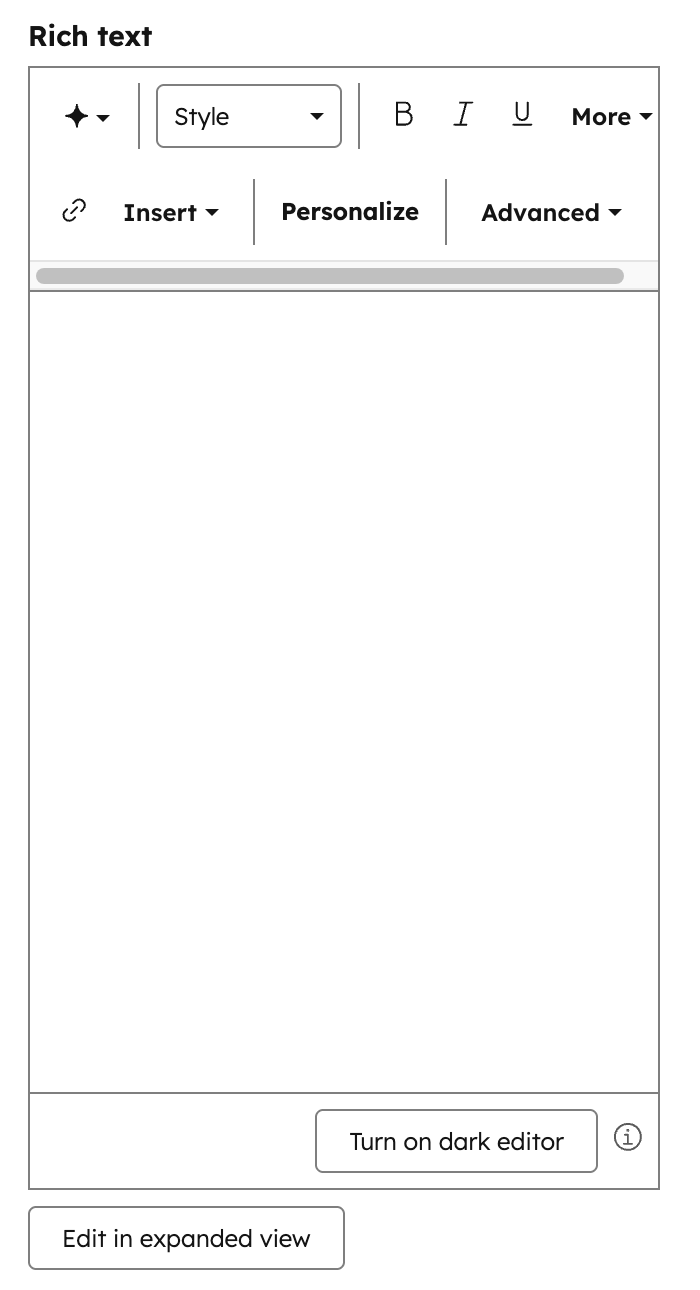 ```json theme={null}
{
"name": "description",
"label": "Description",
"required": false,
"locked": false,
"type": "richtext",
"default": null
}
```
| Parameter | Type | Description | Default |
| ------------------ | ------ | -------------------------------------------------------------------------------------------------------------------------------------------------------------------------------------- | ------- |
| `default` | String | string of content to be displayed supports HTML. Note: You cannot use the `get_asset_url` [function](/cms/reference/hubl/functions#get-asset-url) within this default property. | `""` |
| `enabled_features` | Array | An array of items that allows you to [configure the Rich Text Editor Toolbar](/cms/reference/fields/module-theme-fields#rich-text) and what options are available for content editors. | |
```jsx theme={null}
import { ModuleFields, RichTextField } from "@hubspot/cms-components/fields";
export const fields = (
);
```
| Prop | Type | Description | Default |
| ----------------- | ------ | -------------------------------------------------------------------------------------------------------------------------------------------------------------------------------------- | ------- |
| `default` | String | string of content to be displayed supports HTML. Note: You cannot use the `get_asset_url` [function](/cms/reference/hubl/functions#get-asset-url) within this default property. | `""` |
| `enabledFeatures` | Array | An array of items that allows you to [configure the Rich Text Editor Toolbar](/cms/reference/fields/module-theme-fields#rich-text) and what options are available for content editors. | |
## Simple menu
Can be used in [modules](/cms/start-building/building-blocks/modules/overview#fields-json).
Simple menu fields provide an easy interface for content creators to create a [navigation menu](/cms/start-building/building-blocks/modules/menus-and-navigation) that is not re-usable on other pages. For menus that should be reusable, use the [menu field](#menu). A time you may want this is for a table of contents menu that links to headings on very long pages, or a list of links to content that only makes sense to have on the current page.
```json expandable theme={null}
{
"name": "toc_menu",
"label": "Table of Contents",
"required": false,
"locked": false,
"type": "simplemenu",
"default": [
{
"isPublished": false,
"pageLinkId": null,
"pageLinkName": null,
"isDeleted": null,
"categoryId": null,
"subCategory": null,
"contentType": null,
"state": null,
"linkLabel": "Why is product marketing important?",
"linkUrl": null,
"linkParams": null,
"linkTarget": null,
"type": "NO_LINK",
"children": [
{
"isPublished": false,
"pageLinkId": null,
"pageLinkName": null,
"isDeleted": null,
"categoryId": null,
"subCategory": null,
"contentType": null,
"state": null,
"linkLabel": "Product Marketing Responsibilities",
"linkUrl": "#product-marketing-responsibilities",
"linkParams": null,
"linkTarget": null,
"type": "URL_LINK",
"children": []
},
{
"isPublished": false,
"pageLinkId": null,
"pageLinkName": null,
"isDeleted": null,
"categoryId": null,
"subCategory": null,
"contentType": null,
"state": null,
"linkLabel": "1. Identify the buyer personas and target audience for your product.",
"linkUrl": "#step1",
"linkParams": null,
"linkTarget": null,
"type": "URL_LINK",
"children": []
},
{
"isPublished": false,
"pageLinkId": null,
"pageLinkName": null,
"isDeleted": null,
"categoryId": null,
"subCategory": null,
"contentType": null,
"state": null,
"linkLabel": "2. Successfully create, manage and carry out your product marketing strategy.",
"linkUrl": "#step2",
"linkParams": null,
"linkTarget": null,
"type": "URL_LINK",
"children": []
}
]
},
{
"isPublished": false,
"pageLinkId": null,
"pageLinkName": null,
"isDeleted": null,
"categoryId": null,
"subCategory": null,
"contentType": null,
"state": null,
"linkLabel": "How HubSpot can help",
"linkUrl": "https://hubspot.com",
"linkParams": null,
"linkTarget": null,
"type": "URL_LINK",
"children": []
}
]
}
```
| Parameter | Type | Description | Default |
| --------- | ---------------- | ------------------------------------------ | ------- |
| `default` | Array of objects | JSON structure for menu and menu children. | `[]` |
```jsx expandable theme={null}
import { ModuleFields, SimpleMenuField } from "@hubspot/cms-components/fields";
export const fields = (
);
```
| Prop | Type | Description | Default |
| --------- | ---------------- | ------------------------------------------ | ------- |
| `default` | Array of objects | JSON structure for menu and menu children. | `[]` |
## Spacing
Can be used in [modules](/cms/start-building/building-blocks/modules/overview#fields-json) as a [style field](/cms/reference/fields/overview#style-fields).
This field provides a user interface (UI) for content creators to set padding and margin. Spacing fields have a `.css` property that returns CSS based on the field's value. [Learn more about the generated CSS property.](/cms/reference/fields/overview#generated-css)
```json theme={null}
{
"name": "description",
"label": "Description",
"required": false,
"locked": false,
"type": "richtext",
"default": null
}
```
| Parameter | Type | Description | Default |
| ------------------ | ------ | -------------------------------------------------------------------------------------------------------------------------------------------------------------------------------------- | ------- |
| `default` | String | string of content to be displayed supports HTML. Note: You cannot use the `get_asset_url` [function](/cms/reference/hubl/functions#get-asset-url) within this default property. | `""` |
| `enabled_features` | Array | An array of items that allows you to [configure the Rich Text Editor Toolbar](/cms/reference/fields/module-theme-fields#rich-text) and what options are available for content editors. | |
```jsx theme={null}
import { ModuleFields, RichTextField } from "@hubspot/cms-components/fields";
export const fields = (
);
```
| Prop | Type | Description | Default |
| ----------------- | ------ | -------------------------------------------------------------------------------------------------------------------------------------------------------------------------------------- | ------- |
| `default` | String | string of content to be displayed supports HTML. Note: You cannot use the `get_asset_url` [function](/cms/reference/hubl/functions#get-asset-url) within this default property. | `""` |
| `enabledFeatures` | Array | An array of items that allows you to [configure the Rich Text Editor Toolbar](/cms/reference/fields/module-theme-fields#rich-text) and what options are available for content editors. | |
## Simple menu
Can be used in [modules](/cms/start-building/building-blocks/modules/overview#fields-json).
Simple menu fields provide an easy interface for content creators to create a [navigation menu](/cms/start-building/building-blocks/modules/menus-and-navigation) that is not re-usable on other pages. For menus that should be reusable, use the [menu field](#menu). A time you may want this is for a table of contents menu that links to headings on very long pages, or a list of links to content that only makes sense to have on the current page.
```json expandable theme={null}
{
"name": "toc_menu",
"label": "Table of Contents",
"required": false,
"locked": false,
"type": "simplemenu",
"default": [
{
"isPublished": false,
"pageLinkId": null,
"pageLinkName": null,
"isDeleted": null,
"categoryId": null,
"subCategory": null,
"contentType": null,
"state": null,
"linkLabel": "Why is product marketing important?",
"linkUrl": null,
"linkParams": null,
"linkTarget": null,
"type": "NO_LINK",
"children": [
{
"isPublished": false,
"pageLinkId": null,
"pageLinkName": null,
"isDeleted": null,
"categoryId": null,
"subCategory": null,
"contentType": null,
"state": null,
"linkLabel": "Product Marketing Responsibilities",
"linkUrl": "#product-marketing-responsibilities",
"linkParams": null,
"linkTarget": null,
"type": "URL_LINK",
"children": []
},
{
"isPublished": false,
"pageLinkId": null,
"pageLinkName": null,
"isDeleted": null,
"categoryId": null,
"subCategory": null,
"contentType": null,
"state": null,
"linkLabel": "1. Identify the buyer personas and target audience for your product.",
"linkUrl": "#step1",
"linkParams": null,
"linkTarget": null,
"type": "URL_LINK",
"children": []
},
{
"isPublished": false,
"pageLinkId": null,
"pageLinkName": null,
"isDeleted": null,
"categoryId": null,
"subCategory": null,
"contentType": null,
"state": null,
"linkLabel": "2. Successfully create, manage and carry out your product marketing strategy.",
"linkUrl": "#step2",
"linkParams": null,
"linkTarget": null,
"type": "URL_LINK",
"children": []
}
]
},
{
"isPublished": false,
"pageLinkId": null,
"pageLinkName": null,
"isDeleted": null,
"categoryId": null,
"subCategory": null,
"contentType": null,
"state": null,
"linkLabel": "How HubSpot can help",
"linkUrl": "https://hubspot.com",
"linkParams": null,
"linkTarget": null,
"type": "URL_LINK",
"children": []
}
]
}
```
| Parameter | Type | Description | Default |
| --------- | ---------------- | ------------------------------------------ | ------- |
| `default` | Array of objects | JSON structure for menu and menu children. | `[]` |
```jsx expandable theme={null}
import { ModuleFields, SimpleMenuField } from "@hubspot/cms-components/fields";
export const fields = (
);
```
| Prop | Type | Description | Default |
| --------- | ---------------- | ------------------------------------------ | ------- |
| `default` | Array of objects | JSON structure for menu and menu children. | `[]` |
## Spacing
Can be used in [modules](/cms/start-building/building-blocks/modules/overview#fields-json) as a [style field](/cms/reference/fields/overview#style-fields).
This field provides a user interface (UI) for content creators to set padding and margin. Spacing fields have a `.css` property that returns CSS based on the field's value. [Learn more about the generated CSS property.](/cms/reference/fields/overview#generated-css)
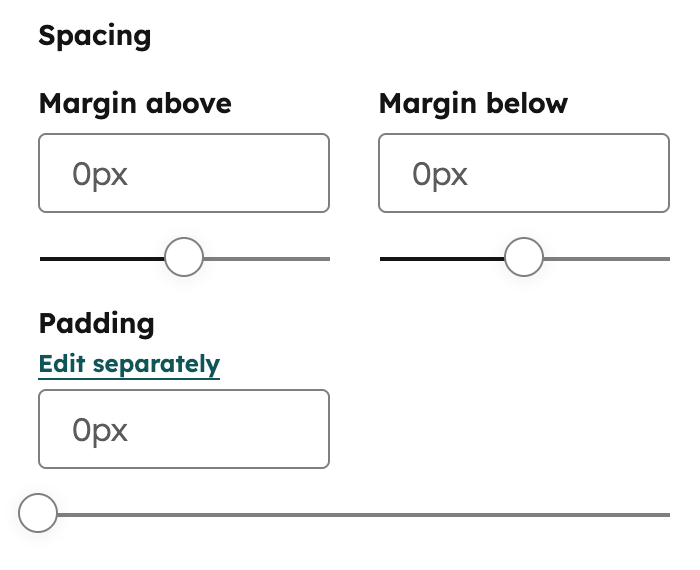 ```json expandable theme={null}
{
"name": "img_spacing",
"label": "Spacing around image",
"required": false,
"type": "spacing",
"limits": {
"padding": {
"top": {
"max": 50,
"min": 25,
"units": ["px", "pt", "em"]
},
"left": {
"max": 50,
"units": ["px", "pt", "em"]
},
"bottom": {
"max": 50,
"units": ["px", "pt", "em"]
}
},
"margin": {
"top": {
"max": 50,
"min": 25,
"units": ["px", "pt", "em"]
},
"bottom": {
"max": 25,
"units": ["Q", "rem", "em"]
}
}
},
"default": {
"padding": {
"top": {
"value": 57,
"units": "px"
},
"bottom": {
"value": 57,
"units": "px"
},
"left": {
"value": 57,
"units": "px"
},
"right": {
"value": 57,
"units": "px"
}
},
"margin": {
"top": {
"value": 20,
"units": "px"
},
"bottom": {
"value": 20,
"units": "px"
}
}
}
}
```
| Parameter | Type | Description | Default |
| --------- | ------ | -------------------------------------------------------------------------------------------------------------------------------------------------------------------------------------------------------------------------------------------------------------------------------------------------------------------------------------------------- | ------- |
| `default` | Object | Sets the default spacing values.Contains `padding` and `margin` objects:
```json expandable theme={null}
{
"name": "img_spacing",
"label": "Spacing around image",
"required": false,
"type": "spacing",
"limits": {
"padding": {
"top": {
"max": 50,
"min": 25,
"units": ["px", "pt", "em"]
},
"left": {
"max": 50,
"units": ["px", "pt", "em"]
},
"bottom": {
"max": 50,
"units": ["px", "pt", "em"]
}
},
"margin": {
"top": {
"max": 50,
"min": 25,
"units": ["px", "pt", "em"]
},
"bottom": {
"max": 25,
"units": ["Q", "rem", "em"]
}
}
},
"default": {
"padding": {
"top": {
"value": 57,
"units": "px"
},
"bottom": {
"value": 57,
"units": "px"
},
"left": {
"value": 57,
"units": "px"
},
"right": {
"value": 57,
"units": "px"
}
},
"margin": {
"top": {
"value": 20,
"units": "px"
},
"bottom": {
"value": 20,
"units": "px"
}
}
}
}
```
| Parameter | Type | Description | Default |
| --------- | ------ | -------------------------------------------------------------------------------------------------------------------------------------------------------------------------------------------------------------------------------------------------------------------------------------------------------------------------------------------------- | ------- |
| `default` | Object | Sets the default spacing values.Contains `padding` and `margin` objects:- `padding`: can contain `top`, `right`, `bottom`, `left` objects
- `margin`: can contain `top` and `bottom` objects
Use `units` to set the units that a content creator can use in HubSpot. Learn more about units below. | `{}` |
| `limits` | Object | Sets the guidelines for `min` and `max` amount of spacing. Contains `padding` and `margin` objects:- `padding`: can contain `top`, `right`, `bottom`, `left` objects
- `margin`: can contain `top` and `bottom` objects
Use `units` to set the units that a content creator can use in HubSpot. Learn more about units below. | |
```jsx expandable theme={null}
import { ModuleFields, SpacingField } from "@hubspot/cms-components/fields";
export const fields = (
);
```
| Prop | Type | Description | Default |
| --------- | ------ | -------------------------------------------------------------------------------------------------------------------------------------------------------------------------------------------------------------------------------------------------------------------------------------------------------------------------------------------------- | ------- |
| `default` | Object | Sets the default spacing values.Contains `padding` and `margin` objects:- `padding`: can contain `top`, `right`, `bottom`, `left` objects
- `margin`: can contain `top` and `bottom` objects
Use `units` to set the units that a content creator can use in HubSpot. Learn more about units below. | `{}` |
| `limits` | Object | Sets the guidelines for `min` and `max` amount of spacing. Contains `padding` and `margin` objects:- `padding`: can contain `top`, `right`, `bottom`, `left` objects
- `margin`: can contain `top` and `bottom` objects
Use `units` to set the units that a content creator can use in HubSpot. Learn more about units below. | |
When using the spacing field, please note the following:
* You must include a `units` list when setting a `min` or `max`.
* The `units` property supports the following unit types: `%`, `ch`, `em`, `ex`, `in`, `lh`, `pc`, `pt`, `px`, `Q`, `rem`, `vh`, `vmax`, `vmin`, and `vw`.
* When a content creator edits all padding together, HubSpot will use the highest `min` value and the lowest `max` value. In addition, only the units shared by all sides will be available to the content creator.
## Tag
Can be used in [modules](/cms/start-building/building-blocks/modules/overview#fields-json).
Tag fields provide a blog tag picker for content creators. This tag picker returns a blog tag ID which can then be used in blog tag related functions such as [Blog Tag URL](/cms/reference/hubl/functions#blog-tag-url) and [Blog Recent Tag Posts](/cms/reference/hubl/functions#blog-recent-tag-posts).
 ```json theme={null}
{
"id": "c3395cd3-8e60-7e47-2f1b-b7ccf4d669c9",
"name": "blog_tag",
"label": "Blog Tag",
"required": false,
"locked": false,
"tag_value": "SLUG",
"type": "tag",
"default": null
}
```
| Parameter | Type | Description | Default |
| ----------- | ------ | ------------------------------------------------------------------------------------------------------------------------------------------------------------------------------------------------------------------------------------------------- | ------- |
| `default` | String | The ID of the tag. | `null` |
| `tag_value` | String | The output value. Can be one of:
```json theme={null}
{
"id": "c3395cd3-8e60-7e47-2f1b-b7ccf4d669c9",
"name": "blog_tag",
"label": "Blog Tag",
"required": false,
"locked": false,
"tag_value": "SLUG",
"type": "tag",
"default": null
}
```
| Parameter | Type | Description | Default |
| ----------- | ------ | ------------------------------------------------------------------------------------------------------------------------------------------------------------------------------------------------------------------------------------------------- | ------- |
| `default` | String | The ID of the tag. | `null` |
| `tag_value` | String | The output value. Can be one of:- `ALL`: an object containing the name, unique ID, and URL slug of the tag.
- `ID`: the unique ID of the tag.
- `NAME`: the name of the tag.
- `SLUG`: the URL slug of the tag.
| `SLUG` |
```jsx theme={null}
import { ModuleFields, TagField } from "@hubspot/cms-components/fields";
export const fields = (
);
```
| Prop | Type | Description | Default |
| ---------- | ------ | ------------------------------------------------------------------------------------------------------------------------------------------------------------------------------------------------------------------------------------------------- | ------- |
| `default` | String | The ID of the tag. | `null` |
| `tagValue` | String | The output value. Can be one of:- `ALL`: an object containing the name, unique ID, and URL slug of the tag.
- `ID`: the unique ID of the tag.
- `NAME`: the name of the tag.
- `SLUG`: the URL slug of the tag.
| `SLUG` |
## Text
Can be used in [modules](/cms/start-building/building-blocks/modules/overview#fields-json).
Text fields provide content creators a simple text editing experience with no rich text functionality. Text fields initially show as a single line, but can actually expand to be text areas, supporting multiple lines. Use these when you do not want content creators to have control over formatting. If you do want to provide formatting controls use [rich text fields](#rich-text).
 ```json theme={null}
{
"name": "product_name",
"label": "Product Name",
"required": false,
"locked": false,
"validation_regex": "",
"allow_new_line": false,
"show_emoji_picker": false,
"type": "text",
"default": ""
}
```
| Parameter | Type | Description | Default |
| ------------------- | ------- | ------------------------------------------------------------------------------------------------------------------------------------- | ------- |
| `default` | String | Text string. | `""` |
| `validation_regex` | String | A regex pattern used to validate the field value. If the value does not match the pattern, a validation error is shown in the editor. | `""` |
| `allow_new_line` | Boolean | When `true`, the text field expands to a textarea that supports multiple lines of input. | `false` |
| `show_emoji_picker` | Boolean | When `true`, displays an emoji picker button in the field for content creators to insert emoji characters. | `false` |
```jsx theme={null}
import { ModuleFields, TextField } from "@hubspot/cms-components/fields";
export const fields = (
);
```
| Prop | Type | Description | Default |
| ----------------- | ------- | ------------------------------------------------------------------------------------------------------------------------------------- | ------- |
| `default` | String | Text string. | `""` |
| `validationRegex` | String | A regex pattern used to validate the field value. If the value does not match the pattern, a validation error is shown in the editor. | `""` |
| `allowNewLine` | Boolean | When `true`, the text field expands to a textarea that supports multiple lines of input. | `false` |
| `showEmojiPicker` | Boolean | When `true`, displays an emoji picker button in the field for content creators to insert emoji characters. | `false` |
## Text Alignment
Can be used in [modules](/cms/start-building/building-blocks/modules/overview#fields-json) as a [style field](/cms/reference/fields/overview#style-fields).
This field provides content creators a way to align text content within a container. This should not be used for aligning other assets as there is a [field type specifically for that](#alignment).
```json theme={null}
{
"name": "product_name",
"label": "Product Name",
"required": false,
"locked": false,
"validation_regex": "",
"allow_new_line": false,
"show_emoji_picker": false,
"type": "text",
"default": ""
}
```
| Parameter | Type | Description | Default |
| ------------------- | ------- | ------------------------------------------------------------------------------------------------------------------------------------- | ------- |
| `default` | String | Text string. | `""` |
| `validation_regex` | String | A regex pattern used to validate the field value. If the value does not match the pattern, a validation error is shown in the editor. | `""` |
| `allow_new_line` | Boolean | When `true`, the text field expands to a textarea that supports multiple lines of input. | `false` |
| `show_emoji_picker` | Boolean | When `true`, displays an emoji picker button in the field for content creators to insert emoji characters. | `false` |
```jsx theme={null}
import { ModuleFields, TextField } from "@hubspot/cms-components/fields";
export const fields = (
);
```
| Prop | Type | Description | Default |
| ----------------- | ------- | ------------------------------------------------------------------------------------------------------------------------------------- | ------- |
| `default` | String | Text string. | `""` |
| `validationRegex` | String | A regex pattern used to validate the field value. If the value does not match the pattern, a validation error is shown in the editor. | `""` |
| `allowNewLine` | Boolean | When `true`, the text field expands to a textarea that supports multiple lines of input. | `false` |
| `showEmojiPicker` | Boolean | When `true`, displays an emoji picker button in the field for content creators to insert emoji characters. | `false` |
## Text Alignment
Can be used in [modules](/cms/start-building/building-blocks/modules/overview#fields-json) as a [style field](/cms/reference/fields/overview#style-fields).
This field provides content creators a way to align text content within a container. This should not be used for aligning other assets as there is a [field type specifically for that](#alignment).
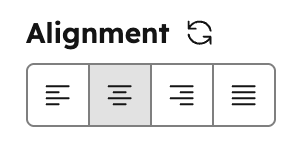 ```json theme={null}
{
"name": "heading_align",
"label": "Heading alignment",
"required": false,
"type": "textalignment",
"default": {
"text_align": "CENTER"
}
}
```
| Parameter | Type | Description | Default |
| ------------ | ------ | --------------------------------------------------------------------------------------------------------------------------- | ------- |
| `default` | Object | Object containing `text_align`. | |
| `text_align` | String | Determines the default alignment. Can be one of:
```json theme={null}
{
"name": "heading_align",
"label": "Heading alignment",
"required": false,
"type": "textalignment",
"default": {
"text_align": "CENTER"
}
}
```
| Parameter | Type | Description | Default |
| ------------ | ------ | --------------------------------------------------------------------------------------------------------------------------- | ------- |
| `default` | Object | Object containing `text_align`. | |
| `text_align` | String | Determines the default alignment. Can be one of:- `LEFT`
- `CENTER`
- `RIGHT`
- `JUSTIFY`
| |
```jsx theme={null}
import { ModuleFields, TextAlignmentField } from "@hubspot/cms-components/fields";
export const fields = (
);
```
| Prop | Type | Description | Default |
| ------------ | ------ | --------------------------------------------------------------------------------------------------------------------------- | ------- |
| `default` | Object | Object containing `text_align`. | |
| `text_align` | String | Determines the default alignment. Can be one of:- `LEFT`
- `CENTER`
- `RIGHT`
- `JUSTIFY`
| |
## URL
Can be used in [modules](/cms/start-building/building-blocks/modules/overview#fields-json).
URL fields provide a similar experience to link fields. Providing a UI for content creators to add links. URL fields, however, do not show a UI for open in a new window, nor tell search engines not to follow. Use this field when you as a developer want to dictate the values for that. If you want the user to have control, use [link fields](#link) instead.
 ```json theme={null}
{
"name": "url",
"label": "URL",
"required": false,
"locked": false,
"supported_types": ["EXTERNAL", "CONTENT", "FILE", "EMAIL_ADDRESS", "BLOG", "PHONE_NUMBER", "WHATSAPP_NUMBER"],
"type": "url",
"default": {
"content_id": null,
"href": "http://example.com",
"type": "EXTERNAL"
}
}
```
| Parameter | Type | Description | Default |
| ----------------- | ------ | ------------------------------------------------------------------------------------------------------------------------------------------------------------------------------------------------------------------------------------------------------------------------------------------------------------------------------------------------------------------------------------------------------------------------------------------------------------------------------------------------------------------------------------------------------------------------------------------------------------------------------------------------------------------------------------------------------------------------------------------------------------------------------------------------------------------------------------------------------------------------------------------------------------------------- | ------------------------------------------------------------ |
| `default` | Object | URL object, with type, href and content ID (if content is a page or post on HubSpot) | `{ "content_id" : null, "href" : "", "type" : "EXTERNAL" }` |
| `supported_types` | Array | list of the types of links this field allows content creators to select. Remove types from the list that you don't want content creators to have access to set. Types include:
```json theme={null}
{
"name": "url",
"label": "URL",
"required": false,
"locked": false,
"supported_types": ["EXTERNAL", "CONTENT", "FILE", "EMAIL_ADDRESS", "BLOG", "PHONE_NUMBER", "WHATSAPP_NUMBER"],
"type": "url",
"default": {
"content_id": null,
"href": "http://example.com",
"type": "EXTERNAL"
}
}
```
| Parameter | Type | Description | Default |
| ----------------- | ------ | ------------------------------------------------------------------------------------------------------------------------------------------------------------------------------------------------------------------------------------------------------------------------------------------------------------------------------------------------------------------------------------------------------------------------------------------------------------------------------------------------------------------------------------------------------------------------------------------------------------------------------------------------------------------------------------------------------------------------------------------------------------------------------------------------------------------------------------------------------------------------------------------------------------------------- | ------------------------------------------------------------ |
| `default` | Object | URL object, with type, href and content ID (if content is a page or post on HubSpot) | `{ "content_id" : null, "href" : "", "type" : "EXTERNAL" }` |
| `supported_types` | Array | list of the types of links this field allows content creators to select. Remove types from the list that you don't want content creators to have access to set. Types include:- `EXTERNAL`: renders a text input field for an external URL.
- `CONTENT`: renders a dropdown menu containing the account's website and landing pages.
- `FILE`: renders a file selector.
- `EMAIL_ADDRESS`: renders a text input field for an email address.
- `BLOG`: renders a dropdown menu containing the account's blog listing pages.
- `PHONE_NUMBER`: renders a text input field for a phone number. The number must start with `+` and contain 7-15 digits (excluding the country code).
- `WHATSAPP_NUMBER`: renders a dropdown menu containing the account's [connected WhatsApp numbers](https://knowledge.hubspot.com/inbox/connect-whatsapp-to-the-conversations-inbox).
| `[ "EXTERNAL", "CONTENT", "FILE", "EMAIL_ADDRESS", "BLOG" ]` |
```jsx theme={null}
import { ModuleFields, UrlField } from "@hubspot/cms-components/fields";
export const fields = (
);
```
| Prop | Type | Description | Default |
| ---------------- | ------ | ------------------------------------------------------------------------------------------------------------------------------------------------------------------------------------------------------------------------------------------------------------------------------------------------------------------------------------------------------------------------------------------------------------------------------------------------------------------------------------------------------------------------------------------------------------------------------------------------------------------------------------------------------------------------------------------------------------------------------------------------------------------------------------------------------------------------------------------------------------------------------------------------------------------------- | ------------------------------------------------------------ |
| `default` | Object | URL object, with type, href and content ID (if content is a page or post on HubSpot) | `{ "content_id" : null, "href" : "", "type" : "EXTERNAL" }` |
| `supportedTypes` | Array | list of the types of links this field allows content creators to select. Remove types from the list that you don't want content creators to have access to set. Types include:- `EXTERNAL`: renders a text input field for an external URL.
- `CONTENT`: renders a dropdown menu containing the account's website and landing pages.
- `FILE`: renders a file selector.
- `EMAIL_ADDRESS`: renders a text input field for an email address.
- `BLOG`: renders a dropdown menu containing the account's blog listing pages.
- `PHONE_NUMBER`: renders a text input field for a phone number. The number must start with `+` and contain 7-15 digits (excluding the country code).
- `WHATSAPP_NUMBER`: renders a dropdown menu containing the account's [connected WhatsApp numbers](https://knowledge.hubspot.com/inbox/connect-whatsapp-to-the-conversations-inbox).
| `[ "EXTERNAL", "CONTENT", "FILE", "EMAIL_ADDRESS", "BLOG" ]` |
## Video
Can be used in [modules](/cms/start-building/building-blocks/modules/overview#fields-json).
Video fields provide content editors with a place to add HubSpot Video to their module content without the need of using rich text fields.
 ```json theme={null}
{
"name": "videoplayer_field",
"label": "Video",
"required": false,
"locked": false,
"type": "videoplayer",
"show_advanced_options": false,
"default": {
"player_id": 32173842991,
"height": 1224,
"width": 1872,
"conversion_asset": {
"type": "CTA",
"id": "c3e4fa03-2c69-461d-b9af-22b2fde86bc7",
"position": "POST"
},
"loop_video": false,
"mute_by_default": false,
"autoplay": false,
"hide_control": false
}
}
```
| Parameter | Type | Description | Default |
| ----------------------- | ------- | ---------------------------------------------------------------------------------------------------------------------------------------------------------------------------------------------------------------------------------------------------------------- | ------- |
| `default` | Object | Video object with settings, including:
```json theme={null}
{
"name": "videoplayer_field",
"label": "Video",
"required": false,
"locked": false,
"type": "videoplayer",
"show_advanced_options": false,
"default": {
"player_id": 32173842991,
"height": 1224,
"width": 1872,
"conversion_asset": {
"type": "CTA",
"id": "c3e4fa03-2c69-461d-b9af-22b2fde86bc7",
"position": "POST"
},
"loop_video": false,
"mute_by_default": false,
"autoplay": false,
"hide_control": false
}
}
```
| Parameter | Type | Description | Default |
| ----------------------- | ------- | ---------------------------------------------------------------------------------------------------------------------------------------------------------------------------------------------------------------------------------------------------------------- | ------- |
| `default` | Object | Video object with settings, including: - `player_id`
- `height`
- `width`
- `size_type`
- `conversion_asset` (see table below)
- `loop_video`
- `mute_by_default`
- `autoplay`
- `hide_control`
| |
| `show_advanced_options` | Boolean | Whether content creators can see advanced default options. | `false` |
```jsx theme={null}
import { ModuleFields, VideoField } from "@hubspot/cms-components/fields";
export const fields = (
);
```
| Prop | Type | Description | Default |
| --------------------- | ------- | ---------------------------------------------------------------------------------------------------------------------------------------------------------------------------------------------------------------------------------------------------------------- | ------- |
| `default` | Object | Video object with settings, including: - `player_id`
- `height`
- `width`
- `size_type`
- `conversion_asset` (see table below)
- `loop_video`
- `mute_by_default`
- `autoplay`
- `hide_control`
| |
| `showAdvancedOptions` | Boolean | Whether content creators can see advanced default options. | `false` |
`conversion_asset` object parameters:
| Parameter | Type | Description | Default |
| ---------- | ------ | -------------------------------------------------------------------------------------------------------------------------- | ------- |
| `type` | String | The type of asset. Can be one of `"FORM"`, `"CTA"`, or `""` | `""` |
| `id` | String | The ID of the Form or CTA type | `""` |
| `position` | String | Whether the conversion asset should be shown before the video starts or after it ends. Accepts either `"PRE"` or `"POST"`. | `""` |