> ## Documentation Index
> Fetch the complete documentation index at: https://developers.hubspot.com/docs/llms.txt
> Use this file to discover all available pages before exploring further.
---
id: 1f177b56-4b8b-487e-9dbb-af1b8298baf5
---
# Module and Theme Fields Overview
> HubSpot modules and themes support customization by content creators through fields. Developers create and organize fields through a fields.json file.
Within [modules](/cms/start-building/building-blocks/modules/overview) and [themes](/cms/start-building/building-blocks/themes/getting-started), fields are used to enable content creators to control module and theme styling and functionality on your website. When developing a module or a theme, you'll include fields in a `fields.json` file, which will then translate to the theme and content editors.
Below, learn more about how to create and manage options for module and theme fields. To learn more about specific field types, check out the [module and field types reference guide](/cms/reference/fields/module-theme-fields).
## Creating and managing fields
You can add fields to a [module's](/cms/start-building/building-blocks/modules/hide-modules-and-sections) `fields.json` file locally through the [HubSpot CLI](/developer-tooling/local-development/hubspot-cli/install-the-cli) and in the in-app module editor. To add fields to a [theme](/cms/start-building/building-blocks/overview), you must update the theme's `fields.json` file locally using the CLI.
### HubSpot CLI
When [building via the CLI](/developer-tooling/local-development/hubspot-cli/install-the-cli), module and theme fields can be edited through a `fields.json` file inside of the module or theme's folder. For modules, this file will automatically be created when using the [`hs create module`](/developer-tooling/local-development/hubspot-cli/commands/cms-commands#create-a-module) command. All of the field options available in the module editor are available as properties you can add or edit in the `fields.json` file. This includes repeater fields, groups, and conditions. One of the benefits of editing locally is that it makes it easier to [include your modules in version control systems like git](/cms/start-building/introduction/developer-environment/github-integration).
### Module editor
The [design manager](/cms/start-building/introduction/developer-environment/design-manager) has a built-in module editor that enables you to [create](https://knowledge.hubspot.com/design-manager/create-and-edit-modules), group, and [edit](https://knowledge.hubspot.com/design-manager/create-and-edit-modules) module fields. The module editor contains a module preview which enables you to see what the module looks like on its own, as well as test your fields. Since modules do not live in a vacuum you should always test them on a template you plan to use, to see what template level styles may affect it. Be aware if a module is contained in a locked folder it cannot be edited this way.
**Please note:**
If you are working mostly locally but want to use the module editor to configure fields, make sure to [fetch](/developer-tooling/local-development/hubspot-cli/reference#fetch) your changes. This is especially important for those using version control systems like git.
## Side by side fields
By default, module fields in content editors stack vertically. However, you can place module fields side by side by adding a `display_width` property to fields in the `fields.json` file with a value of `half_width`.
A single field with a `display_width` of `half_width` will appear as half-width in the content editor. When the field above or below that field in the `fields.json` file is set to `half_width`, they'll be placed side by side.
```json theme={null}
[
{
"name": "number_field",
"label": "Number",
"required": false,
"locked": false,
"display": "slider",
"min": 1,
"max": 10,
"step": 1,
"type": "number",
"prefix": "",
"suffix": "",
"default": null,
"display_width": "half_width"
},
{
"label": "Description",
"name": "description",
"type": "text",
"required": true,
"default": "Add a description",
"display_width": "half_width"
}
]
```
## Field groups
When fields are related to each other, it often makes sense for them to be grouped together visually. You can do so by creating field groups, which are supported in both modules and themes. To create a field group locally, in `fields.json` create an object with the `type` of `"group"`. Then, include a `children` array to contain the fields you want to group together.
```json theme={null}
[
{
"id": "9c00985f-01db-ac5d-73f5-80ed6c0c7863",
"name": "my_text",
"display_width": null,
"label": "Text",
"required": true,
"locked": false,
"validation_regex": "",
"allow_new_line": false,
"show_emoji_picker": false,
"type": "text",
"default": "Add text here"
},
{
"type": "group",
"name": "recipe_summary_group",
"label": "Recipe summary",
"expanded": true,
"inline_help_text": "Summarize the recipe (title and description)",
"children": [
{
"type": "text",
"label": "Recipe title",
"name": "recipe_title",
"placeholder": "Burrata salad"
},
{
"type": "text",
"label": "Recipe description",
"name": "recipe_description",
"placeholder": "fig mostarda, hazelnuts, arugula, vincotto, prosciutto, toasted sourdough"
}
]
}
]
```
You can create further field groupings inside a group by adding another `"group"` type object within the first `children` parameter. Then, build the field group in the same way as above, using `children` to contain the fields. You can nest field groups up to a depth of three.
```json theme={null}
[
{
"type": "group",
"name": "recipe_summary_group",
"label": "Recipe summary",
"inline_help_text": "Summarize the recipe (title and description)",
"display": "inline",
"children": [
{
"type": "text",
"label": "Recipe title",
"name": "recipe_title",
"placeholder": "Burrata salad"
},
{
"type": "text",
"label": "Recipe description",
"name": "recipe_description",
"placeholder": "fig mostarda, hazelnuts, arugula, vincotto, prosciutto, toasted sourdough"
},
{
"type": "group",
"name": "secondary_group",
"label": "Secondary group",
"expanded": false,
"children": [
{
"name": "bg_color",
"label": "Background color",
"sortable": false,
"required": false,
"locked": false,
"type": "color",
"default": {
"color": "#ff0000",
"opacity": 100
}
}
]
}
]
}
]
```
#### Field group display options
You can customize the following field group display behavior:
* **Expansion:** by default, field groups will display as collapsed in the editor. Groups that contain nested groups will display as drilldown buttons that open the group in its own view with the innermost group displaying dividers.
* **Display type:** by default, groups that don't contain nested groups will display as collapsible sections with visual dividers around its children. Groups that do contain nested groups will display as drilldown buttons that open the group in its own view with the innermost group displaying with dividers.
* **Group icon:** if desired, you can include a Font Awesome icon that displays to the left of the label.
```json theme={null}
[
{
"type": "group",
"name": "recipe_summary_group",
"label": "Recipe summary",
"display": "drilldown",
"inline_help_text": "Summarize the recipe (title and description)",
"icon": {
"name": "star",
"set": "fontawesome-5.14.0",
"type": "SOLID"
},
"children": [
{
"type": "text",
"label": "Recipe title",
"name": "recipe_title",
"placeholder": "Burrata salad"
},
{
"type": "text",
"label": "Recipe description",
"name": "recipe_description",
"placeholder": "fig mostarda, hazelnuts, arugula, vincotto, prosciutto, toasted sourdough"
}
]
}
]
```
| Parameter | Type | Description |
| ---------- | ------- | -------------------------------------------------------------------------------------------------------------------------------------------------------------------------------------------------------------------------------------------------------------------------------------------------------------------------------------------------------------------------------------------------------------------------------------------------------------------------------------------------------------------------------------------------------------- |
| `display` | String | The display style of the field group. Can be one of the following:
`drilldown`: displays the collapsed group with a button to open the group's children in its own panel. This is the default display for groups that contain nested groups.
`accordion`: displays the collapsed group with a button to expand the group's children below as an expandable section. This is the default display for groups without nested groups.
`inline`: displays the group and its children inline with no option to collapse the group.
|
| `icon` | Object | Adds an icon to the left of the label. Contains the following parameters:
`name`: the Font Awesome icon identifier.
`set`: the Font Awesome [icon set](/cms/reference/fields/module-theme-fields#icon).
`type`: icon style (e.g., `SOLID`, `REGULAR`).
|
| `expanded` | Boolean | Whether the field group is expanded by default. |
#### Outputting field values within field groups
Field groups create dicts that contain the field values you want to output. If you nest field groups the nested field group is a dict inside of the outside field group dict. To access that data you will traverse the tree from either the root theme or module variable depending on your context.
```html example.html theme={null}
{# printing a value from a field group `recipe_summary` is the field group,
`title` is the text field. #} {{module.recipe_summary.title}}
```
```css example.css theme={null}
/* Printing a Font field's color value, when the font field is within a field group.
`typography` is the field group, `h1_font` is the field */
h1{
color: {{ theme.typography.h1_font.color }};
}
```
#### Featured items in field groups
For situations where a field group is repeated, you can specify one or more of those occurrences as featured, enabling you to style the item separately to make it stand out. For example, this can be particularly useful for a product page where you might have a featured product that you want to highlight.
You can specify a maximum number of featured items per field group. In the editor, content creators can then mark items as featured as needed.
To enable featured items in a field group, include the `group_occurrence_meta` property in the field group configuration. This property stores the following properties:
* `featured_enabled`: set to `true` to enable featured items.
* `featured_limit`: the maximum number of featured items to allow.
The field group must also include the `occurrence` property.
```json theme={null}
{
"label": "Card",
"name": "card",
"type": "group",
"occurrence": {
"default": 2,
"min": 1,
"sorting_label_field": "card.title"
},
"group_occurrence_meta": {
"featured_enabled": true,
"featured_limit": 3
},
"children": [
{
"label": "Image",
"name": "image",
"type": "image",
"responsive": true,
"resizable": true,
"show_loading": true,
"default": {
"loading": "lazy"
}
},
{
"label": "Content",
"name": "text",
"type": "richtext",
"enabled_features": [
"advanced_emphasis",
"alignment",
"block",
"emoji",
"font_family",
"font_size",
"lists",
"standard_emphasis"
],
"default": "
This is a title
Contextual advertising can be profitable. It can either pay for your hosting and maintenance costs for you website or it can pay for a lot more.
Contextual advertising can be profitable. It can either pay for your hosting and maintenance costs for you website or it can pay for a lot more.
"
},
{
"image": {
"loading": "lazy"
},
"text": "
This is a title
Contextual advertising can be profitable. It can either pay for your hosting and maintenance costs for you website or it can pay for a lot more.
"
}
]
}
```
To check whether an item in a repeated group is featured, you can query the `hs_meta` property. The code below uses a [for loop](/cms/reference/hubl/loops) to check for field group items that are set to featured, then displays the title of each as an `h3` header.
`{{ repeated_group_item.hs_meta.occurrence.featured }}`
```hubl theme={null}
Check out this week's featured items:
{% for item in module.card %}
{% if item.hs_meta.occurrence.featured %}
{{item.title}}
{% endif %}
{% endfor %}
```
## Style fields
Style fields are a special field group type in a module or theme's `fields.json` file that give content creators control over a module or theme's styling in the page and theme editor. Below, learn how to add style fields to a module or theme. Learn about [best practices for using and organizing style fields](/cms/start-building/building-blocks/fields/alias-mapping).
### Module style fields
Style fields added to a module will appear on the *Styles* tab of the page editor when editing the module:
When adding style fields to a module's `fields.json` file, you add them within one styles group. That group, however, can contain multiple groups within it, as shown below:
```json theme={null}
[
{
"type": "group",
"name": "styles",
"tab": "STYLE",
"children": [
{
"name": "img_spacing",
"label": "Spacing around image",
"required": false,
"type": "spacing",
"default": {
"padding": {
"top": {
"value": 10,
"units": "px"
},
"bottom": {
"value": 10,
"units": "px"
},
"left": {
"value": 10,
"units": "px"
},
"right": {
"value": 10,
"units": "px"
}
},
"margin": {
"top": {
"value": 10,
"units": "px"
},
"bottom": {
"value": 10,
"units": "px"
}
}
}
}
]
}
]
```
The following fields can be used as style fields in modules. Learn about each of the field types in the [module and field types reference](/cms/reference/fields/module-theme-fields).
* [Alignment](/cms/reference/fields/module-theme-fields#alignment)
* [Gradient](/cms/reference/fields/module-theme-fields#gradient)
* [Spacing](/cms/reference/fields/module-theme-fields#spacing)
* [Background Image](/cms/reference/fields/module-theme-fields#background-image)
* [Border](/cms/reference/fields/module-theme-fields#border)
* [Boolean](/cms/reference/fields/module-theme-fields#boolean)
* [Choice](/cms/reference/fields/module-theme-fields#choice)
* [Number](/cms/reference/fields/module-theme-fields#number)
* [Color](/cms/reference/fields/module-theme-fields#color)
* [Icon](/cms/reference/fields/module-theme-fields#icon)
* [Image](/cms/reference/fields/module-theme-fields#image)
* [Font](/cms/reference/fields/module-theme-fields#font)
* [Text Alignment](/cms/reference/fields/module-theme-fields#text-alignment)
View the [CMS boilerplate](https://github.com/HubSpot/cms-theme-boilerplate/blob/main/src/modules/card.module/fields.json) for an example of a style fields within a module's `fields.json` file.
### Theme style fields
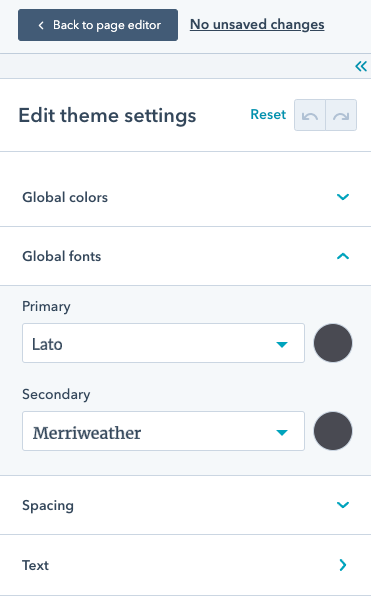
Style fields added to a theme will appear in the left sidebar of the theme editor:
All style fields within a theme's `fields.json` file will be added to the left sidebar of the theme editor, as opposed to needing to put them under a styles group, as shown below:
```json expandable theme={null}
[
{
"label": "Global colors",
"name": "global_colors",
"type": "group",
"children": [
{
"label": "Primary",
"name": "primary",
"type": "color",
"visibility": {
"hidden_subfields": {
"opacity": true
}
},
"default": {
"color": "#494A52"
}
},
{
"label": "Secondary",
"name": "secondary",
"type": "color",
"visibility": {
"hidden_subfields": {
"opacity": true
}
},
"default": {
"color": "#F8FAFC"
}
}
]
},
{
"label": "Global fonts",
"name": "global_fonts",
"type": "group",
"children": [
{
"label": "Primary",
"name": "primary",
"type": "font",
"visibility": {
"hidden_subfields": {
"size": true,
"styles": true
}
},
"inherited_value": {
"property_value_paths": {
"color": "theme.global_colors.primary.color"
}
},
"default": {
"fallback": "sans-serif",
"font": "Lato",
"font_set": "GOOGLE"
}
},
{
"label": "Secondary",
"name": "secondary",
"type": "font",
"visibility": {
"hidden_subfields": {
"size": true,
"styles": true
}
},
"inherited_value": {
"property_value_paths": {
"color": "theme.global_colors.primary.color"
}
},
"default": {
"fallback": "serif",
"font": "Merriweather",
"font_set": "GOOGLE"
}
}
]
},
{
"name": "branding_color",
"label": "branding_color",
"type": "color",
"default": {
"color": "#3b7bc0", "opacity": 60
},
"inherited_value": {
"property_value_paths": {
"color": "brand_settings.primaryColor"
}
}
},
{
"name": "secondary_branding_color",
"label": "Secondary Branding color",
"type": "color",
"default": {
"color": "#ff6b6b", "opacity": 60
},
"inherited_value": {
"property_value_paths": {
"color": "brand_settings.colors[2]"
}
}
}
]
```
The following fields can be used as style fields in themes. Learn about each of the field types in the [module and field types reference](/cms/reference/fields/module-theme-fields).
* [Boolean](/cms/reference/fields/module-theme-fields#boolean)
* [Border](/cms/reference/fields/module-theme-fields#border)
* [Choice](/cms/reference/fields/module-theme-fields#choice)
* [Color](/cms/reference/fields/module-theme-fields#color)
* [Font](/cms/reference/fields/module-theme-fields#font)
* [Image](/cms/reference/fields/module-theme-fields#image)
* [Number](/cms/reference/fields/module-theme-fields#number)
* [Spacing](/cms/reference/fields/module-theme-fields#spacing)
For a full list of available fields, see the [Module and theme fields reference](/cms/reference/fields/module-theme-fields).
View the [CMS boilerplate](https://github.com/HubSpot/cms-theme-boilerplate/blob/main/src/fields.json) for an example of a style fields within a theme's `fields.json` file.
### Generated CSS
Some style fields provide a way to output css directly based on the field's value. This is especially helpful with fields that can control more complicated styling like gradients. The following style fields have a generated `.css` property:
* [Background Image](/cms/reference/fields/module-theme-fields#background-image)
* [Border](/cms/reference/fields/module-theme-fields#border)
* [Color](/cms/reference/fields/module-theme-fields#color)
* [Font](/cms/reference/fields/module-theme-fields#font)
* [Gradient](/cms/reference/fields/module-theme-fields#gradient)
* [Spacing](/cms/reference/fields/module-theme-fields#spacing)
* [Text alignment](/cms/reference/fields/module-theme-fields#text-alignment)
```html theme={null}
{% require_css %}
{% end_require_css %}
```
## Repeaters
When creating modules that format information, often there are types of information that repeat. A recipe module for example, might have a field for "Ingredient". Well, most recipes have more than 1 ingredient. You could give them a rich text field, but then you lose your ability to force consistent styling and add functionality around each ingredient. That's where repeaters come in, HubSpot has two forms of repeaters: Repeating fields, and Repeating groups.
### Repeating fields
Repeating fields are normal fields but content creators can add, remove, and re-arrange instances of the field. Using the recipe module example above, each ingredient could be a repeating text field.
This makes it so the content creator can add as many ingredients as they wish. From the developer perspective, you get an array that you can loop through to print out that list of ingredients, applying the formatting and functionality you want.
Repeating fields are best used for very simple situations. Often times [repeating groups](#repeating-groups) make more sense.
**Please note:**
It's not currently possible to set the default order of repeating fields.
#### Repeating fields in fields.json
```json theme={null}
{
"name": "ingredient",
"label": "Ingredient",
"required": false,
"locked": false,
"occurrence": {
"min": 1,
"max": null,
"sorting_label_field": null,
"default": 1
},
"allow_new_line": false,
"show_emoji_picker": true,
"type": "text",
"default": ["1 cup water"]
}
```
#### Loop through items in module HTML+HubL
```html theme={null}
{% for item in module.ingredient %}
{{ item }}
{% endfor %}
```
### Repeating groups
Repeating groups are field groups with the repeating option enabled. Repeating groups allow content creators to add, remove, and re-arrange groups of fields. Using the recipe module example, say that you want to integrate your ingredients list with a shopping list functionality.
The quantity of an ingredient would be critical to the shopping list. While someone could provide that in the text field, the module would then need to parse the text field and hope we are successfully separating the quantity from the ingredient. This is where repeating groups come in handy. The output of these fields is an object that can be looped through.
#### Repeating groups in fields.json
```json theme={null}
{
"id": "ingredients",
"name": "ingredients",
"label": "Ingredients",
"required": false,
"locked": false,
"occurrence": {
"min": 1,
"max": null,
"sorting_label_field": "ingredients.ingredient",
"default": null
},
"children": [
{
"id": "ingredients.ingredient",
"name": "ingredient",
"label": "Ingredient",
"required": false,
"locked": false,
"validation_regex": "",
"allow_new_line": false,
"show_emoji_picker": false,
"type": "text",
"default": "Water"
},
{
"id": "ingredients.quantity",
"name": "quantity",
"label": "Quantity",
"required": false,
"locked": false,
"display": "text",
"min": 0,
"step": 1,
"type": "number",
"default": 1
},
{
"id": "ingredients.measurement",
"name": "measurement",
"label": "Measurement",
"help_text": "Unit of measurement (cups, tbsp, etc.)",
"required": false,
"locked": false,
"allow_new_line": false,
"show_emoji_picker": false,
"type": "text",
"default": "cups"
}
],
"type": "group",
"default": [
{
"ingredient": "Water",
"quantity": 1,
"measurement": "cups"
}
]
}
```
#### Looping through repeating fields in modules
```html theme={null}
```
### Repeater options
To make the editing experience better and prevent content editors from providing values that you have not programmatically accommodated for, we allow you to set minimum and maximum values for how many items content creators can add to a repeating field or repeating group.
For repeating groups you can also set which field acts as the label for that item when viewing the repeater.
```json theme={null}
"occurrence" : {
"min" : 1,
"max" : 4,
"sorting_label_field" : "ingredients.ingredient",
}
```
| Parameter | Type | Description | Default |
| --------------------- | ------- | ---------------------------------------------------------------------------------------------------------------------------------------------------- | ------- |
| `max` | Integer | Maximum number of occurrences of this group. Prevents the content creator from adding more than this number of items in the UI. | `null` |
| `min` | Integer | Minimum number of occurrences of this field group. Prevents users from having less than this number of items in the UI. | `null` |
| `sorting_label_field` | String | This is the field id, of the field to pull text from to show in the UI on the draggable cards. The default for this is the first field in the group. | |
## Inherited fields
The `inherited_value` property can be configured to make a field inherit its default value from other fields. To set a field's entire default value from another field's value, set the `default_value_path` to the field name path of the target field. When `default_value_path` is set, it'll ignore any `default` set on the field.
To access values from other fields, the paths must include `module.` at the beginning, similar to when accessing the value in the module's HubL code.
```json theme={null}
{
"name": "body_font",
"type": "font",
"default": {
"font": "Helvetica",
"color": "#C27BA0"
}
},
{
"name": "h1_font",
"type": "font",
"default": {},
"inherited_value": {
"default_value_path": "module.body_font",
"property_value_paths" : {
"font": "module.body_font.font",
"font_set": "module.body_font.font_set"
}
}
}
```
Because font family is determined by a combination of `font` and `font_set`, you must include both for font field inheritance. Learn more about the [font field](/cms/reference/fields/module-theme-fields#font).
For complex fields (fields whose values are objects), users can have more granularity over which properties get inherited through `property_value_path`. Any paths referred in `inherited_value` can also include keys from a field's value for complex fields.
For example, color fields have object values that contain the color itself as well as opacity. So to get a color's actual color value without the opacity, the path would end in `.color`. For example, a font field can inherit just its color from a separate color field:
```json theme={null}
{
"name": "secondary_color",
"type": "color",
"default": {
"color": "#C27BA0",
"opacity": 100
}
},
{
"name": "h1_font",
"type": "font",
"default": {
"font": "Helvetica",
"size": 12,
"size_unit": "px"
},
"inherited_value": {
"property_value_paths": {
"color": "module.secondary_color.color"
}
}
}
```
You can also combine the effects of `default_value_path` and `property_value_paths` to inherit a default value from one field while inheriting a specific property value from a different field:
```json theme={null}
{
"name": "body_font",
"type": "font",
"default": {
"font": "Helvetica",
"color": "#000000"
}
},
{
"name": "secondary_color",
"type": "color",
"default": {
"color": "#C27BA0",
"opacity": 100
}
},
{
"name": "h1_font",
"type": "font",
"default": {},
"inherited_value": {
"default_value_path": "module.body_font",
"property_value_paths": {
"color": "module.secondary_color.color"
}
}
}
```
If a field inherits from another field but then gets directly overridden at the page level or in theme settings, its connection to the controlling field gets severed. Any other fields attached via `default_value_path` or `property_value_paths` will no longer affect the value of the field.
## Field visibility
When defining custom module and theme fields, you can configure when a field appears by adding the `visibility` object to the field in the `fields.json` file. For example, you can set a form module to display a rich text area when the thank you message is selected, but a page selector when a redirect is selected.
You can set visibility based on the value of a `controlling_field_path`, or based on a specific property within that field using the `property` parameter. You can also apply visibility to an individual field, or to a group of fields to control visibility for all elements in the group.
```json theme={null}
"visibility" : {
"controlling_field_path" : "field_name",
"controlling_value_regex" : "regular_expression_in_controlling_field",
"property": "src",
"operator" : "EQUAL"
}
```
| Parameter | Type | Description |
| ------------------------- | ------ | ----------------------------------------------------------------------------------------------------------------------------------------------------------------------------------------------------------------------------------------------------------------------------------------------------------------------------------------------------------------------------------------------- |
| `controlling_field_path` | String | The doth path of the field that controls the display condition.
If the field is not nested inside a field group, use the field's name (i.e. `field_name`).
For fields nested in groups, the path should match its grouping structure, separated by a period. For example:
`field_group_name.field_name`
`parent_group.child_group.field_name`
|
| `controlling_value_regex` | String | The regular expression in the controlling field that needs to be present for the field to display. The regex must match the entire string (not a subset) and is run case-sensitively. |
| `operator` | String | The operator that defines how the `controlling_value_regex` value needs to be met. Operators can be one of:
`NOT_EQUAL`
`EQUAL`
`EMPTY`
`NOT_EMPTY`
`MATCHES_REGEX`
|
| `property` | String | Sets visibility based on a specific property of the target field. For example, you can enable visibility when an image field's `src` property is equal to a specific value. By default, if no value is provided for this field, visibility is based on the stringified value of `controlling_value_regex`. |
You can also include an `occurrence_options` object inside the `visibility` object to target a repeated field's value count. This object should include the `count` to compare with and an `operator` definition. For example, to show a text field only when another repeated field has at least two items, you could define `visibility` as follows:
```json theme={null}
[
{
"type": "group",
"name": "ingredients",
"label": "Recipe ingredients",
"display": "drilldown",
"children": [
{
"name": "ingredient",
"label": "Ingredient",
"occurrence": {
"min": 1,
"max": null,
"default": 1
},
"type": "text",
"default": ["1 cup water"]
},
{
"type": "text",
"label": "Conditional field",
"name": "conditional_field",
"visibility": {
"controlling_field_path": "ingredients.ingredient",
"occurrence_options": {
"count": 2,
"operator": "GREATER_THAN_OR_EQUAL"
}
}
}
]
}
]
```
You can use any of the following `operator` values:
* `"NOT_EQUAL"`
* `"EQUAL"`
* `"EMPTY"`
* `"NOT_EMPTY"`
* `"GREATER_THAN"`
* `"GREATER_THAN_OR_EQUAL"`
* `"LESS_THAN"`
* `"LESS_THAN_OR_EQUAL"`
### Advanced visibility
The `visibility` attribute can support only one criteria at a time. To include multiple criteria with multiple operators, as well as order of operations, you can use `advanced_visibility`.
```json theme={null}
"visibility_rules" : "ADVANCED",
"advanced_visibility" : {
"boolean_operator" : "AND",
"criteria" : [{
"controlling_field_path" : "field_name",
"controlling_value_regex" : "regular_expression_in_controlling_field",
"operator" : "MATCHES_REGEX"
},
{
"controlling_field_path" : "field_name",
"controlling_value_regex" : "regular_expression_in_controlling_field",
"operator" : "EQUAL"
}]
}
```
| Parameter | Type | Description |
| ------------------------- | ------ | ---------------------------------------------------------------------------------------------------------------------------------------------------------------------------------------------------------------------------------------------------------------------------------------------------------------------------------------------------------------------------------------------- |
| `visibility_rules` | String | By default, this value is set to `SIMPLE`. To use `advanced_visibility`, set to `ADVANCED`. |
| `boolean_operator` | String | The boolean operator for the conditional criteria. Can be `AND` or `OR`. |
| `criteria` | Array | An array of visibility objects that defines the conditional criteria that needs to be met for the field to display. |
| `controlling_field_path` | String | The dot path of the field that controls the display condition.
If the field is not nested inside a field group, use the field's name (i.e. `field_name`).
For fields nested in groups, the path should match its grouping structure, separated by a period. For example:
`field_group_name.field_name`
`parent_group.child_group.field_name`
|
| `controlling_value_regex` | String | The value in the controlling field that needs to be met to display the field. When using the `MATCHES_REGEX` operator, the regex must match the entire string (not a subset) and is run case-sensitively.A field with a `controlling_field_path` but no `controlling_value_regex` is visible if the controlling field has any non-null, non-blank value. |
| `operator` | String | The operator that defines how the `controlling_value_regex` value needs to be met. Operators can be one of:
`NOT_EQUAL`
`EQUAL`
`EMPTY`
`NOT_EMPTY`
`MATCHES_REGEX`
Regex syntax is required when using `MATCHES_REGEX`. |
As an example, below is the first portion of code from the [default payments module](/cms/reference/modules/default-module-versioning). To review the full code, you can clone the module in HubSpot, then download into your local environment to view the module's `fields.json` file.
```json theme={null}
[
{
"id": "payment",
"name": "payment",
"display_width": null,
"label": "Payment",
"required": true,
"locked": false,
"type": "payment",
"default": {
"id": null,
"properties": {}
}
},
{
"id": "checkout_location",
"name": "checkout_location",
"display_width": null,
"label": "Checkout behavior",
"required": false,
"locked": false,
"visibility": {
"controlling_field_path": "payment",
"controlling_value_regex": "id\":\\d+",
"operator": "MATCHES_REGEX"
},
"display": "radio",
"choices": [
["new_tab", "Open in a new tab"],
["overlay", "Sliding overlay"]
],
"type": "choice",
"default": "new_tab"
},
{
"id": "button_text",
"name": "button_text",
"display_width": null,
"label": "Button text",
"required": true,
"locked": false,
"validation_regex": "",
"visibility": {
"controlling_field_path": "payment",
"controlling_value_regex": "id\":\\d+",
"operator": "MATCHES_REGEX"
},
"allow_new_line": false,
"show_emoji_picker": false,
"type": "text",
"default": "Checkout"
},
{
"id": "icon",
"name": "icon",
"display_width": null,
"label": "Icon",
"required": false,
"locked": false,
"visibility_rules": "ADVANCED",
"advanced_visibility": {
"boolean_operator": "AND",
"criteria": [
{
"controlling_field_path": "payment",
"controlling_value_regex": "id\":\\d+",
"operator": "MATCHES_REGEX"
},
{
"controlling_field_path": "add_icon",
"controlling_value_regex": "true",
"operator": "EQUAL"
}
],
"children": []
},
"children": [
{
"id": "icon.icon",
"name": "icon",
"display_width": null,
"label": "Icon",
"required": true,
"locked": false,
"icon_set": "fontawesome-5.0.10",
"type": "icon",
"default": {
"name": "hubspot",
"type": "SOLID",
"unicode": "f3b2"
}
},
{
"id": "icon.position",
"name": "position",
"display_width": null,
"label": "Position",
"required": true,
"locked": false,
"display": "select",
"choices": [
["left", "Left"],
["right", "Right"]
],
"type": "choice",
"default": "left"
}
],
"tab": "CONTENT",
"expanded": false,
"type": "group"
}
]
```
The above code results in the following behavior:
* The first field (`payment`) is a required field (dropdown menu) that lets the content creator select a specific payment link. In HubSpot, a content creator will see the following when first adding the module to the page:
* Once a payment link is selected, the three fields that follow (`checkout_location`, `button_text`, and `icon`) will appear. This is because the fields have a `visibility` attribute which is controlled by the `payment` field and requires an ID value in the payment field's `id` parameter.
The `icon` field itself uses `advanced_visibility` to appear only when there's a payment link present in the `payment` field AND when the `add_icon` checkbox is selected.
In addition to setting visibility within `fields.json`, You can also set visibility in the design manager by editing a field's *Display conditions* options.
After setting visibility in the design manager, you can [fetch](/developer-tooling/local-development/hubspot-cli/reference#fetch) the module [using the CLI](/developer-tooling/local-development/hubspot-cli/install-the-cli) to view the `visibility` attribute in the module's `fields.json` file.
## Conditional field disabling
You can add conditions to a field to prevent editing when the specified conditions are met. You can also set a message to display above the field when disabled to provide context in the content editor.
The conditions and message are set in the field's `disabled_controls` object. The conditions for making a field editable are set within the `rules` object, which follows the same format as [advanced\_visibility](#field-visibility).
The code below shows both a simple and advanced implementation of `rules` criteria:
* The `simple_page` field includes logic to disable the field if the `text_field` is set to `testing`.
* The `fancy_page` field includes logic to disable the field if either `text_field` or `text_field_2` is set to any value not equal to `testing` and `testing2` respectively.
```json theme={null}
[
{
"type": "text",
"name": "text_field",
"label": "Text field"
},
{
"type": "text",
"name": "text_field_2",
"label": "Text field 2"
},
{
"type": "page",
"label": "Simple Page",
"name": "simple_page",
"disabled_controls": {
"message": "This field is disabled",
"rules": {
"criteria": [
{
"controlling_field_path": "text_field",
"operator": "EQUAL",
"controlling_value_regex": "testing"
}
]
}
}
},
{
"type": "page",
"label": "Fancy Page",
"name": "fancy_page",
"disabled_controls": {
"message": "This field is disabled",
"rules": {
"boolean_operator": "OR",
"criteria": [
{
"controlling_field_path": "text_field",
"operator": "NOT_EQUAL",
"controlling_value_regex": "testing"
},
{
"controlling_field_path": "text_field_2",
"operator": "NOT_EQUAL",
"controlling_value_regex": "testing2"
}
]
}
}
}
]
```
| Parameter | Type | Description |
| ------------------------- | ------ | ---------------------------------------------------------------------------------------------------------------------------------------------------------------------------------------------------------------------------------------------------------------------------------------------------------------------------------------------------------------------------------------------- |
| `message` | String | The message to display in the content editor when the field is disabled. |
| `rules` | Object | The conditions for enabling the field for editing. |
| `criteria` | Array | An array of condition objects that defines the criteria that needs to be met for the field to display. This array can contain multiple condition objects separated by `AND` or`OR` logic through the `boolean_operator` parameter. |
| `boolean_operator` | String | The boolean operator for the conditional criteria. Can be `AND` or `OR`. When not specified, defaults to `AND`. |
| `controlling_field_path` | String | The dot path of the field that controls the display condition.
If the field is not nested inside a field group, use the field's name (i.e. `field_name`).
For fields nested in groups, the path should match its grouping structure, separated by a period. For example:
`field_group_name.field_name`
`parent_group.child_group.field_name`
|
| `controlling_value_regex` | String | The value in the controlling field that needs to be met to display the field. When using the `MATCHES_REGEX` operator, the regex must match the entire string (not a subset) and is run case-sensitively.A field with a `controlling_field_path` but no `controlling_value_regex` is visible if the controlling field has any non-null, non-blank value. |
| `operator` | String | The operator that defines how the `controlling_value_regex` value needs to be met. Operators can be one of:
`NOT_EQUAL`
`EQUAL`
`EMPTY`
`NOT_EMPTY`
`MATCHES_REGEX`
Regex syntax is required when using `MATCHES_REGEX`. |
## Theme editor field highlighting
When in the theme editor, preview highlighting can help content creators understand which fields are controlling which page elements. Preview highlighting works by mapping the theme fields to the CSS selectors that they affect, adding a box around those elements when hovering over the field in the theme editor.
To configure preview highlighting for theme fields, you'll include an `editor-preview.json` file in the root directory of the theme to map theme fields to a list of CSS selectors. In the file, you'll include an array for each style field you want to highlight containing the relevant CSS selectors, using the following format:
```json theme={null}
{
"selectors": {
"theme.settings.path.1": [ ],
"theme.settings.path.2": [ ],
}
}
```
For example, the code below will highlight which page elements are controlled by the primary font field. You can view the full example in the `editor-preview.json` file of the default Growth theme.
```json theme={null}
{
"selectors": {
"fonts.primary": [
"button, .button, .hs-button",
"form input[type='submit'], form .hs-button",
".error-page:before",
"p",
"blockquote > footer",
"form td.is-today .pika-button",
"form .is-selected .pika-button",
"th, td",
".blog-listing__post-tag",
".blog-listing__post-author-name, .blog-post__author-name",
".pagination__link-icon svg",
".tabs__tab",
"a",
".button.button--simple",
".pagination__link .pagination__link-icon svg",
".card--dark",
".card--light",
".card--light summary, .card--light p, .card--light h1, .card--light h2, .card--light h3, .card--light h4, .card--light h5, .card--light h6, .card--light a:not(.button), .card--light span, .card--light div, .card--light li, .card--light blockquote",
".card--light .accordion__summary:before",
"tfoot th, tfoot td",
".header__language-switcher-current-label > span",
".header__language-switcher-child-toggle svg",
".header__language-switcher .lang_list_class a:not(.button)",
".header__menu-link",
".header__menu-item--depth-1 > .header__menu-link:not(.button)",
".header__menu-item--depth-1 .header__menu-child-toggle svg",
".header__menu-toggle svg",
".header__language-switcher .header__language-switcher-current-label > span",
".header p, .header h1, .header h2, .header h3, .header h4, .header h5, .header h6, .header a:not(.button), .header span, .header li, .header blockquote, .header .tabs__tab, .header .tabs__tab, .header .tabs__tab, .header .tabs__tab",
".footer .hs-menu-wrapper a",
".footer h1, .footer h2, .footer h3, .footer h4, .footer h5, .footer h6, .footer p, .footer a:not(.button), .footer span, .footer div, .footer li, .footer blockquote, .footer .tabs__tab, .footer .tabs__tab, .footer .tabs__tab, .footer .tabs__tab",
".footer hr",
"form label",
"#email-prefs-form, #email-prefs-form h1, #email-prefs-form h2",
"form legend",
"form input[type='text'], form input[type='email'], form input[type='password'], form input[type='tel'], form input[type='number'], form input[type='search'], form select, form textarea",
".backup-unsubscribe input[type='email']",
"form .legal-consent-container, form .legal-consent-container .hs-richtext, form .legal-consent-container .hs-richtext p",
"form .hs-richtext, form .hs-richtext *, form .hs-richtext p, form .hs-richtext h1, form .hs-richtext h2, form .hs-richtext h3, form .hs-richtext h4, form .hs-richtext h5, form .hs-richtext h6",
"button, button, button, .button, .button, .button, .hs-button, .hs-button, .hs-button",
"button, .button, .hs-button",
".button.button--secondary, .button.button--secondary, .button.button--secondary",
".button.button--secondary",
".header__menu-item--depth-1 > .header__menu-link, .header__menu-item--depth-1 > .header__menu-link",
".header__menu-item--depth-1 > .header__menu-link",
".header__menu-submenu .header__menu-link, .header__menu-submenu .header__menu-link",
".header__language-switcher .lang_list_class a, .header__language-switcher .lang_list_class a",
".header__menu-submenu .header__menu-link:not(.button)",
".footer .hs-menu-wrapper a, .footer .hs-menu-wrapper a",
".footer .hs-menu-wrapper a",
"form .hs-richtext a",
".header__menu-item--depth-1 > .header__menu-link--active-link:not(.button)",
".footer .hs-menu-wrapper .active > a"
]
}
}
```
To get started generating this file, run the following [CLI command](/developer-tooling/local-development/hubspot-cli/reference#generate-theme-field-selectors-for-in-app-highlighting) to create the file. During file creation, a script will run to set up the initial field-selectors mappings.
```shell theme={null}
hs theme generate-selectors
```
| Parameter | Description |
| ---------------------- | -------------------------------- |
| `theme-directory-path` | The path to the theme directory. |
After running the command, you'll need to review and refine the `editor-preview.json` file to ensure that fields and selectors are mapped properly. While the [generate-selectors](/developer-tooling/local-development/hubspot-cli/reference#generate-theme-field-selectors-for-in-app-highlighting) command will make a rudimentary guess about which fields affect which selectors, you'll need to make corrections based on how your theme is built. For example, this command cannot detect when modules are overriding styling or when you're using macros.
To test these mappings, upload the theme to an account, then view the theme editor in that account (**Settings** > **Website** > **Themes** > **View theme**).
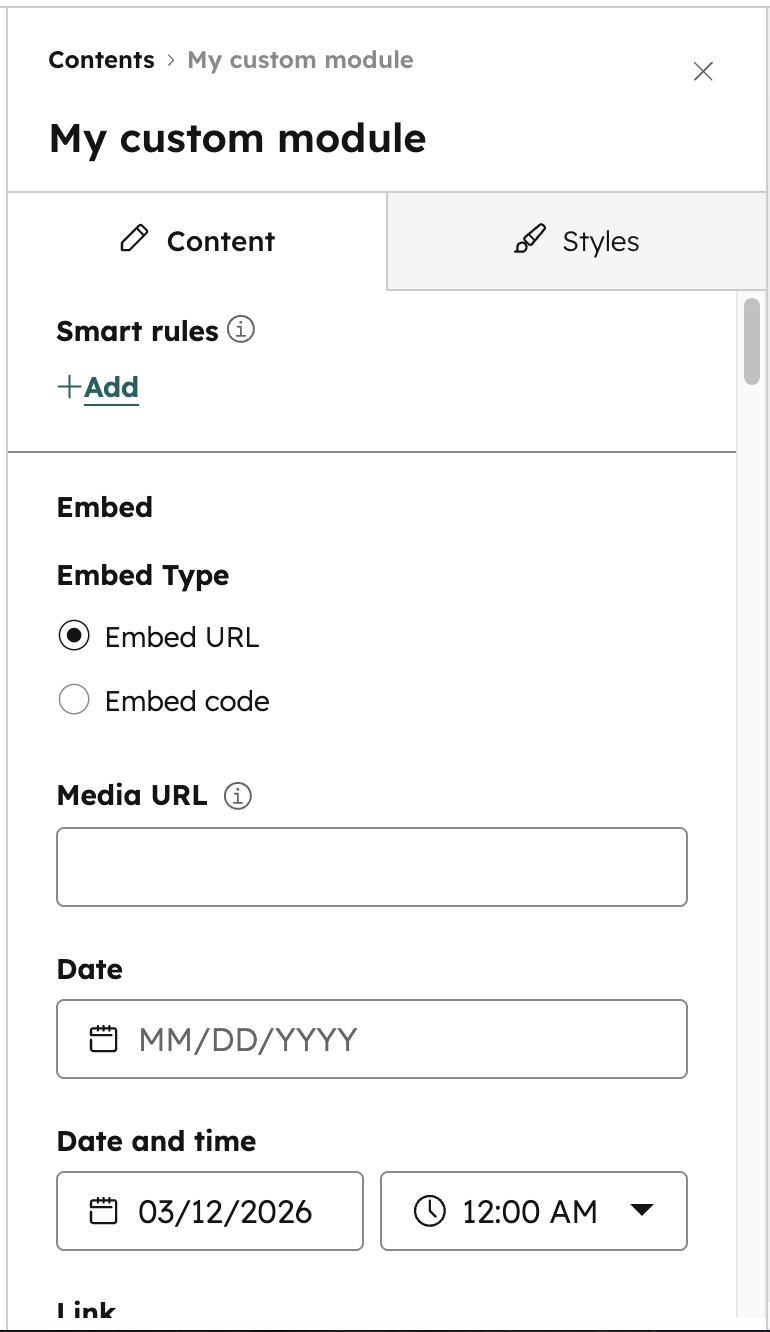 Below, learn more about how to create and manage options for module and theme fields. To learn more about specific field types, check out the [module and field types reference guide](/cms/reference/fields/module-theme-fields).
## Creating and managing fields
You can add fields to a [module's](/cms/start-building/building-blocks/modules/hide-modules-and-sections) `fields.json` file locally through the [HubSpot CLI](/developer-tooling/local-development/hubspot-cli/install-the-cli) and in the in-app module editor. To add fields to a [theme](/cms/start-building/building-blocks/overview), you must update the theme's `fields.json` file locally using the CLI.
### HubSpot CLI
When [building via the CLI](/developer-tooling/local-development/hubspot-cli/install-the-cli), module and theme fields can be edited through a `fields.json` file inside of the module or theme's folder. For modules, this file will automatically be created when using the [`hs create module`](/developer-tooling/local-development/hubspot-cli/commands/cms-commands#create-a-module) command. All of the field options available in the module editor are available as properties you can add or edit in the `fields.json` file. This includes repeater fields, groups, and conditions. One of the benefits of editing locally is that it makes it easier to [include your modules in version control systems like git](/cms/start-building/introduction/developer-environment/github-integration).
### Module editor
The [design manager](/cms/start-building/introduction/developer-environment/design-manager) has a built-in module editor that enables you to [create](https://knowledge.hubspot.com/design-manager/create-and-edit-modules), group, and [edit](https://knowledge.hubspot.com/design-manager/create-and-edit-modules) module fields. The module editor contains a module preview which enables you to see what the module looks like on its own, as well as test your fields. Since modules do not live in a vacuum you should always test them on a template you plan to use, to see what template level styles may affect it. Be aware if a module is contained in a locked folder it cannot be edited this way.
Below, learn more about how to create and manage options for module and theme fields. To learn more about specific field types, check out the [module and field types reference guide](/cms/reference/fields/module-theme-fields).
## Creating and managing fields
You can add fields to a [module's](/cms/start-building/building-blocks/modules/hide-modules-and-sections) `fields.json` file locally through the [HubSpot CLI](/developer-tooling/local-development/hubspot-cli/install-the-cli) and in the in-app module editor. To add fields to a [theme](/cms/start-building/building-blocks/overview), you must update the theme's `fields.json` file locally using the CLI.
### HubSpot CLI
When [building via the CLI](/developer-tooling/local-development/hubspot-cli/install-the-cli), module and theme fields can be edited through a `fields.json` file inside of the module or theme's folder. For modules, this file will automatically be created when using the [`hs create module`](/developer-tooling/local-development/hubspot-cli/commands/cms-commands#create-a-module) command. All of the field options available in the module editor are available as properties you can add or edit in the `fields.json` file. This includes repeater fields, groups, and conditions. One of the benefits of editing locally is that it makes it easier to [include your modules in version control systems like git](/cms/start-building/introduction/developer-environment/github-integration).
### Module editor
The [design manager](/cms/start-building/introduction/developer-environment/design-manager) has a built-in module editor that enables you to [create](https://knowledge.hubspot.com/design-manager/create-and-edit-modules), group, and [edit](https://knowledge.hubspot.com/design-manager/create-and-edit-modules) module fields. The module editor contains a module preview which enables you to see what the module looks like on its own, as well as test your fields. Since modules do not live in a vacuum you should always test them on a template you plan to use, to see what template level styles may affect it. Be aware if a module is contained in a locked folder it cannot be edited this way.
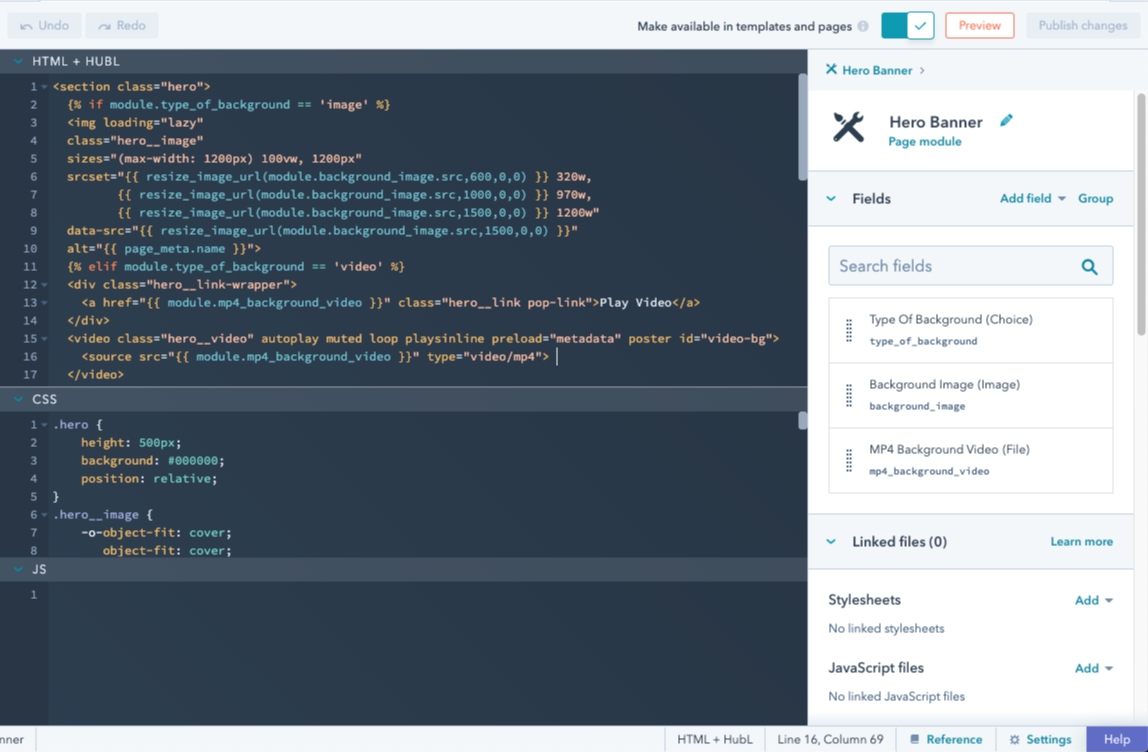
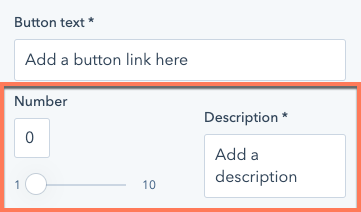 A single field with a `display_width` of `half_width` will appear as half-width in the content editor. When the field above or below that field in the `fields.json` file is set to `half_width`, they'll be placed side by side.
```json theme={null}
[
{
"name": "number_field",
"label": "Number",
"required": false,
"locked": false,
"display": "slider",
"min": 1,
"max": 10,
"step": 1,
"type": "number",
"prefix": "",
"suffix": "",
"default": null,
"display_width": "half_width"
},
{
"label": "Description",
"name": "description",
"type": "text",
"required": true,
"default": "Add a description",
"display_width": "half_width"
}
]
```
## Field groups
When fields are related to each other, it often makes sense for them to be grouped together visually. You can do so by creating field groups, which are supported in both modules and themes. To create a field group locally, in `fields.json` create an object with the `type` of `"group"`. Then, include a `children` array to contain the fields you want to group together.
A single field with a `display_width` of `half_width` will appear as half-width in the content editor. When the field above or below that field in the `fields.json` file is set to `half_width`, they'll be placed side by side.
```json theme={null}
[
{
"name": "number_field",
"label": "Number",
"required": false,
"locked": false,
"display": "slider",
"min": 1,
"max": 10,
"step": 1,
"type": "number",
"prefix": "",
"suffix": "",
"default": null,
"display_width": "half_width"
},
{
"label": "Description",
"name": "description",
"type": "text",
"required": true,
"default": "Add a description",
"display_width": "half_width"
}
]
```
## Field groups
When fields are related to each other, it often makes sense for them to be grouped together visually. You can do so by creating field groups, which are supported in both modules and themes. To create a field group locally, in `fields.json` create an object with the `type` of `"group"`. Then, include a `children` array to contain the fields you want to group together.
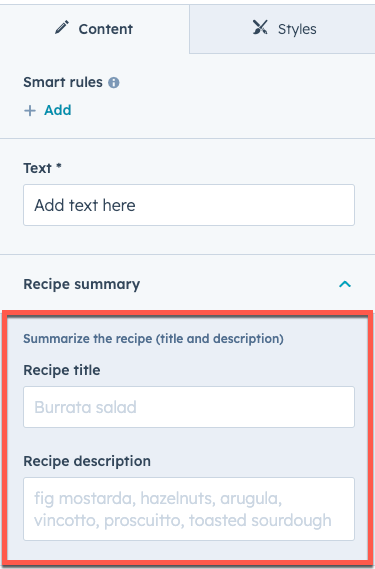 ```json theme={null}
[
{
"id": "9c00985f-01db-ac5d-73f5-80ed6c0c7863",
"name": "my_text",
"display_width": null,
"label": "Text",
"required": true,
"locked": false,
"validation_regex": "",
"allow_new_line": false,
"show_emoji_picker": false,
"type": "text",
"default": "Add text here"
},
{
"type": "group",
"name": "recipe_summary_group",
"label": "Recipe summary",
"expanded": true,
"inline_help_text": "Summarize the recipe (title and description)",
"children": [
{
"type": "text",
"label": "Recipe title",
"name": "recipe_title",
"placeholder": "Burrata salad"
},
{
"type": "text",
"label": "Recipe description",
"name": "recipe_description",
"placeholder": "fig mostarda, hazelnuts, arugula, vincotto, prosciutto, toasted sourdough"
}
]
}
]
```
You can create further field groupings inside a group by adding another `"group"` type object within the first `children` parameter. Then, build the field group in the same way as above, using `children` to contain the fields. You can nest field groups up to a depth of three.
```json theme={null}
[
{
"id": "9c00985f-01db-ac5d-73f5-80ed6c0c7863",
"name": "my_text",
"display_width": null,
"label": "Text",
"required": true,
"locked": false,
"validation_regex": "",
"allow_new_line": false,
"show_emoji_picker": false,
"type": "text",
"default": "Add text here"
},
{
"type": "group",
"name": "recipe_summary_group",
"label": "Recipe summary",
"expanded": true,
"inline_help_text": "Summarize the recipe (title and description)",
"children": [
{
"type": "text",
"label": "Recipe title",
"name": "recipe_title",
"placeholder": "Burrata salad"
},
{
"type": "text",
"label": "Recipe description",
"name": "recipe_description",
"placeholder": "fig mostarda, hazelnuts, arugula, vincotto, prosciutto, toasted sourdough"
}
]
}
]
```
You can create further field groupings inside a group by adding another `"group"` type object within the first `children` parameter. Then, build the field group in the same way as above, using `children` to contain the fields. You can nest field groups up to a depth of three.
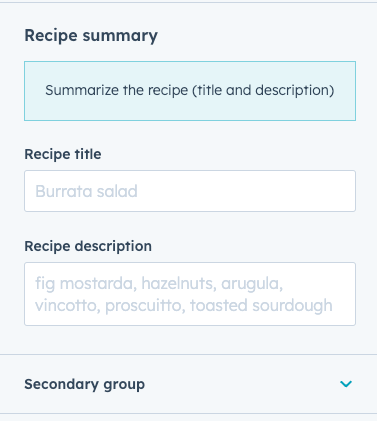 ```json theme={null}
[
{
"type": "group",
"name": "recipe_summary_group",
"label": "Recipe summary",
"inline_help_text": "Summarize the recipe (title and description)",
"display": "inline",
"children": [
{
"type": "text",
"label": "Recipe title",
"name": "recipe_title",
"placeholder": "Burrata salad"
},
{
"type": "text",
"label": "Recipe description",
"name": "recipe_description",
"placeholder": "fig mostarda, hazelnuts, arugula, vincotto, prosciutto, toasted sourdough"
},
{
"type": "group",
"name": "secondary_group",
"label": "Secondary group",
"expanded": false,
"children": [
{
"name": "bg_color",
"label": "Background color",
"sortable": false,
"required": false,
"locked": false,
"type": "color",
"default": {
"color": "#ff0000",
"opacity": 100
}
}
]
}
]
}
]
```
#### Field group display options
You can customize the following field group display behavior:
* **Expansion:** by default, field groups will display as collapsed in the editor. Groups that contain nested groups will display as drilldown buttons that open the group in its own view with the innermost group displaying dividers.
```json theme={null}
[
{
"type": "group",
"name": "recipe_summary_group",
"label": "Recipe summary",
"inline_help_text": "Summarize the recipe (title and description)",
"display": "inline",
"children": [
{
"type": "text",
"label": "Recipe title",
"name": "recipe_title",
"placeholder": "Burrata salad"
},
{
"type": "text",
"label": "Recipe description",
"name": "recipe_description",
"placeholder": "fig mostarda, hazelnuts, arugula, vincotto, prosciutto, toasted sourdough"
},
{
"type": "group",
"name": "secondary_group",
"label": "Secondary group",
"expanded": false,
"children": [
{
"name": "bg_color",
"label": "Background color",
"sortable": false,
"required": false,
"locked": false,
"type": "color",
"default": {
"color": "#ff0000",
"opacity": 100
}
}
]
}
]
}
]
```
#### Field group display options
You can customize the following field group display behavior:
* **Expansion:** by default, field groups will display as collapsed in the editor. Groups that contain nested groups will display as drilldown buttons that open the group in its own view with the innermost group displaying dividers.
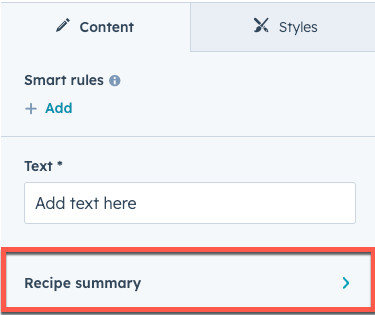 * **Display type:** by default, groups that don't contain nested groups will display as collapsible sections with visual dividers around its children. Groups that do contain nested groups will display as drilldown buttons that open the group in its own view with the innermost group displaying with dividers.
* **Group icon:** if desired, you can include a Font Awesome icon that displays to the left of the label.
* **Display type:** by default, groups that don't contain nested groups will display as collapsible sections with visual dividers around its children. Groups that do contain nested groups will display as drilldown buttons that open the group in its own view with the innermost group displaying with dividers.
* **Group icon:** if desired, you can include a Font Awesome icon that displays to the left of the label.
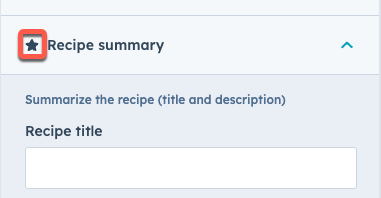 ```json theme={null}
[
{
"type": "group",
"name": "recipe_summary_group",
"label": "Recipe summary",
"display": "drilldown",
"inline_help_text": "Summarize the recipe (title and description)",
"icon": {
"name": "star",
"set": "fontawesome-5.14.0",
"type": "SOLID"
},
"children": [
{
"type": "text",
"label": "Recipe title",
"name": "recipe_title",
"placeholder": "Burrata salad"
},
{
"type": "text",
"label": "Recipe description",
"name": "recipe_description",
"placeholder": "fig mostarda, hazelnuts, arugula, vincotto, prosciutto, toasted sourdough"
}
]
}
]
```
| Parameter | Type | Description |
| ---------- | ------- | -------------------------------------------------------------------------------------------------------------------------------------------------------------------------------------------------------------------------------------------------------------------------------------------------------------------------------------------------------------------------------------------------------------------------------------------------------------------------------------------------------------------------------------------------------------- |
| `display` | String | The display style of the field group. Can be one of the following:
```json theme={null}
[
{
"type": "group",
"name": "recipe_summary_group",
"label": "Recipe summary",
"display": "drilldown",
"inline_help_text": "Summarize the recipe (title and description)",
"icon": {
"name": "star",
"set": "fontawesome-5.14.0",
"type": "SOLID"
},
"children": [
{
"type": "text",
"label": "Recipe title",
"name": "recipe_title",
"placeholder": "Burrata salad"
},
{
"type": "text",
"label": "Recipe description",
"name": "recipe_description",
"placeholder": "fig mostarda, hazelnuts, arugula, vincotto, prosciutto, toasted sourdough"
}
]
}
]
```
| Parameter | Type | Description |
| ---------- | ------- | -------------------------------------------------------------------------------------------------------------------------------------------------------------------------------------------------------------------------------------------------------------------------------------------------------------------------------------------------------------------------------------------------------------------------------------------------------------------------------------------------------------------------------------------------------------- |
| `display` | String | The display style of the field group. Can be one of the following: .png) To enable featured items in a field group, include the `group_occurrence_meta` property in the field group configuration. This property stores the following properties:
* `featured_enabled`: set to `true` to enable featured items.
* `featured_limit`: the maximum number of featured items to allow.
The field group must also include the `occurrence` property.
```json theme={null}
{
"label": "Card",
"name": "card",
"type": "group",
"occurrence": {
"default": 2,
"min": 1,
"sorting_label_field": "card.title"
},
"group_occurrence_meta": {
"featured_enabled": true,
"featured_limit": 3
},
"children": [
{
"label": "Image",
"name": "image",
"type": "image",
"responsive": true,
"resizable": true,
"show_loading": true,
"default": {
"loading": "lazy"
}
},
{
"label": "Content",
"name": "text",
"type": "richtext",
"enabled_features": [
"advanced_emphasis",
"alignment",
"block",
"emoji",
"font_family",
"font_size",
"lists",
"standard_emphasis"
],
"default": "
To enable featured items in a field group, include the `group_occurrence_meta` property in the field group configuration. This property stores the following properties:
* `featured_enabled`: set to `true` to enable featured items.
* `featured_limit`: the maximum number of featured items to allow.
The field group must also include the `occurrence` property.
```json theme={null}
{
"label": "Card",
"name": "card",
"type": "group",
"occurrence": {
"default": 2,
"min": 1,
"sorting_label_field": "card.title"
},
"group_occurrence_meta": {
"featured_enabled": true,
"featured_limit": 3
},
"children": [
{
"label": "Image",
"name": "image",
"type": "image",
"responsive": true,
"resizable": true,
"show_loading": true,
"default": {
"loading": "lazy"
}
},
{
"label": "Content",
"name": "text",
"type": "richtext",
"enabled_features": [
"advanced_emphasis",
"alignment",
"block",
"emoji",
"font_family",
"font_size",
"lists",
"standard_emphasis"
],
"default": "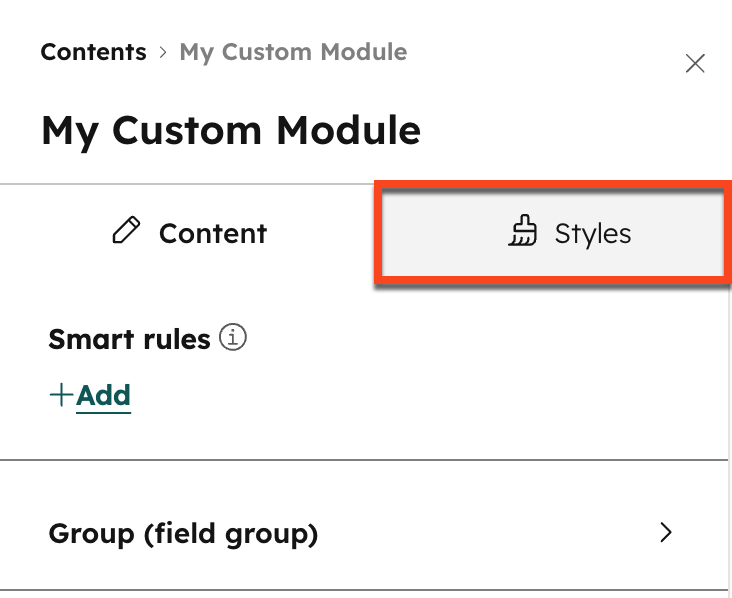 When adding style fields to a module's `fields.json` file, you add them within one styles group. That group, however, can contain multiple groups within it, as shown below:
```json theme={null}
[
{
"type": "group",
"name": "styles",
"tab": "STYLE",
"children": [
{
"name": "img_spacing",
"label": "Spacing around image",
"required": false,
"type": "spacing",
"default": {
"padding": {
"top": {
"value": 10,
"units": "px"
},
"bottom": {
"value": 10,
"units": "px"
},
"left": {
"value": 10,
"units": "px"
},
"right": {
"value": 10,
"units": "px"
}
},
"margin": {
"top": {
"value": 10,
"units": "px"
},
"bottom": {
"value": 10,
"units": "px"
}
}
}
}
]
}
]
```
The following fields can be used as style fields in modules. Learn about each of the field types in the [module and field types reference](/cms/reference/fields/module-theme-fields).
* [Alignment](/cms/reference/fields/module-theme-fields#alignment)
* [Gradient](/cms/reference/fields/module-theme-fields#gradient)
* [Spacing](/cms/reference/fields/module-theme-fields#spacing)
* [Background Image](/cms/reference/fields/module-theme-fields#background-image)
* [Border](/cms/reference/fields/module-theme-fields#border)
* [Boolean](/cms/reference/fields/module-theme-fields#boolean)
* [Choice](/cms/reference/fields/module-theme-fields#choice)
* [Number](/cms/reference/fields/module-theme-fields#number)
* [Color](/cms/reference/fields/module-theme-fields#color)
* [Icon](/cms/reference/fields/module-theme-fields#icon)
* [Image](/cms/reference/fields/module-theme-fields#image)
* [Font](/cms/reference/fields/module-theme-fields#font)
* [Text Alignment](/cms/reference/fields/module-theme-fields#text-alignment)
View the [CMS boilerplate](https://github.com/HubSpot/cms-theme-boilerplate/blob/main/src/modules/card.module/fields.json) for an example of a style fields within a module's `fields.json` file.
### Theme style fields
Style fields added to a theme will appear in the left sidebar of the theme editor:
When adding style fields to a module's `fields.json` file, you add them within one styles group. That group, however, can contain multiple groups within it, as shown below:
```json theme={null}
[
{
"type": "group",
"name": "styles",
"tab": "STYLE",
"children": [
{
"name": "img_spacing",
"label": "Spacing around image",
"required": false,
"type": "spacing",
"default": {
"padding": {
"top": {
"value": 10,
"units": "px"
},
"bottom": {
"value": 10,
"units": "px"
},
"left": {
"value": 10,
"units": "px"
},
"right": {
"value": 10,
"units": "px"
}
},
"margin": {
"top": {
"value": 10,
"units": "px"
},
"bottom": {
"value": 10,
"units": "px"
}
}
}
}
]
}
]
```
The following fields can be used as style fields in modules. Learn about each of the field types in the [module and field types reference](/cms/reference/fields/module-theme-fields).
* [Alignment](/cms/reference/fields/module-theme-fields#alignment)
* [Gradient](/cms/reference/fields/module-theme-fields#gradient)
* [Spacing](/cms/reference/fields/module-theme-fields#spacing)
* [Background Image](/cms/reference/fields/module-theme-fields#background-image)
* [Border](/cms/reference/fields/module-theme-fields#border)
* [Boolean](/cms/reference/fields/module-theme-fields#boolean)
* [Choice](/cms/reference/fields/module-theme-fields#choice)
* [Number](/cms/reference/fields/module-theme-fields#number)
* [Color](/cms/reference/fields/module-theme-fields#color)
* [Icon](/cms/reference/fields/module-theme-fields#icon)
* [Image](/cms/reference/fields/module-theme-fields#image)
* [Font](/cms/reference/fields/module-theme-fields#font)
* [Text Alignment](/cms/reference/fields/module-theme-fields#text-alignment)
View the [CMS boilerplate](https://github.com/HubSpot/cms-theme-boilerplate/blob/main/src/modules/card.module/fields.json) for an example of a style fields within a module's `fields.json` file.
### Theme style fields
Style fields added to a theme will appear in the left sidebar of the theme editor:
 All style fields within a theme's `fields.json` file will be added to the left sidebar of the theme editor, as opposed to needing to put them under a styles group, as shown below:
```json expandable theme={null}
[
{
"label": "Global colors",
"name": "global_colors",
"type": "group",
"children": [
{
"label": "Primary",
"name": "primary",
"type": "color",
"visibility": {
"hidden_subfields": {
"opacity": true
}
},
"default": {
"color": "#494A52"
}
},
{
"label": "Secondary",
"name": "secondary",
"type": "color",
"visibility": {
"hidden_subfields": {
"opacity": true
}
},
"default": {
"color": "#F8FAFC"
}
}
]
},
{
"label": "Global fonts",
"name": "global_fonts",
"type": "group",
"children": [
{
"label": "Primary",
"name": "primary",
"type": "font",
"visibility": {
"hidden_subfields": {
"size": true,
"styles": true
}
},
"inherited_value": {
"property_value_paths": {
"color": "theme.global_colors.primary.color"
}
},
"default": {
"fallback": "sans-serif",
"font": "Lato",
"font_set": "GOOGLE"
}
},
{
"label": "Secondary",
"name": "secondary",
"type": "font",
"visibility": {
"hidden_subfields": {
"size": true,
"styles": true
}
},
"inherited_value": {
"property_value_paths": {
"color": "theme.global_colors.primary.color"
}
},
"default": {
"fallback": "serif",
"font": "Merriweather",
"font_set": "GOOGLE"
}
}
]
},
{
"name": "branding_color",
"label": "branding_color",
"type": "color",
"default": {
"color": "#3b7bc0", "opacity": 60
},
"inherited_value": {
"property_value_paths": {
"color": "brand_settings.primaryColor"
}
}
},
{
"name": "secondary_branding_color",
"label": "Secondary Branding color",
"type": "color",
"default": {
"color": "#ff6b6b", "opacity": 60
},
"inherited_value": {
"property_value_paths": {
"color": "brand_settings.colors[2]"
}
}
}
]
```
The following fields can be used as style fields in themes. Learn about each of the field types in the [module and field types reference](/cms/reference/fields/module-theme-fields).
* [Boolean](/cms/reference/fields/module-theme-fields#boolean)
* [Border](/cms/reference/fields/module-theme-fields#border)
* [Choice](/cms/reference/fields/module-theme-fields#choice)
* [Color](/cms/reference/fields/module-theme-fields#color)
* [Font](/cms/reference/fields/module-theme-fields#font)
* [Image](/cms/reference/fields/module-theme-fields#image)
* [Number](/cms/reference/fields/module-theme-fields#number)
* [Spacing](/cms/reference/fields/module-theme-fields#spacing)
For a full list of available fields, see the [Module and theme fields reference](/cms/reference/fields/module-theme-fields).
View the [CMS boilerplate](https://github.com/HubSpot/cms-theme-boilerplate/blob/main/src/fields.json) for an example of a style fields within a theme's `fields.json` file.
### Generated CSS
Some style fields provide a way to output css directly based on the field's value. This is especially helpful with fields that can control more complicated styling like gradients. The following style fields have a generated `.css` property:
* [Background Image](/cms/reference/fields/module-theme-fields#background-image)
* [Border](/cms/reference/fields/module-theme-fields#border)
* [Color](/cms/reference/fields/module-theme-fields#color)
* [Font](/cms/reference/fields/module-theme-fields#font)
* [Gradient](/cms/reference/fields/module-theme-fields#gradient)
* [Spacing](/cms/reference/fields/module-theme-fields#spacing)
* [Text alignment](/cms/reference/fields/module-theme-fields#text-alignment)
```html theme={null}
{% require_css %}
{% end_require_css %}
```
## Repeaters
When creating modules that format information, often there are types of information that repeat. A recipe module for example, might have a field for "Ingredient". Well, most recipes have more than 1 ingredient. You could give them a rich text field, but then you lose your ability to force consistent styling and add functionality around each ingredient. That's where repeaters come in, HubSpot has two forms of repeaters: Repeating fields, and Repeating groups.
### Repeating fields
Repeating fields are normal fields but content creators can add, remove, and re-arrange instances of the field. Using the recipe module example above, each ingredient could be a repeating text field.
All style fields within a theme's `fields.json` file will be added to the left sidebar of the theme editor, as opposed to needing to put them under a styles group, as shown below:
```json expandable theme={null}
[
{
"label": "Global colors",
"name": "global_colors",
"type": "group",
"children": [
{
"label": "Primary",
"name": "primary",
"type": "color",
"visibility": {
"hidden_subfields": {
"opacity": true
}
},
"default": {
"color": "#494A52"
}
},
{
"label": "Secondary",
"name": "secondary",
"type": "color",
"visibility": {
"hidden_subfields": {
"opacity": true
}
},
"default": {
"color": "#F8FAFC"
}
}
]
},
{
"label": "Global fonts",
"name": "global_fonts",
"type": "group",
"children": [
{
"label": "Primary",
"name": "primary",
"type": "font",
"visibility": {
"hidden_subfields": {
"size": true,
"styles": true
}
},
"inherited_value": {
"property_value_paths": {
"color": "theme.global_colors.primary.color"
}
},
"default": {
"fallback": "sans-serif",
"font": "Lato",
"font_set": "GOOGLE"
}
},
{
"label": "Secondary",
"name": "secondary",
"type": "font",
"visibility": {
"hidden_subfields": {
"size": true,
"styles": true
}
},
"inherited_value": {
"property_value_paths": {
"color": "theme.global_colors.primary.color"
}
},
"default": {
"fallback": "serif",
"font": "Merriweather",
"font_set": "GOOGLE"
}
}
]
},
{
"name": "branding_color",
"label": "branding_color",
"type": "color",
"default": {
"color": "#3b7bc0", "opacity": 60
},
"inherited_value": {
"property_value_paths": {
"color": "brand_settings.primaryColor"
}
}
},
{
"name": "secondary_branding_color",
"label": "Secondary Branding color",
"type": "color",
"default": {
"color": "#ff6b6b", "opacity": 60
},
"inherited_value": {
"property_value_paths": {
"color": "brand_settings.colors[2]"
}
}
}
]
```
The following fields can be used as style fields in themes. Learn about each of the field types in the [module and field types reference](/cms/reference/fields/module-theme-fields).
* [Boolean](/cms/reference/fields/module-theme-fields#boolean)
* [Border](/cms/reference/fields/module-theme-fields#border)
* [Choice](/cms/reference/fields/module-theme-fields#choice)
* [Color](/cms/reference/fields/module-theme-fields#color)
* [Font](/cms/reference/fields/module-theme-fields#font)
* [Image](/cms/reference/fields/module-theme-fields#image)
* [Number](/cms/reference/fields/module-theme-fields#number)
* [Spacing](/cms/reference/fields/module-theme-fields#spacing)
For a full list of available fields, see the [Module and theme fields reference](/cms/reference/fields/module-theme-fields).
View the [CMS boilerplate](https://github.com/HubSpot/cms-theme-boilerplate/blob/main/src/fields.json) for an example of a style fields within a theme's `fields.json` file.
### Generated CSS
Some style fields provide a way to output css directly based on the field's value. This is especially helpful with fields that can control more complicated styling like gradients. The following style fields have a generated `.css` property:
* [Background Image](/cms/reference/fields/module-theme-fields#background-image)
* [Border](/cms/reference/fields/module-theme-fields#border)
* [Color](/cms/reference/fields/module-theme-fields#color)
* [Font](/cms/reference/fields/module-theme-fields#font)
* [Gradient](/cms/reference/fields/module-theme-fields#gradient)
* [Spacing](/cms/reference/fields/module-theme-fields#spacing)
* [Text alignment](/cms/reference/fields/module-theme-fields#text-alignment)
```html theme={null}
{% require_css %}
{% end_require_css %}
```
## Repeaters
When creating modules that format information, often there are types of information that repeat. A recipe module for example, might have a field for "Ingredient". Well, most recipes have more than 1 ingredient. You could give them a rich text field, but then you lose your ability to force consistent styling and add functionality around each ingredient. That's where repeaters come in, HubSpot has two forms of repeaters: Repeating fields, and Repeating groups.
### Repeating fields
Repeating fields are normal fields but content creators can add, remove, and re-arrange instances of the field. Using the recipe module example above, each ingredient could be a repeating text field.
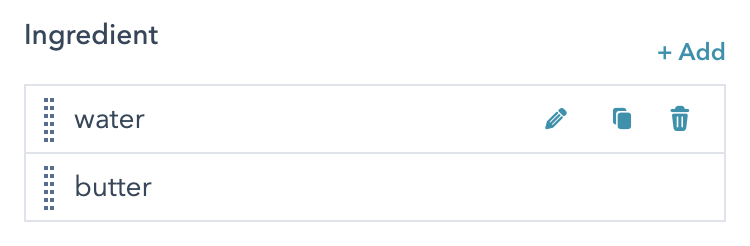 This makes it so the content creator can add as many ingredients as they wish. From the developer perspective, you get an array that you can loop through to print out that list of ingredients, applying the formatting and functionality you want.
Repeating fields are best used for very simple situations. Often times [repeating groups](#repeating-groups) make more sense.
This makes it so the content creator can add as many ingredients as they wish. From the developer perspective, you get an array that you can loop through to print out that list of ingredients, applying the formatting and functionality you want.
Repeating fields are best used for very simple situations. Often times [repeating groups](#repeating-groups) make more sense.
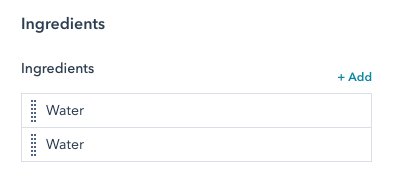 The quantity of an ingredient would be critical to the shopping list. While someone could provide that in the text field, the module would then need to parse the text field and hope we are successfully separating the quantity from the ingredient. This is where repeating groups come in handy. The output of these fields is an object that can be looped through.
#### Repeating groups in fields.json
```json theme={null}
{
"id": "ingredients",
"name": "ingredients",
"label": "Ingredients",
"required": false,
"locked": false,
"occurrence": {
"min": 1,
"max": null,
"sorting_label_field": "ingredients.ingredient",
"default": null
},
"children": [
{
"id": "ingredients.ingredient",
"name": "ingredient",
"label": "Ingredient",
"required": false,
"locked": false,
"validation_regex": "",
"allow_new_line": false,
"show_emoji_picker": false,
"type": "text",
"default": "Water"
},
{
"id": "ingredients.quantity",
"name": "quantity",
"label": "Quantity",
"required": false,
"locked": false,
"display": "text",
"min": 0,
"step": 1,
"type": "number",
"default": 1
},
{
"id": "ingredients.measurement",
"name": "measurement",
"label": "Measurement",
"help_text": "Unit of measurement (cups, tbsp, etc.)",
"required": false,
"locked": false,
"allow_new_line": false,
"show_emoji_picker": false,
"type": "text",
"default": "cups"
}
],
"type": "group",
"default": [
{
"ingredient": "Water",
"quantity": 1,
"measurement": "cups"
}
]
}
```
#### Looping through repeating fields in modules
```html theme={null}
The quantity of an ingredient would be critical to the shopping list. While someone could provide that in the text field, the module would then need to parse the text field and hope we are successfully separating the quantity from the ingredient. This is where repeating groups come in handy. The output of these fields is an object that can be looped through.
#### Repeating groups in fields.json
```json theme={null}
{
"id": "ingredients",
"name": "ingredients",
"label": "Ingredients",
"required": false,
"locked": false,
"occurrence": {
"min": 1,
"max": null,
"sorting_label_field": "ingredients.ingredient",
"default": null
},
"children": [
{
"id": "ingredients.ingredient",
"name": "ingredient",
"label": "Ingredient",
"required": false,
"locked": false,
"validation_regex": "",
"allow_new_line": false,
"show_emoji_picker": false,
"type": "text",
"default": "Water"
},
{
"id": "ingredients.quantity",
"name": "quantity",
"label": "Quantity",
"required": false,
"locked": false,
"display": "text",
"min": 0,
"step": 1,
"type": "number",
"default": 1
},
{
"id": "ingredients.measurement",
"name": "measurement",
"label": "Measurement",
"help_text": "Unit of measurement (cups, tbsp, etc.)",
"required": false,
"locked": false,
"allow_new_line": false,
"show_emoji_picker": false,
"type": "text",
"default": "cups"
}
],
"type": "group",
"default": [
{
"ingredient": "Water",
"quantity": 1,
"measurement": "cups"
}
]
}
```
#### Looping through repeating fields in modules
```html theme={null}
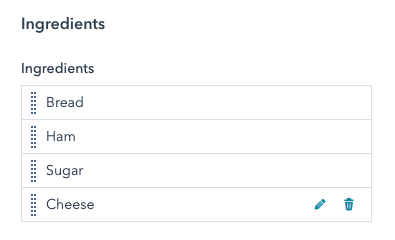 ```json theme={null}
"occurrence" : {
"min" : 1,
"max" : 4,
"sorting_label_field" : "ingredients.ingredient",
}
```
| Parameter | Type | Description | Default |
| --------------------- | ------- | ---------------------------------------------------------------------------------------------------------------------------------------------------- | ------- |
| `max` | Integer | Maximum number of occurrences of this group. Prevents the content creator from adding more than this number of items in the UI. | `null` |
| `min` | Integer | Minimum number of occurrences of this field group. Prevents users from having less than this number of items in the UI. | `null` |
| `sorting_label_field` | String | This is the field id, of the field to pull text from to show in the UI on the draggable cards. The default for this is the first field in the group. | |
## Inherited fields
The `inherited_value` property can be configured to make a field inherit its default value from other fields. To set a field's entire default value from another field's value, set the `default_value_path` to the field name path of the target field. When `default_value_path` is set, it'll ignore any `default` set on the field.
To access values from other fields, the paths must include `module.` at the beginning, similar to when accessing the value in the module's HubL code.
```json theme={null}
{
"name": "body_font",
"type": "font",
"default": {
"font": "Helvetica",
"color": "#C27BA0"
}
},
{
"name": "h1_font",
"type": "font",
"default": {},
"inherited_value": {
"default_value_path": "module.body_font",
"property_value_paths" : {
"font": "module.body_font.font",
"font_set": "module.body_font.font_set"
}
}
}
```
```json theme={null}
"occurrence" : {
"min" : 1,
"max" : 4,
"sorting_label_field" : "ingredients.ingredient",
}
```
| Parameter | Type | Description | Default |
| --------------------- | ------- | ---------------------------------------------------------------------------------------------------------------------------------------------------- | ------- |
| `max` | Integer | Maximum number of occurrences of this group. Prevents the content creator from adding more than this number of items in the UI. | `null` |
| `min` | Integer | Minimum number of occurrences of this field group. Prevents users from having less than this number of items in the UI. | `null` |
| `sorting_label_field` | String | This is the field id, of the field to pull text from to show in the UI on the draggable cards. The default for this is the first field in the group. | |
## Inherited fields
The `inherited_value` property can be configured to make a field inherit its default value from other fields. To set a field's entire default value from another field's value, set the `default_value_path` to the field name path of the target field. When `default_value_path` is set, it'll ignore any `default` set on the field.
To access values from other fields, the paths must include `module.` at the beginning, similar to when accessing the value in the module's HubL code.
```json theme={null}
{
"name": "body_font",
"type": "font",
"default": {
"font": "Helvetica",
"color": "#C27BA0"
}
},
{
"name": "h1_font",
"type": "font",
"default": {},
"inherited_value": {
"default_value_path": "module.body_font",
"property_value_paths" : {
"font": "module.body_font.font",
"font_set": "module.body_font.font_set"
}
}
}
```
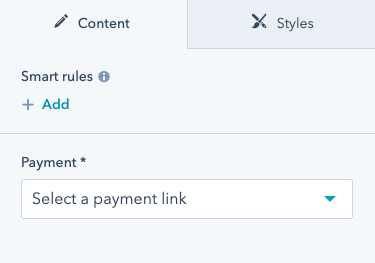 * Once a payment link is selected, the three fields that follow (`checkout_location`, `button_text`, and `icon`) will appear. This is because the fields have a `visibility` attribute which is controlled by the `payment` field and requires an ID value in the payment field's `id` parameter.
The `icon` field itself uses `advanced_visibility` to appear only when there's a payment link present in the `payment` field AND when the `add_icon` checkbox is selected.
In addition to setting visibility within `fields.json`, You can also set visibility in the design manager by editing a field's *Display conditions* options.
* Once a payment link is selected, the three fields that follow (`checkout_location`, `button_text`, and `icon`) will appear. This is because the fields have a `visibility` attribute which is controlled by the `payment` field and requires an ID value in the payment field's `id` parameter.
The `icon` field itself uses `advanced_visibility` to appear only when there's a payment link present in the `payment` field AND when the `add_icon` checkbox is selected.
In addition to setting visibility within `fields.json`, You can also set visibility in the design manager by editing a field's *Display conditions* options.
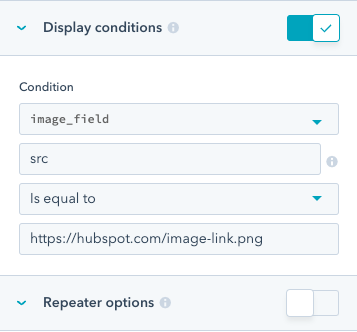 After setting visibility in the design manager, you can [fetch](/developer-tooling/local-development/hubspot-cli/reference#fetch) the module [using the CLI](/developer-tooling/local-development/hubspot-cli/install-the-cli) to view the `visibility` attribute in the module's `fields.json` file.
## Conditional field disabling
You can add conditions to a field to prevent editing when the specified conditions are met. You can also set a message to display above the field when disabled to provide context in the content editor.
After setting visibility in the design manager, you can [fetch](/developer-tooling/local-development/hubspot-cli/reference#fetch) the module [using the CLI](/developer-tooling/local-development/hubspot-cli/install-the-cli) to view the `visibility` attribute in the module's `fields.json` file.
## Conditional field disabling
You can add conditions to a field to prevent editing when the specified conditions are met. You can also set a message to display above the field when disabled to provide context in the content editor.
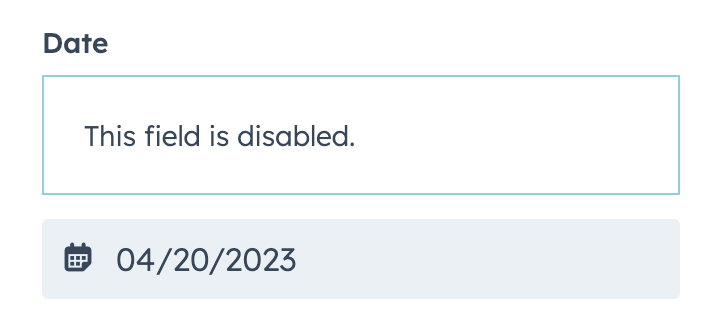 The conditions and message are set in the field's `disabled_controls` object. The conditions for making a field editable are set within the `rules` object, which follows the same format as [advanced\_visibility](#field-visibility).
The code below shows both a simple and advanced implementation of `rules` criteria:
* The `simple_page` field includes logic to disable the field if the `text_field` is set to `testing`.
* The `fancy_page` field includes logic to disable the field if either `text_field` or `text_field_2` is set to any value not equal to `testing` and `testing2` respectively.
```json theme={null}
[
{
"type": "text",
"name": "text_field",
"label": "Text field"
},
{
"type": "text",
"name": "text_field_2",
"label": "Text field 2"
},
{
"type": "page",
"label": "Simple Page",
"name": "simple_page",
"disabled_controls": {
"message": "This field is disabled",
"rules": {
"criteria": [
{
"controlling_field_path": "text_field",
"operator": "EQUAL",
"controlling_value_regex": "testing"
}
]
}
}
},
{
"type": "page",
"label": "Fancy Page",
"name": "fancy_page",
"disabled_controls": {
"message": "This field is disabled",
"rules": {
"boolean_operator": "OR",
"criteria": [
{
"controlling_field_path": "text_field",
"operator": "NOT_EQUAL",
"controlling_value_regex": "testing"
},
{
"controlling_field_path": "text_field_2",
"operator": "NOT_EQUAL",
"controlling_value_regex": "testing2"
}
]
}
}
}
]
```
| Parameter | Type | Description |
| ------------------------- | ------ | ---------------------------------------------------------------------------------------------------------------------------------------------------------------------------------------------------------------------------------------------------------------------------------------------------------------------------------------------------------------------------------------------- |
| `message` | String | The message to display in the content editor when the field is disabled. |
| `rules` | Object | The conditions for enabling the field for editing. |
| `criteria` | Array | An array of condition objects that defines the criteria that needs to be met for the field to display. This array can contain multiple condition objects separated by `AND` or`OR` logic through the `boolean_operator` parameter. |
| `boolean_operator` | String | The boolean operator for the conditional criteria. Can be `AND` or `OR`. When not specified, defaults to `AND`. |
| `controlling_field_path` | String | The dot path of the field that controls the display condition.
The conditions and message are set in the field's `disabled_controls` object. The conditions for making a field editable are set within the `rules` object, which follows the same format as [advanced\_visibility](#field-visibility).
The code below shows both a simple and advanced implementation of `rules` criteria:
* The `simple_page` field includes logic to disable the field if the `text_field` is set to `testing`.
* The `fancy_page` field includes logic to disable the field if either `text_field` or `text_field_2` is set to any value not equal to `testing` and `testing2` respectively.
```json theme={null}
[
{
"type": "text",
"name": "text_field",
"label": "Text field"
},
{
"type": "text",
"name": "text_field_2",
"label": "Text field 2"
},
{
"type": "page",
"label": "Simple Page",
"name": "simple_page",
"disabled_controls": {
"message": "This field is disabled",
"rules": {
"criteria": [
{
"controlling_field_path": "text_field",
"operator": "EQUAL",
"controlling_value_regex": "testing"
}
]
}
}
},
{
"type": "page",
"label": "Fancy Page",
"name": "fancy_page",
"disabled_controls": {
"message": "This field is disabled",
"rules": {
"boolean_operator": "OR",
"criteria": [
{
"controlling_field_path": "text_field",
"operator": "NOT_EQUAL",
"controlling_value_regex": "testing"
},
{
"controlling_field_path": "text_field_2",
"operator": "NOT_EQUAL",
"controlling_value_regex": "testing2"
}
]
}
}
}
]
```
| Parameter | Type | Description |
| ------------------------- | ------ | ---------------------------------------------------------------------------------------------------------------------------------------------------------------------------------------------------------------------------------------------------------------------------------------------------------------------------------------------------------------------------------------------- |
| `message` | String | The message to display in the content editor when the field is disabled. |
| `rules` | Object | The conditions for enabling the field for editing. |
| `criteria` | Array | An array of condition objects that defines the criteria that needs to be met for the field to display. This array can contain multiple condition objects separated by `AND` or`OR` logic through the `boolean_operator` parameter. |
| `boolean_operator` | String | The boolean operator for the conditional criteria. Can be `AND` or `OR`. When not specified, defaults to `AND`. |
| `controlling_field_path` | String | The dot path of the field that controls the display condition.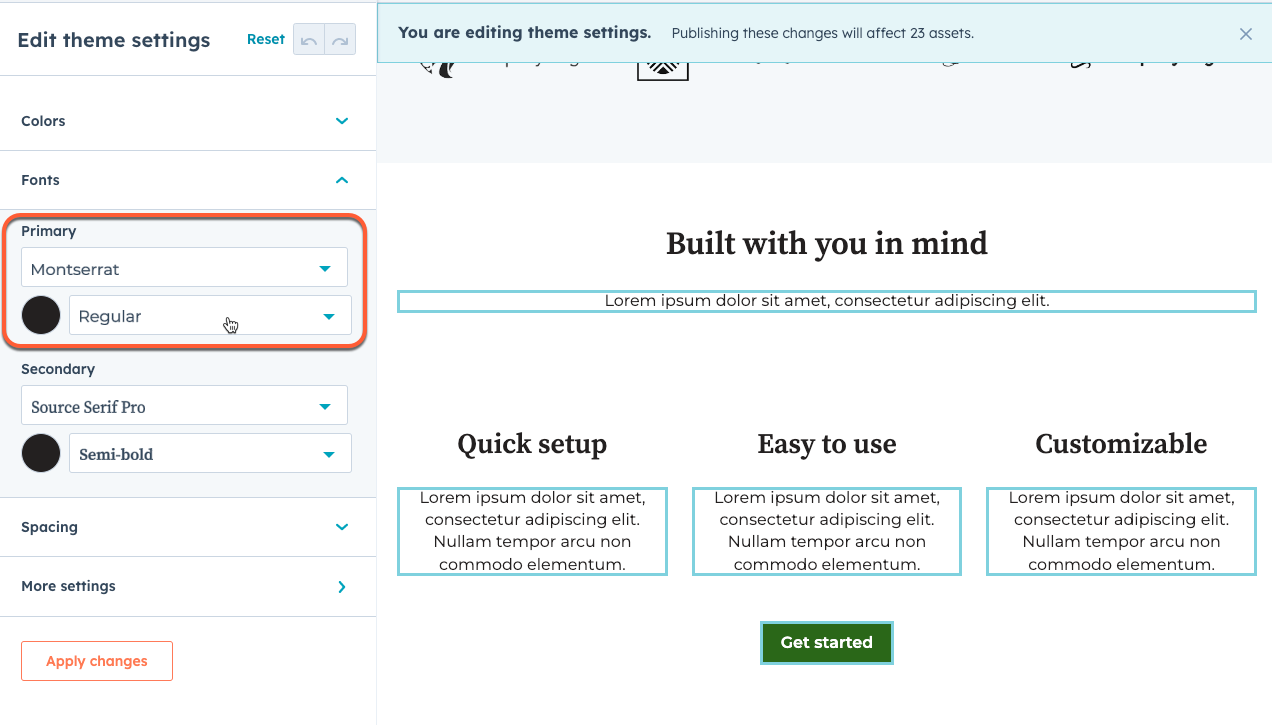 To get started generating this file, run the following [CLI command](/developer-tooling/local-development/hubspot-cli/reference#generate-theme-field-selectors-for-in-app-highlighting) to create the file. During file creation, a script will run to set up the initial field-selectors mappings.
```shell theme={null}
hs theme generate-selectors
To get started generating this file, run the following [CLI command](/developer-tooling/local-development/hubspot-cli/reference#generate-theme-field-selectors-for-in-app-highlighting) to create the file. During file creation, a script will run to set up the initial field-selectors mappings.
```shell theme={null}
hs theme generate-selectors