> ## Documentation Index
> Fetch the complete documentation index at: https://developers.hubspot.com/docs/llms.txt
> Use this file to discover all available pages before exploring further.
---
id: 4f5e6176-db0b-4aaf-abde-5b95aae1bdc9
---
# Modules Overview
> Understanding modules is key to understanding the HubSpot CMS and its power. Modules are reusable components that can be used in templates or added to pages through drag and drop areas and flexible columns.
Understanding modules is key to understanding the HubSpot CMS and its power. Modules are reusable components that can be used in templates or added to pages through [drag and drop areas](/cms/start-building/building-blocks/drag-and-drop/tutorial) and [flexible columns](/cms/reference/hubl/tags/related-blog-posts#flexible-column). In addition to using the modules that HubSpot provides, developers can create their own modules for everything from testimonials to photo galleries. Modules are created [using the local development tools](/cms/start-building/building-blocks/modules/quickstart) or [using the Design Manager](https://knowledge.hubspot.com/cos-general/create-and-edit-modules).
A module has two parts:
1. A [user interface](#the-user-interface-for-editing) created through a list of fields that users will see when editing a module instance.
2. An HTML+HubL template fragment with associated CSS and JS that defines how HTML will be generated
## An Example
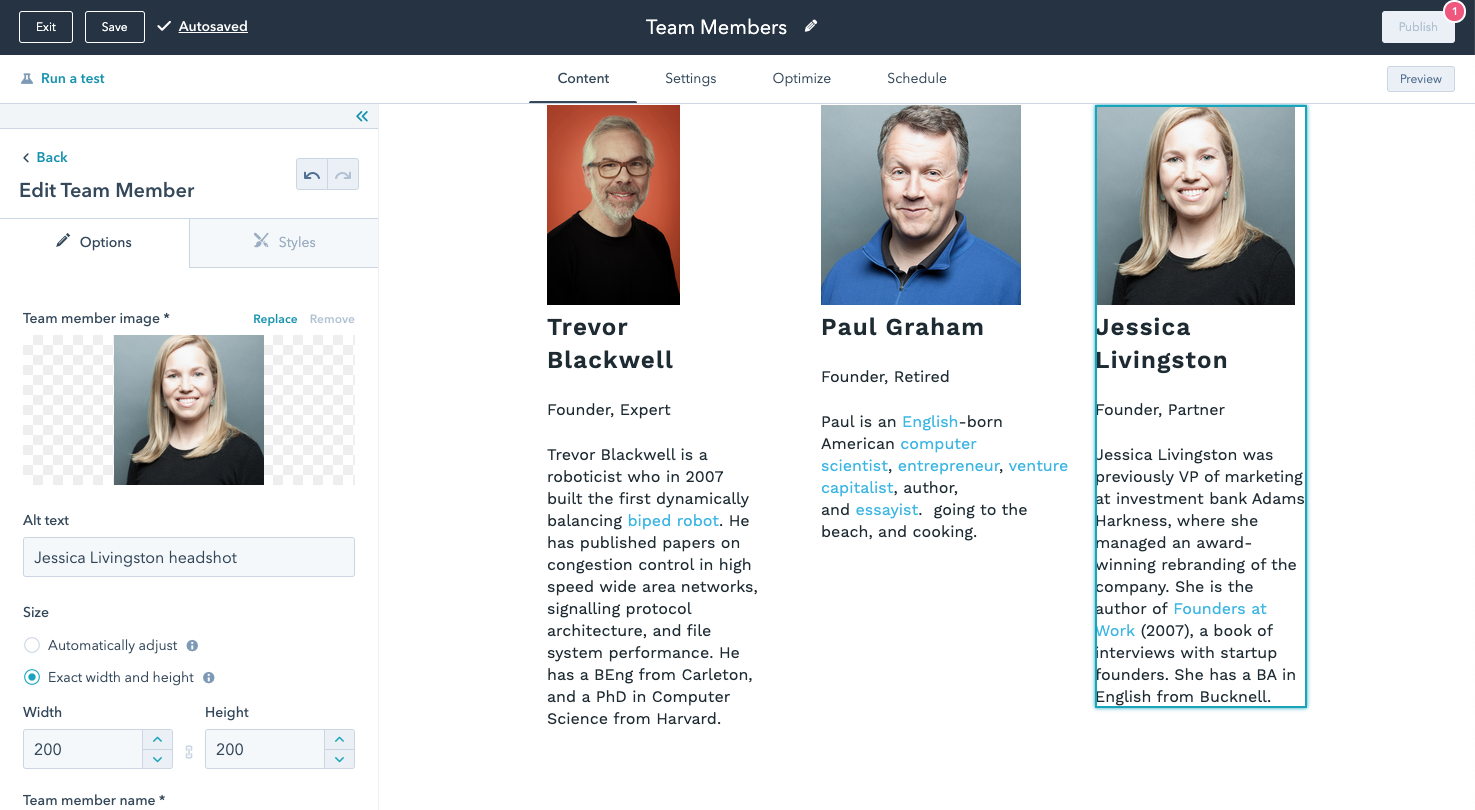
To better understand what a module is, let's take a look at a simple "Team Member" module. The module consists of a photo, the team member's name, their title, and a short bio and when part of a CMS web page looks like:
 ### The User Interface for Editing
The developer builds the user interface (UI) for modules using fields. The developer then chooses which fields to use based on the kind of module being built, the data that is needed, and the editing experience. In this case, the module includes:
1. an image field, for a team member photo
2. two text fields, for the team member's name and position
3. and a rich text field, for a short bio.
When a content creator edits a module, the UI is constructed based on the fields that the developer has added to the module and how each field is configured.
### The User Interface for Editing
The developer builds the user interface (UI) for modules using fields. The developer then chooses which fields to use based on the kind of module being built, the data that is needed, and the editing experience. In this case, the module includes:
1. an image field, for a team member photo
2. two text fields, for the team member's name and position
3. and a rich text field, for a short bio.
When a content creator edits a module, the UI is constructed based on the fields that the developer has added to the module and how each field is configured.
 ## Module vs module instance
There are two terms frequently used regarding modules. It's important to understand the difference between them.
* **Module** - reusable building blocks that can be added to templates and pages.
* **Module instance** - the individual rendered modules on the page. They can have separate field values and as a result look different from other module instances that are for the same module.
## Fields.json
The fields for a module are defined in JSON as an array of objects. Each field has a name, type, and default value. Other properties are also available depending on the type of field that controls the editing experience.
```json theme={null}
// fields.json
[
{
"name": "team_member_photo",
"label": "Team Member Photo",
"required": true,
"responsive": true,
"resizable": true,
"type": "image",
"default": {
"src": "",
"alt": ""
}
},
{
"name": "team_member_name",
"label": "Team member name",
"required": true,
"type": "text",
"default": "Joshua Beck"
},
{
"name": "team_member_position",
"label": "Team member position",
"required": true,
"type": "text",
"default": "CEO, Co-Founder"
},
{
"name": "team_member_bio",
"label": "Team member bio",
"required": true,
"type": "richtext",
"default": "
## Module vs module instance
There are two terms frequently used regarding modules. It's important to understand the difference between them.
* **Module** - reusable building blocks that can be added to templates and pages.
* **Module instance** - the individual rendered modules on the page. They can have separate field values and as a result look different from other module instances that are for the same module.
## Fields.json
The fields for a module are defined in JSON as an array of objects. Each field has a name, type, and default value. Other properties are also available depending on the type of field that controls the editing experience.
```json theme={null}
// fields.json
[
{
"name": "team_member_photo",
"label": "Team Member Photo",
"required": true,
"responsive": true,
"resizable": true,
"type": "image",
"default": {
"src": "",
"alt": ""
}
},
{
"name": "team_member_name",
"label": "Team member name",
"required": true,
"type": "text",
"default": "Joshua Beck"
},
{
"name": "team_member_position",
"label": "Team member position",
"required": true,
"type": "text",
"default": "CEO, Co-Founder"
},
{
"name": "team_member_bio",
"label": "Team member bio",
"required": true,
"type": "richtext",
"default": "Joshua has over 20 years of experience in the tech industry. He helped start this company in 2015 with the mission of helping people grow. In his spare time he loves hanging out with his kids, going to the beach, and cooking.
"
}
]
```
To learn more about all of the fields that are available, see [Module and Theme Fields](/api-reference/latest/overview).
### Using module field data to render HTML
The values for each field are available in the HTML+HubL fragment for a module via a `module` variable. The data for each field can be accessed via the properties of the module variable. Using the team member module as an example, the team member name can be accessed via `{{ module.team_member_name }}`.
```hubl theme={null}

{{ module.team_member_name }}
{{ module.team_member_position }}
{{ module.team_member_bio }}
```
## Using Modules in Templates
Modules are added to templates using the [module](/cms/reference/modules/files), [module\_block](/cms/reference/modules/files), or [dnd\_module](/cms/reference/hubl/tags/dnd-areas) tag and specifying the path to the module as a parameter. The default values for fields in a module can also be overridden at the template level through adding parameters to the module tag that corresponds to the field name as shown in the second part of the example below.
```hubl theme={null}
{% module "unique_identifier" path="/modules/team-member.module" %}
{# override default values in a module instance #}
{% module "unique_identifier"
path="/modules/team-member.module",
team_member_name="Brian Halligan",
team_member_position="CEO"
%}
```
Modules can't be nested inside of each other. The majority of the time you would want to do this, it is usually for layout reasons. Sections in [drag and drop areas](/cms/start-building/building-blocks/drag-and-drop/overview), are often the better course of action.
## Modules are a great tool in the accessibility toolbox
Modules are used throughout a website, some times on multiple pages, even multiple times on a page. Because of this [building your module's HTML, CSS, and JS, with accessibility in mind](/apps/legacy-apps/public-apps/share-hubspot-reports-with-your-app) can have a profound effect on how usable your site is to those both with and without disabilities or impairments.
## Modules can make localization easier
In a similar sense to accessibility, building modules so that all content in the module is based on fields, makes it possible to localize later. For example you may have a "Featured articles" module. Instead of hard-coding the text "Featured Articles" use a text or rich text field. Then the text can be changed for other languages. To learn more about localization on the CMS see [multi-language](/cms/start-building/building-blocks/modules/overview).
## Getting Started
To get started, check out our [Getting started with modules](/cms/start-building/building-blocks/modules/quickstart) tutorial.
## Going Further
* [Configuring a module](/cms/reference/hubl/variables)
* [Using modules in templates](/cms/reference/modules/files)
* [Default modules](/cms/reference/modules/default-module-versioning)
* [The module editor](/cms/start-building/building-blocks/modules/overview)