> ## Documentation Index
> Fetch the complete documentation index at: https://developers.hubspot.com/docs/llms.txt
> Use this file to discover all available pages before exploring further.

---
id: 30fa59be-577e-469a-83ce-998b77709631
---

# Legacy quote templates

> Build custom coded templates for the HubSpot legacy quotes.

export const SupportedProducts = ({marketing, sales, service, cms, data, commerce, marketingLevel, salesLevel, serviceLevel, cmsLevel, dataLevel, commerceLevel}) => {
  const translations = {
    description: "Requires one of the following products or higher.",
    productNames: {
      marketing: "Marketing Hub",
      sales: "Sales Hub",
      service: "Service Hub",
      cms: "Content Hub",
      data: "Data Hub",
      commerce: "Commerce Hub"
    },
    tiers: {
      free: "Free",
      starter: "Starter",
      professional: "Professional",
      enterprise: "Enterprise"
    }
  };
  const translateTier = tier => {
    if (!tier) return '';
    const lowerTier = tier.toLowerCase();
    return translations.tiers[lowerTier] || tier;
  };
  const products = [{
    name: marketing ? translations.productNames.marketing : '',
    level: translateTier(marketingLevel),
    icon: "https://mintlify-assets.b-cdn.net/Icons/marketing-bolt.svg",
    alt: "Marketing Hub"
  }, {
    name: sales ? translations.productNames.sales : '',
    level: translateTier(salesLevel),
    icon: "https://mintlify-assets.b-cdn.net/Icons/sales-star.svg",
    alt: "Sales Hub"
  }, {
    name: service ? translations.productNames.service : '',
    level: translateTier(serviceLevel),
    icon: "https://mintlify-assets.b-cdn.net/Icons/service-heart.svg",
    alt: "Service Hub"
  }, {
    name: cms ? translations.productNames.cms : '',
    level: translateTier(cmsLevel),
    icon: "https://mintlify-assets.b-cdn.net/Icons/content-play.svg",
    alt: "Content Hub"
  }, {
    name: data ? translations.productNames.data : '',
    level: translateTier(dataLevel),
    icon: "https://developers.hubspot.com/hubfs/Knowledge_Base_2023-24-25/subscription_key_icons/operations_icon.svg",
    alt: "Data Hub"
  }, {
    name: commerce ? translations.productNames.commerce : '',
    level: translateTier(commerceLevel),
    icon: "https://developers.hubspot.com/hubfs/Knowledge_Base/subscription_key_icons/commerce_icon.svg",
    alt: "Commerce Hub"
  }].filter(product => product.name && product.level);
  if (products.length === 0) return null;
  return <div>
      <div className="text-sm mb-2">{translations.description}</div>
      <div className={`grid ${products.length === 1 ? 'grid-cols-1' : 'grid-cols-2'} gap-1.5`}>
        {products.map((product, index) => <div key={index} style={{
    display: 'flex',
    alignItems: 'center'
  }}>
            <img src={product.icon} alt={product.alt} className="w-3.5 h-3.5 mr-1.5 mt-2.5 mb-2.5 flex-shrink-0 align-middle" />
            <span className="font-medium mr-1 text-sm">{product.name} -</span>
            <span className="text-sm">{product.level}</span>
          </div>)}
      </div>
    </div>;
};

<Accordion title="Supported products" defaultOpen="true" icon="cubes">
  <SupportedProducts sales={true} salesLevel="professional" />
</Accordion>

<Info>
  **Please note:** This documentation covers legacy quote templates only. Legacy quotes support custom coded templates built with HubL, while [quotes](/api-reference/latest/crm/objects/quotes/guide) use a standardized template system that cannot be customized via code.

  Legacy quotes are only available to ***Sales Hub*** accounts and certain free accounts. Learn more about [which accounts have access to legacy quotes](https://knowledge.hubspot.com/quotes/set-up-legacy-quotes-legacy).
</Info>

For businesses that use quotes during the sales process, a sales rep can [create a deal](https://knowledge.hubspot.com/records/create-deals), then [create a quote associated with that deal](https://knowledge.hubspot.com/quotes/set-up-legacy-quotes) all within HubSpot. The sales rep would then send the quote to a customer using the generated URL or PDF. The prospect then accepts or declines the quote. In some cases payment is exchanged right away, in some cases an e-signature is used.

For [legacy quotes](https://knowledge.hubspot.com/quotes/set-up-legacy-quotes-legacy), you can build custom coded templates to customize the look and feel of legacy quotes.

## Overview

Legacy quote templates are built using the same underlying systems that other types of templates use. For example:

* Domain-level settings apply, including head and footer HTML and domain stylesheets. You can disable domain stylesheets using [template annotations](/cms/start-building/building-blocks/templates/html-hubl-templates#template-annotations).
* Most of HubL's functionality is supported, including functions, filters, if conditions, imports, and includes.
* When using [personalization tokens](https://knowledge.hubspot.com/marketing-email/use-personalization-tokens) in a legacy quote, HubSpot will not render them dynamically. Instead, the token is rendered at the time of publishing the quote, and will not update upon signing. For this reason, you should not use personalization tokens for properties that are updated after a quote is published, including:
  * Payment status
  * Payment date
  * Esign date
  * Esign completed signatures

However, due to the specific use-case of legacy quotes, there are some key differences between their templates and page and email templates:

* More data is available to the legacy quote template that is restricted for other template types. For example, quote and deal-related data is available, and you can include contact data for quote recipients in a quote template.
* Instead of a drag and drop editor, there's a module-based editor for customizing or hiding the modules that are already in a legacy quote template.

<Info>
  Because more data is available to quote templates without requiring password protection. You should take care to only expose necessary information.
</Info>

## Creating legacy quote templates

Legacy quote templates are contained within legacy quote themes, similar to the relationship between CMS templates and themes. HubSpot provides a set of [default modules](/cms/reference/modules/default-modules#quote-download) that you can use in legacy quote templates to enable downloading to PDF form, facilitating payment, and collecting signatures. In addition, you'll use [template variables](/cms/reference/hubl/legacy-quote-variables) to access legacy quote data and other CRM data directly from the legacy quote template.

To get started, you can create a legacy quotes theme, along with templates, modules, and more, using [HubSpot's boilerplate legacy quotes theme](/cms/start-building/building-blocks/themes/legacy-quote-themes).

## Custom enumeration properties

Enumeration properties such as dropdown menus, or multiple checkboxes, can be incorporated into legacy quote templates. Learn more about HubSpot's [property types](https://knowledge.hubspot.com/properties/property-field-types-in-hubspot).

The JSON returned for custom enumeration properties includes both the internal value and the external label.

<Warning>
  **Please note:**

  By default, quotes created after September 13th, 2024 will display the property label rather than the internal value.
</Warning>

```json theme={null}
"custom_properties": {
  "my_custom_property": {
    "label":"Label1",
    "internal":"value1"
  },
  "another_custom_property": {
    "label":"Label99",
    "internal":"value99"
  }
}
```

For CMS Developers using legacy quotes templates, the [`crm_property_definition`](/cms/reference/hubl/functions#crm_property_definition) function can be used to retrieve legacy quote property data, and will allow you to replace the label with the value where necessary.

```hubl theme={null}
{% set dealEnum = template_data.quote.associated_objects.deal.deal_enum %}
{% set dealEnumProp = crm_property_definition("DEAL", "deal_enum").options|selectattr('label', "equalto", dealEnum)|first %}
{{ dealEnumProp.value }}
```

## Enable e-signatures

In ***Sales Hub*** *Starter*, *Professional*, and *Enterprise* accounts, legacy quotes can be configured to include [e-signature functionality](https://knowledge.hubspot.com/quotes/use-e-signatures-with-quotes), which you can enable via the  [`quote_signature` module](/cms/reference/modules/default-modules#quote-signature).

```hubl theme={null}
<section class="signature">
  {% module "signature" path="@hubspot/quote_signature" %}
</section>
```

Because Dropbox Sign renders the print version of a quote for signing, ensure that the signature field is displayed in the [print version](#print-and-pdf-options) of the quote. Otherwise, Dropbox Sign will display an error when the user goes to verify their signature.

<Frame>
  <img src="https://www.hubspot.com/hubfs/Knowledge_Base_2023_2024/esignature-error.png" alt="esignature-error" />
</Frame>

## Print and PDF options

If you'd like to enable users to print or download the quote, it's recommended to include the [download module](/cms/reference/modules/default-modules#quote-download). Alternatively, since a quote is a web page you can use JavaScript and a button element to provide an easy way to print the quote.

To optimize and style the print and PDF version of a legacy quote template, you can use the [`@media print` media query](https://developer.mozilla.org/en-US/docs/Web/CSS/Reference/At-rules/@media#print) in the template's stylesheet. For example, HubSpot's default *Basic* quote theme includes the following print styling in the `basic.css` stylesheet:

```css theme={null}
@media print {
  .hs-quotes--basic {
    max-width: unset;
  }

  .hs-quotes--basic .line-items__total-name {
    float: left;
  }

  .hs-quotes--basic .comments,
  .hs-quotes--basic .terms {
    break-inside: avoid;
  }
}
```

To preview the print version in Chrome:

* Open the web version of a quote.
* Right-click the page, then select **Inspect**.
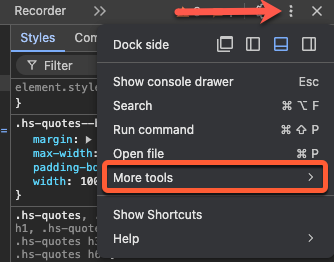
* In the top right of the DevTools panel, click the **three vertical dots** **⋮**, then select **More tools**, then select **Rendering**.
<Frame>
  <img src="https://www.hubspot.com/hubfs/Knowledge_Base_2023_2024/chrome-settings-more-tools.png" alt="chrome-settings-more-tools" />
</Frame>

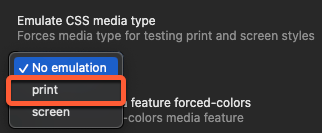
* In the *Rendering* panel, scroll to the *Emulate CSS media type* section. Then, click the **dropdown menu** and select **print**.
<Frame>
  <img src="https://www.hubspot.com/hubfs/Knowledge_Base_2023_2024/chrome-rendering-media-type-print.png" alt="chrome-rendering-media-type-print" />
</Frame>

You can now continue to testing out styling in Chrome. When you're ready to apply the styling to the template, copy the styles into your `@media print` media query, then upload the template to HubSpot.

Updated styling will only apply to legacy quotes created after updating the template.