> ## Documentation Index
> Fetch the complete documentation index at: https://developers.hubspot.com/docs/llms.txt
> Use this file to discover all available pages before exploring further.

---
id: 374bcb01-54ba-4465-b11a-e12e5192eed6
---

# Create emails with programmable content

export const SupportedProducts = ({marketing, sales, service, cms, data, commerce, marketingLevel, salesLevel, serviceLevel, cmsLevel, dataLevel, commerceLevel}) => {
  const translations = {
    description: "Requires one of the following products or higher.",
    productNames: {
      marketing: "Marketing Hub",
      sales: "Sales Hub",
      service: "Service Hub",
      cms: "Content Hub",
      data: "Data Hub",
      commerce: "Commerce Hub"
    },
    tiers: {
      free: "Free",
      starter: "Starter",
      professional: "Professional",
      enterprise: "Enterprise"
    }
  };
  const translateTier = tier => {
    if (!tier) return '';
    const lowerTier = tier.toLowerCase();
    return translations.tiers[lowerTier] || tier;
  };
  const products = [{
    name: marketing ? translations.productNames.marketing : '',
    level: translateTier(marketingLevel),
    icon: "https://mintlify-assets.b-cdn.net/Icons/marketing-bolt.svg",
    alt: "Marketing Hub"
  }, {
    name: sales ? translations.productNames.sales : '',
    level: translateTier(salesLevel),
    icon: "https://mintlify-assets.b-cdn.net/Icons/sales-star.svg",
    alt: "Sales Hub"
  }, {
    name: service ? translations.productNames.service : '',
    level: translateTier(serviceLevel),
    icon: "https://mintlify-assets.b-cdn.net/Icons/service-heart.svg",
    alt: "Service Hub"
  }, {
    name: cms ? translations.productNames.cms : '',
    level: translateTier(cmsLevel),
    icon: "https://mintlify-assets.b-cdn.net/Icons/content-play.svg",
    alt: "Content Hub"
  }, {
    name: data ? translations.productNames.data : '',
    level: translateTier(dataLevel),
    icon: "https://developers.hubspot.com/hubfs/Knowledge_Base_2023-24-25/subscription_key_icons/operations_icon.svg",
    alt: "Data Hub"
  }, {
    name: commerce ? translations.productNames.commerce : '',
    level: translateTier(commerceLevel),
    icon: "https://developers.hubspot.com/hubfs/Knowledge_Base/subscription_key_icons/commerce_icon.svg",
    alt: "Commerce Hub"
  }].filter(product => product.name && product.level);
  if (products.length === 0) return null;
  return <div>
      <div className="text-sm mb-2">{translations.description}</div>
      <div className={`grid ${products.length === 1 ? 'grid-cols-1' : 'grid-cols-2'} gap-1.5`}>
        {products.map((product, index) => <div key={index} style={{
    display: 'flex',
    alignItems: 'center'
  }}>
            <img src={product.icon} alt={product.alt} className="w-3.5 h-3.5 mr-1.5 mt-2.5 mb-2.5 flex-shrink-0 align-middle" />
            <span className="font-medium mr-1 text-sm">{product.name} -</span>
            <span className="text-sm">{product.level}</span>
          </div>)}
      </div>
    </div>;
};

<Accordion title="Supported products" defaultOpen="true" icon="cubes">
  <SupportedProducts marketing={true} marketingLevel="professional" />
</Accordion>

<Warning>
  This feature is currently in beta. By using this functionality you agree to the [developer beta terms](https://legal.hubspot.com/hubspot-beta-terms). This guide refers to functionality available only through that beta. [Opt-into the beta in your templates or modules.](https://knowledge.hubspot.com/marketing-email/create-programmable-emails)
</Warning>

Using programmable content to personalize emails with data from your HubSpot account using HubL.

The data sources you can use in a programmable email depend on your HubSpot subscription:

* If you have a ***Marketing Hub*** *Professional* subscription, you can use data from standard CRM objects, such as contacts, companies, and products.
* If you have a ***Marketing Hub*** *Enterprise* subscription, you can also use structured data sources such as [HubDB](/cms/start-building/features/storage/hubdb) tables and [custom objects](https://knowledge.hubspot.com/records/use-custom-objects). This data can be filtered based on the contact properties of the recipient.

For example, a real estate website could have prospects fill out a form with their home needs. The form submission could then trigger a workflow that sends the prospect an email with homes they may be interested in.

## Email sending limits

You can include the [crm\_object](/cms/reference/hubl/functions#crm-object), [crm\_objects](/cms/reference/hubl/functions#crm-objects), and [crm\_associations](/cms/reference/hubl/functions#crm-associations) CRM HubL functions in a programmable email, but any email that includes these specific functions are subject to the following limits that are based on the number of recipients you're sending to:

<table>
  <tbody>
    <tr>
      <td>
        <strong>Total recipients</strong>
      </td>

      <td>
        <strong>Maximum number of CRM HubL functions</strong>
      </td>
    </tr>

    <tr>
      <td>500,000</td>
      <td>1</td>
    </tr>

    <tr>
      <td>250,000</td>
      <td>2</td>
    </tr>

    <tr>
      <td>165,000</td>
      <td>3</td>
    </tr>

    <tr>
      <td>125,000</td>
      <td>4</td>
    </tr>

    <tr>
      <td>100,000</td>
      <td>5</td>
    </tr>
  </tbody>
</table>

Sending an email that meets or exceeds one of the limits above will delay or cancel the sending of your email.

In addition to the limits outlined above, be aware of the additional caveats listed below:

* If you clone a programmable email, it cannot be sent while the original is still in a processing state. You should wait at least 1 hour between each email send.
* You cannot conduct an A/B test for a programmable email that includes a `crm_object`, `crm_objects`, or `crm_associations` HubL function. Emails sent using these functions have significantly slower send times than other emails, which can produce inaccurate test results.

<Steps>
  <Step title="Create a programmable email module">
    To create the email module to access your HubDB or custom object data:

    * In your HubSpot account, navigate to **Marketing** > **Files and Templates** > **Design Tools**.
    * In the upper left, click **File**, then select **New file**.
    * In the dialog box, select **Module** for the file type, then click **Next**. Then, select the **Emails** checkbox and enter a **name** for the file.
    * Click **Create**.
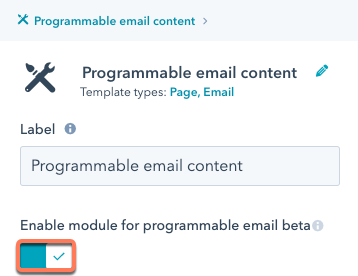
    * To enable programmable email for the module:

      * In the inspector on the right, toggle the **Enable module for programmable email beta** switch on.

    <Frame>
      <img src="https://www.hubspot.com/hubfs/Knowledge_Base_2021/Developer/programmable-email-switch0.png" alt="programmable-email-switch0" />
    </Frame>

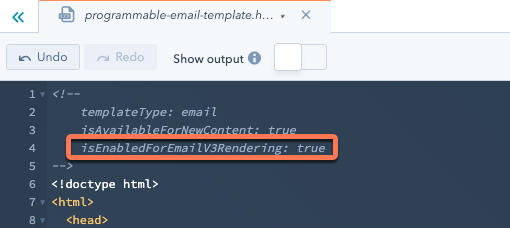
    * You can also enable programmable email for a coded email template by adding `isEnabledForEmailV3Rendering: true` to the top of the file.
    <Frame>
      <img src="https://knowledge.hubspot.com/hs-fs/hubfs/Imported%20sitepage%20images/enable-design-manager-template-for-programmable-email.png?width=510&name=enable-design-manager-template-for-programmable-email.png" alt="enable-design-manager-template-for-programmable-email" />
    </Frame>

    With the module created, you'll then add code to access data from your CRM. The following examples below demonstrate how to query from different data sources.

    ### Standard objects

    You can use the HubL functions such as [crm\_object](/cms/reference/hubl/functions#crm-object), [crm\_objects](/cms/reference/hubl/functions#crm-objects), and [crm\_associations](/cms/reference/hubl/functions#crm-associations) to query data from standard objects in your account, such as contacts, companies, or products.

    The code below uses the [`crm_object`](/cms/reference/hubl/functions#crm-object) HubL function to query the data from a product with an ID of `2444498793` and render the name, description, and price:

    ```hubl theme={null}
    {% set product = crm_object("product", 2444498793, "name,description,price") %}
    <div>

        <span>Name: </span>
        <span>{{ product.name }}</span>

        <span>Description: </span>
        <span>{{ product.description }}</span>

        <span>Price: </span>
        <span>{{ product.price }}</span>

    </div>
    ```

    ### Custom objects

    If you have a ***Marketing Hub** Enterprise* account, you can query data from a custom object you've created in your account.

    The code below retrieves data from a custom object named *Property*, returning values (e.g. location, price) stored in the custom object's properties.

    Note that the example below uses the custom object's fully qualified name as the first argument when invoking the `crm_objects` [HubL function](/cms/reference/hubl/functions#crm-objects).

    * The fully qualified name begins with the HubSpot account ID (prefixed by `p`), followed by an underscore and the lower-cased plural name of the custom object (e.g., `properties`).
    * You can retrieve an object's `fullyQualifiedName` by making a `GET` request to the [CRM Objects schema API](/developer-tooling/local-development/hubspot-cli/reference#custom-objects).

    ```hubl theme={null}
    {% set real_estate_listings = crm_objects("p2990812_properties", "", "listing_name,location, price, address, type") %}

    {% for home in real_estate_listings.results %}
        {{ home.address}} <br>
    	{{ home.price }} <br>
    	<img
    	alt="{{ home.name }}"
    	src="{{ home.hero_image }}"
    	style="outline: none; max-width: 100%;"
    	width="260px"
    	/>
    	<br>
    	<hr>
    {% endfor %}
    ```

    <Warning>
      **Please note:**

      If the name of your custom object contains hyphens (e.g., *My-Custom-Object*), its properties can <u>not</u> be rendered in a programmable email. You can recreate the custom object with the hyphens omitted [directly in your HubSpot account](https://knowledge.hubspot.com/object-settings/create-custom-objects), or you can use the [custom object API](/api-reference/latest/crm/objects/custom-objects/guide).
    </Warning>

    To filter the data returned for each recipient, you can add a `query` parameter, which will filter the results by the recipient's contact properties. View the [full list of filter options](/api-reference/legacy/cms/hubdb/guide#filter-returned-rows).

    ```hubl theme={null}
    {% set query = "price__lte="~contact.budget_max|int~"&price__gte="~contact.budget_min|int~"&city="~contact.city"&order=listing_name" %}
    {% set real_estate_listings = crm_objects("p2990812_Property", query, "listing_name,location, price, address, type") %}
    {% for home in real_estate_listings.results %}

      ...

    {% endfor %}
    ```

    ### HubDB

    If you have a ***Marketing Hub*** *Enterprise* account, you can use data from a HubDB table in your email.

    The code below uses the [`hubdb_table_rows`](/cms/reference/hubl/functions#hubdb-table-rows) HubL function to retrieve all data from the table. This will list all the real estate properties in the email, outputting the details of each property along with their image.

    ```hubl theme={null}
    {% set real_estate_listings = hubdb_table_rows(1234567) %}

    {% for home in real_estate_listings%}
        {{ home.address}} <br>
    	{{ home.price }} <br>
    	<img
    	alt="{{ home.name }}"
    	src="{{ home.hero_image.url }}"
    	style="outline: none; max-width: 100%;"
    	width="260px"
    	/>
    	<br>
    	<hr>
    {% endfor %}
    ```

    To filter the data returned for each recipient, you can add a `query` parameter, which will filter results by the specified contact properties. View the [full list of filter options](/api-reference/legacy/cms/hubdb/guide#filter-returned-rows).

    ```hubl theme={null}
    {% set query = "price__lte="~contact.budget_max|int~"&price__gte="~contact.budget_min|int~"&persona="~contact.hs_persona.value~"&order=listing_name" %}

    {% for home in real_estate_listings %}

    	...

    {% endfor %}
    ```

    <Info>
      In the above example, the contact property *Budget max* is referenced with `contact.budget_max`, while *Persona* is referenced with `contact.hs_persona.value`. This is because *Persona* is an [enumeration property](https://knowledge.hubspot.com/properties/property-field-types-in-hubspot), which requires an additional `.value` to parse the property's value, while other property types do not.
    </Info>
  </Step>

  <Step title="Add the module to an email">
    With the module published, you'll now add it to the body of the drag and drop email.

    * In your HubSpot account, navigate to **Marketing** > **Email**.
    * Select the **email** that you created.
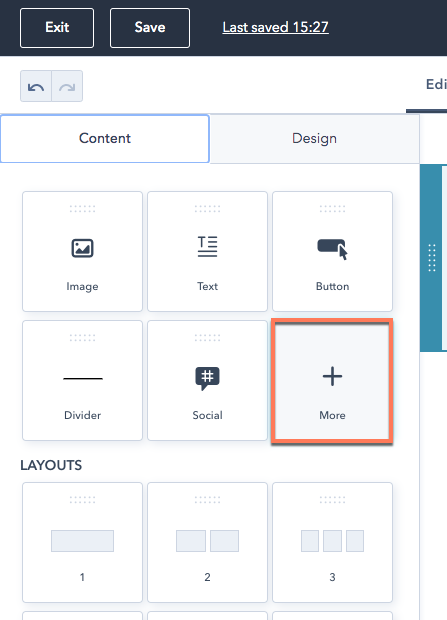
    * In the left sidebar, under *Content*, click **More**. Find your programmable email module, then drag it into the email body.

    <Frame>
      <img src="https://www.hubspot.com/hubfs/Knowledge_Base_2021/Developer/drag-and-drop-email-editor-more-modules.png" alt="drag-and-drop-email-editor-more-modules" />
    </Frame>

    If you've set up the module to filter data by specific contact properties, the email preview will appear blank. This is because the email tool hasn't been set to preview the email by a specific contact.

    To preview what the email will look like for a specific contact:

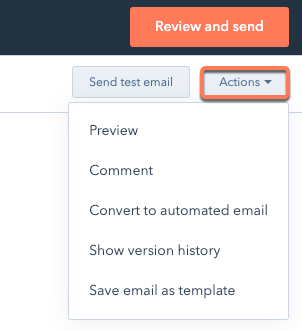
    * In the upper right, click **Actions**, then select **Preview**.
    <Frame>
      <img src="https://www.hubspot.com/hubfs/Knowledge_Base_2021/Developer/email-actions-menu0.png" alt="email-actions-menu0" />
    </Frame>

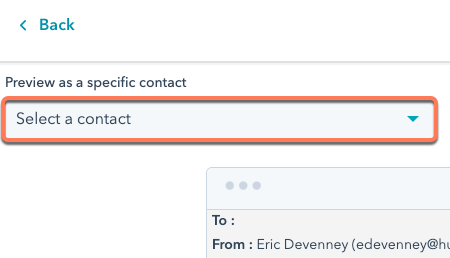
    * On the next screen, click the **Preview as a specific contact** dropdown menu, then select a **contact**.
    <Frame>
      <img src="https://www.hubspot.com/hubfs/Knowledge_Base_2021/Developer/preview-email-as-specific-contact0.png" alt="preview-email-as-specific-contact0" />
    </Frame>

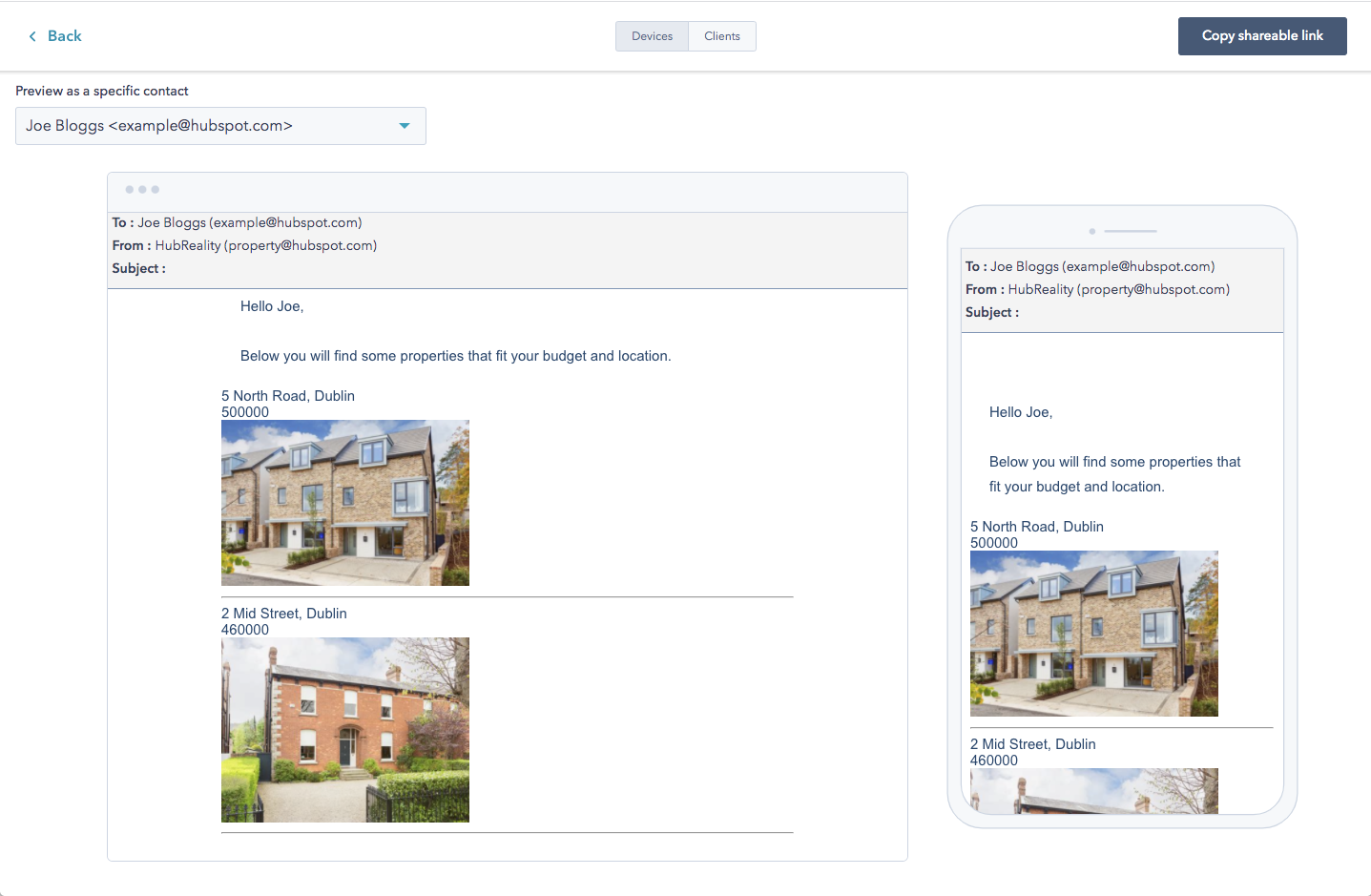
    You should now see only the data relevant to the recipient, filtered by their contact properties.
    <Frame>
      <img src="https://f.hubspotusercontent00.net/hubfs/53/preview%20window.png" alt="Screenshot of Email Preview" />
    </Frame>

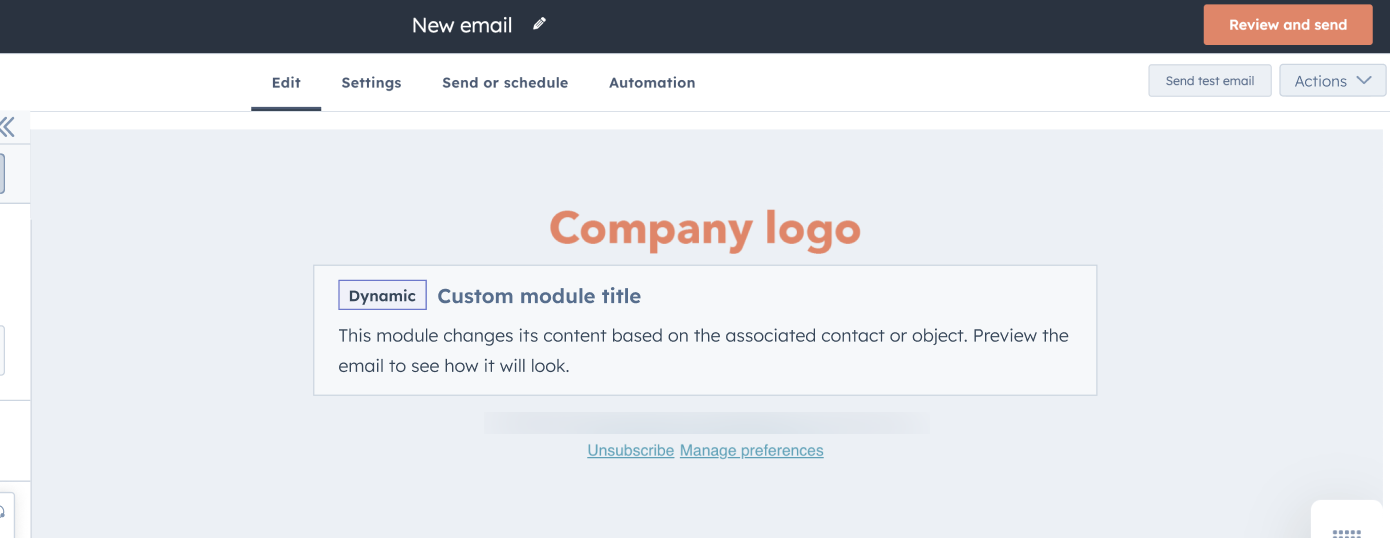
    If an email template or module contains custom code with unresolved HubL, a placeholder module will appear in its place.
    <Frame>
      <img src="https://www.hubspot.com/hubfs/Knowledge_Base_2023_2024/placeholder-module-in-programmable-email.png" alt="placeholder-module-in-programmable-email" />
    </Frame>

    <Warning>
      It's important to always have fallback data to send in the case that there are no HubDB rows or custom object records that meet the criteria you've set. Otherwise, the recipient might receive a blank email.

      This beta may cause issues with existing templates. It's important to test any changes thoroughly before publishing and sending a live email.
    </Warning>
  </Step>
</Steps>

## More HubDB focused tutorials

* [Building dynamic pages with HubDB](/cms/start-building/features/data-driven-content/hubdb/overview)
* [How to join multiple HubDB tables](/cms/start-building/features/storage/hubdb)
* [How to build a dynamic team member page with HubDB](/cms/start-building/features/data-driven-content/hubdb/dynamic-team-member-page)
* [How to build multilevel dynamic pages using HubDB](/cms/start-building/features/data-driven-content/hubdb/multilevel)

## HubSpot Academy

* [Using HubDB and Custom Objects in CMS Hub](https://academy.hubspot.com/lessons/other_data_sources_hubdb_and_custom_objects)