> ## Documentation Index
> Fetch the complete documentation index at: https://developers.hubspot.com/docs/llms.txt
> Use this file to discover all available pages before exploring further.

---
id: 49cb1d12-d888-4dfc-9592-86526e5cc59a
---

# Query HubSpot data using GraphQL

> Learn how to use GraphQL to query your HubSpot data

export const SupportedProducts = ({marketing, sales, service, cms, data, commerce, marketingLevel, salesLevel, serviceLevel, cmsLevel, dataLevel, commerceLevel}) => {
  const translations = {
    description: "Requires one of the following products or higher.",
    productNames: {
      marketing: "Marketing Hub",
      sales: "Sales Hub",
      service: "Service Hub",
      cms: "Content Hub",
      data: "Data Hub",
      commerce: "Commerce Hub"
    },
    tiers: {
      free: "Free",
      starter: "Starter",
      professional: "Professional",
      enterprise: "Enterprise"
    }
  };
  const translateTier = tier => {
    if (!tier) return '';
    const lowerTier = tier.toLowerCase();
    return translations.tiers[lowerTier] || tier;
  };
  const products = [{
    name: marketing ? translations.productNames.marketing : '',
    level: translateTier(marketingLevel),
    icon: "https://mintlify-assets.b-cdn.net/Icons/marketing-bolt.svg",
    alt: "Marketing Hub"
  }, {
    name: sales ? translations.productNames.sales : '',
    level: translateTier(salesLevel),
    icon: "https://mintlify-assets.b-cdn.net/Icons/sales-star.svg",
    alt: "Sales Hub"
  }, {
    name: service ? translations.productNames.service : '',
    level: translateTier(serviceLevel),
    icon: "https://mintlify-assets.b-cdn.net/Icons/service-heart.svg",
    alt: "Service Hub"
  }, {
    name: cms ? translations.productNames.cms : '',
    level: translateTier(cmsLevel),
    icon: "https://mintlify-assets.b-cdn.net/Icons/content-play.svg",
    alt: "Content Hub"
  }, {
    name: data ? translations.productNames.data : '',
    level: translateTier(dataLevel),
    icon: "https://developers.hubspot.com/hubfs/Knowledge_Base_2023-24-25/subscription_key_icons/operations_icon.svg",
    alt: "Data Hub"
  }, {
    name: commerce ? translations.productNames.commerce : '',
    level: translateTier(commerceLevel),
    icon: "https://developers.hubspot.com/hubfs/Knowledge_Base/subscription_key_icons/commerce_icon.svg",
    alt: "Commerce Hub"
  }].filter(product => product.name && product.level);
  if (products.length === 0) return null;
  return <div>
      <div className="text-sm mb-2">{translations.description}</div>
      <div className={`grid ${products.length === 1 ? 'grid-cols-1' : 'grid-cols-2'} gap-1.5`}>
        {products.map((product, index) => <div key={index} style={{
    display: 'flex',
    alignItems: 'center'
  }}>
            <img src={product.icon} alt={product.alt} className="w-3.5 h-3.5 mr-1.5 mt-2.5 mb-2.5 flex-shrink-0 align-middle" />
            <span className="font-medium mr-1 text-sm">{product.name} -</span>
            <span className="text-sm">{product.level}</span>
          </div>)}
      </div>
    </div>;
};

<Accordion title="Supported products" defaultOpen="true" icon="cubes">
  <SupportedProducts sales={true} salesLevel="enterprise" service={true} serviceLevel="enterprise" cms={true} cmsLevel="professional" />
</Accordion>

[GraphQL](https://graphql.org/) is a data query language that provides a unified way to access your HubSpot CRM and HubDB data to create personalized and data-driven experiences.

Based on your HubSpot subscription, you can use GraphQL to fetch data for the following tools:

* If you have a ***Content Hub*** *Professional* or *Enterprise* subscription, you can use GraphQL to fetch data for [website pages](/cms/start-building/features/data-driven-content/graphql/use-graphql-data-in-your-website-pages).
* If you have a ***Sales Hub*** or ***Service Hub*** *Enterprise* subscription, you can [use GraphQL to fetch data](https://developers.hubspot.com/blog/hello-world-creating-your-first-react-graphql-custom-card-for-hubspots-crm) for [UI extensions](/apps/developer-platform/add-features/ui-extensions/extension-points/app-cards/reference).

Below, learn more about the benefits of using GraphQL, how to structure and test GraphQL queries, and what limits are placed on the complexity of your queries. If you want to see an example of how GraphQL queries work in practice, check out the [Sample GraphQL theme tutorial on GitHub](https://github.com/HubSpot/recruiting-agency-graphql-theme).

<Warning>
  **Please note:**

  GraphQL files are not currently supported for modules or templates used for [marketing emails](https://knowledge.hubspot.com/marketing-email/edit-marketing-email-content-and-design).
</Warning>

## Advantages of using GraphQL

The GraphQL API provides a single, unified way to fetch data from different data sources to power your website pages, instead of having to process and aggregate data from disparate REST API endpoints.

You can specify the data within GraphQL queries, which allows you to decouple how you're fetching data from the presentational layer of your template and module code. You can then include queries as part of your theme, or connect them directly to your modules, templates, and pages.

## GraphQL schema and queries

In HubSpot, the GraphQL schema describes the data sources you're fetching from and the underlying data types available to your HubSpot account. This schema is auto-generated and will automatically update if you add custom properties, create custom objects, or associate object types.

You can construct GraphQL queries to fetch data by traversing the schema from your HubSpot account. This approach allows you to specify the data you need for a given page on your website.

Each GraphQL query consists of a tree of nested fields:

```graphql theme={null}
query MyQuery {
  # Root query field
  CRM {
    # Child fields
    contact_collection {
      items {
        # Properties
        email
        firstname
        lastname
      }
    }
  }
}
```

* **Root query field:** the top-level field of your query that represents your data source. The available data sources are:
  * **CRM:** records (e.g., contacts, companies, etc.) and other data from your CRM.
  * **HUBDB:** data from a [HubDB table](https://knowledge.hubspot.com/website-and-landing-pages/create-and-hubdb-tables).
  * **BLOG:** data from blog posts, authors, and tags.
  * **KB:** data from your knowledge base, including articles, categories, and tags.
* **Child fields:** based on the data source in your root query field, you can then specify the child fields you want to fetch, along with any associated properties.

Follow the instructions in the sections below to fetch data from the HubSpot CRM or a HubDB table. You can test and run your query interactively using [GraphiQL](#test-and-run-queries-interactively-using-graphiql), which provides autocompletion and allows you to browse all available fields you can include in your query.

## Query data from your CRM

To query data from the HubSpot CRM, include `CRM` as a root query field, then enter a data type as a child field. You can include any of the following data types from the CRM:

* Standard and custom objects
* Engagements, including calls, tasks, meetings, and notes
* Products and line items
* Quotes and subscriptions
* Marketing events

<Warning>
  **Please note:**

  When retrieving data for CRM objects and engagements, values in filters are case-insensitive, with the exception of the `IN` and `NOT_IN` operators. Learn more about filtering with the [CRM Search API.](/api-reference/latest/crm/search-the-crm#filter-search-results)
</Warning>

You can retrieve a single instance of a data type, or enter a data type followed by `_collection` to retrieve a list of objects of that type. You can provide arguments to a query field to fetch a single object or filter a collection of objects.

* **Fetch a single instance:** if you're fetching a single instance like an individual contact record, specify one of the object's properties and its associated value by including the property's name as the `uniqueIdentifier`, and the property's value as the `uniqueIdentifierValue`. For example, the following query would fetch a contact with an ID of *753:*

```graphql theme={null}
query filteredContact {
  CRM {
    contact(uniqueIdentifier: "id", uniqueIdentifierValue: "756") {
      email
    }
  }
}
```

* **Fetch and filter a collection:** to fetch a collection of instances, add `items` as a child field. To filter the objects in the response, include the `filter` argument, then provide a map of filter operators to their associated values. A filter operator consists of the property you want to filter by, followed by a suffix. For example, the query below would fetch and filter a collection of contacts with *hubspot.com* email addresses:

```graphql theme={null}
query filteredContactCollection {
  CRM {
    contact_collection(filter: { email__contains: "hubspot.com" }) {
      items {
        email
      }
    }
  }
}
```

<Warning>
  **Please note:**

  If you're using the `__in` [operator](#query-arguments-and-filters) to filter on a [multiple checkbox property](https://knowledge.hubspot.com/properties/property-field-types-in-hubspot), the data in the response will include instances that partially match one or more of the values in your filter argument.

  For example, if your query field was `contact_collection(filter: {hs_buying_role__in: ["END_USER", "INFLUENCER"]})`, then the response would include contacts who had *End User* selected as one of their buying roles, but didn't necessarily have *Influencer* as one of their buying roles.
</Warning>

After you've added a data type to your query, you can specify the properties, associations, or metadata you need by adding child fields:

* **Add properties to fetch:** enter the internal name of a property to include it in the response of your query. Both default and custom properties are supported.
* **Include associations to other data types:** you can also add a collection of instances of a data type associated with the parent data type, such as the companies associated with a contact. To add data from an associated data type:
  * Include `associations` as a child field of the original data type you entered.
  * As a child field of `associations`, enter the association you want to include by following the naming scheme of `{ASSOCIATED_DATA_TYPE}_collection__{LABEL_SUFFIX}`*.*
    * The associated data type can be a built-in association with a standard object, or an association with a custom object. Any associations to custom objects will be prefixed by `p_`.
    * For [primary associations](https://knowledge.hubspot.com/object-settings/create-and-use-association-labels#manage-company-associations), the label suffix is `primary`. If you [created a custom association label](https://knowledge.hubspot.com/object-settings/create-and-use-association-labels#create-and-edit-association-labels-professional-and-enterprise-only), the label suffix will be lower-cased, with each word in the label separated by an underscore. For example, if your custom association label is *My custom association label*, the label suffix would be `my_custom_association_label`.
    * For example, if you had a custom object named *House* associated with the contact object, the association you'd include in your query would be *p\_house\_collection\_\_house\_to\_contact*.
  * Add `items` as a child field of your association, then include any properties you need from each item in the collection.

```graphql theme={null}
query contactsWithAssociatedCompany {
  CRM {
    contact_collection {
      items {
        firstname
        lastname
        associations {
          company_collection__primary {
            items {
              name
              address
            }
          }
        }
      }
    }
  }
}
```

<Warning>
  **Please note:**

  Any CRM `_collection` query or a query that gets a single CRM object by a unique property other than `id` uses HubSpot's search API, and is therefore subject to the CRM search limits outlined [here](/api-reference/latest/crm/search-the-crm#limitations).
</Warning>

## Query data from HubDB

To query data from HubDB, include `HUBDB` as a root query field, then enter the name of a table to retrieve a single row from that table, or enter a name followed by `_collection` to retrieve multiple rows from that table.

<Warning>
  **Please note:**

  When retrieving data from HubDB, values in filters are case-sensitive. Learn more about [retrieving HubDB data](/api-reference/legacy/cms/hubdb/guide#filter-returned-rows).
</Warning>

You can provide arguments to a query field to retrieve a single row or filter multiple rows from the table:

* **Retrieve a single row:** if you're retrieving a single row from a table, specify one of the table's columns as the `uniqueIdentifier` then provide the associated value of the row you want to retrieve as the `uniqueIdentifierValue`. For example, the following query would retrieve a row from an executives table with a role of *CEO*:

```graphql theme={null}
query filteredExecutive {
  HUBDB {
    executives(uniqueIdentifier: "role", uniqueIdentifierValue: "CEO") {
      name
      email
      description
    }
  }
}
```

<Warning>
  **Please note:**

  If the column you provide as the `uniqueIdentifier` has non-unique values, your query will only return the first row, ordered by row ID.
</Warning>

* **Retrieve and filter multiple rows:** to fetch multiple rows from a table, add items as a child field. To filter the rows in the response, include the filter argument to your query field, then provide a map of filter operators to their associated values. A filter operator consists of the property you want to filter by, followed by a suffix. For example, the query below would retrieve and filter rows from the executives table whose role contains *O\_\_fficer*:

```graphql theme={null}
query csuiteExecutives {
  HUBDB {
    executives_collection(filter: { role__contains: "Officer" }) {
      items {
        email
      }
    }
  }
}
```

After you've added a data type to your query, you can specify the columns or metadata you need by adding child fields:

* **Add columns to retrieve:** enter the name of a column to include it in the response to your query. If one of your columns is a foreign ID and you want to include columns from the associated table:
  * Include `associations` as a child field of `items`.
  * As a child field under `associations`, enter the *name* of the foreign table with the `_collection` suffix, followed by two underscores and the *name* of the foreign ID column. For example, if the foreign ID column is *recent\_posts*, and the name of the foreign table you want to reference is *blog\_posts*, then the resulting field to include in your query would be `blog_posts_collection__recent_posts`.
  * Add `items` as a child field of the foreign table field you just entered, then include any columns you need from the foreign table. For example, to include additional columns from the *executives* table from the *csuiteExecutives* query above, along with the title and link from a *blog\_posts* foreign table, you'd update the query to the following:

```graphql theme={null}
query csuiteExecutives {
  HUBDB {
    executives_collection(filter: { role__contains: "Officer" }) {
      items {
        associations {
          blog_posts_collection__recent_posts {
            items {
              title
              link
            }
          }
        }
        email
        name
        description
        role
      }
    }
  }
}
```

* **Include metadata fields:** internal properties of the table, such as the ID or the timestamp of the last update to a row, are prefixed with `hs_`.

#### Retrieving data from child tables

If you've [configured dynamic pages to be created from your HubDB tables](/cms/start-building/features/data-driven-content/hubdb/overview), you can include data from child tables in your GraphQL query.

* Add `hs_child_table_collection` as a child field of the `items` of the parent table collection.
* For each child table that you want to include, include a nested child fragment, which consists of the spread operator (i.e., `...`) combined with a *type condition*, which includes the `on` keyword and the *name* of the child table collection. For example, if you wanted to update the `csuiteExecutives` query from above to include columns from the `team` and `recent_posts` child tables:

```graphql theme={null}
query csuiteExecutives {
  HUBDB {
    executives_collection(filter: { role__contains: "Officer" }) {
      items {
        email
        name
        description
        role
        hs_child_table_collection {
          ... on teams_collection {
            name
            email
            summary
          }
          ... on recent_posts_collection {
            title
            summary
            link
          }
        }
      }
    }
  }
}
```

#### Retrieving unpublished data from a table

You can include unpublished data from a table by providing `{draft: true}` as a query argument to the name of the table that you're retrieving. If you've added new columns since you last published the table, they will <u>not</u> be included.

```graphql theme={null}
query csuiteExecutives {
  HUBDB {
    executives_collection(draft: true, filter: { role__contains: "Officer" }) {
      items {
        email
        name
        description
        role
        hs_id
        hs_child_table_id
      }
    }
  }
}
```

## Query blog data

To query blog data, include `BLOG` as a root query field, then enter a data type as a child field. You can include any of the following data types:

* Post and post collection
* Author and author collection
* Tag and tag collection

A complete list of the available blog fields is included in the [GraphiQL tool](/cms/start-building/features/data-driven-content/graphql/query-hubspot-data-using-graphql#test-and-run-queries-interactively-using-graphiql).

```graphql theme={null}
query MyQuery {
  # Root query field
  BLOG {
    # Child fields
    post_collection {
      items {
        # Properties
        name
        post_body
      }
    }
  }
}
```

* Retrieve a single blog post: retrieve the title and content of a single blog post by using its ID as the `uniqueIdentifier`.

```graphql theme={null}
query MyQuery {
  BLOG {
    post(uniqueIdentifier: "id", uniqueIdentifierValue: "123") {
      name
      post_body
    }
  }
}
```

* Retrieve blog author fields from a post: retrieve the title and content of a single blog post, along with the blog author's name and email address, by using its ID as the `uniqueIdentifier`.

```graphql theme={null}
query MyQuery {
  BLOG {
    post(uniqueIdentifier: "id", uniqueIdentifierValue: 123) {
      name
      post_body
      blog_author {
        full_name
        email
      }
    }
  }
}
```

* Retrieve a filtered collection of blog posts: retrieve a set of blog posts filtered by the post title.

```graphql theme={null}
query MyQuery {
  BLOG {
    post_collection(filter: { name__icontains: "blog" }) {
      items {
        name
        post_body
      }
    }
  }
}
```

* Retrieve drafted blog posts: retrieve a collection of blog posts that are not currently published by specifying `draft: true`.

```graphql theme={null}
query MyQuery {
  BLOG {
    post_collection(draft: true, filter: { name__icontains: "blog" }) {
      items {
        name
        post_body
      }
    }
  }
}
```

## Query knowledge base data

<Warning>
  **Please note:**

  GraphQL querying is only supported for the [latest version of the knowledge base tool](https://knowledge.hubspot.com/knowledge-base/create-and-customize-knowledge-base-articles). You will not be able to query data from older knowledge bases which weren't created using the latest toolset.
</Warning>

To query blog data, include `KB` as a root query field, then enter a data type as a child field. You can include any of the following data types:

* Knowledge base and knowledge base collection
* Articles and article collection
* Category and category collection
* Tag and tag collection

A complete list of the available blog fields is included in the [GraphiQL tool](/cms/start-building/features/data-driven-content/graphql/query-hubspot-data-using-graphql#test-and-run-queries-interactively-using-graphiql).

```graphql theme={null}
query MyQuery {
  # Root query field
  KB {
    # Child fields
    knowledge_article_collection {
      items {
        # Properties
        name
        post_body
      }
    }
  }
}
```

* Retrieve a single knowledge base article: retrieve the title and content of a single blog post by using its ID as the `uniqueIdentifier`.

```graphql theme={null}
query MyQuery {
  KB {
    knowledge_article(
      uniqueIdentifier: "hs_id"
      uniqueIdentifierValue: "179889003802"
    ) {
      hs_name
      hs_body
    }
  }
}
```

* Retrieve a filtered collection of knowledge base articles: retrieve a set of articles filtered by the article title.

```graphql theme={null}
query MyQuery {
  KB {
    knowledge_article_collection(filter: { hs_name__contains: "cats" }) {
      items {
        hs_body
        hs_name
        hs_path
      }
    }
  }
}
```

## Test and run queries interactively using GraphiQL

You can test queries by using GraphiQL, which is an open-source tool that allows you to run queries interactively and explore which fields are available.

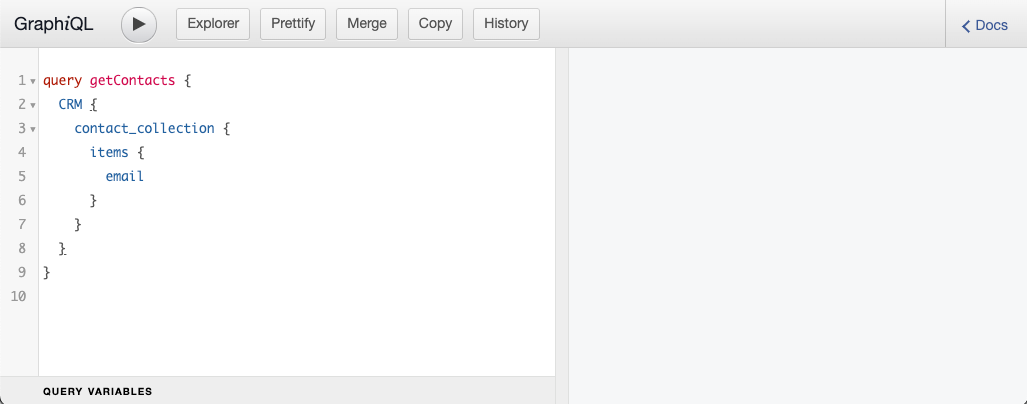
* In your HubSpot account, navigate to the [GraphiQL tool](https://app.hubspot.com/login?loginRedirectUrl=https%3A%2F%2Fapp.hubspot.com%2Fshortlink%2Fgraphiql%2F).
* In the left pane, create and edit your query by specifying the objects and their associated fields you'll need for your website pages.

<Frame>
  <img src="https://www.hubspot.com/hubfs/Knowledge_Base_2021/Developer/graphiql-initial-view.png" alt="graphiql-initial-view" />
</Frame>

* To view all available data types, properties, and filters, click **Explorer** at the top of the page to toggle the *Explorer* view, which will list all available data types and their associated properties.
  * Click a **data** **type** to automatically add it to your query and view all its associated properties.
  * Select the **checkbox** next to a property to add it to your query.
  * If you're writing a query and you're entering an argument for one of your fields, the *Explorer* pane will auto-populate a list of available filters.
* When you're ready to test a query, click the **play icon** at the top of the page. The query's response will appear in the right pane.

<Frame>
  <img src="https://www.hubspot.com/hubfs/Knowledge_Base_2021/Developer/run-query-in-graphiql-1.png" alt="run-query-in-graphiql-1" />
</Frame>

## Filter and refine query results

You can provide arguments to a collection field in your query to filter, order, or paginate the objects returned in the response. The table below lists the supported arguments:

### Query argument types

| Argument  | Type       | Description                                                                                                                                                                                                                                                                                                                                                                                                                                                                                                                 |
| --------- | ---------- | --------------------------------------------------------------------------------------------------------------------------------------------------------------------------------------------------------------------------------------------------------------------------------------------------------------------------------------------------------------------------------------------------------------------------------------------------------------------------------------------------------------------------- |
| `filter`  | Input type | A set of filter options to apply on the collection items                                                                                                                                                                                                                                                                                                                                                                                                                                                                    |
| `limit`   | Integer    | The maximum number of items to fetch.<br /><br />If your query's data source is the `CRM`, the default limit is 10 items, and the maximum limit is 500.<br /><br />If you're using `HUBDB` as a data source, the default limit is 1000 rows, with no maximum limit.<br /><br />If you're using `BLOG` as a data source, the default limit for blog posts and tags is 20, while the default limit for authors is 1000. The maximum limit for blog posts is 300. There is no maximum limit for fetching blog authors or tags. |
| `orderBy` | Enum array | The ordering to apply on the fetched items. The default ordering is ascending by the item's `id`.                                                                                                                                                                                                                                                                                                                                                                                                                           |
| `offset`  | Integer    | The index from where to start fetching items. The default is 0. When paginating results, you should include the offset field as a query argument, as well as including it in the fields of your query.                                                                                                                                                                                                                                                                                                                      |

Create a filter by combining a HubSpot property with a suffix that corresponds to a logical or mathematical operator, separated by two underscores (e.g., `email__contains` or `name__eq`). The supported operators are shown in the table below:

| Filter                          | Postfix          | Field types                    | Example                                          |
| ------------------------------- | ---------------- | ------------------------------ | ------------------------------------------------ |
| equal                           | `__eq`           | String, Number, Date, DateTime | `email__eq: “user@domain.com”`                   |
| not equal                       | `__neq`          | String, Number, Date, DateTime | `firstname__neq: “Bob”`                          |
| less than                       | `__lt`           | Number, DateTime               | `price__lt: 45`                                  |
| less than or equal              | `__lte`          | Number, DateTime               | `started__lte: 1633606374`                       |
| greater than                    | `__gt`           | Number, DateTime               | `salary__gt: 60000`                              |
| greater than or equal           | `__gte`          | Number, DateTime               | `birthdate__gte: 1633606374`                     |
| contains                        | `__contains`     | String                         | `name__contains: “Inc.”`                         |
| does not contain                | `__not_contains` | String                         | `address_not_contains: “Miami”`                  |
| in given list                   | `__in`           | Enumeration, Number            | `hs_buying_role__in: [“END_USER”, "INFLUENCER"]` |
| not in given list               | `__not_in`       | Enumeration, Number            | `status__not_in: [“REJECTED”, "PENDING"]`        |
| has value / does not have value | `__null`         | Any type                       | `email__null: false`                             |

### Paginating results

By default, if the `limit` field isn't included in your query, the maximum number of items returned in the results will be 10. You can increase this limit by providing the `limit` query argument within the parantheses following the collection name of your query, subject to the data source maximums described in the [table above](#query-argument-types).

You can also provide the `offset` query argument within the parantheses of your query collection name, which specifies the index from which to start fetching items.

For example, the following query would start fetching results from an index of 10 and continue until the query's limit of 30 is reached:

```graphql theme={null}
CRM {
  contact_collection(offset: 10, limit: 30) {
    offset
    limit
    total
    items {
      firstname
      lastname
    }
  }
}
```

By also including the `offset`, `limit`, and `total` fields within the query itself, these values will be returned in the results, which can help you make any additional queries for any remaining data.

### Combine multiple filters and use conditional logic

You can combine multiple filters in your query by defining filter groups. Each filter group is defined with curly brackets (e.g., `{}`), and the filters within the resulting group will be `AND`ed together.

#### Use OR logic when querying CRM data

If you're querying for CRM data, you can apply OR logic to a list of filter groups using the `OR` operator, followed by a list of comma-separated filter groups within square brackets (e.g., `[]`).

For example, if you want to filter a list of *Job* custom objects to include records with a status of either "full-time" OR "contract", then the resulting filter would be:

```graphql theme={null}
CRM {
  p_job_collection(filter: {
    OR: [
      {status__eq: "full-time"},
      {status__eq: "contract"}
    ]
  }) {
    items {
       # Job child fields (e.g., name, id, etc.)
    }
  }
}
```

Each additional condition that you want to `OR` together must be specified as a separate filter group, even if the filter name is the same (i.e., `status__eq` in the example above).

The same format would apply if you want to `OR` together different filter types. For example, if you want to filter job records to include jobs with a "full-time" status *OR* jobs in the department "engineering", then the resulting query would be:

```graphql theme={null}
CRM {
  p_job_collection(filter: {
    OR: [
      {status__eq: "full-time"},
      {department__eq: "engineering"}
    ]
  }) {
    items {
       # Job child fields (e.g., name, id, etc.)
    }
  }
}
```

You can combine the implicit `AND` logic of filters within a filter group with the OR logic between different filter groups to create more complex filters.

For example, if you wanted to represent the following logical expression as a GraphQL filter:

`status="full-time" AND ((department="engineering" AND salary >= 80000) OR (department="sales" AND salary>=100000))`

The resulting filter argument in your query would be:

```graphql theme={null}
CRM {
  p_job_collection(filter: {
    status__eq: "full-time", OR: [
      {department__eq: "engineering", salary__gt: 80000},
      {department__eq: "sales", salary__gt: 100000}
    ]
  }) {
    items {
      # Job child fields (e.g., name, id, etc.)
    }
  }
}
```

<Warning>
  **Please note:**

  * Although the `OR` operator appears as a checkbox in the *Explorer* side panel of [GraphiQL](#test-and-run-queries-interactively-using-graphiql), selecting the checkbox will cause your query to be invalid due to the way GraphiQL autocompletes the query argument. You should instead follow the steps above to structure your query's filtering logic manually.
  * The `OR` operator is <u>not</u> supported when querying for HubDB data.
</Warning>

## Query complexity and account limits

To ensure optimal performance for querying your data, HubSpot enforces several limits on your queries, including a limit on the maximum items returned in a single query, as well as the aggregate complexity of your GraphQL queries.

### Limit on maximum items returned in a query

Individual GraphQL queries that retrieve CRM data are subject to a limit of 500 items returned in a query (e.g., up to 500 contacts can be retrieved in an individual query). There is no maximum limit to retrieving rows from a HubDB table.

Learn more about manually specifying a custom limit to the items returned in your query using the `limit` field in the *[Query argument types](#query-argument-types)* table above.

### Query complexity and account limits

HubSpot also enforces aggregate complexity limits, based on factors such as the total number of objects and their associated properties in your query. Likewise, since HubSpot needs to make a new internal API request for each top-level object, complex queries with nested associations incur an additional cost to execute.

The following factors are assigned point values and used to calculate a resulting complexity score:

* **Internal API request:** 300 points
* **Object retrieved:** 30 points
* **Requested property with a value:** 3 points
* **Requested property without a value:** 1 point

HubSpot will multiply the number of occurrences of each factor listed above by its corresponding point value, then sum each of these subtotals to arrive at a final complexity score.

For example, the following query retrieves contacts, their associated companies, and the tickets associated with those companies:

```graphql expandable theme={null}
query myQuery {
  CRM {
    contact_collection {
      items {
        hs_object_id
        firstname
        lastname
        email
        company
        associations {
          company_collection__primary {
            items {
              hs_object_id
              name
              domain
              country
              annualrevenue
              phone
              associations {
                ticket_collection__primary {
                  items {
                    hs_object_id
                    createdate
                    content
                    created_by
                    hs_pipeline
                    hs_pipeline_stage
                    closed_date
                  }
                }
              }
            }
          }
        }
      }
    }
  }
}
```

Assuming that the above query retrieves 10 contacts, with 6 companies per contact, and 15 tickets per company, the complexity score would be calculated as follows:

* Points used for `contact_collection`:
  * One internal API request is made (300 points).
  * 10 contacts are retrieved (10 \* 30 = 300 points).
  * For each contact, five properties with values are retrieved (10 \* 5 \* 3 =150 points).
  * **Total points:** 750
* Points used for `company_collection__primary`:
  * One internal API is made per contact retrieved, totaling 10 requests (10 \* 300 = 3,000 points).
  * Six companies are retrieved (6 \* 30 = 180 points).
  * Five properties are retrieved with a value per company (6 \* 5 \* 3 = 90 points).
  * One property is returned with no value per company (6 \* 1 = 6 points).
  * **Total points:** 3,276
* Points used for `ticket_collection__primary`:
  * One internal API request is made per company per contact retrieved (10 \* 6 \* 300 = 18,000 points).
  * 15 tickets are returned (15 \* 30 = 450 points).
  * Seven properties are returned with a value per ticket (15 \* 7 \* 3 = 315 points).
  * **Total points:** 18,765

Adding the points from the three constituent parts of the query, the final complexity score for the query totals to 22,791 points.

In addition to the complexity limits on individual queries, HubSpot also enforces an account-wide limit for the complexity of the queries you include when using the [external GraphQL API endpoint](#use-a-graphql-query-in-an-api-request):

* Each individual query has a maximum of 30,000 points available. If this limit is reached while the query is running, all further execution is blocked and all object instances fetched up to that point are returned.
* Each HubSpot account is allowed up to 500,000 points per rolling minute and 300,000,000 total available points per rolling day when using the [GraphQL API endpoint](#use-a-graphql-query-in-an-api-request).
  * If either of these limits are reached, further requests to the endpoint will receive an HTTP status code of `429 Too Many Requests`. The only exception is that templates and modules with GraphQL queries loaded by site visitors <u>will continue</u> to function to preserve website user experience.
  * All other ad-hoc uses of the endpoint will no longer function (e.g., during template/module development, using the GraphiQL UI, and UI extensions using GraphQL queries).
  * Accumulated points from the previous rolling period are <u>not</u> carried over to the next.
* The normal burst limits detailed in [HubSpot's API usage guidelines](/developer-tooling/platform/usage-guidelines#rate-limits) are <u>not</u> applicable to querying data using GraphQL.

When HubSpot retrieves the data specified in your GraphQL query, the response contains details on the complexity score for your query within the `extensions` field.

* The complexity score for the query you provided in your request will be broken down within the `query_complexity` field.
* If you're using the [external GraphQL API endpoint](#use-a-graphql-query-in-an-api-request), the extensions field will also include account limit information within `rate_limit_info`.

```json theme={null}
"extensions": {
  "rate_limit_info": {
    "interval_in_seconds": 60,
    "max_points": 500000,
    "remaining_points": 477209,
   },
  "query_complexity": {
    "max_points": 30000,
    "used_points": 22791,
    "points_for_internal_api_requests": {
      "count": 71,
      "weight": 300,
      "used_points": 21300
    },
    "points_for_objects_retrieved": {
      "count": 31,
      "weight": 30,
      "used_points": 930
    },
    "points_for_properties_with_value": {
      "count": 185,
      "weight": 3,
      "used_points": 555
    },
    "points_for_properties_without_value": {
      "count": 6,
      "weight": 1,
      "used_points": 6
    }
  }
}
```

## Use a GraphQL query in an API request

In addition to using GraphQL in your [website pages](/cms/start-building/features/data-driven-content/graphql/use-graphql-data-in-your-website-pages), you can also use a GraphQL query in your integration, a [Jamstack site](https://jamstack.org/), or in a [custom code action in the workflows tool](/api-reference/latest/automation/workflow-actions/custom-code-actions) to specify the data you need from HubSpot without having to make separate requests to multiple API endpoints.

### Scope requirements

To make an API request to the `/collector/graphql` endpoint, the following [scopes](/apps/legacy-apps/authentication/working-with-oauth#scopes) are required:

```
collector.graphql_schema.read
collector.graphql_query.execute
```

You must also include any scopes that correspond to the data sources in your query. For example, the `crm.objects.contacts.read` scope is required if you're fetching contacts in your query.

### Make an API request to the /collector/graphql endpoint

Once a user has authorized the required scopes above, you can make a `POST` request to the `/collector/graphql` endpoint and include the following fields:

| Parameter       | Type        | Description                                                          |
| --------------- | ----------- | -------------------------------------------------------------------- |
| `operationName` | String      | A label for the query included in the request                        |
| `query`         | String      | The GraphQL query to execute                                         |
| `variables`     | JSON object | A JSON object containing any variables you want to pass to the query |

For example, if you created a *House* custom object, and you wanted to query for a collection of *House* records in Miami, the request body would contain:

```json theme={null}
// POST request body to https://api.hubapi.com/collector/graphql
{
  "operationName": "houses",
  "query": "query houses ($city: String) { CRM
            {house_collection(filter: {city__eq: $city}) { items {
            asking_price bedrooms bathrooms city}}}}",
  "variables": {"city": "Miami"}
}
```

Example return payload:

```json theme={null}
{
  "data": {
    "CRM": {
      "house_collection": {
        "items": [
          {
            "asking_price": 800000,
            "bedrooms": 3,
            "bathrooms": 2,
            "city": "Miami"
          }
          {
            "asking_price": 940000,
            "bedrooms": 2,
            "bathrooms": 2,
            "city": "Miami"
          }
        ]
      }
    }
  }
}
```

## Further reading

Once you're familiar with how to create a GraphQL query, check out [this guide](/cms/start-building/features/data-driven-content/graphql/use-graphql-data-in-your-website-pages) to using a query on your website pages (***Content Hub*** *Professional* or *Enterprise* only). And if you're enrolled in the [UI extensions beta](/apps/developer-platform/add-features/ui-extensions/extension-points/app-cards/reference), learn more about [using GraphQL to fetch data for UI extensions](https://developers.hubspot.com/blog/hello-world-creating-your-first-react-graphql-custom-card-for-hubspots-crm).