> ## Documentation Index
> Fetch the complete documentation index at: https://developers.hubspot.com/docs/llms.txt
> Use this file to discover all available pages before exploring further.

---
id: c1199567-1e3d-493c-891f-c0a7ceaa9899
---

# How to build multilevel dynamic pages with HubDB

> Create dynamic pages with nested HubDB tables.

export const SupportedProducts = ({marketing, sales, service, cms, data, commerce, marketingLevel, salesLevel, serviceLevel, cmsLevel, dataLevel, commerceLevel}) => {
  const translations = {
    description: "Requires one of the following products or higher.",
    productNames: {
      marketing: "Marketing Hub",
      sales: "Sales Hub",
      service: "Service Hub",
      cms: "Content Hub",
      data: "Data Hub",
      commerce: "Commerce Hub"
    },
    tiers: {
      free: "Free",
      starter: "Starter",
      professional: "Professional",
      enterprise: "Enterprise"
    }
  };
  const translateTier = tier => {
    if (!tier) return '';
    const lowerTier = tier.toLowerCase();
    return translations.tiers[lowerTier] || tier;
  };
  const products = [{
    name: marketing ? translations.productNames.marketing : '',
    level: translateTier(marketingLevel),
    icon: "https://mintlify-assets.b-cdn.net/Icons/marketing-bolt.svg",
    alt: "Marketing Hub"
  }, {
    name: sales ? translations.productNames.sales : '',
    level: translateTier(salesLevel),
    icon: "https://mintlify-assets.b-cdn.net/Icons/sales-star.svg",
    alt: "Sales Hub"
  }, {
    name: service ? translations.productNames.service : '',
    level: translateTier(serviceLevel),
    icon: "https://mintlify-assets.b-cdn.net/Icons/service-heart.svg",
    alt: "Service Hub"
  }, {
    name: cms ? translations.productNames.cms : '',
    level: translateTier(cmsLevel),
    icon: "https://mintlify-assets.b-cdn.net/Icons/content-play.svg",
    alt: "Content Hub"
  }, {
    name: data ? translations.productNames.data : '',
    level: translateTier(dataLevel),
    icon: "https://developers.hubspot.com/hubfs/Knowledge_Base_2023-24-25/subscription_key_icons/operations_icon.svg",
    alt: "Data Hub"
  }, {
    name: commerce ? translations.productNames.commerce : '',
    level: translateTier(commerceLevel),
    icon: "https://developers.hubspot.com/hubfs/Knowledge_Base/subscription_key_icons/commerce_icon.svg",
    alt: "Commerce Hub"
  }].filter(product => product.name && product.level);
  if (products.length === 0) return null;
  return <div>
      <div className="text-sm mb-2">{translations.description}</div>
      <div className={`grid ${products.length === 1 ? 'grid-cols-1' : 'grid-cols-2'} gap-1.5`}>
        {products.map((product, index) => <div key={index} style={{
    display: 'flex',
    alignItems: 'center'
  }}>
            <img src={product.icon} alt={product.alt} className="w-3.5 h-3.5 mr-1.5 mt-2.5 mb-2.5 flex-shrink-0 align-middle" />
            <span className="font-medium mr-1 text-sm">{product.name} -</span>
            <span className="text-sm">{product.level}</span>
          </div>)}
      </div>
    </div>;
};

<Accordion title="Supported products" defaultOpen="true" icon="cubes">
  <SupportedProducts cms={true} cmsLevel="professional" />
</Accordion>

<ProductTier tiers={['cms-professional', 'cms-enterprise']} />

A [dynamic website page](/cms/start-building/features/data-driven-content/crm-objects) is a CMS page whose content changes based on the path of the URL requested by an end user. [HubDB](/cms/start-building/features/storage/hubdb) already allows you to store, filter, and display data in your HubSpot website pages. Multilevel dynamic pages take this concept further, allowing you to create up to five levels of pages within one dynamic template.

Each dynamic page includes its own unique, SEO-friendly URL, and offers page-specific analytics.

<Warning>
  **Please note:**

  That this tutorial assumes you already have multiple HubDB tables created. Please see the [HubDB documentation](/cms/start-building/features/storage/hubdb) if you are unfamiliar with HubDB or want to create your first HubDB tables.
</Warning>

<Steps>
  <Step title="Enable child tables in your table">
    * In your HubSpot account, navigate to **Marketing** > **Files and Templates** > **HubDB**.
      * Click the **name** the table that will act as the parent for any other tables that will be used for your nested child tables.
      * In the top right, click the **Actions** dropdown menu, then select **Manage settings**.
      * If you haven't yet enabled the table for dynamic pages, click to toggle the **Enable creation of dynamic pages using row data** switch on, then select the columns to populate the page data.
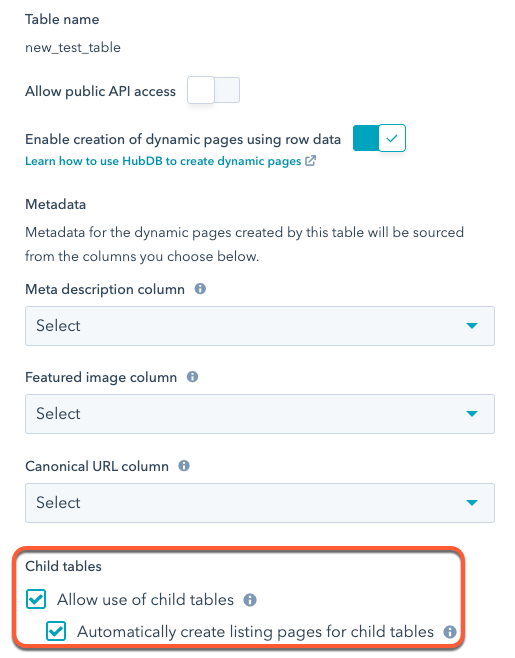
      * Click to select the **Allow child tables** and **Automatically create listing pages for child tables** checkboxes.

    <Frame>
      <img src="https://www.hubspot.com/hubfs/Knowledge_Base_2021/Developer/hubdb-manage-settings-child-tables.png" alt="hubdb-manage-settings-child-tables" />
    </Frame>

    * Click **Save**.

    With your changes saved, you'll then see a **Child table** column added to the table. In this column, use the **dropdown menu** to select another HubDB table to pull data from.
    <Info>
      To streamline this process, keep the child table columns and their internal names the same. If they are not the same, you'll need to use conditional logic later to render unique content for a given table.
    </Info>
  </Step>

  <Step title="Select child tables for each row">
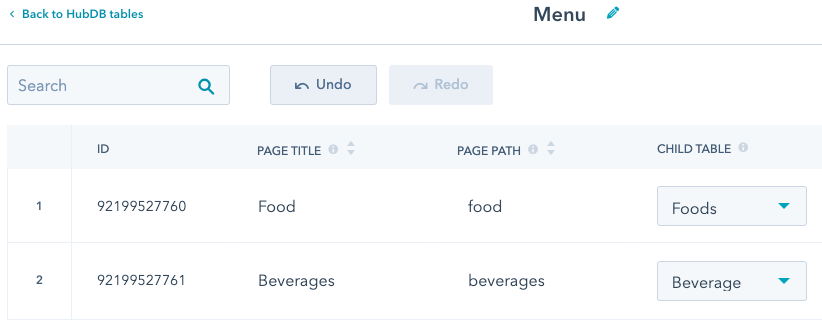
    In the parent table, use the **Child table** column dropdown menus to select **tables** to pull data from.

    You can only select tables that are enabled for dynamic page content creation. If you've enabled a table for dynamic page creation but aren't seeing it in the **Child table** dropdown menu, ensure that you've clicked **Publish** in the child table.

    <Warning>
      **Please note:**

      A parent table cannot reference a child table which also references the parent table. This will create a loop that results in an error when trying to select the child table within the parent table.
    </Warning>

    <Frame>
      <img src="https://www.hubspot.com/hubfs/Knowledge_Base_2021/Developer/hubdb-menu-parent-table.png" alt="hubdb-menu-parent-table" />
    </Frame>

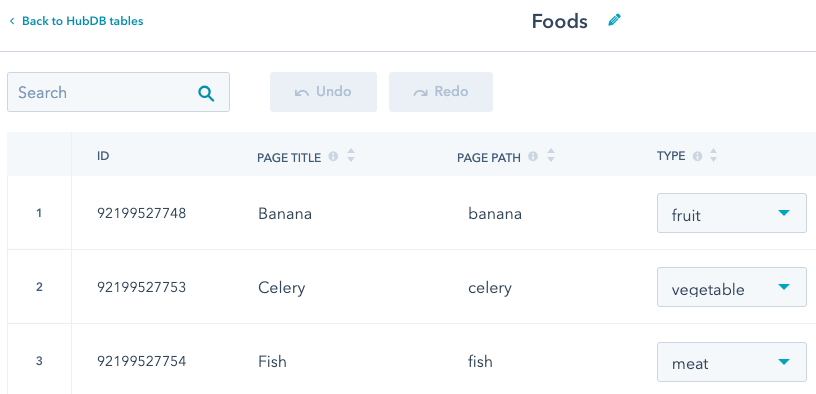
    In the above example, the first row will be pulling its food data from the *Foods* child table, which contains data about available foods, as shown below.
    <Frame>
      <img src="https://www.hubspot.com/hubfs/Knowledge_Base_2021/Developer/hubdb-food-child-table.png" alt="hubdb-food-child-table" />
    </Frame>

    When setting multilevel dynamic pages, the page paths for each row in the child table will be `parent_path/child_path`. For example, the page path for the `banana` row will be `page_path/foods/banana`.

    By turning on the **Automatically create listing pages for child tables** setting, HubSpot will also automatically create intermediate listing pages for the child table rows (`page_path/foods` and `page_path/beverages`).

    If you would rather have those intermediate routes not resolve and return a 404 page, deselect the **Automatically create listing pages child child tables** checkbox in the table's settings.
  </Step>

  <Step title="Create the multilevel template">
    Through child tables, you can create up to five levels of pages with one dynamic template. You can configure each level by using the `dynamic_page_route_level` HubL variable. The top-level template starts at a value of `0` and increments for each table layer.

    ```hubl theme={null}
    {% if dynamic_page_route_level == 0 %}
    	Top Level Template
    {% elif dynamic_page_route_level == 1 %}
    	Parent table template (/food /beverage)
    {% elif dynamic_page_route_level == 2 %}
    	Child table template (/food/banana etc., /beverage/soda etc.)
    {% endif %}
    ```
  </Step>

  <Step title="Populate the top-level template">
    For this tutorial, the goal is to list the child rows and group them by parent category. The example code below does the following:

    * First, it retrieves the category rows using `dynamic_page_hubdb_table_id`.
    * Then, the `hs_child_table_id` property of each category row retrieves the table IDs of the child tables.
    * Last, it uses those table IDs to list the child rows under each parent category.

    ```hubl theme={null}
    {% if dynamic_page_route_level == 0 %}
    	<h1>Categories</h1>
        {% set rows = hubdb_table_rows(dynamic_page_hubdb_table_id) %}
        {% for row in rows %}
         	<h2><a href="{{ request.path }}/{{ row.hs_path }}">{{ row.hs_name }}</a></h2>
          	{% set childRows = hubdb_table_rows(row.hs_child_table_id) %}
          	{% for childRow in childRows %}
            	<li><a href="{{ request.path }}/{{ row.hs_path }}/{{childRow.hs_path}}">{{ childRow.hs_name }}</a></li>
          	{% endfor %}
         {% endfor %}
    {% endif %}
    ```
  </Step>

  <Step title="Populate the dynamic-level templates">
    After populating the top-level template, you'll then need to define templates for the subsequent levels in a similar fashion.

    While building out your templates, it can be useful to access parent table data within child templates. For example, when our example page resolves to `foods/banana`, the `dynamic_page_hubdb_row` variable will be set to the `banana` row. However, you may want to access data from the `food` row. You can use `hs_parent_row` value on the `dynamic_page_hubdb_row` to retrieve the parent row:

    ```hubl theme={null}
    {% if dynamic_page_route_level == 1 %}
    	<h1>Categories</h1>
    	<h2>{{dynamic_page_hubdb_row.hs_name}}</h2>
        {% set rows = hubdb_table_rows(dynamic_page_hubdb_row.hs_child_table_id) %}
        {% for row in rows %}
        	<li><a href="{{ request.path }}/{{ row.hs_path }}">{{ row.hs_name }}</a></li>
        {% endfor %}
    {% elif dynamic_page_route_level == 2 %}
    	<h1>Categories</h1>
        <h2>{{dynamic_page_hubdb_row.hs_parent_row.hs_name}}</h2>
        <h3>{{dynamic_page_hubdb_row.hs_name}}</h3>
    {% endif %}
    ```

    Continue building out templates for each needed level. Then, you'll need to l ink the parent table to a page.
  </Step>

  <Step title="Link parent table to page">
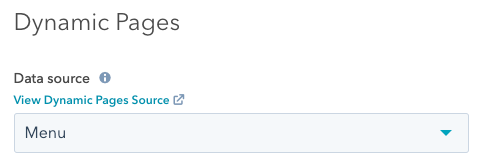
    The final step is to create a page from the multilevel template and link the top-level parent table to the page. To do so, you'll [create a page](https://knowledge.hubspot.com/website-and-landing-pages/create-and-customize-pages#create-pages), then access its settings. In the *Advanced Options* settings of the page editor, click the **Data source** dropdown menu and select the **Parent table**.

    <Frame>
      <img src="https://www.hubspot.com/hubfs/Knowledge_Base_2021/Developer/dynamic-pages-dropdown-menu.png" alt="dynamic-pages-dropdown-menu" />
    </Frame>
  </Step>
</Steps>