> ## Documentation Index
> Fetch the complete documentation index at: https://developers.hubspot.com/docs/llms.txt
> Use this file to discover all available pages before exploring further.
---
id: d497b016-2924-4508-bfb4-d5a130b12d04
---
# Build dynamic pages using HubDB
> Learn how to build dynamic website pages using HubDB data.
[Dynamic pages](/cms/start-building/features/data-driven-content/crm-objects) are CMS pages that get their content from a structured data source. Based on how you configure your dynamic page, HubSpot will pull data from the selected source and automatically create a set of pages. This includes a listing page that displays summaries of the data, and individual pages for each data source entry.
Using a [HubDB table](/cms/start-building/features/storage/hubdb) as a data source, you can create a dynamic page which then generates a page for each row in the table. Each dynamic page includes its own unique, SEO-friendly URL, and offers page-specific analytics.
**Please note:**
* You can create up to 10 dynamic pages per data source. For HubDB dynamic pages, this means up to 10 dynamic pages can use the same HubDB table. The number of rows in the table (and therefore child pages) is not factored into this limit. Learn more about [HuDB technical limits](/cms/start-building/features/storage/hubdb#hubdb-technical-limits).
* HubDB dynamic pages are limited to 50,000 [content search](/cms/start-building/building-blocks/modules/content-search) index updates per account per day. Any updates to these pages beyond this limit will not be reflected in content search that day.
This tutorial walks through how to create a set of dynamic pages using HubDB as the data source. To follow this tutorial, you'll need:
* ***Content Hub** Professional* or *Enterprise*
* Some prior knowledge of HTML and CSS
You can learn more about building data-based CMS pages in HubSpot Academy's [CMS Data-Driven Content course](https://app.hubspot.com/academy/tracks/1148948/intro).
To create a new HubDB table:
* In your HubSpot account, navigate to **Content** > **HubDB**.
* In the upper right, click **Create table**.
* In the dialog box, enter the table **label** and **name**, then click **Create**.
With the table created, you can set it to be used for dynamic page content:
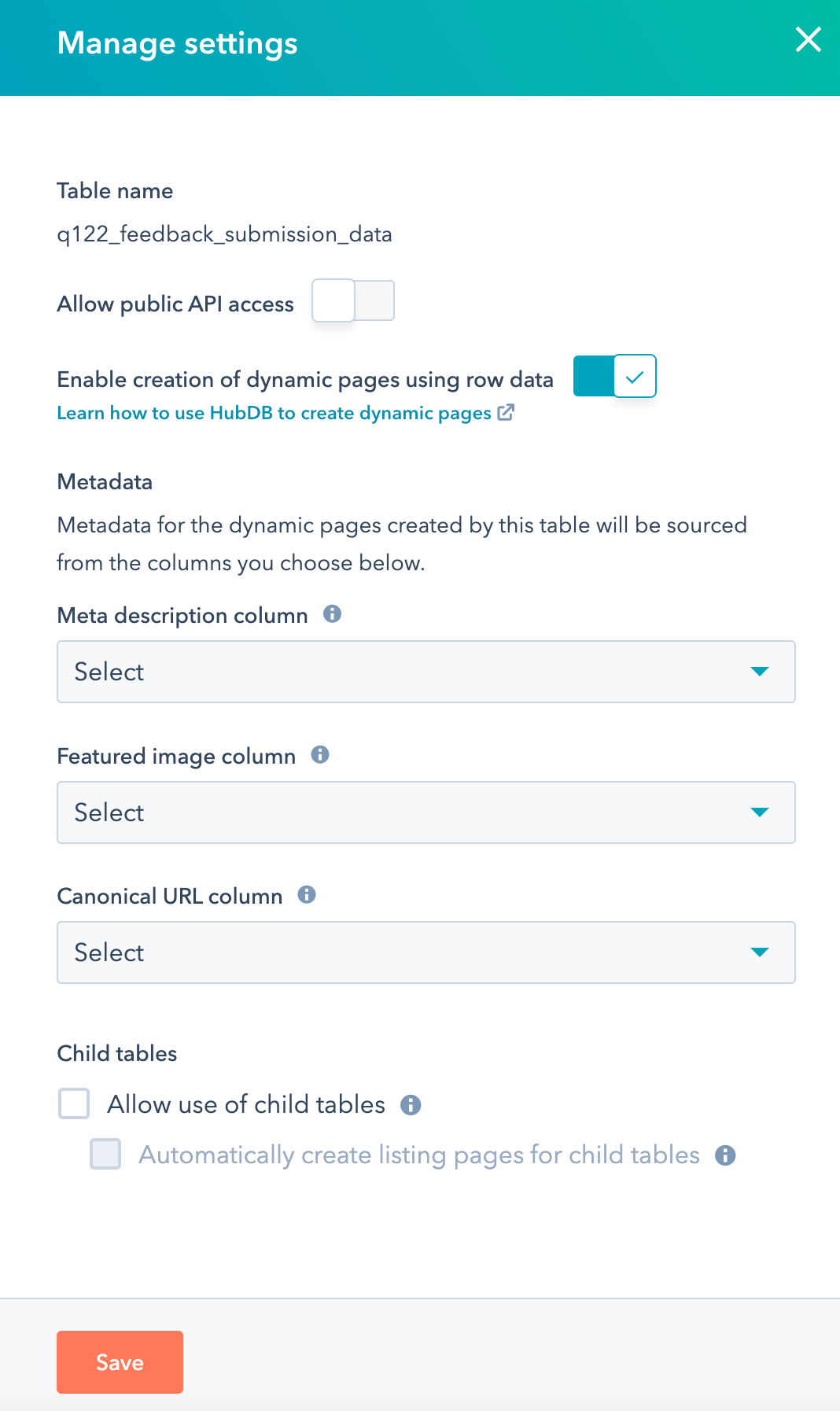
* In the upper right, click **Actions**, then select **Manage settings**.
* In the right panel, click to toggle the **Enable creation of dynamic pages using row data** switch on.
* You can optionally select the meta description, featured image, and canonical URL of the individual dynamic pages. If you leave these values empty, each page will inherit the respective values from its parent page.
**Please note:**
For a page to use the values from the meta description, featured image, and canonical URL columns, the page must include the following `page_meta` HubL variables rather than `content` variables:
* `{{page_meta.meta_description}}`
* `{{page_meta.featured_image_URL}}`
* `{{page_meta.canonical_url}}`
For example, HubSpot templates pull in their meta description from the `{{content.meta_description}}` tag by default. You'll instead need to use `{{page_meta.meta_description}}`.
* Click **Save** to save your changes.
 After you update the table settings, the *Page title* and *Page path* columns will be added to the table.
* **Page title:** the name of this page as seen in the HTML title tag.
* **Page path:** the last segment of the URL for the dynamic page created by each row in the table.
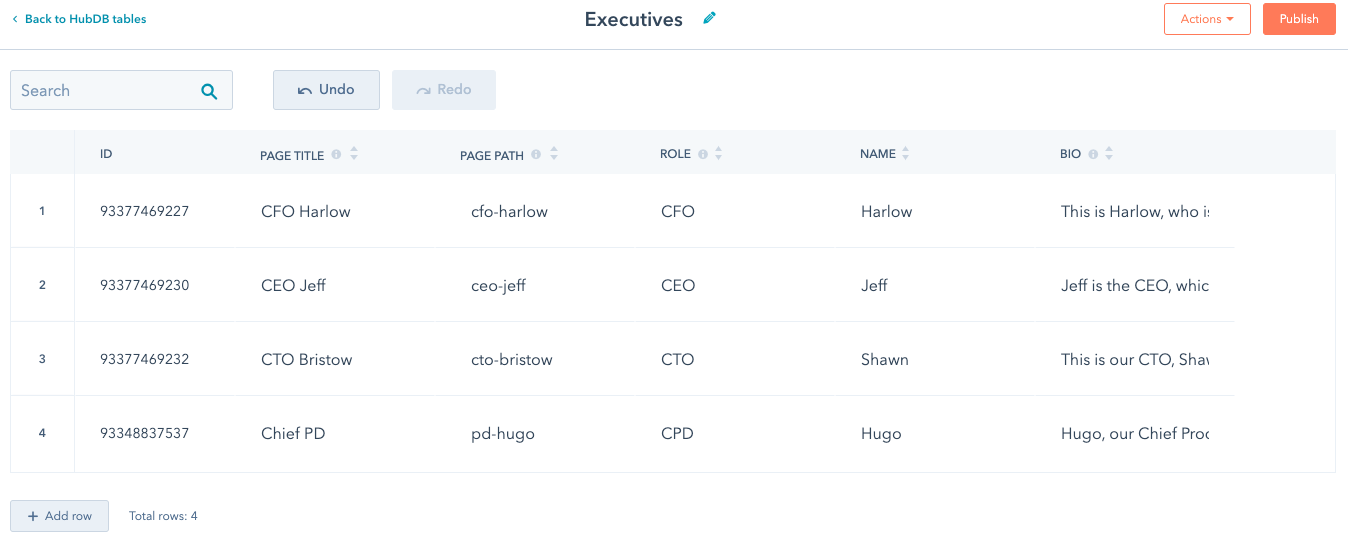
The following table is an example modeled after an "About us" page for members of a company's executive team. This table will be used to create dynamic pages with paths ending in `cfo-harlow`, `ceo-jeff`, `cto-bristow`, and `pd-hugo`.
| Page title | Page path | Role | Name | Bio |
| ----------- | ------------- | ---- | ------- | ---------------------------------------------------------------- |
| CFO Harlow | `cfo-harlow` | CFO | Harlow | This is Harlow, who is generally pennywise. |
| CEO Jeff | `ceo-jeff` | CEO | Jeff | Jeff is the CEO, which means he usually runs things around here. |
| CTO Bristow | `cto-bristow` | CTO | Bristow | This is our CTO, Bristow, who likes to tinker. |
| Chief PD | `pd-hugo` | CPD | Hugo | Hugo, our Chief Product Designer, enjoys designing products. |
After you update the table settings, the *Page title* and *Page path* columns will be added to the table.
* **Page title:** the name of this page as seen in the HTML title tag.
* **Page path:** the last segment of the URL for the dynamic page created by each row in the table.
The following table is an example modeled after an "About us" page for members of a company's executive team. This table will be used to create dynamic pages with paths ending in `cfo-harlow`, `ceo-jeff`, `cto-bristow`, and `pd-hugo`.
| Page title | Page path | Role | Name | Bio |
| ----------- | ------------- | ---- | ------- | ---------------------------------------------------------------- |
| CFO Harlow | `cfo-harlow` | CFO | Harlow | This is Harlow, who is generally pennywise. |
| CEO Jeff | `ceo-jeff` | CEO | Jeff | Jeff is the CEO, which means he usually runs things around here. |
| CTO Bristow | `cto-bristow` | CTO | Bristow | This is our CTO, Bristow, who likes to tinker. |
| Chief PD | `pd-hugo` | CPD | Hugo | Hugo, our Chief Product Designer, enjoys designing products. |
 **Please note:**
Though you have to enter page paths as lowercase, the resulting URLs are case insensitive. In the example above, when someone navigates to `/CEO-Jeff` they will see the same page as `/ceo-jeff` instead of a 404 error.
When you're ready to use the data from your table to build out your pages, click **Publish** in the top right.
Next, you'll create one template for both the listing page and the individual detail pages for each row, similar to how blog templates can be used for both listing and post detail pages. To create the page template:
* In your HubSpot account, navigate to **Content** > **Design Manager**.
* In the left sidebar menu, navigate to the folder that you want to create the template in. To create a new folder, in the upper left click **File**, then select **New folder**. Then, click **File**, and select **New file**.
* In the dialog box, use the **dropdown menu** to select **HTML + HubL** as the file type.
* Click **Next**.
**Please note:**
Though you have to enter page paths as lowercase, the resulting URLs are case insensitive. In the example above, when someone navigates to `/CEO-Jeff` they will see the same page as `/ceo-jeff` instead of a 404 error.
When you're ready to use the data from your table to build out your pages, click **Publish** in the top right.
Next, you'll create one template for both the listing page and the individual detail pages for each row, similar to how blog templates can be used for both listing and post detail pages. To create the page template:
* In your HubSpot account, navigate to **Content** > **Design Manager**.
* In the left sidebar menu, navigate to the folder that you want to create the template in. To create a new folder, in the upper left click **File**, then select **New folder**. Then, click **File**, and select **New file**.
* In the dialog box, use the **dropdown menu** to select **HTML + HubL** as the file type.
* Click **Next**.
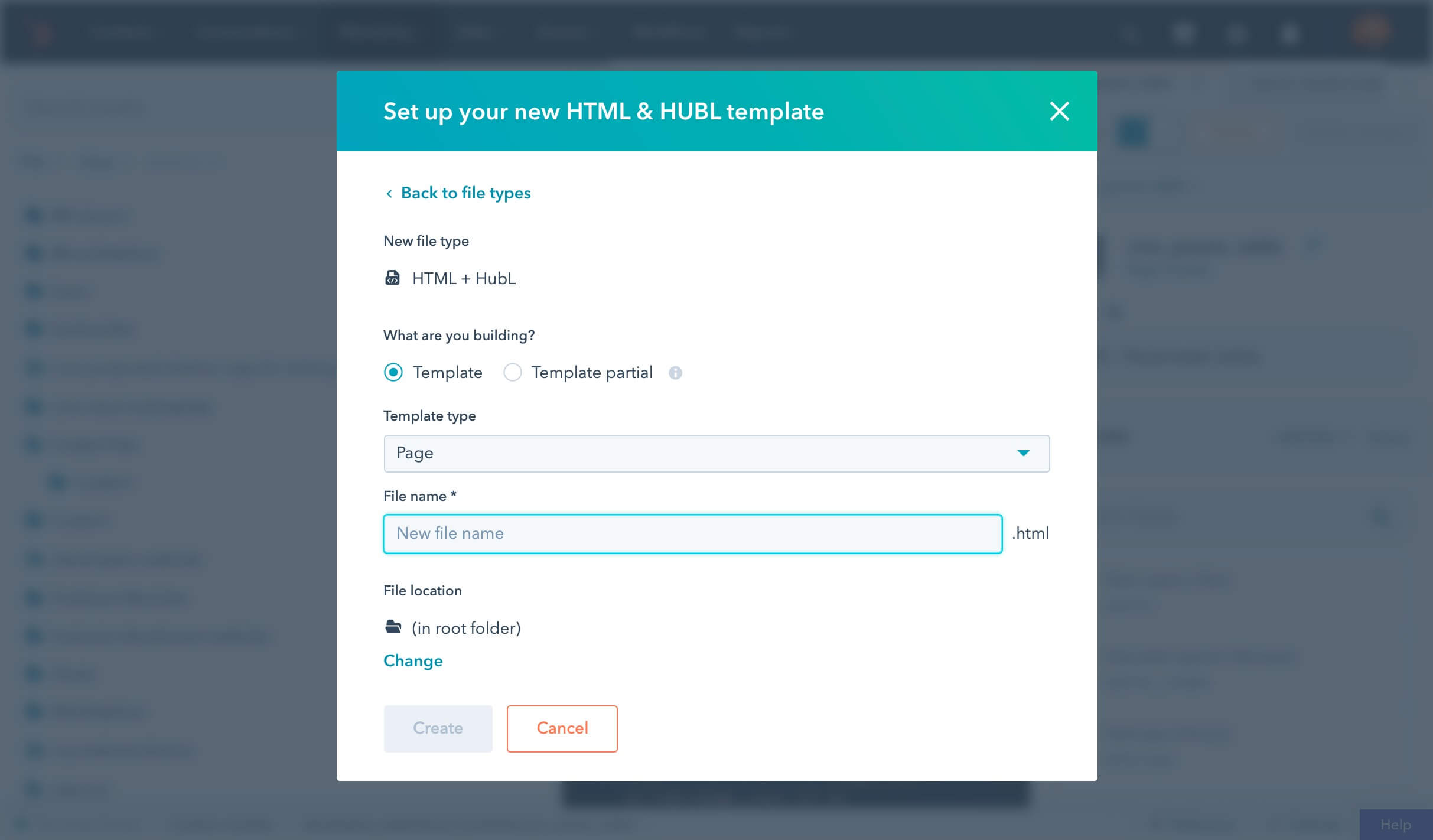 * In the **File name** field, enter the name of the template.
* Under *File location*, you can change where the template is located in your design manager by clicking **Change**\*.\*
* Click **Create** to create the template.
When a dynamic page is set to use this template and the end of the page URL matches the path column, you can access the `dynamic_page_hubdb_row` and `dynamic_page_hubdb_table_id` variables in the template. For example, for building an executive profile page, the code below demonstrates how you can use fields from `dynamic_page_hubdb_row` to display an executive's info:
* `hs_name`: the associated *Page title* for the HubDB row.
* `name`: the executive's name.
* `role`: the executive's role.
```hubl theme={null}
{% if dynamic_page_hubdb_row %}
* In the **File name** field, enter the name of the template.
* Under *File location*, you can change where the template is located in your design manager by clicking **Change**\*.\*
* Click **Create** to create the template.
When a dynamic page is set to use this template and the end of the page URL matches the path column, you can access the `dynamic_page_hubdb_row` and `dynamic_page_hubdb_table_id` variables in the template. For example, for building an executive profile page, the code below demonstrates how you can use fields from `dynamic_page_hubdb_row` to display an executive's info:
* `hs_name`: the associated *Page title* for the HubDB row.
* `name`: the executive's name.
* `role`: the executive's role.
```hubl theme={null}
{% if dynamic_page_hubdb_row %}
{{ dynamic_page_hubdb_row.hs_name }}
{{ dynamic_page_hubdb_row.name }}
{{ dynamic_page_hubdb_row.role }}
{{dynamic_page_hubdb_row.bio}}
{% endif %}
```
Next, you can add handling for the case in which someone loads your dynamic page without any additional paths from your table. Usually, this is used as a listing page, for listing links to the pages for the rows in your HubDB table. Replace your code with:
```jinja lines theme={null}
{% if dynamic_page_hubdb_row %}
{{ dynamic_page_hubdb_row.hs_name }}
{{ dynamic_page_hubdb_row.name }}
{{ dynamic_page_hubdb_row.role }}
{{dynamic_page_hubdb_row.bio}}
{% elif dynamic_page_hubdb_table_id %}
{% for row in hubdb_table_rows(dynamic_page_hubdb_table_id) %}
- {{ row.hs_name }}
{% endfor %}
{% endif %}
```
The code inside the `elif` block iterates over all the rows in the executive's table and displays each entry in a list, with a link to their unique path.
The destination URL on line 10 above includes the `request.path` [HubL variable](/cms/reference/hubl/variables#http-request-variables) to set the initial URL path. This variable contains the path value defined in the page editor, which is relative to the domain set for the page. Therefore, you don't need to hardcode your domain into the `href` value.
* In the design manager, click **Preview** to preview the template. The preview will be blank, because it relies on the context of the page to set the `dynamic_page_hubdb_row` or `dynamic_page_hubdb_table_id` variables.
* To test your code at the template level, add the following temporary code to the top of your template, ensuring that you remove it before publishing:
`{% set dynamic_page_hubdb_table_id = %}`
* After adding the above code, your template should now render a list of hyperlinks, pulling data from the HubDB table you built.
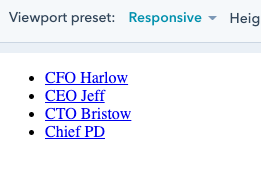 * After previewing the template, remove the temporary code above. Then, click **Publish** in the top right to make it available for creating pages.
To create a dynamic page from your template:
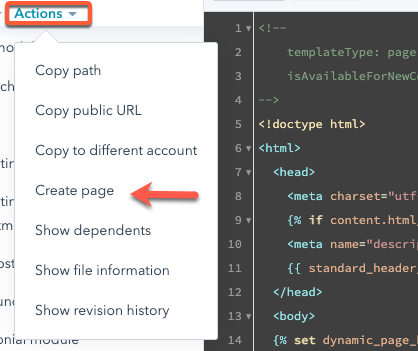
* With your new template open in the design manager, click the **Actions** dropdown menu at the top of the finder, then select **Create page**.
* After previewing the template, remove the temporary code above. Then, click **Publish** in the top right to make it available for creating pages.
To create a dynamic page from your template:
* With your new template open in the design manager, click the **Actions** dropdown menu at the top of the finder, then select **Create page**.
 * In the dialog box, select **Website page**, then enter a **page name**.
* Click **Create page**.
* At the top of the page editor, click the **Settings** tab.
* In the **Page title** field, enter a page name, which you can use later to look up traffic analytics.
* In the **URL** field, enter a **URL** of `/executives`. The URL will be the base URL for your dynamic page.
* Click **Advanced Options** to expand additional settings.
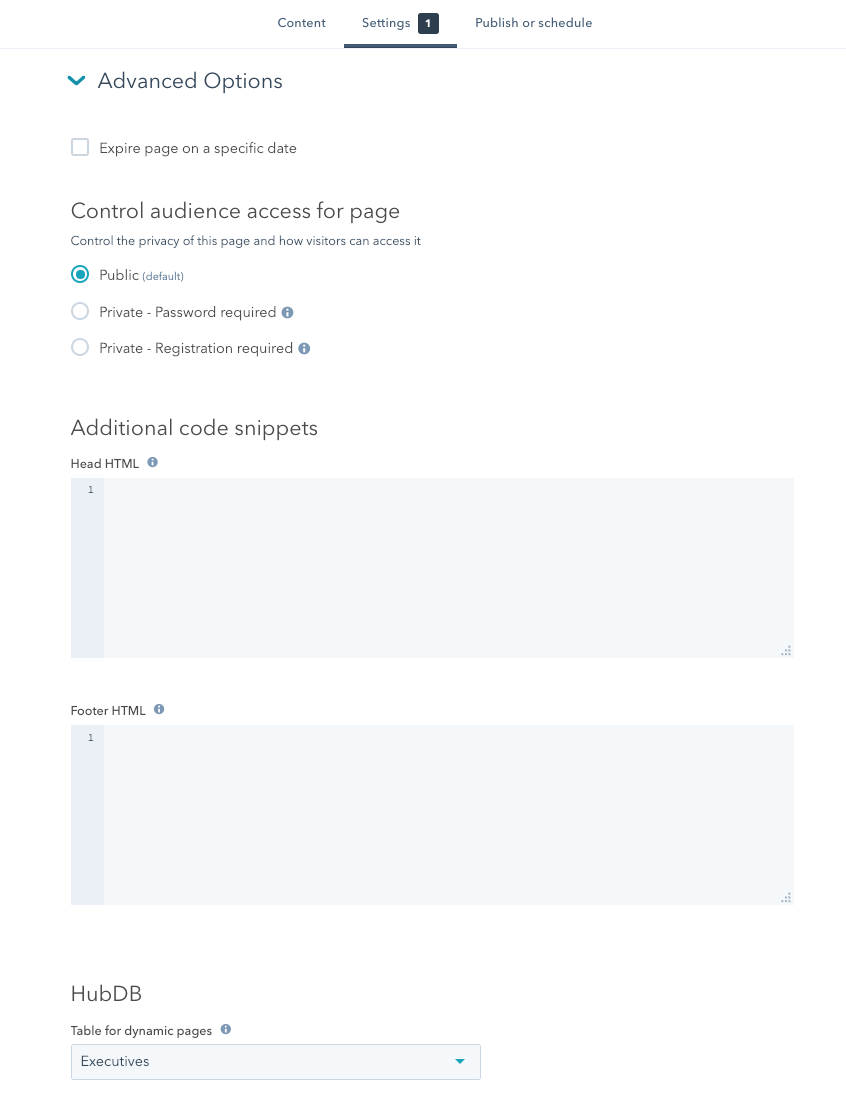
* Scroll down to the *Dynamic pages* section, then click the **Data sources** dropdown menu. Select the **HubDB table** you created.
* In the dialog box, select **Website page**, then enter a **page name**.
* Click **Create page**.
* At the top of the page editor, click the **Settings** tab.
* In the **Page title** field, enter a page name, which you can use later to look up traffic analytics.
* In the **URL** field, enter a **URL** of `/executives`. The URL will be the base URL for your dynamic page.
* Click **Advanced Options** to expand additional settings.
* Scroll down to the *Dynamic pages* section, then click the **Data sources** dropdown menu. Select the **HubDB table** you created.
 * When you’re finished, click **Publish** in the upper right. Your pages are now ready to view.
Now you can visit your new dynamic page and all of its paths, as defined by your HubDB table.
* Navigate to the dynamic listing page at the URL you set in the page editor. This tutorial uses `/executives` for its dynamic page URL, so in that case you would navigate to: `https://www.yourdomain.com/executives`.
* From the listing page, click the **names** in the bulleted list to view the details page for that executive.
* When you’re finished, click **Publish** in the upper right. Your pages are now ready to view.
Now you can visit your new dynamic page and all of its paths, as defined by your HubDB table.
* Navigate to the dynamic listing page at the URL you set in the page editor. This tutorial uses `/executives` for its dynamic page URL, so in that case you would navigate to: `https://www.yourdomain.com/executives`.
* From the listing page, click the **names** in the bulleted list to view the details page for that executive.
.gif) With your dynamic page loading HubDB data, navigate back to the table and add a new row. After publishing the table, you'll then see your live page dynamically update with the new HubDB data.
* In your HubSpot account, navigate to **Marketing** > **Files and Templates** > **HubDB**.
* Click the **name** of the table that you create.
* Click **Add row**, then fill out each column. Below is a sample set of data.
| Page title | Page path | Role | Name | Bio |
| ---------- | ---------- | ---- | ------ | ----------------------------------- |
| CMO Hobbes | cmo-hobbes | CMO | Hobbes | Hobbes is our go-to cat enthusiast. |
* In the upper right, click **Publish**.
* In another tab, navigate back to the listing page (`/executives` in this example). You should now see the new executive appear on the listing page, and clicking their name will reveal their details page.
Once there are visits to your dynamic page, you can [measure individual page performance](https://knowledge.hubspot.com/website-and-landing-pages/analyze-individual-content-performance) or [view all page data in the traffic analytics tool](https://knowledge.hubspot.com/reports/analyze-your-site-traffic-with-the-traffic-analytics-tool). Even though the individual executive pages are built from the same dynamic page, traffic data, such as page views, will be attributed to each page.
To view your page visit data in HubSpot:
* In your HubSpot account, navigate to **Reporting** > **Marketing Analytics**.
* In the left sidebar, navigate to **Web traffic analysis** > **Pages**.
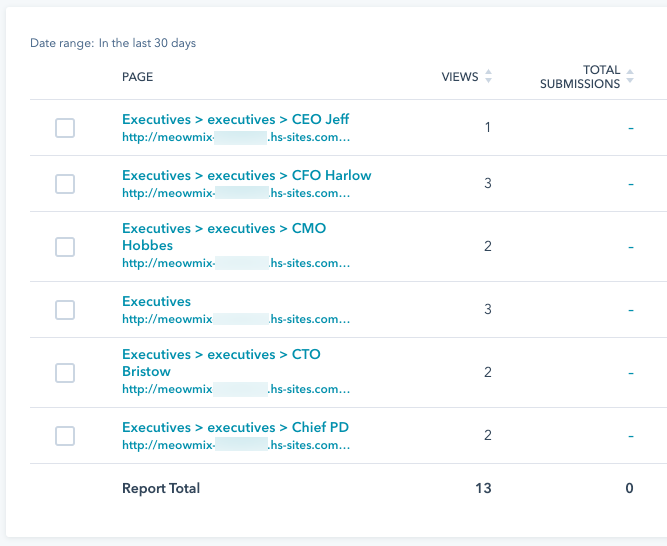
* View the table to see traffic data for the individual parent and child pages. Child pages will be denoted with **> arrow icons** to show their relation to parent pages.
With your dynamic page loading HubDB data, navigate back to the table and add a new row. After publishing the table, you'll then see your live page dynamically update with the new HubDB data.
* In your HubSpot account, navigate to **Marketing** > **Files and Templates** > **HubDB**.
* Click the **name** of the table that you create.
* Click **Add row**, then fill out each column. Below is a sample set of data.
| Page title | Page path | Role | Name | Bio |
| ---------- | ---------- | ---- | ------ | ----------------------------------- |
| CMO Hobbes | cmo-hobbes | CMO | Hobbes | Hobbes is our go-to cat enthusiast. |
* In the upper right, click **Publish**.
* In another tab, navigate back to the listing page (`/executives` in this example). You should now see the new executive appear on the listing page, and clicking their name will reveal their details page.
Once there are visits to your dynamic page, you can [measure individual page performance](https://knowledge.hubspot.com/website-and-landing-pages/analyze-individual-content-performance) or [view all page data in the traffic analytics tool](https://knowledge.hubspot.com/reports/analyze-your-site-traffic-with-the-traffic-analytics-tool). Even though the individual executive pages are built from the same dynamic page, traffic data, such as page views, will be attributed to each page.
To view your page visit data in HubSpot:
* In your HubSpot account, navigate to **Reporting** > **Marketing Analytics**.
* In the left sidebar, navigate to **Web traffic analysis** > **Pages**.
* View the table to see traffic data for the individual parent and child pages. Child pages will be denoted with **> arrow icons** to show their relation to parent pages.
 Keep in mind the following if you're not seeing the traffic data you expect:
* If you've [excluded your IP addresses in the account's report settings](https://knowledge.hubspot.com/reports/exclude-traffic-from-your-site-analytics), ensure that you're accessing your pages from outside your network for your page views to register.
* It can take [up to 40 minutes](https://knowledge.hubspot.com/reports/how-often-do-analytics-in-hubspot-update) for new page data to appear in HubSpot.
## More HubDB focused tutorials
* [How to join multiple HubDB tables](/cms/start-building/features/storage/hubdb)[](/cms/start-building/features/data-driven-content/hubdb/video)
* [How to build a dynamic team member page with HubDB](/cms/start-building/features/data-driven-content/hubdb/dynamic-team-member-page)
* [How to add videos to dynamic pages](/cms/start-building/features/data-driven-content/hubdb/video)
* [How to build multilevel dynamic pages using HubDB](/cms/start-building/features/data-driven-content/hubdb/multilevel)
* [Let's build a page with a map using HubDB](/cms/start-building/features/storage/hubdb)
Keep in mind the following if you're not seeing the traffic data you expect:
* If you've [excluded your IP addresses in the account's report settings](https://knowledge.hubspot.com/reports/exclude-traffic-from-your-site-analytics), ensure that you're accessing your pages from outside your network for your page views to register.
* It can take [up to 40 minutes](https://knowledge.hubspot.com/reports/how-often-do-analytics-in-hubspot-update) for new page data to appear in HubSpot.
## More HubDB focused tutorials
* [How to join multiple HubDB tables](/cms/start-building/features/storage/hubdb)[](/cms/start-building/features/data-driven-content/hubdb/video)
* [How to build a dynamic team member page with HubDB](/cms/start-building/features/data-driven-content/hubdb/dynamic-team-member-page)
* [How to add videos to dynamic pages](/cms/start-building/features/data-driven-content/hubdb/video)
* [How to build multilevel dynamic pages using HubDB](/cms/start-building/features/data-driven-content/hubdb/multilevel)
* [Let's build a page with a map using HubDB](/cms/start-building/features/storage/hubdb)