> ## Documentation Index
> Fetch the complete documentation index at: https://developers.hubspot.com/docs/llms.txt
> Use this file to discover all available pages before exploring further.
---
id: 66272408-4ef7-4bb6-8762-6c326c291cf8
---
# Using the files tool
> Host images on the HubSpot CMS content delivery network and allow content creators to easily add files to content.
In addition to the developer file system, HubSpot's files tool can be used to store files and serve them over HubSpot's global content delivery network.
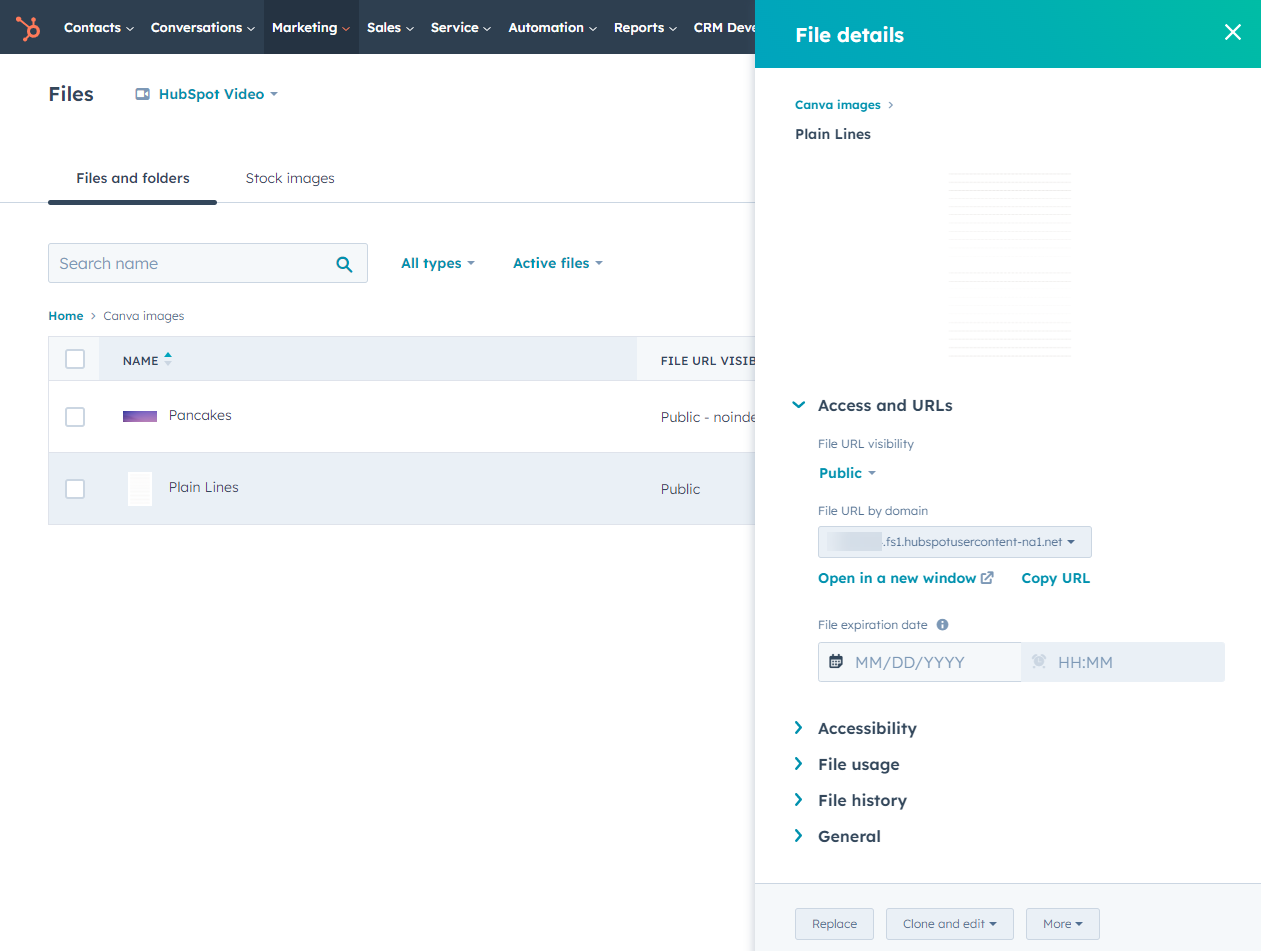
You can upload files to HubSpot either from [within HubSpot](https://knowledge.hubspot.com/files/upload-files-to-use-in-your-hubspot-content) or via the [files API](/api-reference/latest/files/guide). By default, all uploaded files are publicly accessible and may be indexed in search engines. After uploading your files, you can [manage your file's visibility settings](https://knowledge.hubspot.com/files/organize-edit-and-delete-files#edit-your-file-s-visibility-settings) to prevent files from being indexed or accessed.
 ## When to use the files tool
Use the files tool for:
* **Images and media used in content:** assets that a content creator should be able to select or replace via a file picker in a page, email, or blog editor (e.g., images in rich text or image modules).
* **Downloadable assets:** PDFs, documents, or other files you want to serve via a direct download link.
* **Shared branding assets:** logos, icons, and banners that need to be accessible across multiple content types.
JavaScript, CSS, HTML templates, modules, and theme files are better suited for the developer file system (Design Manager / `hs cms upload`) instead of the files tool. Files stored there benefit from HubSpot's automatic minification and are not exposed via file pickers.
## Notes and limitations
Before uploading files, note the following:
* File size and type limits apply. See HubSpot's [supported file types and sizes](https://knowledge.hubspot.com/files/supported-file-types#files-tool) before uploading.
* Files are public by default. All files uploaded to the files tool are publicly accessible and may be indexed by search engines unless you [update the file's visibility settings](https://knowledge.hubspot.com/files/organize-edit-and-delete-files#edit-the-file-visibility-setting) after upload.
* Images can be edited in HubSpot using [Canva](https://knowledge.hubspot.com/files/organize-edit-and-delete-files#replace-clone-and-edit-or-download-your-file) and [Adobe Express](https://knowledge.hubspot.com/files/add-adobe-express-designs-to-your-hubspot-content), but other file types cannot. Other file types must be edited offline and re-uploaded.
* Text-based files uploaded to the files tool will not be minified or modified in any way. To take advantage of HubSpot's [JavaScript minification](/cms/best-practices/testing-staging-performance/overview#javascript-minification) and [CSS minification and combination](/cms/best-practices/testing-staging-performance/overview), store these files in the design manager. Learn more about [HTML and JS files below](#html-and-js-files).
## Uploading files
Files can be uploaded and managed in HubSpot, via the HubSpot CLI, or via the files API.
### HubSpot UI
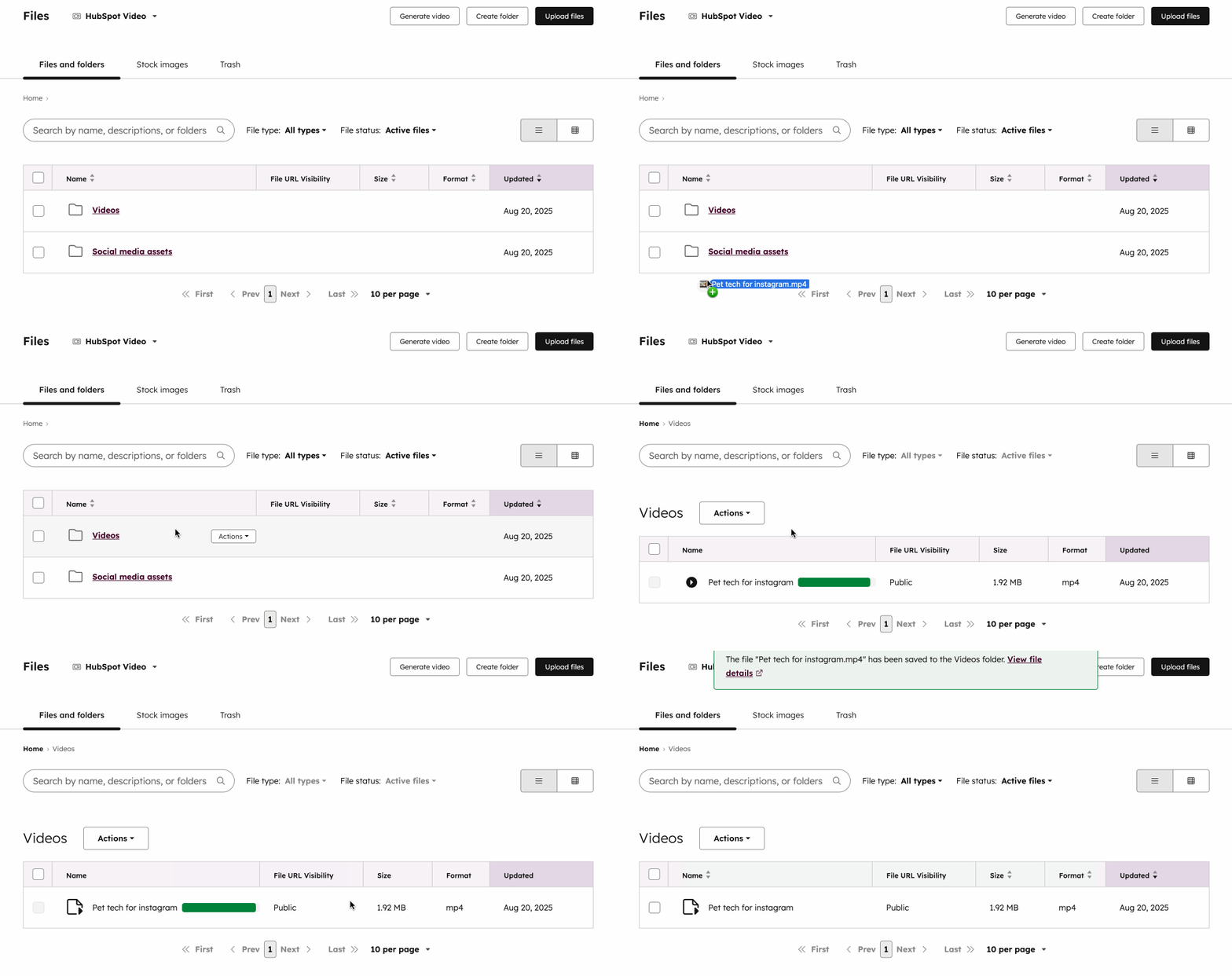
Upload files directly from the files tool in HubSpot. See [HubSpot's Knowledge Base](https://knowledge.hubspot.com/files/upload-files-to-use-in-your-hubspot-content) for step-by-step instructions.
## When to use the files tool
Use the files tool for:
* **Images and media used in content:** assets that a content creator should be able to select or replace via a file picker in a page, email, or blog editor (e.g., images in rich text or image modules).
* **Downloadable assets:** PDFs, documents, or other files you want to serve via a direct download link.
* **Shared branding assets:** logos, icons, and banners that need to be accessible across multiple content types.
JavaScript, CSS, HTML templates, modules, and theme files are better suited for the developer file system (Design Manager / `hs cms upload`) instead of the files tool. Files stored there benefit from HubSpot's automatic minification and are not exposed via file pickers.
## Notes and limitations
Before uploading files, note the following:
* File size and type limits apply. See HubSpot's [supported file types and sizes](https://knowledge.hubspot.com/files/supported-file-types#files-tool) before uploading.
* Files are public by default. All files uploaded to the files tool are publicly accessible and may be indexed by search engines unless you [update the file's visibility settings](https://knowledge.hubspot.com/files/organize-edit-and-delete-files#edit-the-file-visibility-setting) after upload.
* Images can be edited in HubSpot using [Canva](https://knowledge.hubspot.com/files/organize-edit-and-delete-files#replace-clone-and-edit-or-download-your-file) and [Adobe Express](https://knowledge.hubspot.com/files/add-adobe-express-designs-to-your-hubspot-content), but other file types cannot. Other file types must be edited offline and re-uploaded.
* Text-based files uploaded to the files tool will not be minified or modified in any way. To take advantage of HubSpot's [JavaScript minification](/cms/best-practices/testing-staging-performance/overview#javascript-minification) and [CSS minification and combination](/cms/best-practices/testing-staging-performance/overview), store these files in the design manager. Learn more about [HTML and JS files below](#html-and-js-files).
## Uploading files
Files can be uploaded and managed in HubSpot, via the HubSpot CLI, or via the files API.
### HubSpot UI
Upload files directly from the files tool in HubSpot. See [HubSpot's Knowledge Base](https://knowledge.hubspot.com/files/upload-files-to-use-in-your-hubspot-content) for step-by-step instructions.
 ### CLI
The `hs filemanager` command is a dedicated CLI command for interacting with the files tool. It is separate from `hs cms upload`, which targets the developer file system.
To upload a local file or directory to the files tool:
```shell theme={null}
hs filemanager upload
```
To fetch files from the files tool to your local environment:
```shell theme={null}
hs filemanager fetch
```
| Argument | Description |
| -------- | ----------------------------------------------------------------------- |
| `src` | Source path — local path for uploads, files tool path for fetches. |
| `dest` | Destination path — files tool path for uploads, local path for fetches. |
**Please note:** uploaded files will be publicly visible, making them viewable by anyone with the URL. After uploading, review your [file visibility settings](https://knowledge.hubspot.com/files/organize-edit-and-delete-files#edit-the-file-visibility-setting) if needed.
### Files API
To upload files programmatically, use the Files API. Files can be uploaded via a multipart `POST` request to `files/2026-03/files`. The following fields are supported:
| Field | Description |
| ------------ | ---------------------------------------------------------------------------- |
| `file` | The file to upload. |
| `folderId` | ID of the destination folder. Provide either this or `folderPath`, not both. |
| `folderPath` | Path of the destination folder. Provide either this or `folderId`, not both. |
| `fileName` | Name of the file. If omitted, a name is generated from the file content. |
| `options` | JSON object controlling access and TTL. The `access` property is required. |
The following example uploads a private file to a specific folder:
```shell theme={null}
curl --request POST \
--url 'https://api.hubapi.com/files/2026-03/files' \
--header 'Authorization: Bearer YOUR_ACCESS_TOKEN' \
--header 'Content-type: multipart/form-data' \
--form file=@/path/to/your/file.png \
--form 'options={"access": "PRIVATE"}' \
--form folderPath=/your-folder
```
For a full reference including available `access` values and TTL configuration, see the [Files API guide](/api-reference/latest/files/guide).
## Using files
Files uploaded to the files tool can be accessed via the following options:
* Via various file pickers throughout HubSpot and HubSpot's CMS, such as in rich text or image modules on pages.
* Via a direct download link. Learn how to [retrieve a file's direct download link](https://knowledge.hubspot.com/files/provide-a-direct-download-link-to-a-file-hosted-on-the-files-tool).
## Performance and delivery
Files stored in the files tool are automatically optimized by HubSpot:
* **CDN delivery:** files are served over HubSpot's globally distributed CDN, reducing latency for visitors regardless of location.
* **Browser and server caching:** files are automatically cached at both the browser and server level.
* **Image compression and resizing:** uploaded images are compressed and resized to serve the most efficient version for each visitor's device and connection.
* **Domain rewriting:** files are served to match the domain of the page they're loaded on, reducing cross-origin requests.
Learn more in [CDN, security, and performance](/cms/best-practices/testing-staging-performance/overview).
## HTML and JS files
HTML and JavaScript files uploaded to the files tool and served via a default HubSpot domain (e.g., `f.hubspotusercontentXX.net`) are served with `Content-Type: text/plain`. This means browsers will not render or execute the code — an HTML file will display its source rather than render as a page.
To serve HTML or JavaScript files correctly, connect a custom domain and serve the files from that domain instead of a default HubSpot domain.
### CLI
The `hs filemanager` command is a dedicated CLI command for interacting with the files tool. It is separate from `hs cms upload`, which targets the developer file system.
To upload a local file or directory to the files tool:
```shell theme={null}
hs filemanager upload
```
To fetch files from the files tool to your local environment:
```shell theme={null}
hs filemanager fetch
```
| Argument | Description |
| -------- | ----------------------------------------------------------------------- |
| `src` | Source path — local path for uploads, files tool path for fetches. |
| `dest` | Destination path — files tool path for uploads, local path for fetches. |
**Please note:** uploaded files will be publicly visible, making them viewable by anyone with the URL. After uploading, review your [file visibility settings](https://knowledge.hubspot.com/files/organize-edit-and-delete-files#edit-the-file-visibility-setting) if needed.
### Files API
To upload files programmatically, use the Files API. Files can be uploaded via a multipart `POST` request to `files/2026-03/files`. The following fields are supported:
| Field | Description |
| ------------ | ---------------------------------------------------------------------------- |
| `file` | The file to upload. |
| `folderId` | ID of the destination folder. Provide either this or `folderPath`, not both. |
| `folderPath` | Path of the destination folder. Provide either this or `folderId`, not both. |
| `fileName` | Name of the file. If omitted, a name is generated from the file content. |
| `options` | JSON object controlling access and TTL. The `access` property is required. |
The following example uploads a private file to a specific folder:
```shell theme={null}
curl --request POST \
--url 'https://api.hubapi.com/files/2026-03/files' \
--header 'Authorization: Bearer YOUR_ACCESS_TOKEN' \
--header 'Content-type: multipart/form-data' \
--form file=@/path/to/your/file.png \
--form 'options={"access": "PRIVATE"}' \
--form folderPath=/your-folder
```
For a full reference including available `access` values and TTL configuration, see the [Files API guide](/api-reference/latest/files/guide).
## Using files
Files uploaded to the files tool can be accessed via the following options:
* Via various file pickers throughout HubSpot and HubSpot's CMS, such as in rich text or image modules on pages.
* Via a direct download link. Learn how to [retrieve a file's direct download link](https://knowledge.hubspot.com/files/provide-a-direct-download-link-to-a-file-hosted-on-the-files-tool).
## Performance and delivery
Files stored in the files tool are automatically optimized by HubSpot:
* **CDN delivery:** files are served over HubSpot's globally distributed CDN, reducing latency for visitors regardless of location.
* **Browser and server caching:** files are automatically cached at both the browser and server level.
* **Image compression and resizing:** uploaded images are compressed and resized to serve the most efficient version for each visitor's device and connection.
* **Domain rewriting:** files are served to match the domain of the page they're loaded on, reducing cross-origin requests.
Learn more in [CDN, security, and performance](/cms/best-practices/testing-staging-performance/overview).
## HTML and JS files
HTML and JavaScript files uploaded to the files tool and served via a default HubSpot domain (e.g., `f.hubspotusercontentXX.net`) are served with `Content-Type: text/plain`. This means browsers will not render or execute the code — an HTML file will display its source rather than render as a page.
To serve HTML or JavaScript files correctly, connect a custom domain and serve the files from that domain instead of a default HubSpot domain.