> ## Documentation Index
> Fetch the complete documentation index at: https://developers.hubspot.com/docs/llms.txt
> Use this file to discover all available pages before exploring further.
---
id: ff0cc9bf-7b78-420f-8084-242a82c8e62d
---
# Basic coding in the design manager
> Use HubSpot's design manager tool for basic coding, viewing your default modules and themes, and more.
When building on the HubSpot CMS, you can use the design manager tool to create and manage classic HubL + HTML assets such as [templates](/cms/start-building/building-blocks/templates/overview) and [modules](/cms/start-building/building-blocks/modules/overview), as well as CSS and JavaScript files. The design manager is also where you'll find the code for your account's default themes and modules, which you can pull down to your local environment using the [`hs fetch` command](/developer-tooling/local-development/hubspot-cli/reference#fetch-files). The design manager can be found by navigating to **Content** > **Design Manager** in your account's main navigation bar.
CMS assets built with developer projects, such as React modules, will not appear in the design manager. This includes any HubSpot default modules built with React, like the [latest version of the post listing module](/cms/reference/modules/default-module-versioning#post-listing). Instead, you'll need to create and manage those assets locally via the [HubSpot CLI](/developer-tooling/local-development/hubspot-cli/install-the-cli).
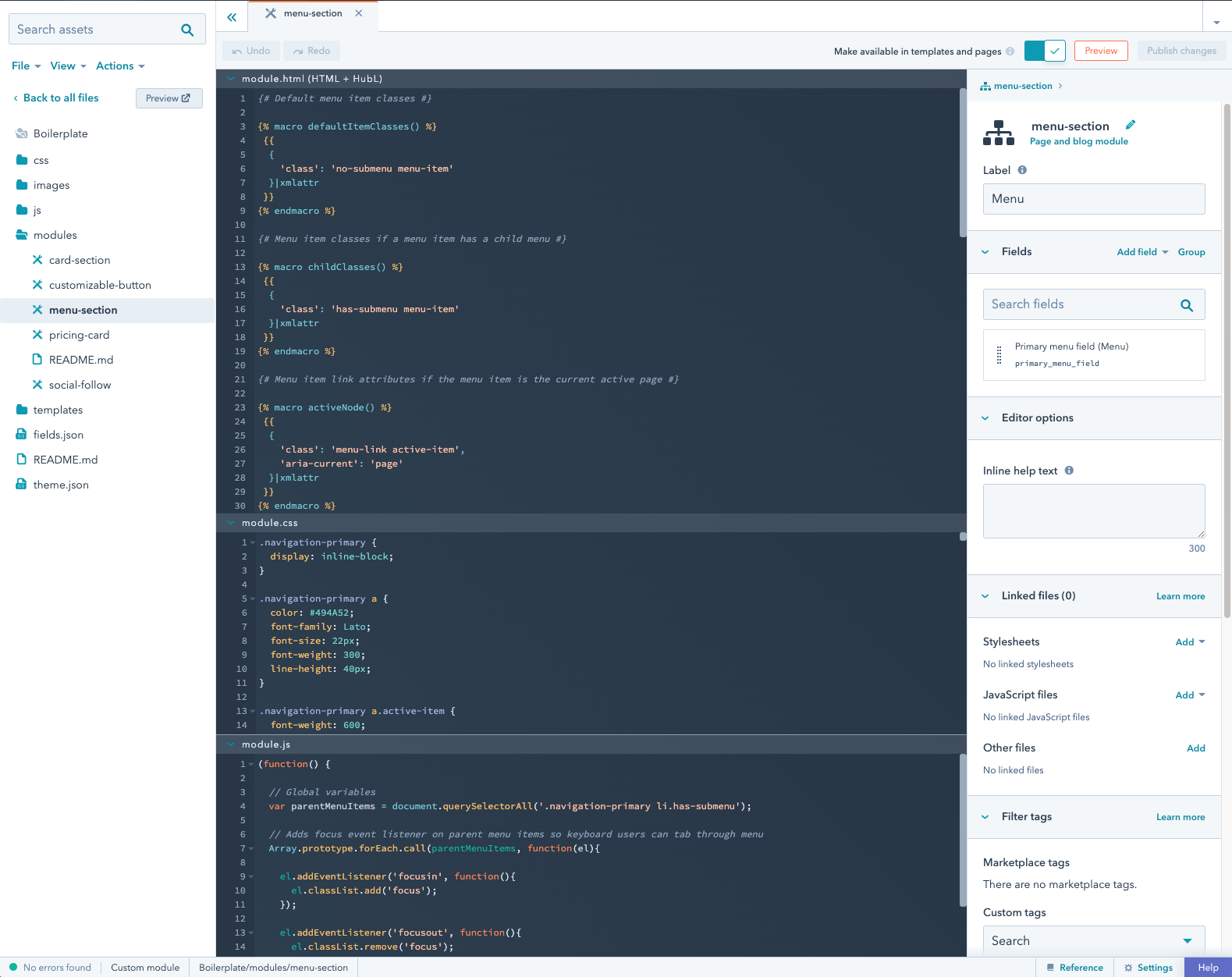 Check out [HubSpot's Knowledge Base](https://knowledge.hubspot.com/design-manager/a-quick-tour-of-the-design-manager) for a comprehensive overview of the design manager and its various components.
## Default modules and themes
In the design manager, the `@hubspot` folder contains default modules and themes that you can import into your content or clone for customization.
Check out [HubSpot's Knowledge Base](https://knowledge.hubspot.com/design-manager/a-quick-tour-of-the-design-manager) for a comprehensive overview of the design manager and its various components.
## Default modules and themes
In the design manager, the `@hubspot` folder contains default modules and themes that you can import into your content or clone for customization.
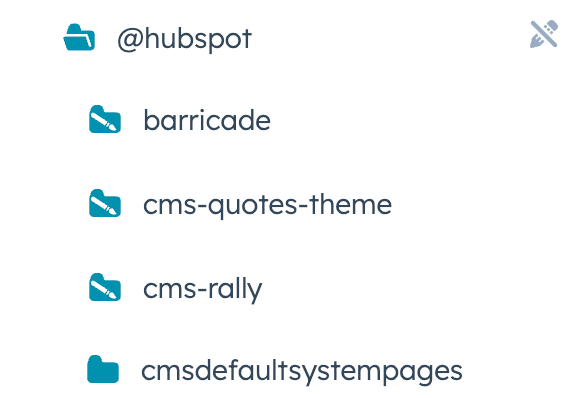 You can reference these assets in your own code by importing them by their path, starting with `@hubspot`. For example, to include the default pagination module in a template, you would add the following code to the `dnd_row` where you want to add the module:
```jinja theme={null}
{% dnd_module path="@hubspot/pagination" %}
{% end_dnd_module %}
```
See HubSpot's[ CMS boilerplate blog index template](https://github.com/HubSpot/cms-theme-boilerplate/blob/main/src/templates/blog-index.html) for a full example.
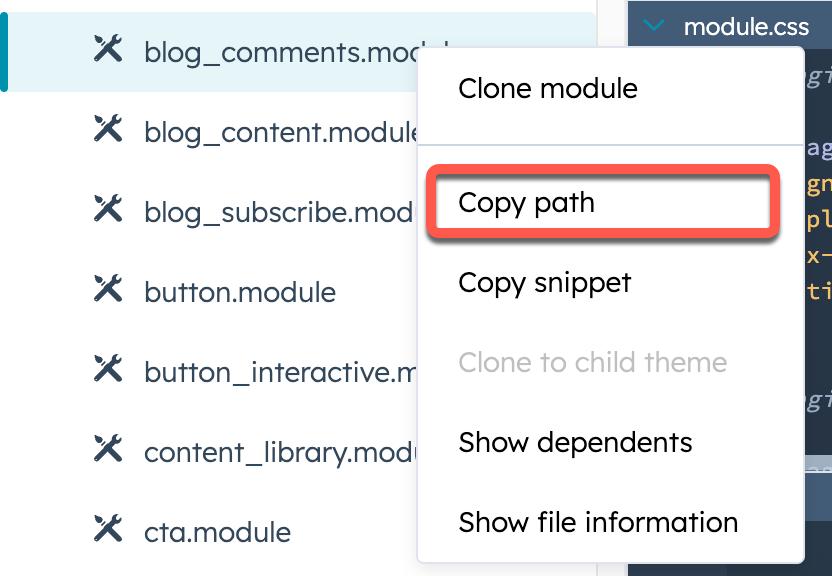
To download these default assets to your local environment, use the [`hs fetch` command](/developer-tooling/local-development/hubspot-cli/reference#fetch-files) and specify the asset path, which you can get by right-clicking the asset in the design manager and selecting **Copy path**.
You can reference these assets in your own code by importing them by their path, starting with `@hubspot`. For example, to include the default pagination module in a template, you would add the following code to the `dnd_row` where you want to add the module:
```jinja theme={null}
{% dnd_module path="@hubspot/pagination" %}
{% end_dnd_module %}
```
See HubSpot's[ CMS boilerplate blog index template](https://github.com/HubSpot/cms-theme-boilerplate/blob/main/src/templates/blog-index.html) for a full example.
To download these default assets to your local environment, use the [`hs fetch` command](/developer-tooling/local-development/hubspot-cli/reference#fetch-files) and specify the asset path, which you can get by right-clicking the asset in the design manager and selecting **Copy path**.
 ```shell theme={null}
hs fetch /@hubspot/blog_comments.module
```
## Design manager settings
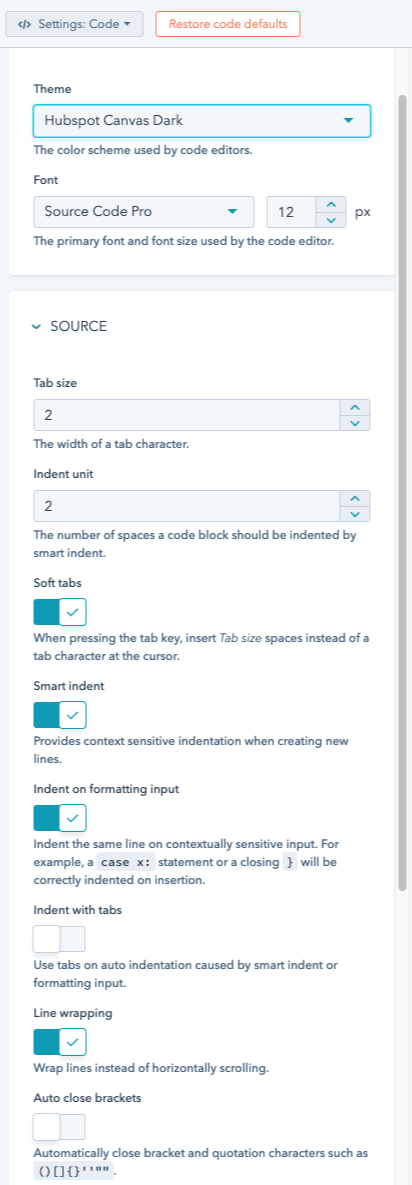
The design manager has basic IDE settings you can configure to make the experience fit you and your workflows. A settings button appears adjacent to the help button in the bottom bar and can be used to configure the settings.
You can configure settings for:
* Editor theme
* Font
* Tab size
* Indent unit
* Soft tabs
* Smart Indent
* Indent on formatting input
* Indent with tabs
* Line wrapping
* Auto close brackets
* Match brackets
* Match tags
* ESLint
See [HubSpot's Knowledge Base](https://knowledge.hubspot.com/design-manager/customize-design-manager-settings) for a breakdown of the settings for more information.
```shell theme={null}
hs fetch /@hubspot/blog_comments.module
```
## Design manager settings
The design manager has basic IDE settings you can configure to make the experience fit you and your workflows. A settings button appears adjacent to the help button in the bottom bar and can be used to configure the settings.
You can configure settings for:
* Editor theme
* Font
* Tab size
* Indent unit
* Soft tabs
* Smart Indent
* Indent on formatting input
* Indent with tabs
* Line wrapping
* Auto close brackets
* Match brackets
* Match tags
* ESLint
See [HubSpot's Knowledge Base](https://knowledge.hubspot.com/design-manager/customize-design-manager-settings) for a breakdown of the settings for more information.