> ## Documentation Index
> Fetch the complete documentation index at: https://developers.hubspot.com/docs/llms.txt
> Use this file to discover all available pages before exploring further.
---
id: dd6d41c9-33ec-4491-ae83-e93df668c454
---
# Debugging methods and error types
> Understanding how to debug and look into errors when developing websites on the HubSpot CMS.
Debugging code and understanding where and how to view errors is an important part of development on the HubSpot CMS. There are a number of tools you can use to increase efficiency when building and debugging and to make sure your website is optimized as you continue to build it out.
For information on viewing code alerts in HubSpot, check out [HubSpot's Knowledge Base](https://knowledge.hubspot.com/design-manager/review-code-alerts).
## Errors
The HubSpot CMS [developer file system](/cms/start-building/introduction/overview#developer-file-system) has many forms of validation to ensure your templates and modules render correctly on pages.
### Fatal errors
Fatal errors are errors that would prevent a page from successfully rendering. To ensure live content renders correctly, the HubSpot CMS prevents publishing templates that have fatal errors. An example of a fatal error would be missing required HubL variables, such as `standard_header_includes`. This will cause errors when developing in the Design Manager or when uploading files through the CMS CLI. [The VS Code Extension](/developer-tooling/local-development/vs-code-extension) supports HubL linting, and can display the fatal errors in-context ahead of uploading the file.

 Fatal errors must be resolved in order to publish files.
### Warnings
Warnings are errors or issues that do not prevent the publishing of files, and are often suggestions in syntax or potential issues a developer might be missing. [The VS Code Extension](https://marketplace.visualstudio.com/items) supports HubL linting, and can display the warnings in-context ahead of uploading the file. For example, you would see a warning if you tried to include a non-existent file.
Fatal errors must be resolved in order to publish files.
### Warnings
Warnings are errors or issues that do not prevent the publishing of files, and are often suggestions in syntax or potential issues a developer might be missing. [The VS Code Extension](https://marketplace.visualstudio.com/items) supports HubL linting, and can display the warnings in-context ahead of uploading the file. For example, you would see a warning if you tried to include a non-existent file.
 ## Debug mode on live pages
You can enable debug mode on a live page by loading the page with a `?hsDebug=true` query string in the URL.
**Please note:** debug mode isn't supported on [system pages](/cms/start-building/building-blocks/templates/overview#system-pages), such as 404 and password pages.
When loading a live page with this query string, the page will be rendered:
* With non-minified files.
* With non-combined CSS files (individual CSS files served).
* Without serving cached files.
In addition, when you load a page with `?hsDebug=true`, debugging information will be added to the bottom of the page source code, including:
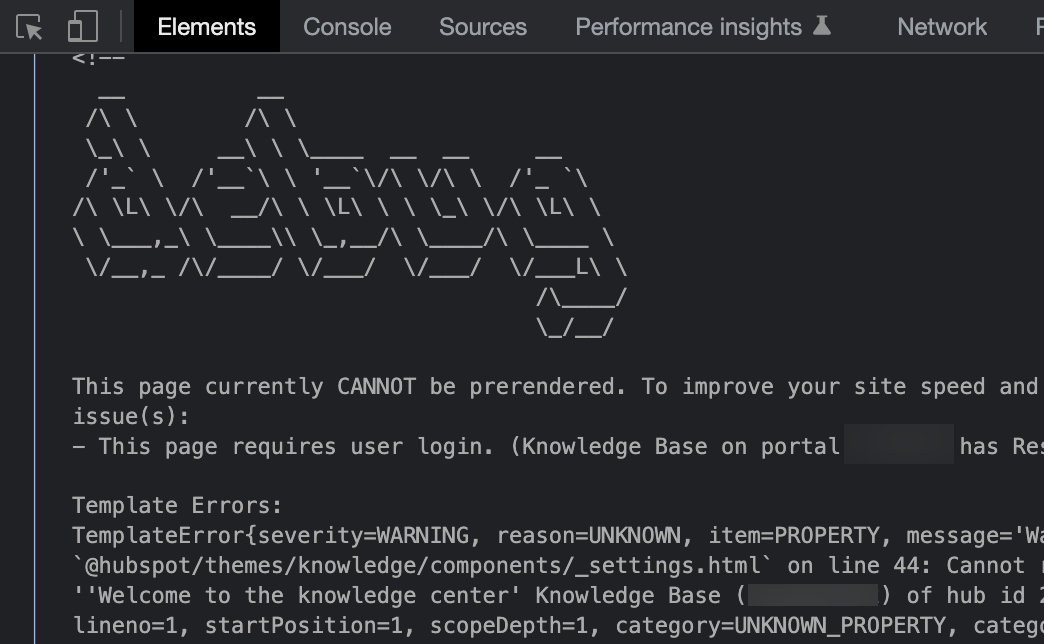
* Whether the page can be [prerendered](/cms/best-practices/testing-staging-performance/prerendering), and the reasons why if it cannot be prerendered.
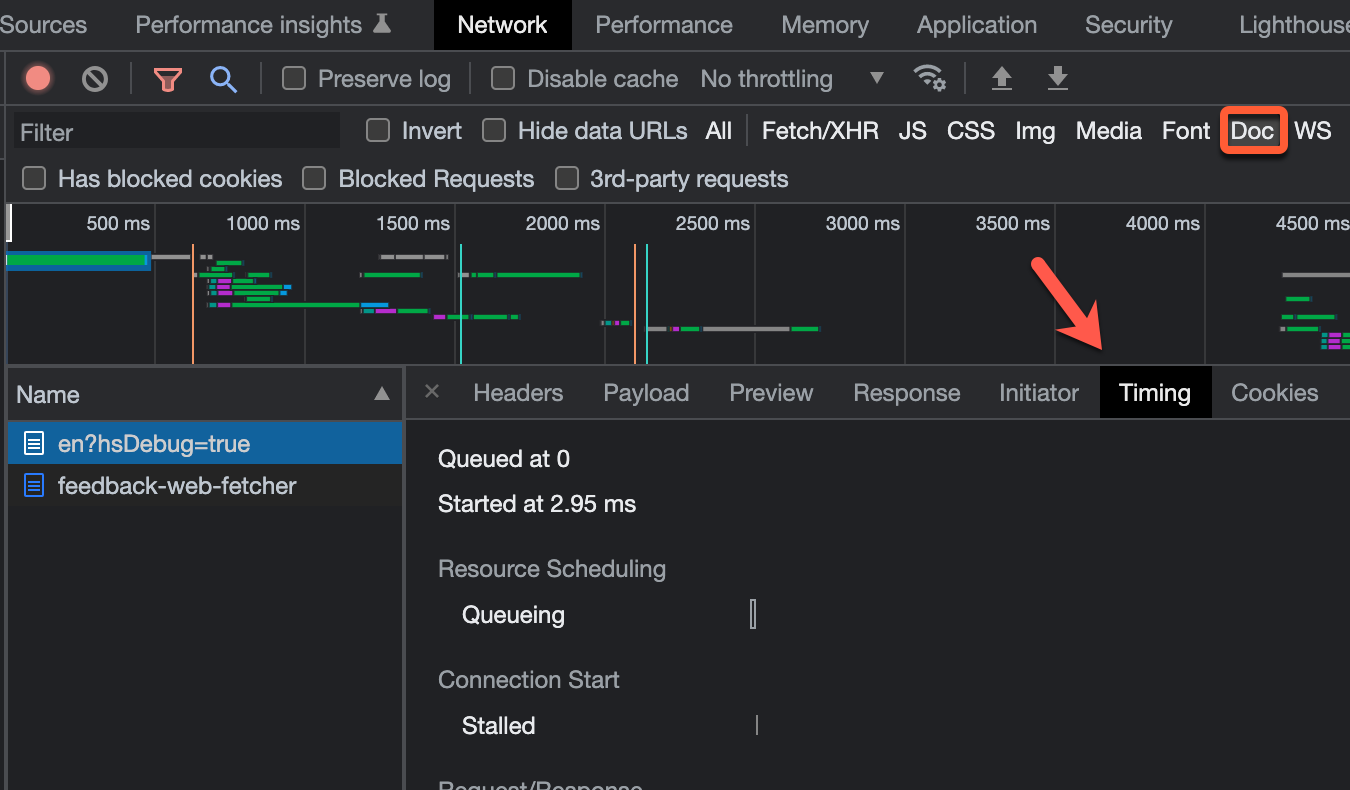
* A breakdown of rendering request timing, which can be helpful for knowing which page components take longer to render. This breakdown will also be added to the *Timing* tab in your browser's developer console under *Doc* requests.
## Debug mode on live pages
You can enable debug mode on a live page by loading the page with a `?hsDebug=true` query string in the URL.
**Please note:** debug mode isn't supported on [system pages](/cms/start-building/building-blocks/templates/overview#system-pages), such as 404 and password pages.
When loading a live page with this query string, the page will be rendered:
* With non-minified files.
* With non-combined CSS files (individual CSS files served).
* Without serving cached files.
In addition, when you load a page with `?hsDebug=true`, debugging information will be added to the bottom of the page source code, including:
* Whether the page can be [prerendered](/cms/best-practices/testing-staging-performance/prerendering), and the reasons why if it cannot be prerendered.
* A breakdown of rendering request timing, which can be helpful for knowing which page components take longer to render. This breakdown will also be added to the *Timing* tab in your browser's developer console under *Doc* requests.
 * Errors and warnings, such as HubL function limits or missing files.
 ## Developer mode in the page editor
You can also load the page editor in HubSpot with the query string to enable developer features, such as [copy sections as HubL](/cms/start-building/building-blocks/sections/sections#copy-section-hubl) and the ability to open specific modules in the design manager from the page editor.
* In the page editor, add the following parameter to the URL, then press **Enter**: `?developerMode=true`.
* With the page reloaded, you'll now be in developer mode. You can exit developer mode at any time by clicking **Exit developer mode** in the upper right.
## Developer mode in the page editor
You can also load the page editor in HubSpot with the query string to enable developer features, such as [copy sections as HubL](/cms/start-building/building-blocks/sections/sections#copy-section-hubl) and the ability to open specific modules in the design manager from the page editor.
* In the page editor, add the following parameter to the URL, then press **Enter**: `?developerMode=true`.
* With the page reloaded, you'll now be in developer mode. You can exit developer mode at any time by clicking **Exit developer mode** in the upper right.
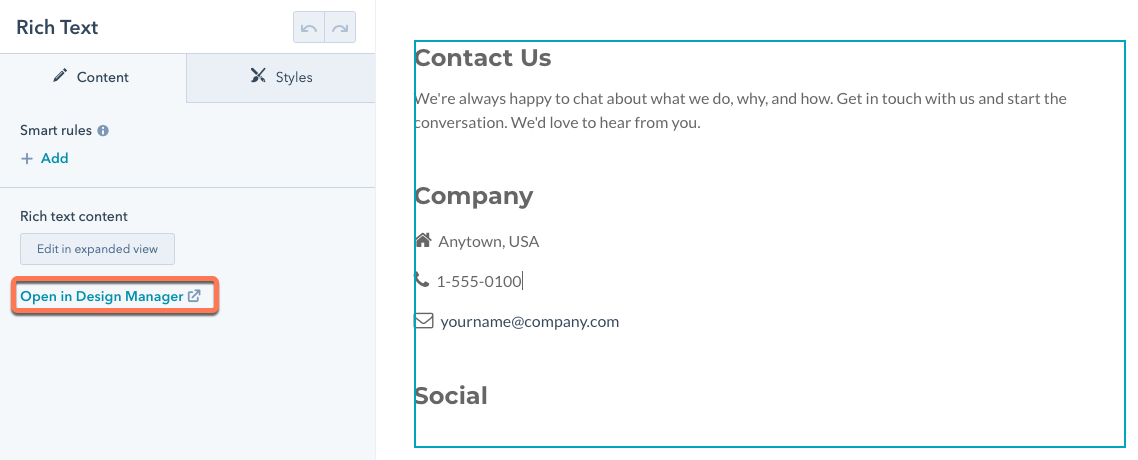
 While you're in developer mode, you can navigate to the code for a specific module by clicking the associated module, then clicking **Open in design manager** in the sidebar editor.
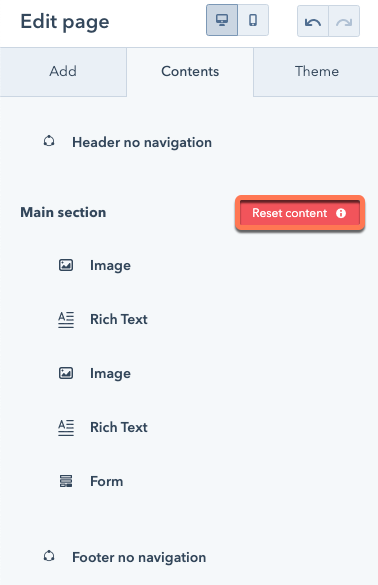
 You can also reset any unpublished changes back to the default content of the template:
* Click the **Contents** tab.
* To the right of template name, click **Reset content**.
You can also reset any unpublished changes back to the default content of the template:
* Click the **Contents** tab.
* To the right of template name, click **Reset content**.
 * In the dialog box, click **Yes, reset**.
## View HubL output
Within the design manager, you can use the **Show output** toggle to open a second code editor panel containing a transpiled version of the file. This is helpful to see how your HubL code will transpile into CSS, HTML or JavaScript, rather than reloading live pages the file is included on. It is also a helpful tool to use when exploring new features of HubL, or learning the basics of HubL as you can easily see what your HubL input will output to.
* In the dialog box, click **Yes, reset**.
## View HubL output
Within the design manager, you can use the **Show output** toggle to open a second code editor panel containing a transpiled version of the file. This is helpful to see how your HubL code will transpile into CSS, HTML or JavaScript, rather than reloading live pages the file is included on. It is also a helpful tool to use when exploring new features of HubL, or learning the basics of HubL as you can easily see what your HubL input will output to.
 ## `|pprint` HubL filter
The `|pprint` HubL filter can be used on HubL variables to print valuable debugging information. It will print the type of HubL variable, which can be useful in understanding what expressions, filters, operators or functions it can be used with.
For example, `{{ local_dt }}` will print `2020-02-21 12:52:20`. If we pretty print this variable, we can see the value is a date `(PyishDate: 2020-02-21 12:52:20)`. This means we can use HubL filters that operate or format date objects, such as the `|datetimeformat` HubL filter.
```jinja theme={null}
{{ local_dt }}
{{ local_dt|pprint }}
{{ local_dt|datetimeformat('%B %e, %Y') }}
```
```html theme={null}
2020-02-21 12:55:13 (PyishDate: 2020-02-21 12:55:13) February 21, 2020
```
## Developer info
**Please note:** much of the data found in developer info is used internally, and is subject to change if not otherwise documented.
The developer info for a page is the context of all data available when a page is being rendered. This rendering context is all accessible via HubL. To access the developer info for a page, select the **HubSpot sprocket icon in the top right hand corner of live pages > Developer Info.**
## `|pprint` HubL filter
The `|pprint` HubL filter can be used on HubL variables to print valuable debugging information. It will print the type of HubL variable, which can be useful in understanding what expressions, filters, operators or functions it can be used with.
For example, `{{ local_dt }}` will print `2020-02-21 12:52:20`. If we pretty print this variable, we can see the value is a date `(PyishDate: 2020-02-21 12:52:20)`. This means we can use HubL filters that operate or format date objects, such as the `|datetimeformat` HubL filter.
```jinja theme={null}
{{ local_dt }}
{{ local_dt|pprint }}
{{ local_dt|datetimeformat('%B %e, %Y') }}
```
```html theme={null}
2020-02-21 12:55:13 (PyishDate: 2020-02-21 12:55:13) February 21, 2020
```
## Developer info
**Please note:** much of the data found in developer info is used internally, and is subject to change if not otherwise documented.
The developer info for a page is the context of all data available when a page is being rendered. This rendering context is all accessible via HubL. To access the developer info for a page, select the **HubSpot sprocket icon in the top right hand corner of live pages > Developer Info.**
 This will open a new tab that returns the rendering context for a given page in the form of JSON. It is recommended to install a JSON formatter in your browser to make the JSON easier to read, such as this [JSON formatter Chrome extension](https://chromewebstore.google.com/detail/json-formatter/bcjindcccaagfpapjjmafapmmgkkhgoa). While much of the information contained in the page's context is for internal purposes, this tool can be valuable to see what data is available via HubL when templating.
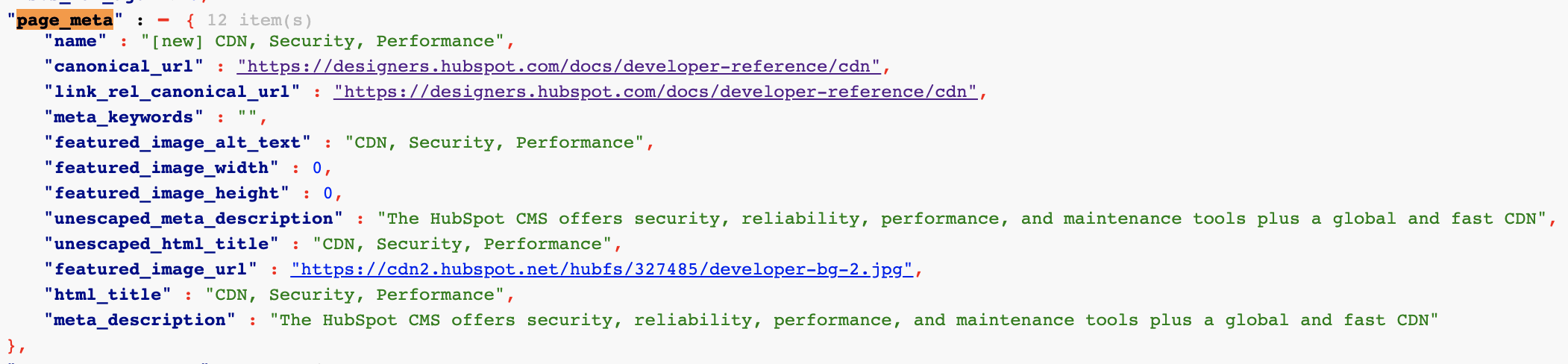 The values of this data are being set through the *Settings* tab of the content editor:
 To then print the title and meta description in a [base template](https://github.com/HubSpot/cms-theme-boilerplate/blob/main/src/templates/layouts/base.html), you would use the following HubL:
```jinja theme={null}
{{ page_meta.html_title }}
```
The data in the rendering context is available through HubL, and the JSON tree can be traversed using dot notation. Data in the developer info that developers frequently print out include module field values and tags that have been [exported to template context](/cms/reference/modules/export-to-template-context).
To then print the title and meta description in a [base template](https://github.com/HubSpot/cms-theme-boilerplate/blob/main/src/templates/layouts/base.html), you would use the following HubL:
```jinja theme={null}
{{ page_meta.html_title }}
```
The data in the rendering context is available through HubL, and the JSON tree can be traversed using dot notation. Data in the developer info that developers frequently print out include module field values and tags that have been [exported to template context](/cms/reference/modules/export-to-template-context).