> ## Documentation Index
> Fetch the complete documentation index at: https://developers.hubspot.com/docs/llms.txt
> Use this file to discover all available pages before exploring further.
---
id: 0cb935cc-85e7-4832-9914-38e51e0cf938
---
# Migrate a CMS project to version 2025.2
> Learn how to migrate an existing project with CMS assets from version 2023.2 or 2025.1 to 2025.2 HubL theme to the projects framework to build with React.
If you have an existing project with CMS assets that you built using version `2023.2` or `2025.1`, you can migrate it to the latest version (`2025.2`) using the CLI. Being on the latest version of the developer platform will allow you to package the latest [app features](/docs/apps/developer-platform/overview#features) with your CMS assets if needed.
The method for migrating will depend on whether your project includes serverless functions:
* If your project doesn't include serverless functions, you can migrate using the `hs project migrate` command.
* If your project includes one or more serverless functions, you'll need to manually migrate the project, as the `hs project migrate` command doesn't currently support serverless functions.
## Migrate without serverless functions
Follow the steps below to migrate an existing project built on version `2023.2` or `2025.1` to the latest version (`2025.2`). Migration for projects that don't contain a serverless function can be done through the `hs project migrate` command, which will update the project and its component files to use the latest schemas and configuration details.
Before starting, it's important to note that:
* This command will permanently upgrade your project to platform version `2025.2`, and this action cannot be undone.
* The command will create an archived copy of your original theme files to ensure you have a backup.
* The command will guide you through the process, and request your input when needed for required fields.
Ensure your latest changes are included in the migration by running `hs project upload` in your local project directory. If auto-deploy is turned off for the project, run `hs project deploy`.
```shell theme={null}
hs project upload
```
With your latest changes in HubSpot:
* Run `hs project migrate` in the local project directory.
* The CLI will first check for eligible project components, then prompt you to proceed with the migration.
* The migration script will run, and you'll see your local files updating in real-time. Once completed, the terminal will display a message confirming that the migration was successful.
 Before uploading your updated files to HubSpot, review your project to confirm that the correct updates have been made.
* In `hsproject.json`, the `platformVersion` should be `2025.2`.
* The `src` directory should now contain a new `*-hsmeta.json` file. The first part of the file name will match the directory containing your theme. Learn more about this file in the [project schema reference documentation](/docs/cms/start-building/introduction/react-plus-hubl/project-structure#project-schema).
* At the root of your project, you should find a new directory named `archive`, which contains a backup of your original theme files. You may want to move it elsewhere for safekeeping.
After reviewing your migrated files, run `hs project upload` to upload these changes to your account. If auto-deploy is turned off for the project, run `hs project deploy` after the upload completes.
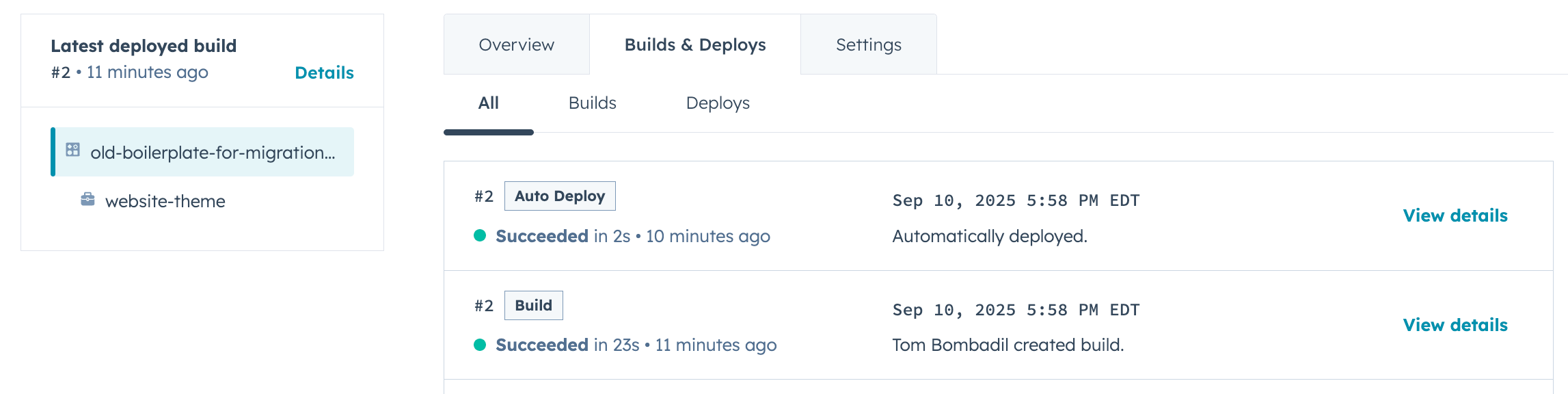
To view your updated project in HubSpot, run `hs project open`. A browser tab will open to the project's home page, where you can view recent build and deploy logs, and review additional details for your project.
Before uploading your updated files to HubSpot, review your project to confirm that the correct updates have been made.
* In `hsproject.json`, the `platformVersion` should be `2025.2`.
* The `src` directory should now contain a new `*-hsmeta.json` file. The first part of the file name will match the directory containing your theme. Learn more about this file in the [project schema reference documentation](/docs/cms/start-building/introduction/react-plus-hubl/project-structure#project-schema).
* At the root of your project, you should find a new directory named `archive`, which contains a backup of your original theme files. You may want to move it elsewhere for safekeeping.
After reviewing your migrated files, run `hs project upload` to upload these changes to your account. If auto-deploy is turned off for the project, run `hs project deploy` after the upload completes.
To view your updated project in HubSpot, run `hs project open`. A browser tab will open to the project's home page, where you can view recent build and deploy logs, and review additional details for your project.
 ## Migrate with serverless functions
If your project includes serverless functions, the migration process will be more manual, as the `hs project migrate` command doesn't currently support serverless functions.
In your `hsproject.json` file, update the `platformVersion` number to `2025.2`.
```json hsproject.json theme={null}
{
"name":"MyCMSTheme",
"platformVersion":"2023.2", /* [!code --] */
"platformVersion":"2025.2", /* [!code ++] */
"srcDir":"src"
}
```
Platform version `2025.2` introduced an additional directory layer for CMS theme development, along with an additional configuration file in that directory.
To match the new required project structure:
* Add a `theme` directory in `src/`, then move your theme directory into it.
```html theme={null}
projectName/
├── hsproject.json
└── src/
└── theme/
└── your-original-theme-directory/
```
* Within the new `theme/` directory, create a `*-hsmeta.json` configuration file, which configures the project's theme component (not the theme itself). You can give this file any name, but it must end with `-hsmeta.json`. Copy the code below into the new file, then modify it as needed.
```json theme={null}
{
"uid": "my-theme-uid",
"type": "theme",
"config": {
"themePath": "website-theme",
"secretNames": []
}
}
```
| Field | Type | Description |
| - | - | - |
| `uid` | String | The unique identifier for the project's theme component. This is separate from your theme's display label, which is still configured in the `theme.json` file. |
| `type` | String | The type of component, which must be `theme` for CMS themes. |
| `themePath` | String | The relative path of the directory that contains the `theme.json` file (i.e., the name of the theme directory inside `src/theme/`). |
To migrate your serverless functions, you'll need to update the app and serverless function schemas, and rename the functions directory.
* In the `src/app/` folder, rename the `app.json` file to `app-hsmeta.json`. Then, update the file contents to match the new [schema](/docs/apps/developer-platform/build-apps/app-configuration#app-schema). The code block below includes tabs to compare the new schema to the old.
Note that the `uid` value must be unique within the project. For example, your app and your theme `*-hsmeta.json` files cannot have the same `uid`. This value should not be changed after uploading your project.
```json theme={null}
{
"uid": "serverless-function-app-uid",
"type":"app",
"config": {
"name": "Serverless function app",
"description": "This app runs a serverless function.",
"distribution": "private",
"auth": {
"type" : "static",
"requiredScopes": [
"crm.objects.contacts.read",
"crm.objects.contacts.write"
],
"optionalScopes": [],
"conditionallyRequiredScopes": []
},
"permittedUrls": {
"fetch": ["https://api.hubapi.com"],
"iframe": [],
"img": []
},
"support": {
"supportEmail": "support@example.com",
"documentationUrl": "https://example.com/docs",
"supportUrl": "https://example.com/support",
"supportPhone": "+18005555555"
}
}
}
```
```json theme={null}
{
"name": "Serverless function app",
"description": "This app runs a serverless function.",
"uid": "serverless-function-app",
"public": false,
"scopes": [
"crm.objects.contacts.read",
"crm.objects.contacts.write"
]
}
```
* Next, rename the `app.functions` directory to `functions`.
```html theme={null}
projectName/
├── hsproject.json
└── src/
└── theme/
└── app/
├── app-hsmeta.json
└── app.functions/
└── functions/
```
* Lastly, similar to the app schema step above, rename the `serverless.json` file to `serverless-hsmeta.json`. Then update its contents to match the new schema format, shown below.
```json theme={null}
{
"uid": "my-serverless-function",
"type": "app-function",
"config": {
"entrypoint": "app/functions/function.js",
"secretKeys": [],
"endpoint": {
"path": "fetch-quote",
"methods": ["GET"]
}
}
}
```
```json theme={null}
{
"appFunctions": {
"quote-function": {
"file": "function.js",
"secrets": [],
"endpoint": {
"path": "fetch-quote",
"method": ["GET"]
}
}
}
}
```
With your project updates in place, upload your changes to your account by running `hs project upload`. If you have auto-deploy turned off for the project, you'll need to run `hs project deploy` to then deploy it.
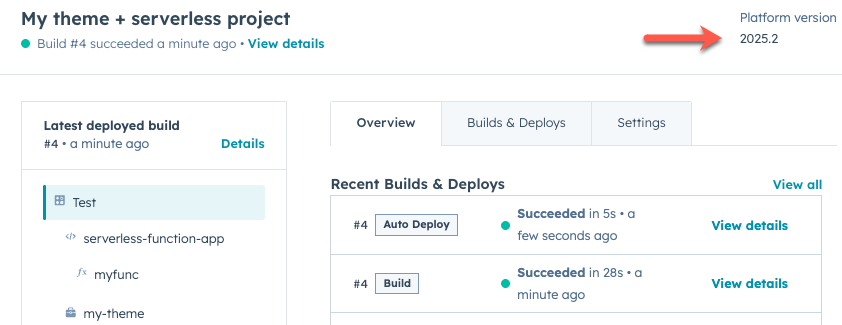
After the upload, run `hs project open` to open the project in HubSpot. In the top right, you'll see the version number now shows `2025.2`.
## Migrate with serverless functions
If your project includes serverless functions, the migration process will be more manual, as the `hs project migrate` command doesn't currently support serverless functions.
In your `hsproject.json` file, update the `platformVersion` number to `2025.2`.
```json hsproject.json theme={null}
{
"name":"MyCMSTheme",
"platformVersion":"2023.2", /* [!code --] */
"platformVersion":"2025.2", /* [!code ++] */
"srcDir":"src"
}
```
Platform version `2025.2` introduced an additional directory layer for CMS theme development, along with an additional configuration file in that directory.
To match the new required project structure:
* Add a `theme` directory in `src/`, then move your theme directory into it.
```html theme={null}
projectName/
├── hsproject.json
└── src/
└── theme/
└── your-original-theme-directory/
```
* Within the new `theme/` directory, create a `*-hsmeta.json` configuration file, which configures the project's theme component (not the theme itself). You can give this file any name, but it must end with `-hsmeta.json`. Copy the code below into the new file, then modify it as needed.
```json theme={null}
{
"uid": "my-theme-uid",
"type": "theme",
"config": {
"themePath": "website-theme",
"secretNames": []
}
}
```
| Field | Type | Description |
| - | - | - |
| `uid` | String | The unique identifier for the project's theme component. This is separate from your theme's display label, which is still configured in the `theme.json` file. |
| `type` | String | The type of component, which must be `theme` for CMS themes. |
| `themePath` | String | The relative path of the directory that contains the `theme.json` file (i.e., the name of the theme directory inside `src/theme/`). |
To migrate your serverless functions, you'll need to update the app and serverless function schemas, and rename the functions directory.
* In the `src/app/` folder, rename the `app.json` file to `app-hsmeta.json`. Then, update the file contents to match the new [schema](/docs/apps/developer-platform/build-apps/app-configuration#app-schema). The code block below includes tabs to compare the new schema to the old.
Note that the `uid` value must be unique within the project. For example, your app and your theme `*-hsmeta.json` files cannot have the same `uid`. This value should not be changed after uploading your project.
```json theme={null}
{
"uid": "serverless-function-app-uid",
"type":"app",
"config": {
"name": "Serverless function app",
"description": "This app runs a serverless function.",
"distribution": "private",
"auth": {
"type" : "static",
"requiredScopes": [
"crm.objects.contacts.read",
"crm.objects.contacts.write"
],
"optionalScopes": [],
"conditionallyRequiredScopes": []
},
"permittedUrls": {
"fetch": ["https://api.hubapi.com"],
"iframe": [],
"img": []
},
"support": {
"supportEmail": "support@example.com",
"documentationUrl": "https://example.com/docs",
"supportUrl": "https://example.com/support",
"supportPhone": "+18005555555"
}
}
}
```
```json theme={null}
{
"name": "Serverless function app",
"description": "This app runs a serverless function.",
"uid": "serverless-function-app",
"public": false,
"scopes": [
"crm.objects.contacts.read",
"crm.objects.contacts.write"
]
}
```
* Next, rename the `app.functions` directory to `functions`.
```html theme={null}
projectName/
├── hsproject.json
└── src/
└── theme/
└── app/
├── app-hsmeta.json
└── app.functions/
└── functions/
```
* Lastly, similar to the app schema step above, rename the `serverless.json` file to `serverless-hsmeta.json`. Then update its contents to match the new schema format, shown below.
```json theme={null}
{
"uid": "my-serverless-function",
"type": "app-function",
"config": {
"entrypoint": "app/functions/function.js",
"secretKeys": [],
"endpoint": {
"path": "fetch-quote",
"methods": ["GET"]
}
}
}
```
```json theme={null}
{
"appFunctions": {
"quote-function": {
"file": "function.js",
"secrets": [],
"endpoint": {
"path": "fetch-quote",
"method": ["GET"]
}
}
}
}
```
With your project updates in place, upload your changes to your account by running `hs project upload`. If you have auto-deploy turned off for the project, you'll need to run `hs project deploy` to then deploy it.
After the upload, run `hs project open` to open the project in HubSpot. In the top right, you'll see the version number now shows `2025.2`.