> ## Documentation Index
> Fetch the complete documentation index at: https://developers.hubspot.com/docs/llms.txt
> Use this file to discover all available pages before exploring further.
---
id: b40c10a0-4456-46fa-8ee1-5e12f08b3f69
---
# CMS React quickstart
> Get started with HubSpot CMS by building a React + HubL theme.
Build a CMS React theme locally on HubSpot's developer platform, preview local changes in your browser, and deploy to your HubSpot account to start creating web content. Unlike traditional HTML + HubL, CMS React themes support modern React components, TypeScript, and an updated suite of build tools.
Following this tutorial, you'll use the HubSpot CLI to create a theme with React components and compatible templates, which you can use to create web content with via HubSpot's visual editor. Along the way, you'll learn how to use the local development server to preview your local changes before uploading.
## Prerequisites
Before getting started, you'll need:
* A HubSpot account. It's recommended to [create a CMS Sandbox account](https://offers.hubspot.com/free-cms-developer-sandbox), where you can create test accounts for safer iteration.
* [Node.js](https://nodejs.org/en/download) 18+ installed locally. It’s recommended to use a package manager like [Homebrew](https://brew.sh/) or [nvm](https://github.com/nvm-sh/nvm) to install Node.
* Basic familiarity with React and running terminal commands.
It’s also recommended to have a basic familiarity with the following:
* HTML, HubL, and React. Some knowledge of TypeScript may also be helpful.
* Using the command line to run commands locally. When developing locally with HubSpot, you'll use the HubSpot CLI, which this guide will walk through installing.
## Create a project
* Using the terminal, navigate into the local directory where you'll be storing your project (e.g., `/Dev/Themes/newProject`).
```shell theme={null}
cd ~/Dev/Themes/newProject
```
* Run the setup script, which will:
* Generate a JavaScript-based HubSpot theme with sample components
* Install the latest version of the HubSpot CLI (if not already installed)
* Install all necessary dependencies
* Authenticate with your HubSpot account to connect it to the HubSpot CLI
```shell theme={null}
npx @hubspot/create-cms-theme@latest
```
* Follow the prompts in your terminal to proceed through the setup.
During the authentication step, the terminal will prompt you to provide the personal access key of the HubSpot account you want to upload to. You can select to either open a browser window to the personal access key page of your account, or enter the value directly.
* If you haven't created a personal access key yet, select **Open HubSpot to copy your personal access key**.
* In the browser window, ensure all permissions checkboxes are selected.
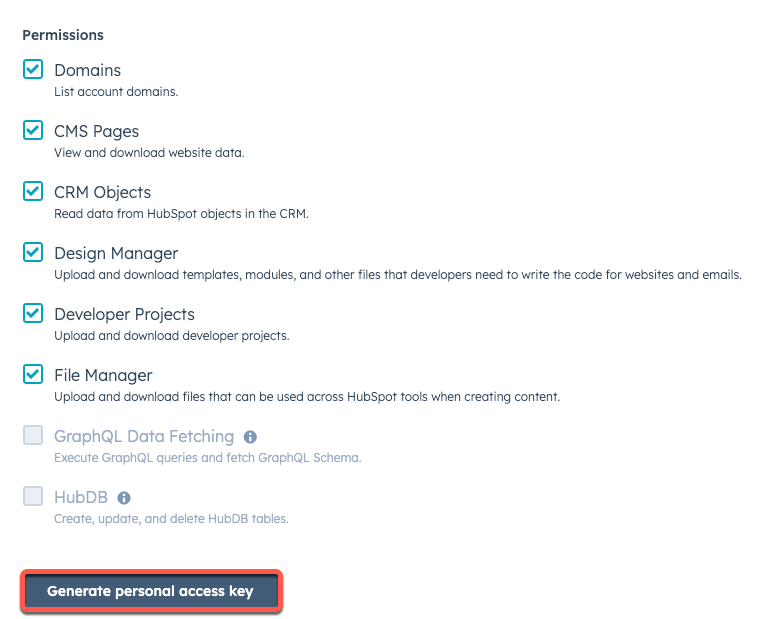 * Click **Generate personal access key**.
* In the *Personal Access Key* section, click **Show**, then **Copy**, then paste your key into the terminal.
After authentication is completed, a `~/.hscli/config.yml` file will be created in your home directory, and will look similar to the example below:
```json expandable theme={null}
defaultAccount: account-name
portals:
- name: account-name
accountId: 1234567
env: prod
authType: personalaccesskey
auth:
tokenInfo:
accessToken: >-
expiresAt: '2025-02-13T15:44:59.399Z'
accountType: STANDARD
personalAccessKey: >-
```
If you're used to using `hubspot.config.yml` files to store HubSpot CLI account authentication details, learn how to migrate to the [new global config file](/developer-tooling/local-development/hubspot-cli/reference#migrate-or-merge-your-config-files).
With the setup script complete, your working directory should be structured as follows:
```shell theme={null}
projectName/
├── hsproject.json
└── src/
└── theme/
├── theme-hsmeta.json
└── my-theme/
├── assets/
├── components/
├── styles/
├── templates/
├── fields.json
├── package.json
└── theme.json
```
At a high level, the key project components to note are:
* `hsproject.json`: at the root of the project, this file configures the project and allows the CLI to recognize it as a project.
* `src/theme/`: the theme component of the project, equivalent to the `src/app/` directory for [apps developed via projects](/apps/developer-platform/overview).
* `theme-hsmeta.json`: configures the project's theme component, including the `uid` and path of the directory that contains your theme assets.
* `my-theme/`: the directory that contains all CMS assets and the `theme.json` configuration file.
If you've developed [classic HubL themes](/cms/start-building/building-blocks/overview#theme-file-structure) in the past, the `my-theme` directory above is what you would have worked with when building your theme locally. The rest of the file structure above that directory is part of the new projects platform.
View the [project structure documentation](/cms/start-building/introduction/react-plus-hubl/project-structure) for more information.
## Start local development
With your theme created locally, you can run the local development server to preview theme assets as you iterate before uploading.
* In the terminal, navigate into the project directory that was created by the setup script.
```shell theme={null}
cd projectName
```
* Start the local development server with the `npm run start` command.
After the local development server starts, the terminal will provide a URL to open in your browser ([http://hslocal.net:3000](http://hslocal.net:3000)).
* Click **Generate personal access key**.
* In the *Personal Access Key* section, click **Show**, then **Copy**, then paste your key into the terminal.
After authentication is completed, a `~/.hscli/config.yml` file will be created in your home directory, and will look similar to the example below:
```json expandable theme={null}
defaultAccount: account-name
portals:
- name: account-name
accountId: 1234567
env: prod
authType: personalaccesskey
auth:
tokenInfo:
accessToken: >-
expiresAt: '2025-02-13T15:44:59.399Z'
accountType: STANDARD
personalAccessKey: >-
```
If you're used to using `hubspot.config.yml` files to store HubSpot CLI account authentication details, learn how to migrate to the [new global config file](/developer-tooling/local-development/hubspot-cli/reference#migrate-or-merge-your-config-files).
With the setup script complete, your working directory should be structured as follows:
```shell theme={null}
projectName/
├── hsproject.json
└── src/
└── theme/
├── theme-hsmeta.json
└── my-theme/
├── assets/
├── components/
├── styles/
├── templates/
├── fields.json
├── package.json
└── theme.json
```
At a high level, the key project components to note are:
* `hsproject.json`: at the root of the project, this file configures the project and allows the CLI to recognize it as a project.
* `src/theme/`: the theme component of the project, equivalent to the `src/app/` directory for [apps developed via projects](/apps/developer-platform/overview).
* `theme-hsmeta.json`: configures the project's theme component, including the `uid` and path of the directory that contains your theme assets.
* `my-theme/`: the directory that contains all CMS assets and the `theme.json` configuration file.
If you've developed [classic HubL themes](/cms/start-building/building-blocks/overview#theme-file-structure) in the past, the `my-theme` directory above is what you would have worked with when building your theme locally. The rest of the file structure above that directory is part of the new projects platform.
View the [project structure documentation](/cms/start-building/introduction/react-plus-hubl/project-structure) for more information.
## Start local development
With your theme created locally, you can run the local development server to preview theme assets as you iterate before uploading.
* In the terminal, navigate into the project directory that was created by the setup script.
```shell theme={null}
cd projectName
```
* Start the local development server with the `npm run start` command.
After the local development server starts, the terminal will provide a URL to open in your browser ([http://hslocal.net:3000](http://hslocal.net:3000)).
 * Open the URL in the browser to view the local development server page.
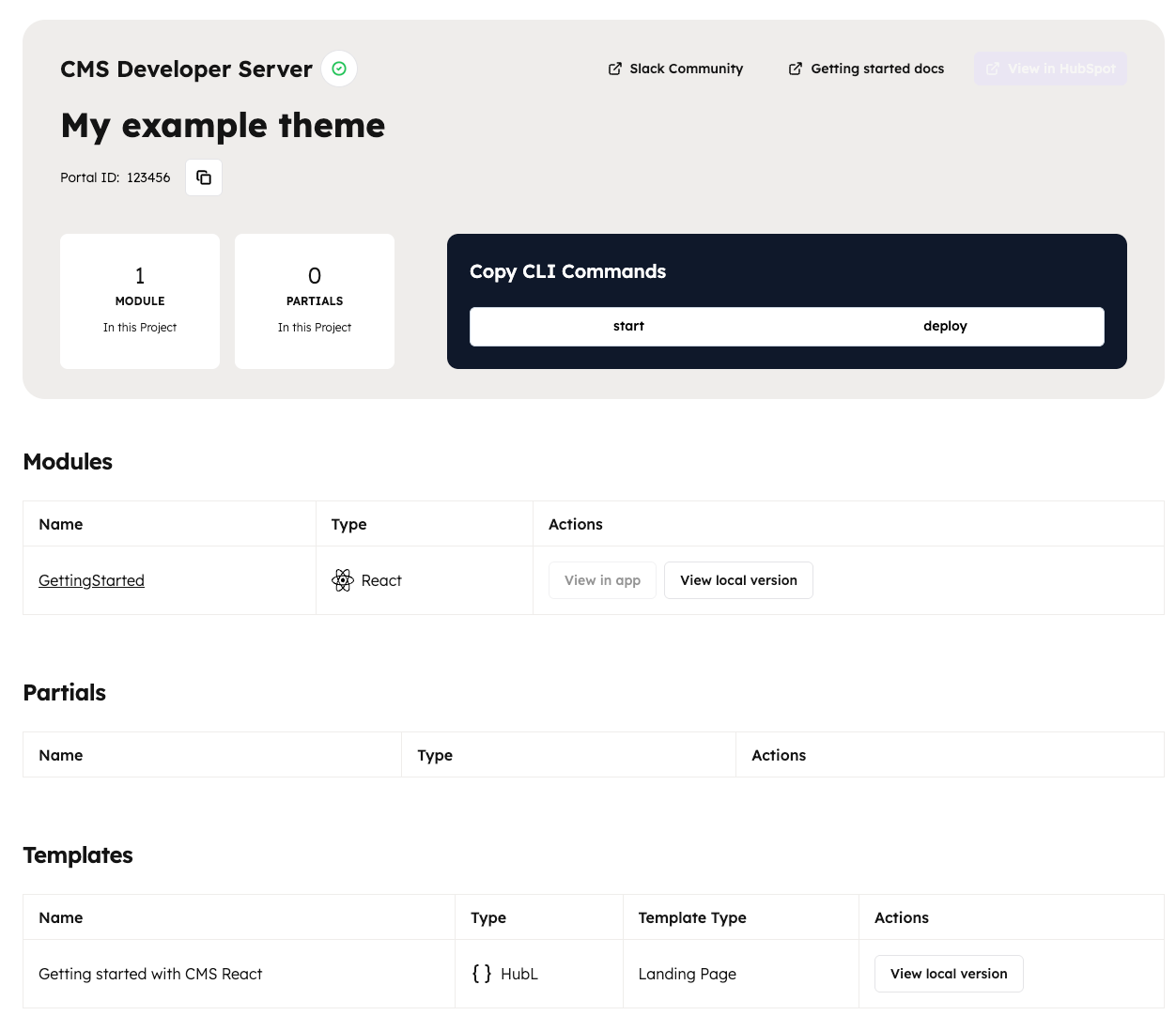 At the top of the page, you can view a summary of the assets that are available to preview in your project. For this example, you'll see one module listed.
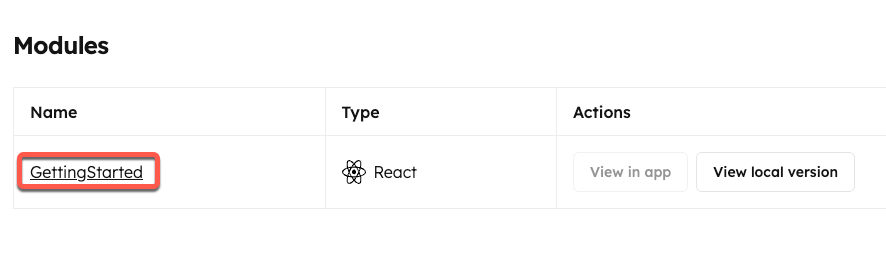
* To quickly view the details of a module, including its local path and `fields.json` code, click the **name** of the module, then review its details in the right sidebar.
At the top of the page, you can view a summary of the assets that are available to preview in your project. For this example, you'll see one module listed.
* To quickly view the details of a module, including its local path and `fields.json` code, click the **name** of the module, then review its details in the right sidebar.
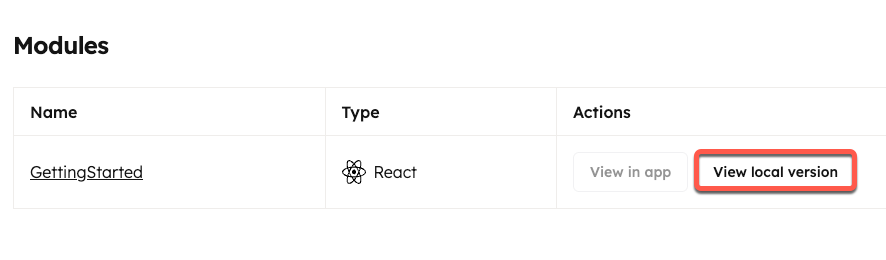
 * To preview the module, click **View local version**. A new browser tab will open containing a preview of the module.
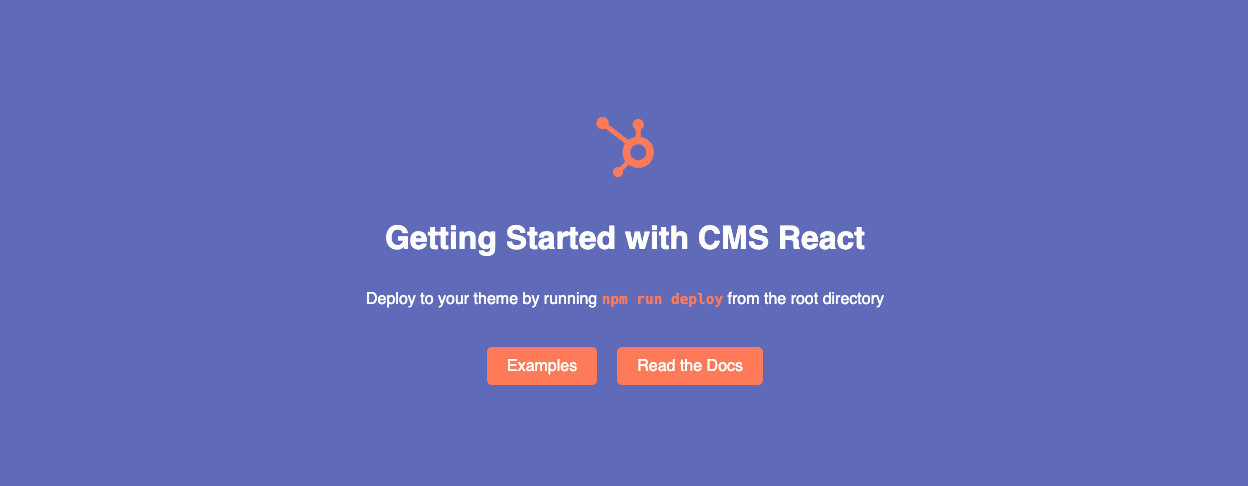
 With the local development server running, the local version preview will automatically update when you save code changes. As an example, make a change to the module's styling and view how it updates the module preview:
* In your local editor, open the `getting-started.module.css` file in `/src/theme/my-theme/styles`.
* Note that the `.wrapper` declaration block contains a `background-color` rule with a value of `var(--accent-color)`. This is the rule you'll need to update in order to change the module's background color.
* In the `:root` declaration block at the top of the file, add a new custom color variable of `--custom-color:#5e6ab8`.
```css theme={null}
:root {
--primary-color: #ff7a59;
--accent-color: #2d3e50;
--custom-color: #5e6ab8;
}
```
* In the `.wrapper` declaration block, update the `background-color` rule to use the new color variable.
```css theme={null}
background-color: var(--custom-color);
```
* With the module preview open, save your changes. On save, the browser will automatically refresh and display your updated styling.
With the local development server running, the local version preview will automatically update when you save code changes. As an example, make a change to the module's styling and view how it updates the module preview:
* In your local editor, open the `getting-started.module.css` file in `/src/theme/my-theme/styles`.
* Note that the `.wrapper` declaration block contains a `background-color` rule with a value of `var(--accent-color)`. This is the rule you'll need to update in order to change the module's background color.
* In the `:root` declaration block at the top of the file, add a new custom color variable of `--custom-color:#5e6ab8`.
```css theme={null}
:root {
--primary-color: #ff7a59;
--accent-color: #2d3e50;
--custom-color: #5e6ab8;
}
```
* In the `.wrapper` declaration block, update the `background-color` rule to use the new color variable.
```css theme={null}
background-color: var(--custom-color);
```
* With the module preview open, save your changes. On save, the browser will automatically refresh and display your updated styling.
 ## Upload to HubSpot
Upload your project by running the [project upload command](/developer-tooling/local-development/hubspot-cli/project-commands#upload-to-hubspot).
```shell theme={null}
hs project upload
```
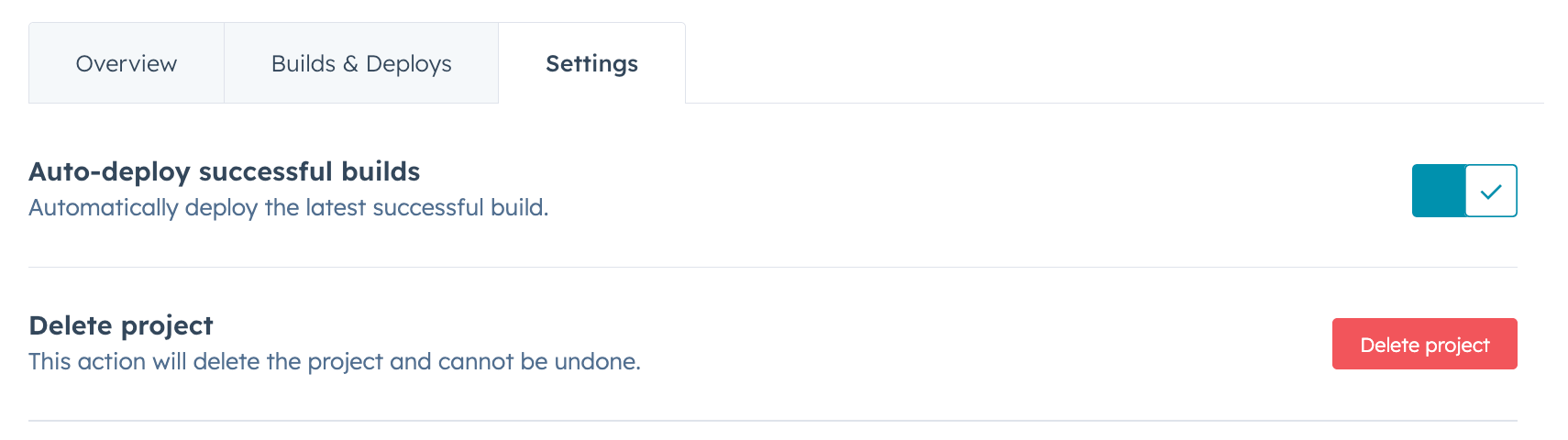
After the project builds and deploys to your account, the terminal will confirm that the project has been successfully uploaded. Note that, by default, HubSpot auto-deploys projects after a successful build. You can [turn this off in the project settings](#settings-tab) in HubSpot if you'd prefer to manually deploy with the [`hs project deploy`](/developer-tooling/local-development/hubspot-cli/project-commands#deploy-to-hubspot) command.
Run the command below to open the project in HubSpot, where you can view its initial build and deploy history, project settings, and more.
```shell theme={null}
hs project open
```
The project overview page will then open in your browser.
Alternatively, in your HubSpot account, navigate to **CRM Development** in the main navigation bar of your account, then select **Projects** in the left sidebar. Then, click the **name** of the project.
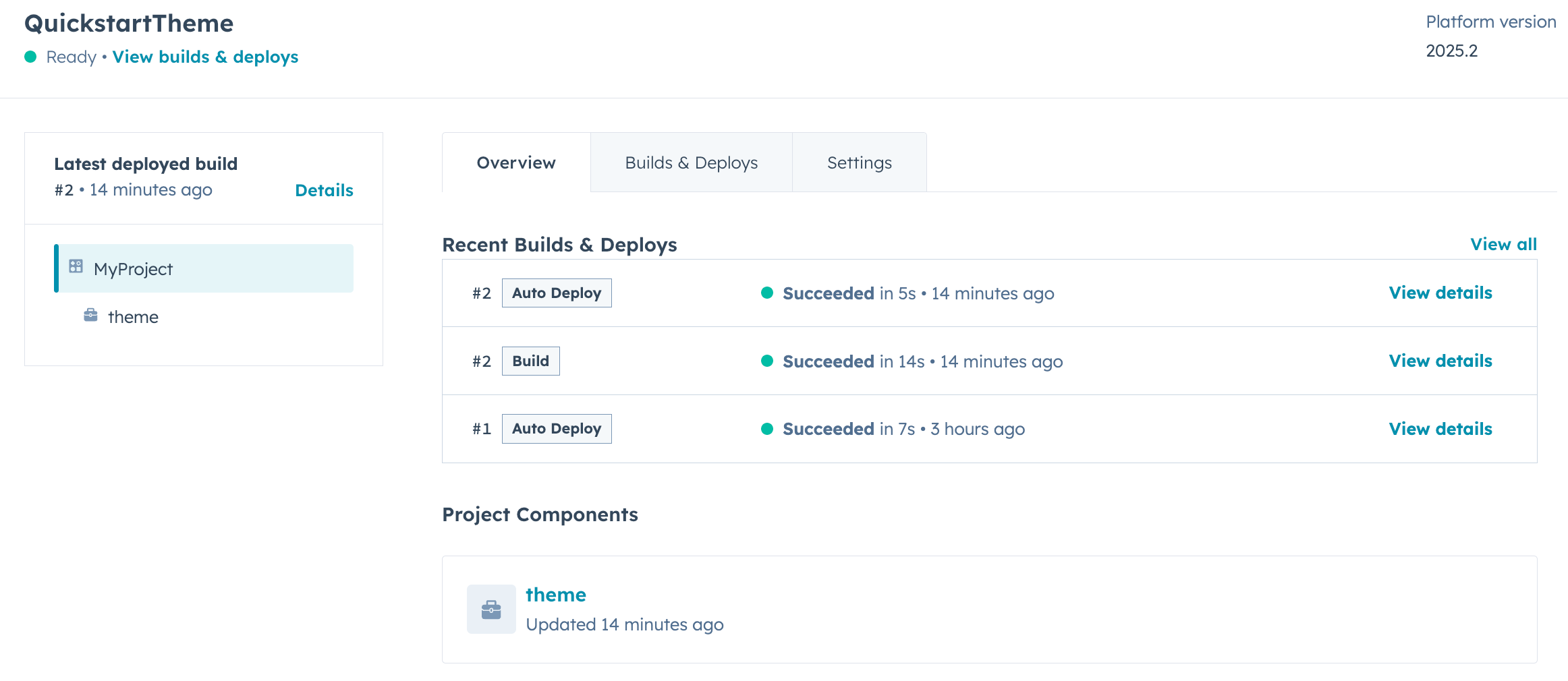
* On the *Overview* tab, view an overview of the current state of the project along with recent activity.
## Upload to HubSpot
Upload your project by running the [project upload command](/developer-tooling/local-development/hubspot-cli/project-commands#upload-to-hubspot).
```shell theme={null}
hs project upload
```
After the project builds and deploys to your account, the terminal will confirm that the project has been successfully uploaded. Note that, by default, HubSpot auto-deploys projects after a successful build. You can [turn this off in the project settings](#settings-tab) in HubSpot if you'd prefer to manually deploy with the [`hs project deploy`](/developer-tooling/local-development/hubspot-cli/project-commands#deploy-to-hubspot) command.
Run the command below to open the project in HubSpot, where you can view its initial build and deploy history, project settings, and more.
```shell theme={null}
hs project open
```
The project overview page will then open in your browser.
Alternatively, in your HubSpot account, navigate to **CRM Development** in the main navigation bar of your account, then select **Projects** in the left sidebar. Then, click the **name** of the project.
* On the *Overview* tab, view an overview of the current state of the project along with recent activity.
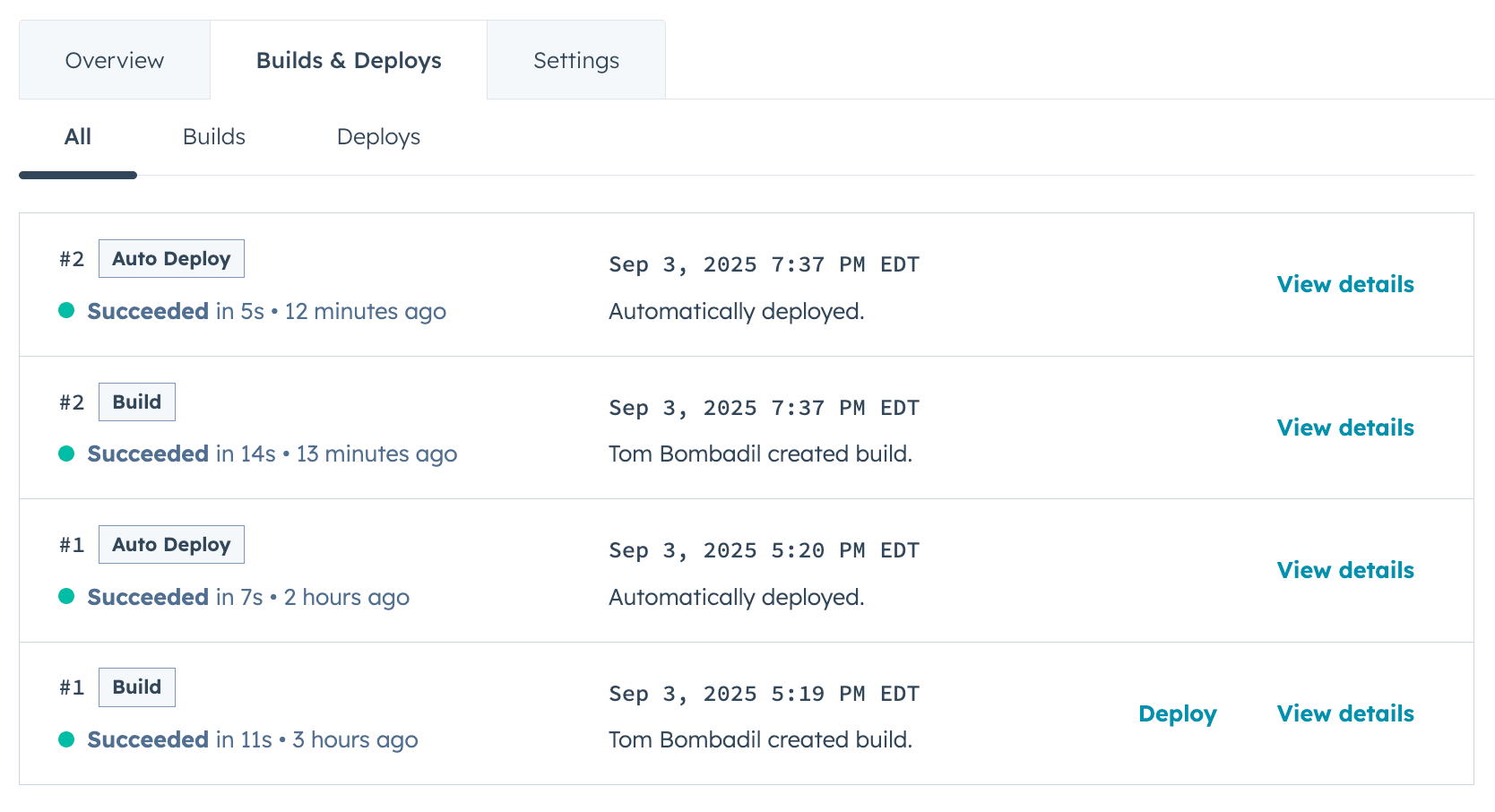
 * On the *Builds & Deploys* tab, view a full history of builds and deploys. You can click **View details** to see more information about each activity.
 * On the *Settings* tab, you can manage project settings such as auto-deploy and GitHub repository linking, as well as delete the project.
 To create a page using your theme:
* In your HubSpot account, navigate to **Content** > **Website Pages**.
* If you're working in a new account:
* Click **Start from scratch**, then locate the **theme** that you just uploaded and click **Set as active theme**.
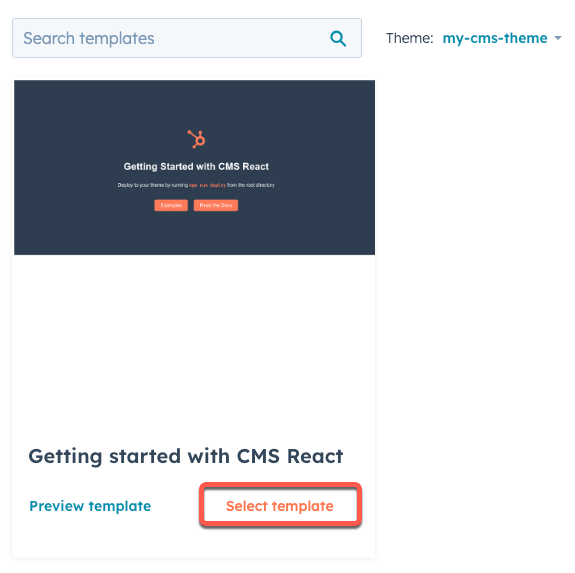
* Next to the *Getting started with CMS React* template, click **Select template**.
To create a page using your theme:
* In your HubSpot account, navigate to **Content** > **Website Pages**.
* If you're working in a new account:
* Click **Start from scratch**, then locate the **theme** that you just uploaded and click **Set as active theme**.
* Next to the *Getting started with CMS React* template, click **Select template**.
 * If you're working in an existing account with a theme already selected:
* In the upper right, click **Create**.
* In the dialog box, enter a **name** for the page, then click **Create page**.
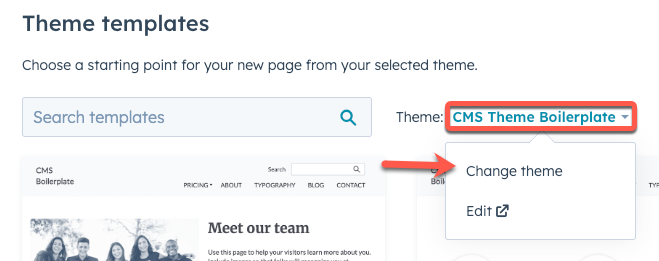
* On the *Choose a template* page, click the **Theme** dropdown menu, then select **Change theme**.
* If you're working in an existing account with a theme already selected:
* In the upper right, click **Create**.
* In the dialog box, enter a **name** for the page, then click **Create page**.
* On the *Choose a template* page, click the **Theme** dropdown menu, then select **Change theme**.
 * Locate the **theme** you just uploaded, then click **Set as active theme**.
* Next to the *Getting started with CMS React* template, click **Select template**.
You'll then be brought to the page editor where you can continue [editing the page content](https://knowledge.hubspot.com/website-pages/edit-page-content-in-a-drag-and-drop-area) before [publishing the page](https://knowledge.hubspot.com/website-and-landing-pages/create-and-customize-pages#publish-pages).
## Next steps
Having successfully uploaded the starter theme to your account, you can continue to make changes locally, then build and deploy using the `hs project upload` command. To learn more about developing on the HubSpots CMS, check out some of the following resources:
* [Managing theme settings in HubSpot](https://knowledge.hubspot.com/website-and-landing-pages/edit-your-theme-settings)
* [Understand the various building blocks of HubSpot's CMS](/cms/start-building/introduction/overview)
* [Install and use the HubSpot VS Code extension](/developer-tooling/local-development/vs-code-extension)
* [CLI commands for projects](/developer-tooling/local-development/hubspot-cli/project-commands)
* [Get started with CMS React](/cms/start-building/introduction/react-plus-hubl/overview)
* Locate the **theme** you just uploaded, then click **Set as active theme**.
* Next to the *Getting started with CMS React* template, click **Select template**.
You'll then be brought to the page editor where you can continue [editing the page content](https://knowledge.hubspot.com/website-pages/edit-page-content-in-a-drag-and-drop-area) before [publishing the page](https://knowledge.hubspot.com/website-and-landing-pages/create-and-customize-pages#publish-pages).
## Next steps
Having successfully uploaded the starter theme to your account, you can continue to make changes locally, then build and deploy using the `hs project upload` command. To learn more about developing on the HubSpots CMS, check out some of the following resources:
* [Managing theme settings in HubSpot](https://knowledge.hubspot.com/website-and-landing-pages/edit-your-theme-settings)
* [Understand the various building blocks of HubSpot's CMS](/cms/start-building/introduction/overview)
* [Install and use the HubSpot VS Code extension](/developer-tooling/local-development/vs-code-extension)
* [CLI commands for projects](/developer-tooling/local-development/hubspot-cli/project-commands)
* [Get started with CMS React](/cms/start-building/introduction/react-plus-hubl/overview)