> ## Documentation Index
> Fetch the complete documentation index at: https://developers.hubspot.com/docs/llms.txt
> Use this file to discover all available pages before exploring further.
---
id: 634dbf3d-804b-4a3f-bba6-f95e1baedadf
---
# Test your HubSpot apps with configurable test accounts
> Set up test accounts that simulate HubSpot subscriptions for comprehensive app testing.
When developing HubSpot apps, being able to test in a realistic and fully isolated environment helps improve app quality and minimize unexpected behavior. You can use configurable test accounts to simulate different HubSpot subscription and tier combinations, enabling you to test your apps more comprehensively before rolling changes out to production.
Configurable test accounts can be created and managed in HubSpot or from the CLI. You can also choose to create your configurable test accounts from scratch or by uploading a config file, which enables fully automated CI/CD workflows.
## Prerequisites
To create a configurable test account, you’ll need to be developing a project on platform version `2025.2` or later and using CLI version `8.3.0` or later.
* To create a new project or migrate an existing project, visit the [developer platform overview](/apps/developer-platform/overview) to get started.
* To install the latest version of the HubSpot CLI, run the following terminal command:
```shell theme={null}
npm install -g @hubspot/cli@latest
```
## Create test accounts using the CLI
Using the CLI, you can create and configure test accounts from scratch or from an existing config file.
* **Create from scratch:** walk through test account configuration options using the CLI.
* **Create from a config file:** use a pre-written test account configuration file to create the account. This can be particularly useful for automated testing workflows, as you can define a consistent [automated test account creation flow](#automated-deployment-with-github-actions).
### Create from scratch
* In the terminal run the command below:
```shell theme={null}
hs test-account create
```
* Using the arrow keys, select **Create test account from scratch**.
You can also access this test account creation flow when starting local development with the `hs project dev` command. After running `hs project dev`, you can select `Test on a developer test account`, then create a new account from scratch.
Continue following the terminal prompts to configure the test account details:
* Enter a **name** for the test account.
* Enter a **description** for the account.
* Select the **subscriptions** to assign to the account. You can select up to one tier per Hub.
Once configured, HubSpot will create the test account, and the CLI will confirm the account ID. You can then [access the test account in HubSpot](#access-and-manage-test-accounts-in-hubspot) and [authenticate it with the CLI](/developer-tooling/local-development/hubspot-cli/reference#authenticate-an-account) for local development.
### Create from a config file
* Generate a config file by running the following command in your terminal:
```shell theme={null}
hs test-account create-config
```
* Follow the terminal prompts to configure the account details:
* Enter a **name** for the test account.
* Enter a **description** for the account.
* Select the **subscriptions** to assign to the account. You can select up to one tier per Hub.
* Enter a **local path** for the config file, which you'll later point to when creating the account.
HubSpot will then create the JSON configuration file at the specified path, containing all the details specified above. For example:
```json theme={null}
{
"accountName": "AllHubsProfessional",
"description": "Professional test account",
"marketingLevel": "PROFESSIONAL",
"opsLevel": "PROFESSIONAL",
"serviceLevel": "PROFESSIONAL",
"salesLevel": "PROFESSIONAL",
"contentLevel": "PROFESSIONAL"
}
```
With the file generated, you can pass it to HubSpot via the CLI to create a new test account.
* In the terminal, run the following command:
```shell theme={null}
hs test-account create
```
* Select **Create test account from config file**.
* Enter the **local path** of the config file.
HubSpot will then use the config file to create a test account, and the CLI will confirm the account ID. You can then [access the test account in HubSpot](#access-and-manage-test-accounts-in-HubSpot) and [authenticate it with the CLI](/developer-tooling/local-development/hubspot-cli/reference#authenticate-an-account) for local development.
For more flexibility, you can use the `--config-path` flag directly:
`hs test-account create --config-path ./test-portal-config.json`
This method enables you to maintain multiple configurations in your repository. For example, you could include one configuration for a *Starter* portal and another for *Enterprise*. With multiple configurations, you can spin up test accounts on demand as part of your development or QA process.
## Create test accounts in HubSpot
In addition to using the CLI to create test accounts, you can also create test accounts using the HubSpot UI.
* In the main navigation bar, navigate to **Development**.
* In the left sidebar menu, navigate to **Testing** > **Test Accounts**.
* On the *Developer test accounts* page, click **Create developer test account**.
* In the dialog box, enter an **account name**.
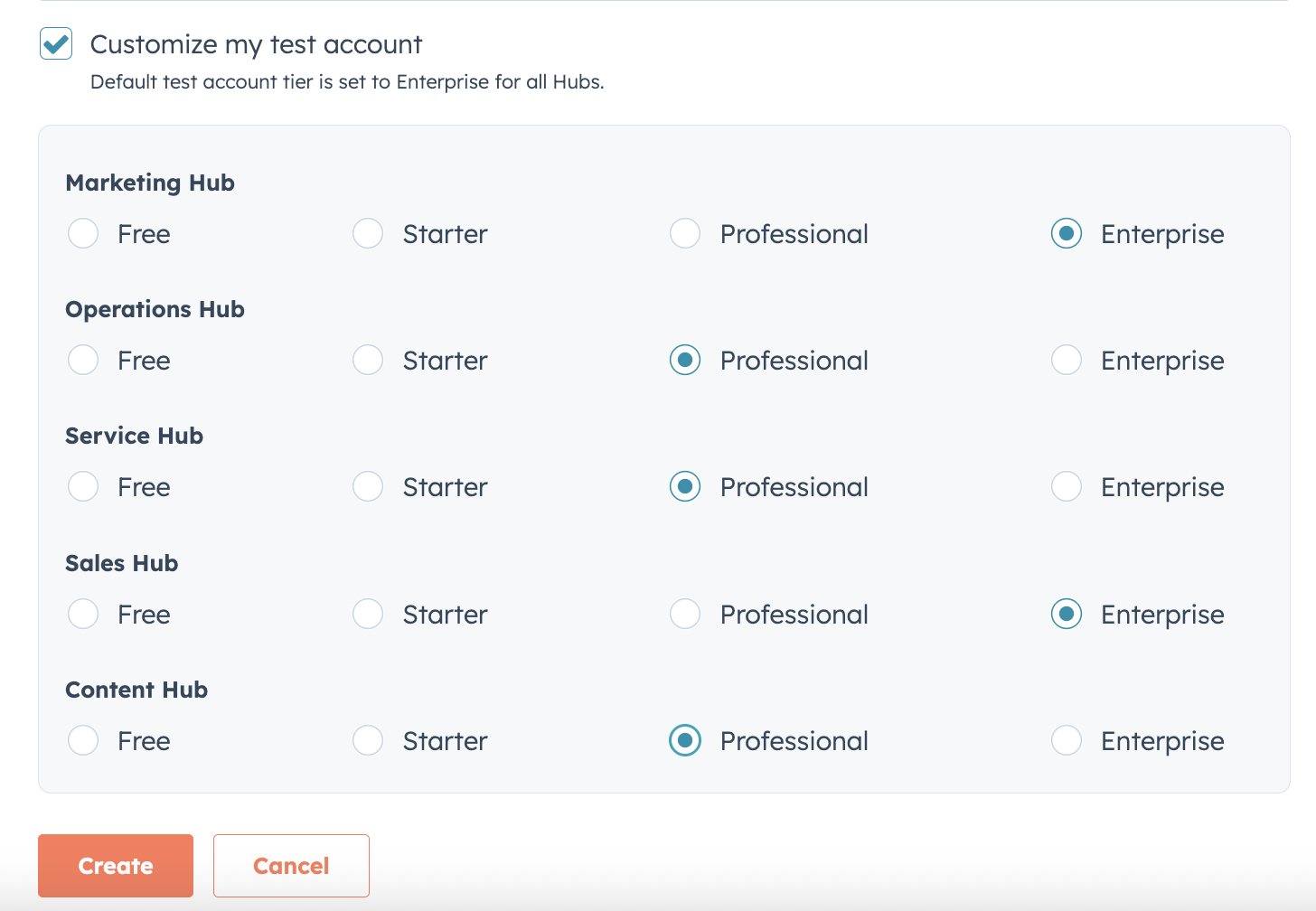
* By default, the account will be set up with trials for *Enterprise* level features for all Hubs. To customize the Hubs and tiers, select the **Customize my test account** checkbox. Then, use the **radio buttons** to select the Hub tiers you want to include for the account.
* Click **Create**.
## Access and manage test accounts in HubSpot
To access test accounts in HubSpot:
* In the main navigation bar, navigate to **Development**.
* In the left sidebar menu, navigate to **Testing** > **Test Accounts**.
On the *Developer test accounts* page, view your currently active test accounts, and perform the following actions as needed:
* To open an account in a new tab, click the **test account name**.
* To renew a test account's trials, click **Actions**, then select **Renew trials**.
* To delete a test account, click **Actions**, then select **Delete**. In the dialog box, confirm the deletion by entering the test account name, then clicking **Delete**.
If you're not sure which subscriptions are assigned to a test account, you can navigate to that account's *Account & Billing* page to confirm:
* From the *Developer test accounts* page, click the **name** of a test account.
* In the new tab, click the **account name** in the top right, then select **Account & Billing**.
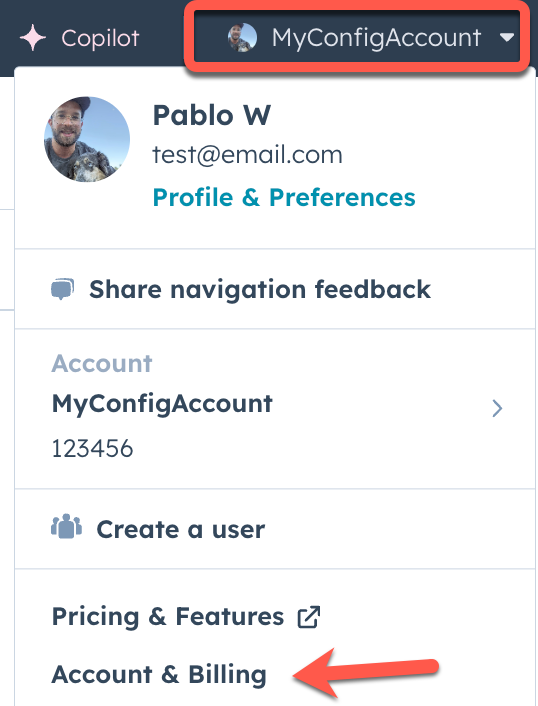 * On the *Overview* tab, view the list of trials available to the account. If you need to renew any of the trials, navigate back to the *Developer test account* page [as shown above](#access-and-manage-test-accounts-in-hubspot).
## Import data into a test account
Using the `hs test-account import-data` command, you can import CRM data from your local environment into a test account. When run, the command will use the [CRM imports API](/api-reference/latest/crm/imports/guide) to send data from one or more CSV files into the account. Because this command uses the CRM imports API, you have access to the same options that you would when making a `POST` request to the API directly.
Below, learn how to structure your local import files before [running the import command](#running-the-import-command).
### Structuring your import files
Importing CRM data into a test account requires two types of files:
* One or more CSV files containing the CRM object data to import. Each file will contain rows for each CRM record you want to create or update, along with columns for the CRM properties that you want to populate. Note that if you include custom properties in the import file, you'll need to create them in the account before importing. You can learn more about import files in the following resources:
* [Set up your import files](https://knowledge.hubspot.com/import-and-export/set-up-your-import-file)
* [Sample import files](https://knowledge.hubspot.com/import-and-export/sample-import-files)
* A JSON configuration file that provides HubSpot with details for each file, such as file format and column headings. This file follows the same format as the request body for making `POST` requests to the CRM imports API. For a full breakdown of the available fields, check out the [CRM imports API guide](/api-reference/latest/crm/imports/guide#start-an-import).
The CSV and JSON configuration files must be stored in the same directory, which you'll later run the import command from.
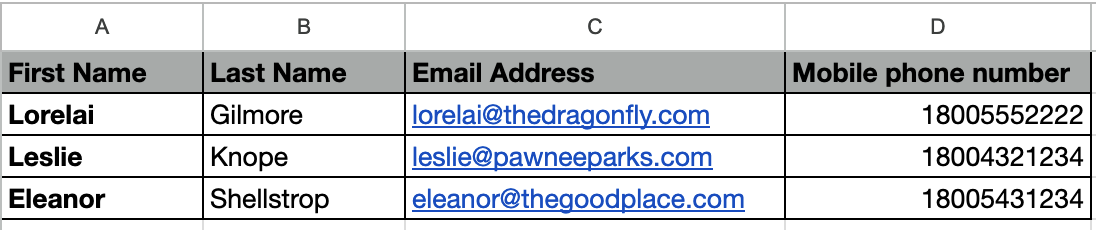
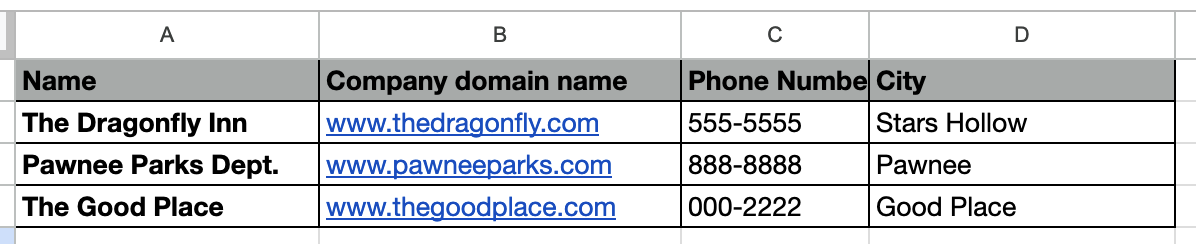
As an example, below are two sample CSV files, one with contact data and one with company data, along with the corresponding JSON configuration file. The import is configured to create new contact and company records using the email address and domain values, respectively. The import is not configured to associate these records, but could be done so via [association fields](/api-reference/latest/crm/imports/guide#map-file-columns-to-hubspot-properties).
* [Example contact CSV](https://developers.hubspot.com/hubfs/Knowledge_Base_2023-24-25/developer/contact-data.csv)
* [Example company CSV](https://developers.hubspot.com/hubfs/Knowledge_Base_2023-24-25/developer/company-data.csv)
```json expandable theme={null}
{
"name": "Test account data import (contact and company)",
"importOperations": {
"0-1": "CREATE",
"0-2": "CREATE"
},
"files": [
{
"fileName": "contact-data.csv",
"fileFormat": "CSV",
"fileImportPage": {
"hasHeader": true,
"columnMappings": [
{
"columnObjectTypeId": "0-1",
"columnName": "First Name",
"propertyName": "firstname"
},
{
"columnObjectTypeId": "0-1",
"columnName": "Last Name",
"propertyName": "lastname"
},
{
"columnObjectTypeId": "0-1",
"columnName": "Email",
"propertyName": "email",
"columnType": "HUBSPOT_ALTERNATE_ID"
},
{
"columnObjectTypeId": "0-1",
"columnName": "Mobile phone number",
"propertyName": "mobilephone"
}
]
}
},
{
"fileName": "company-data.csv",
"fileFormat": "CSV",
"fileImportPage": {
"hasHeader": true,
"columnMappings": [
{
"columnObjectTypeId": "0-2",
"columnName": "Name",
"propertyName": "name"
},
{
"columnObjectTypeId": "0-2",
"columnName": "Company domain name",
"propertyName": "domain",
"columnType": "HUBSPOT_ALTERNATE_ID"
},
{
"columnObjectTypeId": "0-2",
"columnName": "Phone number",
"propertyName": "phone"
},
{
"columnObjectTypeId": "0-2",
"columnName": "City",
"propertyName": "city"
}
]
}
}
]
}
```
View more examples of JSON import request formats for single and multi-file imports in the [CRM imports API guide](/api-reference/latest/crm/imports/guide#import-one-file-with-one-object).
### Running the import command
After setting up your files, you can import them via the CLI:
* In the terminal, navigate to the directory that contains your import JSON and CSV files.
* Run the `hs test-account import-data` command.
* Follow the terminal prompts to set up your import:
* `--account`: select the developer test account you want to import into.
* `--file-path`: specify the name of the JSON file.
* The terminal will then display the CSV files that will be imported. Confirm the import by pressing **Enter**.
The import will then begin to process, and the terminal will provide a link to the imports dashboard in HubSpot where you can monitor the status and review any potential [import errors](https://knowledge.hubspot.com/import-and-export/troubleshoot-import-errors).
## Automated deployment with GitHub Actions
To programmatically test your apps, you can [set up GitHub Actions](/developer-tooling/third-party-tools/set-up-github-actions) to automate the creation of test accounts and deployment of your apps into them.
To use GitHub Actions, your HubSpot app must use OAuth for authentication and be hosted in a public GitHub repository. If you don't have an OAuth app yet, check out the [app creation guide](/apps/developer-platform/build-apps/create-an-app).
For further reference, check out [HubSpot's example GitHub Actions](https://github.com/HubSpot/hubspot-project-actions/tree/main/project-upload).
* On the *Overview* tab, view the list of trials available to the account. If you need to renew any of the trials, navigate back to the *Developer test account* page [as shown above](#access-and-manage-test-accounts-in-hubspot).
## Import data into a test account
Using the `hs test-account import-data` command, you can import CRM data from your local environment into a test account. When run, the command will use the [CRM imports API](/api-reference/latest/crm/imports/guide) to send data from one or more CSV files into the account. Because this command uses the CRM imports API, you have access to the same options that you would when making a `POST` request to the API directly.
Below, learn how to structure your local import files before [running the import command](#running-the-import-command).
### Structuring your import files
Importing CRM data into a test account requires two types of files:
* One or more CSV files containing the CRM object data to import. Each file will contain rows for each CRM record you want to create or update, along with columns for the CRM properties that you want to populate. Note that if you include custom properties in the import file, you'll need to create them in the account before importing. You can learn more about import files in the following resources:
* [Set up your import files](https://knowledge.hubspot.com/import-and-export/set-up-your-import-file)
* [Sample import files](https://knowledge.hubspot.com/import-and-export/sample-import-files)
* A JSON configuration file that provides HubSpot with details for each file, such as file format and column headings. This file follows the same format as the request body for making `POST` requests to the CRM imports API. For a full breakdown of the available fields, check out the [CRM imports API guide](/api-reference/latest/crm/imports/guide#start-an-import).
The CSV and JSON configuration files must be stored in the same directory, which you'll later run the import command from.
As an example, below are two sample CSV files, one with contact data and one with company data, along with the corresponding JSON configuration file. The import is configured to create new contact and company records using the email address and domain values, respectively. The import is not configured to associate these records, but could be done so via [association fields](/api-reference/latest/crm/imports/guide#map-file-columns-to-hubspot-properties).
* [Example contact CSV](https://developers.hubspot.com/hubfs/Knowledge_Base_2023-24-25/developer/contact-data.csv)

* [Example company CSV](https://developers.hubspot.com/hubfs/Knowledge_Base_2023-24-25/developer/company-data.csv)

```json expandable theme={null}
{
"name": "Test account data import (contact and company)",
"importOperations": {
"0-1": "CREATE",
"0-2": "CREATE"
},
"files": [
{
"fileName": "contact-data.csv",
"fileFormat": "CSV",
"fileImportPage": {
"hasHeader": true,
"columnMappings": [
{
"columnObjectTypeId": "0-1",
"columnName": "First Name",
"propertyName": "firstname"
},
{
"columnObjectTypeId": "0-1",
"columnName": "Last Name",
"propertyName": "lastname"
},
{
"columnObjectTypeId": "0-1",
"columnName": "Email",
"propertyName": "email",
"columnType": "HUBSPOT_ALTERNATE_ID"
},
{
"columnObjectTypeId": "0-1",
"columnName": "Mobile phone number",
"propertyName": "mobilephone"
}
]
}
},
{
"fileName": "company-data.csv",
"fileFormat": "CSV",
"fileImportPage": {
"hasHeader": true,
"columnMappings": [
{
"columnObjectTypeId": "0-2",
"columnName": "Name",
"propertyName": "name"
},
{
"columnObjectTypeId": "0-2",
"columnName": "Company domain name",
"propertyName": "domain",
"columnType": "HUBSPOT_ALTERNATE_ID"
},
{
"columnObjectTypeId": "0-2",
"columnName": "Phone number",
"propertyName": "phone"
},
{
"columnObjectTypeId": "0-2",
"columnName": "City",
"propertyName": "city"
}
]
}
}
]
}
```
View more examples of JSON import request formats for single and multi-file imports in the [CRM imports API guide](/api-reference/latest/crm/imports/guide#import-one-file-with-one-object).
### Running the import command
After setting up your files, you can import them via the CLI:
* In the terminal, navigate to the directory that contains your import JSON and CSV files.
* Run the `hs test-account import-data` command.
* Follow the terminal prompts to set up your import:
* `--account`: select the developer test account you want to import into.
* `--file-path`: specify the name of the JSON file.
* The terminal will then display the CSV files that will be imported. Confirm the import by pressing **Enter**.
The import will then begin to process, and the terminal will provide a link to the imports dashboard in HubSpot where you can monitor the status and review any potential [import errors](https://knowledge.hubspot.com/import-and-export/troubleshoot-import-errors).
## Automated deployment with GitHub Actions
To programmatically test your apps, you can [set up GitHub Actions](/developer-tooling/third-party-tools/set-up-github-actions) to automate the creation of test accounts and deployment of your apps into them.
To use GitHub Actions, your HubSpot app must use OAuth for authentication and be hosted in a public GitHub repository. If you don't have an OAuth app yet, check out the [app creation guide](/apps/developer-platform/build-apps/create-an-app).
For further reference, check out [HubSpot's example GitHub Actions](https://github.com/HubSpot/hubspot-project-actions/tree/main/project-upload).