> ## Documentation Index
> Fetch the complete documentation index at: https://developers.hubspot.com/docs/llms.txt
> Use this file to discover all available pages before exploring further.
---
id: 6b183daf-054b-4b1b-bb69-16a05d5efada
---
# Set up the developer MCP server
> Learn how to use HubSpot's locally installed MCP server in your IDE to streamline app and CMS content development.
When developing HubSpot apps or CMS web content in your IDE, you can install the HubSpot Developer MCP server via the CLI. The HubSpot Developer MCP server runs locally and provides your AI assistant with [tools](/developer-tooling/local-development/developer-mcp/tools) for streamlining app and CMS development tasks.
## Prerequisites
Ensure you're running version `8.2.0` or higher of the [HubSpot CLI](/developer-tooling/local-development/hubspot-cli/install-the-cli) to access the latest set of supported MCP clients.
```shell theme={null}
# Check your version
hs --version
# Install the latest version
npm install -g @hubspot/cli
```
You'll also need one or more of the following supported clients installed:
* [Claude Code](https://code.claude.com/docs)
* [Codex CLI](https://developers.openai.com/codex/cli)
* [Cursor](https://cursor.com/home)
* [Gemini CLI](https://geminicli.com/)
* [VS Code](https://code.visualstudio.com)
* [Windsurf](https://windsurf.com/editor)
## Set up the server
Follow the steps below to set up the Developer MCP server.
**VS Code configuration:** if you're installing the Developer MCP server for VS Code, you'll need to ensure that the `code` command is installed in your PATH:
* In VS Code, open the Command Palette with **Cmd+Shift+P** (macOS) or **Ctrl+Shift+P** (Windows/Linux).
* Search for **Shell command: Install 'code' command in PATH**, and run it.
Run the setup command in your terminal:
```shell theme={null}
hs mcp setup
```
When prompted, select the clients you'd like to add the MCP server to. Use the **arrow keys** and **spacebar** to select your clients, then press **Enter** to proceed.
 Next, choose whether you'd like to operate in standalone mode, which allows you to run the HubSpot MCP server without installing the HubSpot CLI globally on your system:
* This mode is useful on managed or corporate machines where global `npm` installs are restricted.
* Standalone mode will use `npx @hubspot/cli` instead of the installed `hs` command.
Enter `y` to use standalone mode, or `N` to use the HubSpot CLI globally. If you opt for using standalone mode, you can optionally pin a version of the CLI to stay on while using the MCP server. If left blank, you'll always use the latest version.
Next, choose whether you'd like to operate in standalone mode, which allows you to run the HubSpot MCP server without installing the HubSpot CLI globally on your system:
* This mode is useful on managed or corporate machines where global `npm` installs are restricted.
* Standalone mode will use `npx @hubspot/cli` instead of the installed `hs` command.
Enter `y` to use standalone mode, or `N` to use the HubSpot CLI globally. If you opt for using standalone mode, you can optionally pin a version of the CLI to stay on while using the MCP server. If left blank, you'll always use the latest version.
 A success message will appear once setup is complete.
 If the client you selected is open, you may need to restart it to apply the changes.
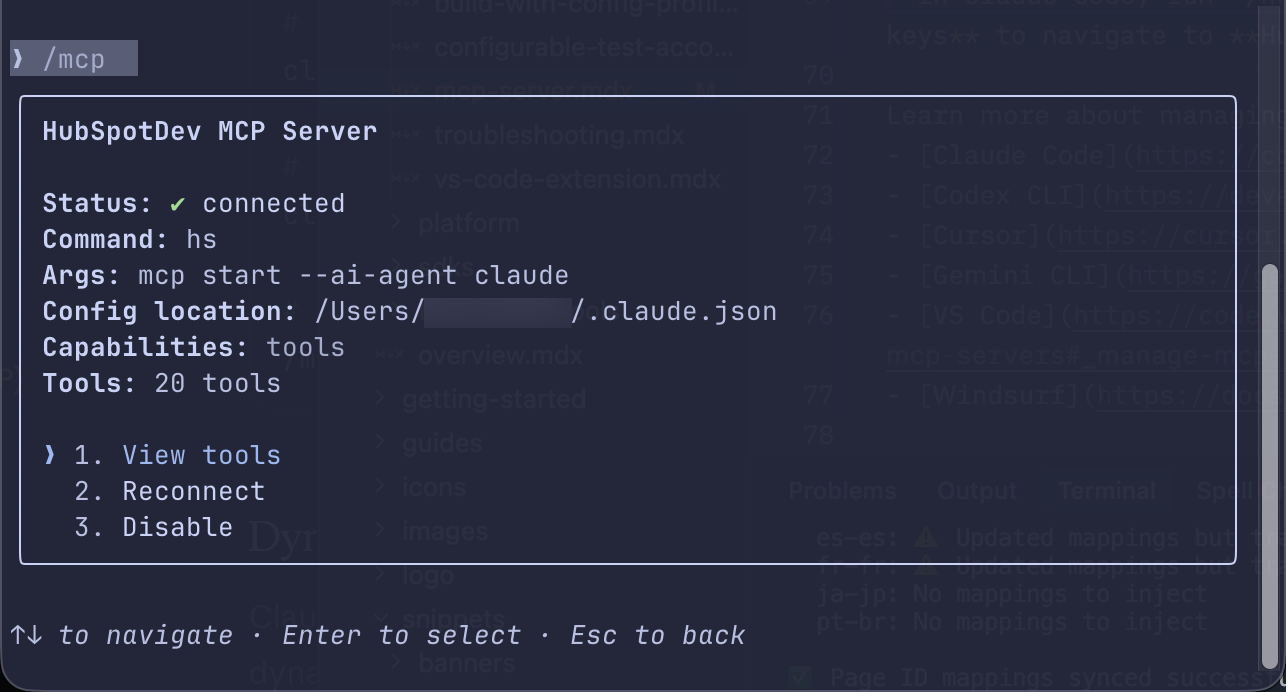
You can verify that the MCP server has been added to your client by navigating to the client's MCP settings, then looking for the *HubSpotDev* server. For example:
* In Claude Code, run the `/mcp` command. You can then select **HubSpotDev** to view more information about its [included tools](/developer-tooling/local-development/developer-mcp/tools) and more.
If the client you selected is open, you may need to restart it to apply the changes.
You can verify that the MCP server has been added to your client by navigating to the client's MCP settings, then looking for the *HubSpotDev* server. For example:
* In Claude Code, run the `/mcp` command. You can then select **HubSpotDev** to view more information about its [included tools](/developer-tooling/local-development/developer-mcp/tools) and more.
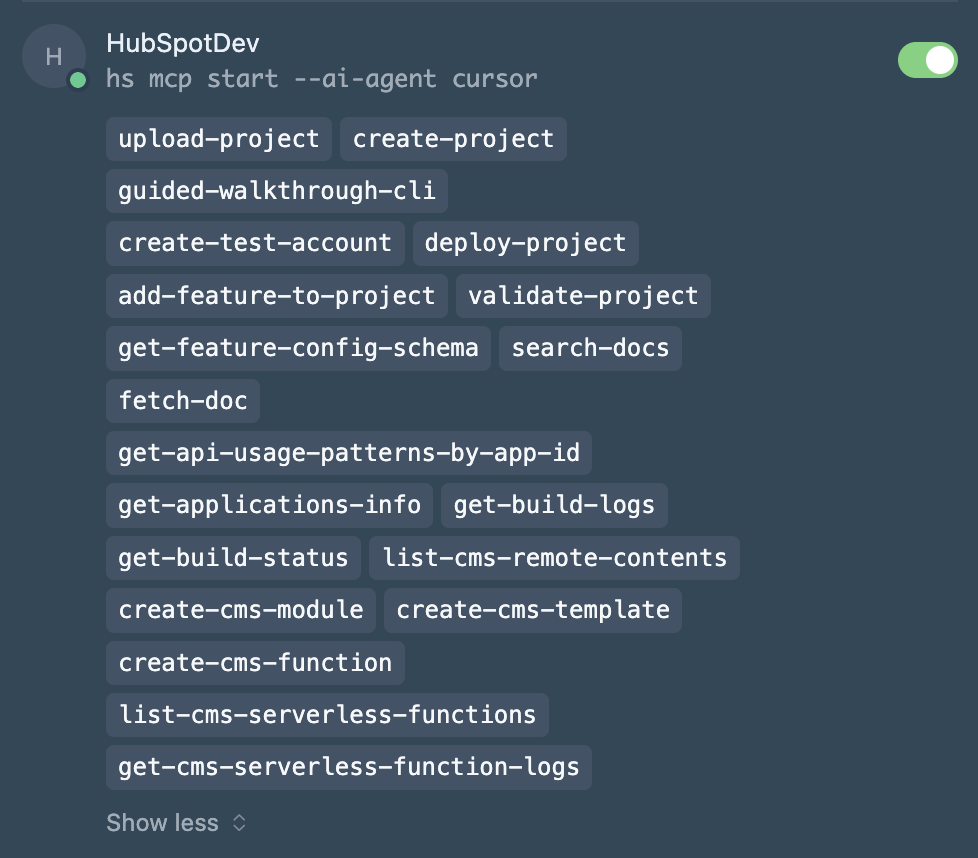
 * In Cursor, navigate to **Settings** > **Cursor Settings**, then select **Tools & MCP** in the left sidebar. In the *Installed MCP Servers* section, you can view and manage the *HubSpotDev* server along with any other installed MCP servers.
 Learn more about managing MCP servers in each supported client:
* [Claude Code](https://code.claude.com/docs/en/mcp#managing-your-servers)
* [Codex CLI](https://developers.openai.com/codex/mcp)
* [Cursor](https://cursor.com/docs/mcp)
* [Gemini CLI](https://geminicli.com/docs/tools/mcp-server/#how-to-set-up-your-mcp-server)
* [VS Code](https://code.visualstudio.com/docs/copilot/customization/mcp-servers#_manage-mcp-servers)
* [Windsurf](https://docs.windsurf.com/windsurf/cascade/mcp#adding-a-new-mcp)
Learn more about managing MCP servers in each supported client:
* [Claude Code](https://code.claude.com/docs/en/mcp#managing-your-servers)
* [Codex CLI](https://developers.openai.com/codex/mcp)
* [Cursor](https://cursor.com/docs/mcp)
* [Gemini CLI](https://geminicli.com/docs/tools/mcp-server/#how-to-set-up-your-mcp-server)
* [VS Code](https://code.visualstudio.com/docs/copilot/customization/mcp-servers#_manage-mcp-servers)
* [Windsurf](https://docs.windsurf.com/windsurf/cascade/mcp#adding-a-new-mcp)