The following commands can help with configuration, troubleshooting, and debugging local development issues.
Open browser shortcuts
To make it easier to navigate to HubSpot tools you frequently access, you can open them directly from the command line. Your defaultAccount or --account argument will be used to open the associated tool for that account.
open
Arguments
Arguments
Command completion
If you use the CLI frequently, it can be useful to be able to tab to auto-complete commands.
For Mac OS X
Set configuration options
Update CLI configuration settings and persist them within the HubSpot CLI config file.
Migrate configuration
Create or update the global configuration file in your home directory at ~/.hscli/config.yml. This will migrate from the older global hubspot.config.yml config and archive the previous config as archived.hubspot.config.yml.
View local HubSpot configuration
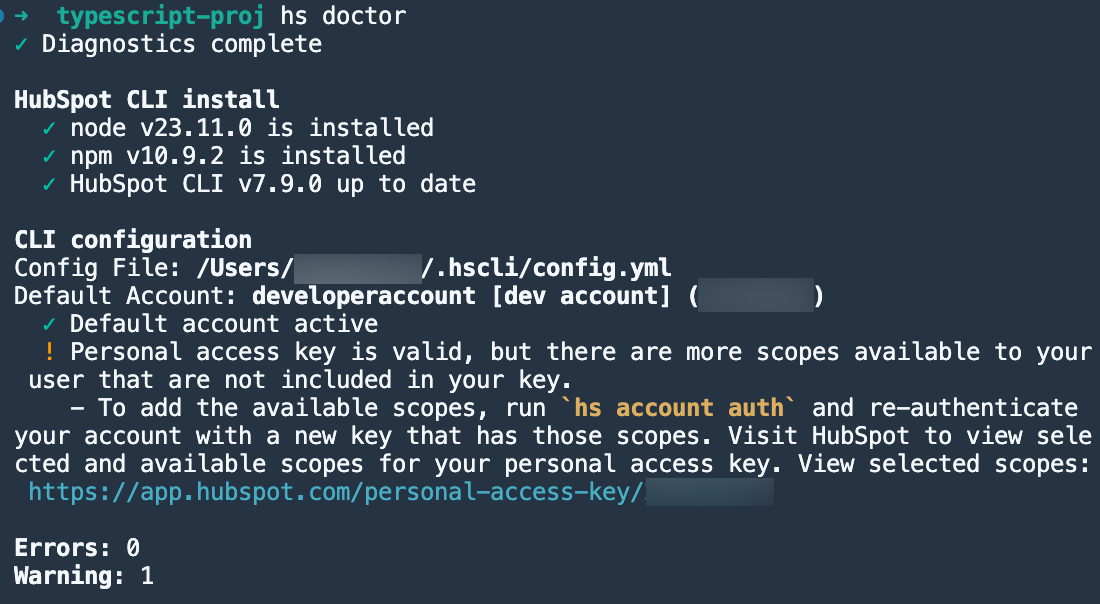
Run hs doctor to retrieve diagnostic information about your local HubSpot configurations. You can include the --output-dir flag to write the output to a file, which can be particularly helpful to share with HubSpot support should you need to open a ticket.
The output will provide information about your local HubSpot configuration, including:
- The installed versions of the HubSpot CLI, Node, and npm.
- The location of the HubSpot CLI configuration file.
- The current default account, along with its current active status.
Enable debug logging
Append the --debug flag to other HubSpot CLI commands to enable debug logging. This will add debugging statements to your terminal output that show information about the CLI’s internal operations. In addition to providing additional context when running into errors, it can also be helpful for sharing with HubSpot support should you need to open a ticket.
Last modified on May 26, 2026