> ## Documentation Index
> Fetch the complete documentation index at: https://developers.hubspot.com/docs/llms.txt
> Use this file to discover all available pages before exploring further.
---
id: 836e1747-f4af-4ef6-979c-da8be2d4bbec
---
# Install the HubSpot Visual Studio Code extension
The HubSpot Visual Studio Code extension provides a set of tools to streamline local HubSpot development. Using the extension, you can install and manage the HubSpot CLI, authenticate and manage connected accounts, as well as quickly develop using HubL with syntax highlighting, autocomplete, boilerplate content, and more.
Below, learn how to install and use the extension. Learn more about Visual Studio Code [here](https://code.visualstudio.com/).
## Install the extension
To install the HubSpot VS Code extension:
* In VS Code, navigate to **Preferences** > **Extensions**.
* In the search bar, search for **HubSpot**, then click **Install**.
A HubSpot panel will then be added to the left sidebar, which you can click to access HubSpot-specific actions, resources, and more. 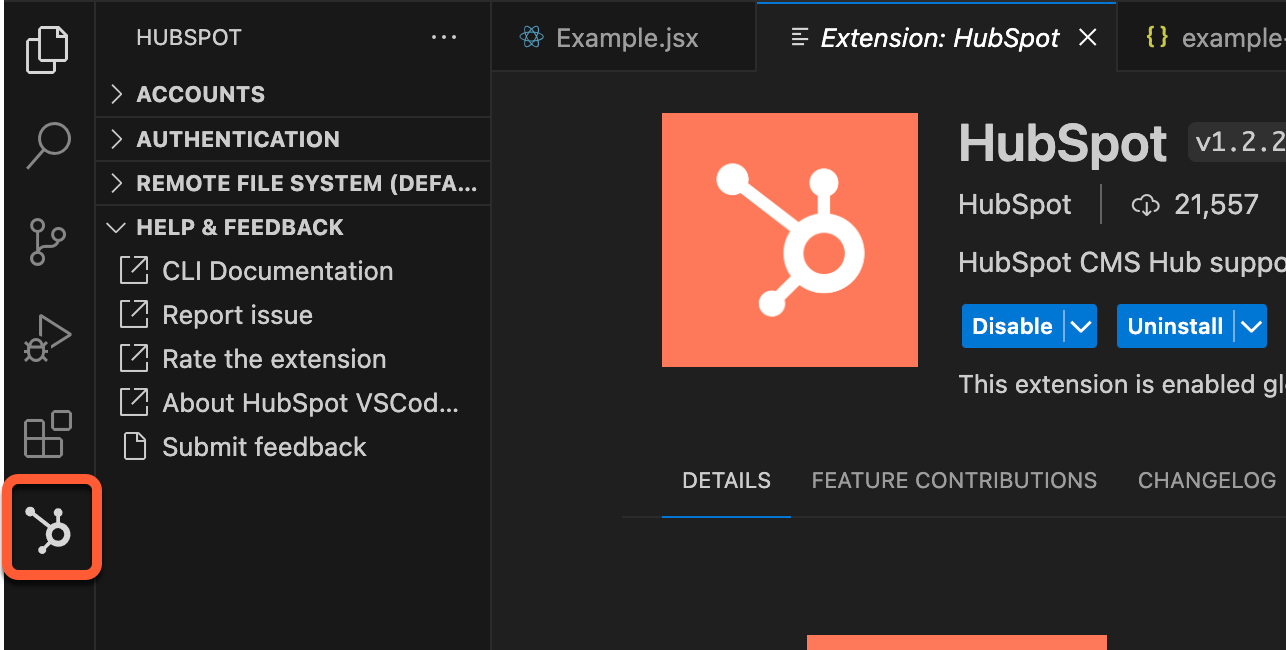
## Manage authenticated HubSpot accounts
Using the extension, you can manage the accounts that you want connected to the CLI, similar to using the [authentication CLI commands](/developer-tooling/local-development/hubspot-cli/reference#authentication).
### Authenticate a new account
To authenticate a HubSpot account using the extension:
* In the extension panel, under *Authentication*, click **Authenticate HubSpot Account**.
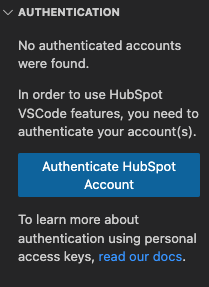
* In the dialog box, click **Open** to open HubSpot in a browser window.
* In your browser, select the HubSpot account you want to authenticate, then click **Continue with this account**.
* If you haven't generated an access key for your account yet, select the **permissions** you need, then click **Generate personal access key**.
* In the dialog box, click **Open Visual Studio Code** to navigate back to VS Code.
* You'll then be prompted to select whether this account should be set as the default account. Click **Yes** if you'd like CLI commands to interact with this account by default. You can change this at any time in the extension panel after authentication.
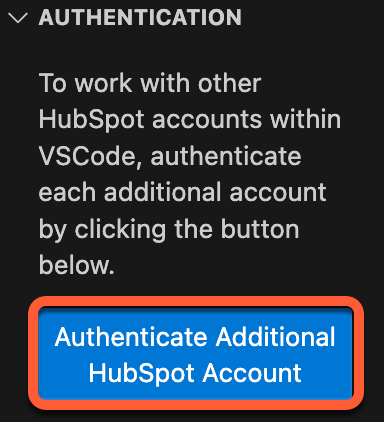
* To authenticate more accounts, click **Authenticate additional HubSpot account**, then repeat the above process.
### Manage connected accounts
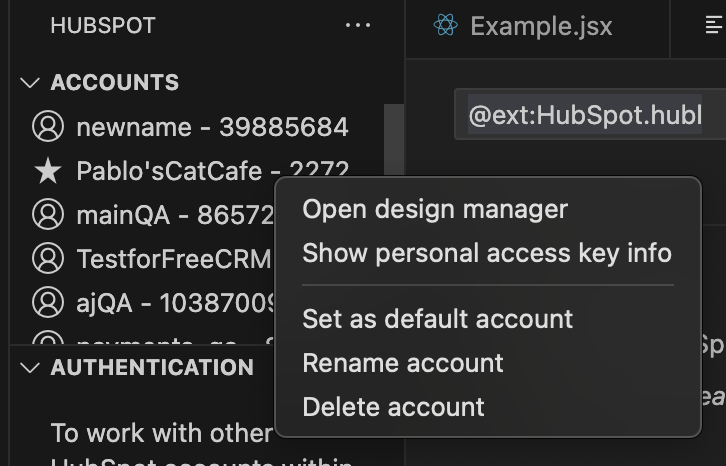
Under *Accounts*, the extension panel will display all currently authenticated HubSpot accounts, with the current default account marked by a **star** icon.
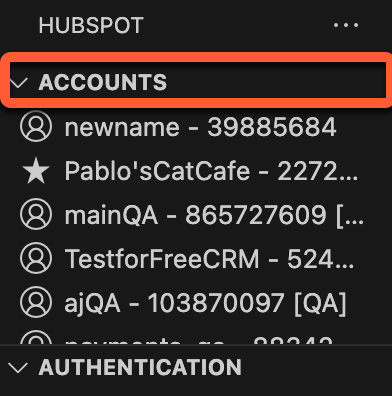 You can right-click the **account** to view account management options:
* **Open design manager:** navigate to the account's [design manager](/cms/start-building/introduction/developer-environment/design-manager).
* **Show personal access key info:** navigate to the account's personal access key page. This can be useful if you need to copy the key, see its scopes, or deactivate it.
* **Set as default account:** instruct the CLI to interact with the account by default when running commands.
* **Rename account:** change the account's name in the CLI. This will only change the label that the CLI uses.
* **Delete account:** remove the account from your list of authenticated accounts. This will not [delete the account](https://knowledge.hubspot.com/account/how-do-i-cancel-my-hubspot-account#crm-free-only).
## Validate hs-meta.json config files
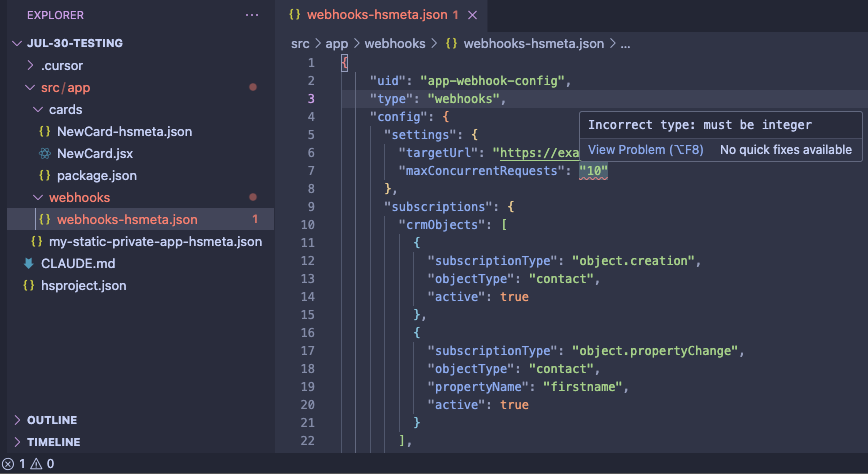
When creating an app, the extension will highlight any type inconsistencies in your `*-hsmeta.json` configuration files in your project. Learn more about app configuration in the [reference documentation](/apps/developer-platform/build-apps/app-configuration).
## CMS file management
In the *Remote file system* *(default account)* section of the extension, you can view, upload, and manage files stored in the default account's [developer file system](/cms/start-building/introduction/overview), which will reflect the files in the account's design manager. The files displayed in this section are read-only. Below, learn how to view, fetch, upload, watch, delete, and create new files.
### View files
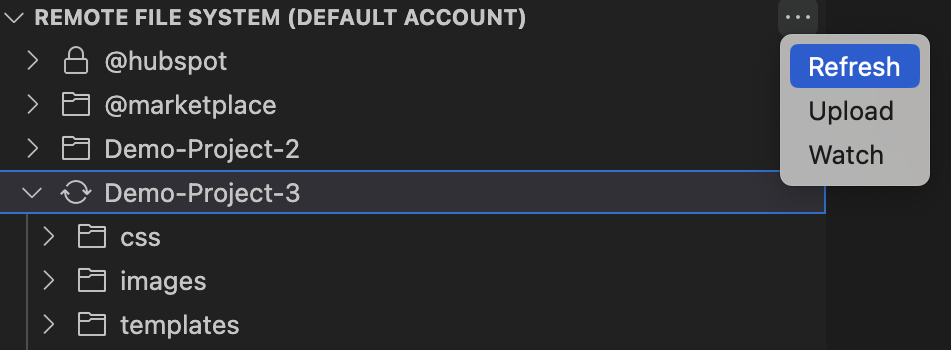
To view the default account's files, click to expand the **Remote File System** section in the left sidebar. You can refresh this view by clicking the **... options icon** and selecting **Refresh**.
### Upload files
To upload a new file or folder to the account:
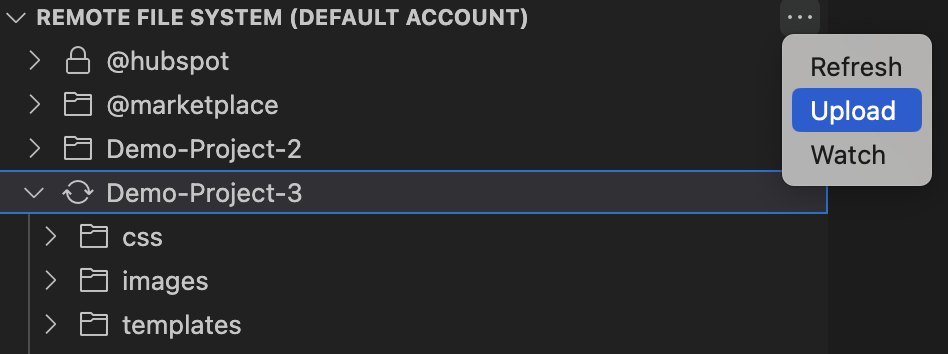
* Click the **... options icon**, then select **Upload**.
* Select the **file** or **folder** that you want to upload to the account.
* Enter the **destination path** where the file or folder will live in HubSpot, including any file extensions (e.g. `/my-theme/images/examplefile.jpg`). You can nest files within another folder by including those folders in the path.

You can find the path of an existing folder in the account's design manager. To open the design manager, right-click the account in the VS Code extension, then select **Open design manager**. Then, locate the folder in the left sidebar of the design manager, then right-click it and select **Copy path**.
.png)
* Press **Enter** to upload the file. The file system viewer will then update after upload. If an error occurs during upload, it will display in the bottom right of VS Code.
### Watch folders
You can set a [watch](/developer-tooling/local-development/hubspot-cli/reference#watch) on a folder to automatically upload changes within the folder on save. To watch a folder:
* Click the **... options icon**, then select **Watch**.
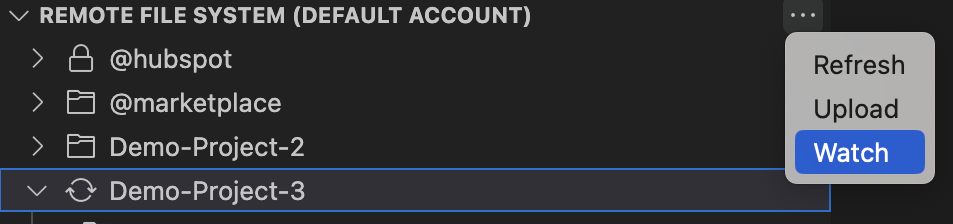
* Select the **folder** that you want to watch.
* Enter the destination path where the folder will live in HubSpot, then press **Enter**.

* The extension will display a **sync icon** next to the folder in the left sidebar to indicate that it's being watched.
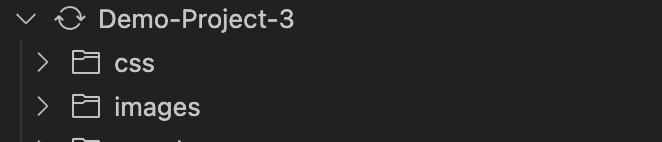
* To end a watch, right-click the folder being watched, then select **End Watch**
**Please note:** only one file or folder can be watched at a time. To watch multiple files or folders simultaneously, you can instead watch the root directory or other parent directory.
### Delete and fetch files
To delete a file or folder from the account:
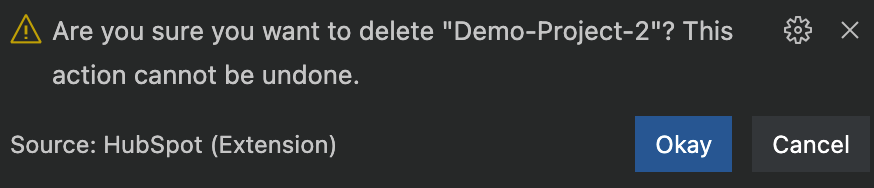
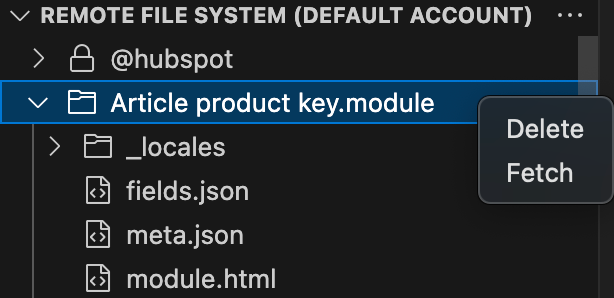
* Right-click the **file** or **folder** that you want to delete, then select **Delete**.
* You'll then be prompted to confirm whether you want to delete it. Click **Okay** to confirm the deletion.
To download a file or folder from the account to your local environment:
* Right-click the **file** or **folder** that you want to fetch, then select **Fetch**.
* You'll then be prompted to select the folder that you want to download it to.
### Create new files
To generate scaffolded files for new CMS assets in VS Code:
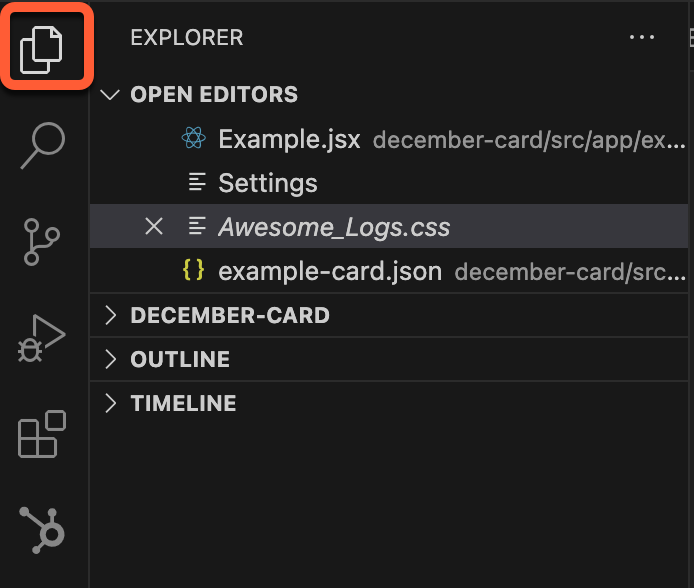
* In the left sidebar, click the **Explorer icon** to view your working directory.
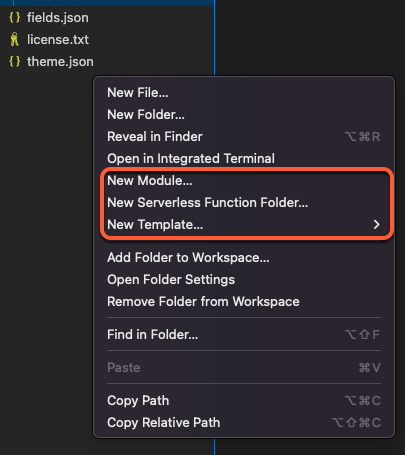
* Right-click the **File explorer panel** and select one of the **New** options:
* **New template:** generates a new global partial, page, partial, or section template with boilerplate content.
* **New module:** generates a new module with boilerplate content.
* **New Serverless Function folder:** generates a `.functions` folder that contains boilerplate `serverless.js` and `serverless.json` files. You can add another serverless function to the folder by right-clicking the **folder**, then selecting **New serverless function**.
## HubL Language support
To enable HubL language support in your files, configure your VS Code file association settings:
* In VS Code, open the command prompt by pressing `cmd` + `shift` + `p`.
* Search for and select **Preferences: Open User Settings**.
* Choose the scope of your settings by clicking either the **User** or **Workspace** tab.
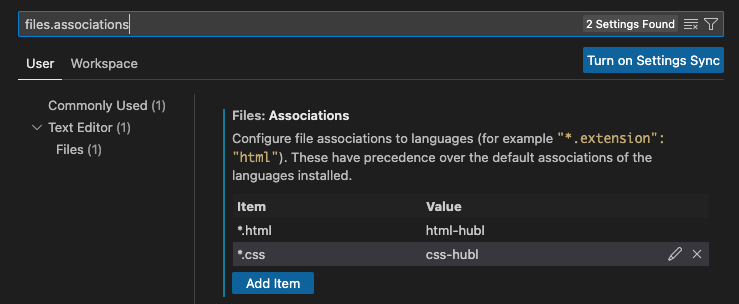
* In the settings search bar, search for **files.associations**.
* Click **Add item**, then add the following item-value pairs:
* `*html`: `html-hubl`
* `*css`: `css-hubl`
### Supported HubL syntax
When developing with HubL, the extension offers the following [HubL syntax](/cms/reference/hubl/operators-and-expression-tests) support:
* **Inline HubL linting:** checks your HTML, CSS, HTML + HubL, and CSS + HubL files for HubL-related errors and displays them inline.
* **HubL syntax highlighting:** supports HubL syntax highlighting in the files associated through your VS Code language mode settings. Learn how to [set your file associations](#add-hubl-file-associations) below.
* **Statement wrapping:** supports `{% %}`, `{# #}`, and `{{ undefined.undefined }}` [delimiters](/cms/reference/hubl/operators-and-expression-tests#types-of-delimiters).
* **Block comment toggling:** create HubL comments by pressing `cmd` + `/`.
* **Autocomplete:** offers autocomplete suggestions for supported HubL tags, filters, expression tests, and functions. [Learn more about autocomplete](#autocomplete-reference) below.
* **Emmet** **for HTML + HubL files:** allows [Emmet](https://code.visualstudio.com/docs/languages/emmet) abbreviation and snippet expansions for HTML + HubL files. Learn how to [enable Emmet support](#enable-emmet-for-html-hubl-files) below.
* **IntelliSense suggestions:** enables [IntelliSense](https://code.visualstudio.com/docs/editing/intellisense#:~:text=You%20can%20trigger%20IntelliSense%20in,name%20to%20limit%20the%20suggestions.) suggestions when in snippet placeholders. Learn how to [enable IntelliSense Suggestions](#enable-intellisense-suggestions) below.
### Enable Emmet for HTML + HubL files
To enable [Emmet](https://code.visualstudio.com/docs/languages/emmet) support for abbreviations and snippet expansion in `html-hubl` files, map `html-hubl` to `html` in your Emmet settings:
* In VS Code, open the command prompt by pressing `cmd` + `shift` + `p`.
* Search for and select **Preferences: Open User Settings**.
* Choose the scope of your settings by clicking either the **User** or **Workspace** tab.
* In the settings search bar, search for **Emmet: Include Languages**.
* Click **Add item**, then add the following item-value pair: `html-hubl`: `html`.

### Enable IntelliSense suggestions
To enable [IntelliSense](https://code.visualstudio.com/docs/editing/intellisense#:~:text=You%20can%20trigger%20IntelliSense%20in,name%20to%20limit%20the%20suggestions.) suggestions when in snippet placeholders:
* In VS Code, open the command prompt by pressing `cmd` + `shift` + `p`.
* Search for and select **Preferences: Open User Settings**.
* Choose the scope of your settings by clicking either the **User** or **Workspace** tab.
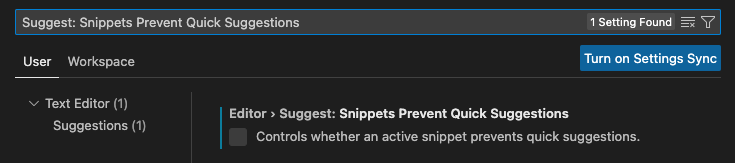
* In the settings search bar, search for **Editor** **Suggest: Snippets Prevent Quick Suggestions** and ensure that the checkbox is **cleared**.
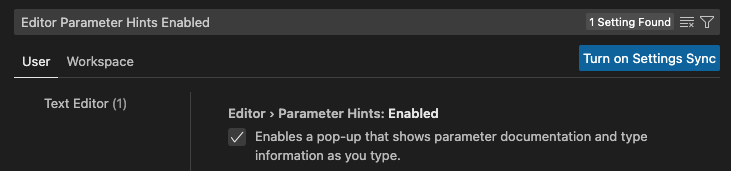
* Then, in the settings search bar, search for **Editor Parameter Hints Enabled** and ensure that the checkbox is **selected**.
### Autocomplete reference
The HubSpot extension enables quick access to snippets that map to support HubL tags, filters, expression tests, and functions. To access autocomplete suggestions, you'll need to use the following prefixes:
* [Expression tests](/cms/reference/hubl/loops): type the **test name** alone, then pres **Enter**. For example, typing `div` produces `divisibleby`.
* [Filters](/cms/versions-deprecations/deprecated/hubl/filters-functions): type `|` followed by the **filter**, then press **Enter**. For example, typing `|se` produces `|selectattr('attr', exp_test)`.
* [Functions](/cms/reference/hubl/functions) and [tags](/cms/reference/hubl/tags/related-blog-posts): type `~` followed by the **function** or **tag**, then press **Enter**. For example, typing `~hub` produces `hubdb_table_rows(${table_id}`.
* [HubL supported variables](/cms/reference/hubl/variables-macros-syntax): type the **variable name** alone, then press **Enter**. For example, `content.ab` produces `{{ content.absolute_url` `}}`.
* [Module fields](/cms/reference/fields/overview): in JSON files, type the **field type**, then press **Enter**. For example: `ri` produces:
```json theme={null}
// typing ri > Enter produces:
{
"name": "richtext_field",
"label": "Rich text field",
"required": false,
"locked": false,
"type": "richtext",
"inline_help_text": "",
"help_text": "",
"default": null
}
```
### Other snippets
Other snippets you can generate with the VS Code extension include:
| Snippet prefix | Description | Example |
| -------------- | -------------------------------------------------------------------------------------------------------------------- | -------------------------------------------------------------------------------------------------- |
| `otrue` | Generates `overrideable=True` for HubL tags. | `overrideable=True` |
| `ofalse` | Generates `overrideable=False` for [HubL tags](/cms/reference/hubl/tags/related-blog-posts). | `overrideable=False` |
| `for` | Returns a basic [for loop](/cms/reference/hubl/if-statements). | `{% for iterable in dict %}``{{ iterable }}``{% endfor %}` |
| `if` | Returns a basic [if statement](/cms/reference/hubl/functions). | `{% if {condition} %} do_something {% endif %}` |
| `elif` | Returns an [else if](/cms/reference/hubl/functions#using-elif-and-else) statement to be used within an if statement. | `{% elif {condition} %}` |
| `else` | Returns an [else](/cms/reference/hubl/functions#using-elif-and-else) statement to be used within an if statement. | `{% else %}` |
| `hubldoc` | Returns a boilerplate HTML + HubL document. | |
| `hublblog` | Returns boilerplate blog markup. | |
The extension also offers autocomplete for file paths when used with the HubL tags and parameters below. To access file path autocompletions, start typing the **HubL tag** or **parameter** followed by a **quotation mark**.
* `{% include "... %}`
* `{% import "... %}`
* `{% tag_name path="... %}`
* `{% extend "... %}`

**Please note:** autocomplete will not pull in [HubSpot default module](/cms/reference/modules/default-module-versioning) file paths.
## Enable extension beta features
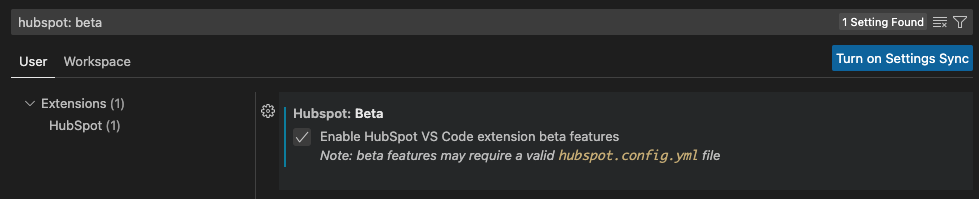
To enable HubSpot VS Code extension beta features:
* In VS Code, open the command prompt by pressing `cmd` + `shift` + `p`.
* Search for and select **Preferences: Open User Settings**.
* Choose the scope of your settings by clicking either the **User** or **Workspace** tab.
* In the settings search bar, search for **HubSpot: Beta** and select the **checkbox**.
## Telemetry
HubSpot for VS Code collects user data in order to improve the extension’s experience. You can [review HubSpot’s privacy policy here](https://legal.hubspot.com/privacy-policy). Additionally, you may opt out of data collection by changing the setting for global telemetry in VS Code. To read more about VS Code and telemetry, including disabling telemetry reporting, [please read the official VS Code documentation](https://code.visualstudio.com/docs/configure/telemetry).
## Contribute
This extension is open source and HubSpot welcomes contributions as well as issues for feature requests and bug reports. For more information about contributing, see the [contributing docs](https://github.com/HubSpot/hubspot-cms-vscode/blob/master/CONTRIBUTING.md) to get started.