Postman is a third-party API client that provides pre-built collections for all major HubSpot APIs that are immediately ready to use once you configure your authentication for your HubSpot account. This guide will walk you through how to access Postman collections for HubSpot APIs, authenticate your API calls, and send requests to efficiently develop and test your apps.
Before you proceed, you’ll need a free Postman account to access the HubSpot API collections.
Access Postman collections for HubSpot APIs
The HubSpot public API workspace in Postman includes API collections for most of the latest versions of the HubSpot REST APIs. You can use these collections to explore endpoints, test requests, and kickstart your development.
To browse the HubSpot API Postman collections, navigate directly to the HubSpot Public API workspace within Postman. In the workspace, all available API collections will be grouped by product (e.g., the CRM API collections, the CMS API collections, etc).
To preview or use a HubSpot API collection in your own workspace:
- Log in to your Postman account or sign up for a new account.
- In the same browser session, navigate to the HubSpot API guide for a given endpoint, such as the contacts API guide, then click the Postman collection link at the top of the page.
- You’ll be redirected to Postman, where you’ll be prompted to fork the collection. You can click the View collection link to preview the collection in your workspace first. Otherwise, click Fork collection to create a copy of the collection in your own workspace so you can freely make modifications:
- Enter a fork label so it can be uniquely identified in your own workspace.
- Select a workspace to fork the collection into.
- Under Notifications, it’s recommended to leave the Watch original collection checkbox selected, which will ensure you’re alerted when the original collection is updated. You can then pull any changes to the latest collection into your workspace.
- Click Fork collection.
Make an API request using a Postman collection
After you’ve forked a collection into your workspace, you can securely provide your authentication details within Postman and test out API requests using the collection:
- Locate your authentication token for your app based on whether you’re using a Static access token or OAuth authentication, then copy that token to the clipboard. Learn more about the different authentication methods you can use when developing with HubSpot.
- Navigate to your Postman account, locate the forked collection, then click the API endpoint you want to make a request to.
- In the top right, click No environment, then click Create environment to create an environment:
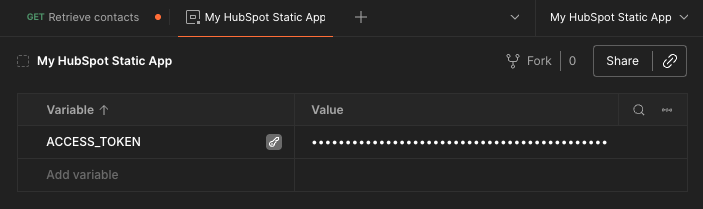
- Hover over New environment to provide a custom name (e.g., My HubSpot static app).
- Under the Variable column in the table, enter ACCESS_TOKEN as a new variable name, then hover over it and click the key icon to mark the variable as sensitive.
- Under the Value column, paste in your access token you copied from your HubSpot app.
- With your environment ready, click the API endpoint tab or side-navigation entry to navigate back to configuring the API request.
- Click the Authorization tab to set up authentication for the request:
- Click the Auth Type dropdown menu, then select Bearer token.
- On the right, next to Token, enter
{{ACCESS_TOKEN}} to reference the variable you configured in your environment. You can also paste in your access token here directly if you’d prefer not to use an environment.
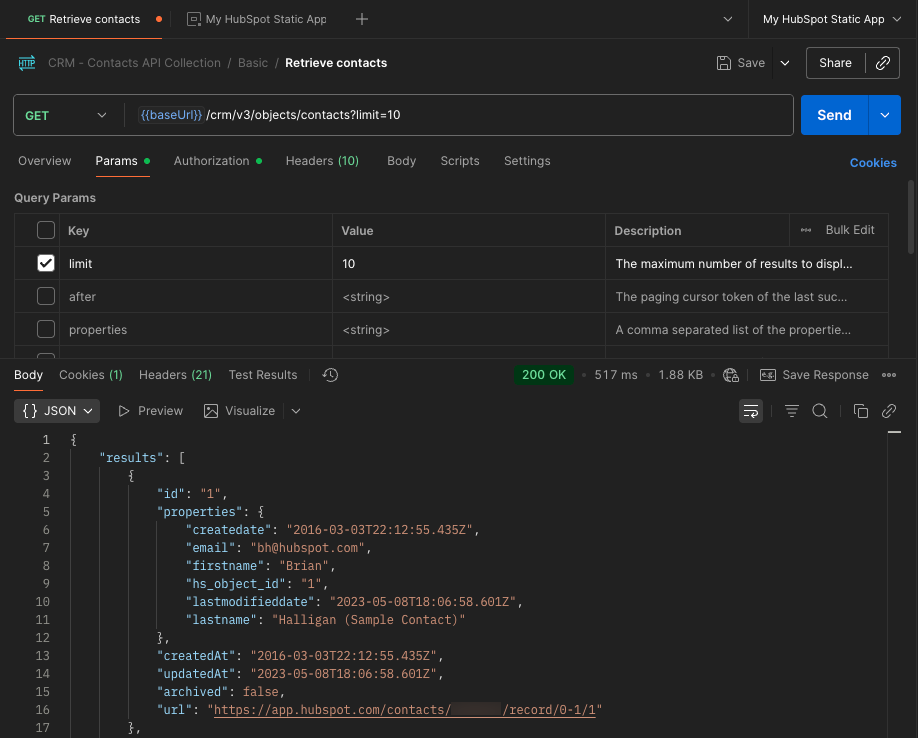
- Click the Params tab to customize the query parameters for your request. You can also provide request body parameters by clicking the Body tab.
- Once you’ve configured your request, click Send in the top right to execute the request.
A successful request will result in a 200 response. Learn more about the tools Postman provides to manage response data or how to debug requests in their official documentation.
Recommended resources
To learn more about using Postman to leverage HubSpot’s APIs, check out the resources below:
Last modified on March 29, 2026