> ## Documentation Index
> Fetch the complete documentation index at: https://developers.hubspot.com/docs/llms.txt
> Use this file to discover all available pages before exploring further.
---
id: 923aff6f-40b6-4073-9935-153d15703a33
---
# Set up GitHub Actions
> Automate HubSpot project deployments with GitHub Actions to upload your project on every push to your repository.
HubSpot provides a set of [GitHub Actions](https://docs.github.com/en/actions) for automating common project tasks, including uploading, deploying, and validating your projects. You can use these actions to build a CI/CD pipeline that keeps your HubSpot project in sync with your repository automatically.
This guide covers how to set up:
* A basic deployment workflow that uploads your project to HubSpot on every push to `main`.
* A multi-environment setup that uses config profiles and multiple workflows to deploy to separate QA and production accounts based on the target branch.
For the full list of available actions and reference documentation, see the [hubspot-project-actions repository](https://github.com/HubSpot/hubspot-project-actions) and [GitHub Marketplace page](https://github.com/marketplace/actions/hubspot-project-action).
## Prerequisites
To set up automation with GitHub Actions, you'll need the following:
* A GitHub repository with `write` access for creating [repository secrets](https://docs.github.com/en/actions/how-tos/write-workflows/choose-what-workflows-do/use-secrets#creating-encrypted-secrets-for-a-repository).
* An existing HubSpot project built on platform version `2025.2` or higher. For older versions, see the migration steps in the expandable section below.
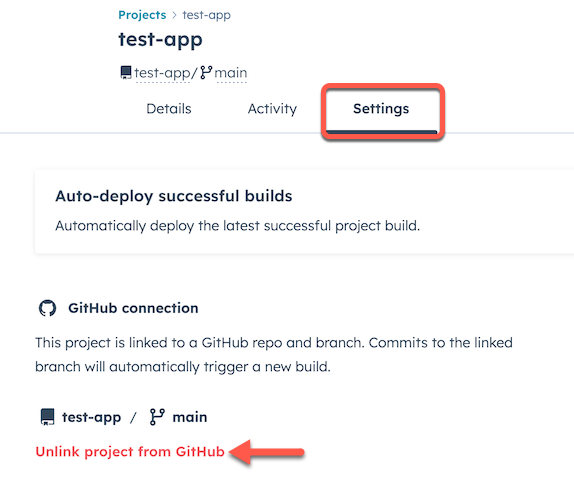
If you currently use the built-in GitHub integration for a project built on version `2025.1` of the developer platform, you'll first need to turn it off and migrate your app to the [latest version](/developer-tooling/platform/versioning).
To turn off the built-in integration:
* In your HubSpot account, click **Development** in the main navigation bar.
* In the left sidebar menu, click **Projects**.
* Click the **name** of the project that you'll be migrating.
* Click the **Settings** tab.
* Under *GitHub connection*, click **Unlink project from GitHub**, then confirm that you're unlinking in the dialog box.
 Then, migrate your app using the guides below:
* [Migrate a private app](/apps/developer-platform/build-apps/migrate-an-app/migrate-an-existing-private-app)
* [Migrate a public app](/apps/developer-platform/build-apps/migrate-an-app/migrate-an-existing-public-app)
## Set up a basic action
To set up GitHub Actions, you'll first create the GitHub secrets used for connecting the repository to your HubSpot account, then create a workflow file that runs the HubSpot project action:
* In your GitHub repository, [create repository secrets](https://docs.github.com/en/actions/how-tos/write-workflows/choose-what-workflows-do/use-secrets#creating-encrypted-secrets-for-a-repository) for the following HubSpot details, which you'll later reference in your workflow file:
* `HUBSPOT_ACCOUNT_ID`: the ID of your HubSpot account.
* `HUBSPOT_PERSONAL_ACCESS_KEY`: your [personal access key](https://app.hubspot.com/l/personal-access-key).
* In your local HubSpot project, create a `.github/workflows/` directory if one doesn't already exist, then create a `main.yml` file within it. You can give the file any name you'd like, as long as it uses the `.yml` or `.yaml` extension.
* Paste the following code into the file:
```yml .github/workflows/main.yml theme={null}
on:
push:
branches:
- "main"
env:
DEFAULT_ACCOUNT_ID: ${{ secrets.HUBSPOT_ACCOUNT_ID }}
DEFAULT_PERSONAL_ACCESS_KEY: ${{ secrets.HUBSPOT_PERSONAL_ACCESS_KEY }}
DEFAULT_CLI_VERSION: "8.0.0" # Optional
jobs:
deploy:
runs-on: ubuntu-latest
steps:
- name: Checkout
uses: actions/checkout@v4
- name: Upload to HubSpot
uses: HubSpot/hubspot-project-actions@v1.1.0
```
| Key | Description |
| ------ | ----------------------------------------------------------------------------------------------------------------------------------------------------------------------------------------------------------------------------------------------------------------------------------------------------------------------------------------------------------------------------------------------------------------------------------------------------------------------------------------------------------------------------------------------------------------------------------------------------------------------------------------------------------------- |
| `on` | Configures the workflow to trigger on any push to the `main` branch. You can replace `main` with your default branch name as needed. |
| `env` |
Then, migrate your app using the guides below:
* [Migrate a private app](/apps/developer-platform/build-apps/migrate-an-app/migrate-an-existing-private-app)
* [Migrate a public app](/apps/developer-platform/build-apps/migrate-an-app/migrate-an-existing-public-app)
## Set up a basic action
To set up GitHub Actions, you'll first create the GitHub secrets used for connecting the repository to your HubSpot account, then create a workflow file that runs the HubSpot project action:
* In your GitHub repository, [create repository secrets](https://docs.github.com/en/actions/how-tos/write-workflows/choose-what-workflows-do/use-secrets#creating-encrypted-secrets-for-a-repository) for the following HubSpot details, which you'll later reference in your workflow file:
* `HUBSPOT_ACCOUNT_ID`: the ID of your HubSpot account.
* `HUBSPOT_PERSONAL_ACCESS_KEY`: your [personal access key](https://app.hubspot.com/l/personal-access-key).
* In your local HubSpot project, create a `.github/workflows/` directory if one doesn't already exist, then create a `main.yml` file within it. You can give the file any name you'd like, as long as it uses the `.yml` or `.yaml` extension.
* Paste the following code into the file:
```yml .github/workflows/main.yml theme={null}
on:
push:
branches:
- "main"
env:
DEFAULT_ACCOUNT_ID: ${{ secrets.HUBSPOT_ACCOUNT_ID }}
DEFAULT_PERSONAL_ACCESS_KEY: ${{ secrets.HUBSPOT_PERSONAL_ACCESS_KEY }}
DEFAULT_CLI_VERSION: "8.0.0" # Optional
jobs:
deploy:
runs-on: ubuntu-latest
steps:
- name: Checkout
uses: actions/checkout@v4
- name: Upload to HubSpot
uses: HubSpot/hubspot-project-actions@v1.1.0
```
| Key | Description |
| ------ | ----------------------------------------------------------------------------------------------------------------------------------------------------------------------------------------------------------------------------------------------------------------------------------------------------------------------------------------------------------------------------------------------------------------------------------------------------------------------------------------------------------------------------------------------------------------------------------------------------------------------------------------------------------------- |
| `on` | Configures the workflow to trigger on any push to the `main` branch. You can replace `main` with your default branch name as needed. |
| `env` | - Stores your GitHub secrets as environment variables so the action can authenticate with your HubSpot account.
- Specifies a version of the CLI to use for workflow execution. By default, a predetermined stable version is used. When specifying a version, it's recommended to use a version number (e.g., `"8.0.0"`) rather than `"latest"` or `"next"` to prevent new releases from impacting your CI/CD pipeline.
**Please note:** never set the `HUBSPOT_ACCOUNT_ID` or `HUBSPOT_PERSONAL_ACCESS_KEY` secret values directly in this file. Authentication-related values should only be stored as GitHub secrets. |
| `jobs` | Defines a `deploy` job, which uses HubSpot project actions to validate and upload the project to your HubSpot account. For more information about each action, check out the [hubspot-project-actions repository](https://github.com/HubSpot/hubspot-project-actions#available-actions). |
* With your action defined, push your changes to GitHub.
Moving forward, every push to the `main` branch will trigger an upload to your target HubSpot account. You can [verify that the workflow ran successfully](#verify-workflow-success) by checking your workflow logs in GitHub and reviewing the project's build and deploy logs in HubSpot.
## Set up multi-environment workflows
If you want to deploy your HubSpot project to separate environments (e.g., a QA account for testing and a production account for live deployments), you can combine HubSpot's [config profiles](/developer-tooling/local-development/build-with-config-profiles) with multiple workflows.
In this type of setup, the config profiles let you define environment-specific settings in your project, including which HubSpot account to target. By pairing each profile with its own workflow file, you can control which HubSpot account gets updated based on which branch you push to. For example:
* **QA workflow:** when you push to the `qa` branch, deploy the project to your test HubSpot account.
* **Production workflow:** when you push to `main`, deploy the project to your production HubSpot account.
A push is one of many available workflow triggers. Learn more in [GitHub's documentation](https://docs.github.com/en/actions/reference/workflows-and-actions/events-that-trigger-workflows).
### Define config profiles
Before configuring your workflows, create a config profile for each environment you want to target. See [build with config profiles](/developer-tooling/local-development/build-with-config-profiles) for setup instructions.
For a standard two-environment setup, you might create:
* A `qa` profile targeting your test HubSpot account
* A `prod` profile targeting your production HubSpot account
After defining config profiles in your project, commit the `hsprofile.*.json` files to your repository. Each workflow references its profile by name and resolves it from these committed files at upload time.
### Create GitHub secrets for each environment
In your GitHub repository, create a pair of secrets for each environment. Each pair should contain the account ID and personal access key for that environment's HubSpot account. Each environment's account ID secret must match the `accountId` defined in that profile's `hsprofile.*.json` file.
For example:
* For a `qa` profile targeting account 12345:
* `HUBSPOT_QA_ACCOUNT_ID` = `12345`
* `HUBSPOT_QA_PERSONAL_ACCESS_KEY` = ``
* For a `prod` profile targeting account 67890:
* `HUBSPOT_PROD_ACCOUNT_ID` = `67890`
* `HUBSPOT_PROD_PERSONAL_ACCESS_KEY` = ``
### Create a workflow file for each environment
In your project, create a dedicated workflow file for each environment. Each workflow targets a different branch and passes the profile name along with its credentials as explicit `with` inputs to the `project-upload` sub-action, as shown below.
**Please note:** when using profiles, you must pass credentials as `with` inputs to the `project-upload` action. The `env` variable approach used in the [basic setup](#set-up-a-basic-action) does not propagate correctly when using profiles.
**QA workflow:** deploys the project to your test HubSpot account when changes are pushed to the `qa` branch.
```yml deploy-qa.yml theme={null}
on:
push:
branches:
- "qa"
jobs:
deploy:
runs-on: ubuntu-latest
steps:
- name: Checkout
uses: actions/checkout@v4
- name: Upload to HubSpot (QA)
uses: HubSpot/hubspot-project-actions/project-upload@v1.1.0
with:
profile: "qa"
account_id: ${{ secrets.HUBSPOT_QA_ACCOUNT_ID }}
personal_access_key: ${{ secrets.HUBSPOT_QA_PERSONAL_ACCESS_KEY }}
```
**Production workflow:** deploys the project to your production HubSpot account when changes are pushed to the `main` branch.
```yml deploy-prod.yml theme={null}
on:
push:
branches:
- "main"
jobs:
deploy:
runs-on: ubuntu-latest
steps:
- name: Checkout
uses: actions/checkout@v4
- name: Upload to HubSpot (PROD)
uses: HubSpot/hubspot-project-actions/project-upload@v1.1.0
with:
profile: "prod"
account_id: ${{ secrets.HUBSPOT_PROD_ACCOUNT_ID }}
personal_access_key: ${{ secrets.HUBSPOT_PROD_PERSONAL_ACCESS_KEY }}
```
With this setup, every push to `qa` triggers a deployment to your test account, and every push to `main` triggers a deployment to your production account. You can extend this pattern by adding additional workflow files for other environments, each with their own branch trigger, secrets, and profile name.
## Verify workflow success
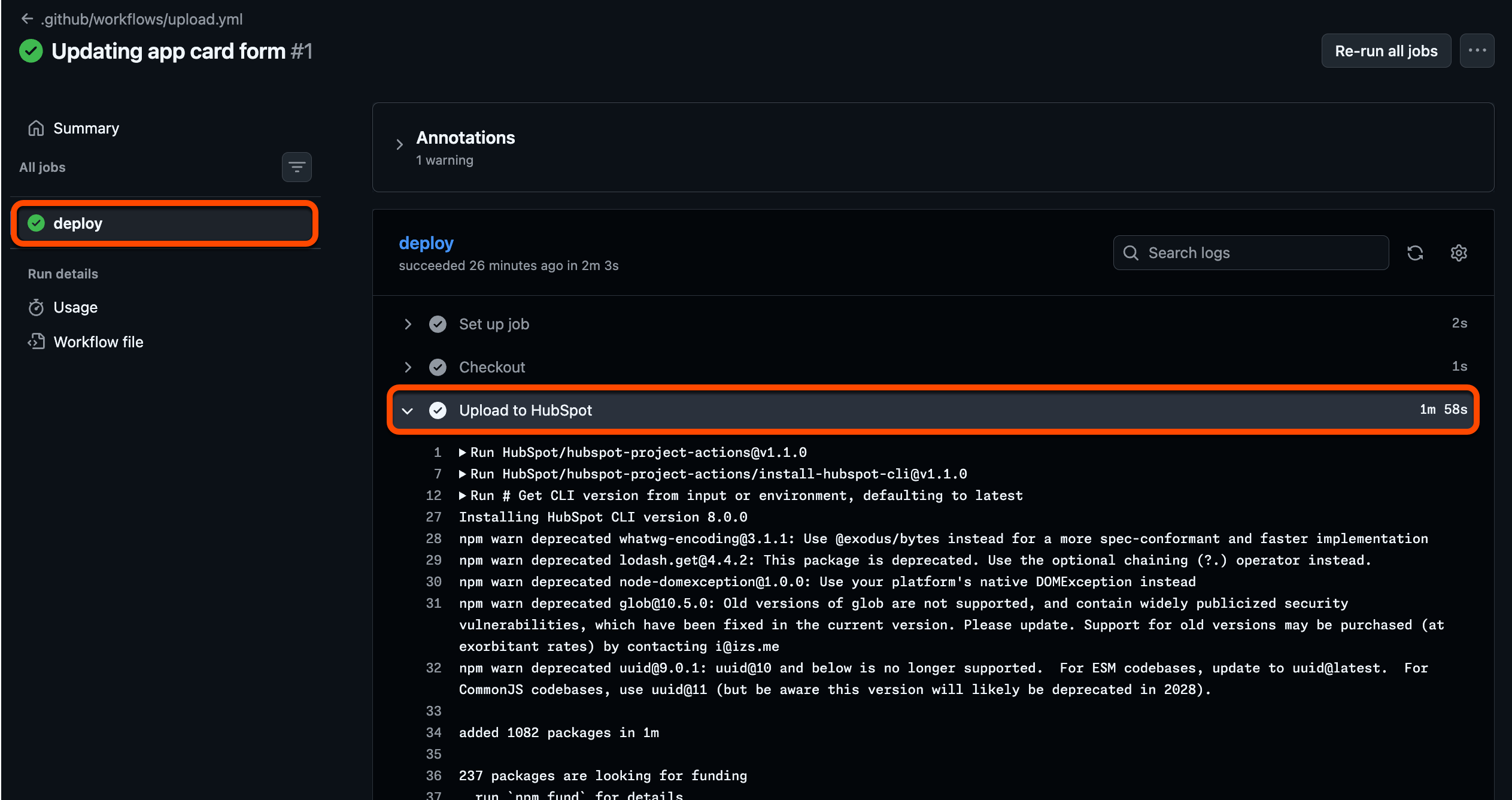
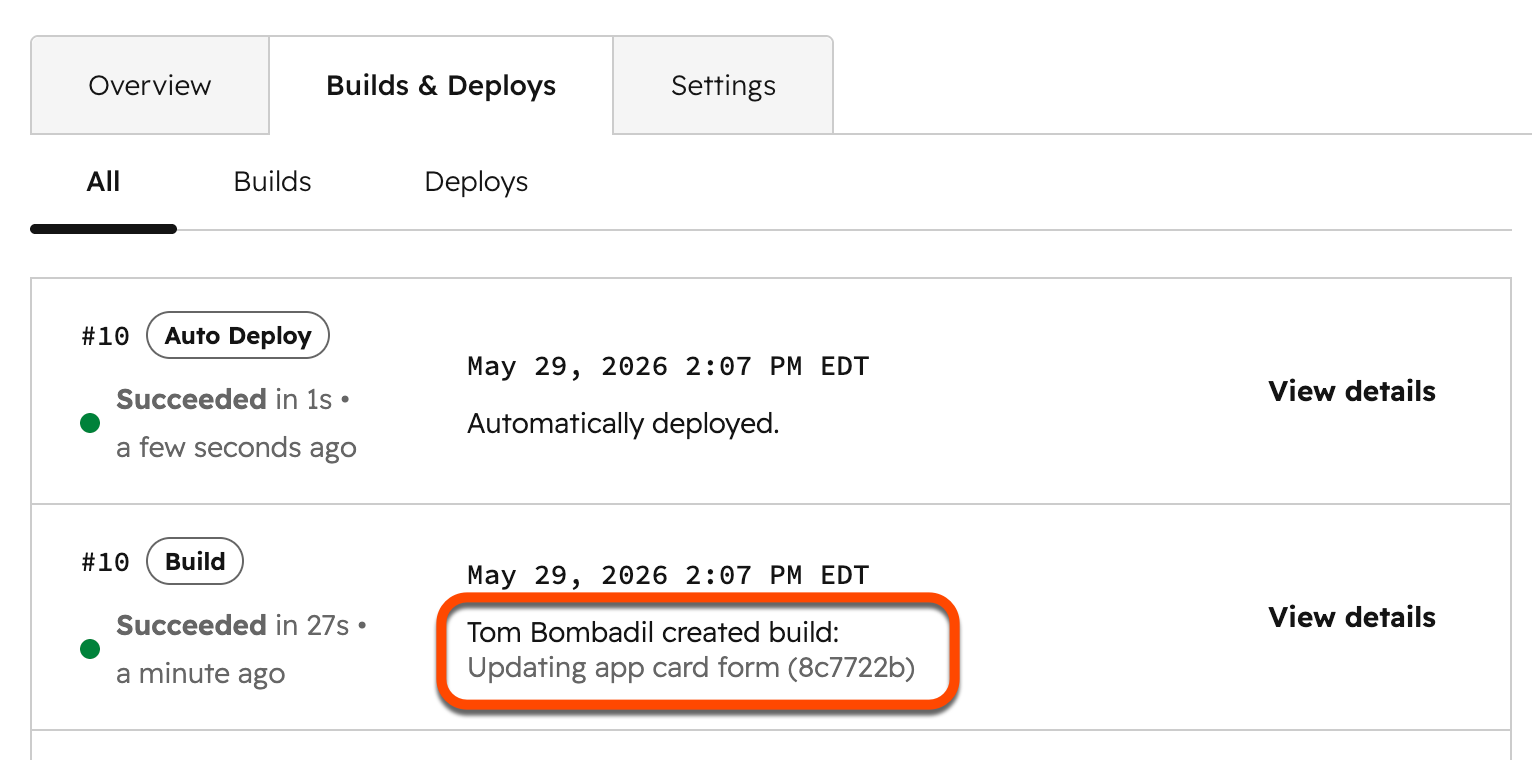
To verify that your workflows have run successfully, you can review the workflow run history in GitHub as well as the project build and deploy logs in HubSpot.
When [viewing workflow run history in GitHub](https://docs.github.com/en/actions/how-tos/monitor-workflows/use-workflow-run-logs#viewing-logs-to-diagnose-failures), you can view the details of each action defined in the workflow to ensure it ran as expected.
 To review the project's build and deploy logs in HubSpot:
* [Open the *Projects* dashboard](https://app.hubspot.com/l/developer-projects/).
* Click the **name** of the project.
You can also open a project from the terminal by running `hs project open` from within the project directory. Learn more about [project commands](/developer-tooling/local-development/hubspot-cli/project-commands).
* Click the **Builds & Deploys** tab.
Builds triggered by GitHub Actions are attributed with the commit message and SHA, distinguishing them from manual uploads.
To review the project's build and deploy logs in HubSpot:
* [Open the *Projects* dashboard](https://app.hubspot.com/l/developer-projects/).
* Click the **name** of the project.
You can also open a project from the terminal by running `hs project open` from within the project directory. Learn more about [project commands](/developer-tooling/local-development/hubspot-cli/project-commands).
* Click the **Builds & Deploys** tab.
Builds triggered by GitHub Actions are attributed with the commit message and SHA, distinguishing them from manual uploads.
 ## Troubleshooting
If your GitHub Actions workflow isn't working as expected, review the common issues and solutions below.
### YAML syntax errors
Branch names and other string values in your workflow file must be quoted. For example, `- main` without quotes can cause a `"no event trigger is defined"` error. Use `- "main"` instead:
```yml theme={null}
on:
push:
branches:
- "main"
```
### Action version mismatch
If a feature you expect (such as profile support) isn't available, ensure you are on at least `v1.1.0` of the action. Check the [hubspot-project-actions repository](https://github.com/HubSpot/hubspot-project-actions) for available versions and update the `uses` line in your workflow file accordingly.
### Secrets not configured correctly
If your workflow fails with authentication errors, verify the following:
* The secret names in your workflow file match exactly what you configured in your GitHub repository settings (e.g., `HUBSPOT_ACCOUNT_ID`, not `HUBSPOT_ACCOUNT_Id`).
* The secret values are correct and have not expired.
* You're referencing secrets using the `${{ secrets.SECRET_NAME }}` syntax.
### Workflow not triggering
If pushes to your branch don't trigger the workflow:
* Confirm that the branch name in your workflow file matches the branch you're pushing to. For example, if your default branch is `master` rather than `main`, update the workflow accordingly.
* Check the **Actions** tab in your GitHub repository for error messages or disabled workflows.
* Verify that the workflow file is located at `.github/workflows/` and has a `.yml` or `.yaml` extension.
## Troubleshooting
If your GitHub Actions workflow isn't working as expected, review the common issues and solutions below.
### YAML syntax errors
Branch names and other string values in your workflow file must be quoted. For example, `- main` without quotes can cause a `"no event trigger is defined"` error. Use `- "main"` instead:
```yml theme={null}
on:
push:
branches:
- "main"
```
### Action version mismatch
If a feature you expect (such as profile support) isn't available, ensure you are on at least `v1.1.0` of the action. Check the [hubspot-project-actions repository](https://github.com/HubSpot/hubspot-project-actions) for available versions and update the `uses` line in your workflow file accordingly.
### Secrets not configured correctly
If your workflow fails with authentication errors, verify the following:
* The secret names in your workflow file match exactly what you configured in your GitHub repository settings (e.g., `HUBSPOT_ACCOUNT_ID`, not `HUBSPOT_ACCOUNT_Id`).
* The secret values are correct and have not expired.
* You're referencing secrets using the `${{ secrets.SECRET_NAME }}` syntax.
### Workflow not triggering
If pushes to your branch don't trigger the workflow:
* Confirm that the branch name in your workflow file matches the branch you're pushing to. For example, if your default branch is `master` rather than `main`, update the workflow accordingly.
* Check the **Actions** tab in your GitHub repository for error messages or disabled workflows.
* Verify that the workflow file is located at `.github/workflows/` and has a `.yml` or `.yaml` extension.