
Scope requirements
Scope requirements
- File requirements
- Required properties for record and activity imports
- Required properties for marketing event participant imports
Start an import
You can start an import by making aPOST request to /crm/v3/imports with a request body that specifies how to map the columns of your import file to the associated properties in HubSpot.
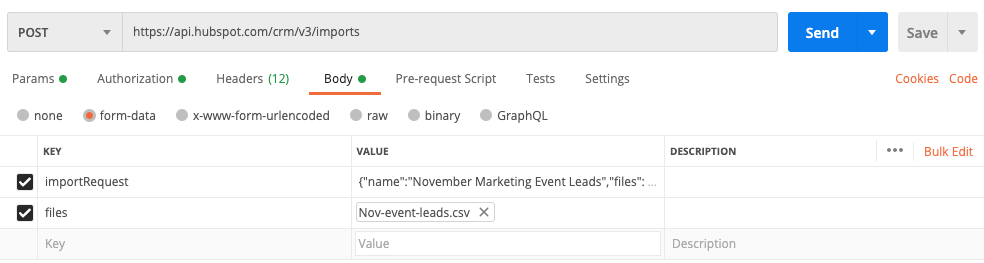
API imports are sent as form-data type requests, with the request body containing following fields:
- importRequest: a text field that contains the request JSON.
- files: a file field that contains the import file.
Content-Type header with a value of multipart/form-data.
The screenshot below shows what your request might look like when using an application like Postman:
Format the importRequest data
In your request, define the import file details, including mapping the spreadsheet’s columns to HubSpot data. Your request should include the following fields:- name: the name of the import. In HubSpot, this is the name displayed in the imports tool, as well as the name that you can reference in other tools, such as lists.
- importOperations: an optional field used to indicate whether the import should create and update, only create, or only update records for a certain object or activity. Include the
objectTypeIdfor the object/activity and whether you want toUPSERT(create and update),CREATE, orUPDATErecords. For example, the field would look like this in your request:"importOperations": {"0-1": "CREATE"}. If you don’t include this field, the default value used for the import isUPSERT. - dateFormat: the format for dates included in the file. By default, this is set to
MONTH_DAY_YEAR, but you can also useDAY_MONTH_YEARorYEAR_MONTH_DAY. - marketableContactImport: an optional field to indicate the marketing status of contacts in your import file. This is only used when importing contacts into accounts that have access to marketing contacts. To set the contacts in the file as marketing, use the value
true. To set the contacts in the file as non-marketing, use the valuefalse. - createContactListFromImport: an optional field to create a static list of the contacts from your import. To create a list from your file, use the value
true. - files: an array that contains your import file information.
- fileName: the name of the import file.
- fileFormat: the import file’s format. For CSV files, use a value of
CSV. For Excel files, use a value ofSPREADSHEET. - fileImportPage: contains the
columnMappingsarray required to map data from your import file to HubSpot data. Learn more about column mapping below.
Map file columns to HubSpot properties
Within thecolumnMappings array, include an entry for each column in your import file, matching the column header order of your spreadsheet.
For each column, include the following fields:
- columnObjectTypeId: the name or
objectTypeIdvalue of the object or activity to which the data belongs. Refer to this article for a full list ofobjectTypeIdvalues. - columnName: the name of the column header. This should exactly match the name of the column header in the file.
- propertyName: the internal name of the HubSpot property that the data will map to. For the common column in multi-file imports,
propertyNameshould benullwhen thetoColumnObjectTypeIdfield is used. - columnType: used to specify that a column contains a unique identifier property. Depending on the property and goal of the import, use one of the following values:
- HUBSPOT_OBJECT_ID: the ID of a record. For example, your contact import file might contain a Record ID column that stores the ID of the company you want to associate the contacts with.
- HUBSPOT_ALTERNATE_ID: a unique identifier other than the record ID. For example, your contact import file might contain an Email column that stores the contacts’ email addresses.
- FLEXIBLE_ASSOCIATION_LABEL: include this column type to indicate the column contains association labels.
- ASSOCIATION_KEYS: for same object association imports only, include this column type for the unique identifier of the same object records you’re associating. For example, in your request for a contacts association import, the Associated contact [email/Record ID] column must have a
columnTypeofASSOCIATION_KEYS. Learn more about setting up your import file for a same object association import.
- toColumnObjectTypeId: for multi-file or multiple object imports, the name or
objectTypeIdof the object the common column property or association label belongs to. Include this field for the common column property in the file of the object the property does not belong to. For example, if you’re associating contacts and companies in two files with the contact property Email as the common column, include thetoColumnObjectTypeIdfor the Email column in the company file. - foreignKeyType: for multi-file imports only, the type of association the common column should use, specified by the
associationTypeIdandassociationCategory. Include this field for the common column property in the file of the object the property does not belong to. For example, if you’re associating contacts and companies in two files with the contact property Email as the common column, include theforeignKeyTypefor the Email column in the company file. - associationIdentifierColumn: for multi-file imports only, indicates the property used in the common column to associate the records. Include this field for the common column property in the file of the object the property belongs to. For example, if you’re associating contacts and companies in two files with contact property Email as the common column, set the
associationIdentifierColumnastruefor the Email column in the contact file. For your common column, you must use one of the following:- The default
hs_object_id. This can be retrieved with a GET request for the corresponding object type. - A special secondary identifier property such as
emailordomain. - A custom property where the
hasUniqueValueis set totrue.
- The default
Please note:You cannot use arbitrary identifiers for multi-file imports. If you do not have the identifiers above, the only method to import multiple types of records with association is a single file import with multiple objects.
Import one file with one object
The examples below provide guidance on how to structure your request body for a single file to create contacts:- example.json
- example.py
- example.sh
The following JSON example shows how to specify the schema for importing a single contact from a CSV within a local file titled
Nov-event-leads.csv.Import one file with multiple objects
Below is an example request body of importing and associating contacts and companies in one file with association labels:Import multiple files
Below is an example request body of importing and associating contacts and companies in two files, where the contact property Email is the common column in the files:importId which you can use to retrieve or cancel the import. Once completed, you can view the import in HubSpot, but imports completed via API will not be available as an option when filtering records by import in views, lists, reports, or workflows.
Get previous imports
To retrieve all active imports from your HubSpot account, make aGET request to /crm/v3/imports/. To retrieve information for a specific import, make a GET request to /crm/v3/imports/{importId}.
When you retrieve imports, information will be returned including the import’s name, source, file format, language, date format, and column mappings. The import’s state will also be returned, which can be any of the following:
STARTED: HubSpot recognizes that the import exists, but the import hasn’t started processing yet.PROCESSING: The import is actively being processed.DONE: The import is complete. All the objects, activities, or associations have been updated or created.FAILED: There was an error that was not detected when the import was started. The import was not completed.CANCELED: User cancelled the export while it was in any of theSTARTED,PROCESSING, orDEFERREDstates.DEFERRED: The maximum number of imports (three) are processing at the same time. The import will start once one of the other imports finishes processing.
Cancel an import
To cancel an active import, make aPOST request to /crm/v3/imports/{importId}/cancel.
View and troubleshoot import errors
To view errors for a specific import, make aGET request to /crm/v3/imports/{importId}/errors. Learn more about common import errors and how to resolve them.
For errors such as Incorrect number of columns, Unable to parse JSON or 404 text/html is not accepted:
- Ensure that there is a column header for each column in your file, and that the request body contains a
columnMappingentry for each column. The following criteria should be met:- The column order in the request body and import file should match. If the column order doesn’t match, the system will attempt to automatically reorder but may be unsuccessful, resulting in an error when the import is started.
- Every column needs to be mapped. If a column is not mapped, the import request may still be successful, but would result in the Incorrect number of columns error when the import is started.
- Ensure that the file’s name and the
fileNamefield in your request JSON match, and that you’ve included the file extension in thefileNamefield. For example, import_name.csv. - Ensure that your header includes
Content-Typewith a value ofmultipart/form-data.
Examples
The following code snippets provide guidance on how to structure your import request data:- example.json
- example.py
- example.php
- example.sh
The JSON data below contains three columns:
- First name, mapped to the firstname contact property
- Email, mapped to the email contact property
- Company ID, which contains a list of company record IDs that the contact will be associated with.
Limits
When using the imports API, you can import up to 80,000,000 rows per day. However, individual import files are limited to 1,048,576 rows or 512 MB, whichever is reached first. If your request exceeds either the row or size limit, HubSpot will respond with a429 HTTP error. When approaching these limits, it’s recommended to split your import into multiple requests.