To chat with customers and leads on your website using HubSpot’s conversation inbox, you can set up a live chat widget. With the conversations SDK, you can provide a more tailored experience for visitors by customizing the behavior of the chat widget.
At a high level, the conversations SDK enables you to do the following:
Initializing
The API is housed in the window.HubSpotConversations object, which provides access to all available methods. The object is created by the HubSpot tracking code, but may not be available immediately on page load. To defer accessing the API until it’s initialized, you can use the window.hsConversationsOnReady helper.
window.hsConversationsOnReady is an optional field you can define on the window object which enables you to specify code to be executed as soon as the widget becomes available. This field takes an array functions to be executed once the API has been initialized.
<script type="text/javascript">
  function onConversationsAPIReady() {
    console.log(`HubSpot Conversations API: ${window.HubSpotConversations}`);
  }
  /*
    configure window.hsConversationsSettings if needed.
  */
  window.hsConversationsSettings = {};
  /*
   If external API methods are already available, use them.
  */
  if (window.HubSpotConversations) {
    onConversationsAPIReady();
  } else {
    /*
      Otherwise, callbacks can be added to the hsConversationsOnReady on the window object.
      These callbacks will be called once the external API has been initialized.
    */
    window.hsConversationsOnReady = [onConversationsAPIReady];
  }
</script>
hsConversationsSettings
This optional object enables you to provide some configuration options to the widget before it initializes.
window.hsConversationsSettings = {
  loadImmediately: false,
  inlineEmbedSelector: "#some-id",
  enableWidgetCookieBanner: true,
  disableAttachment: true,
};
window.hsConversationsOnReady = [
  () => {
    window.HubSpotConversations.widget.load();
  },
];
| Field | Type | Default | Description |
|---|
loadImmediately | Boolean | true | Whether the widget should implicitly load or wait until the widget.load method is called. |
inlineEmbedSelector | String | "" | Specify a selector (#some-id) to embed the chat widget in a specific location on the page. Widget will be embedded inline within that DOM node and will remain open until it is removed with widget.remove. Learn more about styling embedded chat widgets. |
enableWidgetCookieBanner | Enumeration | false | Control behavior of the cookie banner for all chat widgets on the page. Options include:false (default): uses the chat widget’s settings.true: presents cookie banners when the widget is loaded.ON_WIDGET_LOAD: same as true.ON_EXIT_INTENT: enable cookie banners when the user exhibits an exit intent.
|
disableAttachment | Boolean | false | Whether to hide the upload attachment button in the chat widget. |
disableInitialInputFocus | Boolean | false | Whether to automatically prevent focusing on the widget’s input field after an inline embedded widget is initially loaded. |
avoidInlineStyles | Boolean | false | When set to true, injects a link tag with externally hosted CSS instead of a direct dynamic insertion of a style tag. |
hideNewThreadLink | Boolean | false | When set to true, prevent the To start a new chat, click here link from appearing below the Your chat has ended text when a chat has ended. |
Inline embed styling
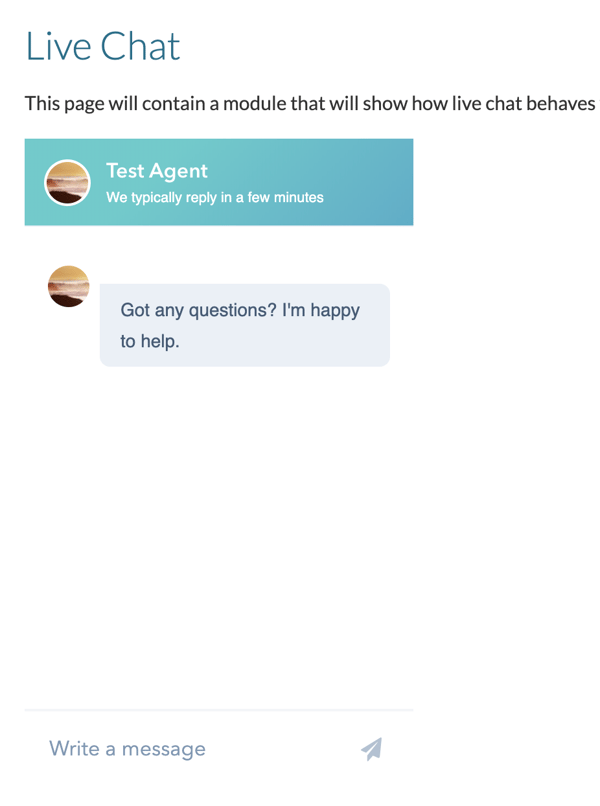
When the widget is embedded in a specific location using inlineEmbedSelector, several DOM elements are added and can be styled (e.g. height, width, border).
For example, if you embed the chat widget using the #some-id selector, it would be loaded with the following containers and IDs:
<div id="some-id">
  <div id="hubspot-conversations-inline-parent">
    <iframe id="hubspot-conversations-inline-iframe">
      <!-- rest of iframe content -->
    </iframe>
  </div>
</div>
#hubspot-conversations-inline-iframe {
  width: 300px;
  height: 500px;
  border: none;
}
HubSpotConversations.widget
The widget object contains a number of methods that allow you to manipulate the chat widget on your page, including:
Below, learn more about each method.
The widget.load method handles the initial load on the page. This method is only necessary if you set loadImmediately to false. Otherwise, the widget will load itself automatically.
This method is throttled to one call per second.
window.HubSpotConversations.widget.load();

/* ... */

// Force the widget to load in an open state
window.HubSpotConversations.widget.load({ widgetOpen: true });
| Field | Type | Default | Description |
|---|
widgetOpen | Boolean | false | Whether the widget should load in an open state. |
widget.refresh method handles refreshing and re-rendering the widget’s information, given the current page URL. This method can be useful for chat widgets embedded in single-page applications when you need to refresh the widget on route changes. This method also enables you to specify different chat widgets on different page routes.
If you call widget.refresh on a route where there is no chat widget, and the user isn’t engaged in a chat, the widget will be removed. It will not remove the widget when there is a currently active chat.
This method is throttled to one call per second.
window.HubSpotConversations.widget.refresh();

/* ... */

// Force the widget to open to a specific chat flow
window.HubSpotConversations.widget.refresh({ openToNewThread: true });
| Field | Type | Default | Description |
|---|
openToNewThread | Boolean | false | Whether to force a new thread to be created. |
Example
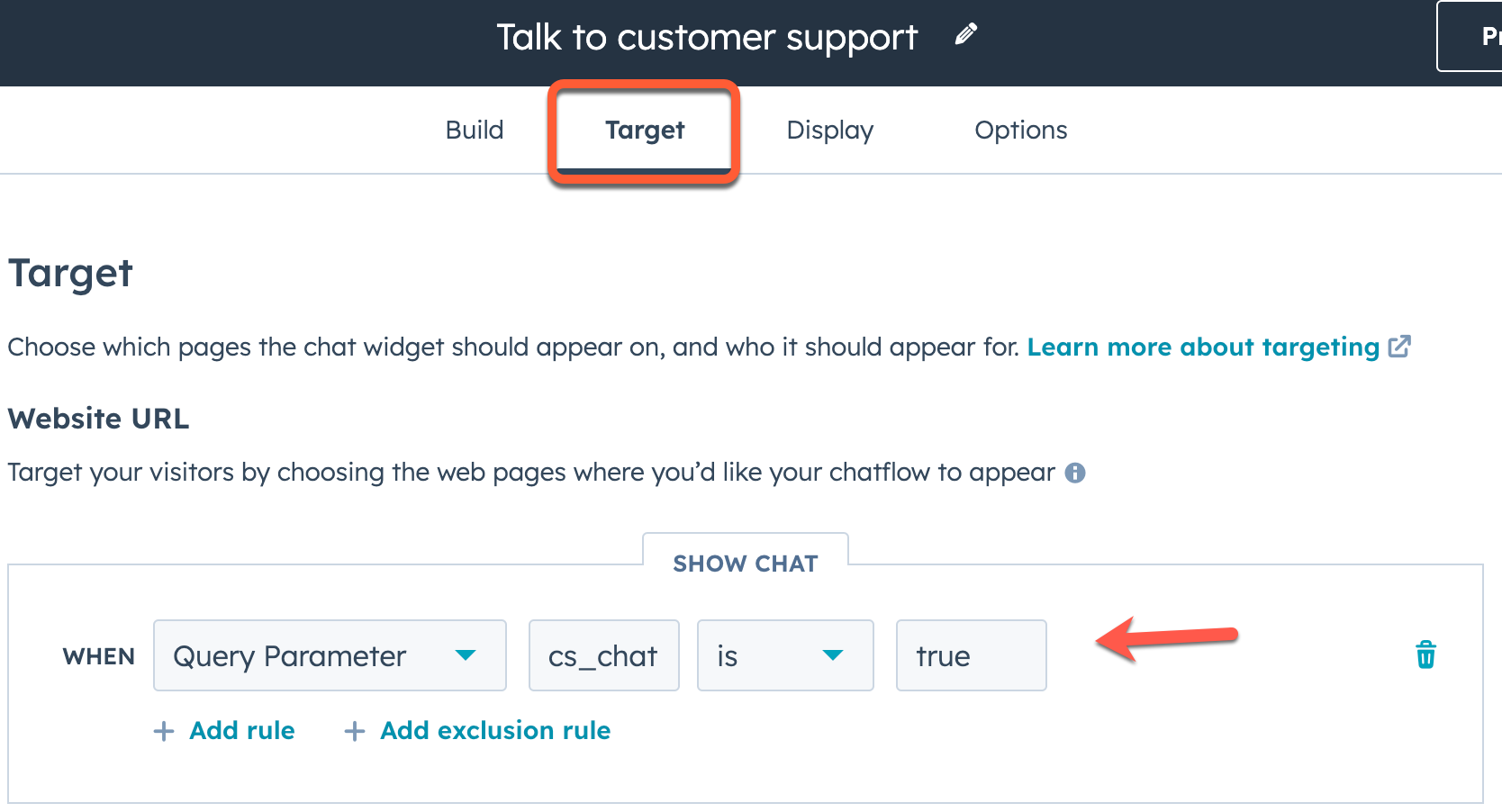
Using this method, you could create buttons and links to open specific chatflows on a page by adding query parameters to the page URL.
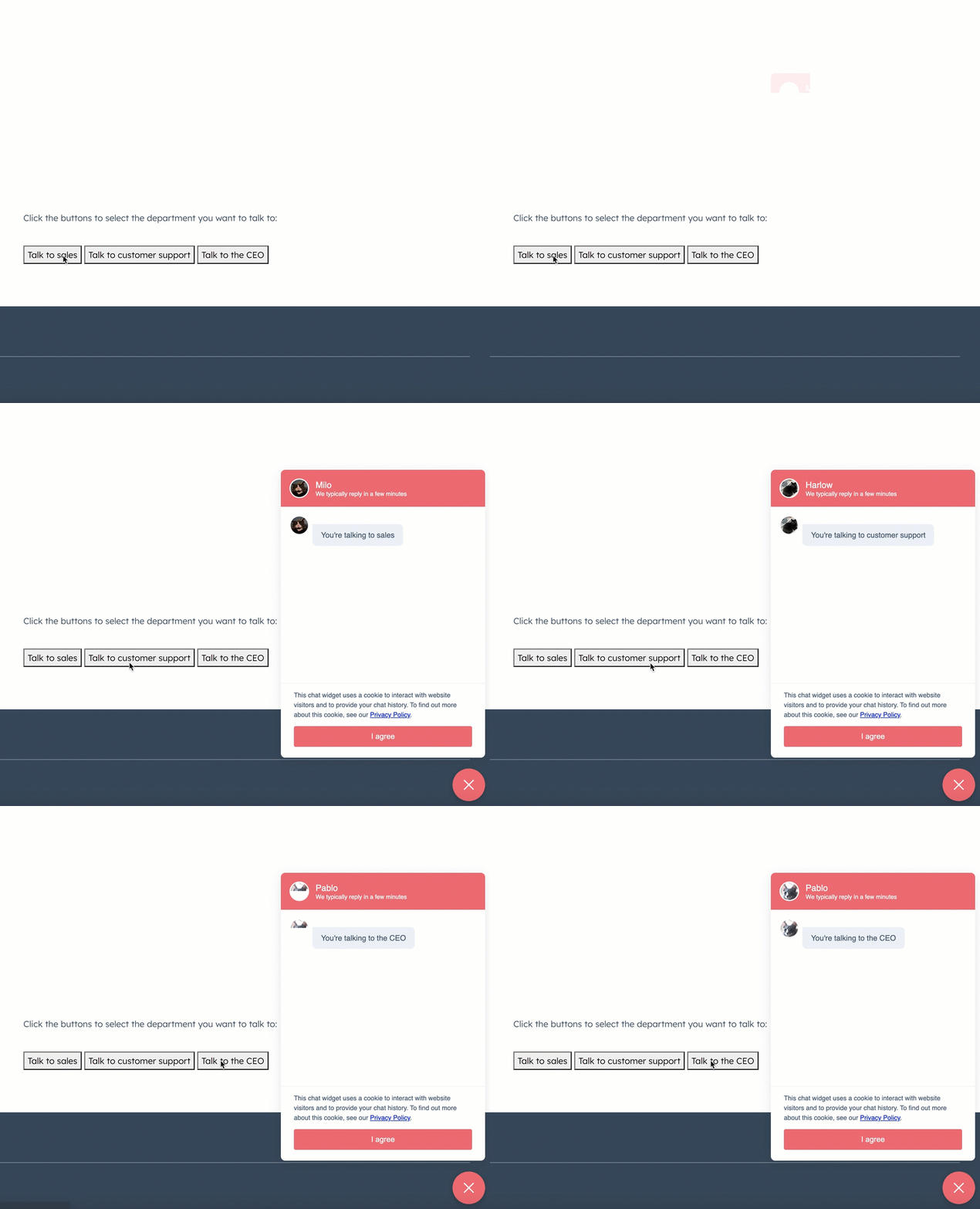 For example, you could add the following code to your pages to generate the buttons:
<div class="chat-buttons">
  <button
    onclick="window.history.pushState({}, 'talk_to_sales', '?sales_chat=true'); window.HubSpotConversations.widget.refresh({openToNewThread: true});"
  >
    Talk to sales
  </button>
  <button
    onclick="window.history.pushState({}, 'talk_to_customer_support', '?cs_chat=true'); window.HubSpotConversations.widget.refresh({openToNewThread: true});"
  >
    Talk to customer support
  </button>
  <button
    onclick="window.history.pushState({}, 'talk_to_the_ceo', '?ceo_chat=true'); window.HubSpotConversations.widget.refresh({openToNewThread: true});"
  >
    Talk to the CEO
  </button>
</div>
 The
The widget.open method opens the widget if it is not already open or isn’t currently loaded.
window.HubSpotConversations.widget.open();
widget.close method closes the widget if it isn’t already closed.
window.HubSpotConversations.widget.close();
widget.remove method removes the widget from the page. If the widget isn’t present on the page, this method does nothing. The widget will display again on page refresh or if widget.load is invoked.
window.HubSpotConversations.widget.remove();
widget.status method returns an object containing properties related to the current status of the widget.
const status = window.HubSpotConversations.widget.status();

if (status.loaded) {
  window.HubSpotConversations.widget.refresh();
} else {
  window.HubSpotConversations.widget.load();
}
| Field | Type | Default | Description |
|---|
loaded | Boolean | false | Whether the widget iframe has loaded. |
Clear chat cookies
The clear method deletes cookies related to the chat widget and returns it to its default state on subsequent load.
The chat widget creates several cookies to preserve its state across site visits and page refreshes. These cookies are scoped to the domain of the page hosting the widget, and are used to support the following features:
- Referencing historical conversations.
- Persisting the open state of the chat widget across page loads.
- Persisting the open state of the welcome message across page loads.
The following cookies are cleared with this method:
messagesUtkhs-messages-is-openhs-messages-hide-welcome-message
For more information about these cookies, see check out HubSpot’s Knowledge Base.
window.HubSpotConversations.clear();
{resetWidget:true} to the clear() function to clear all chat related cookies, remove the widget from the page, and create a new instance of the chat widget.
window.HubSpotConversations.clear({ resetWidget: true });
Chat events
The chat widget emits various events you can listen and respond to throughout its lifecycle. These events include:
To register and remove event listeners, you’ll use on and off, as shown below.
const handleEvent = eventPayload => console.log(eventPayload);

window.HubSpotConversations.on("conversationStarted", handleEvent);

/* ... */

window.HubSpotConversations.off("conversationStarted", handleEvent);
conversationStarted
The conversationStarted event triggers when a new conversation has been successfully started.
window.HubSpotConversations.on("conversationStarted", payload => {
  console.log(`Started conversation with id ${payload.conversation.conversationId}`);
});
| Field | Type | Description |
|---|
payload.conversation.conversationId | Number | The thread ID of the conversation that was started. You can use this ID when making calls to the conversations API. |
conversationClosed
The conversationClosed event triggers when a new conversation has marked as closed from the conversations inbox.
Site visitors minimizing or closing the chat widget will not trigger this event. For that event, use widgetClosed instead.
window.HubSpotConversations.on("conversationClosed", payload => {
  console.log(`Conversation with id ${payload.conversation.conversationId} has been closed!`);
});
| Field | Type | Description |
|---|
payload.conversation.conversationId | Number | The thread ID of the conversation that was started. You can use this ID when making calls to the conversations API. |
userSelectedThread
The userSelectedThread event triggers when creating a thread or selecting an existing thread.
window.HubSpotConversations.on("userSelectedThread", payload => {
  console.log(`User selected thread with ID ${payload.conversation.conversationId}!`);
});
| Field | Type | Description |
|---|
payload.conversation.conversationId | Number | The thread ID of the conversation that was started. You can use this ID when making calls to the conversations API. |
unreadConversationCountChanged
The unreadConversationCountChanged event is triggered when the number of conversations with unread messages increases or decreases.
window.HubSpotConversations.on("unreadConversationCountChanged", payload => {
  console.log(`New unread count is ${payload.unreadCount}!`);
});
| Field | Type | Description |
|---|
unreadCount | Number | The total number of conversations with at least one unread message. |
contactAssociated event is triggered when the visitor is associated with a contact in the CRM.
window.HubSpotConversations.on("contactAssociated", payload => {
  console.log(payload.message);
});
| Field | Type | Description |
|---|
message | String | A confirmation message that the visitor has been associated with a contact. |
userInteractedWithWidget event is triggered when the visitor interacts with the widget, such as clicking to open the widget or closing the initial welcome message.
window.HubSpotConversations.on(‘userInteractedWithWidget’, payload => {
  console.log(payload.message);
});
| Field | Type | Description |
|---|
message | String | A confirmation message that the visitor has been interacted with the widget. |
widgetLoaded event is triggered when the widget iframe is loaded.
window.HubSpotConversations.on(‘widgetLoaded’, payload => {
  console.log(payload.message);
});
| Field | Type | Description |
|---|
message | String | A confirmation message that the widget iframe has loaded. |
quickReplyButtonClick event is triggered when the visitor clicks a quick reply in a bot conversation.
| Field | Type | Description |
|---|
value | Array | An array containing the text of the quick reply option that was clicked. |
window.HubSpotConversations.on("quickReplyButtonClick", event => {
  console.log(`The text content of the clicked button is ${payload.value[0]}`);
});
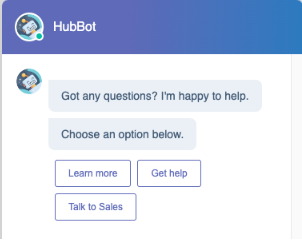 In the example screenshot above, the bot chatflow contains three quick reply options. If the user selects Learn more, the resulting event payload would be:
// Example event payload when a quick reply option is selected
{
  "name": "QUICK_REPLIES",
  "multiSelect": false,
  "value": ["Learn more"]
}
widgetClosed event is triggered when the visitor closes the chat widget.
window.HubSpotConversations.on("widgetClosed", event => {
  console.log(event);
});
| Field | Type | Description |
|---|
message | String | A confirmation message that the visitor has closed the chat widget. |
Last modified on December 10, 2025
