
Basic module syntax
You can include a module in a template file using{% %} statement delimiters, followed by specifying either module or dnd_module, depending on the implementation. dnd_module denotes a module within a drag and drop area. Then, configure the module using a set of module detail fields, listed below. These fields can be formatted as individual lines or as a single block.
Below are some additional examples of basic syntax for a default and custom module defined in a template.
Passing dicts to module parameters
For modules with fields that expect dicts, you can pass them like you would other parameters. If it’s cleaner to you or you plan to re-use the values, you can set the dict to a variable, and pass the variable to the parameter instead.Passing fields that have dnd associated parameters
Drag and drop tags, such asdnd_area, come with a set of default parameters, such as width. While the design manager will prevent you from creating new fields that use one of these reserved parameters, modules created before drag and drop tags were introduced may already use a reserved parameter.
To fix this, you can use the fields parameter. Just like you would pass field data to a group, you can pass the field name as a key on the fields object. Its value must be consistent with the format the field type expects.
Setting default field values in templates
You can set default values for module fields at the template level by including parameters in thednd_module tags. Below, learn how to set default field values in nested field groups, repeating fields, repeating field groups, and style fields.
Nested field groups
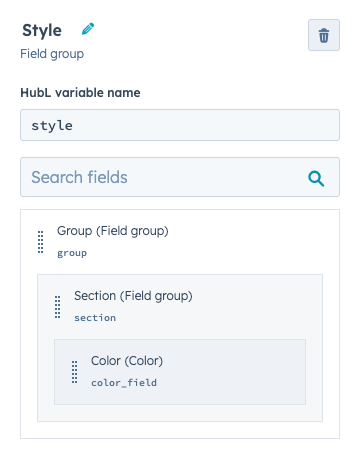
Below is an example of a custom drag and drop module with a customstyle field group containing other nested field groups. Compare its template-level configuration with how this same grouping would appear in the design manager.
Repeating fields
You can set template-level default values for repeating fields by passing an array to the field’s parameter. The array’s items must be in the format expected based on the field type. For example:- A simple text field only expects a string
- An image repeater field expects an image field object. This applies to all of the other field types.
Repeating field groups
Modules that contain repeating groups of fields, like you might see in a slideshow module or FAQ module, can have a template-level default set for those groups. To do this, pass an array of objects to your field group’s parameter. The key-value pairs of the object are the field names and their values.Style fields
you can explicitly set default values for style fields using thestyles parameter.
This works just like other groups do, where the parameter is the name of the group. You pass an object to that parameter with all of the fields you wish to set.
Block syntax
While most modules have parameters that control default content, there may be situations where you need to add large code blocks to the default content of a module. For example, you may want to include a large block of HTML as the default content for a rich text or HTML module. Rather than trying to write that code into a value parameter, insert the module using a{% module_block %} tag, then include within it a {% module_attribute %} tag that specifies content by the name of the field.
As an example, the following code would insert a custom <p> element into the html field of a default rich text module instance.
widget_block, widget_attribute, and type_of_module parameters. These parameters have been replaced by {% module_block %}/{% module_attribute %}. Learn more by expanding the section below.
content_attribute
In addition to regular and block syntax, there are certain instances where you may want to specify a large block default content for a predefined content variable. The most common example of this proves to be the content.email_body variable. This variable prints a standard email body that can be altered in the content editor. Since this isn’t a standard HubL module, we use a content_attribute tag to specify a block of default content. The example below shows the email body variable populated with a default content code block.Parameters available for all modules
While some modules have certain special parameters, below is a list of parameters supported by all modules.Field-based parameters
When defining a module in a template file, you can pass additional parameters to the module based on the module’s defined fields. For HubSpot default modules, you can find available parameters in the default web modules reference. When working with modules locally, you can find a module’s fields in thefields.json file.
The format for the parameter value depends on the field’s type. For example, the default button module includes a link field, which accepts a JSON object. In the template, you could pass those URL details as shown below.
link_field instead of link, your module code would need to include a link_field parameter instead.