
SearchInput component renders an input field that enables users to search. The component doesn’t provide search functionality out of the box, but includes props for managing input state and validation.
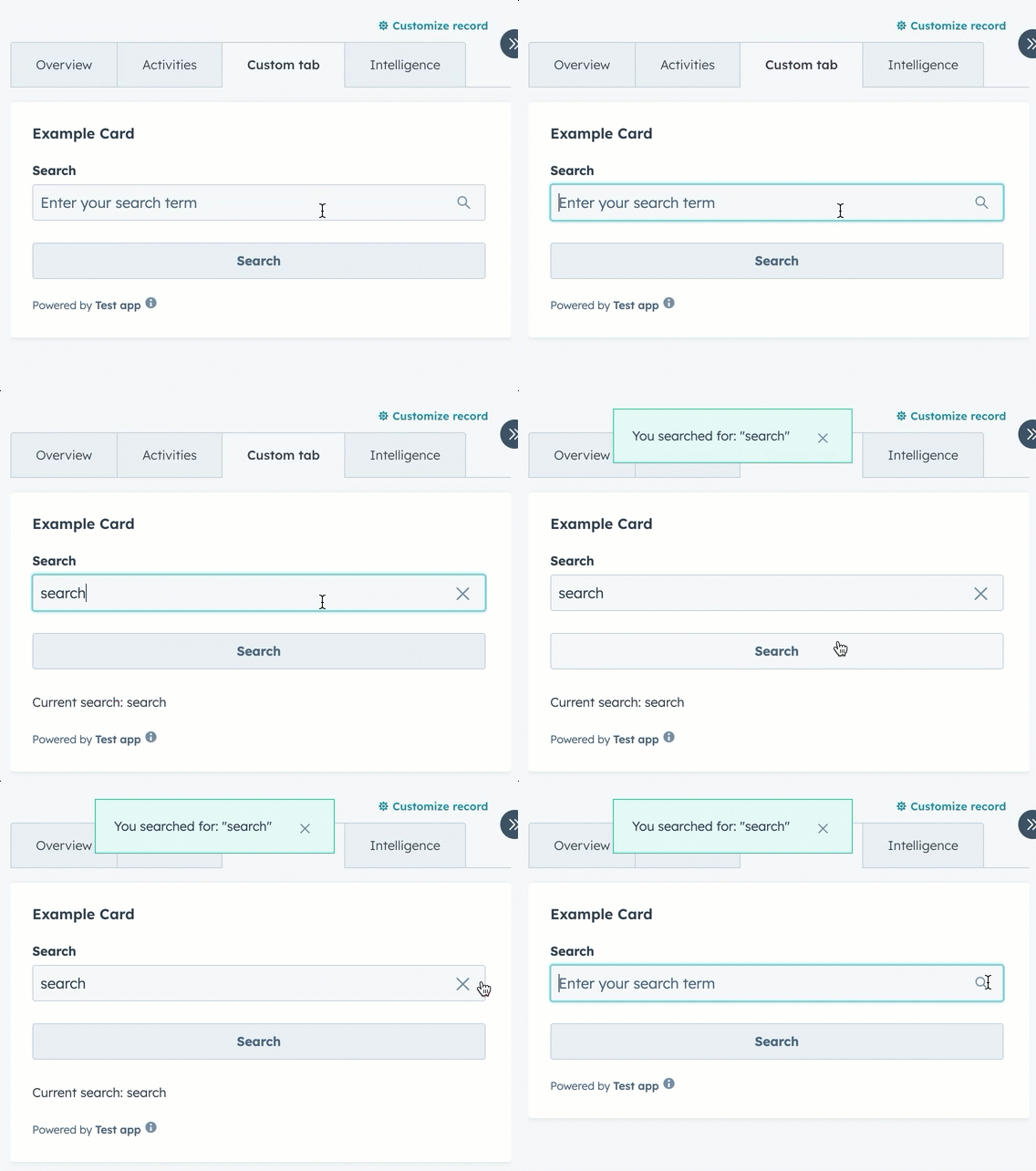
import React, { useState } from "react";
import { Button, Flex, Form, SearchInput, Text, hubspot } from "@hubspot/ui-extensions";

hubspot.extend(({ actions }) => <Extension sendAlert={actions.addAlert} />);

const Extension = ({ sendAlert }) => {
  const [searchValue, setSearchValue] = useState("");

  const handleSubmit = formData => {
    const searchTerm = formData.targetValue.search;
    sendAlert({
      message: `You searched for: "${searchTerm}"`,
      type: "success",
    });
  };

  return (
    <Form onSubmit={handleSubmit}>
      <Flex direction="column" gap="md">
        <SearchInput
          name="search"
          label="Search"
          placeholder="Enter your search term"
          value={searchValue}
          onChange={value => setSearchValue(value)}
        />
        <Button type="submit">Search</Button>
        {searchValue && <Text>Current search: {searchValue}</Text>}
      </Flex>
    </Form>
  );
};
Props
| Prop | Type | Description |
|---|---|---|
clearable | Boolean | When set to true, shows a clear button to clear the input. Default is true. |
description | String | Instructional message to help understand the purpose of the input. |
error | Boolean | When set to true, renders the error state and shows validationMessage as an error. |
getValidationMessage | (value: string) => string | null | Called to validate the input value and display a validation message. Depending on the width and length of message, the message display may appear above or inline with the input. |
label | String | The label text to display for the input. |
name | String | The unique identifier for the input. |
onBlur | (value: string) => void | A function that is called when the field loses focus. |
onChange | (value: string) => void | A callback function that is invoked when the input value changes. |
onFocus | (value: string) => void | A function that is called when the field gets focused. |
onInput | (value: string) => void | A callback function that is invoked every time the field is edited by the user. |
placeholder | String | Text that appears in the input when it has no value set. |
readOnly | Boolean | When set to true, the field is not editable. |
required | Boolean | When set to true, displays a required field indicator. |
tooltip | String | Text that will appear in a tooltip on hover next to the input label. |
validationMessage | String | The text to show under the input for error or success validations. Will appear below the input. Learn more about validation messages. |
value | String | The value of the input. |
Validation messages
Using thevalidationMessage and getValidationMessage props, you can implement validation into the search input. By default, validationMessage will render as a green success message. When the error prop is true, the message will render as red and the search input will include a red border.
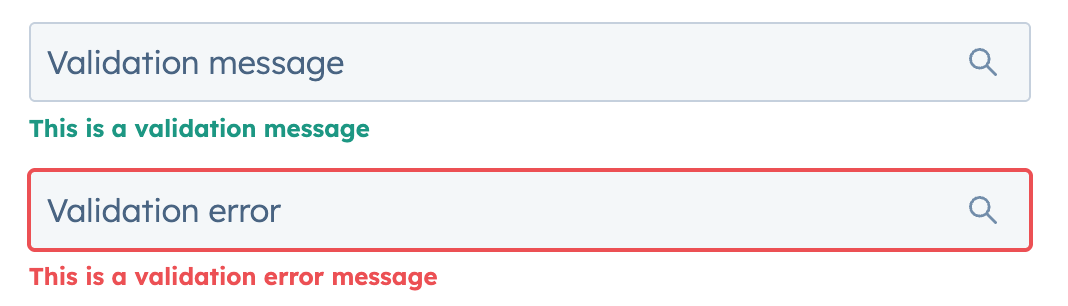
<>
  <SearchInput
    name="validation-message"
    placeholder="Validation message"
    validationMessage="This is a validation message"
  />
  <SearchInput
    name="validation-error"
    placeholder="Validation error"
    validationMessage="This is a validation error message"
    error
  />
</>;
Table search example
The example below creates a searchable table.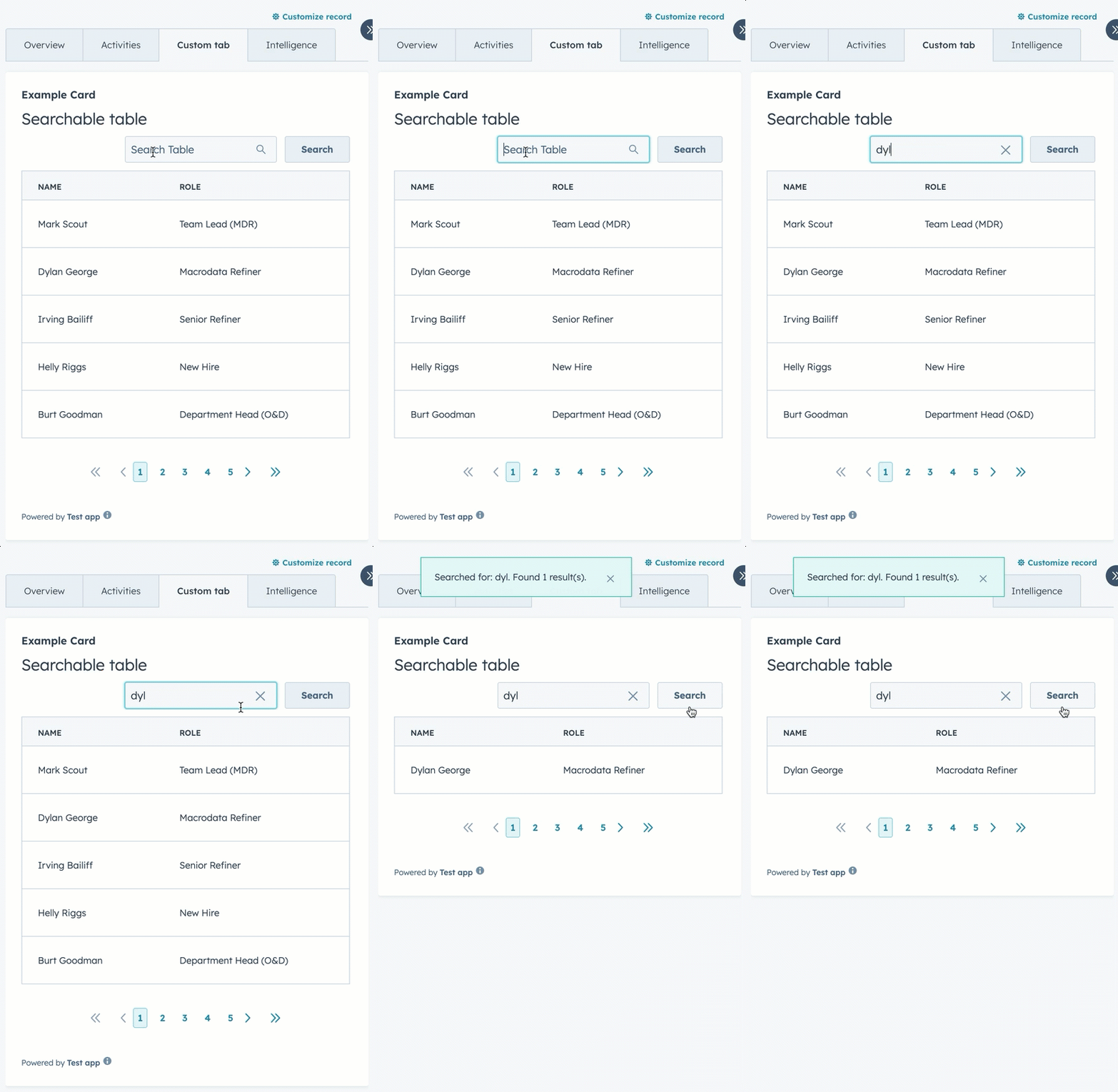
import React, { useState } from "react";
import {
  Button,
  Divider,
  Form,
  Heading,
  Table,
  TableHead,
  TableHeader,
  TableRow,
  TableBody,
  TableCell,
  Flex,
  SearchInput,
  hubspot,
} from "@hubspot/ui-extensions";

hubspot.extend(({ actions }) => <Extension sendAlert={actions.addAlert} />);

const Extension = ({ sendAlert }) => {
  const tableData = [
    { name: "Mark Scout", role: "Team Lead (MDR)" },
    { name: "Dylan George", role: "Macrodata Refiner" },
    { name: "Irving Bailiff", role: "Senior Refiner" },
    { name: "Helly Riggs", role: "New Hire" },
    { name: "Burt Goodman", role: "Department Head (O&D)" },
  ];

  const [filteredData, setFilteredData] = useState(tableData);

  const handleSubmit = e => {
    const searchTerm = e.targetValue.searchInput;
    sendAlert({ message: `You've searched for: ${searchTerm}` });
  };

  const searchTable = e => {
    const searchTerm = e.targetValue.searchInput;
    // Filter the table data based on search term
    const filtered = tableData.filter(
      item =>
        item.name.toLowerCase().includes(searchTerm.toLowerCase()) ||
        item.role.toLowerCase().includes(searchTerm.toLowerCase())
    );

    setFilteredData(filtered);
    sendAlert({
      message: `Searched for: ${searchTerm}. Found ${filtered.length} result(s).`,
    });
  };

  return (
    <>
      <Form onSubmit={searchTable}>
        <Flex direction="column" gap="sm">
          <Heading>Searchable table</Heading>
          <Flex direction="row" gap="sm" alignSelf="end" align="end" justify="end">
            <SearchInput name="searchInput" placeholder="Search Table" />
            <Button type="submit">Search</Button>
          </Flex>
          <Table bordered={true} paginated={true} pageCount="5" limit={10}>
            <TableHead>
              <TableRow>
                <TableHeader width="min">Name</TableHeader>
                <TableHeader width="min">Role</TableHeader>
              </TableRow>
            </TableHead>
            <TableBody>
              {filteredData.map((item, index) => (
                <TableRow key={index}>
                  <TableCell width="min">{item.name}</TableCell>
                  <TableCell width="min">{item.role}</TableCell>
                </TableRow>
              ))}
            </TableBody>
          </Table>
        </Flex>
      </Form>
    </>
  );
};