
- You have an existing legacy public app to use webhooks by subscribing to the events you want to be notified about, and by specifying a URL to send those notifications.
- You must deploy a publicly available and secure (HTTPS) endpoint for that URL that can handle the webhook payloads specified in this documentation.
Scopes
In order to use webhooks to subscribe to CRM events, your app will need to be configured to authorize the Required scopes that corresponds to the CRM object type you want to subscribe to. For example, if you want to subscribe to contact events, you would need to request thecrm.objects.contacts.read scope.
- If you’re creating subscriptions in the settings UI of your public app, you’ll be prompted to add the required scope in the Create new webhook subscriptions panel before you finish creating your subscription.
- If you’re creating a subscription by making a
POSTrequest to the/app-webhooks/2026-09/{appId}/subscriptionsendpoint, the response will include an error that will provide the name of the scope you’ll need to configure in the settings UI of your public app. - If your app is already using webhooks, you won’t be able to remove any scopes required by active webhook subscriptions without first pausing and removing the subscriptions.
- You can review the scopes required for each webhook subscription type in the table below.
Webhook settings
Before setting up your webhook subscriptions, you need to specify a URL to send those notifications to. Follow the instructions in the sections below to learn how to fully configure subscriptions for your app.Manage settings in your developer account
You can manage your URL and event throttling limit in your app’s configuration page in your developer account:- In your developer account, in the left sidebar, click Apps, then click the name of your app you want to manage.
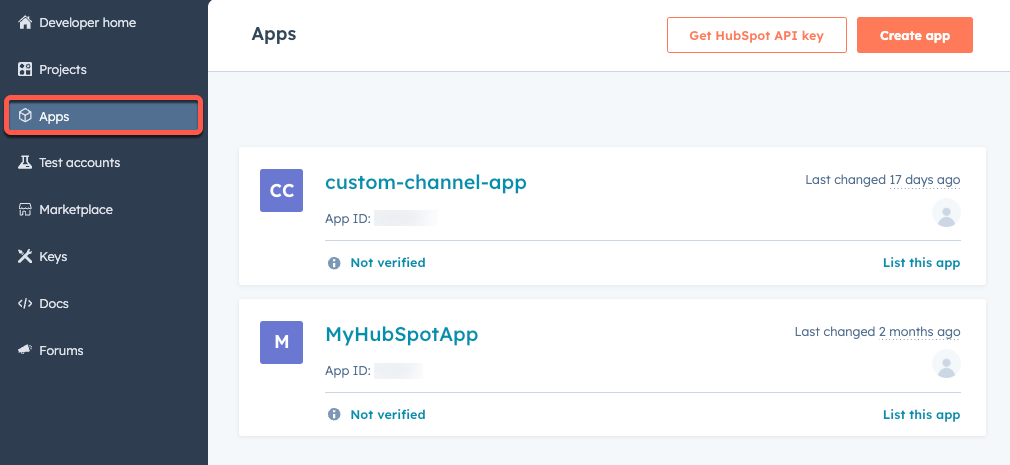
- In the left sidebar menu, navigate to Webhooks.
- In the Target URL field, enter the URL that HubSpot will make a
POSTrequest to when events trigger. - Use the Event throttling setting to adjust the maximum number of events HubSpot will attempt to send.
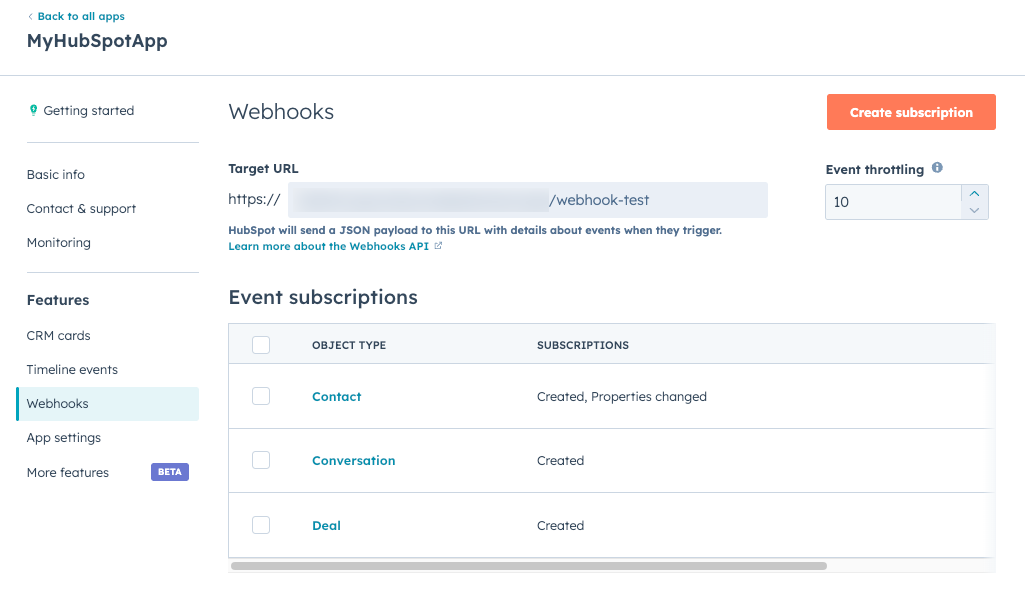
- Click Save.
Manage settings via API
You can use the following endpoints to programmatically configure webhook settings for an app. The endpoints described below are authenticated using your Developer API key, which should be included via the?hapikey query parameter.
To view any webhook settings currently configured for an app, make a GET request to /app-webhooks/2026-09/{appId}/settings.
You’ll need to include the app ID in the request, which you can find below the name of the app in your Apps dashboard, or on the Auth tab in your app’s settings.
The settings object contains the following fields:
To update to these settings, make a
PUT request to /app-webhooks/2026-09/{appId}/settings and include the following fields in the request body:
For example, your request might look similar to the following:
Webhook subscriptions
Once you’ve set up your webhook URL and event throttling limit, you’ll need to create one or more subscriptions. Webhook subscriptions tell HubSpot which events your particular app would like to receive. Subscriptions apply to all customers who have installed your integration. This means that you only need to specify what subscriptions you need once. Once you’ve turned on a subscription for an application, it will automatically start getting webhooks for all customers that have installed your application, and your integration will start receiving webhook triggers from any new customers. For allassociationChange webhook subscriptions, the webhook will fire two events for both sides of the association.
- When associating two contacts, a subscription to
contact.associationChangewill fire two events, representingcontact 1 to contact 2andcontact 2 to contact 1. - When associating a company, if you have two webhook subscriptions
contact.associationChangeandcompany.associationChange, you will receive two events. These will representcontact 1 to company 1andcompany 1 to contact 1.
eventType field when creating subscriptions via API:
The following conversations subscription types are also available:
For property change subscriptions, you will need to specify which property you want to be notified of. You can specify multiple property change subscriptions. If a customer’s account doesn’t have the property you specify in a subscription, you will not get any webhooks from that customer for that property.
Certain properties are not available for CRM property change subscriptions. These properties are:
num_unique_conversion_eventshs_lastmodifieddate
assignedTo: the conversation thread has been reassigned or unassigned. If the thread was reassigned, thepropertyValuewill be an actor ID in the webhooks payload; if unassigned, it will be empty.status: the status of the conversation thread has changed. In the webhooks payload, thepropertyValuewill either beOPENorCLOSED.isArchived: the conversation thread has been restored. ThepropertyValuein the webhooks payload will always beFALSE.
Manage subscriptions via API
You can programmatically manage subscriptions for public apps using the endpoints listed in the sections below. You will need to use your Developer API key when making requests to these endpoints. A subscription object can include the following fields:Get subscriptions
To retrieve the list of subscriptions, make aGET request to /app-webhooks/2026-09/{appId}/subscriptions.
The response will be an array of objects representing your subscriptions. Each object will include information on the subscription like the ID, create date, type, and whether or not it’s currently active. Here’s what an example response would look like:
Create a new subscription
To create a new subscription, make aPOST request to /app-webhooks/2026-09/{appId}/subscriptions.
In the request body, you can include the following fields:
You don’t need to include
id, createdAt, or createdBy, as those fields are set automatically.
For example, your request body may appear similar to the following:
eventType must be a valid subscription type as defined in the above section and the propertyName must be a valid property name. If a customer has no property defined that matches this value, then this subscription will not result in any notifications.
Update a subscription
To activate or pause a subscription, make aPUT request to /app-webhooks/2026-09/{appId}/subscriptions/{subscriptionId}.
In the request body, include the following:
Delete a subscription
To delete a subscription, make aDELETE request to /app-webhooks/2026-09/{appId}/subscriptions/{subscriptionId}.
Webhook payloads
The endpoint at the target URL that you specify in your app’s webhooks settings will receivePOST requests containing JSON formatted data from HubSpot.
To ensure that the requests you’re getting at your webhook endpoint are actually coming from HubSpot, HubSpot populates a X-HubSpot-Signature header with a SHA-256 hash built using the client secret of your app combined with details of the request. Learn more about validating request signatures.
Use the tables below to view details about fields that may be contained in the payload.
occurredAt property for each notification to determine when the event that triggered the notification occurred.
HubSpot also does not guarantee that you’ll only get a single notification for an event. Though this should be rare, it is possible that HubSpot will send you the same notification multiple times.
Privacy compliant contact deletions
HubSpot users have the ability to permanently delete a contact record to comply with privacy laws. Learn more about performing a GDPR compliant delete. You can subscribe to thecontact.privacyDeletion subscription type to receive webhook notifications when a user performs a privacy compliant contact deletion.
Privacy deletion notifications have some special behavior:
- A privacy deletion event will also trigger the contact deletion event, so you will receive two notifications if you are subscribed to both events.
- These notifications will not necessarily be sent in any specific order or in the same batch of messages. You will need to use the object ID to match the separate messages.
Security
To ensure that the requests you’re getting at your webhook endpoint are actually coming from HubSpot, HubSpot populates aX-HubSpot-Signature header with a SHA-256 hash of the concatenation of the app-secret for your application and the request body HubSpot is sending.
To verify this signature, concatenate the app secret of your application and the un-parsed request body of the request you’re handling, and get a SHA-256 hash of the result. Compare the resulting hash with the value of the X-HubSpot-Signature. If these values match, then this verifies that this request came from HubSpot. Or, the request came from someone else who knows your application secret. It’s important to keep this value secret.
If these values do not match, then this request may have been tampered with in-transit or someone may be spoofing webhook notifications to your endpoint.
Learn more about validating signature requests.
Retries
If your service has problems handling notifications at any time, HubSpot will attempt to re-send failed notifications up to 10 times. HubSpot will retry in the following cases:- Connection failed: HubSpot cannot open an HTTP connection to the provided webhook URL.
- Timeout: your service takes longer than five seconds to send back a response to a batch of notifications.
- Error codes: your service responds with any HTTP status code (4xx or 5xx).
Limits
POST requests that HubSpot sends to your service via your webhook subscriptions will not count against your app’s API rate limits.
You can create a maximum of 1000 subscriptions per application. If you attempt to create more you will receive a 400 bad request in return with the following body: