
Most of the tags in this page have default module
equivalents. Modules can be used
within
dnd_areas
and flexible columns, making them more powerful and user
friendly than the tags you see here.
Blog comments
Renders the comments embed code on a blog template, including the comments themselves and the comment form. Learn more about customizing blog comment settings and forms on the Knowledge Base.- HubL
- Output
{% blog_comments "blog_comments" label="Blog comments" select_blog="359485112"
%}
<span
  id="hs_cos_wrapper_blog_comments"
  class="hs_cos_wrapper hs_cos_wrapper_widget hs_cos_wrapper_type_blog_comments"
  style=""
  data-hs-cos-general-type="widget"
  data-hs-cos-type="blog_comments"
>
  <div class="section post-footer">
    <div id="comments-listing" class="new-comments"></div>
    <div id="hs_form_target_{formID}" data-hs-forms-root="true">
      <div class="hs-comment-message hs-common-confirm-message">
        Your comment has been received.
      </div>
      <form
        id="hsForm_id"
        method="POST"
        accept-charset="UTF-8"
        enctype="multipart/form-data"
        novalidate=""
        action="https://forms.hsforms.com/submissions/v3/public/submit/formsnext/multipart/{hubID}/{formID}"
        class="hs-form-private hs-form stacked"
        target="target_iframe_07e1eb93-87f2-48039"
        data-instance-id="{formID}"
        data-formid="{formID}"
        data-portal-id="123456"
        data-test-id="hsForm_{formID}"
        data-hs-cf-bound="true"
      >
        <div
          class="hs_firstname hs-firstname hs-fieldtype-text field hs-form-field"
        >
          <label
            id="label-firstname-07e1eb93"
            class=""
            placeholder="Enter your First Name"
            for="firstname-07e1eb9339"
            ><span>First Name</span
            ><span class="hs-form-required">*</span></label
          >
          <legend class="hs-field-desc" style="display: none;"></legend>
          <div class="input">
            <input
              id="firstname-{formID}"
              name="firstname"
              required=""
              placeholder=""
              type="text"
              class="hs-input"
              inputmode="text"
              autocomplete="given-name"
              value=""
            />
          </div>
        </div>
        <div
          class="hs_lastname hs-lastname hs-fieldtype-text field hs-form-field"
        >
          <label
            id="label-lastname-{formID}"
            class=""
            placeholder="Enter your Last Name"
            for="lastname-{formID}"
            ><span>Last Name</span></label
          >
          <legend class="hs-field-desc" style="display: none;"></legend>
          <div class="input">
            <input
              id="lastname-{formID}"
              name="lastname"
              placeholder=""
              type="text"
              class="hs-input"
              inputmode="text"
              autocomplete="family-name"
              value=""
            />
          </div>
        </div>
        <div class="hs_email hs-email hs-fieldtype-text field hs-form-field">
          <label
            id="label-email-{formID}"
            class=""
            placeholder="Enter your Email"
            for="email-{formID}"
            ><span>Email</span><span class="hs-form-required">*</span></label
          >
          <legend class="hs-field-desc" style="display: none;"></legend>
          <div class="input">
            <input
              id="email-{formID}"
              name="email"
              required=""
              placeholder=""
              type="email"
              class="hs-input"
              inputmode="email"
              autocomplete="email"
              value=""
            />
          </div>
        </div>
        <div
          class="hs_website hs-website hs-fieldtype-text field hs-form-field"
        >
          <label
            id="label-website-{formID}"
            class=""
            placeholder="Enter your Website"
            for="website-{formID}"
            ><span>Website</span></label
          >
          <legend class="hs-field-desc" style="display: none;"></legend>
          <div class="input">
            <input
              id="website-{formID}"
              name="website"
              placeholder=""
              type="text"
              class="hs-input"
              inputmode="url"
              value=""
            />
          </div>
        </div>
        <div
          class="hs_comment hs-comment hs-fieldtype-textarea field hs-form-field"
        >
          <label
            id="label-comment-{formID}"
            class=""
            placeholder="Enter your Comment"
            for="comment-{formID}"
            ><span>Comment</span><span class="hs-form-required">*</span></label
          >
          <legend class="hs-field-desc" style="display: none;"></legend>
          <div class="input">
            <textarea
              id="comment-{formID}"
              class="hs-input hs-fieldtype-textarea"
              name="comment"
              required=""
              placeholder=""
            ></textarea>
          </div>
        </div>
        <div class="hs_recaptcha hs-recaptcha field hs-form-field">
          <div class="input">
            <div
              class="grecaptcha-badge"
              data-style="inline"
              style="width: 256px; height: 60px; box-shadow: gray 0px 0px 5px;"
            >
              <div class="grecaptcha-logo">
                <iframe
                  title="reCAPTCHA"
                  width="256"
                  height="60"
                  role="presentation"
                  name="a-pp7yub2hvkn1"
                  frameborder="0"
                  scrolling="no"
                  sandbox="allow-forms allow-popups allow-same-origin allow-scripts allow-top-navigation allow-modals allow-popups-to-escape-sandbox allow-storage-access-by-user-activation"
                  src="https://www.google.com/recaptcha/enterprise/anchor?{queryParams}"
                ></iframe>
              </div>
              <div class="grecaptcha-error"></div>
              <textarea
                id="g-recaptcha-response"
                name="g-recaptcha-response"
                class="g-recaptcha-response"
                style="width: 250px; height: 40px; border: 1px solid rgb(193, 193, 193); margin: 10px 25px; padding: 0px; resize: none; display: none;"
              ></textarea>
            </div>
            <iframe style="display: none;"></iframe>
          </div>
          <input
            type="hidden"
            name="g-recaptcha-response"
            id="hs-recaptcha-response"
            value=""
          />
        </div>
        <div class="hs_submit hs-submit">
          <div class="hs-field-desc" style="display: none;"></div>
          <div class="actions">
            <input
              type="submit"
              class="hs-button primary"
              value="Submit Comment"
            />
          </div>
        </div>
        <input name="hs_context" type="hidden" value="{submissionContext}" />
        <iframe name="target_iframe_{formID}" style="display: none;"></iframe>
      </form>
    </div>
  </div>
</span>
| Parameter | Type | Description | Default |
|---|---|---|---|
limit | Number | Sets maximum number of comments. | 5000 |
select_blog | ”default” or blog ID | Specifies which blog is connected to the comments embed. This parameter accepts arguments of either "default" or a blog ID (available in the URL of the Blog dashboard). If want to use your default blog, this parameter is unnecessary. | default |
skip_css | Boolean | Setting this option to True will stop the blog comments CSS from loading. | false |
message | String | The message to display when there are no comments. By default, appears as empty (no text) | "" |
Blog content
While drag and drop layouts include a blog content module, these modules are not created with a single tag. They instead use conditional logic to define how a blog post and a blog listing should render. You can learn more about coding blog templates here.Blog post filter
Creates a linked listing of posts by tag, posts by month, or posts by author.Please note:This module can only be used in blog post templates.
- HubL
- Output
{% post_filter "post_filter" %}

{% post_filter
  "posts_by_tag"
  select_blog="default",
  expand_link_text="see all",
  overrideable=False,
  list_title="Posts by Tag",
  max_links=5,
  filter_type="tag",
  label="Posts by Tag"
%}
<span
  id="hs_cos_wrapper_posts_by_tag"
  class="hs_cos_wrapper hs_cos_wrapper_widget hs_cos_wrapper_type_post_filter"
  style=""
  data-hs-cos-general-type="widget"
  data-hs-cos-type="post_filter"
>
  <div class="block">
    <h3>Posts by Tag</h3>
    <div class="widget-module">
      <ul>
        <li><a href="http://www.hubspot.com/blog/tag/sales">Sales</a></li>
        <li>
          <a href="http://www.hubspot.com/blog/tag/marketing">Marketing</a>
        </li>
        <li><a href="http://www.hubspot.com/blog/tag/service">Service</a></li>
        <li>
          <a href="http://www.hubspot.com/blog/tag/operations">Operations</a>
        </li>
        <li><a href="http://www.hubspot.com/blog/tag/cms">CMS</a></li>
        <li>
          <a href="http://www.hubspot.com/blog/tag/industry">Industry</a>
        </li>
      </ul>
    </div>
  </div>
</span>
| Parameter | Type | Description | Default |
|---|---|---|---|
select_blog | ”default” or blog ID | Selects the HubSpot blog to use. This parameter uses either an blog ID or “default” value. | "default" |
expand_link_text | String | Text link to display if more posts than max_links number available. Exclude parameter to omit link. | "see all" |
list_title | String | List title to display. | "" |
list_tag | String | Sets the tag used for the list. Value should generally be "ul" or "ol". | "ul" |
title_tag | String | Sets the tag used for the list title. | "h3" |
max_links | Number | Maximum number of filter values to display. Exclude parameter to show all. | 5 |
filter_type | Enumeration | Selects the type of filter. Possible values include "tag", "month", and "author". | "tag" |
Blog post listing
Adds a listing of most popular or top posts.Please note:This tag can only be used in blog post templates. The tag’s content is loaded asynchronously on the client-side. As a result, if you want to manipulate the feed after it’s loaded, you’ll need to define a global JS function to handle that manipulation. Use the function
hsPostListingComplete(feeds), where feeds is the jQuery selector on all feeds that have been completed. You will want to directly manipulate the DOM object in that function.- HubL
- Output
{% post_listing "post_listing" %}

{% post_listing "top_posts"
  select_blog="default",
  label="Recent Posts",
  overrideable=False,
  list_title="Recent Posts",
  listing_type="recent",
  max_links=5
%}
<span  id="hs_cos_wrapper_module_42751498763_top_posts"
  class="hs_cos_wrapper hs_cos_wrapper_widget hs_cos_wrapper_type_post_listing"
  style=""
  data-hs-cos-general-type="widget"
  data-hs-cos-type="post_listing"
>
  <div class="block">
    <h3>Recent Posts</h3>
    <div class="widget-module">
      <ul class="hs-hash-1630637453-1678475653429">
        <li class="hs-postlisting-item">
          <a
            href="https://blog.hubspot.com/marketing/product-category-marketing"
            >9 Product Category Marketing Examples to Inspire Your Own</a
          >
        </li>
        <li class="hs-postlisting-item">
          <a
            href="https://blog.hubspot.com/marketing/increasing-mobile-conversion-rate"
            >Mobile Conversion Rate: What It Is and How To Increase It</a
          >
        </li>
        <li class="hs-postlisting-item">
          <a
            href="https://blog.hubspot.com/blog/tabid/6307/bid/33401/14-real-life-examples-of-cta-copy-you-should-copy.aspx"
            >14 Real-Life Examples of CTA Copy YOU Should Copy</a
          >
        </li>
      </ul>
    </div>
  </div>
</span>
| Parameter | Type | Description | Default |
|---|---|---|---|
select_blog | ”default” or blog ID | Selects the HubSpot blog to use for the listing. This parameter uses either an blog ID or "default" value. | "default" |
list_title | String | List title to display. | "" |
list_tag | String | Sets the tag used for the list. Value should generally be "ul" or "ol". | "ul" |
title_tag | String | Sets the tag used for the list title. | "h3" |
listing_type | String | List the blog posts by most recent or most popular in a time range. Possible values include recent, popular_all_time, popular_past_year, popular_past_six_months, and popular_past_month. | "recent" |
max_links | Number | Maximum number of blog posts to list. | 5 |
include_featured_image | Boolean | Display featured image along with post link. | False |
Blog related posts
Adds a listing of blog posts based off of a set of parameters shared by posts across blogs. Posts are selected based off of their relevance to the set parameters. This tag does not generate a page/post-level editable module, it is entirely configured with HubL.- HubL
- Output
{% related_blog_posts
  limit=2,
  blog_ids="1,2",
  tags="Sales
  enablement,Marketing",
  blog_authors="John Smith,Frank Smith",
  path_prefixes="/business-blog",
  start_date="2018-04-10",
  end_date="2018-04-10",
  blog_post_override="2783035366"
%}
<span
  class="hs_cos_wrapper hs_cos_wrapper_widget hs_cos_wrapper_type_related_blog_posts"
  data-hs-cos-general-type="widget"
  data-hs-cos-type="related_blog_posts"
  id="hs_cos_wrapper_"
  style=""
>
  <!--related-blog-entries--></span
>
<div class="hs-related-blog-module feedreader_box">
  <span
    class="hs_cos_wrapper hs_cos_wrapper_widget hs_cos_wrapper_type_related_blog_posts"
    data-hs-cos-general-type="widget"
    data-hs-cos-type="related_blog_posts"
    id="hs_cos_wrapper_"
    style=""
  ></span>
  <div class="hs-related-blog-item">
    <span
      class="hs_cos_wrapper hs_cos_wrapper_widget hs_cos_wrapper_type_related_blog_posts"
      data-hs-cos-general-type="widget"
      data-hs-cos-type="related_blog_posts"
      id="hs_cos_wrapper_"
      style=""
    ></span>
    <div class="hs-related-blog-item-text">
      <span
        class="hs_cos_wrapper hs_cos_wrapper_widget hs_cos_wrapper_type_related_blog_posts"
        data-hs-cos-general-type="widget"
        data-hs-cos-type="related_blog_posts"
        id="hs_cos_wrapper_"
        style=""
        ><a
          class="hs-related-blog-title"
          href="//www.hubspot.com/business-blog/marketing-is-fun"
          ><span>Marketing is fun</span></a
        ></span
      >
      <div class="hs-related-blog-byline">
        by <span class="hs-related-blog-author">John Smith</span>
        <span class="hs-related-blog-posted-at">posted on</span>
        <span class="hs-related-blog-date">June 3, 2018</span>
      </div>
      <div class="hs-related-blog-byline">
        <p class="hs-related-blog-description">
          Learn how to make marketing fun!<a
            href="//www.hubspot.com/business-blog/marketing-is-fun"
            >Read more</a
          >
        </p>
      </div>
      <div class="hs-related-blog-byline">
        <span class="hs-related-blog-tags">Tags: Marketing</span>
      </div>
    </div>
  </div>
  <div class="hs-related-blog-item hs-with-featured-image">
    <div class="hs-related-blog-item-text">
      <a
        class="hs-related-blog-title"
        href="//www.hubspot.com/business-blog/sales-is-fun"
        ><span>Sales is fun</span></a
      >
      <div class="hs-related-blog-byline">
        by <span class="hs-related-blog-author">Frank Smith</span>
        <span class="hs-related-blog-posted-at">posted on</span>
        <span class="hs-related-blog-date">June 7, 2018</span>
      </div>
      <div class="hs-related-blog-byline">
        <p class="hs-related-blog-description">
          Learn how to make sales fun!<a
            href="//www.hubspot.com/business-blog/sales-is-fun"
            >Read more</a
          >
        </p>
      </div>
      <div class="hs-related-blog-byline">
        <span class="hs-related-blog-tags">Tags: Sales enablement</span>
      </div>
    </div>
    <div class="hs-related-blog-item-image-wrapper">
      <img
        alt=""
        class="hs-related-blog-featured-image"
        src="//www.hubspot.com/hubfs/business-blog/sales-is-fun.jpg"
      />
    </div>
  </div>
</div>
| Parameter | Type | Description | Default |
|---|---|---|---|
blog_ids | Number | The IDs of the blogs to include posts from. If not specified, it will include posts from the default blog. | |
blog_post_ids | String | The IDs of the blog posts to use when finding relevant blog posts to list, separated by commas.Use this parameter only when the widget is appearing on pages. When used on blog posts, it will look for relevant posts based on the currently displaying blog post. | |
blog_post_override | String | The IDs of the blog posts which should always show up in the returned listing, despite all other parameter values and filters (comma separated). | |
limit | Number | The maximum number of blog posts to list. | 3 |
tags | String | The blog tags that should be used to determine if a post is relevant (comma separated). Blog posts with the specified tags will rank higher for relevancy. | |
tag_boost | Number | Increases the weight given to the tags specified in the tags parameter to generate related posts. Include this parameter to pull in posts more closely related to the currently displaying or specified posts. Accepts positive numbers. | |
start_date | datetime | Earliest published date.See an example below. | |
end_date | datetime | Latest published date.See an example below. | |
blog_authors | String | The names of authors to include posts from (comma separated).See an example below. | |
path_prefixes | String | URL paths or subdirectories to include posts from (comma separated). If a blog post has a similar prefix in its path, the post’s relevancy is increased, improving its ranking in the listing. | |
callback | String | The name of a JavaScript function to render returned blog posts. The function is passed an array of blog post objects to format. If neither the callback nor post_formatter parameter is specified, the tag will generate HTML in a default format.See an example below. | none |
post_formatter | String | The name of a custom macro to render returned blog posts. The macro is passed three parameters which are the blogs blog post object to format, the count in the iteration of blog posts, and the total count of blog posts in the results. If not specified or set to default, the built-in formatter will be used to format each post. | default |
allow_any_language | Boolean | When set to false, only posts in the same language as the page the tag is used on will appear. When set to true, the language restriction is ignored and all related posts are pulled in regardless of the page language. | False |
We strongly recommend using the
callback parameter instead of
post_formatter to improve page loading speed.Examples
The following example generates a listing of posts written by one of the three specifiedblog_authors across two different blogs:
{% related_blog_posts
  blog_ids="3241539189,3261083894",
  limit=6,
  blog_authors="John Smith,Joe Smith,Frank Smith"
%}
blog_post_ids parameter, so it would be used on a page:
{% related_blog_posts
  blog_post_ids="3267910554",
  limit=10,
  tags="sales enablement",
  start_date="2018-02-05",
  end_date="2018-06-10"
%}
callback parameter to control the HTML output of the post listing:
{% related_blog_posts limit=5, callback="blog_post_formatter" %}

<script>
  var blog_post_formatter = function(blogposts) {

    var formatted = "<div>";
    for (var i = 0; i < blogposts.length; i++) {
      var blogpost = blogposts[i];
      formatted += '<div class="related-blog-item">';
      formatted += `<span>Related Post ${i + 1}/${blogposts.length}</span><br>`;
      formatted += `<a class="related-blog-title" href="https://developers.hubspot.com/docs${blogpost.url}"><span>${blogpost.name}</span></a>`;
      formatted += `<div class="hs-related-blog-byline">by <span class="related-blog-author">${blogpost.blogAuthor.fullName}</span><span class="related-blog-posted-at"> posted on </span><span class="related-blog-date">${new Date(blogpost.publishDate).toLocaleDateString()}</span></div>`;
      formatted += `<p class="related-blog-post-summary">${blogpost.postSummary}<a href="https://developers.hubspot.com/docs${blogpost.url}">Read more</a></p>`;
      formatted += '<div class="related-blog-tags">';
      if (blogpost.tagList.length > 0) {
        formatted += `Tags: ${blogpost.tagList.map(tag => tag.label).join(", ")}`;
      }
      formatted += '</div>';

      if (blogpost.featuredImage) {
        formatted += `<img src="${blogpost.featuredImage}" alt="${blogpost.featuredImageAltText}">`;
      }
      formatted += '</div>';
    }
    formatted += '</div>';
    return formatted;
  }
</script>
Blog social sharing
Blog social sharing renders share counters on your blog posts (if enabled in Content Settings).- HubL
- Output
{% blog_social_sharing "blog_social_sharing"
  select_blog="359485112"
%}
<span id="hs_cos_wrapper_module_70642123068_" class="hs_cos_wrapper hs_cos_wrapper_widget hs_cos_wrapper_type_blog_social_sharing" style="" data-hs-cos-general-type="widget" data-hs-cos-type="blog_social_sharing">
  <div class="hs-blog-social-share">
    <ul class="hs-blog-social-share-list">
      <li class="hs-blog-social-share-item hs-blog-social-share-item-x-twitter">
        <img src="https://static.hsappstatic.net/BlogSocialSharingSupport/static-1.258/img/x-twitter.png" title="Placeholder for social sharing widget" class="hs-social-sharing-placeholder" style="height: 20px !important" alt="x-twitter share placeholder">
        </li>
        <li class="hs-blog-social-share-item hs-blog-social-share-item-linkedin">
          <img src="https://static.hsappstatic.net/BlogSocialSharingSupport/static-1.258/img/linkedin.png" title="Placeholder for social sharing widget" class="hs-social-sharing-placeholder" style="height: 20px !important" alt="linkedin share placeholder">
        </li>
        <li class="hs-blog-social-share-item hs-blog-social-share-item-facebook">
          <img src="https://static.hsappstatic.net/BlogSocialSharingSupport/static-1.258/img/facebook.png" title="Placeholder for social sharing widget" class="hs-social-sharing-placeholder" style="height: 20px !important" alt="facebook share placeholder">
        </li>
    </ul>
  </div>
</span>
| Parameter | Type | Description | Default |
|---|---|---|---|
select_blog | String | Specifies which blog is connected to the share counters. This parameter can either be "default" or a blog ID (available in the URL of the blog dashboard). If you want to use your default blog, this parameter is unnecessary. | default |
downgrade_shared_url | Boolean | Use HTTP in the URL sent to the social media networks. Used to preserve counts when upgrading domains to HTTPS only. | false |
Blog subscription
A blog subscription tag renders the blog subscriber form for a particular blog. This form is automatically created whenever a blog is created in Content Settings, and there is always one subscription form per blog. Please note that the subscribe form’s fields are configured within the Forms editor UI.- HubL
- Output
{% blog_subscribe "blog_subscribe" %} {% blog_subscribe
"subscribe_designers_blog" select_blog="default", title="Subscribe to the
Designers Blog", response_message="Thanks for Subscribing!", label="Blog Email
Subscription", overrideable=False %}
<span
  id="hs_cos_wrapper_blog_subscription"
  class="hs_cos_wrapper hs_cos_wrapper_widget hs_cos_wrapper_type_blog_subscribe"
  style=""
  data-hs-cos-general-type="widget"
  data-hs-cos-type="blog_subscribe"
>
  <h3
    id="hs_cos_wrapper_blog_subscription_title"
    class="hs_cos_wrapper form-title"
    data-hs-cos-general-type="widget_field"
    data-hs-cos-type="text"
  >
    Subscribe to Designers Blog
  </h3>
  <div id="hs_form_target_blog_subscription"></div>
  <script charset="utf-8" src="//js.hsforms.net/forms/current.js"></script>
  <script>
    hbspt.forms.create({
      portalId: '327485',
      formId: 'a8d73dc6-0d3a-486d-8938-b19f28b69c3c',
      formInstanceId: '60',
      pageId: 2749976739,
      pageName:
        'Apple, Google & Starbucks: Inside the Web Design Style Guides of 10 Famous Companies',
      redirectUrl:
        'http://designers.hubspot.com/blog/web-design-style-guides-examples?hsFormKey=a56a754bc4c3465015935953363b8ff3#blog_subscription',
      css: '',
      target: '#hs_form_target_blog_subscription',
      formData: { cssClass: 'hs-form stacked' },
    });
  </script>
</span>
| Parameter | Type | Description | Default |
|---|---|---|---|
select_blog | ”default” or blog ID | Selects which blog subscription form to render. This parameter accepts arguments of either "default" or a blog ID (available in the URL of the Blog dashboard). If want to use your default blog, this parameter is unnecessary. | default |
title | String | Defines text in an h3 tag title above the subscribe form. | "Subscribe Here!" |
no_title | Boolean | If True, the h3 tag above the title is removed. | false |
response_message | String | Defines the inline thank-you message that is rendered when a user submits a form. Supports HTML. | "Thanks for Subscribing!" |
edit_form_link | String | This parameter generates a link that allows users to click through to the corresponding Form editor screen. This option will only show in the editor UI if the modules has the parameter overrideable=True.For example, to replace HubID and form ID with the information from the URL of your default blog subscriber form: edit_form_link=" <ul>\n <li><a href="https://developers.hubspot.com/docs/forms/HubID/FormID/edit/" target="_blank">Default Blog</a></li> \n</ul> ". Note that the \n newline characters above add an extra line of padding before and after the link. |
Boolean
A boolean tag creates a checkbox in the UI that prints “true” or “false.” In addition to printing the value, this module is useful for defining conditional template logic, when combined with the parameterexport_to_template_context.
- HubL
- Output
{% boolean "boolean" %} {% boolean "nav_toggle" label="Hide navigation",
value=False, no_wrapper=True %}
false
| Parameter | Type | Description | Default |
|---|---|---|---|
value | Boolean | Determines whether the checkbox is checked or unchecked. | False |
Choice
A choice tag creates a dropdown in the content editor UI that prints the value selected by the user. Choice tags are great for giving your users a preset set of options, such as printing the type of page as a page header. In addition to printing the choice value, this tag is useful for defining conditional template logic, when combined with the parameterexport_to_template_context.
- HubL
- Output
{% choice "choice" %} {% choice "type_of_page" label="Choose the type of page",
value="About", choices="About, Careers, Contact, Store" %}
<span
  id="hs_cos_wrapper_type_of_page"
  class="hs_cos_wrapper hs_cos_wrapper_widget hs_cos_wrapper_type_choice"
  style=""
  data-hs-cos-general-type="widget"
  data-hs-cos-type="choice"
>
  About
</span>
| Parameter | Type | Description |
|---|---|---|
value | Boolean | The default field value for the dropdown |
choices | Sequence | A comma-separated list of values, or list of value-label pairs. The syntax for value label pairs is as follows: choices="[[\"value1\", \"Label 1\"], [\"value2\", \"Label 2\"]]". The editor will display the label, while it will print the value to the page. |
Color
The color tag generates a color picker in the page editor UI that prints a HEX color value to a template. Please note that this module can only be used in templates, not CSS files. If using this tag in a<style> or inline CSS, you will want to use the no_wrapper=True parameter to remove the wrapper <span> wrapper.
- HubL
- Output
{% color "color" %} {% color "my_color_picker" label="Choose a color",
color="#000000", no_wrapper=True %}
#000000
| Parameter | Type | Description |
|---|---|---|
color | String | A default HEX color value for the color picker |
CTA
A Call to Action or CTA tag allows users to add a HubSpot Call to Action button to a predefined area of a page.- HubL
- Output
{% cta "cta" %} {% cta "my_cta" label="Select a CTA",
guid="ccd39b7c-ae18-4c4e-98ee-547069bfbc5b",
image_src="https://no-cache.hubspot.com/cta/default/53/c7335b66-a0d4-4d19-82eb-75e1626d02d0.png"
%}
<span
  id="hs_cos_wrapper_"
  class="hs_cos_wrapper hs_cos_wrapper_widget hs_cos_wrapper_type_cta"
  style=""
  data-hs-cos-general-type="widget"
  data-hs-cos-type="cta"
>
  <!--HubSpot Call-to-Action Code -->
  <span
    class="hs-cta-wrapper"
    id="hs-cta-wrapper-ccd39b7c-ae18-4c4e-98ee-547069bfbc5b"
  >
    <span
      class="hs-cta-node hs-cta-ccd39b7c-ae18-4c4e-98ee-547069bfbc5b"
      id="hs-cta-ccd39b7c-ae18-4c4e-98ee-547069bfbc5b"
      style="visibility: visible;"
    >
      <a
        id="cta_button_158015_19a9097a-8dff-4181-b8f7-955a47f29826"
        class="cta_button "
        href="//cta-service-cms2.hubspot.com/ctas/v2/public/cs/c/?cta_guid=19a9097a-8dff-4181-b8f7-955a47f29826&placement_guid=ccd39b7c-ae18-4c4e-98ee-547069bfbc5b&portal_id=158015&redirect_url=APefjpFSOqh"
        style=""
        cta_dest_link="http://www.hubspot.com/free-trial"
        title="Start a HubSpot trial"
      >
        Start a HubSpot trial
      </a>
    </span>
    <script charset="utf-8" src="//js.hscta.net/cta/current.js"></script>
    <script type="text/javascript">
      hbspt.cta.load(158015, 'ccd39b7c-ae18-4c4e-98ee-547069bfbc5b');
    </script>
  </span>
  <!-- end HubSpot Call-to-Action Code -->
</span>
| Parameter | Type | Description |
|---|---|---|
embed_code | String | The embed code for the CTA. \n differentiates line breaks. |
full_html | String | The embed code for the CTA (Same as embed_code). \n differentiates line breaks. |
image_src | String | Image src url that defines the preview image in the content editor. |
image_editor | String | Markup for the image editor preview |
guid | String | The unique ID number of the CTA. This ID number is available in the URL of the Details screen of a particular CTA. This parameter is used to choose which CTA to display by default. |
image_html | String | CTA image HTML without the CTA script.* |
image_email | String | Email-friendly version of the CTA code.* |
*While these parameters are included here for the sake of being comprehensive, the code generated by HubSpot to populate them is very specific. If you need a default CTA selected, rather than trying to develop the CTA parameters from scratch, it is recommended that set up the CTA on a template layout, and then clone to file. You can then copy the HubL CTA module of the CTA with all parameters set correctly for you.There is also a CTA function that generates a CTA from the ID.
Custom HTML
A custom HTML module allows users to enter raw HTML into the content editor. If you need to add extensive default HTML to the tag, you may want to use block syntax.- HubL
- Output
{% raw_html "raw_html" %} {% raw_html "my_custom_html_module" label="Enter HTML
here" value="
<div>My HTML Block</div>
" %} Block Syntax Example: {% widget_block raw_html "my_custom_html_module"
overrideable=True, label="My custom HTML module" %} {% widget_attribute "value"
%}
<div>Default HTML block</div>
{% end_widget_attribute %} {% end_widget_block %}
<span
  id="hs_cos_wrapper_my_custom_html_module"
  class="hs_cos_wrapper hs_cos_wrapper_widget hs_cos_wrapper_type_raw_html"
  style=""
  data-hs-cos-general-type="widget"
  data-hs-cos-type="raw_html"
>
  <div>My HTML block</div>
</span>
| Parameter | Type | Description |
|---|---|---|
value | String | Sets the default content HTML of the module. |
Custom modules
Custom Modules allow HubSpot designers to create a custom group of editable content objects to be used across templates and pages on HubSpot’s CMS, while still allowing marketers to control the specific content appearing within those modules on a page-by-page basis. You can learn more about custom modules and their simplified HubL syntax, here. Custom modules must be built in the Custom Module editor, but they can be included into coded templates and HubL modules. You will see a ‘Usage Snippet’ in the right sidebar of the Custom Module editor under ‘Template Usage’. Custom modules require the ID of the module as a string as well as a path parameter in order to specify which module to load. The usage snippet will also include a label parameter. See the syntax below:- HubL
- Output
{% module "my_custom_module"
  path="/Assets/Custom calendar module"
  label="Custom calendar module"
%}
<div
  id="hs_cos_wrapper_module_15677217712485"
  class="hs_cos_wrapper hs_cos_wrapper_widget hs_cos_wrapper_type_module"
  style=""
  data-hs-cos-general-type="widget"
  data-hs-cos-type="module"
>
  content!
</div>
<style>
  @import '//cdn2.hubspotqa.net/qa/hub/126/file-613025667-css/custom_widget_example.css';
</style>
<div>
  <img
    class="persons-photo"
    src="//cdn2.hubspotqa.net/qa/hub/124/file-1360297556-jpeg/dharmesh.jpeg"
    alt="dharmesh.jpeg"
  />
  <div>
    <img
      class="company-logo with-background"
      src="//cdn2.hubspotqa.net/qa/hub/124/file-221882251-png/HubSpot_Logo_2x.png"
      width="60px"
      height="inherit"
      alt="HubSpot_Logo_2x.png"
    />
  </div>
</div>
<div>
  <p class="quote">
    <span class="quotation-mark"><b>" </b></span>The Content Optimization System
    matches content with context to create a highly personalized, relevant and
    meaningful customer experience.
    <span class="quotation-mark"><b>" </b></span>
  </p>
</div>
<div class="name-and-company">
  <span><b>Dharmesh Shah,</b></span>
  <span>HubSpot</span>
</div>
| Parameter | Type | Description |
|---|---|---|
module_id | String | The id of the module to render. |
path | String | The path of the module to render. Include leading slash for absolute path, otherwise path is relative to template. Reference HubSpot default modules with paths corresponding to their HubL tags such as @hubspot/rich_text, @hubspot/linked_image, etc. |
Editor placeholders
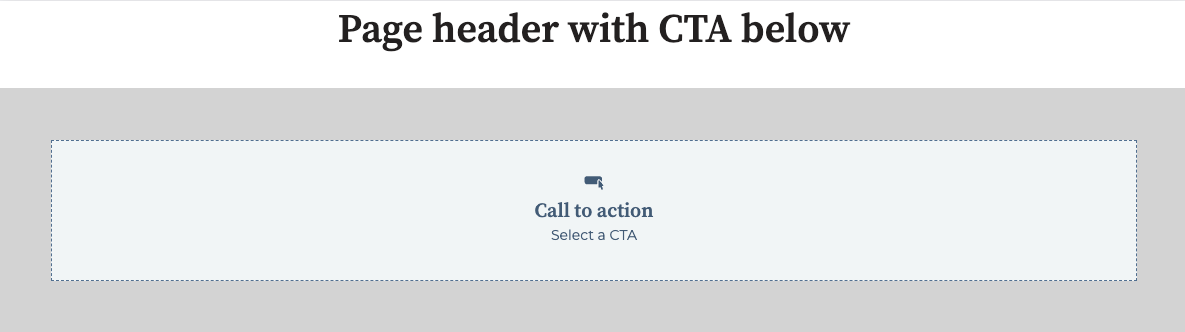
To render placeholder content for a module in the editor, you can either add default content to module fields or use theeditor_placeholder HubL tag. This can be useful when the module doesn’t have or need default content, or to streamline module building.
{% if module.label %}
   {% cta guid="{{ module.guid }}" label="my_cta" %}
{% elif is_in_editor %}
  {% editor_placeholder %}
{% endif %}
The first
if statement identifies whether the module is present. Then, the
elif statement identifies if the module is being rendered in the context of
the editor using the is_in_editor variable. This variable returns true if
the content is being rendered in any content editor, but you can be more
specific with other in-app editor and preview
variables.meta.json file.
{
  "global": false,
  "host_template_types": ["PAGE"],
  "module_id": 62170380654,
  "is_available_for_new_content": true,
  "placeholder": {
    "show_module_icon": true,
    "title": "Call to action",
    "description": "Select a CTA"
  }
}
| Parameter | Type | Description |
|---|---|---|
show_module_icon | Boolean | Whether to display the module’s icon. |
title | String | The title that appears in the placeholder. |
description | String | The description that appears in the placeholder. |
Flexible column
Flexible columns are vertical columns in a template that enable content creators to insert and remove modules to the page using the content editor. When coding a flexible column with HubL, you can choose to wrap other HubL modules to make them appear in the flexible column by default. The sample code below shows the basic syntax and a sample flexible column with a rich text and form module contained as default content. Please note that flexible columns can only be added to page templates, not blog or email templates. Modules cannot contain flexible columns, but they can instead contain repeatable fields and groups, which provide a similar functionality.- HubL
- Output
{% widget_container "my_flexible_column" label="My flex column"%}
    {% module "rich_text" path="@hubspot/rich_text" %}
    {% module "linked_image" path="@hubspot/linked_image" %}
{% end_widget_container %}
<span
  id="hs_cos_wrapper_my_flexible_column"
  class="hs_cos_wrapper hs_cos_wrapper_widget_container hs_cos_wrapper_type_widget_container"
  style=""
  data-hs-cos-general-type="widget_container"
  data-hs-cos-type="widget_container"
  ><div
    id="hs_cos_wrapper_rich_text"
    class="hs_cos_wrapper hs_cos_wrapper_widget hs_cos_wrapper_type_module"
    style=""
    data-hs-cos-general-type="widget"
    data-hs-cos-type="module"
  >
    <span
      id="hs_cos_wrapper_rich_text_"
      class="hs_cos_wrapper hs_cos_wrapper_widget hs_cos_wrapper_type_rich_text"
      style=""
      data-hs-cos-general-type="widget"
      data-hs-cos-type="rich_text"
      ><h2>Something Powerful</h2>
      <h3>Tell The Reader More</h3>
      <p>
        The headline and subheader tells us what you're
        <a href="#">offering</a>, and the form header closes the deal. Over here
        you can explain why your offer is so great it's worth filling out a form
        for.
      </p>
      <p>Remember:</p>
      <ul>
        <li>Bullets are great</li>
        <li>For spelling out <a href="#">benefits</a> and</li>
        <li>Turning visitors into leads.</li>
      </ul></span
    >
  </div>
  <div
    id="hs_cos_wrapper_linked_image"
    class="hs_cos_wrapper hs_cos_wrapper_widget hs_cos_wrapper_type_module"
    style=""
    data-hs-cos-general-type="widget"
    data-hs-cos-type="module"
  >
    <span
      id="hs_cos_wrapper_linked_image_"
      class="hs_cos_wrapper hs_cos_wrapper_widget hs_cos_wrapper_type_linked_image"
      style=""
      data-hs-cos-general-type="widget"
      data-hs-cos-type="linked_image"
      ><img
        src="https://static.hubspot.com/final/img/content/email-template-images/placeholder_200x200.png"
        class="hs-image-widget "
        style="width:200px;border-width:0px;border:0px;"
        width="200"
        alt="placeholder_200x200"
        title="placeholder_200x200"
    /></span></div
></span>
Please note:When using this tag, the
label must follow the name value for the flexible column to function in the content editor. For example, the following syntax is invalid:[% widget_container label="My label" "my_flexible_column" %}Form
Allows users to select a HubSpot form to add to their page. The code below includes an example of using the standard HubL tag syntax and an example of using block syntax.- HubL
- Output
{% form "my_form" form_to_use="{formID}", title="Free Trial" %}

<!-- Block syntax example -->
{% module_block form "my_form" form_follow_ups_follow_up_type="",
form_to_use="9e633e9f-0634-498e-917c-f01e355e83c6", title="Free Trial",
notifications_are_overridden=True, response_message="Thanks for submitting the
form.", response_type="inline", overrideable=True, gotowebinar_webinar_key="",
webinar_id="", webinar_source"", label="Form" %} {% module_attribute
"notifications_override_email_addresses" is_json=True %}
["email_address@website.com"] {% end_module_attribute %} {% end_module_block %}
<div
  id="hs_cos_wrapper_my_form"
  class="hs_cos_wrapper hs_cos_wrapper_widget hs_cos_wrapper_type_form"
  style=""
  data-hs-cos-general-type="widget"
  data-hs-cos-type="form"
>
  <h3
    id="hs_cos_wrapper_module_13885064832664947_title"
    class="hs_cos_wrapper form-title"
    data-hs-cos-general-type="widget_field"
    data-hs-cos-type="text"
  >
    Free Trial
  </h3>
  <div id="hs_form_target_module_13885064832664947">
    <form
      accept-charset="UTF-8"
      enctype="multipart/form-data"
      id="hsForm_08bd9f0d-3be9-41c2-93b6-231a3a71b143_6756"
      class="hs-form stacked hs-custom-form"
      action="https://forms.hubspot.com/uploads/form/v2/158015/08bd9f0d-3be9-41c2-93b6-231a3a71b143"
      method="POST"
      novalidate="novalidate"
    >
      <div class="hs_lastname field hs-form-field">
        <label
          placeholder="Enter your Last Name"
          for="lastname-08bd9f0d-3be9-41c2-93b6-231a3a71b143_6756"
          >Last Name</label
        >
        <div class="hs-field-desc" style="display: none;"></div>
        <div class="input">
          <input
            class="hs-input"
            type="text"
            id="lastname-08bd9f0d-3be9-41c2-93b6-231a3a71b143_6756"
            name="lastname"
            value=""
            placeholder=""
          />
        </div>
      </div>
      <div class="hs_firstname field hs-form-field">
        <label
          placeholder="Enter your First Name"
          for="firstname-08bd9f0d-3be9-41c2-93b6-231a3a71b143_6756"
          >First Name</label
        >
        <div class="hs-field-desc" style="display: none;"></div>
        <div class="input">
          <input
            class="hs-input"
            type="text"
            id="firstname-08bd9f0d-3be9-41c2-93b6-231a3a71b143_6756"
            name="firstname"
            value=""
            placeholder=""
          />
        </div>
      </div>
      <div class="hs_email field hs-form-field">
        <label
          placeholder="Enter your Email"
          for="email-08bd9f0d-3be9-41c2-93b6-231a3a71b143_6756"
          >Email<span class="hs-form-required"> * </span></label
        >
        <div class="hs-field-desc" style="display: none;"></div>
        <div class="input">
          <input
            class="hs-input"
            type="email"
            required="required"
            id="email-08bd9f0d-3be9-41c2-93b6-231a3a71b143_6756"
            name="email"
            value=""
            placeholder=""
          />
        </div>
      </div>
      <div class="hs_submit">
        <div class="hs-field-desc" style="display: none;"></div>
        <div class="actions">
          <input class="hs-button primary large" type="submit" value="Submit" />
        </div>
      </div>
    </form>
  </div>
  <script charset="utf-8" src="//js.hsforms.net/forms/current.js"></script>
  <script>
    hbspt.forms.create({
      portalId: '123456',
      formId: '{formID}',
      formInstanceId: '6756',
      pageId: 1,
      redirectUrl: 'http:\/\/www.hubspot.com\/',
      deactivateSmartForm: true,
      css: '',
      target: '#hs_form_target_module_13885064832664947',
      contentType: 'landing-page',
      formData: {
        cssClass: 'hs-form stacked hs-custom-form',
      },
    });
  </script>
</div>
| Parameter | Type | Description |
|---|---|---|
form_key | String | Specifies a unique ID for the form at the page level. |
form_to_use | String | Specifies which form to load by default, based on the Form ID. This ID is available in the form editor URL of a each form. |
title | String | Populates an h3 header tag above the form. |
no_title | Boolean | If True, the h3 tag above the title is removed. |
form_follow_ups_follow_up_type | Enumeration | Specifies follow up actions such as enrolling a contact into a workflow or sending a simple follow up email. Possible values include: no_action, simple, and automation. |
simple_email_for_live_id | Number | Specifies the ID of the simple follow-up email for the live page. |
simple_email_for_buffer_id | Number | Specifies the ID of the simple follow-up email for the auto-save version of a page. |
follow_up_type_simple | Boolean | If true, enables a simple follow-up email. Alternative to form_follow_ups_follow_up_type. |
follow_up_type_automation | Boolean | If true, enrolls submissions in a workflow. Alternative to form_follow_ups_follow_up_type. |
simple_email_campaign_id | Number | Specifies the ID of the simple follow-up email. Alternative to simple_email_for_live_id. |
form_follow_ups_workflow_id | Number | Specifies the ID of the workflow in which to enroll submissions. |
response_redirect_url | String | If redirecting to an external page, this parameter specifies the URL to redirect to. |
response_redirect_id | Number | If redirecting to HubSpot hosted page, this parameter specifies the page ID of that page. The page ID is available in the page editor URL of each page. |
response_response_type | Enumeration | Determines whether to redirect to another page or to display an inline thank you message on submission. The value of this parameter should either be "redirect" or "inline" (default). |
response_message | String | Sets an inline thank you message. This parameter supports HTML. |
notifications_are_overridden | Boolean | If set to True, the form will send form notifications to specified email addresses selected in the notifications_override_email_addresses parameter, instead of the form defaults. Default is False. |
notifications_override_guid_buffer | String | ID of override settings in auto-save version of page. |
notifications_override_guid | String | ID of override settings in live version of page. |
notifications_override_email_addresses | JSON | Block syntax supports a JSON list of email recipients that will be notified upon form submission. These email addresses will override the email notification settings set in the form. |
sfdc_campaign | String | Specifies the Salesforce campaign to enroll contacts who submit the form into. This parameter’s value should be the SFDC campaign ID and is only available for accounts that are integrated with Salesforce. |
gotowebinar_webinar_key | String | Specifies the GoToWebinar webinar to enroll contacts into after submitting the form. Only available for accounts using the GoToWebinar integration. |
webinar_id | String | A more generic field that specifies the ID of the Microsoft Teams or GoToWebinar webinar to enroll contacts into after submiting the form. Only available in accounts using the GoToWebinar or Microsoft Teams integrations, and when support_all_webinar_types is set to true in the form fields definition. |
webinar_source | String | The ID of the integration app, either GoToWebinar (35161) or Microsoft Teams (221635). |
Footer
Renders copyright information with the year and company name specified in the account’s marketing email settings.- HubL
- Output
{% page_footer "page_footer" %}
<span
  id="hs_cos_wrapper_page_footer"
  class="hs_cos_wrapper hs_cos_wrapper_widget hs_cos_wrapper_type_page_footer"
  style=""
  data-hs-cos-general-type="widget"
  data-hs-cos-type="page_footer"
>
  <footer>
    <span class="hs-footer-company-copyright">© 2020 HubSpot</span>
  </footer>
</span>
Gallery
Generates a HubSpot gallery tag. This gallery tag is based on Slick. While you can create a gallery module with standard module HubL syntax, If you want to predefine default slides using HubL, you must use block syntax. Both methods are shown below. Gallery images are lazy loaded using JavaScript.- HubL
- Output
{% gallery "crm_gallery" %}

<!-- Block syntax -->
{% widget_block
gallery "Gallery"
display_mode="standard",
sizing="static",
transition="slide",
caption_position="below",
auto_advance=True,
overrideable=True,
description_text="",
show_pagination=True,
label="Gallery",
loop_slides=True,
num_seconds=5
%}
{% widget_attribute "slides" is_json=True %}
[
    { "caption": "CRM Contacts App","show_caption": true,
    "link_url": "http://www.hubspot.com/crm",
    "alt_text": "Screenshot of CRM Contacts",
    "img_src": "http://go.hubspot.com/hubfs/Contacts-View-1.png?t=1430860504240",
    "open_in_new_tab": true },
    { "caption": "HubSpot CRM Contact Profile",
    "show_caption": true, "link_url": "http://www.hubspot.com/", "alt_text": "HubSpot CRM Contact Profile",
    "img_src": "http://cdn2.hubspot.net/hubfs/53/Contact-Profile.png?t=1430860504240",
    "open_in_new_tab": true }
]
{% end_widget_attribute %}
{% end_widget_block %}
<span
  id="hs_cos_wrapper_crm_gallery"
  class="hs_cos_wrapper hs_cos_wrapper_widget hs_cos_wrapper_type_gallery"
  style=""
  data-hs-cos-general-type="widget"
  data-hs-cos-type="gallery"
>
  <div
    id="hs_cos_flex_gallery_crm_gallery"
    class="hs_cos_flex-gallery flex-gallery-main gallery-mode-gallery"
  >
    <div
      class="hs_cos_flex-viewport"
      style="overflow: hidden; position: relative;"
    >
      <ul
        class="hs_cos_flex-slides hs_cos_flex-slides-main "
        style="width: 800%; -webkit-transition-duration: 0s; transition-duration: 0s; -webkit-transform: translate3d(-1090px, 0px, 0px);"
      >
        <li
          class="hs_cos_flex-slide-main clone"
          aria-hidden="true"
          style="width: 1090px; float: left; display: block;"
        >
          <a href="//www.hubspot.com/" target="_blank"
            ><img
              src="//cdn2.hubspot.net/hubfs/53/Contact-Profile.png?t=1430860504240&t=1430335520686"
              alt="HubSpot CRM Contact Profile"
              draggable="false"
          /></a>
          <div class="caption">HubSpot CRM Contact Profile</div>
        </li>
        <li
          class="hs_cos_flex-slide-main hs_cos_flex-active-slide"
          style="width: 1090px; float: left; display: block;"
        >
          <a href="//www.hubspot.com/crm" target="_blank"
            ><img
              src="http://go.hubspot.com/hubfs/Contacts-View-1.png?t=1430860504240&t=1430335520686"
              alt="Screenshot of CRM Contacts"
              draggable="false"
          /></a>
          <div class="caption">CRM Contacts App</div>
        </li>
        <li
          class="hs_cos_flex-slide-main"
          style="width: 1090px; float: left; display: block;"
        >
          <a href="//www.hubspot.com/" target="_blank"
            ><img
              src="//cdn2.hubspot.net/hubfs/53/Contact-Profile.png?t=1430860504240&t=1430335520686"
              alt="HubSpot CRM Contact Profile"
              draggable="false"
          /></a>
          <div class="caption">HubSpot CRM Contact Profile</div>
        </li>
        <li
          class="hs_cos_flex-slide-main clone"
          aria-hidden="true"
          style="width: 1090px; float: left; display: block;"
        >
          <a href="//www.hubspot.com/crm" target="_blank"
            ><img
              src="http://go.hubspot.com/hubfs/Contacts-View-1.png?t=1430860504240&t=1430335520686"
              alt="Screenshot of CRM Contacts"
              draggable="false"
          /></a>
          <div class="caption">CRM Contacts App</div>
        </li>
      </ul>
    </div>
    <ol class="hs_cos_flex-control-nav hs_cos_flex-control-paging">
      <li><a class="hs_cos_flex-active">1</a></li>
      <li><a class="">2</a></li>
    </ol>
    <ul class="hs_cos_flex-direction-nav">
      <li><a class="hs_cos_flex-prev" href="#">Previous</a></li>
      <li><a class="hs_cos_flex-next" href="#">Next</a></li>
    </ul>
  </div>
  <script>
    window.hsSliderConfig = window.hsSliderConfig || {};
    window.hsSliderConfig['crm_gallery'] = {
      mode: 'gallery',
      mainConfig: {
        animationLoop: true,
        direction: 'horizontal',
        slideshowSpeed: 5000.0,
        controlNav: true,
        smoothHeight: false,
        namespace: 'hs_cos_flex-',
        slideshow: true,
        selector: '.hs_cos_flex-slides > li',
        animation: 'slide',
      },
    };
  </script></span
>
| Parameter | Type | Description | Default |
|---|---|---|---|
slides | JSON | A JSON list of the default caption, the link url, the alt text, the image src, and whether to open in a new tab. See block syntax above. | |
loop_slides | Boolean | When True, continuously loop through slides. | True |
num_seconds | Number | Time in seconds to pause between slides. | 5 |
show_pagination | Boolean | Provide buttons below slider to navigate among slides. | True |
sizing | Enumeration | Determines whether the slider changes sizes, based on the height of the slides. Possible values include: “static” or “resize”. | "static" |
auto_advance | Boolean | Automatically advance slides after the time set in num_seconds. | False |
transition | Enumeration | Sets the type of slide transition. Possible values include: “fade” or “slide”. | "slide" |
caption_position | Enumeration | Affects positioning of caption on or below the slide. Possible values include “below” or “superimpose”. | "below" |
display_mode | Enumeration | Determines how the image gallery will be displayed. Possible values include: “standard”, “lightbox”, “thumbnail”. | "standard" |
lightboxRows | Number | If “display_mode” is set to “lightbox”, this parameter will control the number of rows displayed within the lightbox. | 3 |
Header
Generates a header module that will render text as an h1-h6 tag.- HubL
- Output
{% header "header" %} {% header "my_header" header_tag="h1", overrideable=True,
value="A clear and bold header", label="Header" %}
<span
  id="hs_cos_wrapper_my_header"
  class="hs_cos_wrapper hs_cos_wrapper_widget hs_cos_wrapper_type_header"
  style=""
  data-hs-cos-general-type="widget"
  data-hs-cos-type="header"
>
  <h1>A clear and bold header</h1>
</span>
| Parameter | Type | Description | Default |
|---|---|---|---|
header_tag | String | Select which heading tag to render. Possible values include: h1, h2, h3, h4, h5, h6. | h1 |
value | String | Renders default text within the heading module. | "A clear bold header" |
Icon
Adds an icon tag that allows users to select and icon for use. Supported icons sets are FontAwesome 5.0.10, 5.14.0, and 6.4.2. This tag cannot be used in modules enabled for email.- HubL
- Output
{% icon name="Accessible Icon" style="REGULAR" unicode="f368"
icon_set="fontawesome-5.14.0" purpose="decorative" title="Accessible Icon" %}
<span
  id="hs_cos_wrapper_module_42549274798_"
  class="hs_cos_wrapper hs_cos_wrapper_widget hs_cos_wrapper_type_icon"
  style=""
  data-hs-cos-general-type="widget"
  data-hs-cos-type="icon"
>
  <svg
    version="1.0"
    xmlns="http://www.w3.org/2000/svg"
    viewBox="0 0 448 512"
    aria-hidden="true"
  >
    <g id="layer1">
      <path
        d="M423.9 255.8L411 413.1c-3.3 40.7-63.9 35.1-60.6-4.9l10-122.5-41.1 2.3c10.1 20.7 15.8 43.9 15.8 68.5 0 41.2-16.1 78.7-42.3 106.5l-39.3-39.3c57.9-63.7 13.1-167.2-74-167.2-25.9 0-49.5 9.9-67.2 26L73 243.2c22-20.7 50.1-35.1 81.4-40.2l75.3-85.7-42.6-24.8-51.6 46c-30 26.8-70.6-18.5-40.5-45.4l68-60.7c9.8-8.8 24.1-10.2 35.5-3.6 0 0 139.3 80.9 139.5 81.1 16.2 10.1 20.7 36 6.1 52.6L285.7 229l106.1-5.9c18.5-1.1 33.6 14.4 32.1 32.7zm-64.9-154c28.1 0 50.9-22.8 50.9-50.9C409.9 22.8 387.1 0 359 0c-28.1 0-50.9 22.8-50.9 50.9 0 28.1 22.8 50.9 50.9 50.9zM179.6 456.5c-80.6 0-127.4-90.6-82.7-156.1l-39.7-39.7C36.4 287 24 320.3 24 356.4c0 130.7 150.7 201.4 251.4 122.5l-39.7-39.7c-16 10.9-35.3 17.3-56.1 17.3z"
      ></path>
    </g>
  </svg>
</span>
| Parameter | Type | Description | Default |
|---|---|---|---|
name | String | Name of the icon. | |
style | String | Style of the icon. Possible values: REGULAR or SOLID | REGULAR |
unicode | String | The Unicode character representation of the icon. | |
icon_set | String | The FontAwesome icon set to use. Possible values are:
| |
purpose | String | The purpose of the icon, used for accessibility. Possible values are decorative or semantic. If set to decorative, an additional attribute of aria-hidden="true" will be added to the icon. | decorative |
title | String | The title element of the icon’s svg, along with a labelledby attribute that points to the title. |
Image
Creates a image tag that allows users to select an image from the content editor. If you want the image to be linked to a destination URL, you should use linked_image below.- HubL
- Output
{% image "image" %} {% image "executive_image" label="Executive photo",
alt="Photo of Brian Halligan",
src="//cdn2.hubspot.net/hub/53/file-733888619-jpg/assets/hubspot.com/about/management/brian-home.jpg",
width="300" %}
<span
  id="hs_cos_wrapper_executive_image"
  class="hs_cos_wrapper hs_cos_wrapper_widget hs_cos_wrapper_type_image"
  style=""
  data-hs-cos-general-type="widget"
  data-hs-cos-type="image"
>
  <img
    src="//cdn2.hubspot.net/hub/53/file-733888619-jpg/assets/hubspot.com/about/management/brian-home.jpg?width=300"
    class="hs-image-widget "
    width="300"
    alt="Photo of Brian Halligan"
    title="Photo of Brian Halligan"
  />
</span>
| Parameter | Type | Description | Default |
|---|---|---|---|
alt | String | Sets the default alt text for the image. | |
src | String | Populates the src attribute of the img tag. | |
width | Number | Sets the width attribute of the img tag. | The width of the image |
height | Number | Sets a min-height in a style attribute of the img tag for email templates only. | The height of the image |
hspace | Number | Sets the hspace attribute of the img tag. | |
align | String | Sets the align attribute of the img tag. Possible values include: left, right, & center. | |
style | String | Adds inline CSS declarations to the img tag. For example style=“border:1px solid blue; margin:10px” | |
loading | String | Controls img element loading attribute. Used for browser based lazy loading. |
Image src
An image src module creates a image selector in the content editor, but rather than printing a img tag, it renders the URL of the image. This tag is generally used withno_wrapper=True parameter, so that the image src can be added to inline CSS or other markup. An alternative to using this tag is to use the export_to_template_context parameter.
- HubL
- Output
{% image_src "image_src" %} {% image_src "executve_image_src"
src="//cdn2.hubspot.net/hub/53/file-733888614-jpg/assets/hubspot.com/about/management/dharmesh-home.jpg",
no_wrapper=True %}
//cdn2.hubspot.net/hub/53/file-733888614-jpg/assets/hubspot.com/about/management/dharmesh-home.jpg
| Parameter | Type | Description |
|---|---|---|
src | String | Specifies the default URL image src. |
Language switcher
Adds a Globe Icon with links to the translated versions of a given CMS page. Learn more about multi-language content here.- HubL
- Output
{% language_switcher "language_switcher" overrideable=false,
display_mode="localized", label="Language Switcher" %}
<span
  id="hs_cos_wrapper_module_1487954976079503"
  class="hs_cos_wrapper hs_cos_wrapper_widget hs_cos_wrapper_type_language_switcher"
  style=""
  data-hs-cos-general-type="widget"
  data-hs-cos-type="language_switcher"
>
  <div class="lang_switcher_class">
    <div class="globe_class">
      <ul class="lang_list_class">
        <li>
          <a class="lang_switcher_link" href="http://www.hubspot.com"
            >English</a
          >
        </li>
        <li>
          <a class="lang_switcher_link" href="http://www.hubspot.com/es"
            >Spanish</a
          >
        </li>
      </ul>
    </div>
  </div>
</span>
| Parameter | Type | Description | Default |
|---|---|---|---|
display_mode | Enumeration | The language of the text in the language switcher. Values are:
| Localized |
Linked image
Creates a user-selectable image that is wrapped in a link. This tag has all of the parameters of an image module with two additional parameters that specify the link destination URL and whether the link opens in a new window.- HubL
- Output
{% linked_image "linked_image" %} {% linked_image "executive_image"
label="Executive photo", link="https://twitter.com/bhalligan", \
open_in_new_tab=True, alt="Photo of Brian Halligan",
src="//cdn2.hubspot.net/hub/53/file-733888619-jpg/assets/hubspot.com/about/management/brian-home.jpg",
width="300" %}
<span
  id="hs_cos_wrapper_executive_image"
  class="hs_cos_wrapper hs_cos_wrapper_widget hs_cos_wrapper_type_linked_image"
  style=""
  data-hs-cos-general-type="widget"
  data-hs-cos-type="linked_image"
>
  <a
    href="https://twitter.com/bhalligan"
    target="_blank"
    id="hs-link-executive_image"
    style="border-width:0px;border:0px;"
  >
    <img
      src="//cdn2.hubspot.net/hub/53/file-733888619-jpg/assets/hubspot.com/about/management/brian-home.jpg?width=300"
      class="hs-image-widget "
      style="width:300px;border-width:0px;border:0px;"
      width="300"
      alt="Photo of Brian Halligan"
      title="Photo of Brian Halligan"
    />
  </a>
</span>
| Parameter | Type | Description | Default |
|---|---|---|---|
alt | String | Sets the default alt text for the image. | |
src | String | Populates the src attribute of the img tag. | |
width | Number | Sets the width attribute of the img tag. | The width of the image |
height | Number | Sets a min-height in a style attribute of the img tag for email templates only. | The height of the image |
hspace | Number | Sets the hspace attribute of the img tag. | |
align | String | Sets the align attribute of the img tag. Possible values include: left, right, & center. | |
style | String | Adds inline CSS declarations to the img tag. For example style=“border:1px solid blue; margin:10px” | |
open_in_new_tab | Boolean | Selects whether or not to open the destination URL in another tab. | False |
link | String | Sets the destination URL of the link that wraps the img tag. | |
target | String | Sets the target attribute of the link tag. | |
loading | String | Controls img element loading attribute. Used for browser based lazy loading. |
Logo
A logo tag renders your company’s logo from the account’s brand kit settings.- HubL
- Output
{% logo "logo" %} {% logo "my_logo" width="200" %}
<span
  id="hs_cos_wrapper_my_logo"
  class="hs_cos_wrapper hs_cos_wrapper_widget hs_cos_wrapper_type_logo"
  style=""
  data-hs-cos-general-type="widget"
  data-hs-cos-type="logo"
>
  <a href="//www.hubspot.com" id="hs-link-my_logo">
    <img
      src="//cdn2.hubspot.net/hub/53/file-1237149549-png/assets/hubspot.com/V2-Global/hubspot-logo-dark.png?t=1430948896766&width=200"
      class="hs-image-widget "
      width="200"
      alt="HubSpot logo"
      title="HubSpot logot"
    />
  </a>
</span>
| Parameter | Type | Description | Default |
|---|---|---|---|
alt | String | Sets the default alt text for the image. | Value in brand kit settings |
src | String | Populates the src attribute of the img tag. | Value in brand kit settings |
link | String | Sets the destination URL of the link that wraps the img tag. | |
width | Number | Sets the width attribute of the img tag. | The width of the image |
height | Number | Sets a min-height in a style attribute of the img tag for email templates only. | The height of the image |
hspace | Number | Sets the hspace attribute of the img tag. | |
align | String | Sets the align attribute of the img tag. Possible values include: left, right, and center. | |
style | String | Adds inline CSS declarations to the img tag. For example:style="border:1px solid blue; margin:10px" | |
suppress_company_name | Boolean | Hides company name if an image logo isn’t set. | False |
use_account_default | Boolean | Set to true to use the company name from the account’s default settings. | False |
open_in_new_tab | Boolean | Selects whether or not to open the destination URL in another tab. | False |
override_inherited_src | Boolean | When set to true, use src from logo widget rather than src inherited from settings or template. | True |
heading_level | String | When using non-linked text-based logos, this wraps the text-based logo in one of the following available options as an HTML tag: h1, h2, h3, h4. | h1 |
loading | String | Controls img element loading attribute for browser based lazy loading. |
Menu
Generates an advanced menu based on a menu tree in Content Settings > Advanced Menus. See menus and navigation for more information on using menus in templates and modules. Ifid is set to null the menu tag will render the default menu for the HubSpot account.
- HubL
- Output
{% menu "my_menu"
  id=456,
  site_map_name="Default",
  overrideable=False,
  root_type="site_root",
  flyouts="true",
  max_levels="2",
  flow="horizontal",
  label="Advanced Menu"
%}
<div id="hs_menu_wrapper_my_menu" class="hs-menu-wrapper active-branch flyouts hs-menu-flow-horizontal" data-sitemap-name="Default">
<ul>
<li class="hs-menu-item hs-menu-depth-1"><a href="http://www.husbpot.com/Software">Software</a></li>
<li class="hs-menu-item hs-menu-depth-1"><a href="http://www.hubspot.com/pricing">Pricing</a></li>
<li class="hs-menu-item hs-menu-depth-1"><a href="http://www.hubspot.com/resources">Resources</a></li>
<li class="hs-menu-item hs-menu-depth-1"><a href="http://www.hubspot.com/contact">Contact</a></li>
</ul>
</div>
</span>
| Parameter | Type | Description | Default | |
|---|---|---|---|---|
flow | Enumeration | horizontal | vertical | This adds classes to the menu tree so that they can be styled accordingly. | |
root_type | Enumeration | site_root | top_parent | parent | page_id | page_name | breadcrumb | Specifies the type of advanced menu. | |
root_key | String | Used to find the menu root. When root_type is set to page_id or page_name, this parameter should be the page ID or the label of the page, respectively. | ||
max_levels | Number | Determines how many levels of nested menus render in the markup. | ||
flyouts | Boolean | When true, a class is added to the menu tree that can be styled to allow child menu items to appear when you hover over the parent. | ||
site_map_name | String | Name of menu tree from Advanced Menus. | ||
id | String | The ID of the navigation menu to use, which you can find in HubSpot. |
Require_css
A HubL tag that enqueues a style element to be rendered in the<head>.
This tag is similar to the require_css function, except that this tag inserts styling inline rather than from a stylesheet. This tag also does not deduplicate against other instances of the CSS on the same page. If you’re building a module and want to insert a stylesheet, but you might use that module multiple times on a single page, you may want to use the require_css function instead.
- HubL
- Output
{{ standard_header_includes }}
<!-- more html -->

{% require_css %}
<style>
  body {
    color: red;
  }
</style>
{% end_require_css %} {{ standard_footer_includes }}
<!-- other standard header html -->
<style>
  body {
    color: red;
  }
</style>
<!-- more html -->
<!-- other standard footer html -->
Require_head
A HubL tag that enqueues anything placed inside of it into thestandard_header_includes which is in the template’s <head>. For most Javascript and CSS see require_js and require_css. Some use-cases for require_head include supplying meta tags, and special link tags (like prefetch and preconnect) from modules.
{% require_head %}
  <meta name="third-party-app-verification-id" content="123456">
  <link rel="prefetch" href="http://example.com/large-script.js">
  <!-- these are purely examples, you could add anything that requires being in the head. require_css and require_js should be used instead of this when embedding a style tag or script tag.-->
{% end_require_head %}
Require_js
A HubL tag that enqueues a script element to be rendered. To enqueue a script to render in the<head />from a different file via a <script /> element (as opposed to inline as shown here), use the HubL function require_js(absolute_url) instead.
- HubL
- Output
{{ standard_header_includes }}
<!-- more html -->

{% require_js position="footer" %}
<script>
  console.log('The CMS is awesome!');
</script>
{% end_require_js %} {{ standard_footer_includes }}
<!-- other standard header html -->
<!-- more html -->
<script>
  console.log('The CMS is awesome!');
</script>
<!-- other standard footer html -->
| Parameter | Type | Description | Default |
|---|---|---|---|
position | String | Set the position where the inline script will be rendered. Options include: "head" and "footer". | "footer" |
Rich text
Creates a WYSIWYG content editor.- HubL
- Output
{% rich_text "rich_text" %} {% rich_text "left_column" label="Enter HTML here"
html="
<div>My rich text default content</div>
" %} Block Syntax Example: {% widget_block rich_text "right_column"
overrideable=True, label="Right Column" %} {% widget_attribute "html" %}
<h2>Something Powerful</h2>
<h3>Tell The Reader More</h3>
<p>
  The headline and subheader tells us what you're offering, and the form header
  closes the deal. Over here you can explain why your offer is so great it's
  worth filling out a form for.
</p>
<p>Remember:</p>
<ul>
  <li>Bullets are great</li>
  <li>For spelling out <a href="#">benefits</a> and</li>
  <li>Turning visitors into leads.</li>
</ul>
{% end_widget_attribute %} {% end_widget_block %}
<span
  id="hs_cos_wrapper_right_column"
  class="hs_cos_wrapper hs_cos_wrapper_widget hs_cos_wrapper_type_rich_text"
  style=""
  data-hs-cos-general-type="widget"
  data-hs-cos-type="rich_text"
>
  <h2>Something Powerful</h2>
  <h3>Tell The Reader More</h3>
  <p>
    The headline and subheader tells us what you're offering, and the form
    header closes the deal. Over here you can explain why your offer is so great
    it's worth filling out a form for.
  </p>
  <p>Remember:</p>
  <ul>
    <li>Bullets are great</li>
    <li>For spelling out benefits and</li>
    <li>Turning visitors into leads.</li>
  </ul>
</span>
| Parameter | Type | Description | Default |
|---|---|---|---|
html | String | Default rich text content for module. | <h2>Something Powerful</h2> <h3>Tell The Reader More</h3> <p>The headline and subheader tells us what you're offering, and the form header closes the deal. Over here you can explain why your offer is so great it's worth filling out a form for.</p> <p>Remember:</p> <ul><li>Bullets are great</li><li>For spelling out [benefits](#) and</li><li>Turning visitors into leads.</li></ul> |
RSS listing
Loads a list of content from an internal or external RSS feed.Please note:This module loads asynchronously on the client-side. As a result, if you want to manipulate the feed after it’s loaded, you’ll need to define a global JS function to handle that manipulation. Use the function
hsRssFeedComplete(feeds), where feeds is the jQuery selector on all feeds that have been completed. You can directly manipulate the DOM object in that function.- HubL
- Output
{% rss_listing "rss_listing" %}
{% rss_listing "my_rss_listing"
rss_url="",
publish_date_text="posted at",
feed_source={
    rss_url="",
    is_external=False,
    content_group_id="30808594297",
}
click_through_text="Read more",
show_date=True,
include_featured_image=True,
overrideable=False,
publish_date_format="short",
show_detail=True,
show_author=True,
number_of_items="3",
is_external=False,
title="",
content_group_id="24732847",
label="RSS Listing",
limit_to_chars="200",
attribution_text="by"
%}
<span
  id="hs_cos_wrapper_module_70642123068_my_rss_listing"
  class="hs_cos_wrapper hs_cos_wrapper_widget hs_cos_wrapper_type_rss_listing"
  style=""
  data-hs-cos-general-type="widget"
  data-hs-cos-type="rss_listing"
>
  <h3></h3>
  <div class="hs-rss-module feedreader_box hs-hash-758735283">
    <div class="hs-rss-item ">
      <div class="hs-rss-item-text">
        <a
          class="hs-rss-title"
          href="https://developers.hubspot.com/blog/how-to-write-cron-jobs-in-hubspot-to-take-time-based-action-on-crm-data"
        >
          <span
            >How to Write Cron Jobs in HubSpot to take Time Based Action on CRM
            Data</span
          >
        </a>
        <div class="hs-rss-byline">
          by <span class="hs-rss-author">Jon McLaren</span>
          <span class="hs-rss-posted-at"> posted at</span>
          <span class="hs-rss-date">3/8/23 10:42 AM</span>
        </div>
        <div class="hs-rss-description">
          <p>
            First things first: Cron jobs are scripts that get executed based on
            time. Understanding where this shorthand name comes from may help
            you remember this:
            <a
              href="https://developers.hubspot.com/blog/how-to-write-cron-jobs-in-hubspot-to-take-time-based-action-on-crm-data"
              >Read more</a
            >
          </p>
        </div>
      </div>
    </div>
    <div class="hs-rss-item ">
      <div class="hs-rss-item-text">
        <a
          class="hs-rss-title"
          href="https://developers.hubspot.com/blog/implementing-semantic-search-into-a-hubspot-workflow"
        >
          <span
            >Using OpenAI Embeddings API to implement Semantic Search into a
            HubSpot Workflow</span
          >
        </a>
        <div class="hs-rss-byline">
          by <span class="hs-rss-author">Roman Kozak</span>
          <span class="hs-rss-posted-at"> posted at</span>
          <span class="hs-rss-date">3/7/23 2:09 PM</span>
        </div>
        <div class="hs-rss-description">
          <p>
            This article was authored by a member of the HubSpot developer
            community, Roman Kozak.
            <a
              href="https://developers.hubspot.com/blog/implementing-semantic-search-into-a-hubspot-workflow"
              >Read more</a
            >
          </p>
        </div>
      </div>
    </div>
    <div class="hs-rss-item ">
      <div class="hs-rss-item-text">
        <a
          class="hs-rss-title"
          href="https://developers.hubspot.com/blog/how-to-use-npm-packages-in-custom-code-workflow-actions"
        >
          <span>How to Use NPM Packages in Custom Code Workflow Actions</span>
        </a>
        <div class="hs-rss-byline">
          by <span class="hs-rss-author">Joshua Beatty</span>
          <span class="hs-rss-posted-at"> posted at</span>
          <span class="hs-rss-date">2/28/23 10:30 AM</span>
        </div>
        <div class="hs-rss-description">
          <p>
            This article was authored by a member of the HubSpot developer
            community, Joshua Beatty.
            <a
              href="https://developers.hubspot.com/blog/how-to-use-npm-packages-in-custom-code-workflow-actions"
              >Read more</a
            >
          </p>
        </div>
      </div>
    </div>
  </div>
</span>
| Parameter | Type | Description | Default |
|---|---|---|---|
show_title | Boolean | Shows or hides RSS feed title. | True |
show_date | Boolean | Displays post date. | True |
show_author | Boolean | Displays author name. | True |
show_detail | Boolean | Display post summary up to number of characters set by limit_to_chars parameter. | True |
title | String | Populates a heading above the RSS feed listing. | |
limit_to_chars | Number | Maximum number of characters to display in summary. | 200 |
publish_date_format | String | Format for the publish date. Possible values include "short", "medium" and "long". Also accepts custom formats including "MMMM d, yyyy 'at' h:mm a". | "short" |
attribution_text | String | The text which attributes an author to a post. | "by" |
click_through_text | String | The text which will be displayed for the click through link at the end of a post summary. | "Read more" |
publish_date_text | String | The text which indicates when a post was published. | "posted at" |
include_featured_image | Boolean | Displays featured image with post link for HubSpot generated RSS feeds. | False |
item_title_tag | String | Specifies HTML tag of each post title. | span |
is_external | Boolean | RSS feed is from an external blog. | False |
number_of_items | Number | Maximum number of posts to display. | 5 |
publish_date_language | String | Specifies the language of the publish date. | en_US |
rss_url | String | The URL where the RSS feed is located. | |
content_group_id | String | ID for blog when feed source is internal blog. | |
select_blog | String | Can be used to select an internal HubSpot blog feed. | default |
feed_source | String | Set source for RSS feed. When internal, general format is {rss_url="", is_external=False, content_group_id="2502431580"}. When external, general format is {rss_url="http://blog.hubspot.com/marketing/rss.xml", is_external=True}. | |
tag_id | Number | ID for tag when feed source is internal blog. |
Section header
Generates an html heading and<p> subheader.
- HubL
- Output
{% section_header "section_header" %} {% section_header "my_section_header"
subheader="A more subdued subheader", header="A clear and bold header",
label="Section Header" %}
<span
  id="hs_cos_wrapper_my_section_header"
  class="hs_cos_wrapper hs_cos_wrapper_widget hs_cos_wrapper_type_section_header"
  style=""
  data-hs-cos-general-type="widget"
  data-hs-cos-type="section_header"
>
  <div class="page-header section-header">
    <h1>A clear and bold header</h1>
    <p class="secondary-header">
      <span id="hs_cos_wrapper_subheader" class="section-subheader"
        >A more subdued subheader</span
      >
    </p>
  </div>
</span>
| Parameter | Type | Description | Default |
|---|---|---|---|
header | String | Text to display in header. | "A clear and bold header" |
subheader | String | Text to display in subheader. | "A more subdued subheader" |
heading_level | String | The semantic HTML heading level. h1 to h6 are supported. | "h1" |
Simple menu
Simple menus allow you to create basic navigation menus that can be modified at the page level. Unlike regular menu modules, simple menus are not managed from the Navigation screen in Website Settings, but rather from the template and page editors. You can use block syntax to set up a default menu tree.- HubL
- Output
{% simple_menu "simple_menu" %} {% simple_menu "my_simple_menu"
orientation="horizontal", label="Simple Menu" %} Block Syntax Example: {%
widget_block simple_menu "block_simple_menu" overrideable=True,
orientation="horizontal", label="Simple Menu" %} {% widget_attribute "menu_tree"
is_json=True %}[{"contentType": null, "subCategory": null, "pageLinkName": null,
"pageLinkId": null, "isPublished": false, "categoryId": null, "linkParams":
null, "linkLabel": "Home", "linkTarget": null, "linkUrl":
"http://www.hubspot.com", "children": [], "isDeleted": false}, {"contentType":
null, "subCategory": null, "pageLinkName": null, "pageLinkId": null,
"isPublished": false, "categoryId": null, "linkParams": null, "linkLabel":
"About", "linkTarget": null, "linkUrl":
"http://www.hubspot.com/internet-marketing-company", "children":
[{"contentType": null, "subCategory": null, "pageLinkName": null, "linkUrl":
"http://www.hubspot.com/company/management", "isPublished": false, "children":
[], "linkParams": null, "linkLabel": "Our Team", "linkTarget": null,
"pageLinkId": null, "categoryId": null, "isDeleted": false}], "isDeleted":
false}, {"contentType": null, "subCategory": null, "pageLinkName": null,
"pageLinkId": null, "isPublished": false, "categoryId": null, "linkParams":
null, "linkLabel": "Pricing", "linkTarget": null, "linkUrl":
"http://www.hubspot.com/pricing", "children": [], "isDeleted": false}]{%
end_widget_attribute %} {% end_widget_block %}
<span
  id="hs_cos_wrapper_my_simple_menu"
  class="hs_cos_wrapper hs_cos_wrapper_widget hs_cos_wrapper_type_simple_menu"
  style=""
  data-hs-cos-general-type="widget"
  data-hs-cos-type="simple_menu"
>
  <ul></ul>
</span>

<span
  id="hs_cos_wrapper_block_simple_menu"
  class="hs_cos_wrapper hs_cos_wrapper_widget hs_cos_wrapper_type_simple_menu"
  style=""
  data-hs-cos-general-type="widget"
  data-hs-cos-type="simple_menu"
>
  <div
    id="hs_menu_wrapper_module_143093417497114626"
    class="hs-menu-wrapper active-branch flyouts hs-menu-flow-horizontal"
    data-sitemap-name=""
  >
    <ul>
      <li class="hs-menu-item hs-menu-depth-1">
        <a href="//www.hubspot.com" target="_self">Home</a>
      </li>
      <li class="hs-menu-item hs-menu-depth-1 hs-item-has-children">
        <a href="//www.hubspot.com/internet-marketing-company" target="_self"
          >About</a
        >
        <ul class="hs-menu-children-wrapper">
          <li class="hs-menu-item hs-menu-depth-2">
            <a href="//www.hubspot.com/company/management" target="_self"
              >Our Team</a
            >
          </li>
        </ul>
      </li>
      <li class="hs-menu-item hs-menu-depth-1">
        <a href="//www.hubspot.com/pricing" target="_self">Pricing</a>
      </li>
    </ul>
  </div>
</span>
| Parameter | Type | Description | Default |
|---|---|---|---|
orientation | Enumeration | Defines classes of menu markup to allow to style the orientation of menu items on the page. Possible values include "horizontal" and "vertical". | "horizontal" |
menu_tree | JSON | Menu structure including page link names and target URLs. | [] |
Social sharing
Social sharing tags generate social media icons that can be used to share a particular page. This module can be used with block syntax to customize the icon images and more.- HubL
- Output
{% social_sharing "social_sharing" %}
{% social_sharing "my_social_sharing" use_page_url=True %}

<!-- Block Syntax Example: -->
{% widget_block social_sharing "my_social_sharing"
label="Social Sharing",
use_page_url=True, overrideable=True
%}
{% widget_attribute "pinterest" is_json=True %}
    {"custom_link_format": "",
    "pinterest_media":"http://cdn1.hubspot.com/hub/158015/305390_10100548508246879_837195_59275782_6882128_n.jpg",
    "enabled": true, "network": "pinterest", "img_src":
    "https://static.hubspot.com/final/img/common/icons/social/pinterest-24x24.png"}
{% end_widget_attribute %}
{% widget_attribute "twitter" is_json=True %}
{"custom_link_format": "", "enabled": true, "network": "twitter", "img_src":
"https://static.hubspot.com/final/img/common/icons/social/twitter-24x24.png"}{%
end_widget_attribute %} {% widget_attribute "linkedin" is_json=True
%}{"custom_link_format": "", "enabled": true, "network": "linkedin", "img_src":
"https://static.hubspot.com/final/img/common/icons/social/linkedin-24x24.png"}{%
end_widget_attribute %}
{% widget_attribute "facebook" is_json=True %}
{"custom_link_format": "", "enabled": true, "network": "facebook",
"img_src":
"https://static.hubspot.com/final/img/common/icons/social/facebook-24x24.png"}{% end_widget_attribute %}
{% widget_attribute "email" is_json=True %}
{"custom_link_format": "", "enabled": true, "network": "email", "img_src":
"https://static.hubspot.com/final/img/common/icons/social/email-24x24.png"}
{% end_widget_attribute %}
{% end_widget_block %}
<span
  id="hs_cos_wrapper_social_sharing"
  class="hs_cos_wrapper hs_cos_wrapper_widget hs_cos_wrapper_type_social_sharing"
  style=""
  data-hs-cos-general-type="widget"
  data-hs-cos-type="social_sharing"
>
  <a
    href="http://www.facebook.com/share.php?u=http%3A%2F%2Fexample.com%2Fmy-page%3Futm_medium%3Dsocial%26utm_source%3Dfacebook"
    target="_blank"
    style="width:24px;border-width:0px;border:0px;"
  >
    <img
      src="//static.hubspot.com/final/img/common/icons/social/facebook-24x24.png?width=24"
      class="hs-image-widget hs-image-social-sharing-24"
      style="max-height:24px;max-width:24px;border-width:0px;border:0px;"
      width="24"
      hspace="0"
      alt="Share on Facebook"
    />
  </a>
  <a
    href="http://www.linkedin.com/shareArticle?mini=true&url=http%3A%2F%2Fexample.com%2Fmy-page%3Futm_medium%3Dsocial%26utm_source%3Dlinkedin"
    target="_blank"
    style="width:24px;border-width:0px;border:0px;"
  >
    <img
      src="//static.hubspot.com/final/img/common/icons/social/linkedin-24x24.png?width=24"
      class="hs-image-widget hs-image-social-sharing-24"
      style="max-height:24px;max-width:24px;border-width:0px;border:0px;"
      width="24"
      hspace="0"
      alt="Share on LinkedIn"
    />
  </a>
  <a
    href="https://twitter.com/intent/tweet?original_referer=http%3A%2F%2Fexample.com%2Fmy-page%3Futm_medium%3Dsocial%26utm_source%3Dtwitter&url=http%3A%2F%2Fexample.com%2Fmy-page%3Futm_medium%3Dsocial%26utm_source%3Dtwitter&source=tweetbutton&text="
    target="_blank"
    style="width:24px;border-width:0px;border:0px;"
  >
    <img
      src="//static.hubspot.com/final/img/common/icons/social/twitter-24x24.png?width=24"
      class="hs-image-widget hs-image-social-sharing-24"
      style="max-height:24px;max-width:24px;border-width:0px;border:0px;"
      width="24"
      hspace="0"
      alt="Share on Twitter"
    />
  </a>
  <a
    href="http://pinterest.com/pin/create/button/?url=http%3A%2F%2Fexample.com%2Fmy-page%3Futm_medium%3Dsocial%26utm_source%3Dpinterest&media=http%3A%2F%2Fcdn1.hubspot.com%2Fhub%2F158015%2F305390_10100548508246879_837195_59275782_6882128_n.jpg"
    target="_blank"
    style="width:24px;border-width:0px;border:0px;"
  >
    <img
      src="//static.hubspot.com/final/img/common/icons/social/pinterest-24x24.png?width=24"
      class="hs-image-widget hs-image-social-sharing-24"
      style="max-height:24px;max-width:24px;border-width:0px;border:0px;"
      width="24"
      hspace="0"
      alt="Share on Pinterest"
  /></a>
  <a
    href="mailto:?subject=Check out http%3A%2F%2Fexample.com%2Fmy-page%3Futm_medium%3Dsocial%26utm_source%3Demail &body=Check out http%3A%2F%2Fexample.com%2Fmy-page%3Futm_medium%3Dsocial%26utm_source%3Demail"
    target="_blank"
    style="width:24px;border-width:0px;border:0px;"
  >
    <img
      src="//static.hubspot.com/final/img/common/icons/social/email-24x24.png?width=24"
      class="hs-image-widget hs-image-social-sharing-24"
      style="max-height:24px;max-width:24px;border-width:0px;border:0px;"
      width="24"
      hspace="0"
      alt="Share on Email"
    />
  </a>
</span>
| Parameter | Type | Description | Default |
|---|---|---|---|
use_page_url | Boolean | If true, the module shares the URL of the page by default. | True |
link | String | Specifies a different URL to share, if use_page_url is false. | |
pinterest | JSON | Parameters for Pinterest link format and icon image source. | See block syntax example, above |
twitter | JSON | Parameters for Twitter link format and icon image source. | See block syntax example, above |
linked_in | JSON | Parameters for LinkedIn link format and icon image source. | See block syntax example, above |
facebook | JSON | Parameters for Facebook link format and icon image source. | See block syntax example, above |
email | JSON | Parameters for email sharing link format and icon image source. | See block syntax example, above |
Spacer
A spacer tag generates an empty span tag. This tag can be styled to act as a spacer. In drag and drop layouts, the spacer module is wrapped in a container with a class of span1-span12 to determine how much space the module should take up in the twelve column responsive grid.- HubL
- Output
{% space "space" %} {% space "spacer" label="Horizontal Spacer" %}
<span
  id="hs_cos_wrapper_module_spacer"
  class="hs_cos_wrapper hs_cos_wrapper_widget hs_cos_wrapper_type_space"
  style=""
  data-hs-cos-general-type="widget"
  data-hs-cos-type="space"
></span>
System page tags
The following tags can be used on system pages, such as the password reset or email subscription pages.Email backup unsubscribe
The backup unsubscribe tag renders for email recipients, if HubSpot is unable to determine their email address, when that recipient tries to unsubscribe. This tag renders a form for the contact to enter his or her email address to unsubscribe from email communications. It should be used on an Unsubscribe Backup system template.- HubL
- Output
{% email_simple_subscription "email_simple_subscription" %}
{% email_simple_subscription "email_simple_subscription"
    header="Email Unsubscribe",
    input_help_text="Your email address:",
    input_placeholder="email@example.com",
    button_text="Unsubscribe",
    label="Backup Unsubscribe"
%}
<span
  class="hs_cos_wrapper hs_cos_wrapper_widget hs_cos_wrapper_type_email_simple_subscription"
  data-hs-cos-general-type="widget"
  data-hs-cos-type="email_simple_subscription"
  id="hs_cos_wrapper_email_simple_subscription"
  style=""
></span>
<div class="page-header">
  <span
    class="hs_cos_wrapper hs_cos_wrapper_widget hs_cos_wrapper_type_email_simple_subscription"
    data-hs-cos-general-type="widget"
    data-hs-cos-type="email_simple_subscription"
    id="hs_cos_wrapper_email_simple_subscription"
    style=""
  ></span>
  <h1>
    <span
      class="hs_cos_wrapper hs_cos_wrapper_widget hs_cos_wrapper_type_email_simple_subscription"
      data-hs-cos-general-type="widget"
      data-hs-cos-type="email_simple_subscription"
      id="hs_cos_wrapper_email_simple_subscription"
      style=""
      >Email Unsubscribe</span
    >
  </h1>
  <span
    class="hs_cos_wrapper hs_cos_wrapper_widget hs_cos_wrapper_type_email_simple_subscription"
    data-hs-cos-general-type="widget"
    data-hs-cos-type="email_simple_subscription"
    id="hs_cos_wrapper_email_simple_subscription"
    style=""
  ></span>
</div>
<form
  id="email-prefs-form"
  method="post"
  name="email-prefs-form"
  style="position: relative"
>
  <span
    class="hs_cos_wrapper hs_cos_wrapper_widget hs_cos_wrapper_type_email_simple_subscription"
    data-hs-cos-general-type="widget"
    data-hs-cos-type="email_simple_subscription"
    id="hs_cos_wrapper_email_simple_subscription"
    style=""
  ></span>
  <div id="content">
    <span
      class="hs_cos_wrapper hs_cos_wrapper_widget hs_cos_wrapper_type_email_simple_subscription"
      data-hs-cos-general-type="widget"
      data-hs-cos-type="email_simple_subscription"
      id="hs_cos_wrapper_email_simple_subscription"
      style=""
    ></span>
    <h3 style="font-weight: normal">
      <span
        class="hs_cos_wrapper hs_cos_wrapper_widget hs_cos_wrapper_type_email_simple_subscription"
        data-hs-cos-general-type="widget"
        data-hs-cos-type="email_simple_subscription"
        id="hs_cos_wrapper_email_simple_subscription"
        style=""
        >Your email address:</span
      >
    </h3>
    <div style="padding-bottom: 10px">
      <span
        class="hs_cos_wrapper hs_cos_wrapper_widget hs_cos_wrapper_type_email_simple_subscription"
        data-hs-cos-general-type="widget"
        data-hs-cos-type="email_simple_subscription"
        id="hs_cos_wrapper_email_simple_subscription"
        style=""
        ><input
          class="email-edit hs-input"
          name="email"
          placeholder="email@example.com"
          style="padding: 6px; font-size: 15px; width: 507px; margin-left: 0px"
          type="email"
          value=""
      /></span>
    </div>
    <span
      class="hs_cos_wrapper hs_cos_wrapper_widget hs_cos_wrapper_type_email_simple_subscription"
      data-hs-cos-general-type="widget"
      data-hs-cos-type="email_simple_subscription"
      id="hs_cos_wrapper_email_simple_subscription"
      style=""
      ><input
        class="hs-button primary"
        id="submitbutton"
        type="submit"
        value="Unsubscribe"
    /></span>
  </div>
  <span
    class="hs_cos_wrapper hs_cos_wrapper_widget hs_cos_wrapper_type_email_simple_subscription"
    data-hs-cos-general-type="widget"
    data-hs-cos-type="email_simple_subscription"
    id="hs_cos_wrapper_email_simple_subscription"
    style=""
  ></span>
</form>
| Parameter | Type | Description | Default |
|---|---|---|---|
header | String | Renders text in an h1 tag above the unsubscribe form. | "Email Unsubscribe" |
input_help_text | String | Renders help text in an h3 tag above your email unsubscribe form field. | "Your email address:" |
input_placeholder | String | Adds placeholder text within the email address form field. | "email@example.com" |
button_text | String | Changes the text of the unsubscribe form submit button. | "Unsubscribe" |
Email subscriptions
This module renders when an email recipient goes to edit his or her subscription preferences. It should be used on a Subscription Preference system template.- HubL
- Output
{% email_subscriptions "email_subscriptions" %} {% email_subscriptions
"email_subscriptions" resubscribe_button_text="Yes, resubscribe me!",
unsubscribe_single_text="Uncheck the types of emails you do not want to
receive:", subheader_text="\n If this is not your email address, please ignore
this page since the email associated with this page was most likely forwarded to
you.\n", unsubscribe_all_unsubbed_text="You are presently unsubscribed from all
of our emails. Would you like to receive our emails again?", button_text="Update
email preferences", label="Subscription Preferences", header="Communication
Preferences", unsubscribe_all_option="Unsubscribe me from all mailing lists.",
unsubscribe_all_text="Or check here to never receive any emails:" %}
<span
  class="hs_cos_wrapper hs_cos_wrapper_widget hs_cos_wrapper_type_email_subscriptions"
  data-hs-cos-general-type="widget"
  data-hs-cos-type="email_subscriptions"
  id="hs_cos_wrapper_email_subscriptions"
  style=""
></span>
<form id="email-prefs-form" method="post" name="email-prefs-form">
  <span
    class="hs_cos_wrapper hs_cos_wrapper_widget hs_cos_wrapper_type_email_subscriptions"
    data-hs-cos-general-type="widget"
    data-hs-cos-type="email_subscriptions"
    id="hs_cos_wrapper_email_subscriptions"
    style=""
  ></span>
  <div class="page-header">
    <span
      class="hs_cos_wrapper hs_cos_wrapper_widget hs_cos_wrapper_type_email_subscriptions"
      data-hs-cos-general-type="widget"
      data-hs-cos-type="email_subscriptions"
      id="hs_cos_wrapper_email_subscriptions"
      style=""
    ></span>
    <h1>
      <span
        class="hs_cos_wrapper hs_cos_wrapper_widget hs_cos_wrapper_type_email_subscriptions"
        data-hs-cos-general-type="widget"
        data-hs-cos-type="email_subscriptions"
        id="hs_cos_wrapper_email_subscriptions"
        style=""
        >Communication Preferences</span
      >
    </h1>
    <h2>
      <span
        class="hs_cos_wrapper hs_cos_wrapper_widget hs_cos_wrapper_type_email_subscriptions"
        data-hs-cos-general-type="widget"
        data-hs-cos-type="email_subscriptions"
        id="hs_cos_wrapper_email_subscriptions"
        style=""
        >example@email.com</span
      >
    </h2>
    <span
      class="hs_cos_wrapper hs_cos_wrapper_widget hs_cos_wrapper_type_email_subscriptions"
      data-hs-cos-general-type="widget"
      data-hs-cos-type="email_subscriptions"
      id="hs_cos_wrapper_email_subscriptions"
      style=""
      ><br
    /></span>
    <p>
      <span
        class="hs_cos_wrapper hs_cos_wrapper_widget hs_cos_wrapper_type_email_subscriptions"
        data-hs-cos-general-type="widget"
        data-hs-cos-type="email_subscriptions"
        id="hs_cos_wrapper_email_subscriptions"
        style=""
        >If this is not your email address, please ignore this page since the
        email associated with this page was most likely forwarded to you.</span
      >
    </p>
  </div>
  <div class="email-prefs" id="content">
    <span
      class="hs_cos_wrapper hs_cos_wrapper_widget hs_cos_wrapper_type_email_subscriptions"
      data-hs-cos-general-type="widget"
      data-hs-cos-type="email_subscriptions"
      id="hs_cos_wrapper_email_subscriptions"
      style=""
    ></span>
    <p class="header">
      <span
        class="hs_cos_wrapper hs_cos_wrapper_widget hs_cos_wrapper_type_email_subscriptions"
        data-hs-cos-general-type="widget"
        data-hs-cos-type="email_subscriptions"
        id="hs_cos_wrapper_email_subscriptions"
        style=""
        >Uncheck the types of emails you do not want to receive:</span
      >
    </p>
    <span
      class="hs_cos_wrapper hs_cos_wrapper_widget hs_cos_wrapper_type_email_subscriptions"
      data-hs-cos-general-type="widget"
      data-hs-cos-type="email_subscriptions"
      id="hs_cos_wrapper_email_subscriptions"
      style=""
      ><input name="email" type="hidden" value="example@email.com" />
      <input name="unsub_url" type="hidden" value="" />
      <input name="unsubed_all" type="hidden" value="false" />
      <input name="subscription_ids" type="hidden" value=""
    /></span>
    <div class="item">
      <span
        class="hs_cos_wrapper hs_cos_wrapper_widget hs_cos_wrapper_type_email_subscriptions"
        data-hs-cos-general-type="widget"
        data-hs-cos-type="email_subscriptions"
        id="hs_cos_wrapper_email_subscriptions"
        style=""
      ></span>
      <div class="item-inner">
        <span
          class="hs_cos_wrapper hs_cos_wrapper_widget hs_cos_wrapper_type_email_subscriptions"
          data-hs-cos-general-type="widget"
          data-hs-cos-type="email_subscriptions"
          id="hs_cos_wrapper_email_subscriptions"
          style=""
        ></span>
        <div class="checkbox-row">
          <span
            class="hs_cos_wrapper hs_cos_wrapper_widget hs_cos_wrapper_type_email_subscriptions"
            data-hs-cos-general-type="widget"
            data-hs-cos-type="email_subscriptions"
            id="hs_cos_wrapper_email_subscriptions"
            style=""
            ><span class="fakelabel"
              ><input id="id_0" name="id_0" type="checkbox" />
              <span>Example Subscription #1</span></span
            ></span
          >
        </div>
        <p>Your email type description</p>
      </div>
    </div>
    <div class="item">
      <div class="item-inner">
        <div class="checkbox-row">
          <span class="fakelabel"
            ><input id="id_0" name="id_0" type="checkbox" />
            <span>Example Subscription #2</span></span
          >
        </div>
        <p>Your email type description</p>
      </div>
    </div>
    <div class="subscribe-options" style="margin-right: 0">
      <p class="header">Or check here to never receive any emails:</p>
      <p>
        <label for="globalunsub"
          ><input id="globalunsub" name="globalunsub" type="checkbox" />
          <span>Unsubscribe me from all mailing lists.</span></label
        >
      </p>
    </div>
    <input
      class="hs-button primary"
      id="submitbutton"
      type="submit"
      value="Update email preferences"
    />
    <div class="clearer"></div>
  </div>
</form>
| Parameter | Type | Description | Default |
|---|---|---|---|
header | String | Renders text in an h1 tag above the subscription preferences form. | "Communication Preferences" |
subheader_text | String | Populates text below the heading above the unsubscribe preferences. | "<p>If this is not your email address, please ignore this page since the email associated with this page was most likely forwarded to you.</p>" |
unsubscribe_single_text | String | Renders text in a <p class="header"> above the subscription options. | "Uncheck the types of emails you do not want to receive:" |
unsubscribe_all_text | String | Renders text in a <p class="header"> above the unsubscribe from all emails checkbox input. | "Or check here to never receive any emails:" |
unsubscribe_all_unsubbed_text | String | Populates text within a <p> that renders, if a contact is currently unsubscribed from all emails. | "You are presently unsubscribed from all of our emails. Would you like to receive our emails again?" |
unsubscribe_all_option | String | Sets the text next to the unsubscribe from all emails checkbox input. | "Unsubscribe me from all mailing lists." |
button_text | String | Sets the text of the submit button that updates subscription preferences. | "Update email preferences" |
resubscribe_button_text | String | Sets the text of the submit button for when contacts are resubscribing. | "Yes, resubscribe me!" |
Email subscriptions confirmation
The email subscriptions update confirmation is a module that can be added to the thank you template for when a recipient updates his or her subscription preferences or unsubscribes. It should be used on a Subscription Preference system template.- HubL
- Output
{% email_subscriptions_confirmation "email_subscriptions_confirmation" %} {%
email_subscriptions_confirmation "email_subscriptions_confirmation"
label="Subscriptions Update Confirmation", unsubscribe_all_success="You have
successfully unsubscribed from all email communications.",
subscription_update_success="You have successfully updated your email
preferences.", subheader_text="\n If this is not your email address, please
ignore this page since the email associated with this page was most likely
forwarded to you.\n" %}
<span
  class="hs_cos_wrapper hs_cos_wrapper_widget hs_cos_wrapper_type_email_subscriptions_confirmation"
  data-hs-cos-general-type="widget"
  data-hs-cos-type="email_subscriptions_confirmation"
  id="hs_cos_wrapper_email_subscriptions_confirmation"
  style=""
></span>
<div class="page-header">
  <span
    class="hs_cos_wrapper hs_cos_wrapper_widget hs_cos_wrapper_type_email_subscriptions_confirmation"
    data-hs-cos-general-type="widget"
    data-hs-cos-type="email_subscriptions_confirmation"
    id="hs_cos_wrapper_email_subscriptions_confirmation"
    style=""
  ></span>
  <h2>
    <span
      class="hs_cos_wrapper hs_cos_wrapper_widget hs_cos_wrapper_type_email_subscriptions_confirmation"
      data-hs-cos-general-type="widget"
      data-hs-cos-type="email_subscriptions_confirmation"
      id="hs_cos_wrapper_email_subscriptions_confirmation"
      style=""
      >example@email.com</span
    >
  </h2>
  <span
    class="hs_cos_wrapper hs_cos_wrapper_widget hs_cos_wrapper_type_email_subscriptions_confirmation"
    data-hs-cos-general-type="widget"
    data-hs-cos-type="email_subscriptions_confirmation"
    id="hs_cos_wrapper_email_subscriptions_confirmation"
    style=""
    ><br
  /></span>
  <p>
    <span
      class="hs_cos_wrapper hs_cos_wrapper_widget hs_cos_wrapper_type_email_subscriptions_confirmation"
      data-hs-cos-general-type="widget"
      data-hs-cos-type="email_subscriptions_confirmation"
      id="hs_cos_wrapper_email_subscriptions_confirmation"
      style=""
      >If this is not your email address, please ignore this page since the
      email associated with this page was most likely forwarded to you.</span
    >
  </p>
</div>
<div class="success" id="content">
  <span
    class="hs_cos_wrapper hs_cos_wrapper_widget hs_cos_wrapper_type_email_subscriptions_confirmation"
    data-hs-cos-general-type="widget"
    data-hs-cos-type="email_subscriptions_confirmation"
    id="hs_cos_wrapper_email_subscriptions_confirmation"
    style=""
    >You have successfully updated your email preferences.</span
  >
</div>
| Parameter | Type | Description | Default |
|---|---|---|---|
header | String | Renders text in an h1 tag above the unsubscribe form. | "Communication Preferences" |
subheader_text | String | Populates text above the confirmation message. | "<p>If this is not your email address, please ignore this page since the email associated with this page was most likely forwarded to you.</p>" |
unsubscribe_all_success | String | Sets the text that will display when someone unsubscribes from all email communications. | "You have successfully unsubscribed from all email communications." |
subscription_update_success | String | Sets the text when a recipient updates his or her subscription preferences. | "You have successfully updated your email preferences." |
Membership login
Creates a login form to provide access to private content.- HubL
- Output
{% member_login "my_login"
  email_label="Email",
  password_label="Password",
  remember_me_label="Remember Me",
  reset_password_text="Forgot your password?",
  submit_button_text="Login",
  show_password="Show password"
%}
<span id="hs_cos_wrapper_module_70642123068_my_login" class="hs_cos_wrapper hs_cos_wrapper_widget hs_cos_wrapper_type_member_login" style="" data-hs-cos-general-type="widget" data-hs-cos-type="member_login"><div class="hs-form-field">
<ul class="no-list hs-error-msgs" style="text-align:center">
<li>
<label class="hs-membership-global-error hs-error-msg"></label>
</li>
</ul>
</div>
<form method="post" action="/_hcms/mem/login?fileName=blank_module_for_testing_random_stuff&hsPreviewerApp=module&hs_preview_key=2rYanmrrJkzK_rXh2eyqxg&isJsModule=false&is_buffered=true&language=en&module_id=70642123068&portalId=123456&updated=1772716320622&hs-expires=1772719922&hs-signature=AE7aT7ydRfAuOSTewzbpG_tBqGCR0HeKPw&redirect_url=/" id="hs-membership-form" onsubmit="onFormSubmit()" data-hs-do-not-collect="">
<input name="csrf_token" type="hidden" value="">
<input name="redirect_url" type="hidden" value="/">
<input id="hs-membership-form-hubspotutk" name="hubspotutk" type="hidden" value="">
<div class="hs-form-field">
<label class="hs-login-widget-email-label" for="hs-login-widget-email">Email*</label>
<input class="hs-input" name="email" type="text" placeholder="Email" id="hs-login-widget-email" value="">
</div>
<div class="hs-form-field">
<label class="hs-login-widget-password-label" for="hs-login-widget-password">Password*</label>
<a class="hs-login-widget-show-password" href="javascript:show_password('hs-login-widget-password');">Show password</a>
<input class="hs-input" name="password" type="password" placeholder="Password" id="hs-login-widget-password">
</div>
<div class="hs-form-field">
<input class="hs-input" name="remember_me" type="checkbox" id="hs-login-widget-remember" value="true" checked="">
<label for="hs-login-widget-remember">Remember Me</label>
</div>
<div>
<a id="hs_login_reset" href="https://www.website.com/_hcms/mem/reset/request">Forgot your password?</a>
</div>
<div class="hs-membership-loader hs_submit hs-submit">
<div class="actions">
<input type="submit" class="hs-button primary large" value="Login">
</div>
</div>
</form>
<span class="form-separator">or</span>
<form method="post" action="login/passwordless-auth/request?portalId=123456" id="hs-membership-passwordless-auth-form" onsubmit="onFormSubmit()" data-hs-do-not-collect="">
<input name="redirect_url" type="hidden" value="/">
<div>
<p>Try going password-less. Get a link sent to your email that'll sign you in.</p>
</div>
<div class="hs-form-field">
<label class="hs-login-widget-email-label" for="hs-login-widget-email">Email*</label>
<input class="hs-input" name="email" type="text" placeholder="Email" id="hs-login-widget-email" value="">
</div>
<div class="hs-form-field">
<input class="hs-input" name="explicit_consent" type="checkbox" id="hs-passwordless-auth-explicit-consent" value="true">
<label id="hs-passwordless-auth-checkbox-consent" for="hs-passwordless-auth-explicit-consent">I agree to allow HubSpot to store and process my personal data.</label>
</div>
<div class="hs-membership-loader hs_submit hs-submit">
<div class="actions">
<input id="hs-passwordless-submit" type="submit" class="hs-button primary large" value="Email link" disabled="">
</div>
</div>
</form>
<script>
document.getElementById('hs-passwordless-submit').disabled = true;
document.querySelector("input[name=explicit_consent]").addEventListener('change',function(){
if (this.checked){
document.getElementById('hs-passwordless-submit').disabled=false;
} else{
document.getElementById('hs-passwordless-submit').disabled=true;
}
});
</script>
<div id="hs-login-self-registration-link">
<p>Don't have an account? <a href="https://www.website.com/_hcms/mem/register?redirect_url=/">Register here.</a></p>
</div>
<script type="text/javascript">
function onFormSubmit() {
// document.querySelector('.hs-membership-loader').classList.add('active');
}
document.onkeydown = function(e) {
if (['ArrowUp','ArrowDown'].includes(e.code)) {
var children = [].slice.call(document.querySelectorAll('#hs-membership-form input:not([type="hidden"]):not([type="checkbox"]):not([disabled])'));
for (i = 0; i < children.length; i++) {
var input = children[i];
if (input === document.activeElement) {
if (e.code =='ArrowDown' && children[i+1] !== undefined) {
children[i+1].focus();
break;
} else if (e.code=='ArrowUp' && children[i-1]!==undefined) {
children[i-1].focus();
break;
}
} else if (i + 1 === children.length) {
children[0].focus();
}
}
} else if ('Enter' === e.code) {
e.preventDefault();
var children = [].slice.call(document.querySelectorAll('#hs-membership-form input:not([type="hidden"]):not([type="checkbox"]):not([disabled])'));
for (i = 0; i < children.length; i++) {
var input=children[i];
if (input === document.activeElement && children[i+1] !== undefined) {
children[i+1].focus();
break;
} else if (input === document.activeElement && i + 1 === children.length) {
// document.querySelector('.hs-membership-loader').classList.add('active');
document.getElementById('hs-membership-form').submit();
} else if (i + 1 === children.length) {
children[0].focus();
}
}
}
}
</script>
<div id="hs-membership-rate-limit-error-text" style="display:none">
You've made too many attempts at this request. Please try this action again in a few minutes.
</div>
<script type="text/javascript">
function show_password(id) {
var input = document.getElementById(id);
input.type = input.type === 'password' ? 'text' : 'password';
}
</script>
<script>
function getCookie(name) {
var nameEQ = name + "=";
var ca = document.cookie.split(';');
for(var i=0;i < ca.length;i++) {
var c = ca[i];
while (c.charAt(0)==' ') c = c.substring(1,c.length);
if (c.indexOf(nameEQ) == 0) return c.substring(nameEQ.length,c.length);
}
return null;
}
function setTracker() {
var utkInput = document.getElementById('hs-membership-form-hubspotutk');
if (!utkInput.value) {
utkInput.value = getCookie("hubspotutk");
}
}
setInterval(setTracker, 300);
</script>
</span>
| Parameter | Type | Description | Default |
|---|---|---|---|
email_label | String | The label for the email input field. | "Email" |
password_label | String | The label for the password input field. | "Password" |
remember_me_label | String | The label for the Remember Me checkbox. | "Remember Me" |
submit_button_text | String | The label for the form submit button | "Login" |
reset_password_text | String | The label for the password reset link. | "Forgot your password?" |
reset_password_link | String | The link to the password reset request page. | /_hcms/mem/reset/request |
show_password | String | The label for the Show password buttons. | "Show password" |
rate_limit_error | String | Error message shown when login rate limit is exceeded. | "You've made too many attempts at this request. Please try this action again in a few minutes." |
Membership register
Creates a registration form to provide access to private content.- HubL
- Output
{% member_register "my_register"
  email_label="Email",
  password_label="Password",
  password_confirm_label="Confirm Password",
  submit_button_text="Save Password",
  show_password="Show password",
  password_requirements="Password must be at least 12 characters long and include at least 3 of the following: a lowercase letter, an uppercase letter, a number, or a special character"
%}
<span id="hs_cos_wrapper_my_register" class="hs_cos_wrapper hs_cos_wrapper_widget hs_cos_wrapper_type_member_register" style="" data-hs-cos-general-type="widget" data-hs-cos-type="member_register">
<div class="hs-form-field">
<ul class="no-list hs-error-msgs" style="text-align:center">
<li>
<label class="hs-membership-global-error hs-error-msg"></label>
</li>
</ul>
</div>
<form method="post" action="/_hcms/mem/register?domain=default&portalId=123456&redirect_url=/_hcms/mem/login?success%3Dtrue" id="hs-membership-form" onsubmit="onFormSubmit()" data-hs-do-not-collect="">
<input name="csrf_token" type="hidden" value="" />
<input name="redirect_url" type="hidden" value="/_hcms/mem/login?success=true" />
<input id="hs-membership-form-hubspotutk" name="hubspotutk" type="hidden" value="" />
<div class="hs-form-field">
<label for="hs-register-widget-email">Email*</label>
<input class="hs-input" name="email_read_only" type="email" value="" id="hs-register-widget-email" disabled="" />
<input name="email" type="hidden" value="" />
<input name="token" type="hidden" value="" />
</div>
<div class="hs-form-field">
<label for="hs-register-widget-password">Password*</label>
<a class="hs-register-widget-show-password" href="javascript:show_password('hs-register-widget-password');">Show password</a>
<input class="hs-input" name="password" type="password" placeholder="Password" id="hs-register-widget-password" />
</div>
<div class="form-input-validation-message" id="hs-membership-password-requirements">
<ul class="no-list hs-error-msgs">
<li>
<label>Password must be at least 12 characters long and include at least 3 of the following: a lowercase letter, an uppercase letter, a number, or a special character</label>
</li>
</ul>
</div>
<div class="hs-form-field">
<label for="hs-register-widget-password-confirm">Confirm Password*</label>
<a class="hs-register-widget-show-password" href="javascript:show_password('hs-register-widget-password-confirm');">Show password</a>
<input class="hs-input" name="password_confirm" type="password" placeholder="Confirm Password" id="hs-register-widget-password-confirm" />
</div>
<div class="hs-membership-loader hs_submit hs-submit">
<div class="actions">
<input type="submit" class="hs-button primary large" value="Save Password" />
</div>
</div>
</form>
<script type="text/javascript">
function onFormSubmit() {
// document.querySelector('.hs-membership-loader').classList.add('active');
}
document.onkeydown = function(e) {
if (['ArrowUp','ArrowDown'].includes(e.code)) {
var children = [].slice.call(document.querySelectorAll('#hs-membership-form input:not([type="hidden"]):not([type="checkbox"]):not([disabled])'));
for (i = 0; i < children.length; i++) {
var input = children[i];
if (input === document.activeElement) {
if (e.code == 'ArrowDown' && children[i+1] !== undefined) {
children[i+1].focus();
break;
} else if (e.code == 'ArrowUp' && children[i-1] !== undefined) {
children[i-1].focus();
break;
}
} else if (i + 1 === children.length) {
children[0].focus();
}
}
} else if ('Enter' === e.code) {
e.preventDefault();
var children = [].slice.call(document.querySelectorAll('#hs-membership-form input:not([type="hidden"]):not([type="checkbox"]):not([disabled])'));
for (i = 0; i < children.length; i++) {
var input = children[i];
if (input === document.activeElement && children[i+1] !== undefined) {
children[i+1].focus();
break;
} else if (input === document.activeElement && i + 1 === children.length) {
// document.querySelector('.hs-membership-loader').classList.add('active');
document.getElementById('hs-membership-form').submit();
} else if (i + 1 === children.length) {
children[0].focus();
}
}
}
}
</script>
<script type="text/javascript">
function show_password(id) {
var input = document.getElementById(id);
input.type = input.type === 'password' ? 'text' : 'password';
}
</script>
<script>
function getCookie(name) {
var nameEQ = name + "=";
var ca = document.cookie.split(';');
for (var i = 0; i < ca.length; i++) {
var c = ca[i];
while (c.charAt(0) == ' ') c = c.substring(1, c.length);
if (c.indexOf(nameEQ) == 0) return c.substring(nameEQ.length, c.length);
}
return null;
}
document.getElementById('hs-membership-form-hubspotutk').value = getCookie('hubspotutk');
</script>
</span>
| Parameter | Type | Description | Default |
|---|---|---|---|
email_label | String | The label for the email entry field. | "Email" |
password_label | String | The label for the password entry field. | "Password" |
password_confirm_label | String | The label for the password confirmation field. | "Confirm Password" |
submit_button_text | String | The text for the submit button. | "Save password" |
show_password | String | The text for the password reveal link. | "Show password" |
password_requirements | String | The text that describes password requirements. | "Password must be at least 12 characters long and include at least 3 of the following: a lowercase letter, an uppercase letter, a number, or a special character" |
Password reset request
Creates a form to send a password reset email for accessing password-protected pages.- HubL
- Output
{% password_reset_request "my_password_reset_request"
  email_label="Email",
  submit_button_text="Send reset email"
%}
<span id="hs_cos_wrapper_module_70642123068_my_password_reset" class="hs_cos_wrapper hs_cos_wrapper_widget hs_cos_wrapper_type_password_reset_request" style="" data-hs-cos-general-type="widget" data-hs-cos-type="password_reset_request"><div class="hs-form-field">
<ul class="no-list hs-error-msgs" style="text-align:center">
<li>
<label class="hs-membership-global-error hs-error-msg"></label>
</li>
</ul>
</div>
<div class="hs-form-field">
<ul class="no-list" style="text-align:center">
<li>
<label class="hs-membership-global-message"></label>
</li>
</ul>
</div>
<form method="post" action="/_hcms/mem/reset/request?fileName=blank_module_for_testing_random_stuff&hsPreviewerApp=module&hs_preview_key=2rYanmrrJkzK_rXh2eyqxg&isJsModule=false&is_buffered=true&language=en&module_id=70642123068&portalId=1234567&updated=1773063098071&hs-expires=1773066699&hs-signature=AE7aT7y_DylMUPBpOlRGLqUB9tizxITsLA&redirect_url=/" id="hs-membership-form" onsubmit="onFormSubmit()" data-hs-do-not-collect="">
<input name="csrf_token" type="hidden" value="">
<input name="redirect_url" type="hidden" value="/">
<div class="hs-form-field">
<label for="hs-reset-request-widget-email">Email*</label>
<input class="hs-input" name="email" type="text" placeholder="Email" id="hs-reset-request-widget-email">
</div>
<div class="hs-membership-loader hs_submit hs-submit">
<div class="actions">
<input type="submit" class="hs-button primary large" value="Send reset email">
</div>
</div>
</form>
<script type="text/javascript">
function onFormSubmit() {
// document.querySelector('.hs-membership-loader').classList.add('active');
}
document.onkeydown = function(e) {
if (['ArrowUp','ArrowDown'].includes(e.code)) {
var children = [].slice.call(document.querySelectorAll('#hs-membership-form input:not([type="hidden"]):not([type="checkbox"]):not([disabled])'));
for (i = 0; i < children.length; i++) {
var input = children[i];
if (input === document.activeElement) {
if (e.code =='ArrowDown' && children[i+1] !== undefined) {
children[i+1].focus();
break;
} else if (e.code=='ArrowUp' && children[i-1]!==undefined) {
children[i-1].focus();
break;
}
} else if (i + 1 === children.length) {
children[0].focus();
}
}
} else if ('Enter' === e.code) {
e.preventDefault();
var children = [].slice.call(document.querySelectorAll('#hs-membership-form input:not([type="hidden"]):not([type="checkbox"]):not([disabled])'));
for (i = 0; i < children.length; i++) {
var input=children[i];
if (input === document.activeElement && children[i+1] !== undefined) {
children[i+1].focus();
break;
} else if (input === document.activeElement && i + 1 === children.length) {
// document.querySelector('.hs-membership-loader').classList.add('active');
document.getElementById('hs-membership-form').submit();
} else if (i + 1 === children.length) {
children[0].focus();
}
}
}
}
</script>
</span>
| Parameter | Type | Description | Default |
|---|---|---|---|
email_label | String | The label for the email entry field. | "Email" |
submit_button_text | String | The text for the submit button. | "Send reset email" |
password_reset_message | String | The message that displays after requesting the password reset email. | "You'll receive a password reset email shortly if there is an account associated with your email. Please contact your administrator if you haven't received it within 20 minutes." |
Password reset
Renders a password reset form for accessing password-protected pages.- HubL
- Output
{% password_reset "my_password_reset"
  password_label="Password",
  password_confirm_label="Confirm Password",
  submit_button_text="Save password",
  show_password="Show password"
%}
<span id="hs_cos_wrapper_module_70642123068_my_password_reset" class="hs_cos_wrapper hs_cos_wrapper_widget hs_cos_wrapper_type_password_reset" style="" data-hs-cos-general-type="widget" data-hs-cos-type="password_reset"><div class="hs-form-field">
<ul class="no-list hs-error-msgs" style="text-align:center">
<li>
<label class="hs-membership-global-error hs-error-msg"></label>
</li>
</ul>
</div>
<form method="post" action="/_hcms/mem/reset?fileName=blank_module_for_testing_random_stuff&hsPreviewerApp=module&hs_preview_key=2rYanmrrJkzK_rXh2eyqxg&isJsModule=false&is_buffered=true&language=en&module_id=70642123068&portalId=1234567&updated=1773063098071&hs-expires=1773066699&hs-signature=AE7aT7y_DylMUPBpOlRGLqUB9tizxITsLA&redirect_url=/_hcms/mem/login" id="hs-membership-form" onsubmit="onFormSubmit()" data-hs-do-not-collect="">
<input name="csrf_token" type="hidden" value="">
<input name="redirect_url" type="hidden" value="/_hcms/mem/login">
<input name="email" type="hidden" value="">
<input name="verification_code" type="hidden" value="">
<div class="hs-form-field">
<label for="hs-reset-widget-password">Password*</label>
<a class="hs-reset-widget-show-password" href="javascript:show_password('hs-reset-widget-password');">Show password</a>
<input class="hs-input" name="password" type="password" placeholder="Password" id="hs-reset-widget-password">
</div>
<div class="form-input-validation-message hs-form-field" id="hs-membership-password-requirements">
<ul class="no-list hs-error-msgs">
<li>
<label class="hs-error-msg">Password must be at least 12 characters long and include at least 3 of the following: a lowercase letter, an uppercase letter, a number, or a special character</label>
</li>
</ul>
</div>
<div class="hs-form-field">
<label for="hs-reset-widget-password-confirm">Confirm Password*</label>
<a class="hs-reset-widget-show-password" href="javascript:show_password('hs-reset-widget-password-confirm');">Show password</a>
<input class="hs-input" name="password_confirm" type="password" placeholder="Confirm Password" id="hs-reset-widget-password-confirm">
</div>
<div class="hs-membership-loader hs_submit hs-submit">
<div class="actions">
<input type="submit" class="hs-button primary large" value="Save password">
</div>
</div>
</form>
<script type="text/javascript">
function onFormSubmit() {
// document.querySelector('.hs-membership-loader').classList.add('active');
}
document.onkeydown = function(e) {
if (['ArrowUp','ArrowDown'].includes(e.code)) {
var children = [].slice.call(document.querySelectorAll('#hs-membership-form input:not([type="hidden"]):not([type="checkbox"]):not([disabled])'));
for (i = 0; i < children.length; i++) {
var input = children[i];
if (input === document.activeElement) {
if (e.code =='ArrowDown' && children[i+1] !== undefined) {
children[i+1].focus();
break;
} else if (e.code=='ArrowUp' && children[i-1]!==undefined) {
children[i-1].focus();
break;
}
} else if (i + 1 === children.length) {
children[0].focus();
}
}
} else if ('Enter' === e.code) {
e.preventDefault();
var children = [].slice.call(document.querySelectorAll('#hs-membership-form input:not([type="hidden"]):not([type="checkbox"]):not([disabled])'));
for (i = 0; i < children.length; i++) {
var input=children[i];
if (input === document.activeElement && children[i+1] !== undefined) {
children[i+1].focus();
break;
} else if (input === document.activeElement && i + 1 === children.length) {
// document.querySelector('.hs-membership-loader').classList.add('active');
document.getElementById('hs-membership-form').submit();
} else if (i + 1 === children.length) {
children[0].focus();
}
}
}
}
</script>
<script type="text/javascript">
function show_password (id) {
var input = document.getElementById(id);
input.type = input.type === 'password' ? 'text' : 'password';
}
</script>
</span>
| Parameter | Type | Description | Default |
|---|---|---|---|
password_label | String | The label for the password input field. | "Password" |
password_confirm_label | String | The label for the password confirm field. | "Confirm Password" |
submit_button_text | String | The label for the form submit button. | "Save password" |
show_password | String | The label for the button that reveals the password input value. | "Show password" |
password_requirements | String | The label that describes the password requirements. | "Password must be at least 12 characters long and include at least 3 of the following: a lowercase letter, an uppercase letter, a number, or a special character" |
Password prompt
Adds a password prompt to password-protected pages.- HubL
- Output
{% password_prompt "my_password_prompt"
  submit_button_text="Submit",
  bad_password_message="Sorry, please try again.\n",
  label="Password Prompt"
%}
<span
  id="hs_cos_wrapper_password_prompt"
  class="hs_cos_wrapper hs_cos_wrapper_widget hs_cos_wrapper_type_password_prompt"
  style=""
  data-hs-cos-general-type="widget"
  data-hs-cos-type="password_prompt"
>
  <form method="post" action="/_hcms/protected/auth">
    <input name="content_id" type="hidden" value="1" />
    <input
      name="redirect_url"
      type="hidden"
      value="https://preview.hs-sites.com/content-rendering/v1/public/_hcms/preview/template/multi"
    />
    <input
      name="password"
      type="password"
      id="hs-pwd-widget-password"
      style="height: 22px; margin-top: -5px"
    />
    <input type="submit" class="hs-button primary large" value="Submit" />
  </form>
  <script type="text/javascript">
    document.getElementById('hs-pwd-widget-password').focus();
  </script>
</span>
| Parameter | Type | Description | Default |
|---|---|---|---|
submit_button_text | String | Label for button below password entry field. | "Submit" |
bad_password_message | String | Message displayed if incorrect password entered. | "<p>Sorry, please try again.</p>" |
password_placeholder | String | Defines placeholder text within the password field. | "Password" |
Text
Creates a single line of text. This tag can be useful to be mixed into your markup, when used in conjunction with theno_wrapper=True parameter. For example, if you wanted your end users to be able to define a destination of a predefined anchor, you could populate the href with a text module with no_wrapper=True.
- HubL
- Output
{% text "text" %}
{% text "simple_text_field"
    label="Enter text here",
    value="This is the default value for this text field"
%}
<span
  id="hs_cos_wrapper_simple_text_field"
  class="hs_cos_wrapper hs_cos_wrapper_widget hs_cos_wrapper_type_text"
  style=""
  data-hs-cos-general-type="widget"
  data-hs-cos-type="text"
  >This is the default value for this text field</span
>
| Parameter | Type | Description |
|---|---|---|
value | String | Sets the default text of the single line text field. |
Textarea
A textarea is similar to a text module in that it allows users to enter plain text, but it gives them a larger area to work in the content editor. This module does not support HTML. If you want to use directly within a predefined wrapping tag, add theno_wrapper=true parameter.
- HubL
- Output
{% textarea "my_textarea"
  label="Enter plain text block",
  value="Lorem ipsum dolor sit amet, consectetur adipiscing elit. Aenean a
  urna quis lacus vehicula rutrum.",
  no_wrapper=True
%}
Lorem ipsum dolor sit amet, consectetur adipiscing elit. Aenean a urna quis
lacus vehicula rutrum.
| Parameter | Type | Description |
|---|---|---|
value | String | Sets the default text of the textarea. |
Video Player
Render a video player for a video file from the file manager that has the Allow embedding, sharing, and tracking setting turned on.{% video_player "embed_player" %}
{% video_player "embed_player" overrideable=False, type="scriptV4", hide_playlist=True, viral_sharing=False, embed_button=False, width="600", height="375", player_id="6178121750", style="", conversion_asset="{"type":"FORM","id":"9a77c63f-bee6-4ff8-9202-b0af020ea4b2","position":"POST"}" %}
| Parameter | Type | Description | Default |
|---|---|---|---|
hide_playlist | Boolean | Hide the video playlist. | True |
playlist_color | String | A HEX color value for the playlist. | |
play_button_color | String | A HEX color value for the play and pause buttons. | #2A2A2A |
embed_button | Boolean | Display embed button on the player | False |
viral_sharing | Boolean | Display the social networks sharing button on the player. | False |
width | Number | Width of the embedded video player. | Auto |
height | Number | Height of the embedded video player. | Auto |
player_id | Number | The player_id of the video to embed. | |
style | String | Additional style for player. | |
conversion_asset | JSON | Event setting for player. Can render CTA or Form before or after video plays. This parameter takes a JSON object with three parameters: type (FORM or CTA), id (The guid of the type object), position (POST or PRE). | See above example |
placeholder_alt_text | String | The video’s alt text. |