
Supported products
Supported products
Required Scopes
Required Scopes
Quotes vs. legacy quotes
Below is an overview of the differences between quotes and legacy quotes. For a full comparison, see Differences between legacy quotes and Revenue Hub quotes on HubSpot’s Knowledge Base. Properties:- When creating a quote, you must set
hs_template_typetoCPQ_QUOTEat the time of creation. This automatically sets the quote to use the correct type of template. Learn more about quote templates below. - While many of the existing legacy quote properties are supported for configuring quotes, there’s a new set of properties, which replaces some legacy properties.
- A quote must include line item, contact, and deal associations. For quotes that require signatures, you’ll also need to associate a signing contact.
- Currently, one-time discounts, taxes, fees, and payment schedules are not supported for quotes. You can still set discounts and tax rates on individual line items.
- If you want to associate a specific quote template with a quote, you can only do so at the time of creation. The quote template’s, properties, content, and associations will be added to the quote as supplemental information, with properties set on the quote overriding the quote template’s settings.
- A quote created via the API will automatically be set to
DRAFT. Other states such asPENDING_APPROVAL,APPROVED, andREJECTEDare primarily managed via the UI and approval workflows. - The state will automatically be updated to
ACCEPTEDwhen the buyer accepts the quote.
If you’re a partner (a user that is assigned a Partner Seat) in an account that still has access to legacy quotes:
- When creating a quote in the UI, you’ll have the option of creating a quote or a legacy quote.
- You can manage approval workflows for all quote types in the accounts Approvals settings.
Create a quote
To create a quote, make aPOST request to /crm/objects/2026-09/quotes. In the request body, you’ll specify the quote’s properties and associations with other CRM objects as needed.
At a minimum, a quote must include the following properties:
hs_titlehs_expiration_datehs_template_type(must be set toCPQ_QUOTE)
Within the
properties object, you can include properties for configuring the acceptance method (e.g., e-signature) and enabling payments, as shown below.
Enable e-signatures
By default, a quote will be configured for manual printing and signing. Use thehs_acceptance_method property to customize the quote’s signature requirements.
hs_acceptance_method can be set to one of the following:
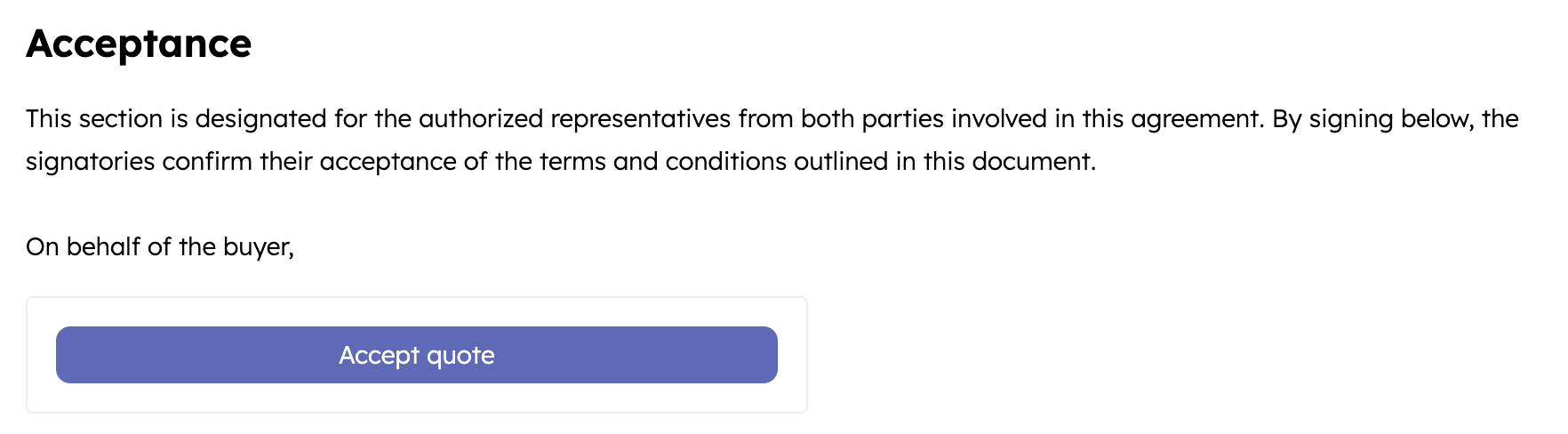
clickwrap: renders a button on the quote to allow the buyer to accept by clicking (no signature).
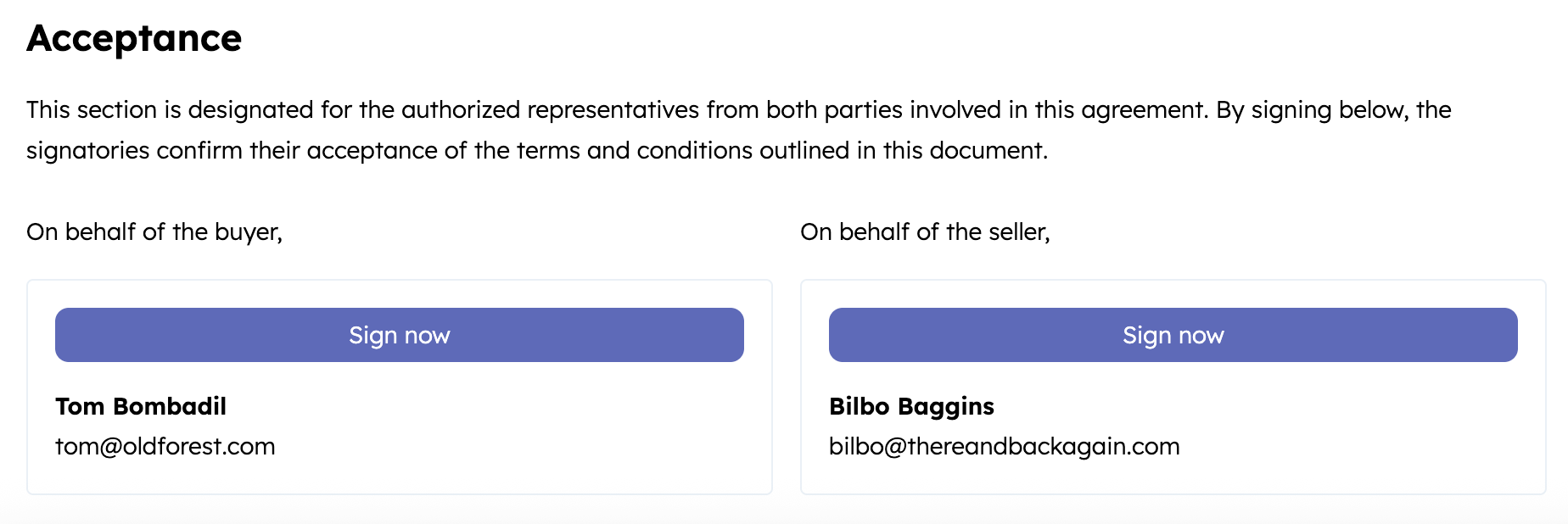
esignature: renders a button on the quote that triggers an e-signature flow. This option requires at least one buyer contact to be associated with the quote as a signer. You can add one or more countersigners via the HubSpot UI to capture seller signatures.
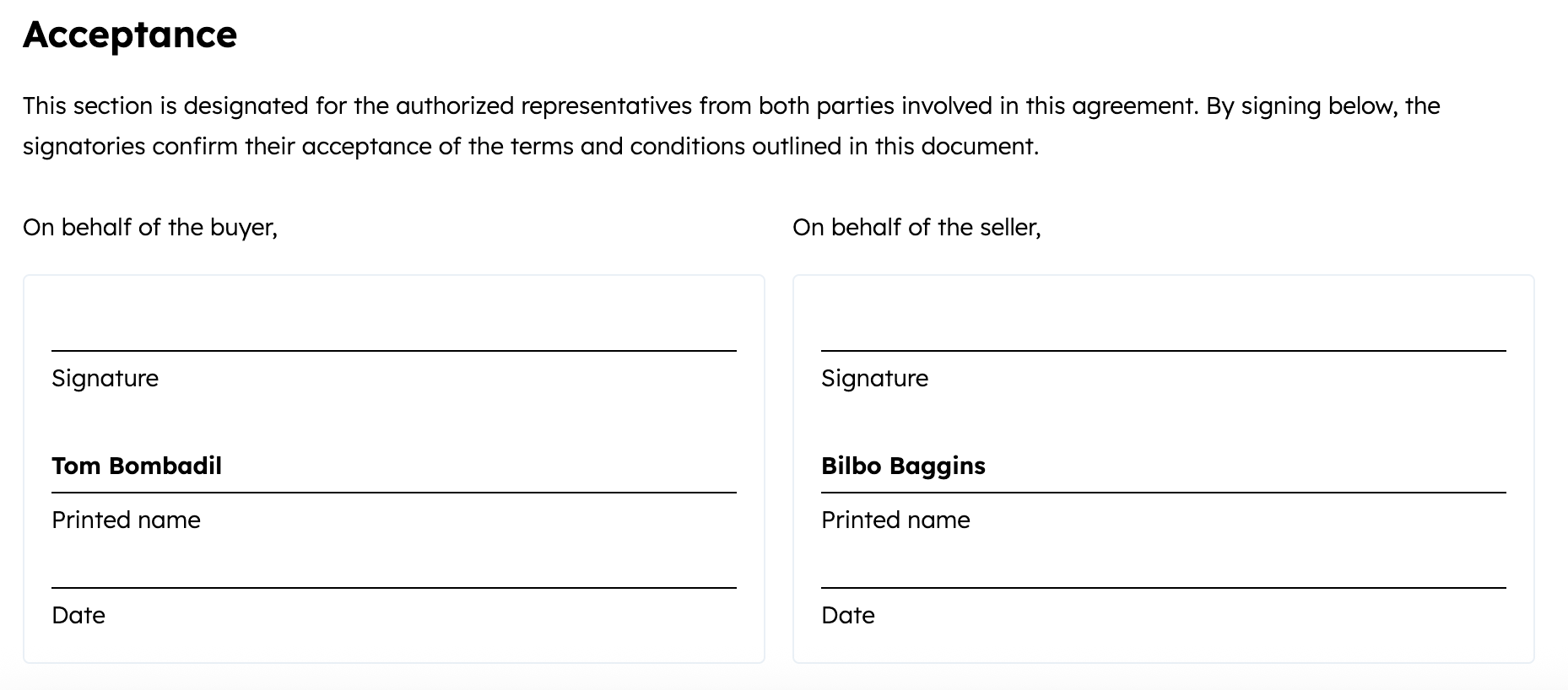
print_and_sign(default): renders fields intended for printing and signing. This option requires at least one buyer contact to be associated with the quote as a signer. You can add one or more countersigners via the HubSpot UI to capture seller signatures.
Enable payments
If you’ve set up HubSpot payments or Stripe payment processing, the quote will automatically be configured to be payable through your connected payment processor. Payment details are configured by a set of default properties, which you can update as needed.Quote associations
For a quote to be published and shared externally, it must include line item, contact, and deal associations. For quotes that require signatures, you’ll also need to associate a signing contact. You can set these associations either when creating the quote or by updating it via the associations API. By default, setting a quote’shs_template_type to CPQ_QUOTE will automatically create the quote using the default quote template. However, you can specify a different template at the time of creation if needed. The quote template’s properties, content, and associations will be added to the quote as supplemental information, with properties set on the quote overriding the quote template’s settings. Learn more about setting associations when creating a quote.
Below are the associations available for quotes.
Set associations when creating a quote
To set associations when creating a quote, include theassociations array in the request body. For each CRM object you’re associating with the quote, you’ll include an object with association details, such as the ID of the CRM record and the ID of the association type.
For example, the request body below would create a quote that’s associated with a contact, a deal, and a line item. A list of association type IDs for the available CRM object associations is provided in the table below the code sample.
Associating after creation
To configure associations for an existing quote, make aPOST request to the following associations API endpoint for each association:
/crm/objects/2026-09/quote/{quoteId}/associations/default/{toObjectType}/{toObjectId}
For example, the following request would associate a quote that has an ID of
1234567 with a contact that has an ID of 8675309:
/crm/objects/2026-09/quote/1234567/associations/default/contact/8675309
Quote templates
Quote templates can be created and customized in the HubSpot UI. When creating a quote via the API, you can specify a quote template to use by associating it with the quote at the time of creation. The quote template’s properties, content, and associations will be added to the quote as supplemental information, with properties set on the quote overriding the quote template’s settings. There are multiple ways to retrieve the ID of a quote template:- Retrieve via the quote template editor in HubSpot
- Retrieve all quote templates via the API
- Search for quote templates via the API
Retrieve an ID from the quote template editor
To find the ID of a quote template in HubSpot, navigate to the quote template editor, then copy the second number in the URL (the number that is not your HubID):
Retrieve all quote templates via the API
To retrieve all quote templates from an account, make aGET request to /crm/objects/2026-09/quote_templates?properties=hs_type.
Example response:
Search for quote templates via the API
To retrieve only the quote templates that are compatible with the CPQ system, make aPOST request to /crm/objects/2026-09/quote_templates/search.
In the request body, include a filter for the hs_type property with a value of cpq_template, as shown below.
- Request body
- Response
Editing template source code
Using the quote template editor in HubSpot, you can edit the source code of rich text template sections, such as the Acceptance section. This gives you the ability to add custom code to the template. To edit the source code of a quote template:- In your HubSpot account, click the Settings icon.
- In the left sidebar menu, navigate to Objects > Quotes.
- Click the Quote templates tab.
- Click the name of the template that you want to edit.
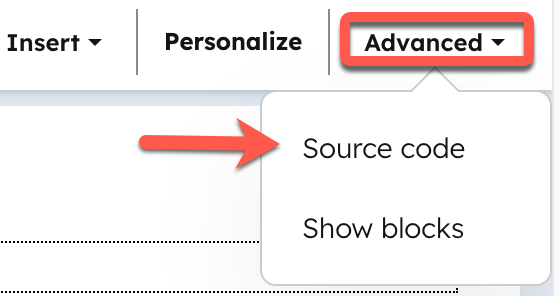
- In the editor, click into a rich text section, such as the Cover letter, Executive summary, or Acceptance section. Then, in the top bar, click Advanced > Source code.
- Add your custom code, then click Save changes.
Merge quotes
To merge two quote records, make aPOST request to /crm/objects/2026-09/quotes/merge. The remaining record combines activities, associations, and most property values from both records. For example, merge duplicate quotes to preserve historical context and consolidate their activity timelines. Learn more about what happens when you merge HubSpot records.
Include the following in your request body:
For example, to merge the record
45678 into the record 12345, your request would look like:
id is the record ID of the merged record.
Quote properties
Below is a list of available default quote properties. To fetch all available quote properties from a given account, make aGET request to crm/properties/2026-09/quotes. Learn more about the properties API.
The following properties are only supported in legacy quotes:
hs_esign_enabled(replaced byhs_acceptance_method)hs_show_signature_box(replaced byhs_acceptance_method)hs_proposal_*(e.g.,hs_proposal_domain)
Properties set by quote state
Updating the quote’s state will update the following properties:Additionally, the properties below will be calculated when the quote is published.