
Scope requirements
Scope requirements
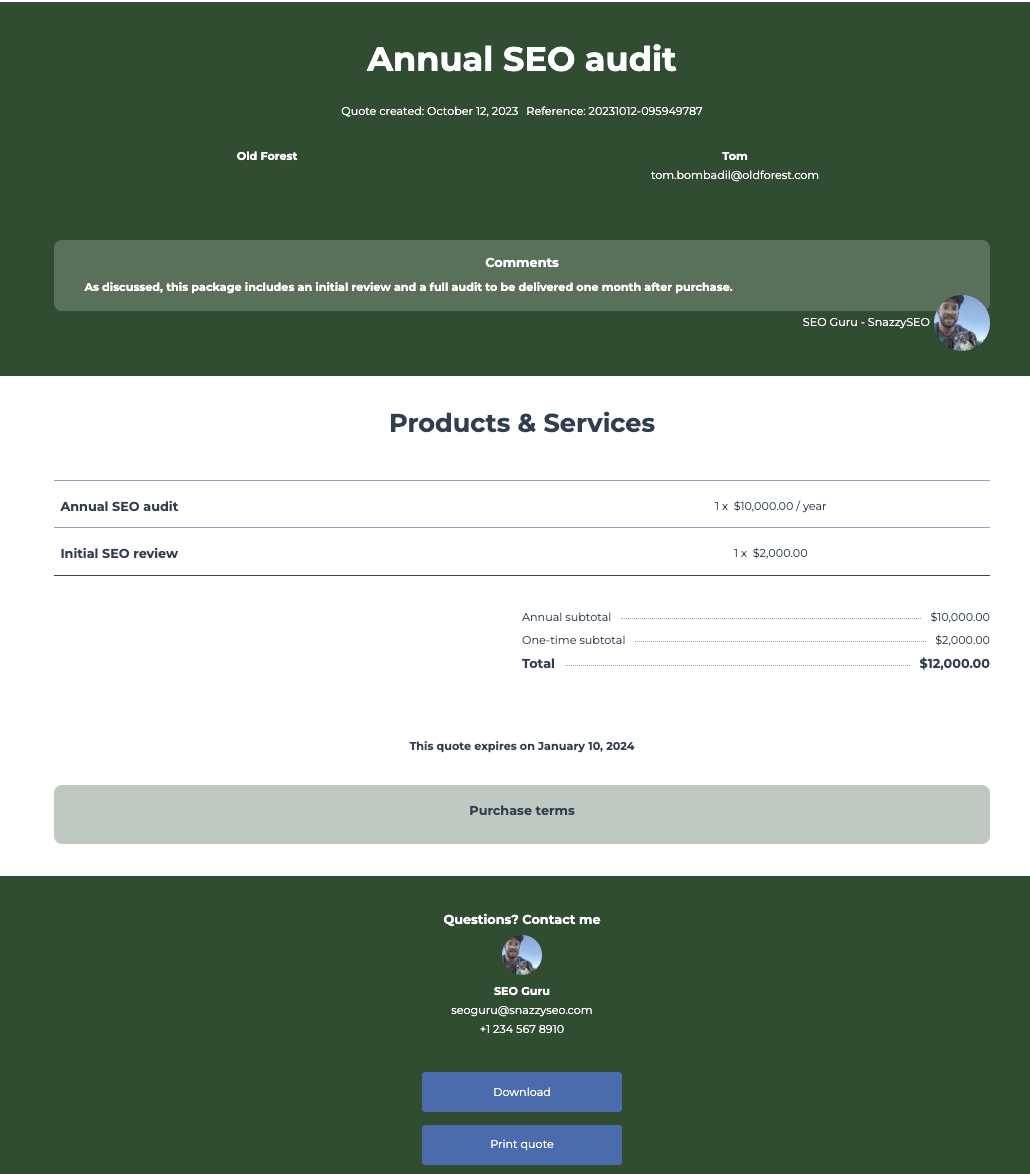
Overview
The quote creation process can be broken up into the following steps:- Create a quote: create a quote with a few details, such as name and expiration date. You can also configure the quote to enable e-signatures and payments.
- Set up associations: associate the quote with other types of CRM objects, such as line items, a quote template, a deal, and more. During the next step, the quote will inherit property values from some of these associated records as well as the account’s settings.
- Set the quote state: set the quote’s state to reflect its readiness to be shared with buyers. When you set the quote’s state, such as making it an editable draft or fully published and publicly accessible quote, it will inherit certain properties from its associated CRM records and account settings.
- Share the quote: once a quote has been published, you can share it with your buyers.
Create a quote
To create a quote, you’ll first configure its basic details by making aPOST request to /crm/v3/objects/quotes. Later, you’ll make a separate call to associate the quote with other objects, such as the quote template, line items, or a deal.
Depending on your preferred workflow, you can instead create a quote with associations through one POST request.
The above are just the minimum required properties to get a quote started, but other properties are required to publish a quote. To see all available quote properties, make a
GET request to crm/v3/properties/quotes. Learn more about the properties API.
The response will include an id, which you’ll use to continue configuring the quote. You can update quote properties at any time by making a PATCH request to /crm/v3/objects/quotes/{quoteId}.
Quote owner
Setting thehubspot_owner_id property manually isn’t possible due to it being a calculated property, and any values will be overridden. When using quotes, the property works as follows:
- If a deal is associated with the quote, the
hubspot_owner_idproperty will reflect thehs_associated_deal_owner_idproperty (hs_associated_deal_owner_idis a calculated property). - If a deal isn’t associated with the quote, the
hubspot_owner_idproperty will reflect thehs_quote_owner_idproperty.
Enable e-signatures
To enable e-signatures on the quote, include thehs_esign_enabled boolean property in your request body with a value of true. Note that you will not be able to add countersigners through the API, so those will need to be added in HubSpot before publishing the quote. You also cannot publish a quote with e-sign enabled if you’ve exceeded your monthly e-signature limit.
Enable payments
To turn on payments on a quote, include thehs_payment_enabled boolean property in your request body with a value of true. Depending on your payment processor and accepted payment methods, you’ll also need to set hs_payment_type and hs_allowed_payment_methods.
For example, to create a quote and enable HubSpot payments via credit/debit card or ACH, your request would look like:
hs_payment_status and hs_payment_date properties:
- When you publish a quote with payments enabled, HubSpot will automatically set the
hs_payment_statusproperty toPENDING. - If using ACH, when the payment is processed, HubSpot will automatically set the
hs_payment_statusproperty toPROCESSING. - When the payment is confirmed, HubSpot will automatically set the
hs_payment_statusproperty toPAID. - Once the quote is paid, HubSpot will automatically set
hs_payment_dateto the date and time that the payment was confirmed. - Once payment is confirmed, the payment is automatically associated to the quote. If you would like to retrieve more information about the payment, refer to the Payments API.
Adding associations
To create a complete quote, you’ll need to associate it with other CRM records, such as line items, using the associations API. The table below shows which CRM record associations are required for a complete quote, and which are optional. Continue reading to learn more about retrieving IDs and using them to create the needed associations.Retrieving IDs for associations
To make each association, you’ll first need to retrieve the ID of each object you want to associate. To retrieve each ID, you’ll make aGET request to the relevant object endpoint, which follows the same pattern across each CRM object. When making each request, you can also include a properties query parameter to return specific properties when needed. Below are example GET requests for each type of object.
200 response with details for each fetched object type. You’ll use the value in the id field to set associations in the next step.
Creating associations
With your IDs retrieved, you can now make calls to the associations API to create associations. For each type of object you want to associate with a quote, you’ll need to make a separate call by making aPUT request using the URL structure below:
/crm/v4/objects/quotes/{fromObjectId}/associations/default/{toObjectType}/{toObjectId}
Below are example
PUT requests for each type of object.
123456, the requests to associate the quote might include the following:
- Line items (IDs:
55555,66666):/crm/v4/objects/quotes/123456/associations/default/line_items/55555/crm/v4/objects/quotes/123456/associations/default/line_items/66666
- Quote template (ID:
987654):/crm/v4/objects/quotes/123456/associations/default/quote_template/987654 - Deal (ID:
345345):/crm/v4/objects/quotes/123456/associations/default/deals/345345
200 response with details about the association. The above calls will associate the objects in both directions, with each direction have its own ID. For example, if you associate the quote with a quote template, the response will describe the association from both ends. In the example response below, 286 is the quote-to-quote-template association type ID, and 285 is the quote-template-to-quote association type ID.
Associating quote signers
If you’re enabling the quote for e-signatures, you’ll also need to create an association between the quote and the contacts who are signing by using a specific quote-to-contact association label. Rather than using the default association endpoints shown above, you’ll need to make aPUT request to the following URL:
/crm/v4/objects/quote/{quoteId}/associations/contact/{contactId}
In the request body, you’ll need to specify the associationCategory and associationTypeId, as shown below:
Create a quote with associations (single request)
The following request body will create a new quote with associations to a quote template, a deal, two line items, and a contact.In order for the request body below to successfully create a quote in your account, you’ll need to update the object IDs in the
associations field to match existing data in your CRM. Review the Retrieving IDs for associations section for additional guidance.POST /crm/v3/objects/quote
Update quote state
A quote’s state describes how far along it is in the creation process, from initial set up to being published and publicly accessible. Quote state can also reflect the quote approval process, if quote approvals are enabled for the account. When setting a quote’s state, HubSpot will automatically fill in certain properties. You can update a quote’s state by making aPATCH request to /crm/v3/objects/quote/{quoteId}.
A quote’s state is based on the hs_status field. Certain quote states allow users to edit, publish, and use the quote in quote approval workflows. Below are the available quote states.
- No state: if no value is provided for the
hs_statusfield, the quote will be in a Minimal state. The quote will appear on the index page of the quotes tool, but cannot be edited directly. Quotes in this state can still be used in automation, such as the sequences tool, and are also available to analyze within the reporting tool. DRAFT: enables the quote to be edited in HubSpot. This state can be useful for when the quote isn’t fully configured or if you’d rather enable sales reps to complete the quote configuration process in HubSpot.APPROVAL_NOT_NEEDED: publishes the quote at a publicly accessible URL (hs_quote_link) without needing to be approved.PENDING_APPROVAL: indicates that the quote is waiting to be approved before it can be published.APPROVED: the quote has been approved and is now published at a publicly accessible URL (hs_quote_link).REJECTED: indicates that the quote has been set up but has not been approved for publishing, and must be edited before it can be submitted for approval again.
Properties set by quote state
Updating the quote’s state will update the following properties:hs_quote_amount: calculated based on any associated line items, taxes, discounts, and fees.hs_domain: set from the associated quote template.hs_slug: randomly generated if one is not explicitly provided.hs_quote_total_preference: set based on your account settings. If you haven’t configured this setting, it will default to the value of the total_first_payment field.hs_timezone: defaults to your HubSpot account’s timezone.hs_locale: set from the associated quote template.hs_quote_number: set based on the current date and time, unless one is provided.hs_language: set from the associated quote template.hs_currency: set based on the associated deal. If you haven’t associated a deal with the quote, it will default to your HubSpot account’s default currency.
hs_pdf_download_link: populated with a URL of a PDF for the quote.hs_locked: set totrue. To modify any properties after you’ve published a quote, you must first update thehs_statusof the quote back toDRAFT,PENDING_APPROVAL, orREJECTED.hs_quote_link: the quote’s publicly accessible URL. This is a read-only property and cannot be set through the API after publishing.hs_esign_num_signers_required: if you’ve enabled e-signatures, displays the number of signatures required.hs_payment_status: the status of payment collection, if you’ve enabled payments. Upon publishing with payments enabled, this property will be set to PENDING. Once the buyer submits payment through the quote, the status will automatically update accordingly. Learn more about enabling payments.
Retrieve quotes
You can retrieve quotes individually or in batches.- To retrieve an individual quote, make a
GETrequest to/crm/v3/objects/quotes/{quoteID}. - To request a list of all quotes, make a
GETrequest to/crm/v3/objects/quotes.
To retrieve a batch of specific quotes by their IDs, make a
POST request to crm/v3/objects/quotes/batch/read and include the IDs in the request body. You can also include a properties array to specify which properties to return. The batch endpoint cannot retrieve associations. Learn how to batch read associations with the associations API.
Scopes
The following scopes are required for an app to create a valid publishable quote:crm.objects.quotes.write,crm.objects.quotes.read,crm.objects.line_items.write,crm.objects.line_items.read,crm.objects.owners.read,crm.objects.contacts.write,crm.objects.contacts.read,crm.objects.deals.write,crm.objects.deals.read,crm.objects.companies.write,crm.objects.companies.readcrm.schemas.quote.read,crm.schemas.line_items.read,crm.schemas.contacts.read,crm.schemas.deals.read,crm.schemas.companies.read