
Supported products
Supported products
Prerequisites
- The HubSpot CLI installed and authenticated.
- A Revenue Hub Professional or Enterprise account.
- Familiarity with React and CMS React modules.
Download the example project
To get started, download HubSpot’s quote-dev-starter project from GitHub. It contains a working example of a typed React module that pulls quote and CRM data from HubL and hydrates an interactive island on the client. This will also run apostinstall step to install dependencies in src/cms-assets/my-react-assets/.
src/cms-assets/my-react-assets
Globals.d.ts
components/modules/QuoteExampleModule
index.tsx
islands
InteractiveButton.tsx
index.tsx: the module entry point. Exports the ReactComponent,fields,meta, andhublDataTemplate. This is where you define what data the module receives and how it renders.islands/InteractiveButton.tsx: a client-hydrated Island component that adds interactivity to the published quote.Globals.d.ts: type declarations for the project. The@hubspot/quote-dev-sdkpackage provides theQuoteTemplateContexttype used in the module, which gives you compile-time safety against thequoteTemplateContextshape available in HubL.
Review the example module
Module configuration
The module’smeta export sets its label and the content types it supports. Both QUOTE and QUOTE_BLUEPRINT are required.
index.tsx
STYLE tab for appearance options:
index.tsx
Accessing quote data
ThehublDataTemplate export is a HubL string that runs server-side and passes data into your React component via props.hublData. The example uses it to extract specific values from quoteTemplateContext and to fetch data using the crm_object() HubL function:
index.tsx
hublDataTemplate demonstrates a few key patterns:
- Targeted data:
hublDatais built as a specific object with only the values the component needs, rather than passing the entirequoteTemplateContext. This keeps the quote clean by only exposing the properties needed. - Fetching data: the example uses
crm_object()to fetch specific property values (nameanddomain) from the associated company. You can use HubL functions such ascrm_object()andcrm_associations()to fetch data beyond what’s available directly inquoteTemplateContext. - Conditional rendering: within
hublData, theis_in_editorflag is passed to React so that the component can adjust its rendering in the editor context. See Adding client-side interactivity for more information.
Providing fallback data for templates
isQuoteBlueprint is a HubL global variable that is true when the module is rendered inside a quote template rather than an individual quote. Since quote templates are not attached to a real quote, properties like company name will be empty.
The example handles this by substituting placeholder values (e.g., HubSpot) when isQuoteBlueprint is true:
index.tsx
Using quote totals
quoteTemplateContext.quoteTotals contains the calculated totals for the quote, so you can build a custom totals module or a custom line items module that displays totals alongside your line items. Because quoteTotals may not be present on every quote or template, check that it exists before reading from it.
The
QuoteTotals type requires @hubspot/quote-dev-sdk v0.3.0 or later.quoteTotals contains the following properties:
subTotals, discountSubTotals, and taxSubTotals are keyed by billing frequency. Only the frequencies used on the quote are included. The supported billing frequencies are one_time, weekly, biweekly, monthly, quarterly, per_six_months, annually, per_two_years, per_three_years, per_four_years, and per_five_years.
The following example extracts only the values a module needs in hublDataTemplate, rather than passing the full context:
index.tsx
Using tiered line item data
For line items that use tiered pricing,quoteTemplateContext.lineItemTiers contains a summary of how each line item’s price is calculated across its tiers. This is useful when building a custom line items module that shows tier breakdowns.
lineItemTiers is an object keyed by the line item’s object ID (as a string, matching the hs_object_id value on the line item). Line items that don’t use tiered pricing don’t have an entry, so check that an entry exists before reading from it.
Each entry contains the following properties:
Each object in
breakdowns contains the following properties:
The following example renders the tier breakdown for each tiered line item. It passes the line items and tiers to the module’s server-rendered component, not to an island, so that the data isn’t serialized into the published quote’s source code:
index.tsx
The
lineItemTiers type requires @hubspot/quote-dev-sdk v0.3.0 or later.Adding client-side interactivity
React modules use server-side rendering. To add client-side interactivity, you can use islands, which hydrate server-rendered HTML with client-side JavaScript. The example project includes a simple button as an island (InteractiveButton.tsx), which is a standard React component with client-side state:
InteractiveButton.tsx
index.tsx: once as a plain component (for static rendering in the editor), and once with the ?island suffix (for client-side hydration when live):
index.tsx
Passing data props
Any props you pass to anIsland are serialized into the page HTML so the component can hydrate on the client. This means island prop values are visible to anyone who views the source code of the published quote page. Because quote data can include sensitive information such as line item pricing, customer details, and custom CRM properties, you should pass only the specific property values your island needs to render.
For example, to make the quote title available to an island, pass the hs_title string:
index.tsx
quoteTemplateContext as shown below would expose all quote and associated object properties on the rendered page:
index.tsx
Conditional rendering
Don’t render islands in the quote editor. When an island renders in the editor, it causes a full reload of the quote preview (rather than a per-module hot reload), and users will see a change confirmation modal each time they make a change to the quote. To avoid this, the example island checks theisInEditor flag and renders a static version of the button component with an explanatory note instead:
index.tsx
isInEditor flag comes from hublData, where it’s set in hublDataTemplate as is_in_editor.
index.tsx
is_in_previewer variable. This is recommended for modules where the client-side interactivity writes data, as it prevents the quote author from accidentally changing something before publishing.
Rendering for print and PDF
Quotes are web pages that users can save and share as PDFs. When generating a PDF, HubSpot renders the quote with a?print=true query parameter in the URL. You can check for this parameter in island components to skip interactive behavior that doesn’t make sense in a static document.
If buyers can edit your module’s content on a published quote, you also need to tell HubSpot when the PDF is out of date. Learn more about regenerating the quote PDF.
For example, a navigation island that scrolls buyers to sections of the quote should be hidden when printing:
QuoteNav.tsx
@media print CSS media query. For example, to hide a navigation element that only makes sense in the browser:
Control acceptance and payment state
@hubspot/quote-dev-sdk provides two hooks for reading and controlling the live acceptance and payment state of a quote from within a custom module:
Both hooks must be used inside an island component, since they rely on client-side events.
These hooks require
@hubspot/quote-dev-sdk v0.2.0 or later.useQuoteAcceptance
The useQuoteAcceptance hook returns { loading, error, data, control }.
data contains the following:
control exposes enable() and disable({ reason? }). Note that disable() will have no effect when accepted is true or when acceptanceMethod is 'print_and_sign'.
The starter project’s RequiredAgreementModule shows a complete working implementation. The module is split across two component files: a parent index.tsx that detects the editor context and wraps the interactive piece in an Island, and islands/TermsAcceptance.tsx, which contains the hook logic. The island renders a terms checkbox and calls control.disable() or control.enable() based on the buyer’s input:
The
isInEditor prop is passed in from the parent index.tsx, which calls useEditorVariableChecks() to detect the HubSpot page editor context. The guards in useEffect and handleChange prevent the hook from firing during editor previews.useQuotePayment
The useQuotePayment hook returns { loading, error, data, control }.
data contains the following:
control exposes enable() and disable({ reason? }). Note that disable() will have no effect when status is 'PAID' or 'PROCESSING'.
Regenerate the quote PDF
If buyers can change what your module displays on a published quote (for example, by selecting an option or editing a value), the quote’s PDF needs to reflect those changes. Use theuseQuotePdf hook to tell HubSpot when the PDF is out of date, and to find out when buyers can no longer make changes that would affect it.
Like the acceptance and payment hooks, useQuotePdf must be used inside an island component.
The
useQuotePdf hook requires @hubspot/quote-dev-sdk v0.3.0 or later.useQuotePdf hook returns { loading, error, data, actions }.
data contains the following:
actions contains the following:
Call
reportPdfStale() whenever the appearance of your module changes, typically after a buyer edit. You don’t need to regenerate the PDF yourself.
When buyers can change the PDF
A quote’s PDF can’t be regenerated once the quote has been partially or fully accepted.canReportPdfStale reflects this, and is false in the following cases:
- E-signature: at least one signer has signed.
- Clickwrap: the quote has been accepted.
- Print and sign: a sales rep has marked the quote as signed in HubSpot.
- Void quotes: the quote has been voided.
- While loading: the acceptance or quote status is still loading.
data.canReportPdfStale defaults to false, so your module stays disabled rather than briefly appearing interactive. Disable your module’s inputs while loading is true or canReportPdfStale is false.
Example
The following island lets buyers choose whether to include an optional add-on. It disables the checkbox while the quote state loads and after the quote is accepted, and callsreportPdfStale() when the buyer makes a change.
AddOnSelector.tsx
Note that in the above example, the checkbox state would need to be persisted, using a backend database or via a property in HubSpot so the correct state would appear in the PDF.
index.tsx, check the editor and previewer flags before rendering the island:
index.tsx
isInEditorOrPreviewer value comes from hublData, where it’s set in hublDataTemplate:
index.tsx
E-signature usage
If a quote uses e-signatures, regenerating the PDF can count toward your monthly e-signature limit. Regenerating the PDF for download doesn’t use any additional e-signatures. However, after any signer has initiated signing, an edit that causes the PDF to regenerate counts as an additional e-signature. Initiating signing means that a signer has selected the e-signature option to begin the signing process. Edits made before signing is initiated don’t count. Learn more about e-signature limits.Upload the project
To upload the example project to your HubSpot account, run the following CLI command:Add the module to a quote
To see your module in the quote editor:- In your HubSpot account, navigate to Commerce > Quotes.
- In the upper right, click Create quote, then select Create quote.
- In the right panel, select a deal and quote template to use for the quote. Then, click Create quote.
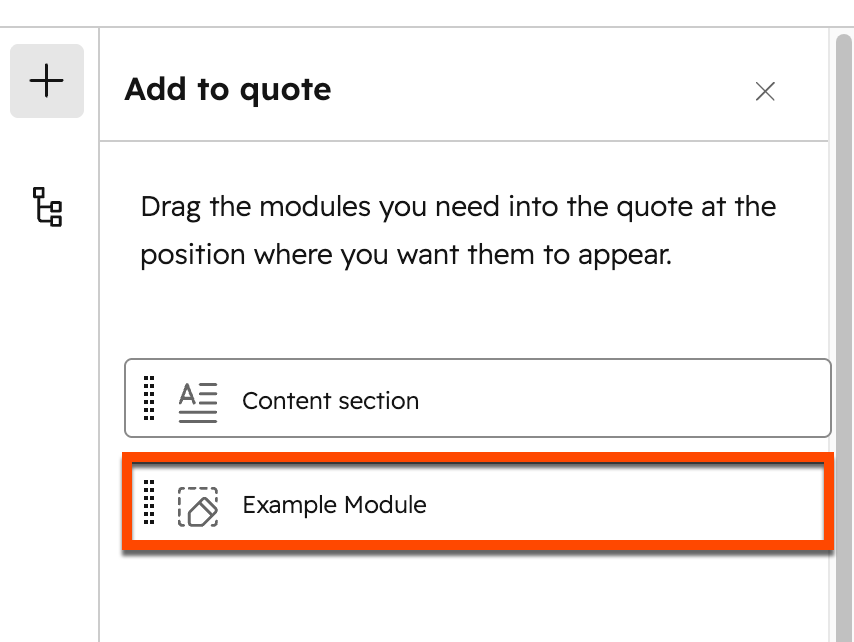
- In the left sidebar of the quote editor, click the plus icon.
- Drag and drop the Example Module into the quote.
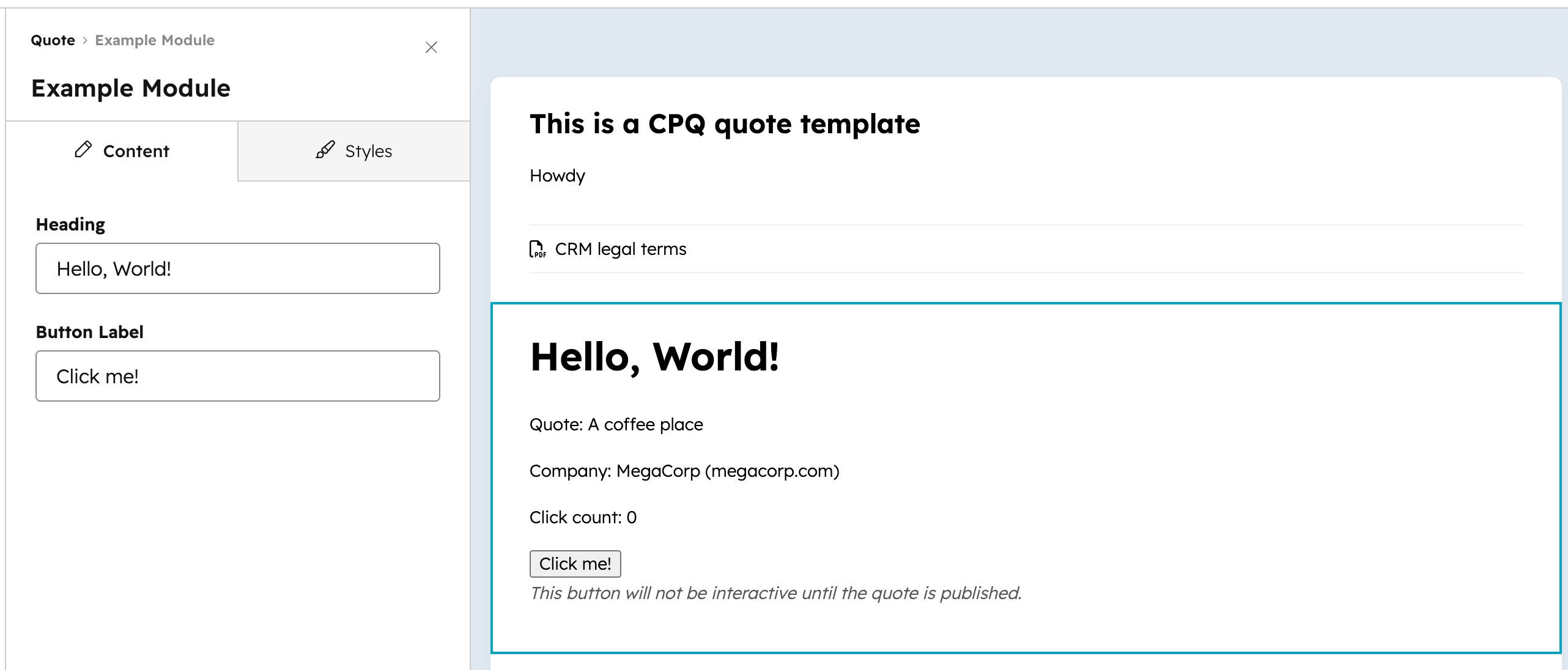
Published quote behavior
Quotes are rendered once at the time of publish. Keep the following in mind when updating or removing custom modules:- If you deploy a new version of a custom module, the changes will apply to future quotes and any unpublished drafts, but not to quotes that have already been published.
- If you delete or remove a custom module from the project, it will affect unpublished quotes and templates that use it. Published quotes will not be affected. Learn more about deleting and restoring modules.
Delete and restore modules
Impact of deleting a module
When you deploy a new build with a module removed from the project:- The module is no longer available when creating new quote templates or quotes.
- Existing published quotes are unaffected until they are recalled.
- Templates or draft quotes that use the deleted module will automatically have the module removed. When a user edits one of these templates or draft quotes, an alert will be shown informing them about the deletion.
Restore a deleted module
Once a module is deleted through a deploy, it cannot be restored by adding the module file back to your local project and re-uploading. Instead, deploy an older build that still contains the module through the projects UI in HubSpot. This makes the module available again so it can be added to new quote templates and quotes. However, templates or draft quotes that were already saved with the module removed will not have the module added back automatically — the module must be re-added to those templates or drafts manually.- In your HubSpot account, navigate to Development. Then, click the name of your project.
- Click the Builds & Deploys tab.
- Find the build that contains the module you want to restore, then click Deploy.
- Before your next CLI upload, ensure your local project includes the original module file and any changes from newer builds so they aren’t lost on the next deploy.